 Emily CarterDLL Errors
A d3d12.dll error can interrupt an application before it opens or appear during a crash. The correct repair depends on whether Windows components are damaged, updates are missing, or one application's installation is incomplete. Start by recording the exact error, then choose the matching repair below. Avoid replacing the file with an unrelated download.
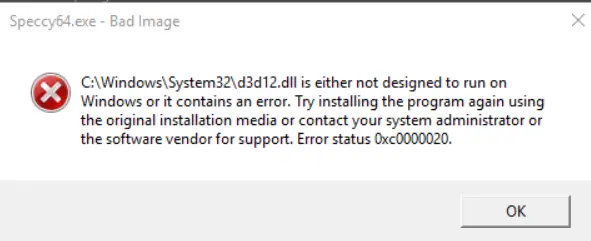
Microsoft identifies D3D12 as a built-in Windows component. However, an application's related D3D12Core.dll can be supplied separately with that application. These files require different repair decisions, as explained in Microsoft's D3D12 component documentation .
Symptoms
- A missing-file or not-found message specifically names d3d12.dll.
- An entry-point or loading error prevents an application from starting.
- A crash report names d3d12.dll, although the report alone does not establish the cause.
- Only one application fails, or several applications show related loading problems.
Record the full message, file path when shown, affected application, and application version. A message naming D3D12Core.dll needs attention to the application's packaged components rather than automatic replacement of d3d12.dll.
Quick Diagnosis Checklist
- Unsure which DLL or component is damaged? Method 1 offers automated DLL and DirectX checks.
- Windows updates are pending? Use Method 2 to obtain applicable Windows-provided DirectX updates.
- Only one application fails? Use Method 3, especially after an incomplete application installation or update.
- Several applications fail or Windows corruption is suspected? Use Method 4 to check Windows components and protected files.
For diagnostic information, search Windows for
dxdiag
. Under System, record the DirectX version in System Information. Microsoft documents these checks in its
DirectX diagnostic guide
. A version number is useful context, but does not prove the failing application works.
Quick Method Comparison
| Method | Best For | Efficiency | User Effort |
|---|---|---|---|
| 1. Fionn DLL Fixer | Recommended for automated DLL and DirectX diagnosis | Combines detection and repair controls | Guided interface |
| 2. Windows Update | Pending Windows component updates | Targets available Windows updates | Settings and possible restart |
| 3. Application repair | A failure isolated to one application | Targets that installation | Depends on available repair controls |
| 4. DISM and SFC | Suspected Windows corruption | Checks Windows components and protected files | Administrator commands |
Method 1: Diagnose and Fix d3d12.dll Errors with Fionn DLL Fixer
Recommended for automated diagnosis: Fionn DLL Fixer checks missing, damaged, and mismatched DLLs, including DirectX and D3D Runtime issues. This provides a practical route when locating the faulty component manually is difficult. A completed repair still requires testing the original application.
- Launch Fionn DLL Fixer. The software automatically scans your PC for DLL and system issues and displays the detected results when the scan is complete.
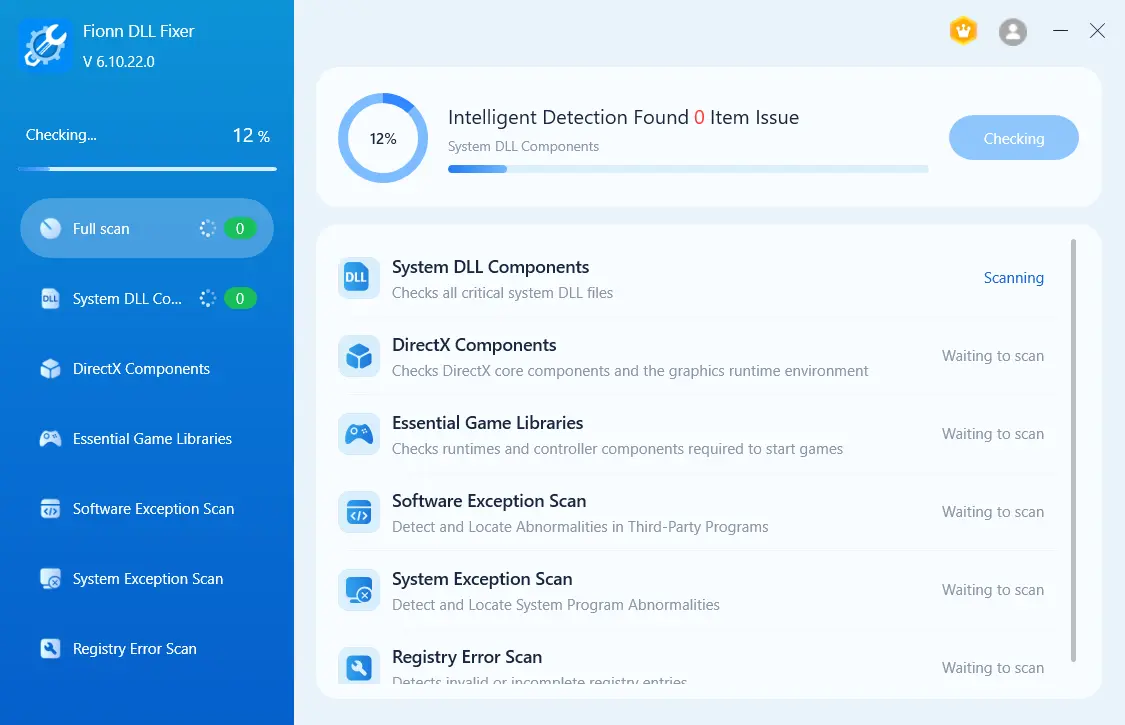
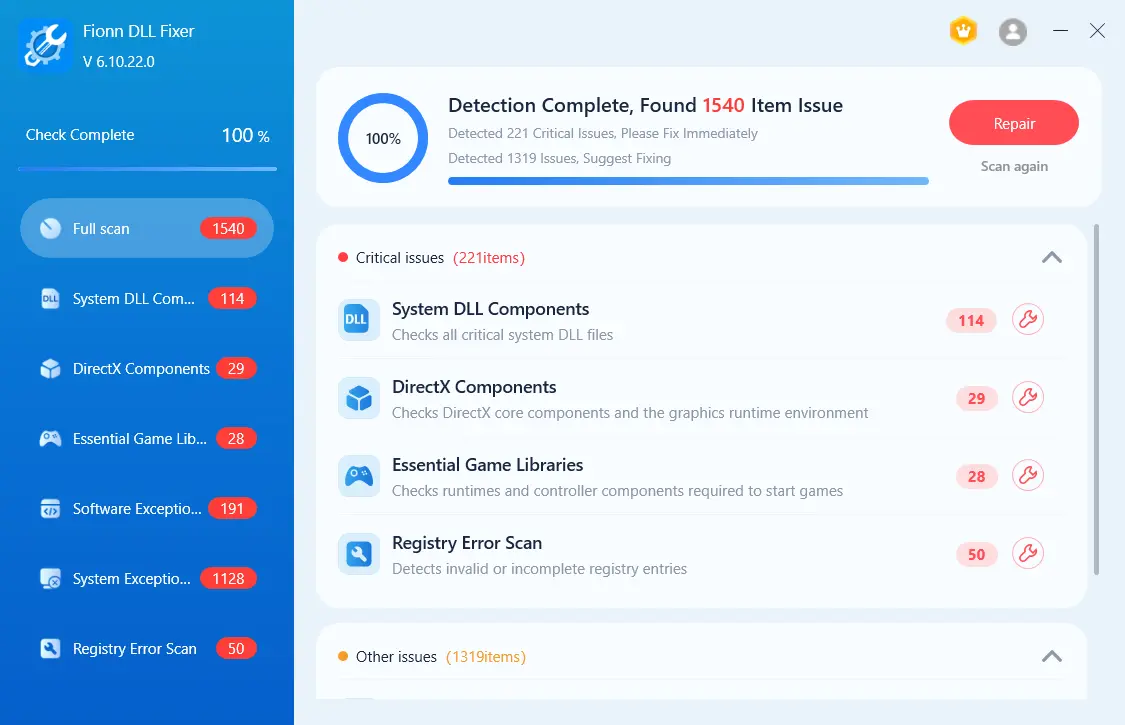
- After the scan finishes, click Repair to start fixing all detected DLL and system issues automatically.
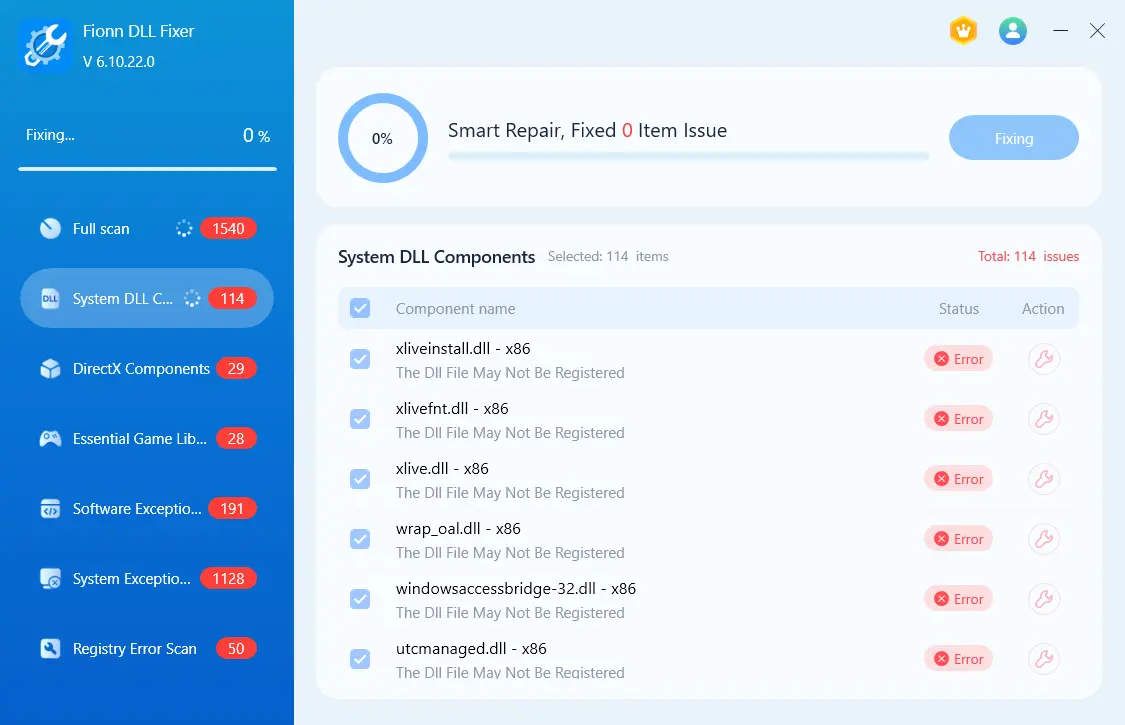
- Wait while the repair is in progress. During this process, the button changes to Fixing until all issues have been repaired.
- When the repair is complete, click Ok in the confirmation dialog. If prompted, restart your computer before checking whether the problem has been resolved.
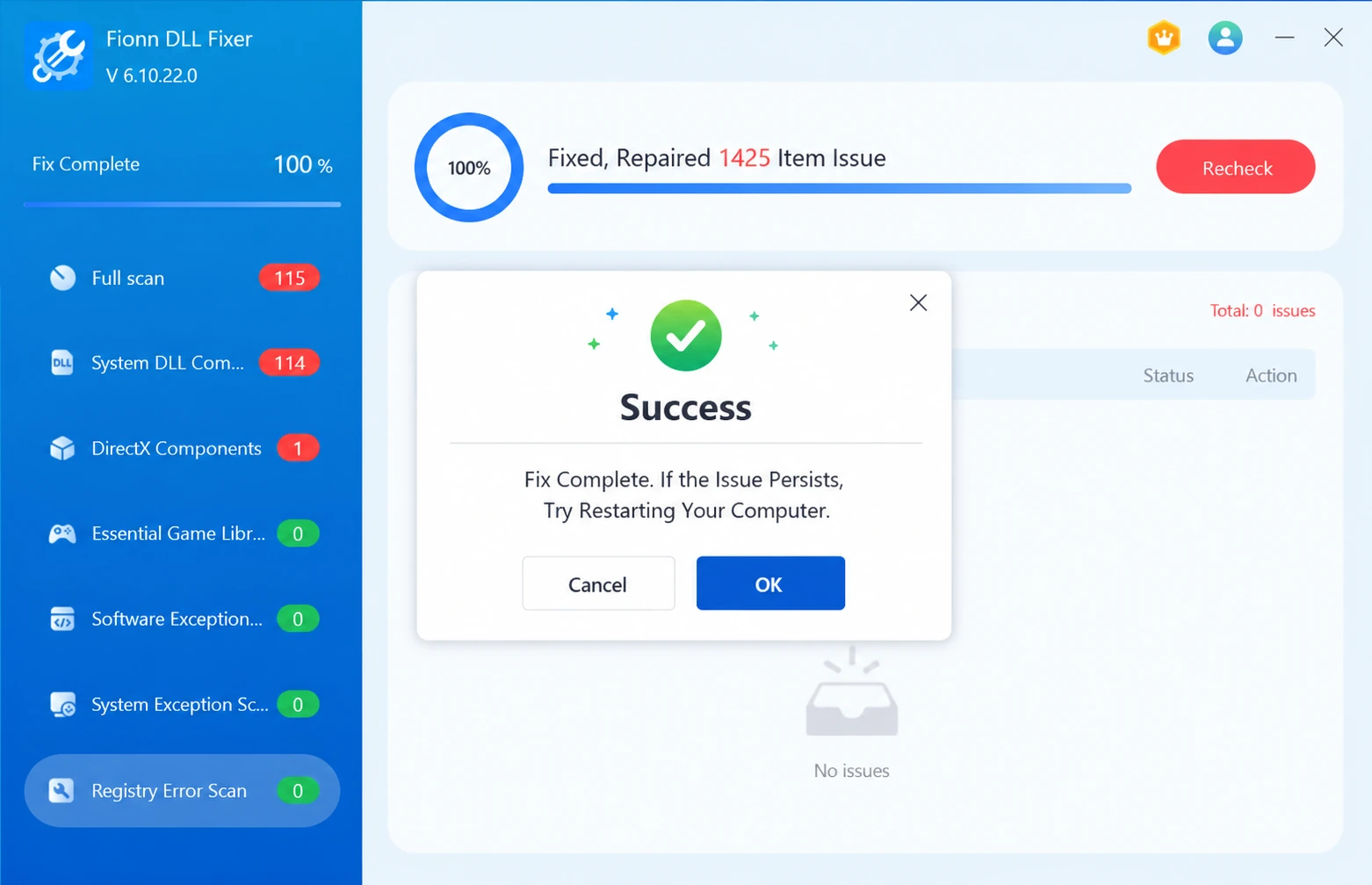
- If the issue still persists after restarting, click Recheck to perform another scan. If new issues are found, click Repair again to fix them.
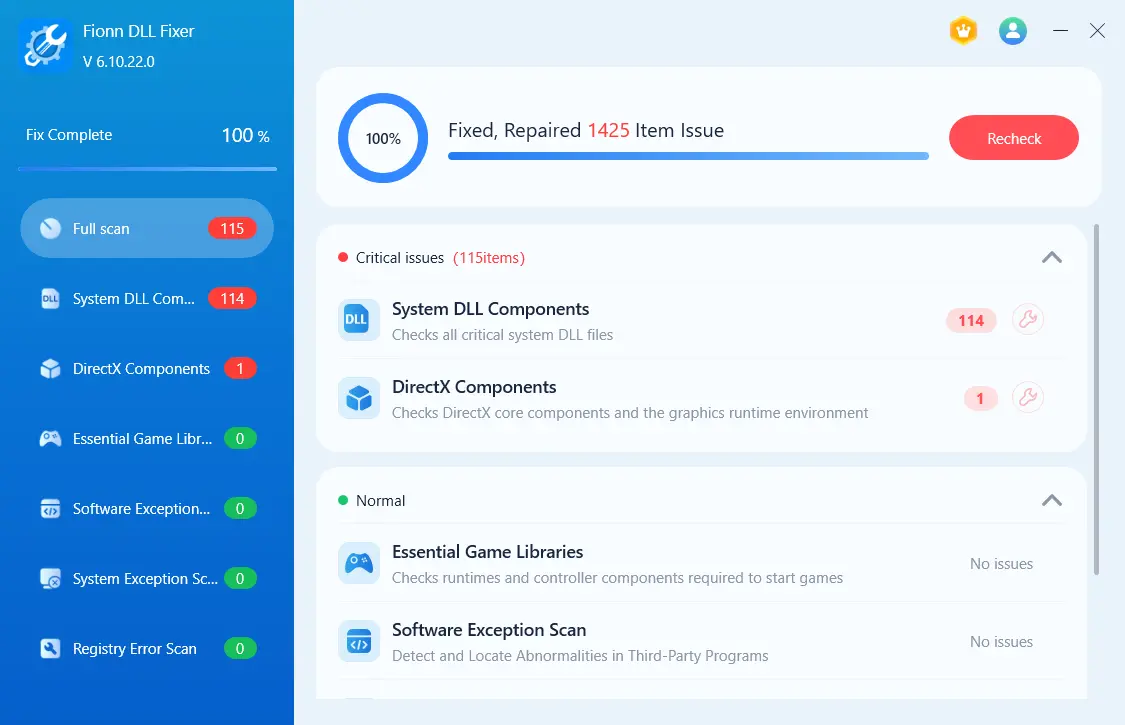
Open the affected application and repeat the action that originally failed. Success means the original DLL message no longer appears and the application completes that action.
Method 2: Update Windows-Provided DirectX Components
Use this route when updates are pending. Microsoft directs users to Windows Update for DirectX updates applicable to their Windows version.
- Open Settings.
- Open Windows Update on Windows 11, or Update & Security > Windows Update on Windows 10.
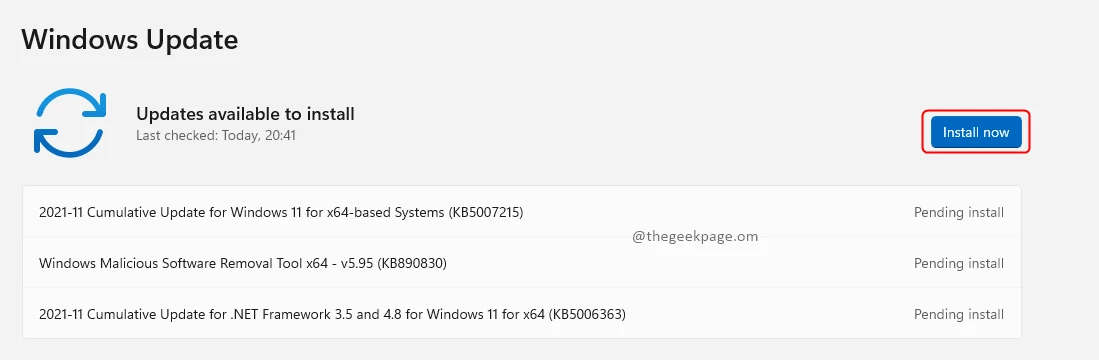
- Select Check for updates.
- Install the updates offered for your device.
- Restart when requested.
Check whether installation completed successfully, then reopen the affected application. Follow Microsoft's Windows Update instructions if an update fails.
Method 3: Repair the Affected Application
Choose application repair when only one program fails. This is particularly relevant when its installation contains D3D12Core.dll: Microsoft documents that a missing or mismatched application-packaged copy can prevent device creation.
- Close the affected application.
- Open Settings > Apps > Installed apps on Windows 11, or Settings > Apps > Apps & features on Windows 10.
- Select the application's More menu on Windows 11, or select the application on Windows 10.
- Open Advanced options if available.
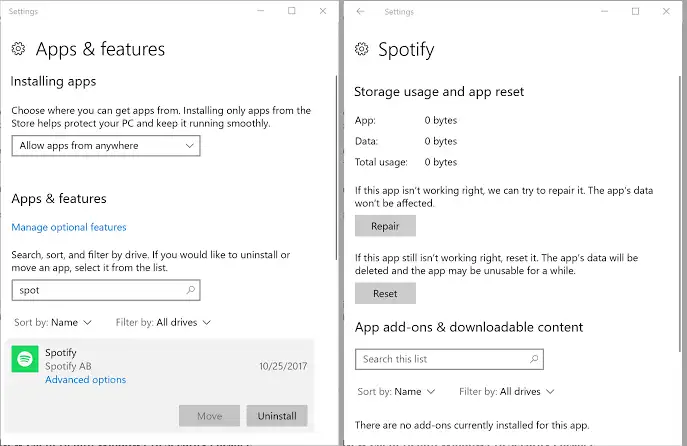
- Select Repair if offered.
These controls vary by application. Microsoft's application repair instructions also describe the Control Panel route for supported desktop programs. If repair is unavailable, consult the application's publisher for its installation-repair procedure.
Launch the application again. Reaching its normal start screen and completing the previously failing task establishes a useful recovery result.
Method 4: Repair Windows Components with DISM and SFC
Use this branch when broader symptoms suggest Windows corruption. Follow Microsoft's system-file repair procedure in this order.
- Search for Command Prompt and open it with Run as administrator.
- Run the following command and wait for completion:
DISM.exe /Online /Cleanup-image /Restorehealth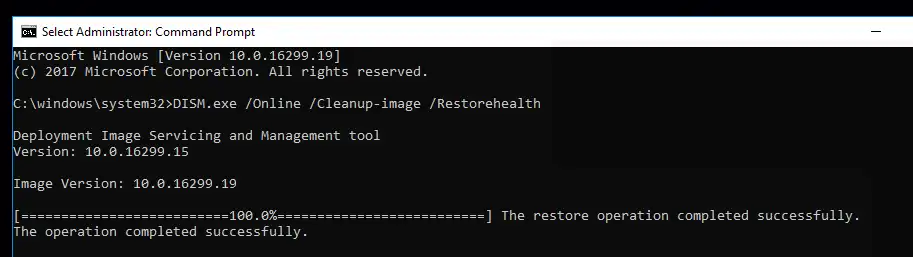
- After DISM completes successfully, run:
sfc /scannow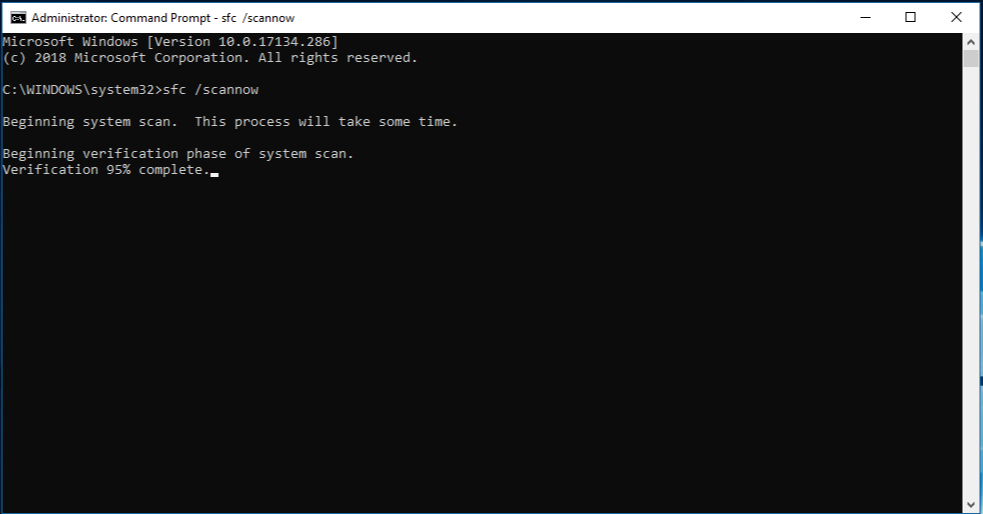
- Keep the window open until verification finishes, then record the result.
A successful repair result confirms system-file repair, not application recovery. If SFC finds no integrity violations, investigate the application branch. If files remain unrepaired or DISM fails, follow Microsoft's linked troubleshooting guidance rather than repeatedly replacing DLLs.
DISM normally obtains repair files through Windows Update. A broken update source can require a suitable alternative source; do not guess a replacement path.
Verification Checklist
- The original application opens without the same DLL dialog.
- The previously failing action completes without the same crash.
- Any requested restart has been completed.
- Repair results and any remaining error text have been recorded.
Conclusion
Choose automated diagnosis with Fionn DLL Fixer when the component is unclear, Windows Update for pending updates, application repair for isolated failures, and DISM/SFC for suspected Windows corruption. Test the original task afterward. If the error persists, contact the application developer or Microsoft support with the exact message, application version, and diagnostic results.
FAQ
Should I download d3d12.dll separately?
Use Windows component repair or the affected application's official repair route instead of an unverified standalone DLL. The filename alone does not identify a suitable replacement version.
Will the legacy DirectX installer repair d3d12.dll?
The DirectX End-User Runtime Web Installer supplies older optional libraries. Microsoft states that it does not modify the Windows DirectX runtime or change its version, so it is not a DirectX 12 upgrade method.
Are d3d12.dll and D3D12Core.dll interchangeable?
No. Applications call the Windows d3d12.dll, while applications using the Agility SDK can supply a matching D3D12Core.dll. Repair the relevant Windows component or application package rather than renaming either file.
What should I send support if the error continues?
Provide the full error, DLL path, application version, repair results, and a diagnostic report. Open
dxdiag
and select Save All Information to export the report. Explain whether one application or several applications fail.


