 Emily CarterData Recovery
To recover deleted Steam game save files, first stop using the drive where the save was stored. Check the Recycle Bin and, if the affected game supports it, Steam Cloud. If no usable copy remains, scan the original storage and save recovered files to a different drive.
Steam Cloud is game-specific: it works only when the developer configured Cloud file paths or implemented Cloud API calls. For supported games, Steam synchronizes configured files before and after a game session. A restored local save can therefore be changed by synchronization while you test it.
Prevent Overwriting and Check Steam Cloud
Do not download, install games, copy files, format the affected drive, or create a partition on it. New writes can overwrite deleted data. Prepare another drive or external device for recovered files.
- If the affected game supports Steam Cloud and you have a recovered local save ready to test, open Steam Settings, open Cloud, and turn off Cloud synchronization for supported applications.
- Alternatively, disable Cloud synchronization in the affected game’s Properties.
- Keep the recovered copy on the separate destination drive until you have confirmed the game’s publisher-documented save location and tested a copy.
Steam documents the global and per-game Cloud controls in its Cloud documentation . Do not assume that a particular game supports Cloud or stores saves in a universal Steam folder.
Recover Local Steam Saves with Fionn Data Recovery
Use this method when no usable Recycle Bin or Cloud copy remains and the original PC drive, external drive, USB drive, or SD card is still readable. Fionn Data Recovery scans locally in read-only mode and can filter results by file name, location, type, time, and size. Previewing candidates helps you avoid restoring the wrong file.
- Before opening the tool, stop copying, downloading, editing, formatting, partitioning, or installing software on the affected drive, and prepare a separate destination drive with enough free space.
- Launch Fionn Data Recovery and select the recovery option for the type of data or storage location you want to recover.
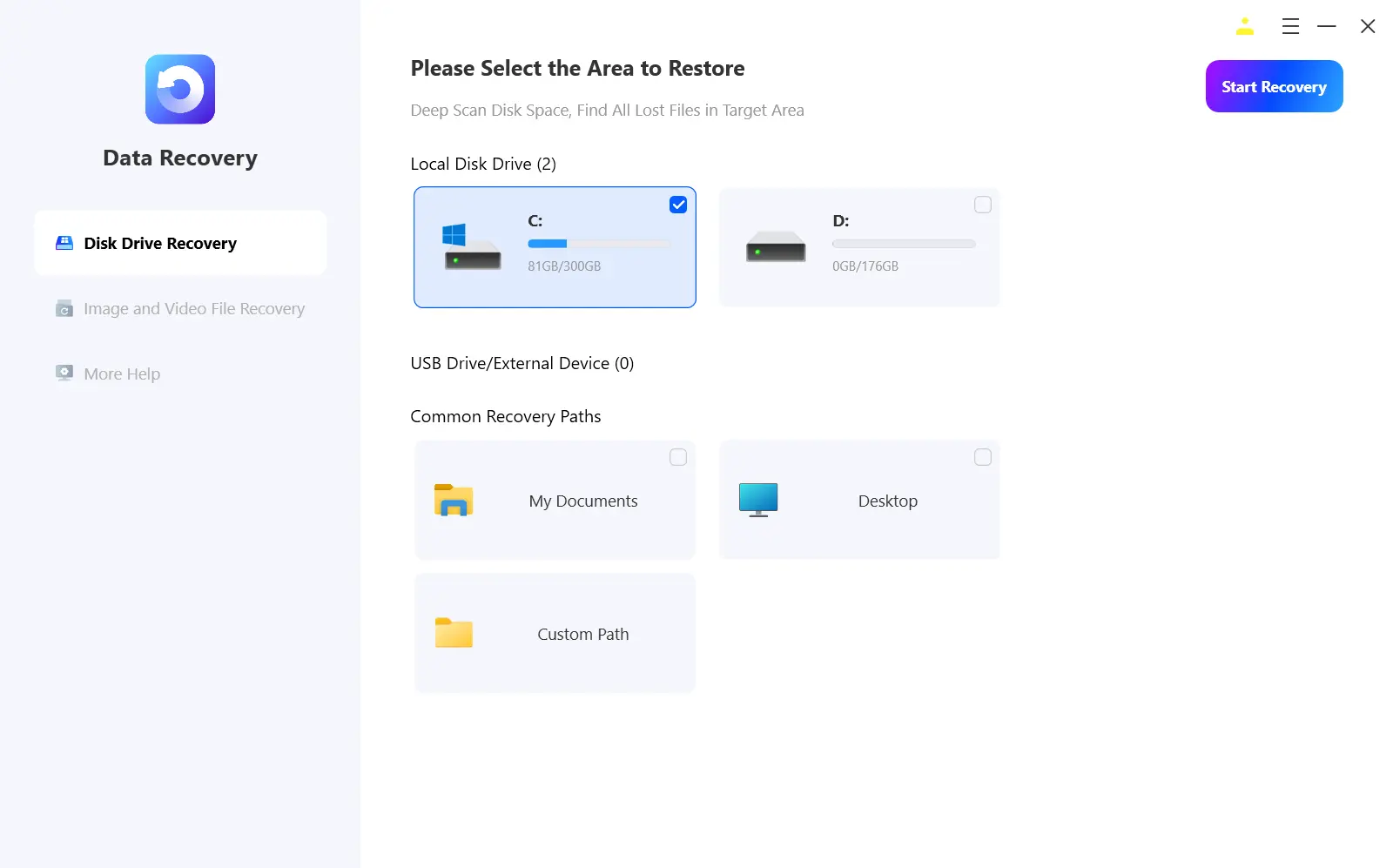
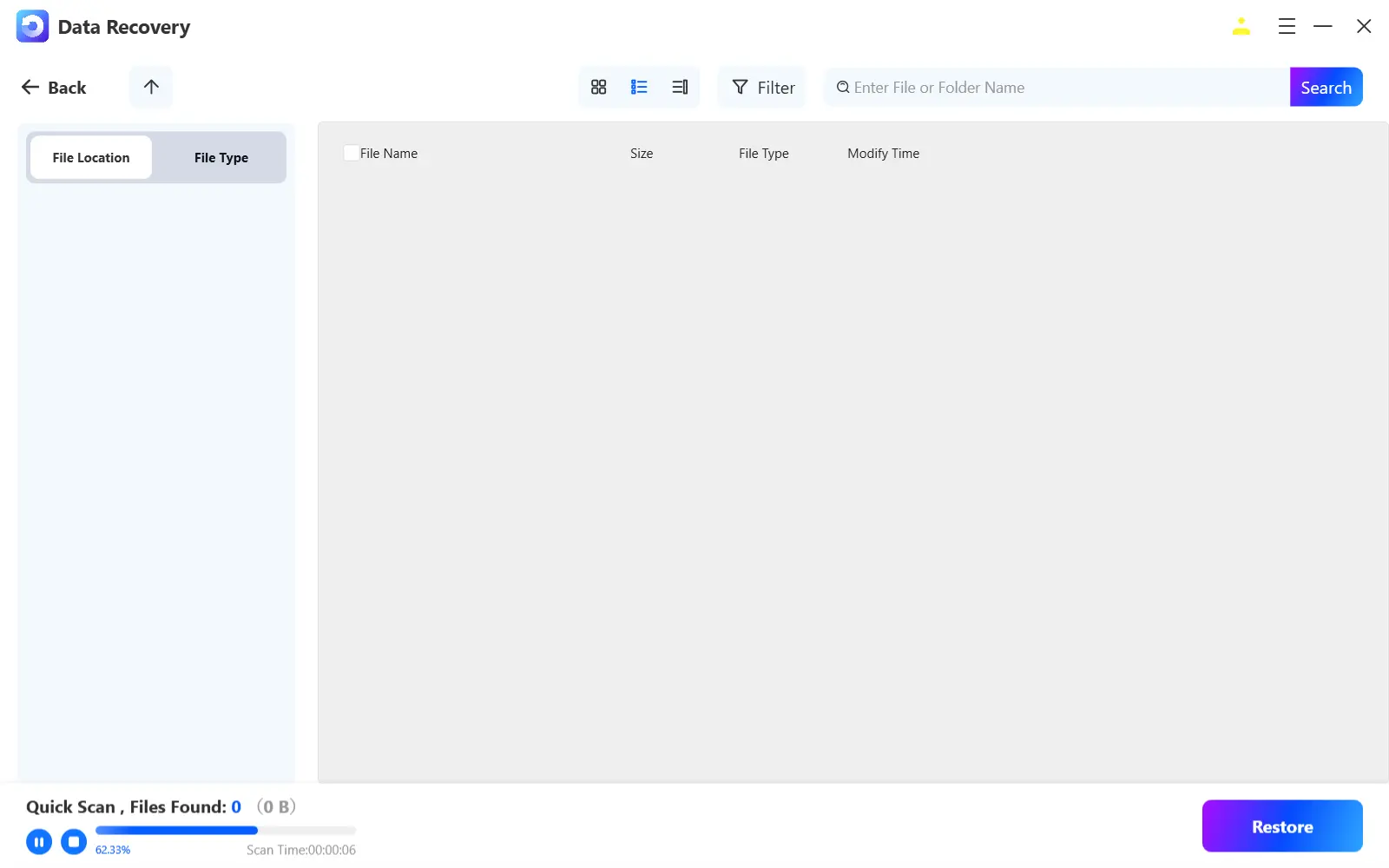
- Start the automatic scan and wait while Fionn Data Recovery searches the selected location for deleted or lost files.
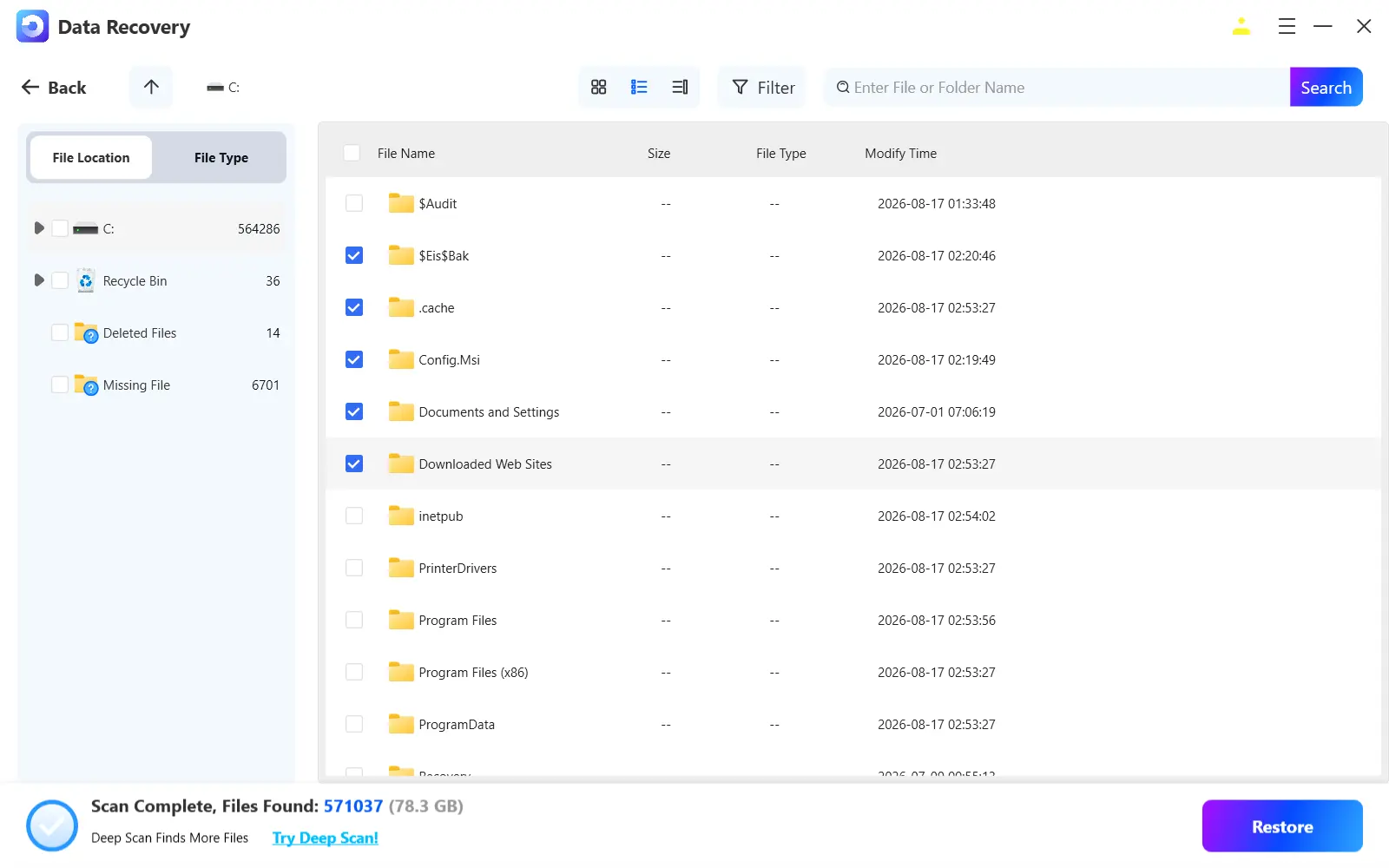
- After the scan finishes, browse the results and preview the files to select the data you want to restore.
- Select a destination folder to save the recovered files, then start the recovery process.
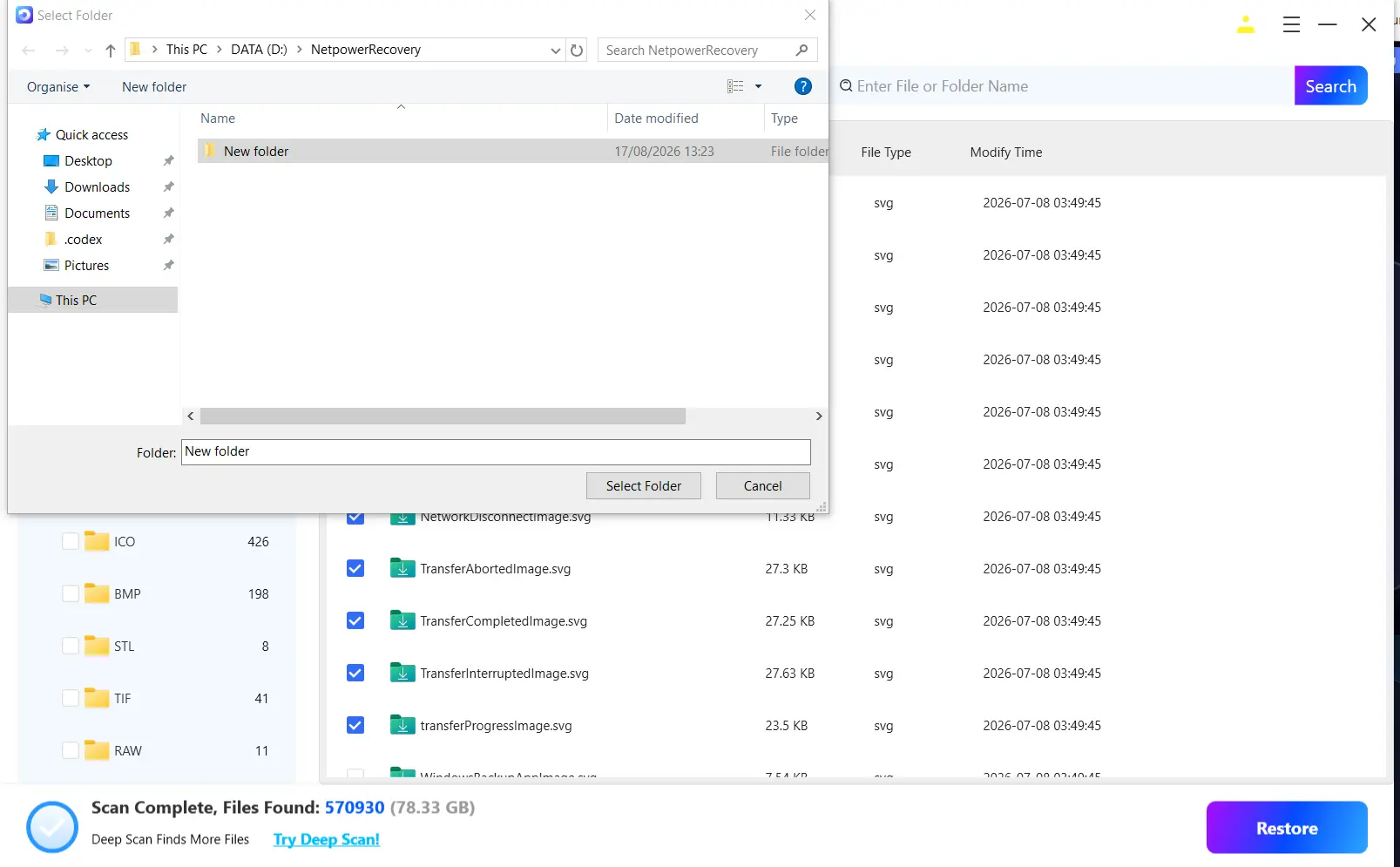
If the target is absent from the initial results, Fionn offers deep and file-signature-based RAW scans. Open recovered files from the separate destination drive first. Then use a copy only after confirming the affected game’s required save location; launch the game to see whether it recognizes that copy.
See Fionn’s documented scan, preview, and separate-destination recovery procedure. A paid license or subscription may be required for recovery or export after free scanning or preview functions; current plan boundaries are not established here.
Restore a Save from the Recycle Bin
Use this first when a save or related game file was deleted normally and may not have been permanently removed.
- Open Recycle Bin from the Windows desktop.
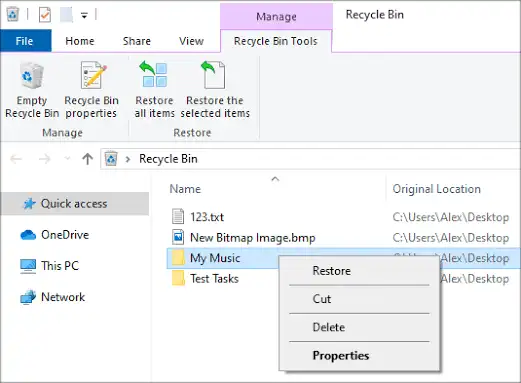
- Check whether the deleted save or related game file is present.
- Right-click the file and choose Restore.
- Confirm that the file returns to its original location, then launch the affected game to check whether the expected save is available.
This documented Recycle Bin recovery procedure applies only when the deleted file is still in Recycle Bin.
Recover a Local Save with Recuva
Recuva is a Windows file-recovery application with a guided Wizard. Choose it if you know the deleted file’s original location and want an alternative recovery workflow.
- Start Recuva and continue through the Recuva Wizard.
- Select All Files if the save extension is not covered by the listed file categories.
- Specify the original file location and start the scan.
- Select candidate files and choose another drive as the recovery destination.
- Open recovered files in their original application, or test a copy in the game after confirming the game’s required save location.
Recuva does not guarantee recovery of a particular file and cannot repair a recovered file that is damaged. Follow the official Recuva Wizard instructions and recovery guidance .
Conclusion
Start with the least invasive options: check Recycle Bin and determine whether the affected game supports Steam Cloud. If the save is gone locally, stop writing to the source drive and recover candidates to another drive. Fionn Data Recovery is relevant when you need local, read-only scanning, result filtering, and previews; Recuva is a documented Windows alternative. Recovery is complete only when a copy is placed in the game’s confirmed save location and the game recognizes it. Because the affected game and save path are unknown, confirm that location with the game publisher before replacing any live save.
Frequently Asked Questions
Can Steam Cloud recover every deleted Steam save?
No. Steam Cloud works only for games whose developers configured Cloud file paths or implemented Cloud API calls. Check whether the affected game supports it before relying on a cloud copy.
Where are Steam save files stored on Windows?
Locations vary by game. Steam documents Auto-Cloud Windows roots including My Documents, AppData Local, AppData LocalLow, AppData Roaming, and Saved Games, but that does not establish the save folder for a specific game.
Can I recover a deleted Steam save from an SSD?
You can attempt recovery, but success is uncertain. SSD storage management and further writes can reduce or eliminate recoverability. Stop using the SSD and recover files to another drive.
Should I disable Steam Cloud before testing a recovered save?
If the game supports Steam Cloud, temporarily disabling synchronization can help prevent a sync from changing files while you test. Steam documents both global and per-game Cloud controls.
Why is a recovered save not recognized by the game?
The file may be incomplete, damaged, or outside the game’s required save location. Keep the recovered original separate, verify the correct location with the game publisher, and test a copy rather than overwriting other saves.


