 Emily CarterAuto Clicker
For basic repeated clicking, both OP Auto Clicker and GS Auto Clicker offer documented controls for click type, repeat behavior, and hotkey-based starting. The practical difference is scope: OP Auto Clicker is a strong fit for a single current or fixed position, while GS Auto Clicker adds a documented workflow for recording and replaying multiple screen points. If you need Windows automation beyond those patterns, Fionn Auto Clicker is a relevant third option with normal clicking, action recording, and scheduling features.

Quick Comparison Table
| Tool | Best for | Documented click controls | Documented multi-point workflow | Cost information |
|---|---|---|---|---|
| OP Auto Clicker | Repeating one cursor or fixed-position action | Left, right, or middle buttons; single, double, or triple clicks; finite or infinite repeats | Not covered by the supplied official evidence | Free, open source, portable, and ad-free according to its site |
| GS Auto Clicker | Single-point clicking or a recorded sequence of points | Mouse button, single or double click, interval, and repeat count | Yes; record and replay multiple clicks | Free and ad-free according to GoldenSoft |
| Fionn Auto Clicker | Windows users who may need simple clicks plus broader local automation | Click type, interval, repetitions, and hotkeys | Records, replays, edits, and exports mouse and keyboard actions | Three free trials |
OP Auto Clicker Overview
OP Auto Clicker supports clicking at the current cursor location or a preset location. Its official site also documents configurable click counts, including an unlimited setting, plus customizable hotkeys and saved settings. That makes it well suited to a stable, single target such as a repeated button in one desktop workflow.
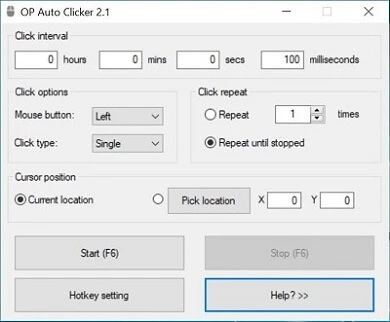
Its Windows getting-started guide directs users to set the interval, button, click type, repeat mode, click count, and location, then start with the button or default F6 hotkey. See the OP Auto Clicker getting-started guide for the vendor’s full setup sequence.
GS Auto Clicker Overview
GS Auto Clicker supports a chosen hotkey, button selection, single or double clicks, time intervals, and either continuous or finite clicking. Its distinguishing documented feature is multi-point automation: it can record click locations and replay that sequence.
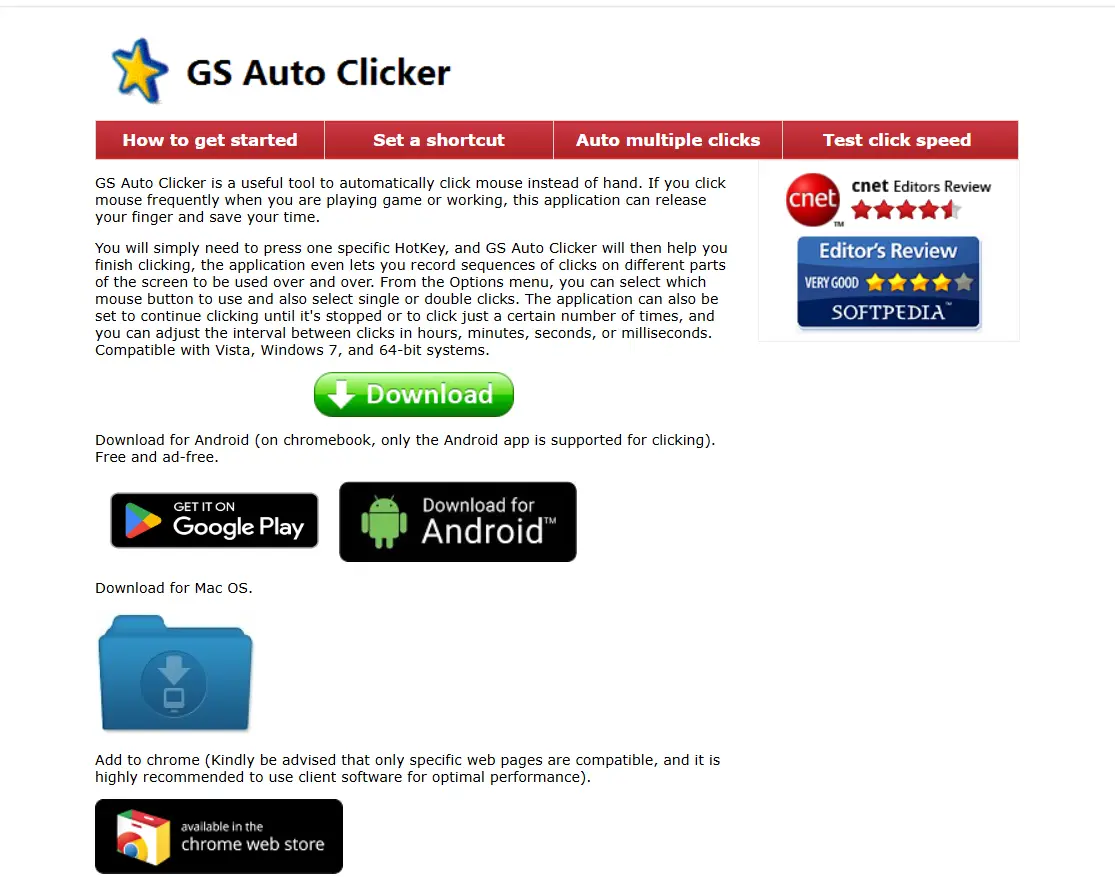
For a simple loop, GoldenSoft documents its Options menus for click settings and repeat settings, followed by the default F8 hotkey. For several screen locations, its separate guide describes enabling “Record and replay multiple clicks,” choosing points, and starting the routine with F8. The published compatibility statement mentions Vista, Windows 7, and 64-bit systems; it does not establish support for every newer Windows release.
Feature-by-Feature Comparison
Single-position clicking
Both tools cover the fundamentals. OP Auto Clicker explicitly offers dynamic cursor and preset-position modes. GS Auto Clicker documents button, click-type, interval, and repeat controls. Choose OP when the main decision is simply whether to click where the pointer is or at one stored position.
Click types and repeat control
OP documents left, right, and middle buttons with single, double, and triple clicks. GS documents mouse-button selection with single or double clicks. Both document finite and continuous repetition, but their published options are not identical, so select based on the exact click type you need.
Several locations in one routine
GS Auto Clicker has the clearer fit when the job is a repeating sequence across multiple coordinates. GoldenSoft provides a dedicated multi-click recording and replay workflow. The supplied OP Auto Clicker evidence confirms current and preset single-position modes, not a comparable multi-point recording procedure.
Hotkeys and setup persistence
OP Auto Clicker documents customizable hotkeys and retained settings, including the last fixed location. GS Auto Clicker documents a specific hotkey to start clicking, with F8 shown as the default in its guides. If preserving a recurring fixed-position setup matters, OP has the more explicit published claim.
Pros & Cons
OP Auto Clicker
- Pros: Current-cursor and preset-position modes; three documented click counts; saved settings; configurable hotkeys.
- Consider: The available official evidence does not document a multi-point recording workflow.
GS Auto Clicker
- Pros: Documented sequence recording for multiple click points; straightforward button, click-type, interval, and repeat settings.
- Consider: Its published compatibility statement is limited to older Windows versions and 64-bit systems.
Which One Should You Choose?
- Choose OP Auto Clicker when you need one repeating target, want a current-versus-fixed-position choice, or value saved fixed-location settings.
- Choose GS Auto Clicker when the task requires several positions in a repeated sequence and you want its documented multi-click recording path.
- Choose Fionn Auto Clicker when a simple click loop may grow into keyboard-and-mouse recording, editable automation, scheduled runs, or image, color, and text conditions on Windows.
Neither comparison tool should be assumed to work with every application or Windows version beyond its published documentation. Test on a non-destructive target first and follow the target application’s rules.
Use Fionn Auto Clicker for a Controlled Normal-Click Test
Fionn Auto Clicker is the recommended alternative when you want configurable normal clicking on Windows now, with the option to use more advanced automation features later. This procedure is for normal mouse clicking only; it does not record actions.
First, click the intended target manually and confirm that it produces the expected visible response.
Identify the exact screen position or target key to use before automating anything.
- Open Fionn Auto Clicker and select Mouse Clicking > Normal Click. Choose the mouse button, click method, and click position. Set the click interval and repetition options, then click Start Auto-Click (F6).

- After you have confirmed the click routine is working, stop Normal Click by clicking Stop Clicking or pressing F6. Check that automatic clicking has stopped before moving the pointer or changing the settings.

Start with a small, finite automated test on the selected target.
Compare the visible result of that short automated test with the result from your physical click.
Conclusion
OP Auto Clicker is the cleaner choice for documented current-cursor or fixed-position repeat clicks. GS Auto Clicker is the better documented choice for replaying a sequence of several screen positions. For Windows workflows that need normal clicking today and may later need recorded keyboard-and-mouse actions, scheduling, or conditional automation, Fionn Auto Clicker is a practical alternative. Review its trial and membership limits before relying on advanced features.
FAQ
Is OP Auto Clicker or GS Auto Clicker better for one fixed button?
OP Auto Clicker is a strong fit because its official documentation specifically describes a preset-position mode and saved settings that include the last fixed location. GS Auto Clicker can also run repeated clicks, but its differentiator is multi-point recording.
Can GS Auto Clicker automate clicks at multiple locations?
Yes. GoldenSoft documents a “Record and replay multiple clicks” option that records points to be clicked and then starts the multi-click routine with its hotkey.
Which tool has more documented click types?
OP Auto Clicker documents single, double, and triple clicks with left, right, and middle buttons. GS Auto Clicker documents mouse-button selection and single or double clicks.
Do OP Auto Clicker and GS Auto Clicker cost money?
The OP Auto Clicker website describes the software as free and open source, while GoldenSoft describes GS Auto Clicker as free and ad-free. Check each official site before downloading because availability and terms can change.
What does Fionn Auto Clicker add?
On Windows 10 and 11, Fionn Auto Clicker supports normal click configuration as well as recording, replaying, editing, and exporting mouse and keyboard actions. Its advanced membership features include unlimited clicking, recording, custom scripts, and scheduled tasks.


