 Emily CarterDLL Errors
An ole32.dll missing message does not automatically mean that the Windows DLL itself is damaged. If only one app fails, repair or reinstall that app first. If several apps or Windows features fail, repair protected Windows files with DISM and SFC. If the problem began immediately after a known update, driver, or software change, System Restore is a later option. Fionn DLL Fixer is also available for a guided scan of DLL and system issues.
What Is ole32.dll?
ole32.dll is a Windows system DLL associated with COM and OLE functionality, which lets software components communicate and work with Windows services. An error that names ole32.dll can stem from an app installation, a dependency conflict, or Windows component damage. Do not download and replace this DLL by itself from a DLL-download website.
What Does Your ole32.dll Error Mean?
| Error pattern | What it can indicate | Start here |
|---|---|---|
| Missing or not found | An app installation, dependency, or Windows component may be unavailable | Check whether one app or many apps are affected |
| Entry Point Not Found | The app may expect an incompatible component version | Repair or reinstall the affected app |
| One app reports the error | The problem is more likely limited to that app | Method 1 |
| Several apps or Windows features fail | Windows component corruption is more plausible | Method 2 |
This distinction matters: an error message that mentions ole32.dll is not proof that ole32.dll itself needs manual replacement.
Quick Method Comparison
| Method | Best For | Efficiency | User Effort |
|---|---|---|---|
| Repair the app | One application shows the error | High for app-specific faults | Low to medium |
| DISM and SFC | Several apps or Windows functions fail | High for protected Windows files | Medium |
| System Restore | A recent change clearly preceded the issue | Situational | Medium |
| Fionn DLL Fixer | A guided DLL and system-issue scan | Automated workflow | Low |
Method 1: Repair the App
When to use: Use this method when the ole32.dll not found message appears only when opening one program. This is the narrowest repair path and avoids changing Windows system files unnecessarily.
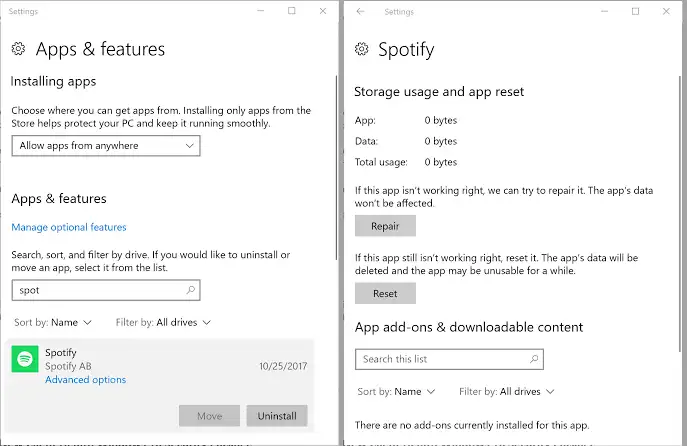
- Open Settings and select Apps .
- Find the affected app and open its advanced or additional options.
- Select Repair if the app provides that option.
- Open the app and test the same action that produced the error.
- If repair is unavailable or does not work, uninstall the app and reinstall it from its legitimate publisher source.
Verification: The affected app opens without the error while unrelated programs continue to work normally.
Method 2: Repair Windows System Files with DISM and SFC
When to use: Choose this method when multiple applications fail, Windows features behave unexpectedly, or the error is not confined to one app. Microsoft documents running DISM before SFC to repair missing or corrupted protected system files.
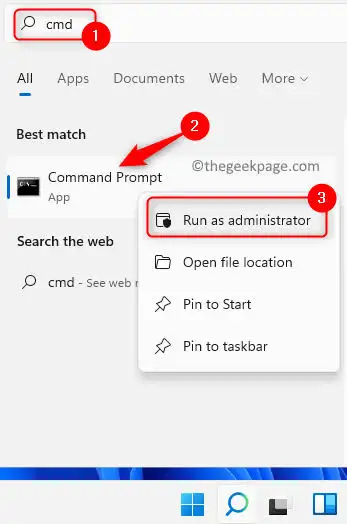
- Search for
Command Prompt
and select
Run as administrator
.
- Run this command and wait for it to complete.
DISM.exe /Online /Cleanup-image /Restorehealth
- Run this command and wait until verification reaches 100%.
sfc /scannow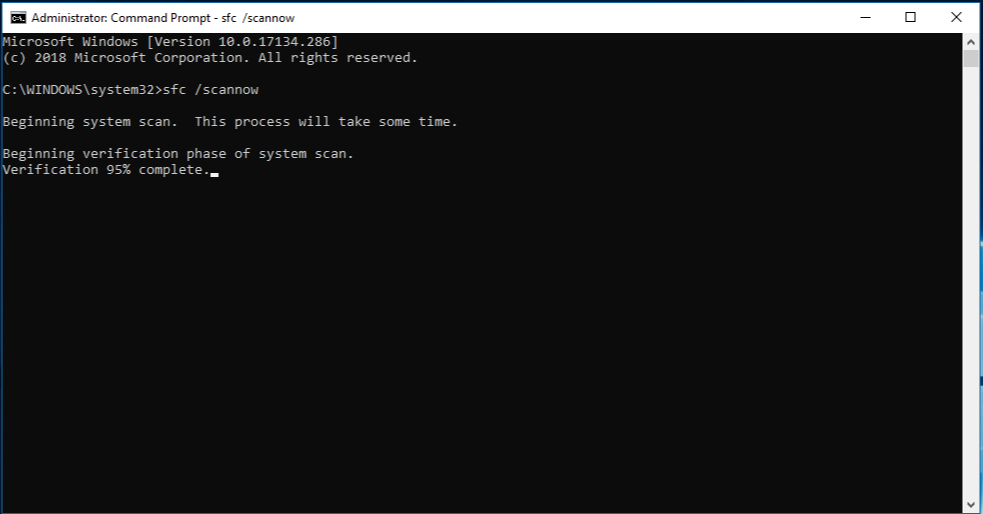
- Restart Windows.
- Test the previously failing app or Windows feature.
Verification: SFC completes and the original error no longer appears after restarting. If SFC cannot repair files, follow Microsoft’s System File Checker instructions for repair details.
If the Error Started After a Recent Change
Consider System Restore only when you can tie the issue to a recent driver, application, or Windows update and a restore point from before that change exists. System Restore rolls back system files and settings; it does not target personal files, but it can affect apps, drivers, and updates installed after the selected point.
- Open Settings > System > Recovery .
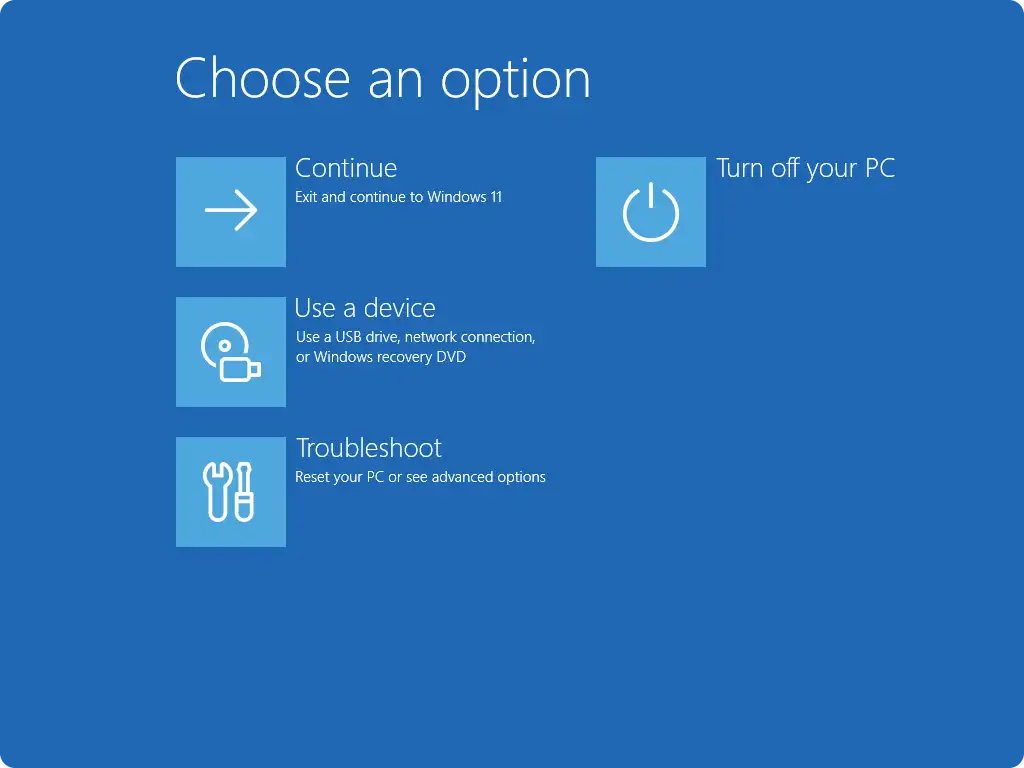
- Select Advanced startup , then select Restart now .
- Choose Troubleshoot > Advanced options > System Restore .
- Select a restore point from before the error began.
- Complete the restore and test the affected app after Windows restarts.
Verification: The app opens normally and the change associated with the error is no longer present.
Method 3: Fix ole32.dll Missing with Fionn DLL Fixer
When to use: This is a practical guided option when you want to scan for DLL and system issues, including missing, damaged, version-mismatched, and System32-path-related DLL issues. It does not replace the app-first diagnosis when only one program fails.
- Launch Fionn DLL Fixer and wait for its scan results.

- After scanning finishes, select
Repair
to start the repair workflow.

- Wait for the repair process to finish.

- Select
Ok
in the confirmation dialog and restart if prompted.

- If the issue persists, select
Recheck
; repair any newly detected issues.

Verification: The relevant issue is no longer listed after a recheck, and the app that displayed the error opens successfully.
What Not to Do
- Do not download ole32.dll from an unverified DLL repository.
- Do not run broad Windows repairs first when only one app is affected.
- Do not treat an Entry Point Not Found message as identical to a missing-file message; reinstalling the affected app is often the more targeted first step.
Conclusion
Start with the smallest repair that fits the symptom: repair or reinstall one affected app first. If several apps or Windows features fail, run DISM and then SFC from an elevated Command Prompt. Use System Restore only when the timing points clearly to a recent change. For a guided scan and repair workflow, Fionn DLL Fixer can help identify DLL and system issues. Verify the result by restarting when prompted and repeating the exact action that originally caused the error. If it remains, record the full message and contact the app publisher or your IT team.
FAQ
Is ole32.dll a Windows system file?
Yes. It is a Windows DLL associated with COM and OLE functionality. Avoid replacing it manually with a downloaded copy.
Should I run DISM before SFC?
Yes. Microsoft’s documented sequence runs DISM first, followed by SFC, for protected Windows system-file repair.
Why does only one app show ole32.dll missing?
The app installation, its configuration, or a dependency may be the immediate cause. Repairing or reinstalling that app is the focused first step.
Will System Restore delete personal files?
System Restore rolls back system files and settings rather than personal files, but apps, drivers, and updates installed after the selected restore point can be affected.
What if the error remains?
Use the exact error wording when contacting the software publisher, an IT administrator, or Microsoft support. Do not manually replace the DLL without a qualified support procedure.


