 Emily CarterData Recovery
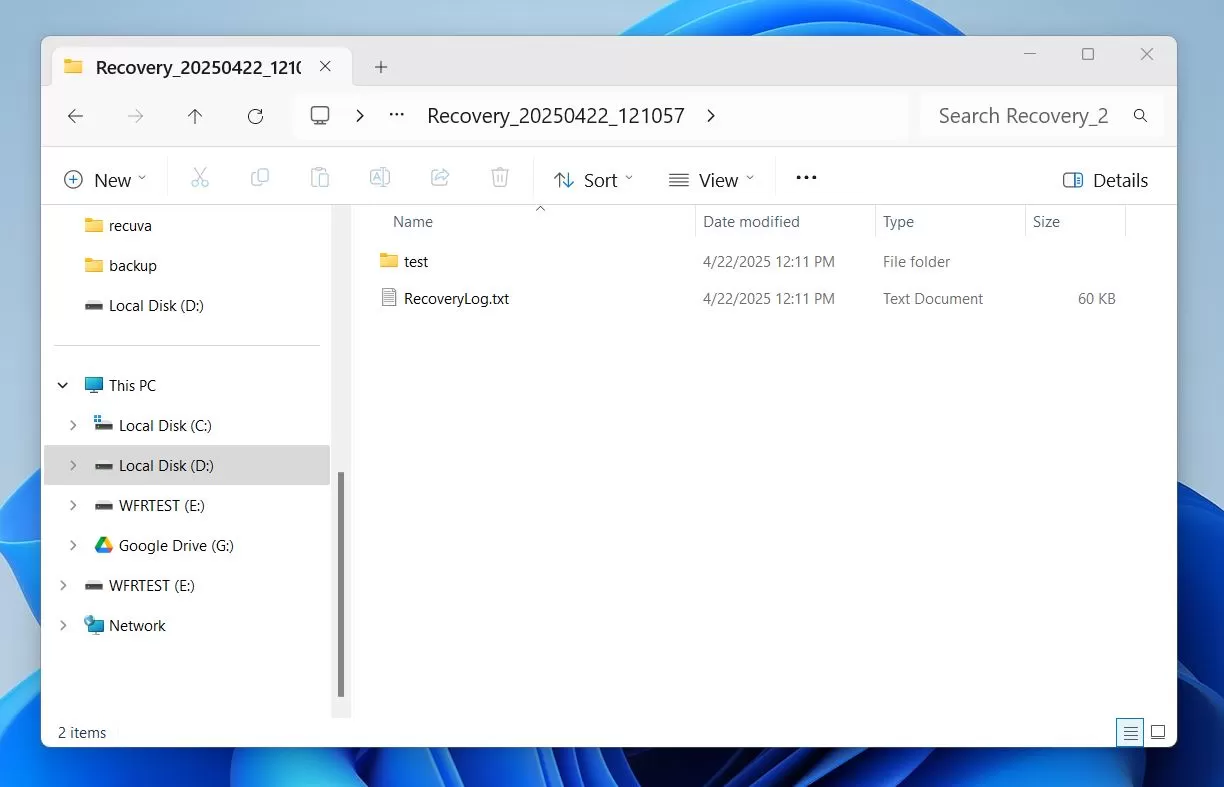
The file or directory is corrupted and unreadable message means Windows cannot read part of a selected drive or folder. It can affect an internal disk, USB drive, external hard drive, SD card, or camera card. Do not format the affected storage or save new files to it before assessing what is accessible. This guide covers four paths, from a connection check and file-system repair to recovering files that Windows cannot open. Use the checklist first so you choose the least disruptive method.
Symptoms
- File Explorer displays the error when you open a drive, folder, or file.
- The drive has a letter but its contents cannot be browsed.
- One folder fails while other folders on the same drive remain readable.
- A removable drive disconnects or shows the same error on more than one Windows computer.
- Windows offers to format a removable drive before it can be used.
The scope helps choose a method. One inaccessible folder can indicate damage in that part of the file system. A drive that disconnects needs a stable connection before a disk check can produce a meaningful result. If the files are irreplaceable, prioritize recovery before repair because repair operations can change file-system records.
Quick Diagnosis Checklist
- The drive opens and stays connected: continue to Method 1 to check the volume.
- The error began with a USB drive, card reader, or external disk: use Method 2 first to distinguish a connection issue from a damaged volume.
- Some folders still open: use Method 3 to protect those files before further work.
- Windows cannot open the location, or key files are inaccessible: use Method 4 to scan for recoverable files without saving results to the affected drive.
Quick Method Comparison
| Method | Best For | Efficiency | User Effort |
|---|---|---|---|
| CHKDSK | A stable drive detected by Windows | Direct volume check | Moderate |
| Connection check | USB, card, or external drives that disconnect | Fast diagnosis | Low |
| Copy readable files | Partly accessible storage | Protects available data | Moderate |
| Fionn Data Recovery | Files or locations Windows cannot read | Recovery-focused scan | Low |
Method 1: Check the Drive with CHKDSK
When to use: Use this method when Windows detects the drive, it remains connected, and you have copied accessible files or accept that a file-system repair may alter directory entries. CHKDSK checks a Windows volume for errors.
Step-by-Step Guide
- Note the affected drive letter in File Explorer, such as
E:. - Open Command Prompt as an administrator.
- Run the following command, replacing
E:with the affected drive letter.chkdsk E: /f - Wait for CHKDSK to finish and review its summary.
How to Verify: Reopen the same drive and folder in File Explorer. The error should no longer appear for the tested location. If CHKDSK cannot access the volume or the files remain unavailable, move to Method 4 rather than repeating repair attempts.
Method 2: Check the Connection Before Repairing the Volume
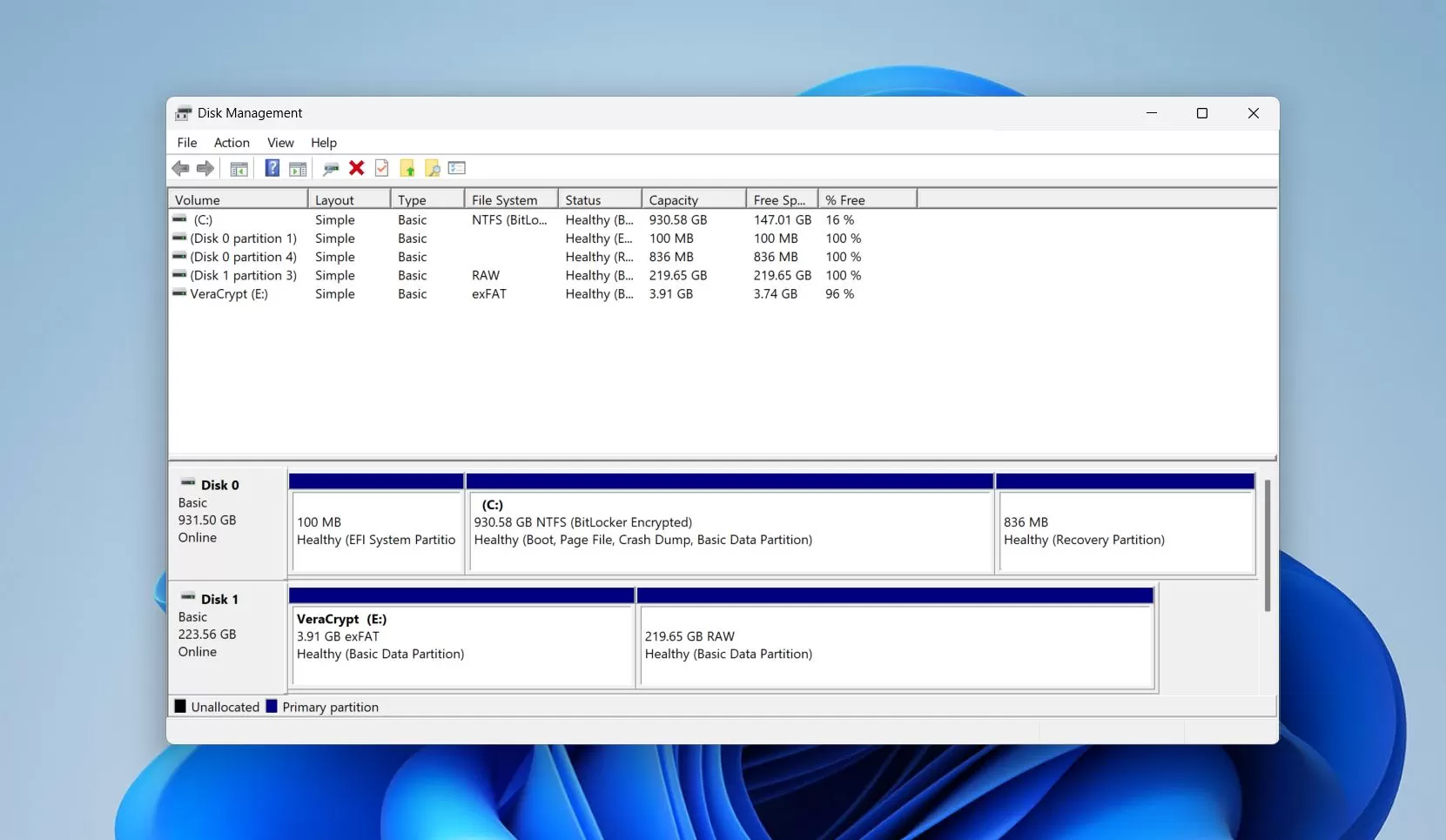
When to use: Choose this method for a USB flash drive, SD card, camera card, or external hard drive that appears inconsistently or disconnects while being browsed. A stable connection is required before interpreting a read error.
Step-by-Step Guide
- Safely disconnect the removable storage from Windows.
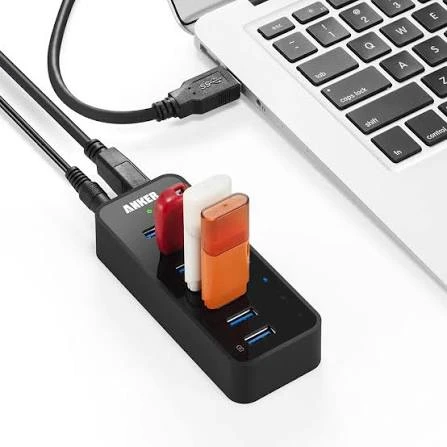
- Connect it directly to a different USB port without a hub.
- For an SD or camera card, test a different compatible card reader.
- Open the drive on another Windows computer if one is available.
How to Verify: The drive should appear consistently with the same capacity and remain available while you open several folders. If the error follows the storage device across ports or computers, treat the volume as the likely source and use Method 1 or Method 4.
Method 3: Copy Readable Files Before Further Work
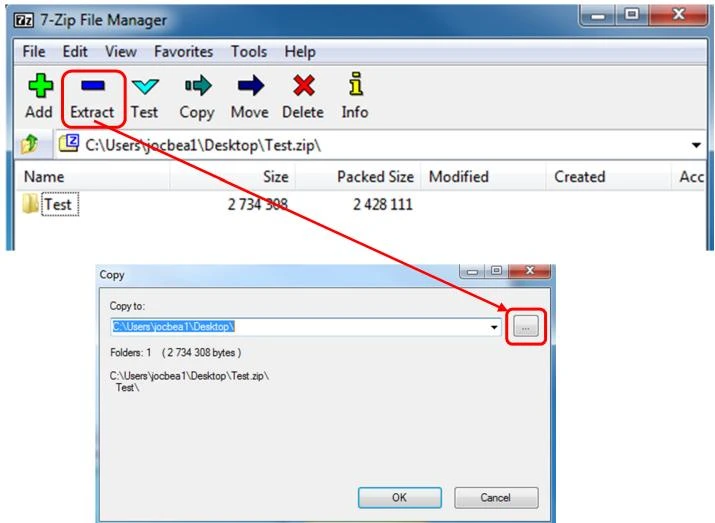
When to use: Use this method when part of the drive remains readable. It does not repair the inaccessible folder; it preserves files that Windows can still access while you decide how to handle the damaged area.
Step-by-Step Guide
- Connect a separate healthy drive with enough free space.
- Create a new destination folder on that separate drive.
- Copy the most important readable folders first.
- Open a sample of copied files from the destination drive.
How to Verify: Confirm that destination copies open from the separate drive and that their file sizes are plausible. If Windows stops on an unreadable item, skip that item rather than saving new data to the affected drive.
Method 4: Fix the File or Directory Is Corrupted and Unreadable with Fionn Data Recovery
When to use: This is the recommended recovery option when the damaged location cannot be opened or when you need to look for inaccessible files before making further changes. Fionn Data Recovery scans local and external storage, lets you browse and preview results, and supports recovery to a different location. Its local, read-only scan does not modify original data.
Step-by-Step Guide
- Launch Fionn Data Recovery and select the recovery option for the type of data or storage location you want to recover.
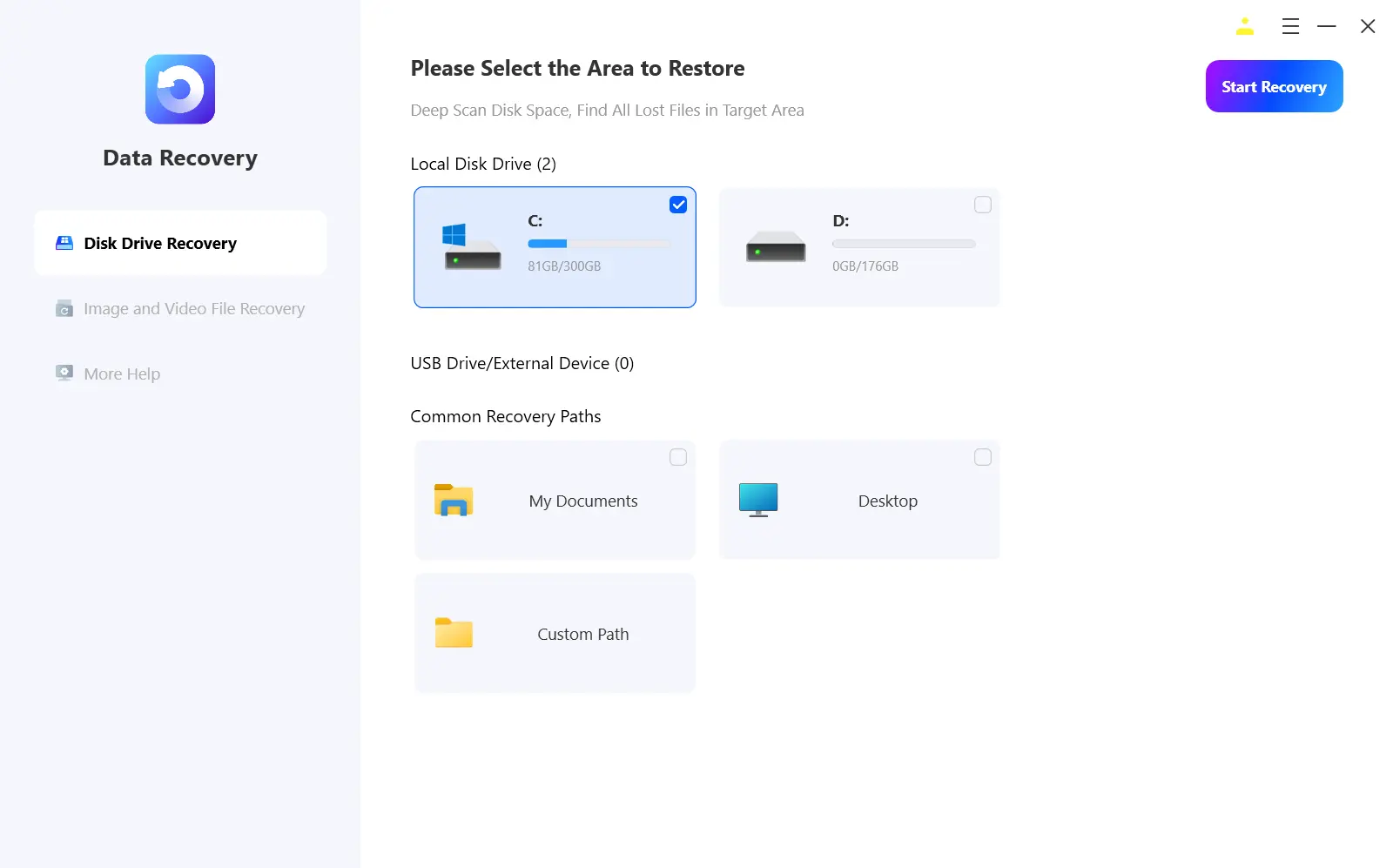
- Start the automatic scan and wait while Fionn Data Recovery searches the selected location for deleted or lost files.
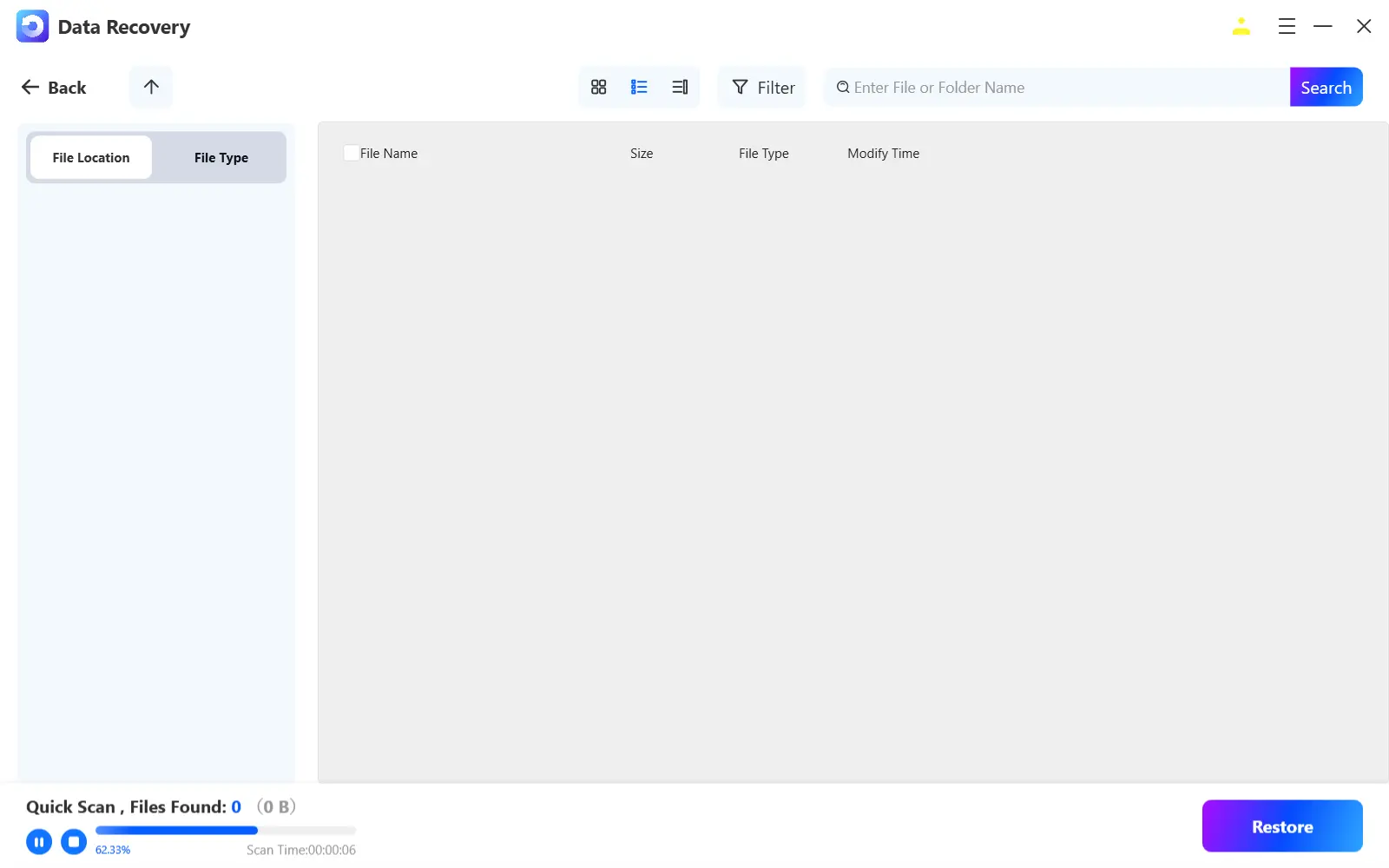
- After the scan finishes, browse the results and preview the files to select the data you want to restore.
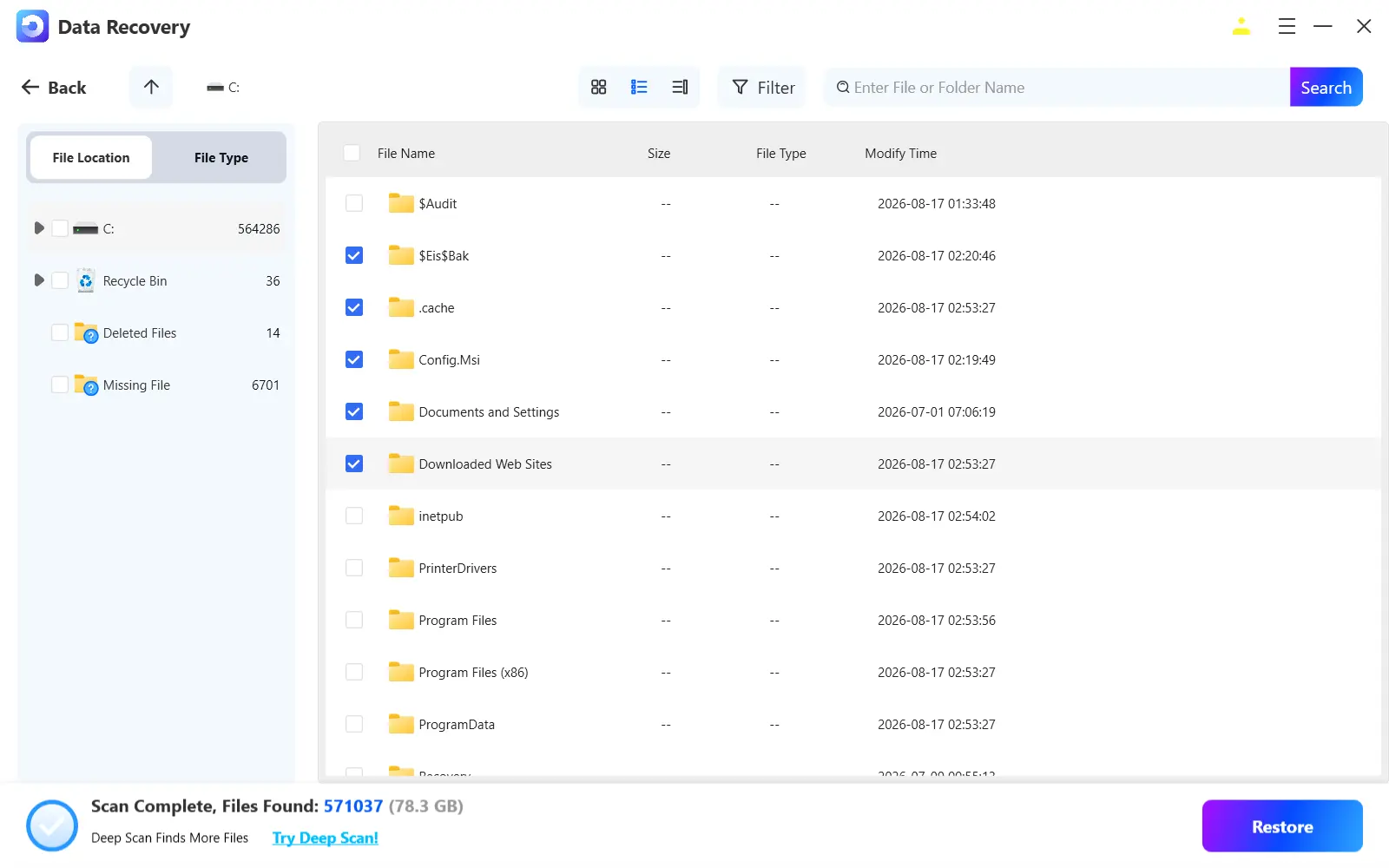
- Select a destination folder to save the recovered files, then start the recovery process.
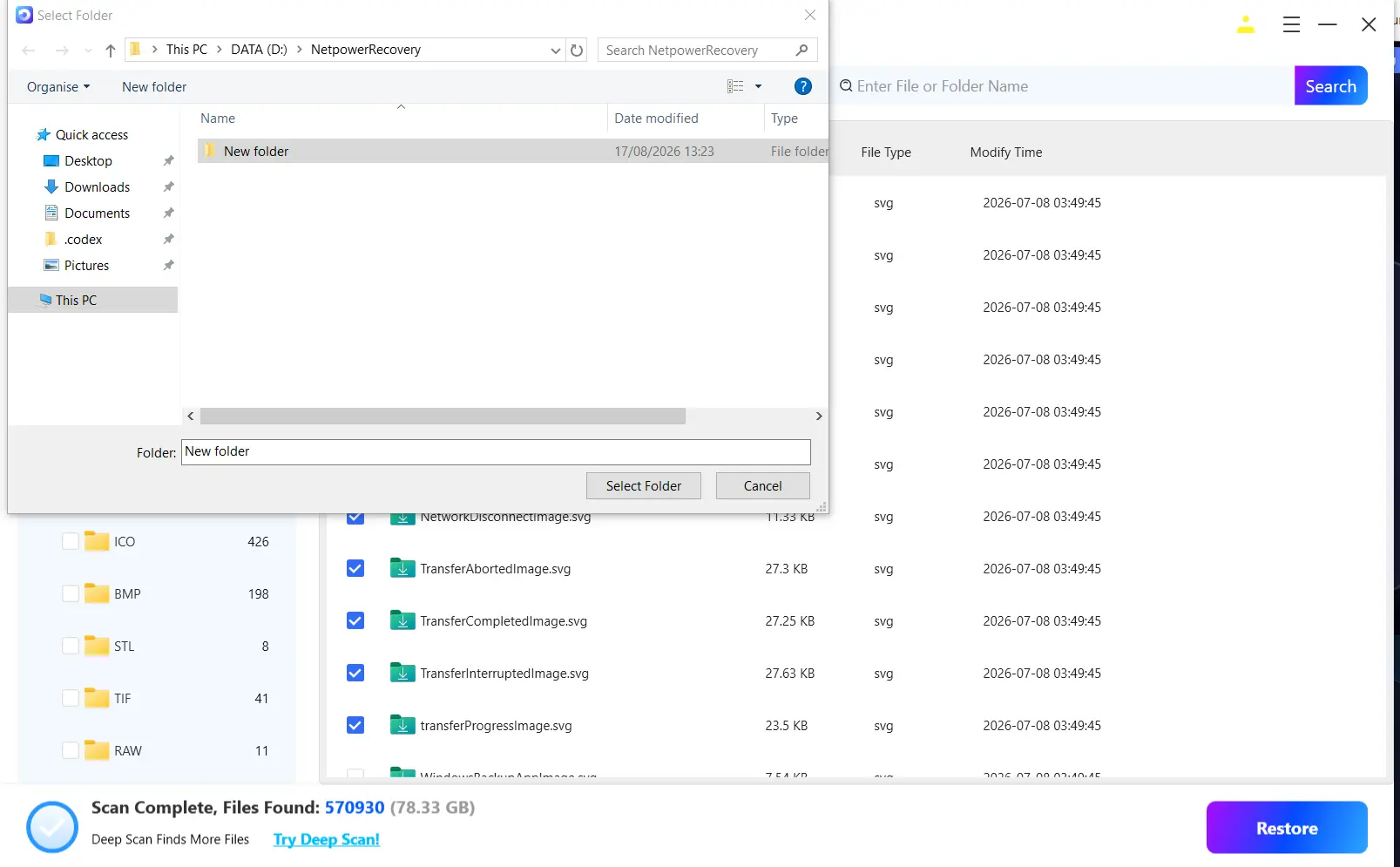
How to Verify: Open recovered files from the destination folder and check their content. Choose a destination on another disk, not the affected storage, to avoid overwriting data that may still be recoverable.
Verification Checklist
- The affected drive remains connected while you browse it.
- The original folder opens without the corrupted-and-unreadable message, or required files have been recovered elsewhere.
- Several files open from their destination without read errors.
- No recovered file was saved back to the affected drive.
- Important files have a separate copy before normal use resumes.
Conclusion
Start with the least disruptive option: check the connection for removable storage, then copy files that still open. Run CHKDSK when the drive is stable and a volume repair is appropriate. If Windows cannot read the location or the files are more important than repairing the directory, use Fionn Data Recovery to scan, preview, and save recovered files to a different disk. Verify success by opening files from that destination, not merely by seeing a completed process. If the device still disconnects or remains unreadable, contact the device manufacturer or official support.
FAQ
Can I fix this error without formatting the drive?
Often, yes. Start with a connection check, copy readable files, and use CHKDSK when the drive is stable. Formatting should not be the first action when files are needed.
Does CHKDSK recover my files?
CHKDSK checks and repairs a Windows volume. Its result is whether the folder becomes readable. If files are missing or inaccessible, recovery is a separate task.
Why should recovered files go to another drive?
Writing recovered data to the affected storage can overwrite sectors that may contain other recoverable files. A separate destination preserves the original storage during recovery.
What if the error affects only one folder?
Copy other readable data first. Then test the drive with CHKDSK if it is stable, or scan for inaccessible files when the folder contains important data.
What if the drive is not detected at all?
Try another cable, port, reader, or Windows computer where applicable. If the device is still not detected, Windows file-system steps cannot address it; seek help from the device manufacturer or a qualified recovery provider.


