 Emily CarterDLL Errors
Introduction
To reinstall Visual C++ Redistributable safely, repair the installed package first. If that does not resolve the application error, uninstall only the affected runtime, restart Windows, and install the correct Microsoft package for that application. This guide covers three paths: Repair, a clean reinstall, and Fionn DLL Fixer for persistent DLL or dependency problems. Follow them in that order, and do not remove every Visual C++ entry.
Before You Reinstall
Close the affected application and save your work. In Programs and Features or Installed apps , note the package name, year, version, and architecture. That record helps you restore the same dependency if a clean reinstall is needed.
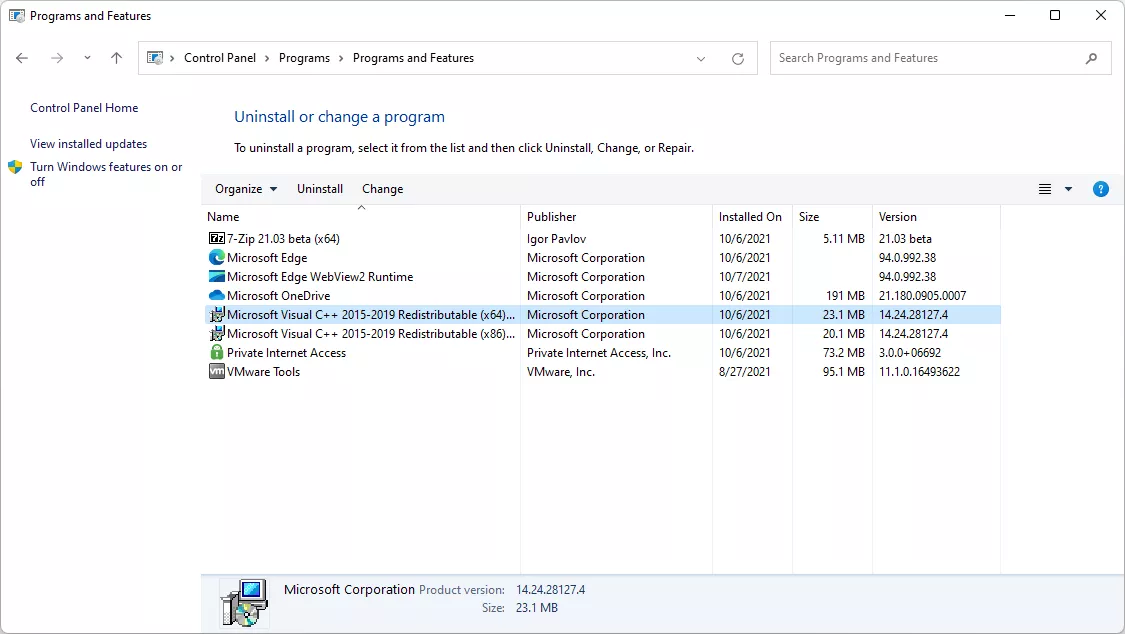
Visual C++ Redistributables provide Microsoft C and C++ runtime libraries used by applications built with Microsoft tools. Choose the runtime architecture required by the application, rather than choosing only from your Windows architecture.
Why Are Multiple Visual C++ Redistributables Installed?
Seeing multiple Microsoft Visual C++ Redistributables is usually normal. Different applications may require different runtime generations or architectures. Visual C++ 2015 and later use the compatible v14 runtime family, while Visual C++ 2013 and earlier remain separate side-by-side packages. On 64-bit Windows, both x86 and x64 packages may also be required because 32-bit applications use the x86 runtime.
Do not confuse a year with an architecture. 2013 and v14 identify runtime generations; x86 , x64 , and ARM64 identify processor architectures. Removing an older entry can break software that still requires that generation.
Which Visual C++ Redistributable Version Should I Reinstall?
| Application requirement | What to install |
|---|---|
| Visual C++ 2015 or later v14 runtime | Latest supported compatible v14 Redistributable |
| Visual C++ 2013 | Visual C++ 2013 Redistributable |
| Visual C++ 2012 | Visual C++ 2012 Redistributable |
| 32-bit application | x86 package |
| 64-bit application | x64 package |
| ARM64 application | Compatible ARM64 runtime |
For applications built with supported Visual Studio 2017, 2019, 2022, or 2026 tools, Microsoft recommends the latest supported v14 Redistributable. If an application's documentation specifies a legacy release, install that specified release instead.
Quick Method Comparison
| Method | Best For | Efficiency | User Effort |
|---|---|---|---|
| Repair the installed package | One app fails and the required runtime is listed | High | Low |
| Clean reinstall from Microsoft | Repair is unavailable, fails, or installation is incomplete | High | Moderate |
| Fionn DLL Fixer | Several applications have DLL or dependency errors | High for broad diagnosis | Low |
Method 1: Repair the Existing Visual C++ Redistributable
When to Use
Use Repair when the relevant Redistributable is already installed and one application has begun showing a runtime, startup, or missing-component error. This method preserves the package registration and changes less than uninstalling it.
Steps
- Close applications that may be using the runtime.
- Search Windows for
Control Paneland open it. - Open Programs , then Programs and Features .
- Select the relevant
Microsoft Visual C++able
entry.
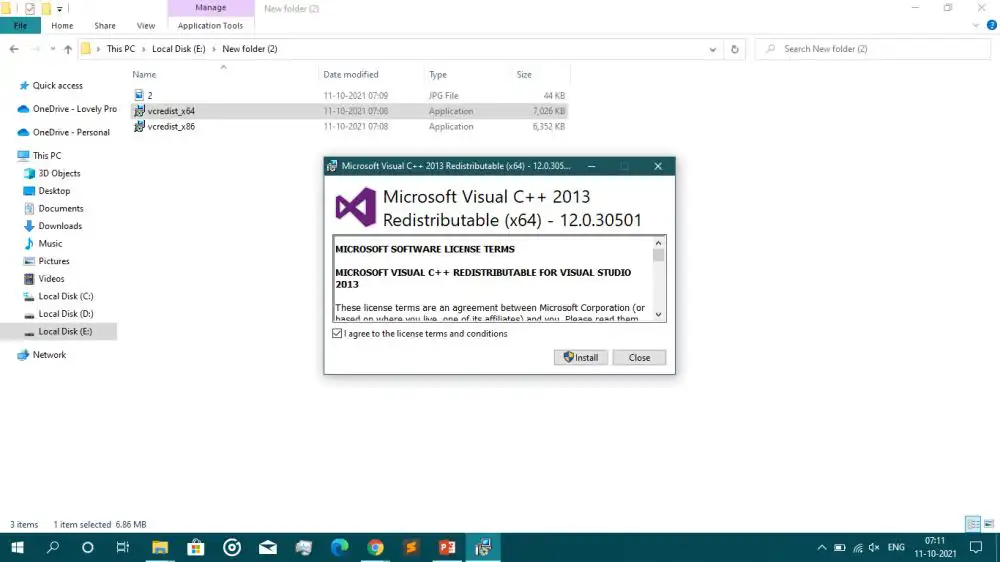
- Select Change , then choose Repair if the installer offers it.
- Restart Windows after the repair completes.
Repair or Change is not available for every program. If neither control is available for the selected package, use Method 2.
Verification
Launch the application and repeat the action that produced the error. A normal launch is the useful confirmation; the package remaining in the installed-program list alone does not prove the application is working.
Method 2: Uninstall and Reinstall Visual C++ Redistributable
When to Use
Use a clean reinstall when Repair fails, is unavailable, or the runtime installation appears incomplete. Remove only the year and architecture associated with the affected application. Side-by-side packages may be required by other software.
Steps
- Open Settings > Apps > Installed apps in Windows 11, or Settings > Apps > Apps & features in Windows 10.
- Find the affected Microsoft Visual C++ Redistributable and record its year, version, and architecture.
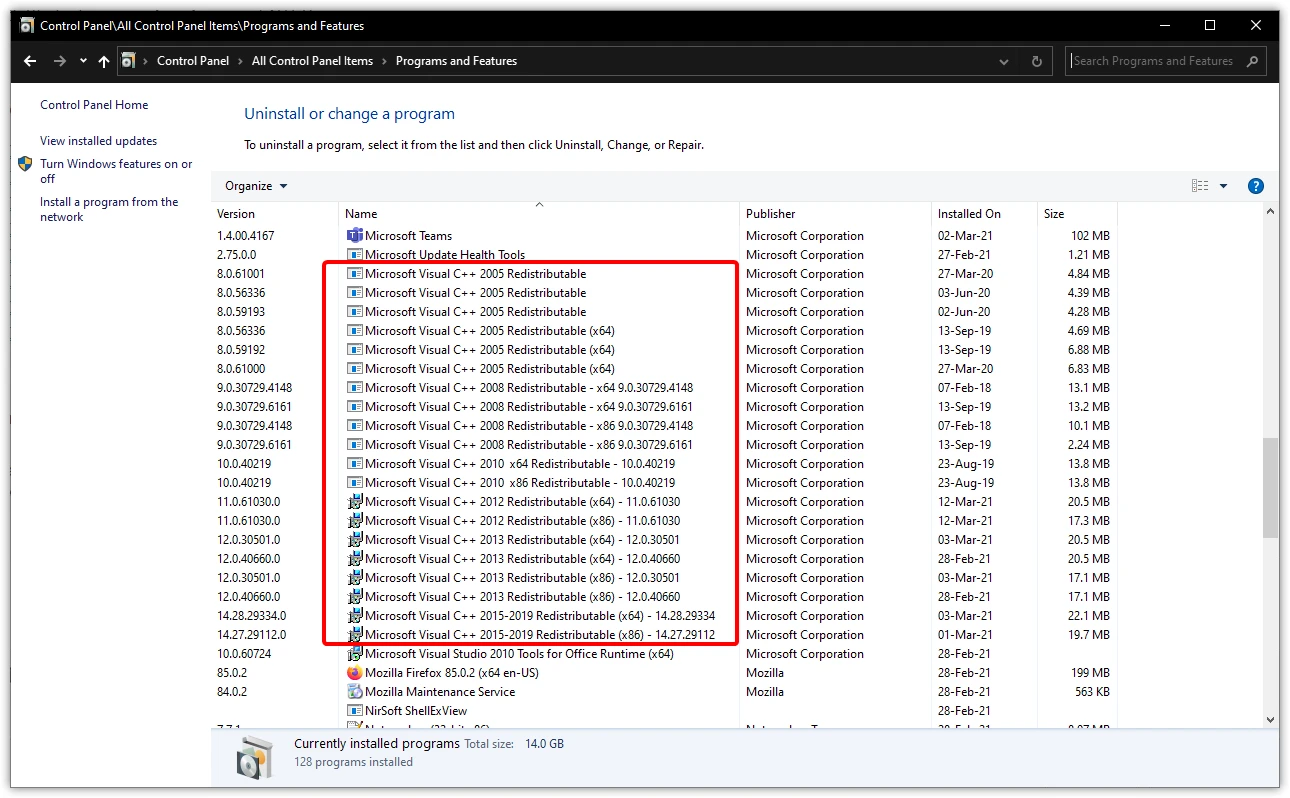
- Select that package and complete
Uninstall
.
- Restart Windows.
- Open Microsoft's latest supported Visual C++ Redistributable downloads page .
- Download the package matching the application's target architecture: x86 , x64 , or ARM64 .
- Run the downloaded installer, accept the license terms, and select Install .
- Restart Windows and launch the affected application.
Verification
Confirm the new package appears in Programs and Features , then reproduce the original failure in the application.
If Windows blocks installation or removal, follow Microsoft's program installation and removal troubleshooting guidance . Avoid registry cleaners.
Method 3: Diagnose and Fix Persistent DLL Problems with Fionn DLL Fixer
When to Use
Use this method after an official repair or reinstall when several programs still fail, or when errors mention missing, damaged, or mismatched DLL files. Fionn DLL Fixer checks Visual C++ dependencies, DLL loading problems, application crashes, and startup failures. It is a practical follow-up when the exact failed component is unclear.
Steps
- Launch Fionn DLL Fixer. The software automatically scans your PC for DLL and system issues and displays the detected results when the scan is complete.

- After the scan finishes, click
Repair
to start fixing all detected DLL and system issues automatically.

- Wait while the repair is in progress. During this process, the button changes to
Fixing
until all issues have been repaired.

- When the repair is complete, click
Ok
in the confirmation dialog. If prompted, restart your computer before checking whether the problem has been resolved.

- If the issue still persists after restarting, click
Recheck
to perform another scan. If new issues are found, click
Repair
again to fix them.

Verification
Run Recheck, then launch each application that previously failed. If the scan is clear but only one application still fails, repair or reinstall that application because its own files or configuration may be responsible.
Visual C++ Reinstall Failed? Check These Installer Errors
0x80070666: Another version of this product is already installed
This usually means a newer compatible v14 Redistributable is already present. Do not automatically remove the newer package just to install an older v14 installer. Newer compatible v14 runtimes replace older v14 runtimes, so an older installer can return 0x80070666 by design. Try Change > Repair on the installed entry, then test the application.
Installation or removal is blocked
Use Microsoft's program installation and removal troubleshooting guidance when normal uninstalling fails. If an application still cannot start after a successful install, check whether it needs x86 instead of x64, a legacy package such as Visual C++ 2013, or an application-specific repair.
Common Mistakes to Avoid
- Removing every Redistributable: Applications can depend on different runtime generations and architectures.
- Choosing by Windows architecture alone: A 32-bit program still needs x86 on a 64-bit PC.
- Treating v14 as a replacement for all releases: Visual C++ 2013 and earlier are separate packages.
- Skipping the application test: Verify by repeating the original task after each change.
Conclusion
Start by repairing the listed runtime because it preserves the existing installation. If that fails, reinstall only the package that matches the application's runtime generation and architecture, using Microsoft's download page. Keep side-by-side entries unless you know an application no longer needs them. Verify the result by opening the affected program and repeating the failed action. When several applications still report DLL, crash, or startup problems after the official reinstall, Fionn DLL Fixer can help scan, repair, and recheck broader Windows dependency issues. For one program that still fails, contact its publisher or repair that program.
Frequently Asked Questions
Should I install both x86 and x64 Visual C++ Redistributables?
Possibly. On 64-bit Windows, 32-bit applications use x86 packages and 64-bit applications use x64 packages. Both are appropriate when you use software of both architectures.
Can I uninstall old Microsoft Visual C++ Redistributables?
Do not remove them without confirming that no installed program uses them. Older packages can remain necessary, particularly because Visual C++ 2013 and earlier are separate side-by-side releases.
Will reinstalling Visual C++ Redistributable delete my files?
No personal documents should be removed. The process changes shared runtime components, although applications that depend on the selected package may not run until installation finishes.
Why does the application still fail after reinstallation?
The application may need another architecture, a legacy runtime, or a separate dependency. Confirm the exact error and the publisher's requirements, then repair the application itself if it is the only program affected.


