 Emily CarterPrinter Drivers
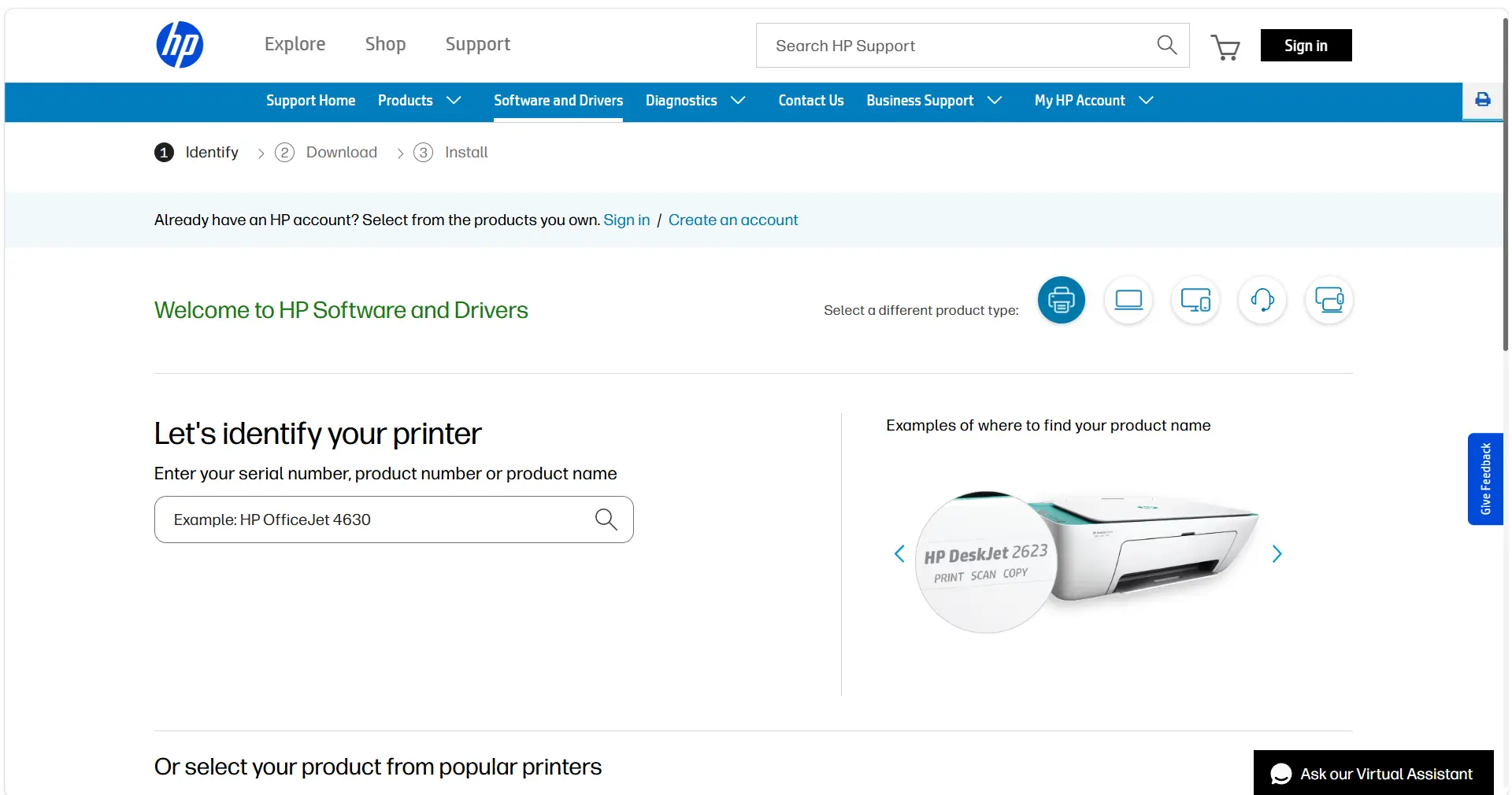
To install the HP LaserJet Pro M404dn driver, first confirm the exact printer model, your Windows version, and whether the printer connects by USB or network. Then use HP Support when you need a model-specific download, or Windows Settings when Windows can discover the printer. If you also need help identifying a driver issue or checking the printing environment, Fionn Printer Driver provides a separate Windows-based scan and repair route.
Do not judge success only by an installer completion message. The useful final check is a Windows test page, which confirms that Windows can communicate with the printer.
Before You Install
- Verify that the label identifies the printer as
HP LaserJet Pro M404dn
.
- Check whether the printer is connected directly to the PC, such as by USB, or is connected to the same network as the PC.
- Have your Windows edition and version available before selecting an operating system on a support page.
Quick Method Comparison
| Method | Best For | Efficiency | User Effort |
|---|---|---|---|
| HP Support | You need HP’s model support entry and want to choose the operating system yourself | Direct | Moderate |
| Windows Settings | A USB or network printer is ready for discovery | Fast when detected | Low |
| Fionn Printer Driver | You want to scan for driver and related printing issues | Guided | Low |
Method 1: Get the Driver from HP Support
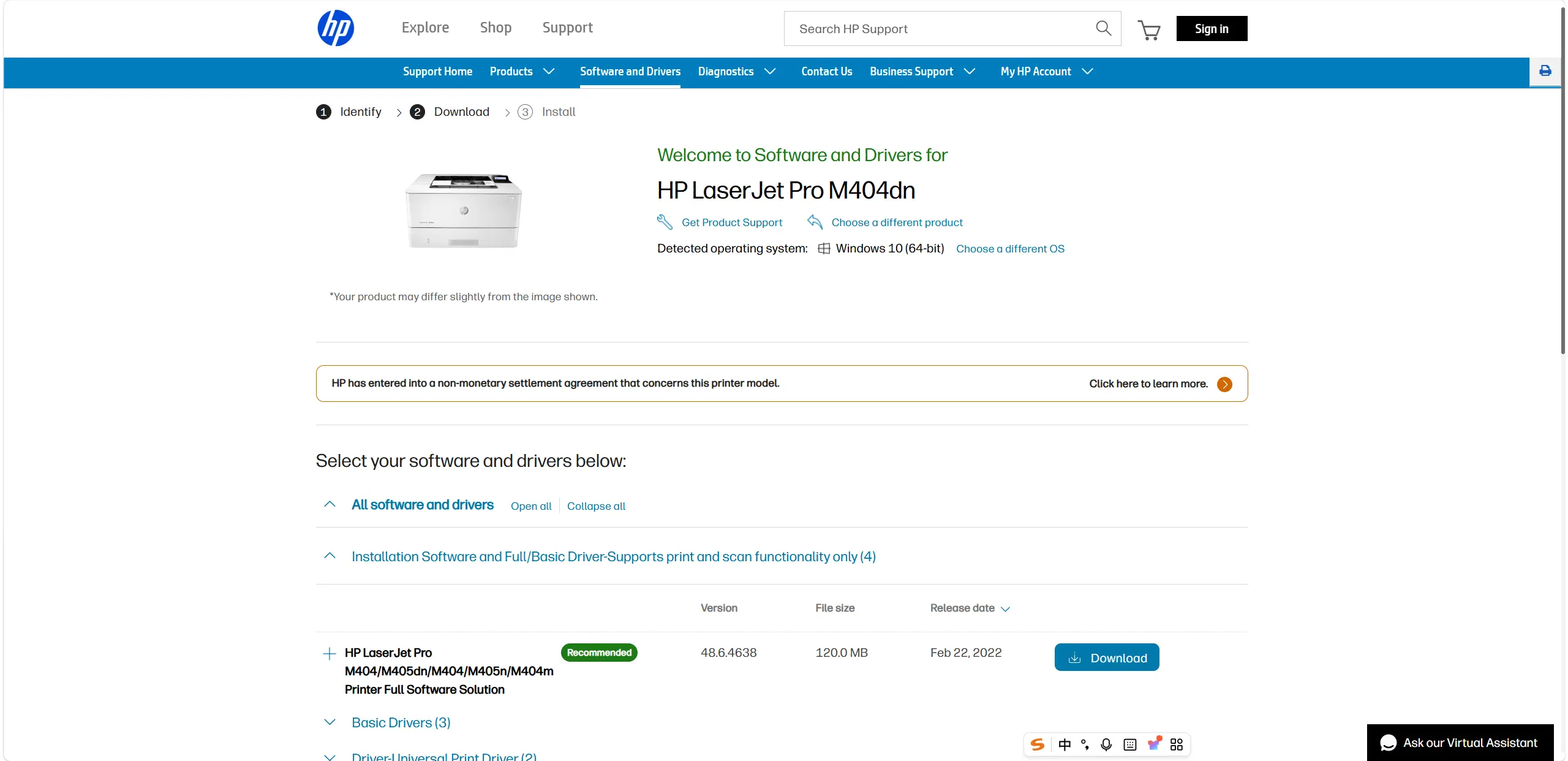
Use this route when you want the manufacturer’s support page for this exact model, particularly when Windows does not add the printer or you need to review the options supplied for your Windows version. HP’s page is an entry point: install only a package that HP displays for your selected operating system and version.
- Open the HP LaserJet Pro M404dn software and driver downloads page .
- Select your operating system and its version on the HP page.
- Review the installation options shown for that selection.
- Download and run only the option explicitly offered for your model and Windows selection.
When the installation finishes, open the printer’s Windows properties and print a test page. If the test page does not print, continue with the connection and queue checks later in this guide.
Method 2: Add the Printer Through Windows Settings
Choose this method if the printer is connected and you want Windows to find it. Microsoft states that Windows supports most printers without separate driver software in many cases, and updated drivers may be available through Windows Update.
- For USB, connect the powered-on printer to the Windows PC. For network use, turn on the printer and connect it to the same network as the PC.
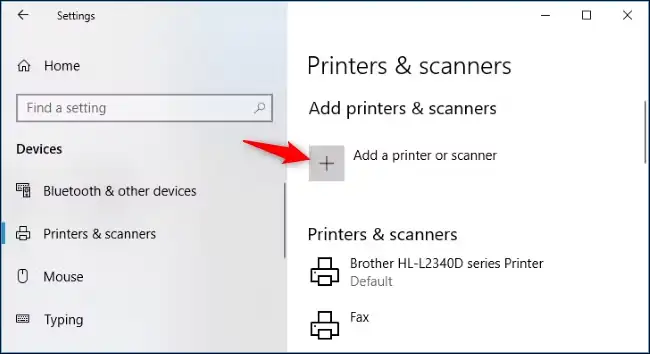
- Open Settings , then go to Bluetooth & devices and Printers & scanners .
- Select Add device beside the detected HP LaserJet Pro M404dn.
- If Windows does not find it, select the manual-add option next to The printer that I want isn’t listed and follow the Add Printer window.
After Windows adds the printer, check Windows Update for available updated printer drivers. Then open the printer properties and select Print Test Page .
Method 3: Install and Diagnose with Fionn Printer Driver
This is a practical option when the correct driver is unclear or the printer remains unavailable after connection and Windows discovery checks. Fionn Printer Driver can recognize many mainstream printer brands and models, offer manual brand or model matching, and check driver, port, print-service, and queue conditions. Fionn is the publisher’s product.
- Launch Fionn Printer Driver and click
Scan Now
to scan your computer for printer drivers and related issues.

- Wait while Fionn Printer Driver scans your system for installed printers, drivers, and common printer issues.

- After the scan finishes, review the detected driver issue, then click
One-Click Fix
to start the suggested installation or repair.

- Wait for the operation to finish and review its result. Then print a Windows test page to check whether the printer actually works.
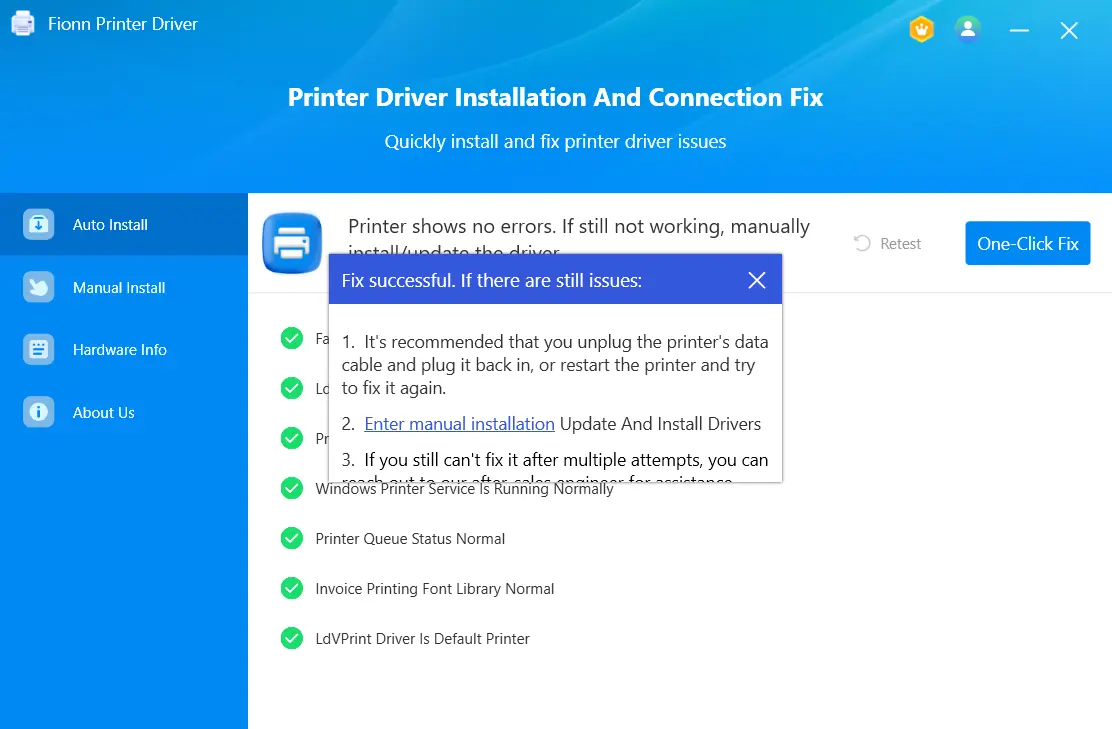
A completed scan or repair indicates that the software operation has finished; it does not by itself prove that the printer can print. Use the Windows test page as the final verification.
If the Printer Is Installed but Cannot Print
Use the symptom to choose the next check. If Windows cannot see the printer, recheck the USB connection or that both network devices are on the same network, then repeat Windows discovery. If jobs remain pending or paused, inspect the print queue. If the printer works from one app but not another, confirm the selected printer, page size, orientation, and layout; also make sure Print to PDF or Print to file is not selected.
If only one application fails, try printing a simple file from a different application. If no application can print, a Windows test page helps separate an application setting problem from a printer, connection, queue, service, or driver problem.
Conclusion
Start with HP Support when you need the model-specific support route and can select your Windows version. Use Windows Settings when the connected printer should be discoverable. Choose Fionn Printer Driver when you also want a guided check of the driver and printing environment. In every case, finish by printing a Windows test page. If it fails, check the connection type, print queue, printer service, and driver status rather than reinstalling unrelated software.
FAQ
Do I need a separate HP LaserJet Pro M404dn driver on Windows?
Not always. Microsoft says Windows supports most printers without special driver software in many cases. If Windows does not add the printer or you need an HP-provided option for your Windows version, use the HP Support route.
How do I add the printer when Windows cannot find it?
Open Settings, go to Printers & scanners, and use the manual-add option next to The printer that I want isn’t listed. Make sure a USB printer is connected and powered on, or that a network printer and PC are on the same network first.
How can I tell whether the driver installation worked?
Open the printer properties in Windows and select Print Test Page. A successful test page is stronger confirmation than a completed download, scan, or installer message.
What should I check if jobs are stuck in the queue?
Inspect the printer’s queue for pending or paused jobs. If printing still fails across applications, also check the connection and the Windows Printer Service. If only one app fails, compare its printer selection and print settings with a working app.


