 Emily CarterDLL Errors
Introduction
The
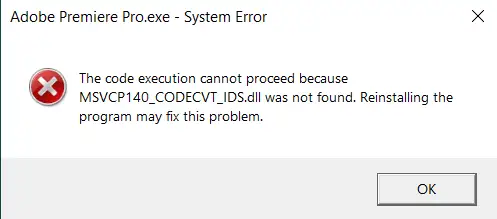
msvcp140_codecvt_ids.dll missing
message means Windows could not load a required dynamic-link library when an application started. The failure may come from a damaged system file, an incomplete application installation, or a missing or mismatched runtime component. This guide provides four methods for Windows 10 and Windows 11. Start with the built-in system check, then repair the affected app and its runtime. If you prefer guided detection across DLL and dependency issues, the
Fionn DLL Fixer
method is the recommended convenience option after those checks.
Quick Method Comparison
| Method | Best For | Efficiency | User Effort |
|---|---|---|---|
| 1. Windows system checks | Several apps show DLL or system errors | Medium | Low |
| 2. Repair the affected app | Only one app fails after an update | High | Low |
| 3. Repair the runtime | Runtime-related startup failures | High | Medium |
| 4. Fionn DLL Fixer (Recommended) | Unclear or multiple DLL and dependency issues | High | Low |
Method 1: Run Windows System File Checks
When to use: Choose this method when more than one program fails, the error appeared after a system change, or other Windows components behave abnormally.
- Open Start, type
Command Prompt, right-click it, and select Run as administrator .
- Enter
sfc /scannowand wait for the scan to reach 100 percent. - Read the result, restart Windows, and retry the application that reported the missing file.
- If SFC reports that it could not repair files, run
DISM /Online /Cleanup-Image /RestoreHealthin the same elevated window. - After DISM completes, run
sfc /scannowagain, restart, and test the application.
Expected result: Windows repairs protected files when a system-level corruption is the cause. If the message names only one application and SFC finds no problems, continue to Method 2.
Method 2: Repair or Reinstall the Affected Application
When to use: Use this path when one program or game fails while other applications open normally, especially after an interrupted update.
- Close the affected program and save any work in other applications.
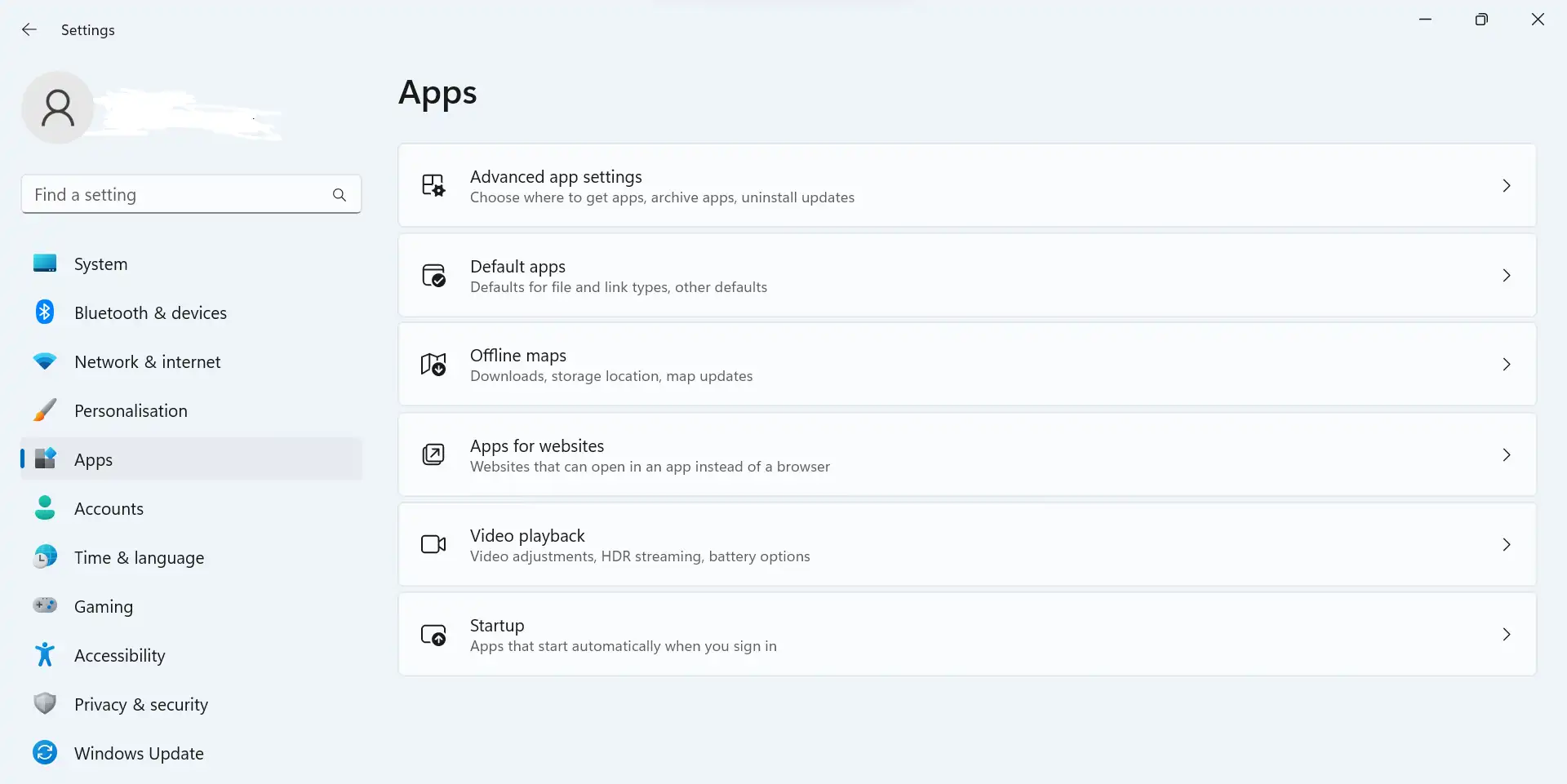
- Open Settings > Apps > Installed apps .
- Select the affected application, choose its available Advanced options , and select Repair when offered.
- Launch the application again and check whether the exact DLL message has disappeared.
- If no repair option exists or the error remains, uninstall the application, restart Windows, and reinstall it using its official installer.
Expected result: A complete installation restores files that belong to the application. This method does not correct a wider Windows runtime problem affecting multiple programs.
Method 3: Repair the Microsoft Visual C++ Runtime
When to use: Select this method when the application documentation identifies a Microsoft Visual C++ dependency, or when several programs built with the same runtime show related startup errors.
- Open Settings > Apps > Installed apps and search for Microsoft Visual C++ Redistributable entries.
- Open the entry associated with the application’s required architecture and choose Modify or Repair if available.
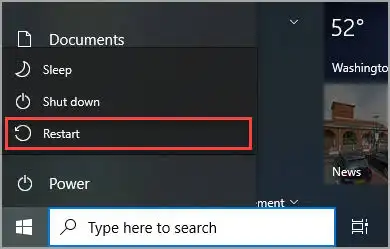
- Complete the repair wizard, restart Windows, and test the application.
- If the required package is not installed, obtain the redistributable from the official Microsoft Visual C++ Redistributable page , select the package that matches the application, and install it.
- Retry the application and record whether the error changes to a different dependency message.
Expected result: Repairing the correct runtime can restore multiple related libraries. Installing an unrelated architecture or package will not necessarily resolve this filename.
Method 4: Fix msvcp140_codecvt_ids.dll missing with Fionn DLL Fixer
When to use: This is the Recommended option when the cause is unclear, several DLL or dependency checks are needed, or manual diagnosis is taking too long. Fionn DLL Fixer is a Windows desktop application that scans for missing, damaged, version-mismatched, and System32-path-related DLL issues. Its documented workflow is:
- Launch Fionn DLL Fixer. The software automatically scans your PC for DLL and system issues and displays the detected results when the scan is complete.

- After the scan finishes, click
Repair
to start fixing all detected DLL and system issues automatically.

- Wait while the repair is in progress. During this process, the button changes to
Fixing
until all issues have been repaired.

- When the repair is complete, click
Ok
in the confirmation dialog. If prompted, restart your computer before checking whether the problem has been resolved.

- If the issue still persists after restarting, click
Recheck
to perform another scan. If new issues are found, click
Repair
again to fix them.

After the workflow, open the previously failing program and verify that it starts without the exact error. The product supports full or category scans, one-click or manual repair, and a post-repair recheck. The free edition displays three free attempts; DLL, DX, runtime, and system repair access is unlocked through VIP plans.
Tips and Common Mistakes
- Capture the exact filename and the application name before changing files; similar DLL messages can have different causes.
- Test one change at a time and restart when a repair process requests it, so you can identify which method worked.
- If only one app fails, prioritize its repair or reinstall. If many apps fail, prioritize system and runtime checks.
- Keep installers and restore options available before removing an application.
Conclusion
Resolve
msvcp140_codecvt_ids.dll missing
in a measured order. Run SFC and DISM when the symptoms are system-wide, repair or reinstall one affected application when the failure is isolated, and repair the matching Microsoft Visual C++ runtime when the dependency is confirmed. For unclear or multiple DLL problems,
Fionn DLL Fixer
provides a guided scan, repair, and recheck workflow on Windows. Verify success by restarting when requested and launching the original application. If the message remains, note the scan result and contact the application or Fionn support team rather than replacing DLL files from unofficial sources.
FAQ
What is msvcp140_codecvt_ids.dll?
It is a DLL filename that Windows may need when an application starts. The error indicates that the file could not be loaded, not that downloading a random copy is appropriate.
Why does the error affect only one program?
The application may have an incomplete installation or a dependency requirement that other programs do not share. Repairing or reinstalling that application is the focused first choice.
Should I download the DLL from a third-party website?
No. Use the application’s official installer, Microsoft’s official runtime resource when applicable, or a documented repair workflow.
When should I run DISM?
Run DISM when SFC reports it cannot repair files or when broader Windows symptoms suggest component-store corruption. Run SFC again after DISM completes.
Can Fionn DLL Fixer repair this exact error?
Fionn DLL Fixer scans for missing, damaged, version-mismatched, and path-related DLL issues and can apply its documented repair workflow. Results depend on the underlying Windows and application state, so recheck after restarting.


