 Emily CarterPrinter Drivers
If your HP LaserJet 1018 is not printing in Windows 11, begin with the USB connection and printer setup in Windows. A printer that is not found or recognized can be affected by a connection problem, an outdated driver, or an incorrect printer setting. If Windows recognizes the printer but output still does not arrive, restart the Print Spooler and review the device driver.
For a guided review of the driver and common printing conditions, Fionn Printer Driver can check installed printers, drivers, the print queue, ports, and the Windows Printer Service. Finish with a test print: a completed scan or repair alone does not show that paper reaches the printer.
Before You Start
- Confirm that the printer is an HP LaserJet 1018.
- Make sure it is connected directly to the PC by USB, powered on, and firmly connected at both ends of the cable.
- Keep Windows Update available after installation, because Microsoft recommends it for downloading, installing, and updating printer drivers.
Add the USB Printer in Windows 11
Use this route when the printer is connected directly to the PC but is missing from Windows. Windows may install a connected, powered-on local printer automatically; these steps cover the documented path when it does not.
- Confirm that the printer is connected to the Windows 11 PC by USB and is powered on.
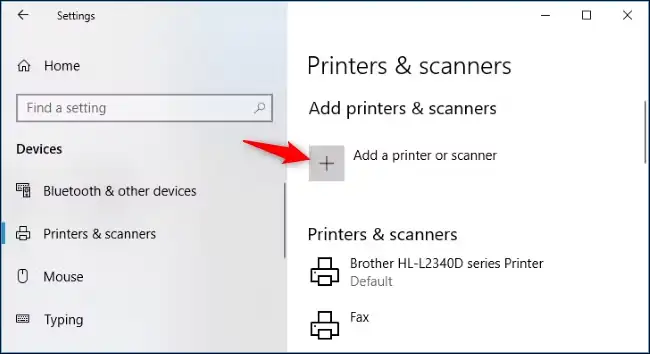
- Open Settings , then go to Bluetooth & devices and Printers & scanners .
- Select Add device and select the HP LaserJet 1018 if it appears.
- If Windows does not find it, select the option for a printer that is not listed, choose Add a new device manually , and follow the Add Printer window.
- After installation, check Windows Update for available printer-driver updates.
Microsoft documents this process in its guide to adding or installing a printer in Windows . Continue only after the printer appears in the Windows printer list.
Restore Printer Recognition and Printing Services
Use these checks when Windows says the printer is not found or not recognized, or when a printer that was previously available no longer responds. They address the USB connection, the Windows print service, and the installed device entry.
- Secure the USB cable at both the printer and PC, then try a different USB port on the computer.
- Press
Windows
+
R
, enter
services.msc, and press Enter . - Find Print Spooler and restart the service.
- Open Device Manager, find the target printer under
Printers
, and choose
Update driver
.
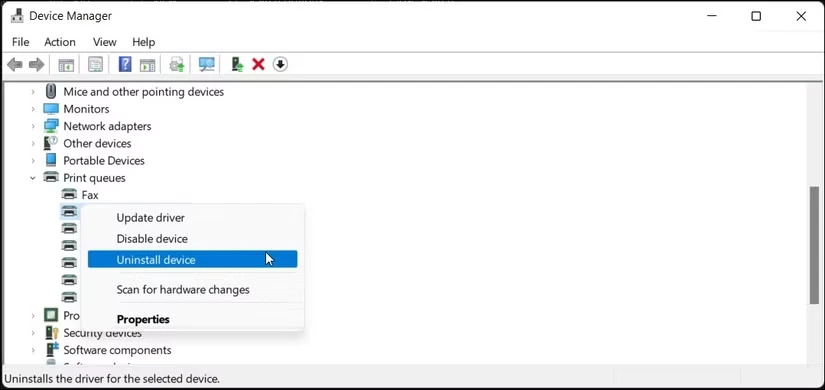
- If no update is available and you can clearly identify the correct printer entry, choose Uninstall device and restart Windows.
- Run the automated Printer troubleshooter in the Get Help app.
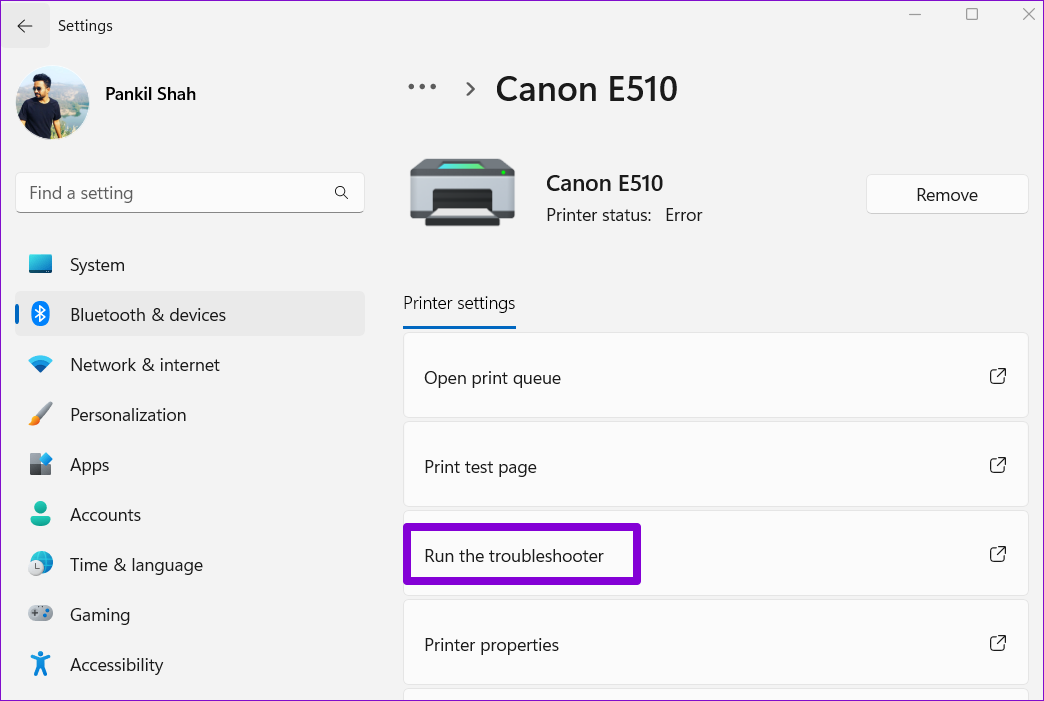
These steps are documented in Microsoft’s printer not found and not recognized troubleshooting guidance .
Diagnose Printing Conditions with Fionn Printer Driver
Use this when you want a guided diagnosis: Fionn Printer Driver can check the printer driver, queue, port, Windows Printer Service, and common device states in one workflow. It is a Fionn product and can recognize many mainstream printer brands and models for driver installation.
- Launch Fionn Printer Driver and click
Scan Now
to scan your computer for printer drivers and related issues.

- Wait while Fionn Printer Driver scans your system for installed printers, drivers, and common printer issues.

- After the scan finishes, review the detected driver issue, then click
One-Click Fix
to start the suggested installation or repair.

- Wait for the operation to finish and review its result. Then print a Windows test page to check whether the printer actually works.
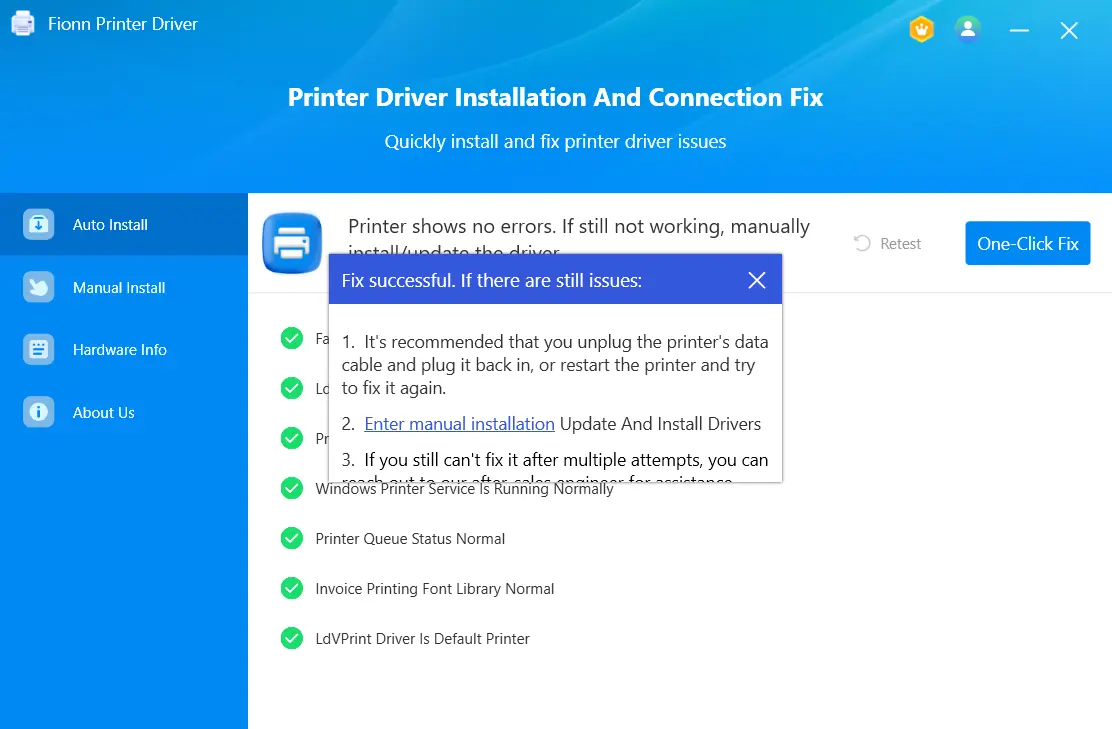
If the automatic match is not suitable, Fionn Printer Driver also supports entering a printer brand or model to view local driver candidates. Its result indicates that the software operation finished; the final outcome is confirmed only when a Windows test page prints from the HP LaserJet 1018.
Conclusion
Reconnect the powered-on HP LaserJet 1018, add it through Windows 11, and check Windows Update after it appears. If recognition or printing remains stalled, restart Print Spooler and update or reinstall the correctly identified printer entry. Fionn Printer Driver is useful when you want one guided check of the driver and printing conditions. Whichever route you use, confirm the result by printing a Windows test page and checking that the printer produces it.
Frequently Asked Questions
Why does my HP LaserJet 1018 appear in Windows but not print?
A visible printer can still have a connection problem, a stopped Print Spooler, or a driver issue. Restart Print Spooler, review the target printer entry in Device Manager, and use a test print to determine whether Windows can send output to the printer.
Will Windows 11 automatically install a USB printer?
Windows may install a local or wired printer after it is connected and powered on. If it does not, use the Windows printer-add path and the manual-add option when discovery does not find the printer.
Should I uninstall the printer in Device Manager?
Only after the connection and Print Spooler checks, and only when you can clearly identify the HP LaserJet 1018 entry. Microsoft documents uninstalling the target entry and restarting Windows when no driver update is available.
How do I know the fix worked?
Do not rely only on a completed installation, scan, or repair. Print a Windows test page and confirm that the HP LaserJet 1018 produces it.


