 Emily CarterData Recovery
If USB drive files disappeared but the drive still opens, do not save, copy, or format anything on that USB drive yet. The files may simply be hidden, or their directory entries may no longer be visible after deletion, formatting, or a file-system problem. Start with the least invasive checks: confirm that the files are hidden, look for an existing backup, then scan the USB drive for recoverable files. This guide covers three recovery paths, from simple visibility checks to a dedicated recovery scan.
Symptoms
- File Explorer shows an empty USB drive even though you expect folders or documents to be there.
- The USB drive opens normally, but some or all files are missing.
- The used-space indicator suggests data may still occupy the drive.
- Folders appear in one computer but not another, or only certain file types are absent.
- You recently deleted files, formatted the USB drive, or stopped a transfer before it completed.
The scope matters. If only one expected folder is missing, first check visibility and any backup of that folder. If the entire USB drive appears empty after deletion or formatting, move quickly to recovery and avoid writing new data to the drive.
Quick Diagnosis Checklist
- The USB drive opens and its used space is higher than expected: use Method 1 to check whether files are hidden.
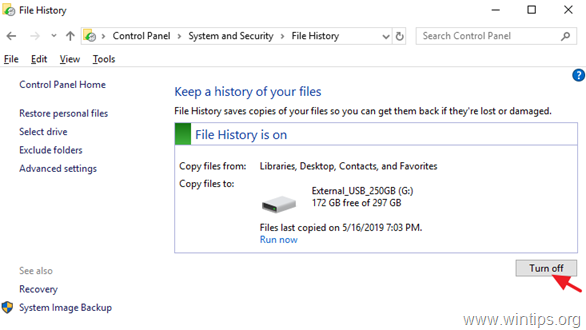
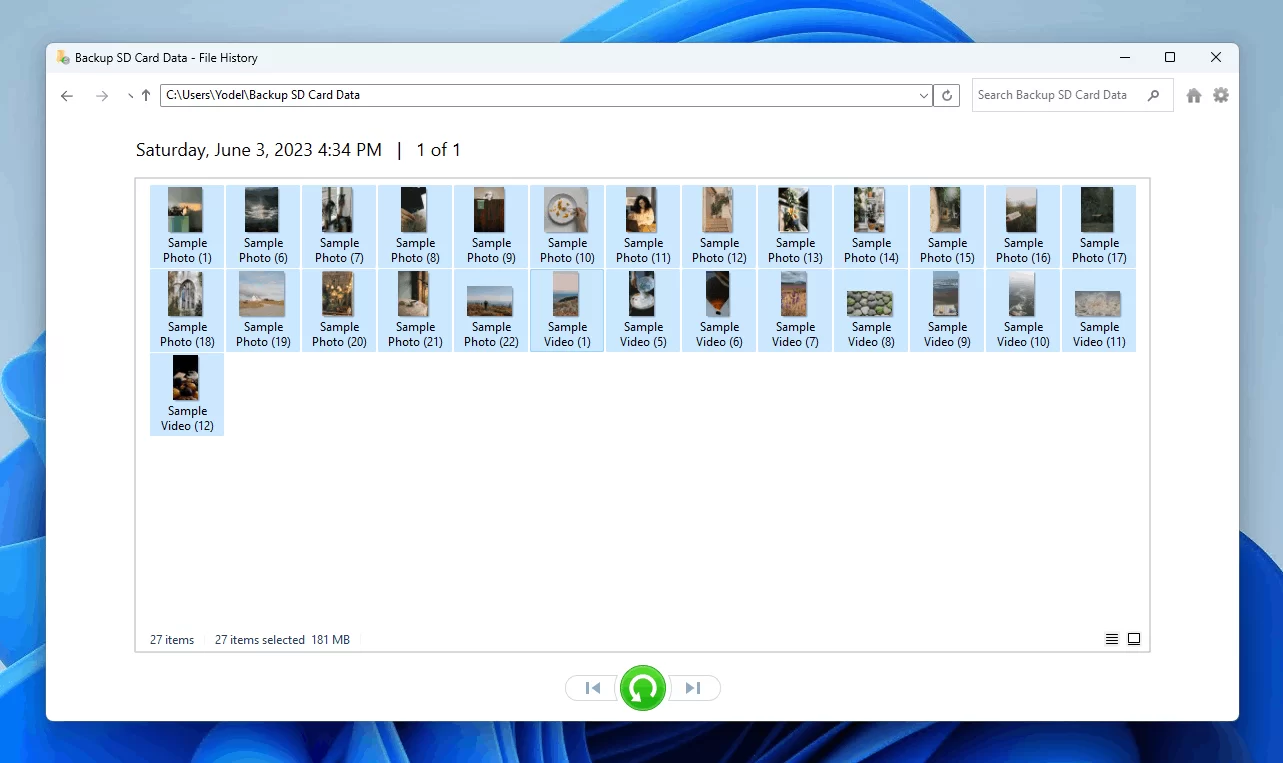
- You have a copy in File History, a backup drive, cloud storage, or another known location: use Method 2 before attempting file recovery.
- Files were deleted, the USB drive was formatted, or nothing appears after the hidden-file check: use Method 3 and save recovered files elsewhere.
Quick Method Comparison
| Method | Best For | Efficiency | User Effort |
|---|---|---|---|
| Show hidden files | Files are present but not visible in File Explorer | Fast | Low |
| Restore from a backup | A known earlier copy exists | Fast | Low to moderate |
| Recover with Fionn Data Recovery | Deleted, formatted, or otherwise inaccessible USB data | Depends on scan results | Moderate |
Method 1: Show Hidden Files on the USB Drive
When to use: Use this method when the USB drive is accessible and its reported used space suggests the files may still be present.
Step-by-Step Guide
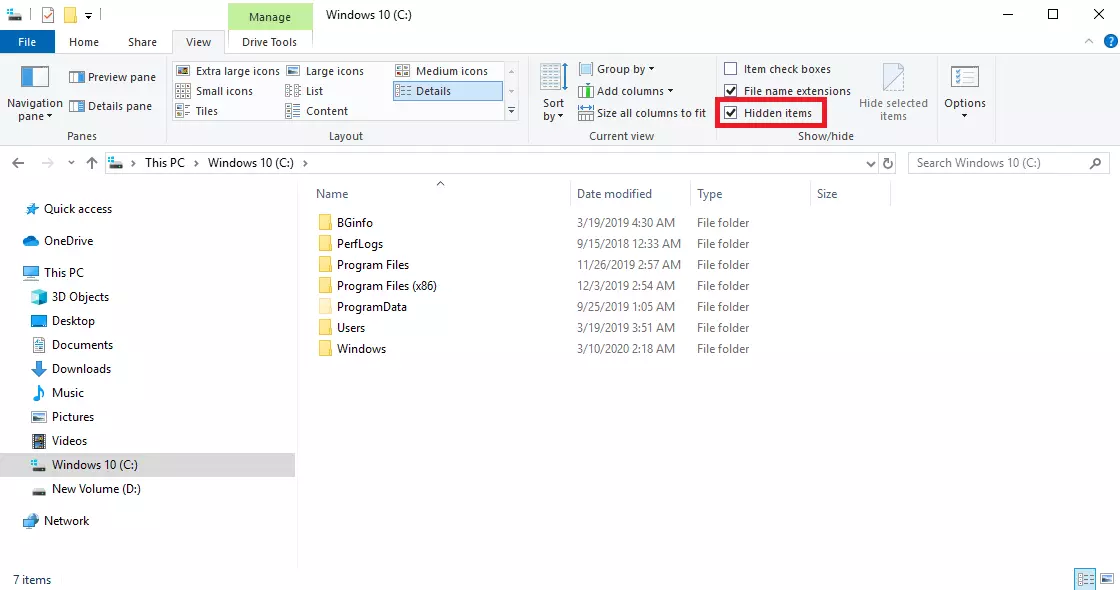
- Connect the USB drive and open it in File Explorer.
- Select View from the File Explorer command bar.
- Open Show and select Hidden items.
Look through the drive again, including expected folder locations. Hidden items may appear lighter than ordinary files.
How to Verify
Open an expected document, photo, or folder directly from the USB drive. If it opens, copy the needed files to a different storage location before making further changes.
Method 2: Restore the Missing USB Files from a Backup
When to use: Choose this route when you know the files were copied to a backup drive, cloud folder, or Windows backup before they disappeared.
Step-by-Step Guide
- Identify the backup location that held the missing USB files.
- Search that location by the original folder name, filename, or file type.
- Copy the confirmed files to a folder on your computer or another drive.
- Compare the restored copy with the files you expected to find on the USB drive.
How to Verify
Open several restored files and confirm that their contents are usable. Check the file count and folder structure against your notes or another known copy.
Method 3: Recover Disappeared USB Files with Fionn Data Recovery
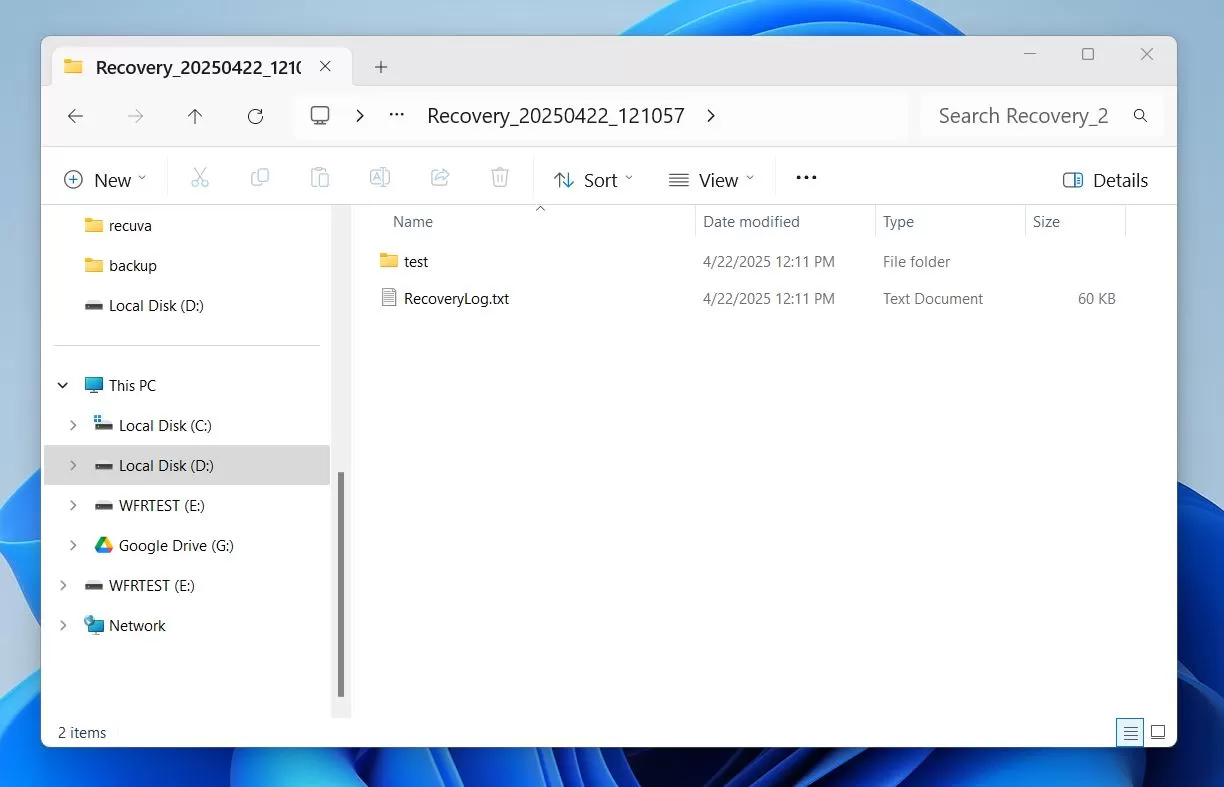
When to use: Use this method when the hidden-file check does not reveal the files, or when deletion, formatting, or lost access is involved. Fionn Data Recovery can scan USB drives and supports quick, deep, and RAW signature-based scanning. It also lets you search or filter results and preview files before recovery.
Step-by-Step Guide
- Launch Fionn Data Recovery and select the recovery option for the type of data or storage location you want to recover.

- Start the automatic scan and wait while Fionn Data Recovery searches the selected location for deleted or lost files.

- After the scan finishes, browse the results and preview the files to select the data you want to restore.

- Select a destination folder to save the recovered files, then start the recovery process.

How to Verify
Open recovered files from the destination folder, not from the affected USB drive. Confirm the previewed files have the expected content and that the restored files are saved on a different disk.
Verification Checklist
- The USB drive is visible in File Explorer and opens without relying on an old shortcut.
- You can open representative documents, photos, or videos from the recovered or restored location.
- The restored folder structure and file count match the available backup or your expected contents.
- No recovered files were saved back onto the affected USB drive during the recovery attempt.
Conclusion
When USB drive files disappeared, first determine whether they are hidden; this is the quickest path when the drive still shows used space. Next, restore a known backup if one exists, because it provides a confirmed earlier copy. If neither option resolves the loss, scan the USB drive with Fionn Data Recovery, preview results, and recover selected files to another disk. Verify the outcome by opening representative files and checking the expected folder structure. If the drive cannot be accessed at all or recovery results are incomplete, contact the USB-drive manufacturer or a qualified data-recovery service for further support.
FAQ
Why did my USB drive files disappear but the drive still has used space?
The files may be hidden, or the drive may still contain data whose normal folder entries are no longer visible. Check hidden items first, then use a recovery scan if the files do not appear.
Can I recover disappeared USB files after formatting?
Recovery may be possible, but avoid writing new data to the USB drive. Scan it, review available results, and save any recovered files to a different disk.
Should I format the USB drive when files disappear?
Do not format it before checking for hidden files, backups, or recovery results. Formatting changes the drive and can complicate the recovery attempt.
Why must recovered files be saved to another drive?
Saving onto the affected USB drive can overwrite data that has not yet been recovered. Use a separate internal disk, external drive, or other storage destination.


