 Emily CarterData Recovery
If you are thinking, “my files disappeared from my computer,” stop saving new data to the affected drive until you know what happened. The files may be hidden, moved, stored under another Windows profile, deleted, or absent from the current local copy. This guide covers four methods, starting with simple visibility checks, then Recycle Bin and backups, followed by recovery scanning. Use the diagnosis checklist first so you do not recover files that are merely somewhere else.
Symptoms
Missing-file cases do not all have the same cause. Note exactly what changed before selecting a method:
- Files vanished from one folder, but other folders and programs work normally.
- The desktop looks new or empty after an update, crash, restart, or sign-in problem.
- A known filename does not appear in File Explorer search results.
- Files disappeared after deletion or after Recycle Bin was emptied.
- An external drive appears, but expected folders are missing.
- Windows displays “We can’t sign in to your account” or says you were signed in with a temporary profile.
If the entire drive is missing, disconnects repeatedly, makes unusual noises, or is not detected reliably, stop using it. Software troubleshooting may not address a physical device problem.
Quick Diagnosis Checklist
- The filename is known, or only one folder looks empty: use Method 1 to search the whole PC and reveal hidden items.
- The desktop reset after sign-in or an update: use Method 1 and check for a temporary profile before attempting recovery.
- The files were recently deleted: use Method 2 and inspect Recycle Bin.
- File History, Windows Backup, or cloud folder backup was enabled earlier: use Method 3.
- The files were deleted, a device was formatted, or no backup contains them: stop writing to the source and use Method 4.
Choose the Right Method
| Method | Best For | Efficiency | User Effort |
|---|---|---|---|
| 1. Search, visibility, and profile checks | Moved, hidden, or profile-related files | Fast when files still exist | Low |
| 2. Recycle Bin | Recent ordinary deletions | Fast when items remain there | Low |
| 3. Backup or previous version | Files protected before they disappeared | Depends on backup availability | Low to moderate |
| 4. Recovery scan | Deleted, formatted, or inaccessible data without a usable backup | Scan time depends on the source | Moderate |
Method 1: Find Moved, Hidden, or Temporarily Unavailable Files
When to Use
Start here when there is no confirmed deletion. This method distinguishes a visibility or profile problem from actual data loss and avoids unnecessary recovery work.
Step-by-Step Guide
- Open File Explorer, select This PC , and search for the exact filename or part of it in the upper-right search box.
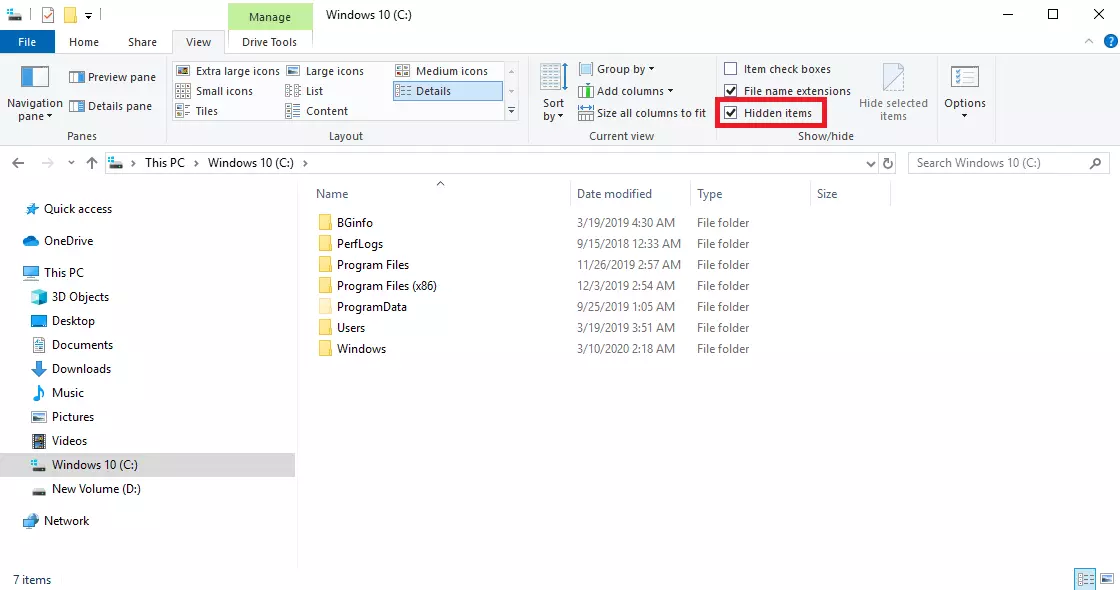
- Select View > Show > Hidden items , then inspect the folder where the files normally appear.
- Check Desktop, Documents, Downloads, and any connected external drives for a moved copy.
- If the desktop changed after sign-in, restart Windows once and sign in again. Microsoft says a restart may remove a temporary account and make the original files available.
- If Windows reports a temporary profile, do not create or save important files in that session. Follow Microsoft’s
temporary-profile support instructions
.
How to Verify
Open a located file and inspect its full path in File Explorer. Confirm that the path belongs to the expected user profile or storage device before moving it.
Method 2: Restore Deleted Files from Recycle Bin
When to Use
Use Recycle Bin when files were deleted through File Explorer and the bin has not been emptied. Items deleted from some removable drives or with permanent-delete commands may not appear there.
Step-by-Step Guide
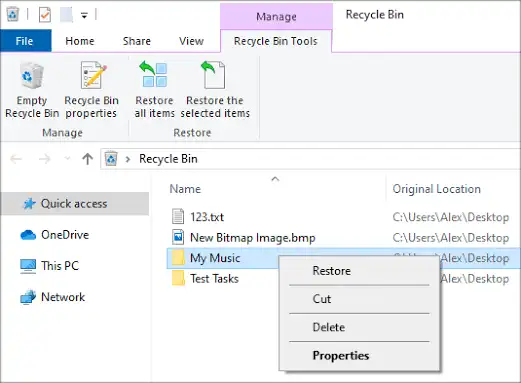
- Open Recycle Bin from the desktop or Windows search.
- Sort or search by name, original location, or deletion date to locate the missing items.
- Select the required files, right-click the selection, and choose Restore .
How to Verify
Return to each item’s original folder, open the restored file, and confirm that its contents are readable. Do not assume that seeing the filename alone proves the file is intact.
Method 3: Restore a Backup or Previous Version
When to Use
Use this method only if File History, Windows Backup, OneDrive folder backup, or another backup system protected the files before they disappeared. A backup feature cannot reconstruct an earlier file that it never captured.
Step-by-Step Guide
- Open the original folder, right-click it, and select Restore previous versions .
- Review available versions created by File History or restore points, then open a version to confirm it contains the missing files.
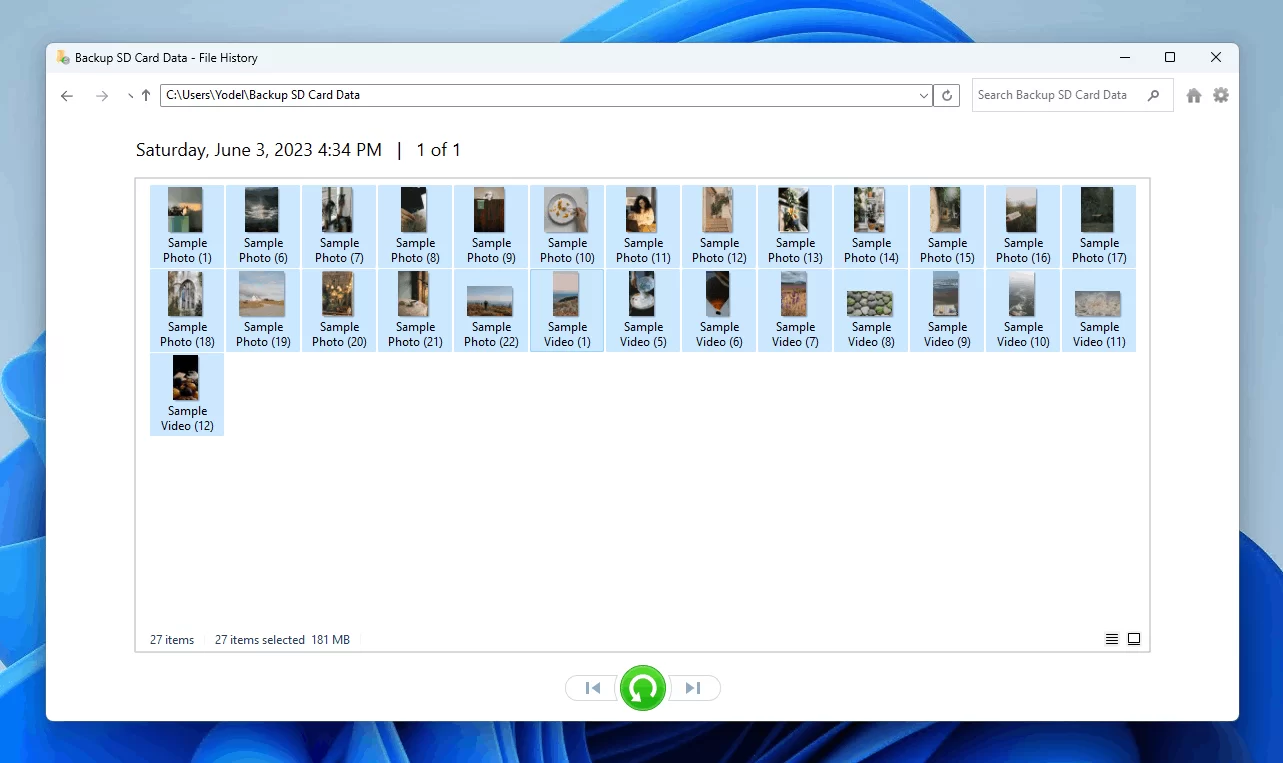
- Restore the selected version or copy the required files to a safe folder.
- If the folder was backed up with OneDrive, sign in with the same Microsoft account and inspect the corresponding cloud folder and its recycle bin.
Microsoft’s File History guidance explains how to browse and restore earlier folder versions.
How to Verify
Compare the restored file’s name, modified date, and contents with what you expected. Keep both versions temporarily if the current file may contain newer work.
Method 4: Recover Lost Files with Fionn Data Recovery
When to Use
This recovery method is a practical option when files were deleted, Recycle Bin was emptied, storage was formatted, or an accessible local or external device no longer exposes the expected data. The Windows desktop application supports local disks, external hard drives, USB drives, SD cards, and camera storage cards.
Step-by-Step Guide
- Launch Fionn Data Recovery and select the recovery option for the type of data or storage location you want to recover.

- Start the automatic scan and wait while Fionn Data Recovery searches the selected location for deleted or lost files.

- After the scan finishes, browse the results and preview the files to select the data you want to restore.

- Select a destination folder to save the recovered files, then start the recovery process.

How to Verify
Open several recovered files from the destination drive. Check documents, photos, or videos rather than relying only on filenames. A successful preview or recovery of one file does not establish that every missing file remains recoverable.
Verification Checklist
- The recovered file opens without an error.
- The contents match the expected document, photo, video, or archive.
- The file path is on the intended profile or destination disk.
- The file size is plausible and not zero bytes.
- Several representative files work, not just one item.
- A second backup exists before the source device is reused.
Conclusion
When files disappear, first determine whether Windows merely changed where they appear. Search the whole PC, reveal hidden items, and check the active user profile. Restore confirmed deletions from Recycle Bin next, then use an existing backup or previous version. If the data is genuinely absent, stop writing to the source and scan it. Verify recovery by opening several files from a different destination disk. If the drive is unstable, undetected, or physically damaged, contact the device manufacturer or a qualified data-recovery service. Fionn Data Recovery is available for supported deletion, formatting, and inaccessible-file scenarios.
Frequently Asked Questions
Why did my files suddenly disappear from my computer?
Common explanations include a changed location, hidden-file settings, a temporary Windows profile, deletion, an unavailable external drive, or a missing local copy of cloud-backed content. Diagnose the location and profile first. Do not assume deletion solely because the desktop or one folder appears empty.
Can a Windows update make files look missing?
Yes. Microsoft documents cases in which users may be signed into a temporary account after an upgrade. Restarting and signing in again can restore access to the normal profile. Search the PC and verify the current account before running recovery software.
Can System Restore recover personal files?
System Restore is intended for system files, installed applications, registry data, and settings. Microsoft states that restore points do not affect personal data, so System Restore should not replace File History, cloud backup, or file-recovery methods for missing personal files.
Why should recovered files be saved to another disk?
Deleted data may remain recoverable until new writes reuse its storage space. Saving recovered files to the same source can overwrite other missing data. Use a separate physical disk when possible, not merely another folder on the affected disk.


