 Emily CarterDLL Errors
You generally do not reinstall an individual DLL file. Restore a Windows system DLL with Windows tools, and restore an application DLL by reinstalling the app or its official component. So, if you need to reinstall DLL , do not download a file from an arbitrary website or copy it into a system folder: Windows and applications locate libraries based on location, architecture, and dependencies. Below are four methods for Windows 10 and 11. First identify the type of error, then choose the appropriate approach.
How to determine which DLL needs restoring
| The DLL belongs to | What to do |
|---|---|
| A Windows system component | Run DISM, then SFC. |
| One app or game | Repair or reinstall the application. |
| Visual C++ Runtime | Install the official Microsoft Redistributable package. |
| DirectX or another runtime | Install the official component specified by the app developer. |
| An unknown source | Diagnose the issue first; do not replace the file manually. |
Write down the exact filename and the application in which the DLL missing error appears. If the failure occurs in multiple applications or Windows components, a system cause is more likely. If it affects only one game or application, first check its installation and dependencies.
Quick comparison of DLL restoration methods
| Method | Best for | Effectiveness | User effort |
|---|---|---|---|
| DISM and SFC | Windows system files and errors in multiple applications | High when system components are damaged | Moderate |
| Fionn DLL Fixer | Unclear causes, dependencies, and multiple errors | Automated diagnosis and repair | Low |
| Reinstalling an app or component | One application, game, or known runtime | High for a local cause | Moderate |
| System Restore | Errors after a recent Windows change | Depends on an available restore point | Moderate |
Method 1: Restore system DLLs with Windows tools
When to use it: The error appeared after a Windows update, affects multiple programs, or involves a system component. Microsoft recommends repairing the Windows image with DISM first, then checking system files with SFC.
- Open Windows Terminal as an administrator or an elevated Command Prompt.
- Enter
DISM.exe /Online /Cleanup-image /Restorehealthand wait for the command to finish.
- Enter
sfc /scannowand wait for the scan to finish. - Restart your computer.
- Open the application where the error occurred.
Check: SFC has completed and the original message does not reappear after restarting. Details of the sequence are available in the Microsoft System File Checker instructions .
Method 2: Diagnose and fix DLL issues with Fionn DLL Fixer
Recommended when the cause is unclear: Fionn DLL Fixer checks detectable DLL and Windows system-component issues. It supports full and category scans, repair, and rechecking; this is practical when it is difficult to manually identify a dependency, component, or version mismatch.
- Launch Fionn DLL Fixer and wait for the results of the automatic DLL and system scan.

- After the scan finishes, click “Repair” to start fixing detected issues.

- Wait for the process to finish; the button displays “Fixing” during repair.

- Click “Ok” in the confirmation dialog and restart your computer if prompted.

- If the problem persists, click “Recheck”; if new issues are found, select “Repair” again.

Check: After rechecking, start the application or game that displayed the error.
Method 3: Restore an app or official component
When to use it: Only one application or game will not start, or the DLL name clearly indicates a runtime. Reinstallation restores the app’s own files; for Visual C++ and DirectX, use the official installer recommended by the developer.
- Write down the application name and the exact error text.
- Close the application.
- Open Settings → Apps → Installed apps and select “Repair” if the option is available.
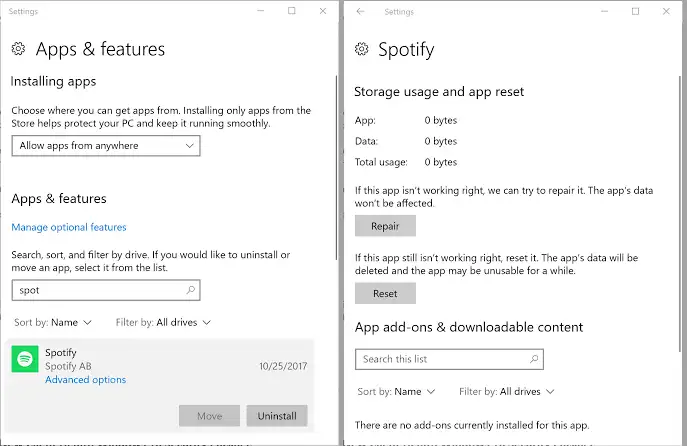
- If Repair is unavailable or does not help, uninstall the application and restart Windows.
- Install a fresh copy from the developer’s official source or the store where you obtained the application.
- If the developer specifies Visual C++, DirectX, or another component, install it from the provider’s official page.
Check: The affected application starts without the previous message. If the error also appears in other applications, return to system repair or diagnosis.
Method 4: Use System Restore
When to use it: The error began after installing a driver, application, or update, and a restore point created earlier is available.
- Search Windows for “Create a restore point” and open the result.
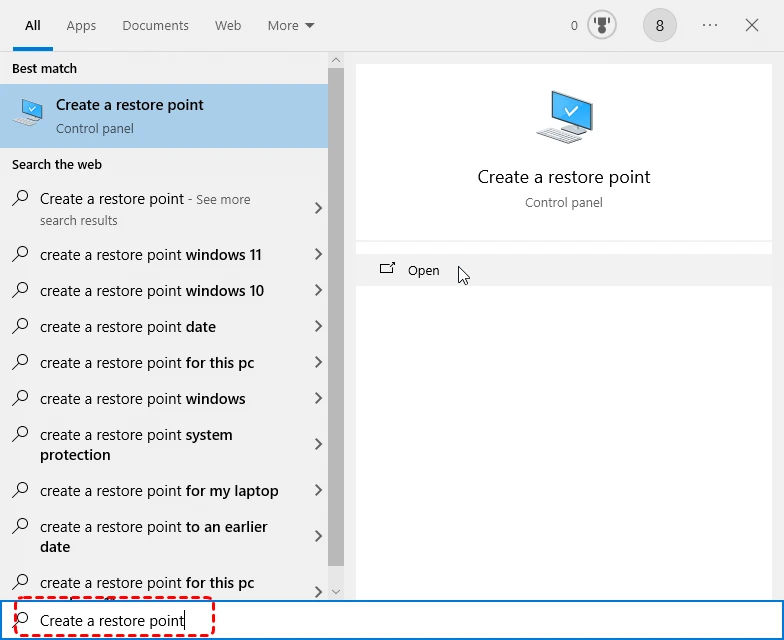
- On the System Protection tab, select “System Restore.”
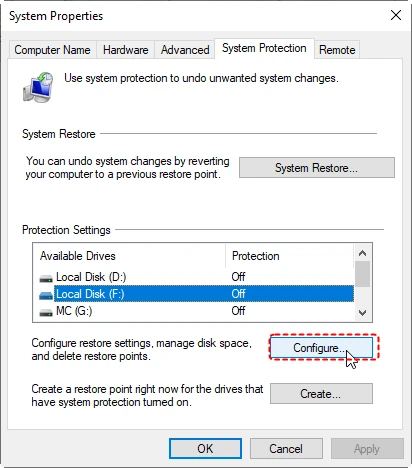
- Select a point created before the DLL error appeared.
- Review the affected applications and confirm the restoration.
- After restarting, check the affected application.
Check: Windows starts and the application opens without the original error. If no suitable restore point exists, use another method.
System32 or SysWOW64: where not to copy DLL files
In 64-bit Windows, the
System32
folder primarily contains 64-bit system components, while
SysWOW64
serves the 32-bit environment. WOW64 also applies file-system redirection. Therefore, you cannot reliably guess the right folder from a DLL name: manual copying may not resolve the error or may create a version conflict. Restore the source of the problem instead—Windows, the application, or the official dependency package.
Should you register a DLL with regsvr32
No. Do not use
regsvr32
as a universal fix for a DLL missing error. This utility is intended to register DLLs that support the relevant registration mechanism. A missing file or loading error does not mean registration will help. First determine whether the library is a Windows, application, or runtime component.
Conclusion
To safely restore DLL files in Windows, start by identifying the source of the error instead of searching for an individual file. For issues in multiple applications, run DISM and SFC. If the failure is limited to one application, repair or reinstall it and its official component. When the cause is unclear or there are several messages, Fionn DLL Fixer can check detectable DLL and system-component issues, perform repairs, and recheck. After any method, restart Windows if needed and launch the affected application. If the error remains, provide its exact text to the developer.
Frequently asked questions
Can I download one DLL and place it in System32?
It is not recommended. The file may not match the application version, architecture, or installation source. It is safer to restore Windows, the application, or the official component.
Why does System32 contain 64-bit files while SysWOW64 contains 32-bit files?
This is part of WOW64 compatibility in 64-bit Windows. Because of file-system redirection, manual replacement in these folders is especially unreliable.
Should I always run DISM before SFC?
When repairing system components, Microsoft recommends running DISM first and SFC afterward. For an error in one application, checking its installation is usually more appropriate first.
Will regsvr32 help with every DLL error?
No. It is intended only for DLLs that support registration. A DLL missing message alone is not a reason to run regsvr32.
What should I do if the error returns after reinstallation?
Verify the exact DLL name, check the required official component, and make sure the error does not occur in other applications. Then run a system check or DLL diagnosis.


