 Emily CarterWindows Errors
A
Side-by-side configuration error
means Windows could not create the activation context an application needs. The failure can involve a Visual C++ assembly, an x86/x64 mismatch, an application manifest, or damaged Windows components. Start by isolating whether one app or several apps fail, then use
sxstrace.exe
to identify the exact assembly before repairing a runtime. This guide provides four repair paths, from targeted application repair to broader Windows repair.
Symptoms
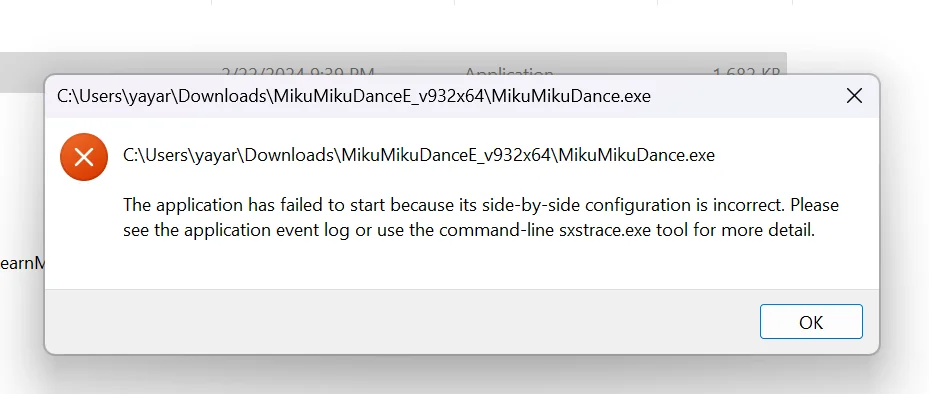
Windows may display
The application has failed to start because its side-by-side configuration is incorrect
. The message can also direct you to the application event log or
sxstrace.exe
.
- One named application fails immediately while other programs work.
- A program fails after an update, interrupted setup, or migration to a new PC.
- Multiple unrelated programs or Windows features fail, suggesting a wider system-component issue.
What Causes a Side-by-side Configuration Error?
- A required Visual C++ runtime or assembly is missing: the application cannot locate the assembly it declares.
- An x86/x64 architecture mismatch: a 32-bit dependency and a 64-bit dependency are different requirements.
- An application manifest or assembly-version conflict: the declared assembly identity does not match an installed component.
- A damaged application installation: the program’s files or manifest may be incomplete or inconsistent.
- Windows component corruption: this is more likely when several applications or Windows features show related failures.
Quick Diagnosis Checklist
- Only one application fails: begin with Method 1 to restore that application’s installation.
- The message references
sxstrace.exe, or reinstalling did not help: use Method 2 to identify the assembly, version, and architecture before installing anything. - The trace identifies a Microsoft VC assembly: use the named runtime generation and architecture to repair the matching Visual C++ Redistributable; do not install every package.
- Several programs or Windows components fail: use Method 3 to repair the Windows image and protected system files.
- Launch failures accompany detected DLL or runtime issues: Method 4 is a separate guided scan, repair, and recheck workflow.
Quick Method Comparison
| Method | Best For | Efficiency | User Effort |
|---|---|---|---|
| Reinstall the affected app | One application with a damaged installation | High when app files are incomplete | Low |
| SxS trace and targeted runtime repair | Unknown assembly, version, or architecture | High for precise diagnosis | Medium |
| DISM and SFC | Multiple apps or Windows components fail | Broad system repair | Medium |
| Fionn DLL Fixer | Detected DLL and system issues | Guided scan and repair | Low |
Method 1: Reinstall the affected application
When to Use
Use this first when just one application fails, especially after an update or interrupted installation. A fresh official installer can restore the app’s manifest and bundled components.
Step-by-Step Guide
- Close the affected application and its installer.
- Uninstall the application from Windows Settings.
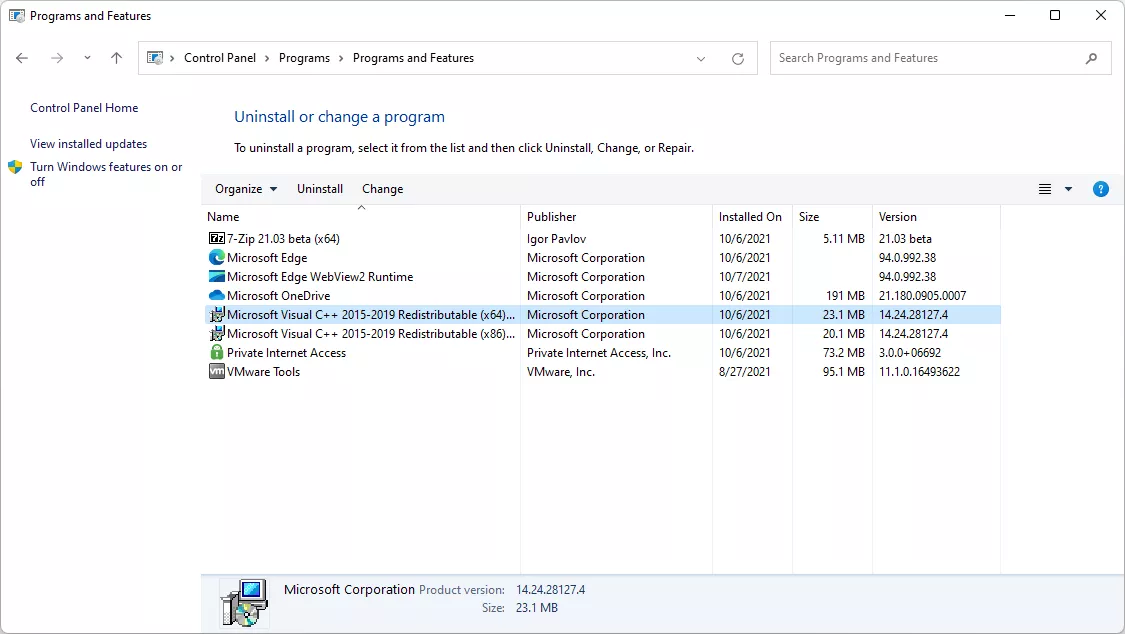
- Restart Windows.
- Install a fresh copy from the application developer’s official source.
- Launch the application after setup completes.
How to Verify
The application opens to its normal first screen. If the same error returns, capture a trace instead of repeatedly installing unrelated runtimes.
Method 2: Capture and read an SxS trace
When to Use
Use this method when the error names
sxstrace.exe
or Method 1 did not work. The trace records activation-context events and identifies the dependency to repair.
Step-by-Step Guide
- Open Command Prompt as an administrator.
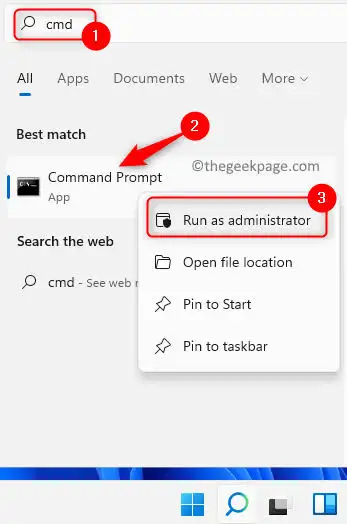
- Start tracing.
sxstrace trace -logfile:%TEMP%\sxstrace.etl - Launch the failing application and reproduce the error once.
- Return to Command Prompt and press Enter to stop tracing.
- Parse the trace into text.
sxstrace parse -logfile:%TEMP%\sxstrace.etl -outfile:%TEMP%\sxstrace.txt - Open
%TEMP%\sxstrace.txtand note the assembly name, version, andprocessorArchitecture.
How to Read SxS Trace Results
| What the trace shows | What it means | Next step |
|---|---|---|
Microsoft.VC*.CRT
| A Visual C++ runtime dependency | Repair or install the corresponding Visual C++ Redistributable. |
processorArchitecture="x86"
| A 32-bit dependency | Check the x86 component, even on 64-bit Windows. |
processorArchitecture="amd64"
| A 64-bit dependency | Check the x64 component. |
| Version conflict | The requested assembly version does not match | Repair or reinstall the app and its corresponding runtime. |
| Manifest error | An app manifest or installation problem | Use the application’s repair option or reinstall it. |
How to Verify
The text file contains details from the reproduced failure. Apply only the repair indicated by its assembly generation and architecture, then relaunch the app. Send the relevant excerpt to the developer if the trace points to the app’s own manifest.
Method 3: Repair Windows system files with DISM and SFC
When to Use
Use this method when multiple unrelated applications fail or Windows features also malfunction. Run DISM first so Windows can repair the component store used by System File Checker.
Step-by-Step Guide
- Open Command Prompt as an administrator.
- Run DISM.
DISM.exe /Online /Cleanup-image /Restorehealth - Wait for DISM to report completion.
- Run System File Checker.
sfc /scannow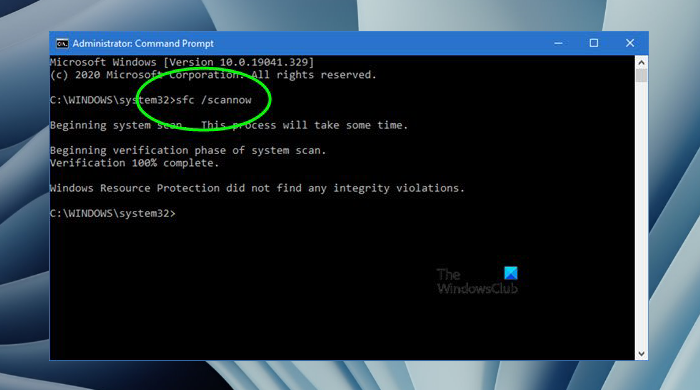
- Keep Command Prompt open until verification reaches 100%.
- Restart Windows and test the affected application.
How to Verify
Review both command results, restart, and open the affected application. If one application still fails, return to Method 2 for app-specific evidence.
Method 4: Diagnose and Fix DLL and System Issues with Fionn DLL Fixer
When to Use
Use this recommended workflow when launch failures coincide with DLL, runtime, or system issues that need a guided scan. Fionn DLL Fixer scans detected DLL and system issues, then supports repair and recheck. It does not replace an SxS trace when you need the exact application manifest diagnosis.
Step-by-Step Guide
- Launch Fionn DLL Fixer. The software automatically scans your PC for DLL and system issues and displays the detected results when the scan is complete.

- After the scan finishes, click “Repair” to start fixing all detected DLL and system issues automatically.

- Wait while the repair is in progress. During this process, the button changes to “Fixing” until all issues have been repaired.

- When the repair is complete, click “Ok” in the confirmation dialog. If prompted, restart your computer before checking whether the problem has been resolved.

- If the issue still persists after restarting, click “Recheck” to perform another scan. If new issues are found, click “Repair” again to fix them.

How to Verify
Confirm the recheck results, then launch the application twice. If the Side-by-side configuration error remains, save an SxS trace and share the assembly details with the application developer.
Verification Checklist
- The application opens twice in succession without the configuration error.
- The application reaches the screen where it previously failed.
- The repaired Visual C++ component matches the trace’s generation and architecture.
- Other affected applications also start normally.
sxstrace.txtis available for official support if the error returns.- DISM and SFC completed before judging a system-wide repair.

Conclusion
For one failing program, reinstall the application first. If it still fails, use SxSTrace to determine the actual assembly, Visual C++ generation, and x86 or x64 requirement; that evidence is more useful than installing every redistributable. Use DISM and SFC when the issue affects several programs or Windows components. For detected DLL and system issues, Fionn DLL Fixer provides a scan, repair, and recheck route. Verify the result by restarting when needed and opening the app twice. If the error persists, provide the trace excerpt to the developer or official support.
FAQ
What does a Side-by-side configuration error mean?
Windows could not build the application’s activation context from the assemblies and manifests it requires. The error can involve a runtime, architecture, version, or application-installation issue.
Should I install every Visual C++ package?
No. Use the SxS trace to identify the Visual C++ assembly generation and architecture, then repair only the matching component or reinstall the affected app.
Why can a 32-bit application fail on 64-bit Windows?
A 32-bit application can require an x86 assembly. A 64-bit edition of the runtime does not replace that separate x86 dependency.
Will DISM and SFC fix an application-specific error?
They can repair Windows components and protected system files, but they do not replace an application’s manifest or identify its exact dependency. Use an SxS trace for a single-app failure.
Where are the SxS trace files saved?
With the commands in this guide, the files are saved in the current user’s temporary folder:
%TEMP%\sxstrace.etl
and
%TEMP%\sxstrace.txt
.


