 Emily CarterVoice Changer
To change your voice in real time, set up your microphone and headphones in Fionn VoxMagic , choose a voice model, enable Voice Changer, and preview the result. Try available models with the same short phrase, then select the voice that best matches the sound you want.
This guide is for Windows 10 and Windows 11. Local preview confirms that VoxMagic processes your voice; to send the processed voice to Discord, Steam, or another app, select the virtual input there and test it separately.
What You Need
- A PC running Windows 10 or Windows 11.
- A physical microphone and headphones. Headphones are important for previewing because external speakers can cause acoustic feedback.
- Installed Fionn VoxMagic .
Set Up Your Voice in Fionn VoxMagic
Start with a local test so you can hear the processed voice before a call or game. Compare the available classic and AI voices in the library. If your version shows a female voice preset, preview it along with other options using one short phrase.
- Open Fionn VoxMagic. In the device settings section, select your microphone and playback device. Enable noise reduction if needed, then click Next.
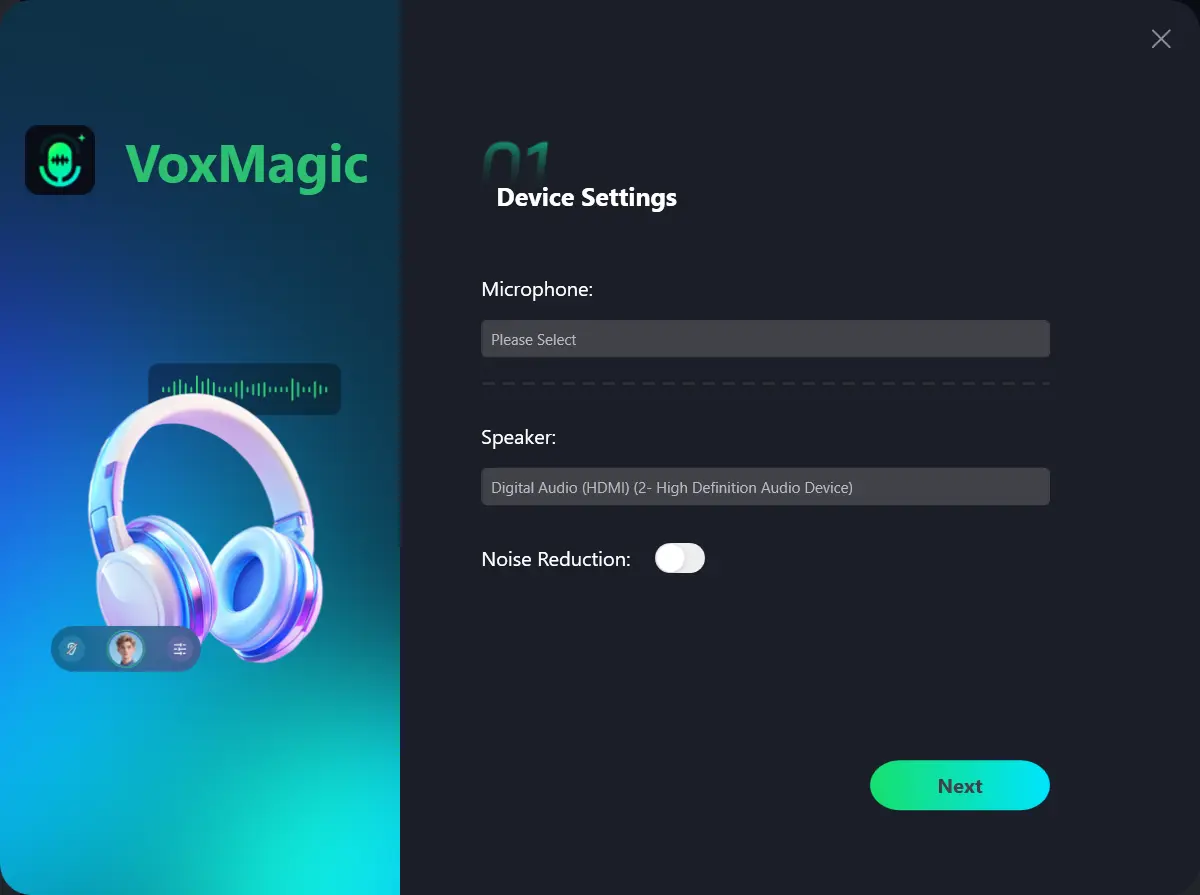
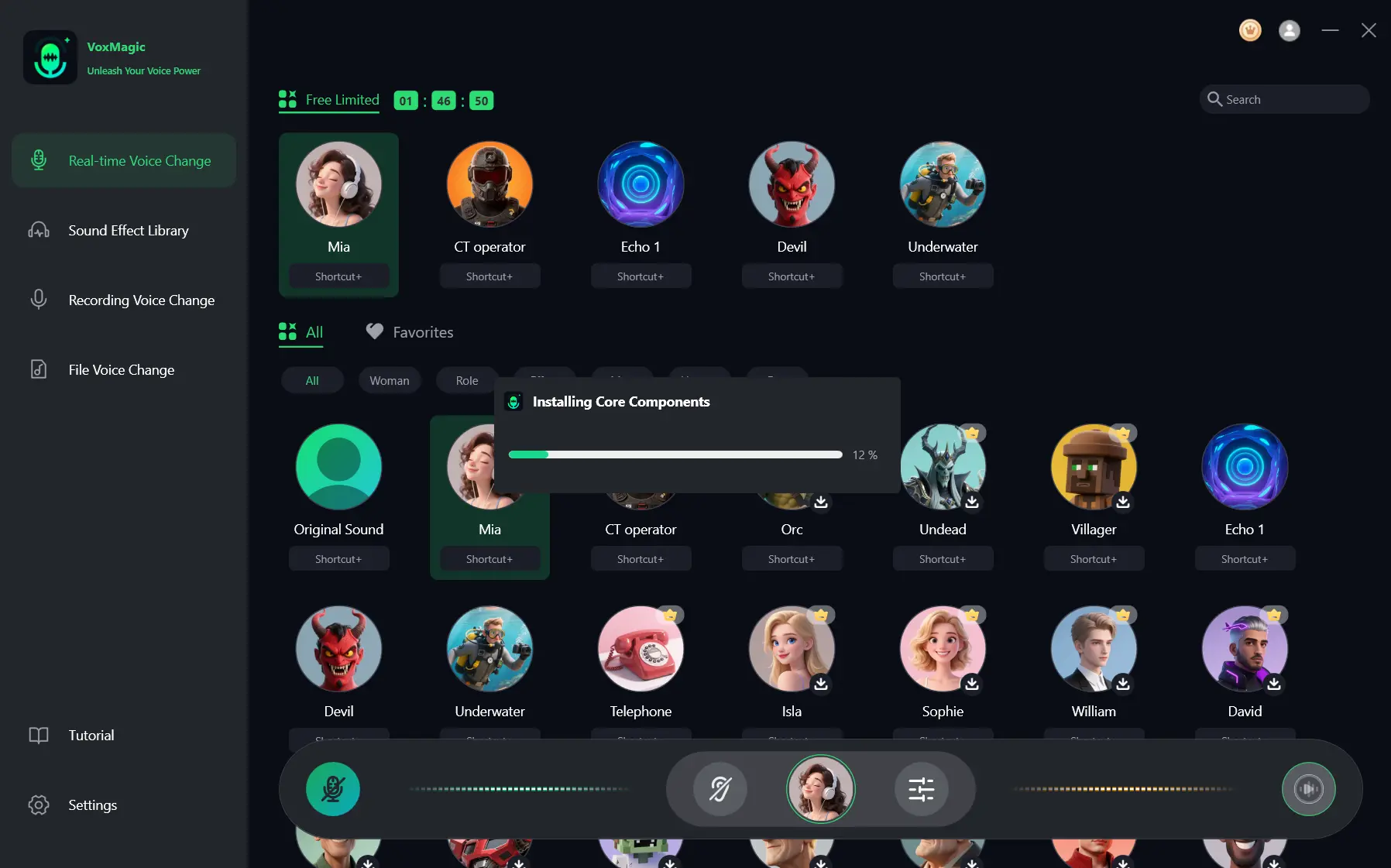
- If the core components installation window appears, wait for the installation to finish before continuing.
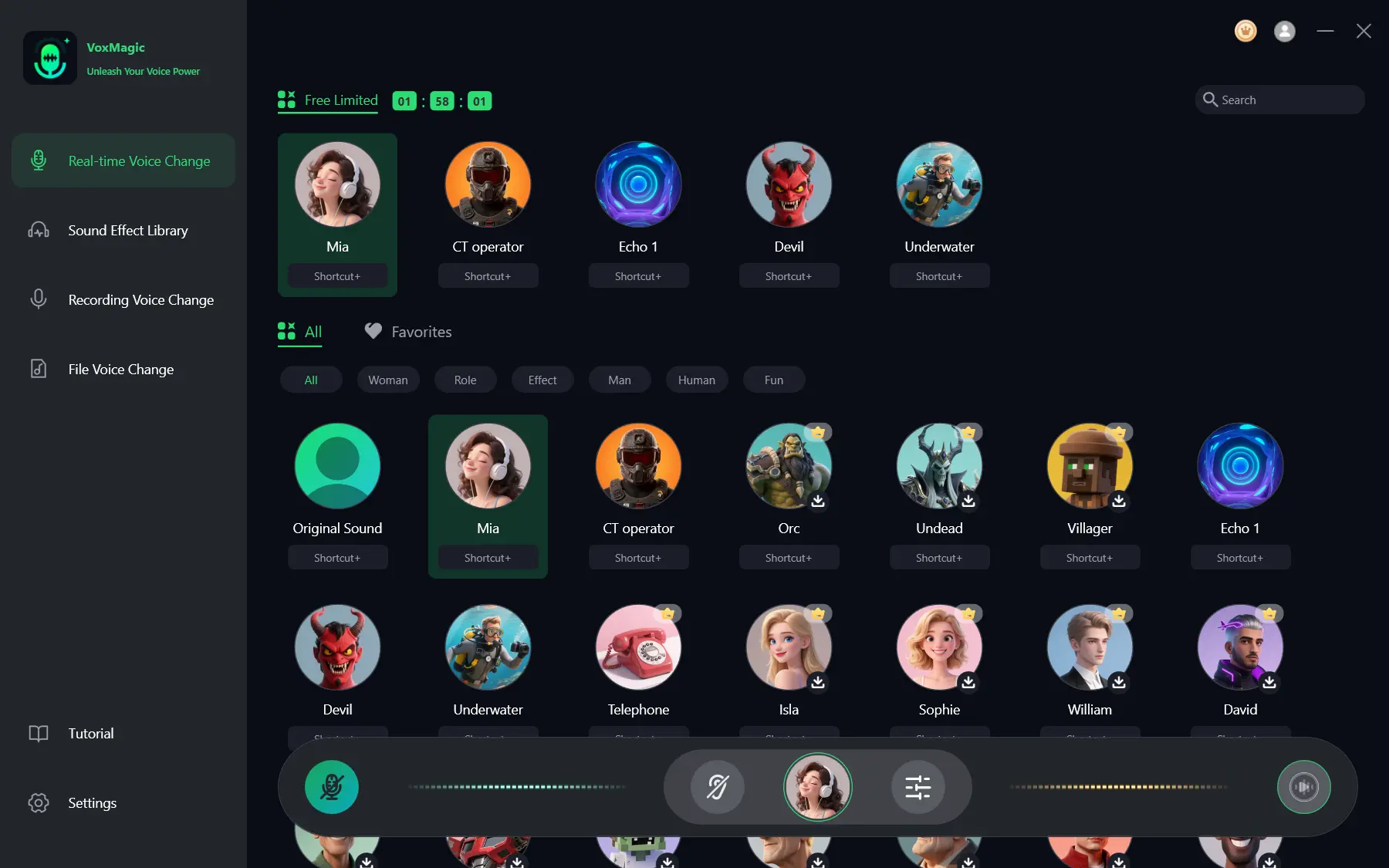
- Open the real-time voice changing section and select a voice effect, such as Mia. The selected effect is highlighted and appears in the lower control panel.
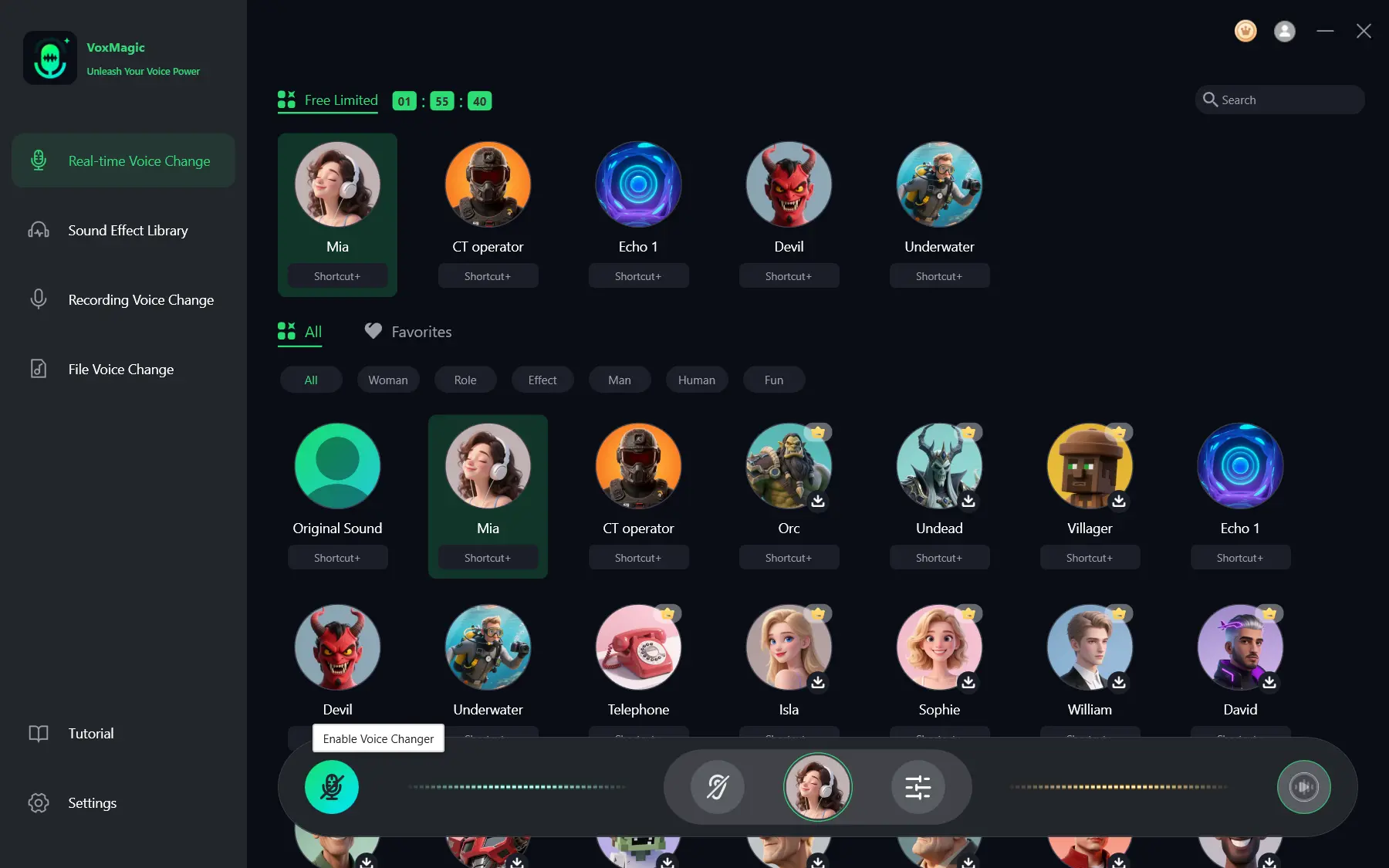
- Click the microphone button labeled Enable Voice Changer in the lower-left corner of the control panel.
- Click the ear icon in the lower panel to enable preview. Use headphones to check the selected effect.
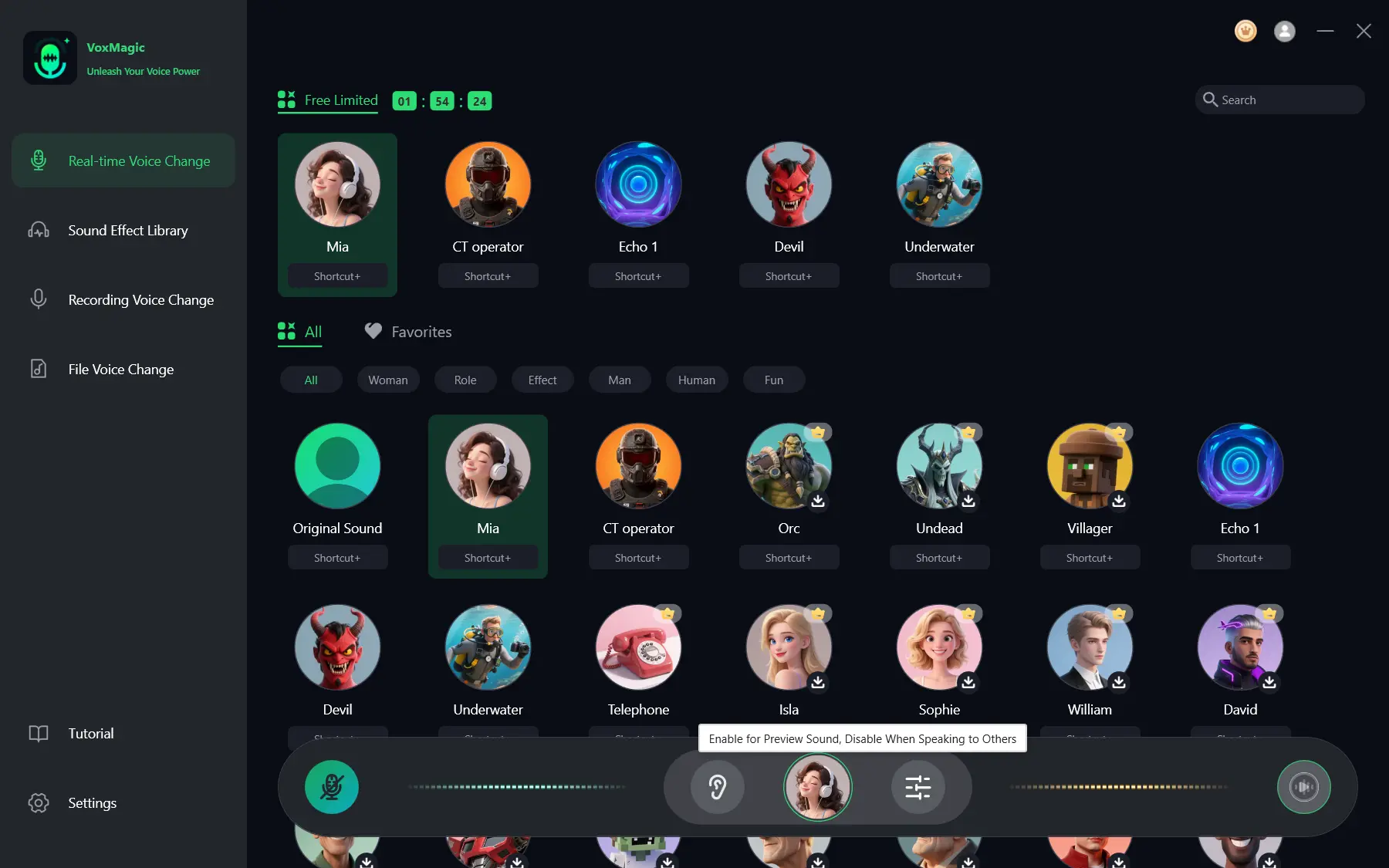
- Speak several phrases into the microphone and listen to the result. Make sure the audio level indicators respond to speech. Turn off preview before speaking with other people.
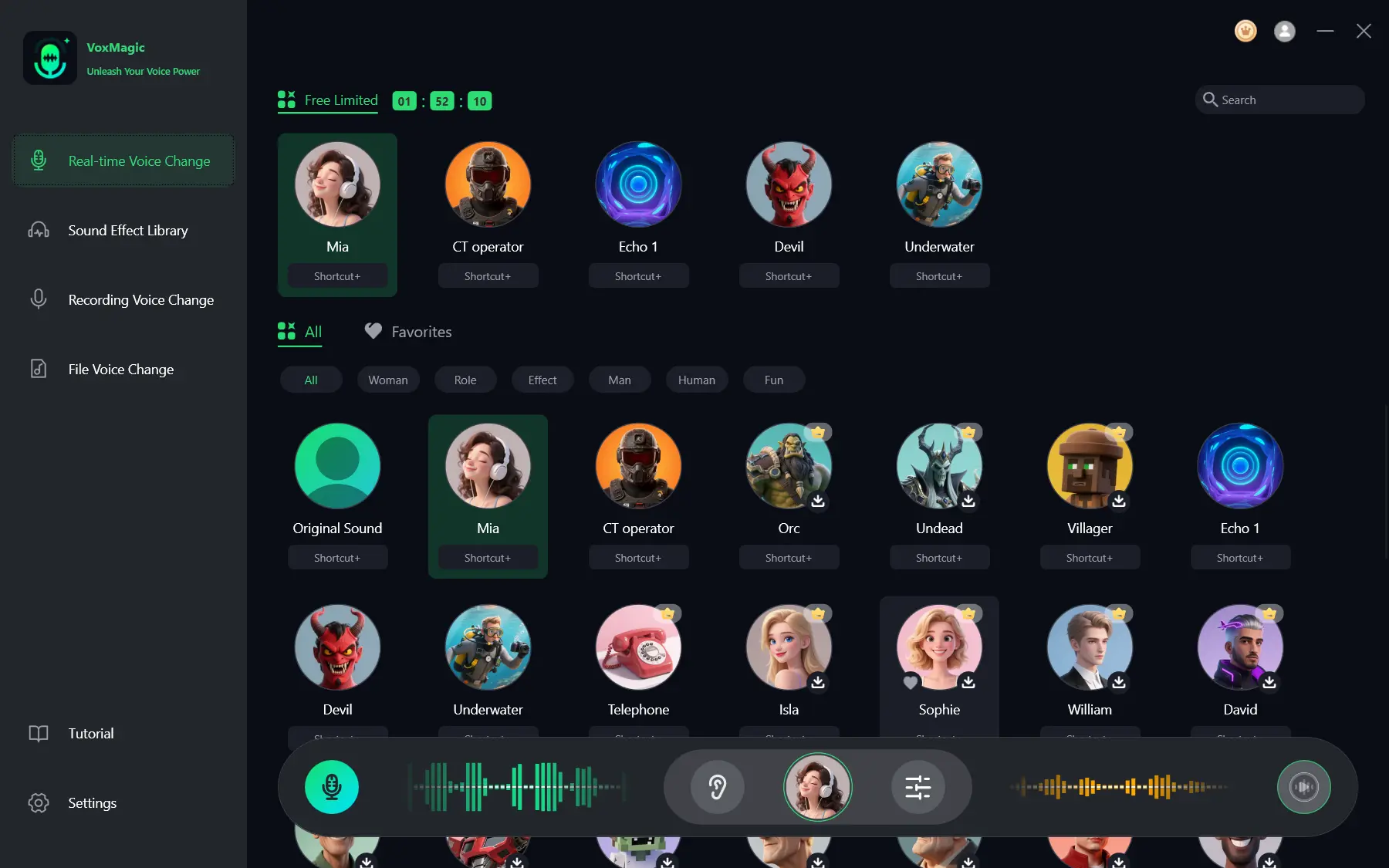
Preview different models before choosing the sound you prefer. If you need to change vocal pitch, use Pitch and adjust it gradually. Only use other controls, such as Formant, EQ, or Reverb, when they are available in your current version. If background noise is present, you can enable noise reduction. VoxMagic provides low and high levels; the higher level can affect voice quality, so repeat a test phrase after changing it.
Route the Processed Voice to Discord or Steam
Complete this stage after the local test. In the target app, choose the VoxMagic virtual input under the name shown in its device list, then run that app's microphone test.
Discord
- Open User Settings in Discord.
- Go to Voice & Video and select the VoxMagic virtual input in the input device list.
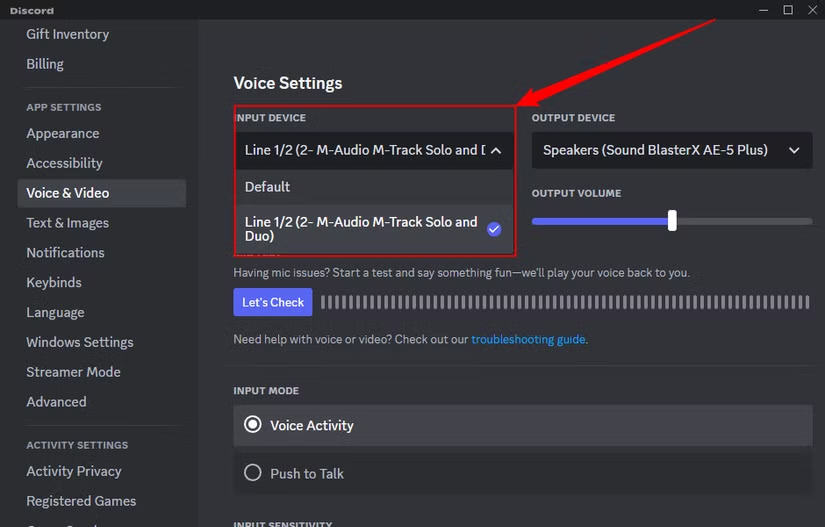
- Say a test phrase and confirm that Discord receives the processed signal.
Source: documented VoxMagic setup for Discord
Steam
- Open the Steam menu in the upper-left corner and choose Settings.
- Go to Voice and set the VoxMagic virtual input as the input device.
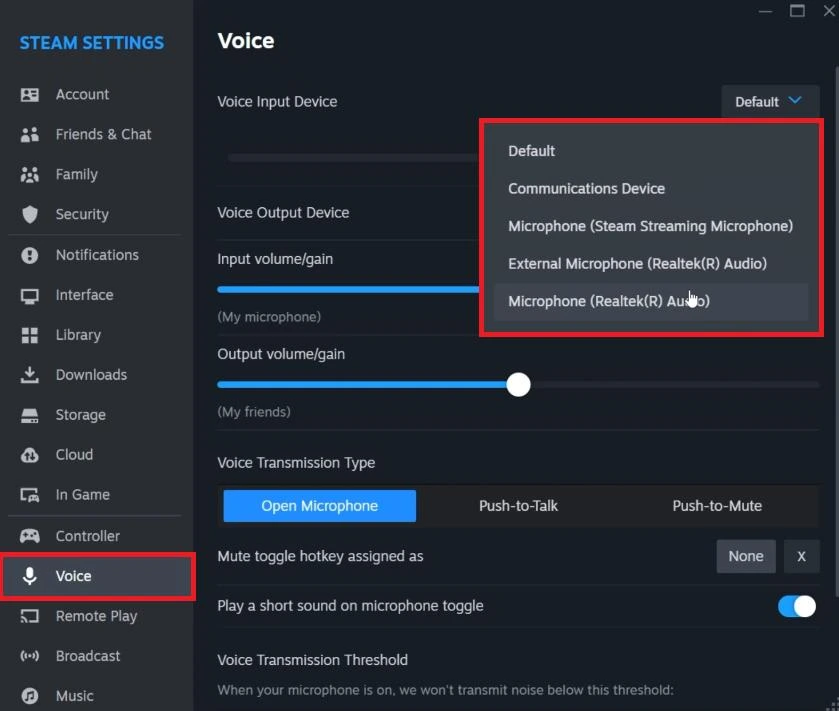
- Keep the default output or choose your physical headphones rather than the VoxMagic virtual speaker.
- Turn off Hear Yourself in VoxMagic and run the microphone test in Steam.
Source: documented VoxMagic setup for Steam
Local preview verifies voice processing inside VoxMagic. For another app to receive the processed voice, configure its input device and verify it in that app.
If There Is No Sound or a New Device Is Not Visible in VoxMagic
- Check that your physical microphone is connected and selected.
- If the device list has not updated, click Refresh in VoxMagic.
- Select the input and output devices again.
- Confirm that Voice Changer is enabled.
- Enable Hear Yourself, then test local preview with headphones.
- If there is still no sound, check the Windows recording device or VoxMagic components before testing again.
Source: documented VoxMagic device-list check
Conclusion
To change your voice on a PC with VoxMagic, choose and preview an available voice model, enable Voice Changer, and test the processed sound with headphones. For Discord or Steam, select the VoxMagic virtual input in that application and complete its microphone test.
Frequently Asked Questions
Can I select a female voice?
VoxMagic materials mention a female voice preset. If it appears in your installed version, select it in the library and assess the result in preview. You can also compare other available models to find the sound that suits you.
Why should I use headphones?
They let you hear the processed voice and reduce the risk of feedback, since external speakers can be picked up by the microphone.
Is hearing my voice in VoxMagic enough?
No. It verifies processing only within VoxMagic. For Discord or Steam, select the VoxMagic virtual input in the app settings and run its microphone test.
What should I do if my connected microphone does not appear?
Click Refresh in VoxMagic and check the device list again. If the microphone appears, select it and repeat the local headphone test.
Should I enable noise reduction?
Enable it when background noise interferes with speech. After selecting a level, listen to the result because a higher level can reduce voice quality.


