 Emily CarterScreen Recording
If Xbox Game Bar is not recording the desktop, it does not always mean that something is broken. The bar is primarily intended to capture a game or an individual app, so the regular desktop, File Explorer, and some system windows may not be available as recording sources. First, decide whether you need the entire screen or only a program window. Below are three solutions: record the screen with Fionn Screen Recorder , correctly capture a supported window in Xbox Game Bar, and check the bar itself.
Signs of the Problem
- Recording does not start when you press the recording shortcut while the Windows desktop is active.
- Xbox Game Bar reports that capture is unavailable for the current item, or the Record button is disabled.
- A game or regular program records successfully, but the desktop and File Explorer do not.
- Even a supported app window does not record; this is more likely to be a setting or Xbox Game Bar issue than a source limitation.
The key difference is this: if only the desktop cannot be recorded, first choose a method that supports full-screen capture. If games and individual apps cannot be recorded either, check Xbox Game Bar using Method 3.
Quick Diagnosis
- Do you need to show the taskbar, several windows, or actions in File Explorer? Go to Method 1: you need full-screen or region recording.
- Do you need to record one game or program? Open that window and use Method 2; do not start recording while the desktop is active.
- Can you not capture even an individual app? Go to Method 3 and check whether Xbox Game Bar is enabled and repair it if needed.
Quick Comparison of Methods
| Method | Best for | Effectiveness | User effort |
|---|---|---|---|
| Fionn Screen Recorder | The entire screen, a window, or a region | High | Low |
| Xbox Game Bar for a window | A game or one supported app | High in the right scenario | Low |
| Check Xbox Game Bar | Recording failures in supported apps | Depends on the cause | Medium |
Method 1: Fix the Desktop Issue with Fionn Screen Recorder
When to use it. You want to record the desktop, multiple apps, File Explorer, or only a selected part of the screen. This is the recommended option for this task because it lets you choose the full screen, a window, or a region instead of relying on active game app capture.
Step-by-step instructions.
- Open Fionn Screen Recorder and choose the capture area: Full Screen, Window, or Region.

- Choose to record system audio, microphone audio, both sources, or no sound.

- Select MP4 or another video format before starting the recording.

- Click Start to begin recording, then use Pause or Stop when you are finished.

- Open Media Library to play, edit, locate, or delete recorded videos.

How to verify it. Open the saved video from Media Library and make sure the desktop or selected region is visible. If sound matters, check the beginning of the video for system audio and your voice.
Method 2: Record an Individual App with Xbox Game Bar
When to use it. You do not need the entire desktop: you need to record a game, browser, editor, or another individual program. This method does not resolve the desktop capture limitation, but it helps avoid a false diagnosis.
Step-by-step instructions.
- Open the program or game you want to record.
- Click inside its window to make it active.
- Open Xbox Game Bar and start recording in the active app.
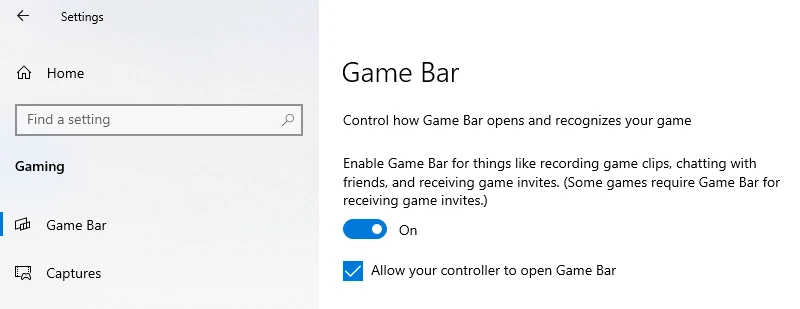
- Stop recording after you complete the action you need to capture.
How to verify it. Play the created clip. It should contain only the selected app, not the desktop. If this test succeeds, Xbox Game Bar is working and the original issue is related to the source type.
Method 3: Check Xbox Game Bar If Apps Do Not Record Either
When to use it. Recording does not start even with an active game or program window that you were previously able to capture.
Step-by-step instructions.
- Open Windows Settings and find the Xbox Game Bar section.
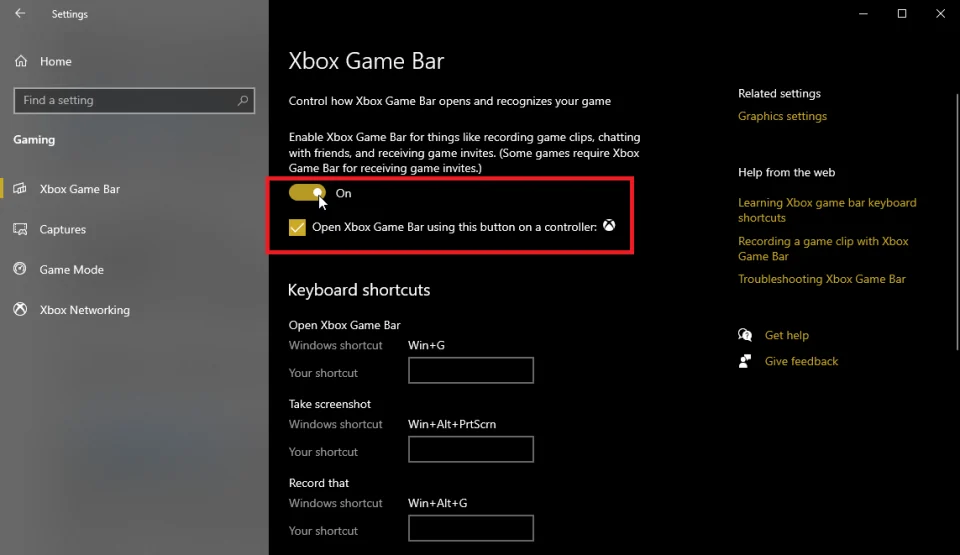
- Make sure Xbox Game Bar is enabled.
- Close Xbox Game Bar and restart Windows.
- If the issue continues, open the Xbox Game Bar app settings in Windows and use the available repair command.
- Repeat a short recording in an individual app.
How to verify it. When recording starts, an indicator or timer should appear, and after you stop it, a new video clip should be created. If a supported window still does not record, contact official Microsoft Support and state which app, action, and message you see.
Results Checklist
- You selected a source that matches the task: full screen, region, window, or game.
- The recording timer started before you performed the demonstration.
- The finished video shows the required desktop area or app.
- The clip includes the selected audio source when needed.
- The video opens and plays from beginning to end.
Conclusion
When Xbox Game Bar is not recording the desktop, begin by checking the recording goal rather than reinstalling it. For a game or one app, activate that window and use Game Bar. For the desktop, multiple windows, and File Explorer, choose a tool with full-screen or region capture. Fionn Screen Recorder offers these capture options and lets you check the video afterward in Media Library. If Game Bar does not record even an individual app after it is enabled and repaired, note the error message and contact Microsoft Support.
Frequently Asked Questions
Why does Xbox Game Bar not record File Explorer?
File Explorer is part of the desktop system environment rather than a typical target game or app window for capture. To demonstrate work in File Explorer, choose full-screen, window, or region recording.
Can I enable recording for the entire desktop in Xbox Game Bar?
If the bar refuses to capture the desktop, do not look for a hidden switch as a universal solution. Choose a tool that explicitly offers full-screen or region capture.
How can I tell whether the problem is specifically with Xbox Game Bar?
Test a short recording in an active game or program window. If it is created, the bar is working and the limitation applies to the selected source. If it is not created, check whether the app is enabled and repair it.
How do I record system audio along with the screen?
Before recording, choose system audio or a combination of system audio and microphone audio in the recording tool you use, then check the sound in the finished clip.


