 Emily CarterScreen Recording
If you are looking for a Trupeer AI or Loom alternative on Windows, first decide what a successful recording must become. A simple video file, a shareable recording link, a trimmed export, and a written process guide are different outcomes. Loom, Fionn Screen Recorder, Trupeer, and OBS Studio overlap on screen capture, but the supplied documentation supports different next steps for each.
Loom Desktop App for Windows: What It Covers
Loom’s Windows app is offered for Windows 10 (64-bit) and Windows 11; its device guidance lists Windows 10 or later. It supports screen-only, webcam-only, or combined capture, plus single-window, whole-screen, and custom capture choices. After recording, Loom generates an instant link for opening or sharing the result.
That makes Loom a suitable baseline when link-based sharing is the main destination. The listed Starter plan has up to 25 videos per member and five-minute screen recordings; check Loom’s pricing page before relying on a plan limit, because plan details can change.
Windows Screen-Recording Alternatives at a Glance
| Option | Supported fit | Capture approach | Documented result |
|---|---|---|---|
| Fionn Screen Recorder | A Windows recording that needs capture-area and audio choices, then review, trimming, and export | Windows recording tool | Recorded video for review and export |
| Trupeer | A workflow that should become a video walkthrough and written documentation | Chrome extension and Trupeer application | Uploadable recording; shareable, embeddable, or exportable documentation |
| OBS Studio | A recording that needs manual source and audio-device setup, including Windows 3D-game capture | Configurable desktop software | Configurable recording after a test capture |
| Loom | A Windows recording intended for instant-link sharing | Windows app | Recording with an instant share link |
These are workflow distinctions, not a claim that one product uniquely supports ordinary screen capture. All of the listed products have documented screen-recording capabilities within their respective workflows.
Record, Review, and Export with Fionn Screen Recorder
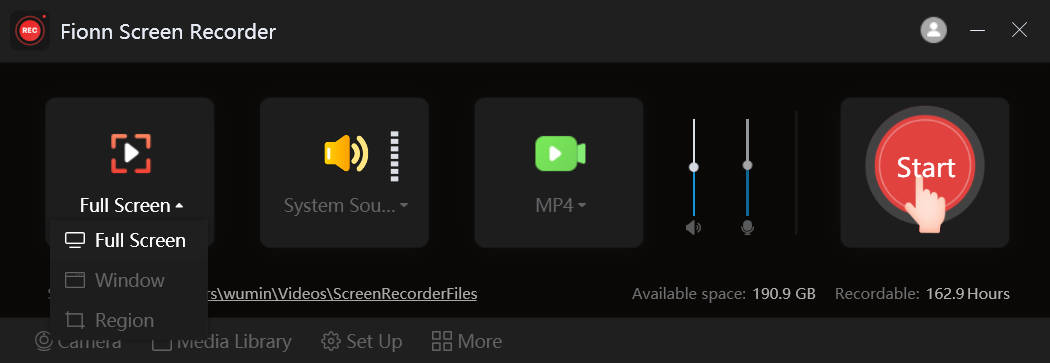
Fionn Screen Recorder is available for Windows 10 and Windows 11. It supports full-screen, window, and selected-region recording, along with system sound and microphone audio. Its built-in editing and export workflow is useful when the practical goal is a clean video file rather than an instant hosted link or an automatically generated guide.
For one clip, use the documented sequence below. Choosing the capture area and audio source before recording helps ensure the final video contains the intended window or screen activity and sound.
- Open Fionn Screen Recorder and choose the area you want to capture: Full Screen, Window, or Region.

- Choose whether to record system audio, microphone audio, both, or no sound.

- Select MP4 or another video format before you start recording.

- Click Start to begin recording, then use Pause or Stop when you are finished.

- Open Media Library to play, edit, locate, or delete your recorded videos.

Open the created recording in Media Library and review its beginning, middle, and end. If unwanted material is present in a single clip, trim it in the built-in editor and export the result. The task is complete when the exported video contains the intended capture area and the needed audio throughout, rather than merely when recording has stopped.
See the documented record, review, trim, and export procedure.
Use Trupeer When the Deliverable Is a Process Guide
Trupeer is a different fit from a Windows desktop recorder in the supplied evidence. Its Chrome extension records directly from the browser and can capture a full screen, window, or browser tab with audio. After stopping a recording, it can be uploaded to the Trupeer application.
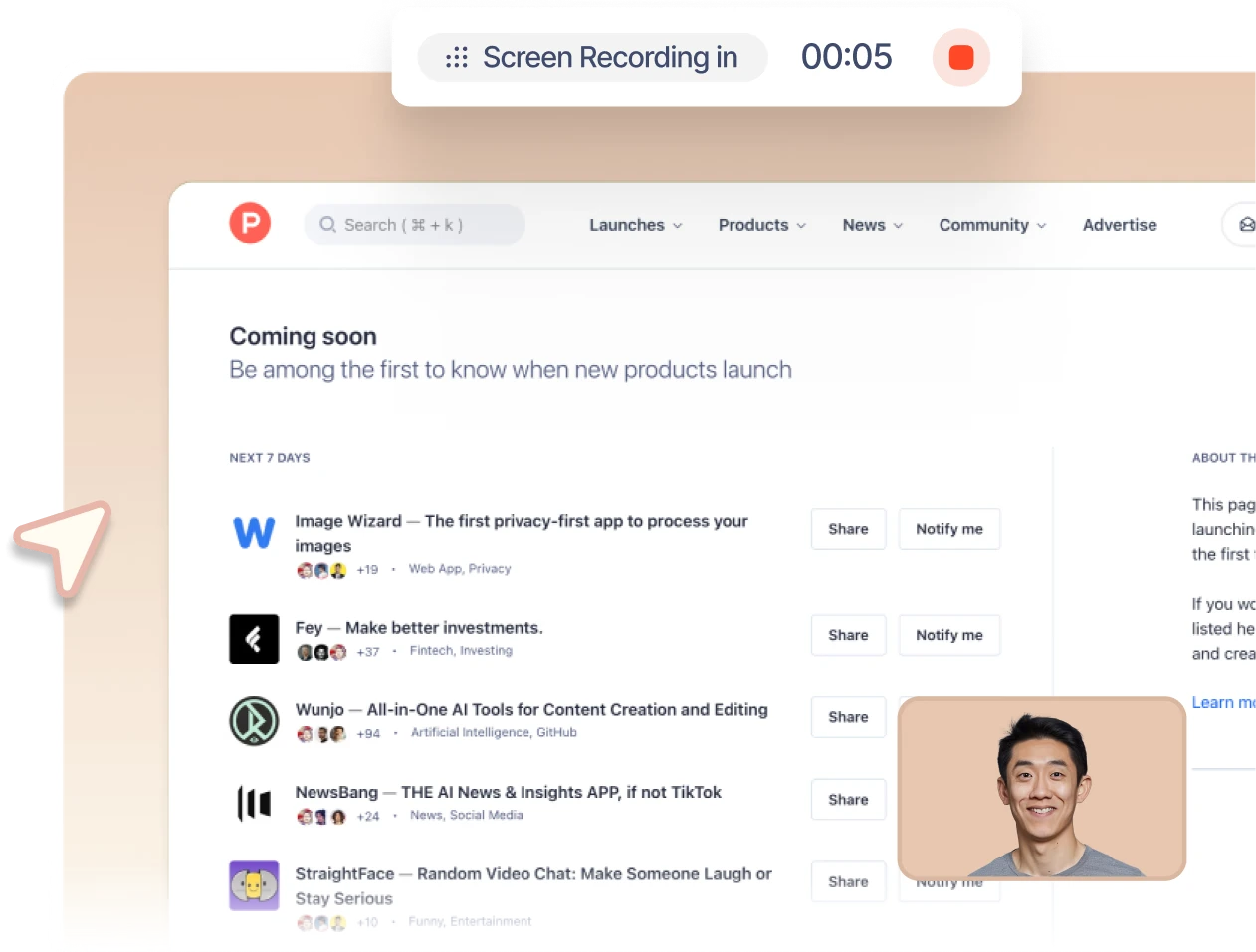
Choose Trupeer when your central need is to turn a recorded or uploaded workflow into both a video walkthrough and step-by-step written documentation. Trupeer states that the resulting process documentation can be shared, embedded, or exported. Its supplied documentation says the extension works on Windows wherever Chrome runs; it does not establish a native Trupeer Windows desktop recorder.
For the documented workflow and output options, see Trupeer’s process-documentation guide .
Use OBS Studio for Configurable Sources and Audio
OBS Studio is free and open-source software for recording and streaming. It is appropriate when you need to choose sources manually: its sources can include desktop capture, gameplay, webcam, images, text, and video. On Windows, Game Capture is documented for high-performance 3D-game capture.
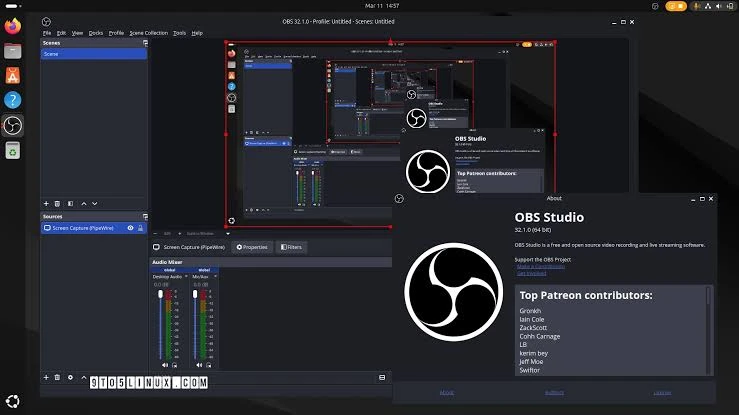
- Run the Auto-Configuration Wizard from the Tools menu if you need initial guidance.
- Use the plus button in the Sources Dock to add the required source.
- For a Windows 3D game, add Game Capture; add a video capture source if you need a webcam.
- Check the Audio Mixer meters. If the wrong device is active, choose devices in Settings, then Audio.
- Review Settings, then Output, and start recording.
Make a brief test recording before the main session. Treat that as an intermediate check: the final recording is ready only after the test confirms the intended picture and audio sources are present. Read the OBS Studio Quick Start Guide for the source and output workflow.
How to Choose
- Choose Fionn Screen Recorder when you want to select a screen area and audio source, then review, trim, and export a Windows recording.
- Choose Trupeer when the useful end product is a video walkthrough plus written process documentation from a Chrome-based recording workflow.
- Choose OBS Studio when manual source and audio configuration is necessary, especially for configurable desktop or Windows 3D-game capture.
- Keep Loom when its documented Windows recording choices and instant-link sharing match your workflow.
Conclusion
For a Windows clip that you want to capture, inspect, trim, and export, start with Fionn Screen Recorder and verify the finished video in Media Library. Choose Trupeer when the next step is written process documentation, OBS Studio when manual source setup is required, or Loom when instant-link sharing is the deciding requirement.
FAQ
Is Trupeer a Loom desktop app for Windows?
No native Trupeer Windows desktop recorder is established by the supplied evidence. It describes a Chrome extension that records from the browser and works on Windows wherever Chrome runs.
Does Loom have a Windows desktop app?
Yes. Loom states that it offers an app for Windows 10 (64-bit) and Windows 11 devices, and its compatibility documentation lists Windows 10 or later.
Can Fionn Screen Recorder capture system sound and microphone audio?
Yes. Its documented choices include system audio, microphone audio, both sources, or no sound. Review the resulting clip before export to confirm the sound needed for your task was captured.
Which option can create written instructions from a recorded workflow?
Trupeer is the documented match: it states that a recorded or uploaded workflow can become a video walkthrough and step-by-step written documentation.
When should I use OBS Studio instead of a simpler recorder?
Use OBS Studio when selecting sources and audio devices manually is part of the job, including Windows 3D-game capture. Make a short test recording before the main session to verify those selections.


