 Emily CarterScreen Recording
If OBS is not recording game audio, first play a noticeable sound in the game and watch the relevant meter in the Audio Mixer. If the meter moves, OBS is receiving a signal—check the recording track and the channel's track assignment. If the meter does not move, compare the source through which the scene receives game audio with the output device in the game, Windows, and OBS. After every change, make a short recording and listen to the saved file. There is also a separate way to create a new recording with audio using Fionn Screen Recorder ; it does not fix an existing OBS scene.
How to Choose a Method When OBS Is Not Recording Game Audio
| Method | What is recorded | Final result | When to choose it |
|---|---|---|---|
| Check the OBS track | The current OBS scene and the channel that already has a signal | A new OBS file with audio on the selected track | The relevant channel meter moves, but the finished video is silent |
| Compare the source and device | The current OBS scene after game audio input is restored | A new OBS file with audio | The game has sound on the computer, but the OBS meter does not move |
| New recording in Fionn Screen Recorder | The selected screen, window, or region with the chosen audio | A separately saved or exported video file | You need a new independent game recording with audio rather than adjustments to the current OBS scene |
Method 1: What to Check When OBS Is Not Recording Game Audio but the Meter Moves
When to use it: The game is audible through headphones or speakers, the relevant channel meter in the OBS Audio Mixer responds to sound, but the finished video is silent.
- Open OBS and identify the channel through which the current scene actually receives game audio.
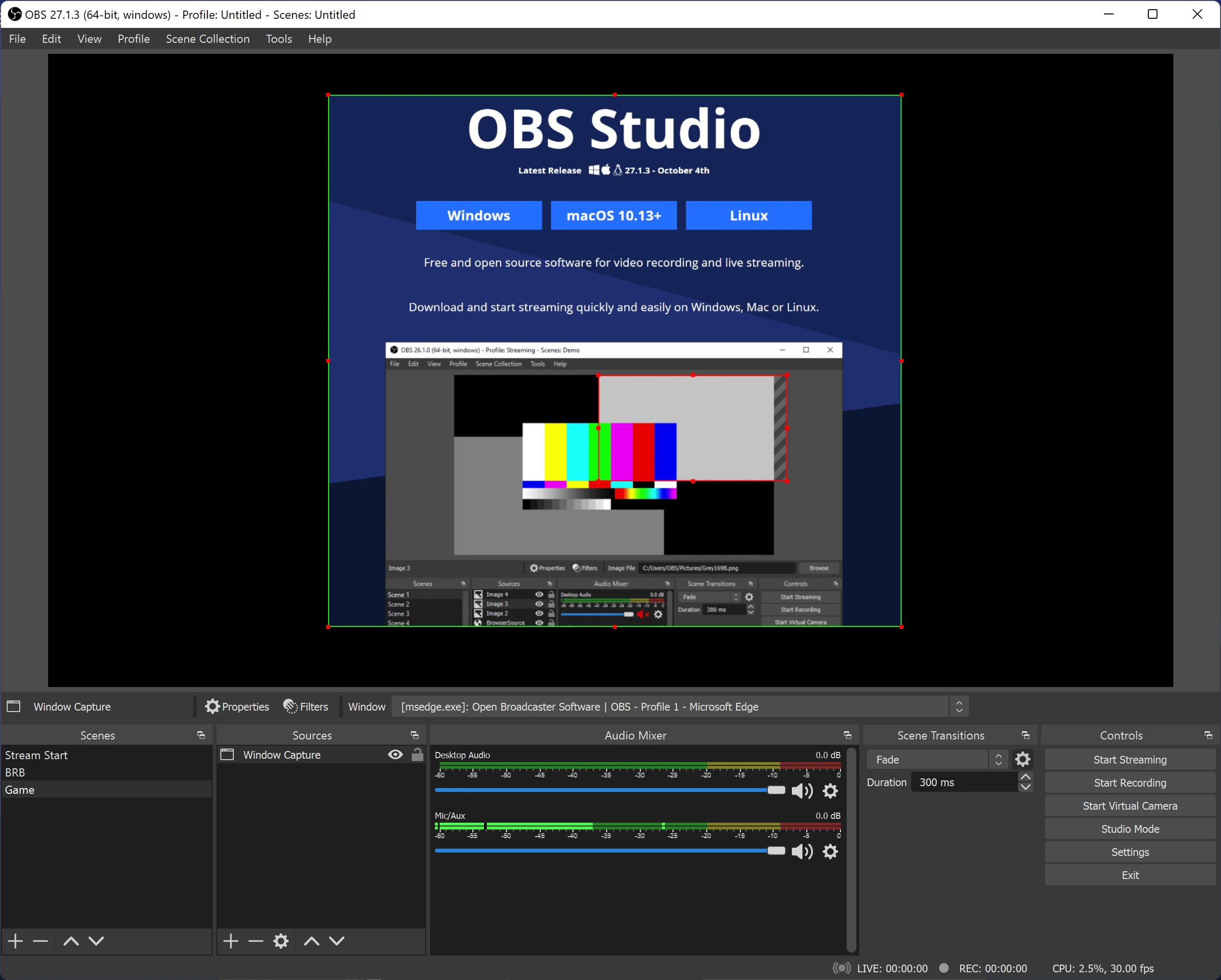
- Play a noticeable sound in the game and make sure the meter for that specific channel moves.
- Open OBS recording settings and check which audio track is selected for recording.
- Open Advanced Audio Properties and enable the same track for the relevant channel.
- Record a short clip and listen to the saved file in a media player.
Expected result: The channel meter moves while the game is running, and game effects are audible in the newly saved video.
The exact names and availability of system audio or separate game audio sources in OBS depend on the current version and configuration. Until you check the OBS documentation, use the channel that actually responds to game audio in your scene as your guide.
Method 2: Match the Game Audio Source, Windows Output Device, and OBS
When to use it: The game has sound on the computer, but the meter for the corresponding channel in OBS remains still. This is often worth checking after connecting a headset, Bluetooth device, or changing an audio interface.
- In Windows, identify the device through which the game is actually playing.
- In the game's settings, check the output device if the game lets you select one.
- In OBS, check the source through which the game should be received: system audio or a separate game audio source, if one is used in your scene.
- Match the OBS device or source to the device used by the game.
- If the OBS meter does not respond after changing the device, restart the game and check the meter again.
- Make a short new recording and listen to the saved file.
Expected result: After matching the settings, the relevant OBS meter responds to game audio and the test file contains sound.
Restarting is a conditional check here, not a required rule for every game: behavior after changing an output device can vary.
Method 3: Create a New Game Recording with Audio in Fionn Screen Recorder
When to use it: You need a separate new gameplay recording with system audio instead of further configuring an existing OBS scene. Fionn Screen Recorder lets you choose system audio, microphone audio, both sources, or recording without audio.
- Open Fionn Screen Recorder and choose the capture area: Full Screen, Window, or Region.

- Choose to record system audio, microphone audio, both sources, or no sound.

- Select MP4 or another video format before you start recording.

- Click Start to begin recording, then use Pause or Stop when you are finished.

- Open Media Library to play, edit, locate, or delete recorded videos.

Save or Export a Fionn Video and Check Playback
- After stopping the recording, open the video in the Fionn media library.
- If needed, edit the recording in the built-in video editor.
- Export or save the finished video.
- Open the finished file in a media player and listen to a segment with game effects.
The exact path to the export action and save location depends on the current Fionn interface, so confirm them in the app before publishing. The success criterion remains the same: audio must play from the finished file, not only in the media library.
Check Before a Long Game Recording
- Record 10–20 seconds with noticeable game audio.
- Open the saved or exported file in a media player.
- If the OBS meter moves but the file has no audio, return to checking the recording track and the channel's track assignment.
- If the OBS meter does not move, return to the game audio source and the output devices in the game, Windows, and OBS.
- Start a long gaming session only after the test file plays successfully.
Conclusion
When OBS is not recording game audio, first look at the meter for the relevant channel. A moving meter points to recording tracks and Advanced Audio Properties; a still meter points to checking the source and output device. Then always make a short new recording and listen to the finished file. If you need a separate game recording instead of configuring the current OBS scene, use Fionn Screen Recorder , choose system audio, stop the recording, save or export the video, and check its playback.
Frequently Asked Questions
Why does OBS show an audio level but record a video without sound?
The signal may be entering a channel that is not assigned to the selected recording track. Compare the track in recording settings with the track enabled for that channel in Advanced Audio Properties.
Which OBS channel should I check?
Check the channel in your current scene that actually responds to game audio. It is best to compare the exact source names and availability with the documentation for your OBS version.
Why is there no game audio meter in OBS even though I can hear it?
The game may be outputting audio to a different device than the one used by the source in OBS. Compare the output device in Windows and the game with the OBS source setting.
Do I need to restart the game after changing the audio device?
If the OBS meter does not respond after changing the device, restart the game and check it again. This should not be considered a required action for all games.
Can I record system audio and microphone audio at the same time in Fionn Screen Recorder?
Yes. The audio selection includes an option for system audio together with the microphone.


