 Emily CarterScreen Recording
Introduction
The best dual monitor screen recorder depends on what “dual monitor” means in your project. Choose Bandicam first when you need documented all-display capture or separate recordings for each monitor. Choose OBS Studio if you need a free, scene-based recording setup across Windows, macOS, or Linux. For Windows users who want to select or switch between primary and secondary displays and trim the result in the same app, Fionn Screen Recorder is a practical option.
This comparison uses vendor documentation and product information, not hands-on testing. The important distinction is whether a tool records one chosen display, all displays in one output, or supports separately recording displays. Those are different workflows.
Top Picks for Dual-Monitor Recording
- Start with Bandicam when your requirement is to capture all connected displays or create separate monitor recordings. Its official dual-monitor guidance documents both options.
- Choose OBS Studio for no-cost, configurable scenes that combine monitor capture with windows, webcams, text, browser sources, or capture cards.
- Consider Fionn Screen Recorder
on Windows when you need primary/secondary display switching, screen/window/region capture, and basic trimming and export in one recording workflow.
Quick Comparison Table
Fionn Screen Recorder
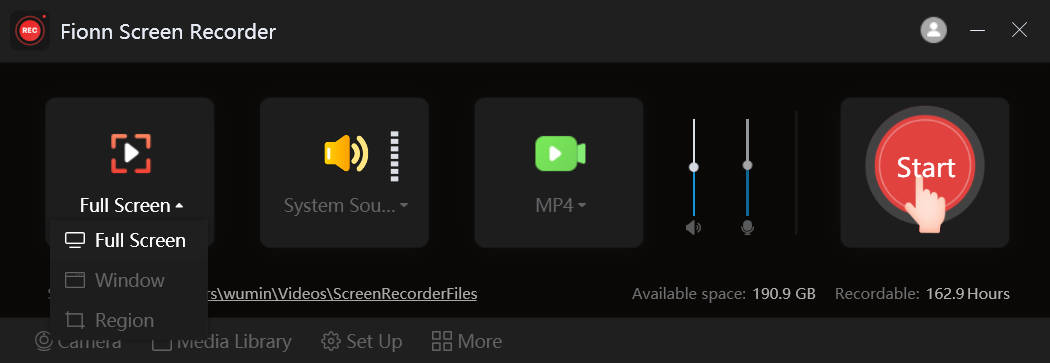
Consider Fionn Screen Recorder if you use Windows and mainly need to choose or switch between primary and secondary screens, then trim and export the capture without moving to a separate editor. It supports screen, window, and custom-region recording, plus primary/secondary-screen switching and built-in editing/export. The documented workflow also lets you select audio sources and choose a video format before recording. It is best for Windows tutorials, demos, and focused display captures where switching screens and a basic post-recording trim are more important than confirmed all-display or separate-monitor output.
How to use
- Open Fionn Screen Recorder and choose the area to capture: Full Screen, Window, or Region.

- Choose system audio, microphone audio, both, or no sound.

- Select MP4 or another video format before starting the recording.

- Click Start to record, then use Pause or Stop when finished.

- Open Media Library to play, edit, locate, or delete recorded videos.

OBS Studio
Choose OBS Studio when a free recorder with configurable multi-source scenes matters more than a built-in post-production editor. OBS supports real-time video/audio capture and mixing, and its scenes can include window captures, images, text, browser windows, webcams, and capture cards. A Display Capture source records an entire monitor; its documented source limit is one Display Capture source per display. This is a strong fit for users willing to configure sources for recordings that combine a display with live production elements.
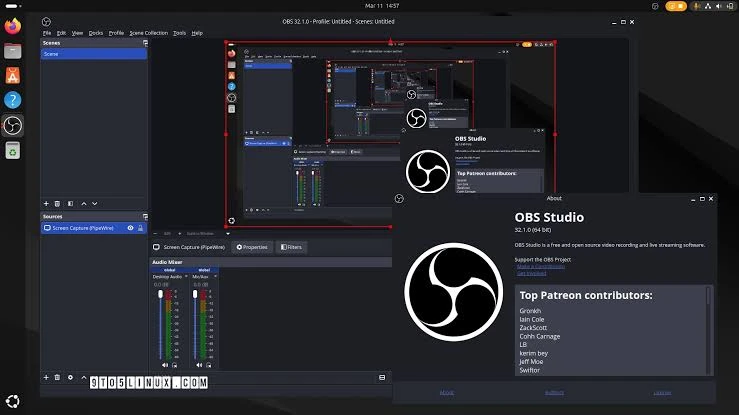
Review the official Display Capture documentation when planning a monitor-based scene.
Bandicam
Choose Bandicam first when your deliverable must include every display at once or separate recordings for each monitor. Its official dual-monitor guidance describes an All display option and using multiple instances to record monitors separately; it also lists screen, game, webcam, and audio recording, editing, and transcription. It best fits Windows users who need an explicitly documented multi-monitor capture path and can use the appropriate paid license for unrestricted or commercial work.
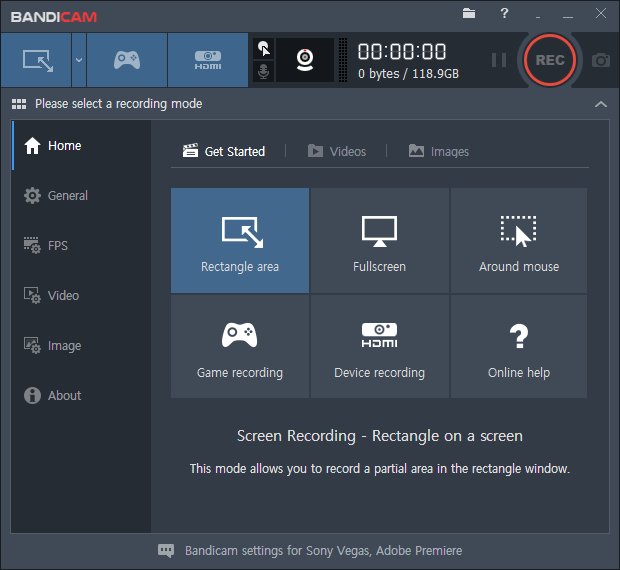
See Bandicam’s official dual-monitor recording guide and license page for the applicable setup and terms.
How We Compared
We compared the three supplied candidates on the same five decision points: supported operating systems and published hardware requirements; monitor-capture scope; recording and editing capabilities; pricing and license information; and documented restrictions. A claim appears only where the supplied official or internal product information supports it. Missing information is described as not verified rather than treated as unavailable.
The main tradeoff is capture scope versus workflow style: Bandicam has the clearest documented all-display path, OBS has the broadest confirmed operating-system support and scene composition, and Fionn focuses on Windows display selection with integrated trimming/export.
How to Choose a Dual-Monitor Recorder
First, define the output you need. If both monitors must appear in a single recording, Bandicam is the documented choice in this set. If each display needs its own recording, Bandicam also documents that outcome through multiple instances. If you need a monitor as one element in a composed recording with webcam, browser, or text sources, OBS Studio is the better-matched option.
If you are recording a Windows tutorial or demonstration and want to move between primary and secondary displays while keeping trimming/export nearby, Fionn Screen Recorder fits that narrower workflow. Check free-use limits before recording a complete lesson or meeting.
Final Verdict
For a dual-monitor requirement, consider Bandicam first when you specifically need all-display recording or separately recorded monitors: those options are explicitly documented, and its Windows requirements and license terms are published. Choose OBS Studio instead when free, open-source, multi-source scene building and support for Windows, macOS, or Linux are central to your setup. Choose Fionn Screen Recorder on Windows for primary/secondary display selection plus built-in trimming and export, provided the two-minute, 720p free-version limit works for your project or you use an available paid plan.
FAQ
Can OBS Studio record two monitors?
OBS Studio can capture an entire monitor with a Display Capture source. The supplied documentation says only one Display Capture source can be added per display. Separate recording tracks for each monitor are not verified here.
Which option explicitly records all connected displays?
Bandicam documents an All display option for recording all display monitors. It also documents running multiple instances to record each monitor separately.
What is the free limit for Fionn Screen Recorder?
The free version cannot save videos longer than two minutes, and its resolution is limited to 720p.
Can I use Bandicam commercially with a personal license?
No. The supplied license information says a personal license is non-commercial; organizations need a Business License for commercial use.


