 Emily CarterPrinter Drivers
If your HP LaserJet Pro P1102w is missing, unavailable, or cannot print, first confirm the full model, your Windows version, and whether the printer connects by USB or over a network. Then use HP’s model-support page or Windows Settings to install it. Finish by printing a Windows test page; an installation message alone does not prove the printer can print.
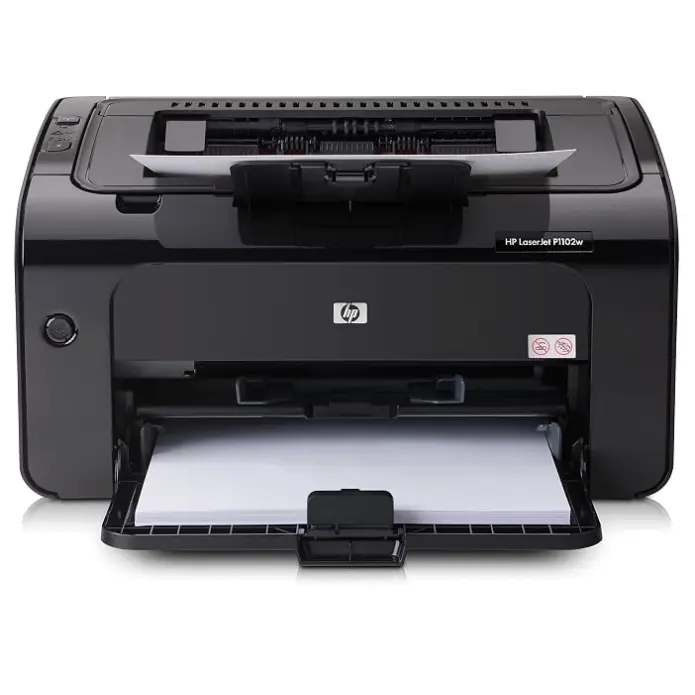
For a USB printer, connect the cable directly to the PC and turn the printer on. For a wireless or network setup, make sure the printer and PC are on the same network. If the driver seems installed but printing still fails, check the queue, connection, and Windows printing service rather than downloading random driver files.
Before you install the HP LaserJet Pro P1102w Driver
- Check the printer label to confirm that the model is HP LaserJet Pro P1102w .
- Identify your installed Windows version before selecting any option offered by HP.
- Choose the connection path: connected USB cable, or a network connection where both devices use the same network.
Quick Method Comparison
| Method | Best For | Efficiency | User Effort |
|---|---|---|---|
| HP Support | You want the manufacturer’s model-support entry | Direct | Choose the matching Windows option |
| Windows Settings | A powered-on USB, network, or wireless printer that Windows can discover | Direct | Low to moderate |
| Fionn Printer Driver | Checking drivers and common Windows printing issues in one scan | Guided | Low |
Method 1: Get the driver from HP Support
Use this route when you need the manufacturer’s support entry for this exact model. It is especially useful when Windows does not find the printer or you need to compare the options HP presents for your Windows version. Only install a package that HP explicitly offers for your confirmed model and operating system.
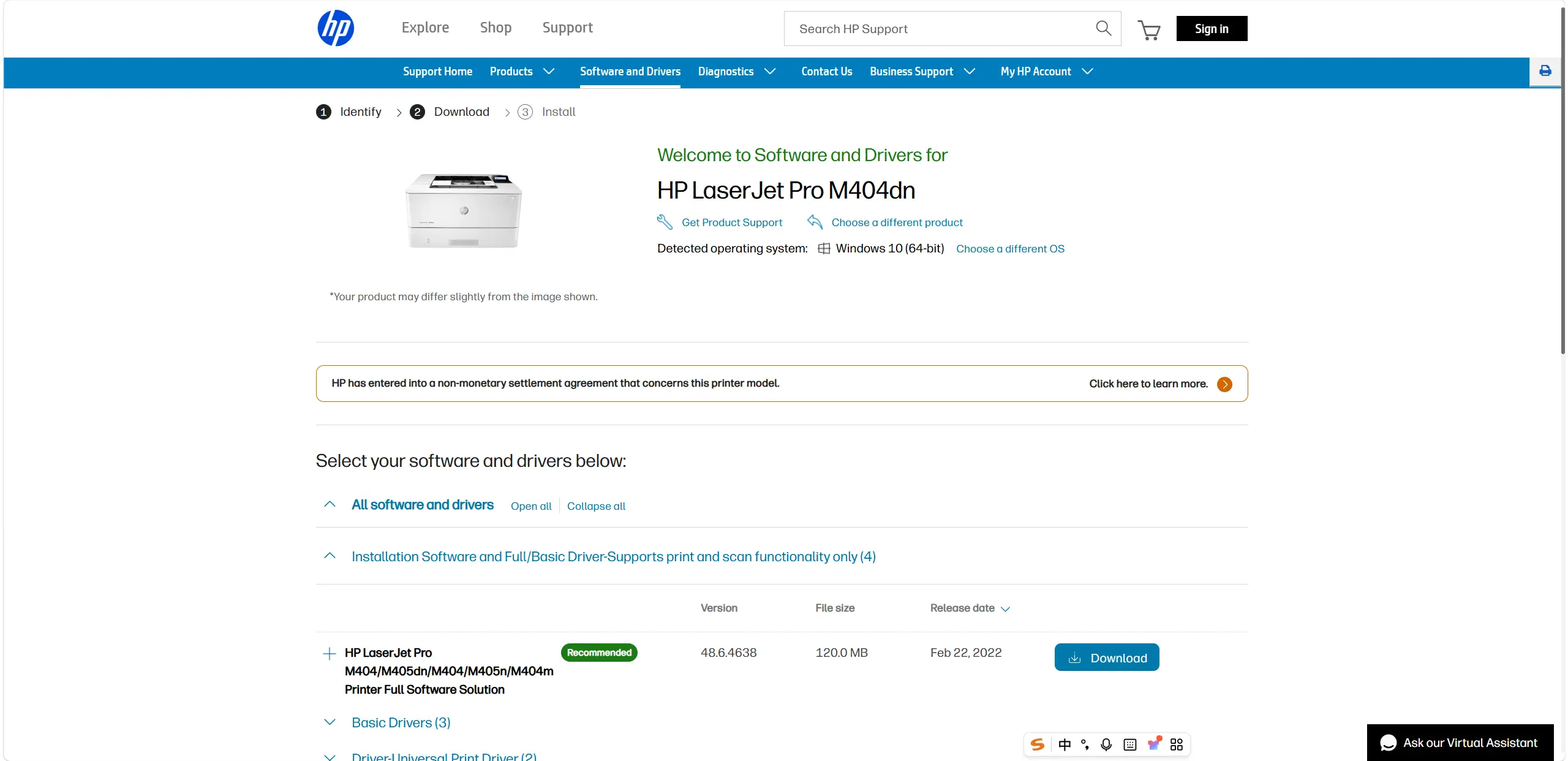
- Open the HP LaserJet Pro P1102w support page .
- Confirm that the page identifies your printer model.
- Select or confirm your Windows version if HP asks for it.
- Follow the installation option HP provides for that model-and-Windows combination.
- After setup, print a Windows test page.
A printed test page is the useful success signal. If the printer is still not found, move to Windows Settings and check the cable or network condition.
Method 2: Add the printer in Windows Settings
Use Windows Settings when the printer is powered on and connected but is not yet installed. Microsoft documents this path for local, network, and wireless printers.

- Open
Settings > Bluetooth & devices > Printers & scanners. - Select Add device beside the printer you want to add.
- For USB setup, keep the printer turned on and the USB cable connected to the PC.
- For wireless setup, keep the printer and PC on the same wireless network.
- If Windows does not find it, choose the manual-add option and follow the Add Printer window.
- After installation, check Windows Update for available printer-driver updates.
During manual setup, Windows can use a supplied driver disk or Windows Update, then lets you select a manufacturer and model. Use Print a test page when the setup flow offers it to confirm the printer works.
Method 3: Check the printer environment with Fionn Printer Driver
Use this Windows tool when the driver problem is unclear or the printer is offline, paused, or still unable to print after installation. Fionn Printer Driver can scan installed printers, drivers, and common printer issues. It can also check the Windows Printer Service, ports, and unfinished or paused queue jobs. Its scan result is not proof that the printer is usable; print a Windows test page afterward.
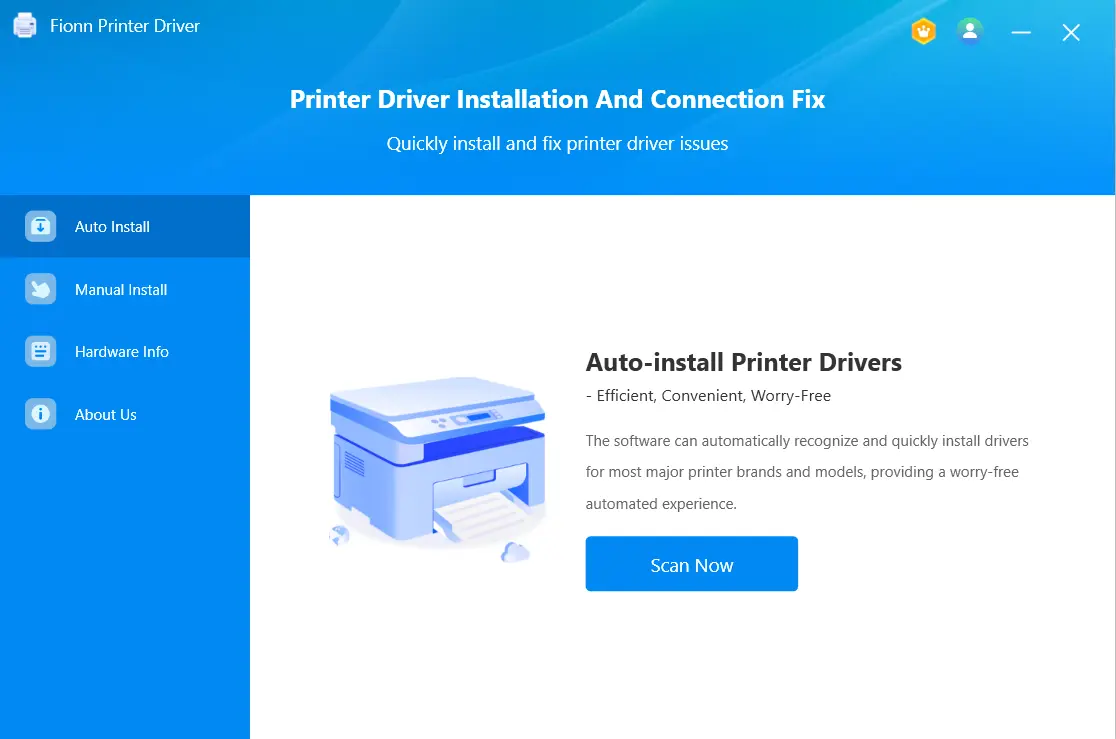
- Launch Fionn Printer Driver and select
Scan Now
to scan your computer for printer drivers and related issues.
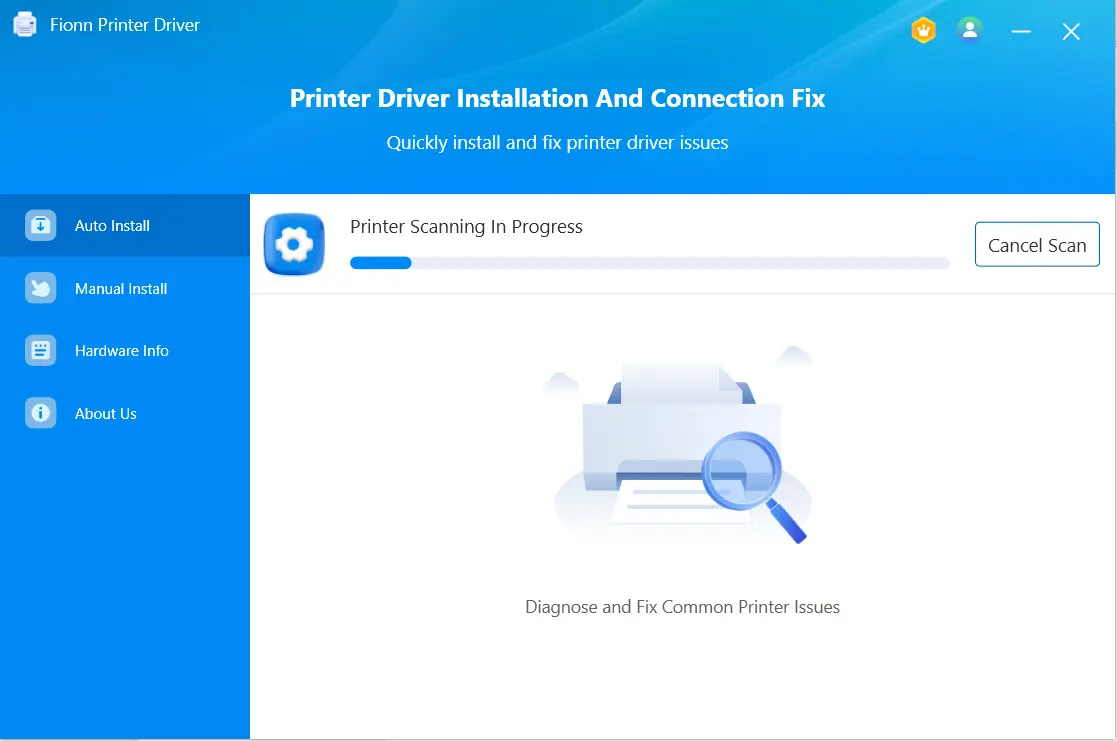
- Wait while Fionn Printer Driver scans your system for installed printers, drivers, and common printer issues.
- After the scan finishes, review the detected driver issue, then select
One-Click Fix
to start the suggested installation or repair.
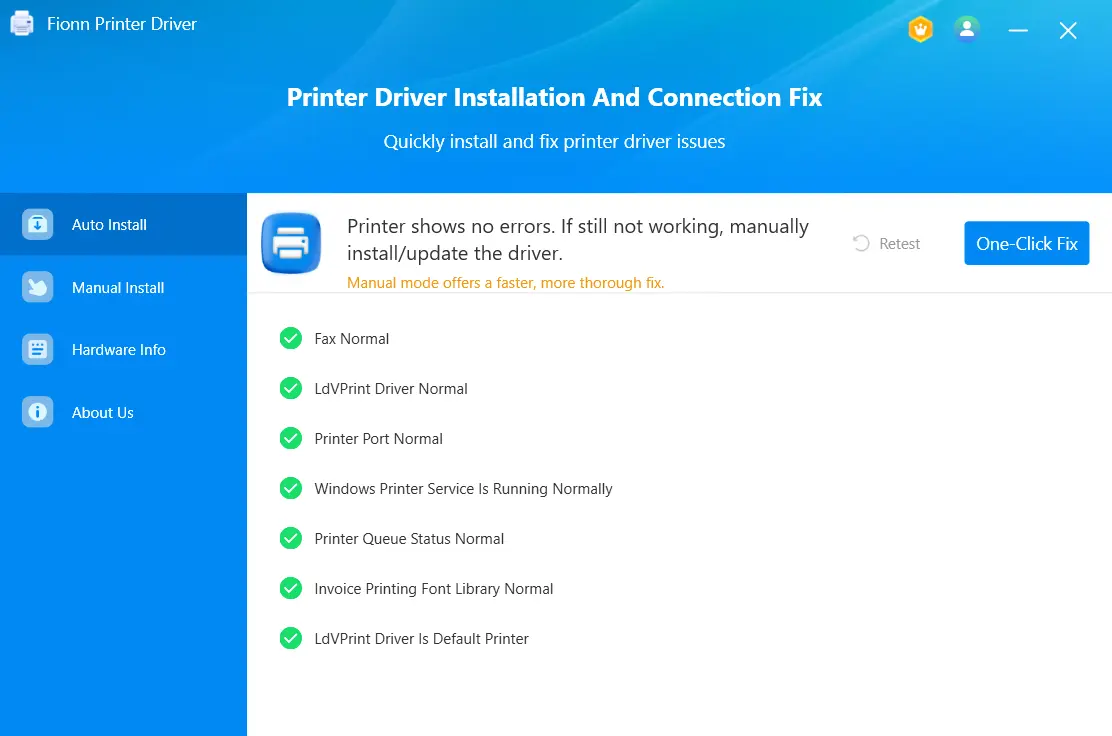
- Wait for the operation to finish and review its result. Then print a Windows test page to check whether the printer actually works.
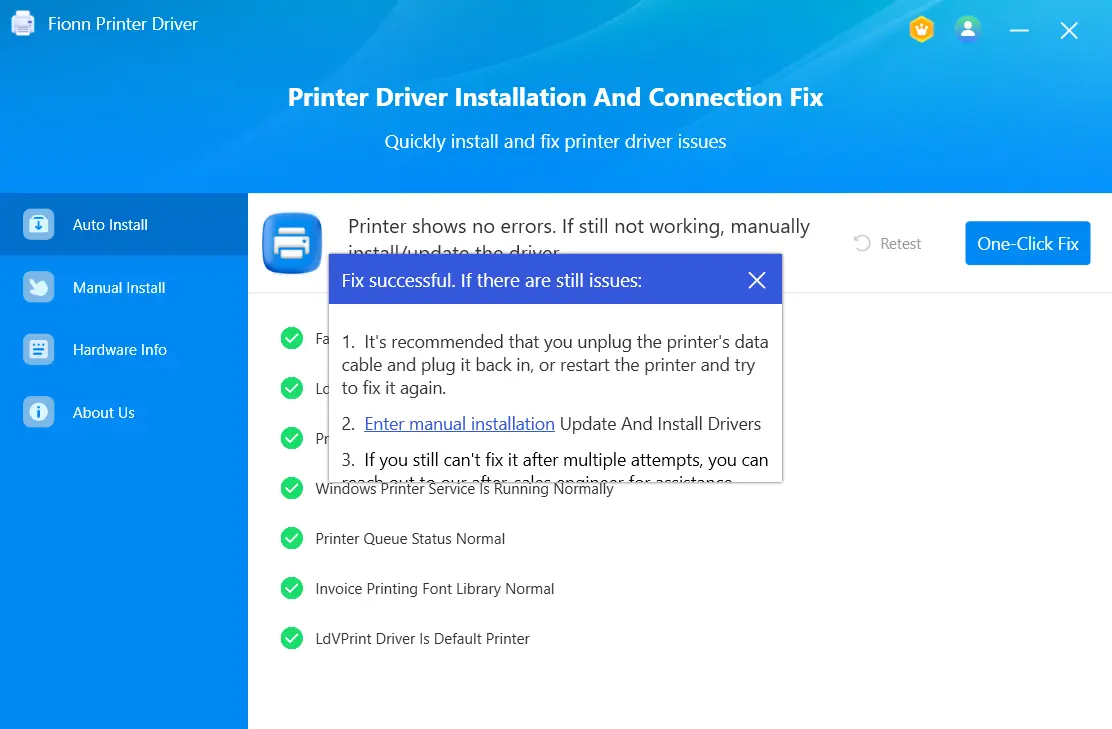
If the test page fails, use the symptom checks below. A connection, queue, or Print Spooler problem can remain even after a driver-related action completes.
Troubleshooting by symptom
- Printer not found: Recheck power and the USB connection. For wireless use, confirm that wireless capability is enabled and both devices are on the same network, then try Add device again.
- Print job stuck or paused: Check for unfinished or paused jobs. Microsoft also documents clearing spooler files and restarting the Print Spooler service when earlier troubleshooting does not work.
- Installed but still not printing: Check paper, supplies, cover position, and paper jams before reinstalling the printer. Windows also documents removing and reinstalling a printer as a recovery action.
Conclusion
Start with the HP support entry when you need a model-specific manufacturer route. Use Windows Settings when the printer is connected and discoverable, then check Windows Update. If the problem also involves a queue, port, service, or device state, Fionn Printer Driver provides a separate scan-and-repair workflow. Whichever path you choose, a successful Windows test page is the confirmation to rely on. If it still fails, recheck the connection and queue, then remove and reinstall the printer through Windows.
Frequently Asked Questions
Do I need a special HP LaserJet Pro P1102w driver on Windows?
Not always. Microsoft states that Windows supports most printers without special driver software in many cases. If Windows cannot add the printer or you need a model-specific option, use the HP support entry for the exact model and your Windows version.
What should I do if Windows cannot find my P1102w printer?
For USB, verify that the printer is on and the cable is connected to the PC. For wireless use, verify that the printer and PC are on the same network. Then use the manual-add option in Windows if automatic discovery does not list the printer.
How do I know whether the driver installation worked?
Print a Windows test page. This checks the actual printing path, while an installer completion message only shows that the installation process ended.
Why is the printer still not printing after driver installation?
The issue may be a paused or unfinished queue, a port conflict, an inactive Print Spooler service, a connection problem, or a printer condition such as missing paper or a jam. Check the symptom that matches what you can see before reinstalling drivers again.


