 Emily CarterAuto Clicker
Looking for a TinyTask alternative for Windows 11 usually means choosing between a simple click routine, a recorded keyboard-and-mouse sequence, or a workflow that needs editing and conditions.
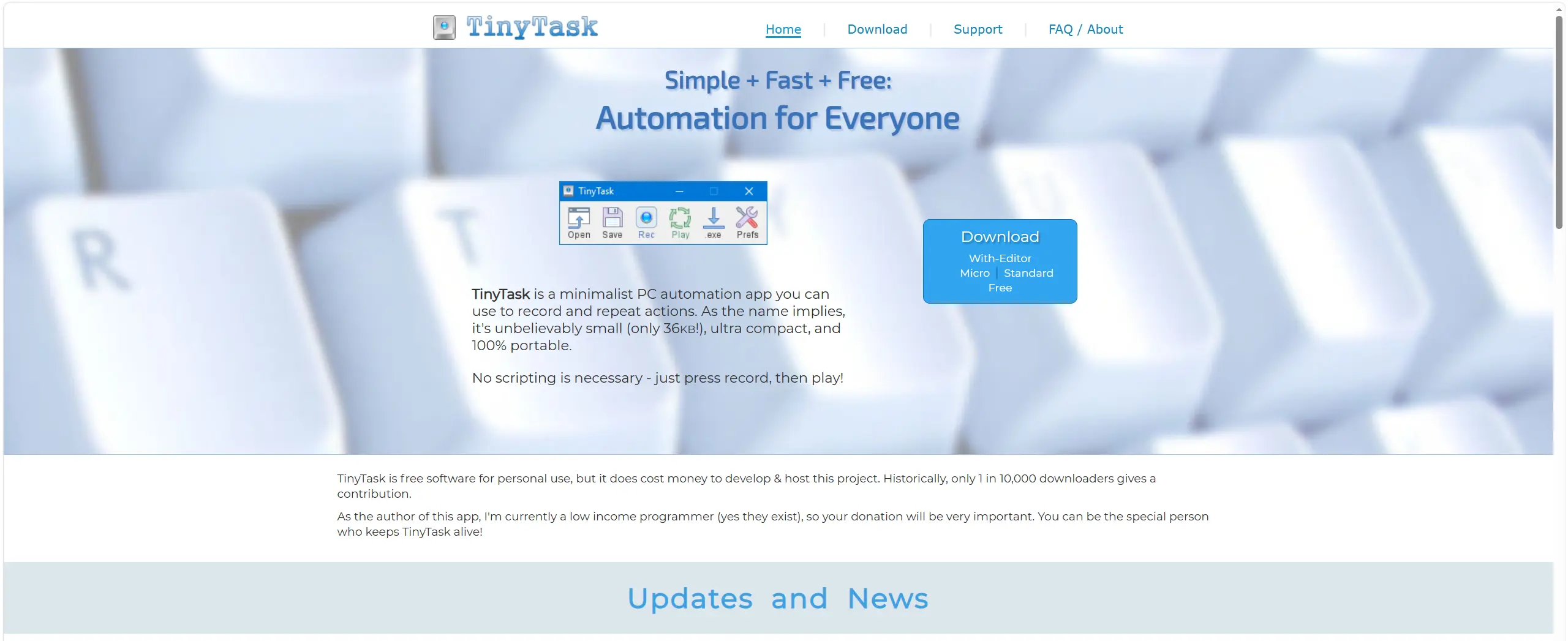
The best replacement depends on that distinction. For a configurable clicker and recorder, Fionn Auto Clicker is the recommended option in this comparison. Power Automate for desktop fits Windows-based workflow automation, while AutoHotkey and Pulover’s Macro Creator suit people who want more control over scripts or recorded macros.
Why Look for Alternatives to TinyTask on Windows 11?
A basic recorder is useful for repeating a fixed sequence, but its usefulness falls when a task needs a different click location, a loop count, a global hotkey, or changes after recording. Windows 11 users may also want automation that works with recognizable interface elements instead of replaying only pointer movements.
Start by identifying the observable task:
- Repeated clicks at one spot: choose an auto clicker with interval, position, and repeat controls.
- A fixed desktop routine: choose a recorder that can replay keyboard and mouse actions.
- A workflow that must be edited or react to interface elements: choose a desktop-flow or scripting tool.
Quick Comparison Table
| Alternative | Best For | Efficiency | User Effort |
|---|---|---|---|
| Fionn Auto Clicker | Clicks and recorded desktop routines | High for repeatable local tasks | Low |
| Power Automate for desktop | Desktop and web workflows | High after flow setup | Moderate |
| AutoHotkey | Custom hotkeys and scripts | High for users who write scripts | High |
| Pulover’s Macro Creator | Recorded macros with editable commands | High for repeatable macros | Moderate |
Alternative 1: Use Fionn Auto Clicker
Recommended for configurable clicking and replayable input routines. Fionn Auto Clicker is a Windows automation tool that supports left, middle, and right clicks at the current pointer position or fixed coordinates. It also records and replays keyboard and mouse actions, supports custom intervals and loop counts, and provides global hotkeys. It is most practical when a simple TinyTask replay needs more direct control over clicking or when a recorded routine must be replayed later.
Fionn provides three free tries; membership unlocks unlimited clicking, recording, custom scripts, and scheduled tasks. The following two paths are separate: use Step 1 and Step 6 for normal clicking, or use Steps 2 through 5 for recording and playback.
- Normal auto-clicking only (no recording): Open Fionn Auto Clicker and select Mouse Clicking > Normal Click. Choose the mouse button, click method, and click position. Set the click interval and repetition options, then click Start Auto-Click (F6). This is an independent feature, not a prerequisite for recording. To record and replay actions, skip this step and begin at Step 2.

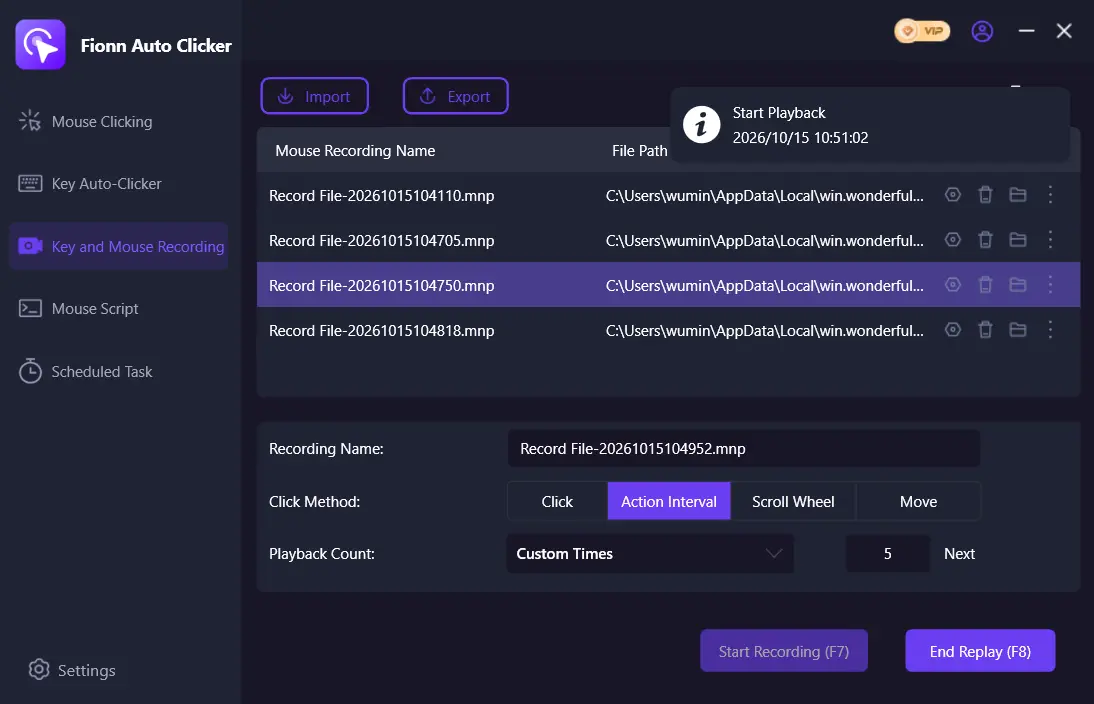
- Recording and playback workflow starts here: Open Key and Mouse Recording. Enter a Recording Name and select the action types to capture: Click, Action Interval, Scroll Wheel, and Move. Click Start Recording (F7). Step 1 is not required.
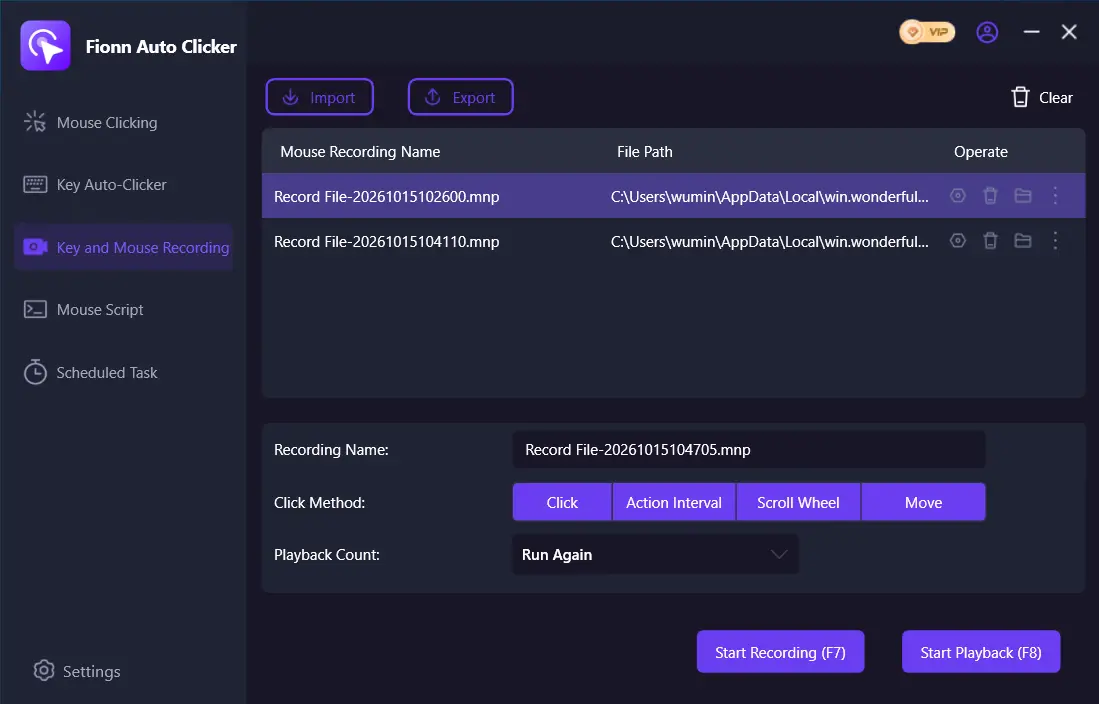
- Perform the actions you want to record. While recording is active, the button changes to Stop Recording (F7).
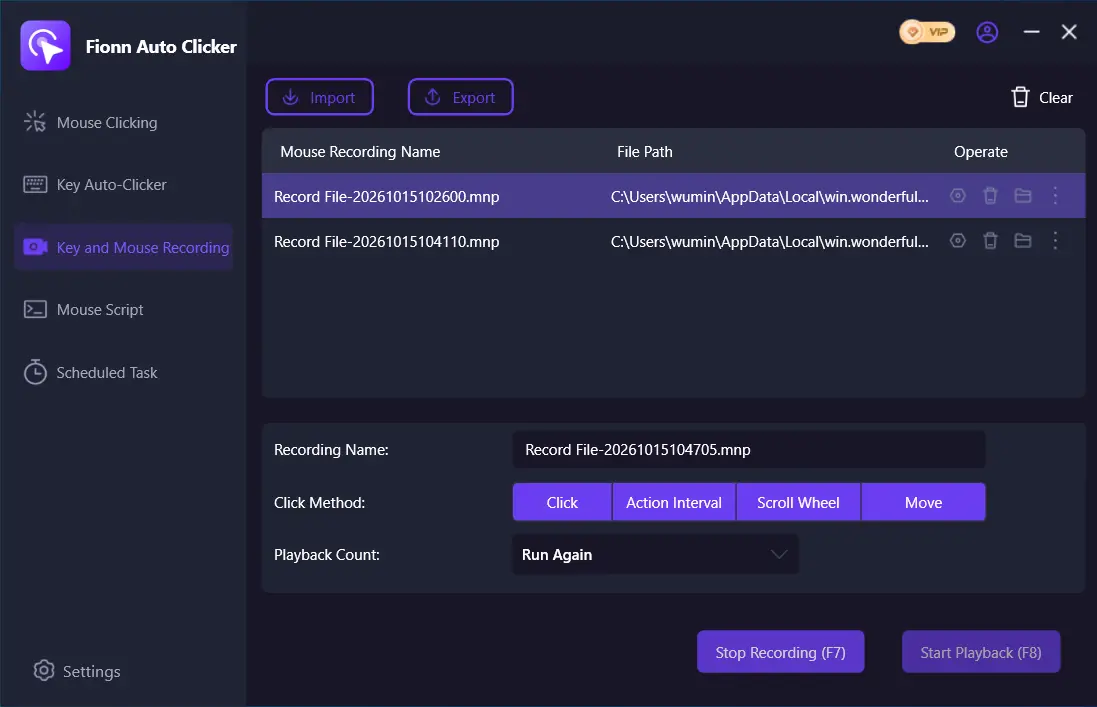
- Click Stop Recording or press F7 to finish. Confirm that the new recording appears in the list, then select the recording you want to replay.
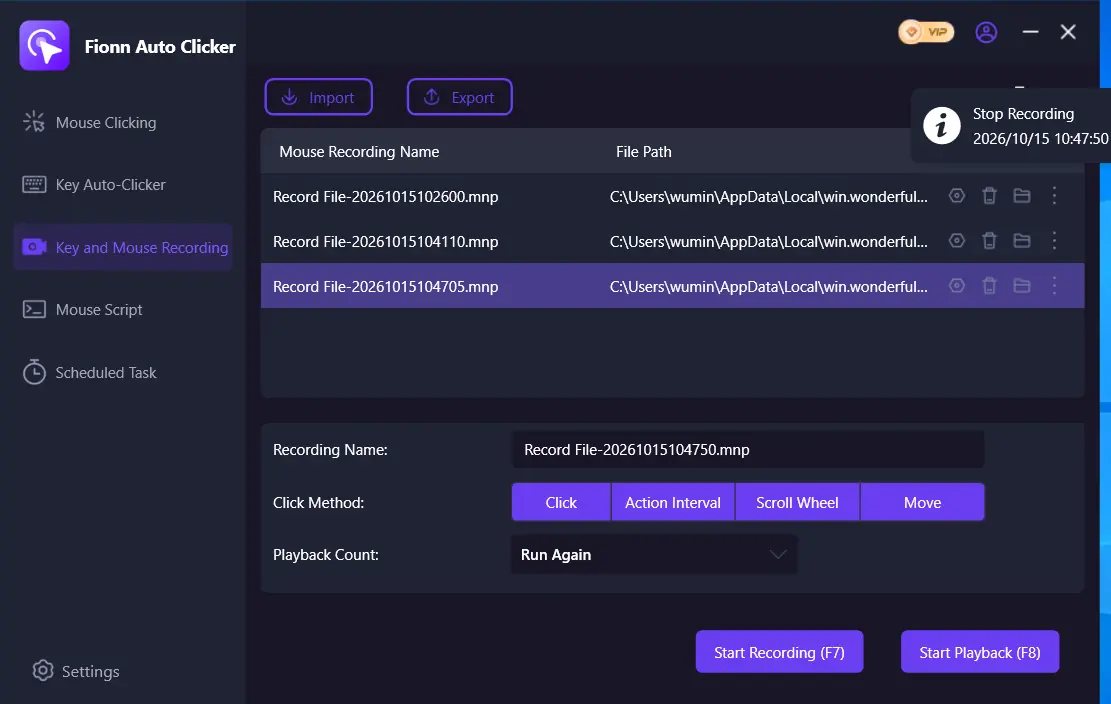
- Set Playback Count as needed. To specify a repetition count, choose Custom Times and enter a number. Click Start Playback (F8) to replay the selected recording. During playback, click End Replay (F8) to stop.
- After you have confirmed the click routine is working, stop Normal Click by clicking Stop Clicking or pressing F6. Check that automatic clicking has stopped before moving the pointer or changing the settings.

Alternative 2: Use Power Automate for desktop
Power Automate for desktop is preinstalled in Windows 11 and can record desktop and web actions into a desktop flow. It is a stronger fit than a basic recorder when the task spans applications or webpages and you want to edit the recorded actions afterward. Microsoft also documents image-based recording for applications that do not expose suitable accessibility APIs.
Open the official Power Automate recorder instructions , create a desktop flow, select Recorder, perform a short test sequence, and choose Done to convert it into flow actions. Review the generated actions before using the flow on a real process; Microsoft notes that some recorded steps may need editing and that conditionals and loops are not recorded.
Alternative 3: Use AutoHotkey
AutoHotkey is a scripting option for Windows 10 and Windows 11, with hotkeys, remaps, and GUI capabilities. It is a better fit when you need a reusable text-based automation rather than a visual recording. The tradeoff is that you write and maintain an
.ahk
script, so it has a steeper learning curve than a recorder.
Use the official AutoHotkey v2 project page to obtain the runtime and documentation. Begin with one hotkey or small action, run it against a harmless test window, and refine the script before attaching it to a longer workflow.
Alternative 4: Use Pulover’s Macro Creator
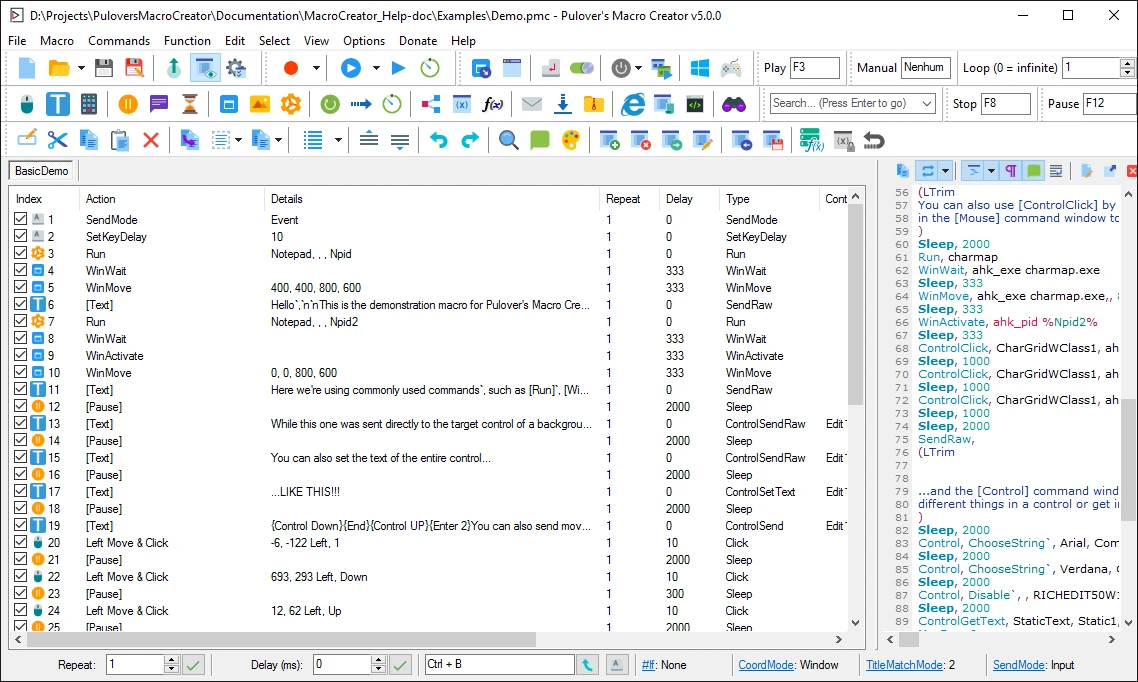
Pulover’s Macro Creator offers recording, playback, command editing, loops, conditions, variables, image or pixel search, and scheduled macros. Its recorder is a reasonable middle ground when you want to capture an initial sequence and then expand it with commands rather than write every automation from scratch.
The official quick tutorial describes recording through the toolbar or Ctrl+R, stopping with its recording hotkey, and replaying with its playback hotkey. Use a short macro first and inspect the generated commands before adding loops or conditions.
How to Choose a TinyTask Alternative for Windows 11
- Choose Fionn Auto Clicker when the job is repeated clicks or a recorded local input routine and you want direct controls for timing, repetitions, and hotkeys.
- Choose Power Automate for desktop when the workflow crosses desktop apps or webpages and benefits from editable flow actions.
- Choose AutoHotkey when you are comfortable creating a maintained script for custom hotkeys or automation logic.
- Choose Pulover’s Macro Creator when a recorded macro is the starting point but you expect to add commands, loops, or conditions.
Conclusion
For a simple TinyTask alternative for Windows 11, select the tool by the level of control the job requires. Power Automate for desktop is suited to editable Windows flows, AutoHotkey to scripted control, and Pulover’s Macro Creator to record-and-edit macros. If the task centers on configurable repeated clicks or replaying keyboard and mouse actions, Fionn Auto Clicker is the recommended practical option because it combines those paths in one Windows tool.
FAQ
Is Power Automate for desktop available in Windows 11?
Microsoft states that Windows 11 includes the preinstalled Power Automate for desktop app. It can create automations from available actions and record activity into actions.
Can an auto clicker replace a macro recorder?
Only for click-focused work. An auto clicker suits repeated clicks at a position or interval; use a recorder when the task also requires keystrokes, pointer movement, scrolling, or a sequence of actions.
Why does a recorded routine stop working?
A routine can become unreliable when the target window or interface changes. Test it after relevant app updates, and use editable flows or scripts when the task needs adaptation.
Does Fionn Auto Clicker work in the background?
It supports background clicking, but some windows may not support it. Verify the target application responds before relying on an unattended routine.


