 Emily CarterAuto Clicker
Introduction
If you need a programmable auto clicker for Windows, start with Fionn Auto Clicker when you want ordinary clicking plus a path to action recording, scenarios, and scheduling in one app. Macro Recorder is better suited to macros with logic and EXE creation; Pro Auto Clicker focuses on on-screen triggers. AutoClicker is an alternative for basic clicks with a free version, but its advanced automation belongs to the paid version.
Top options by task
- For Windows and combining clicks with recorded actions: Fionn Auto Clicker — supports configurable clicks, keyboard and mouse recording and playback, scenarios, and scheduling.
- For getting started free on a supported platform: AutoClicker — the free mode includes core click settings; recording and advanced blocks require the full version.
- For color, image, or text triggers: Pro Auto Clicker — an option for Windows 10/11 x64 with macro editing.
- For logic and standalone EXE macros: Macro Recorder — offers IF/THEN, repetitions, scheduling, and macro compilation.
Summary comparison table
Fionn Auto Clicker
Fionn Auto Clicker is worth considering first for Windows users who need more than repeated clicking and want to save repeatable actions: the app configures click type and position, interval, repetitions, and hotkeys; keyboard and mouse action recording and playback, recognition-based scenarios, and scheduled launches are also documented. It suits regular clicking and replaying a recorded workflow. Learn more at Fionn Auto Clicker .
How to use ordinary clicking
- Open Fionn Auto Clicker and select the mouse clicking section, then ordinary clicking. Set the mouse button, method and click position, interval, and repetitions, then start auto-clicking with F6.

- After checking, stop ordinary clicking with the stop button or F6. Confirm that clicking has stopped before changing the pointer position or settings.

AutoClicker
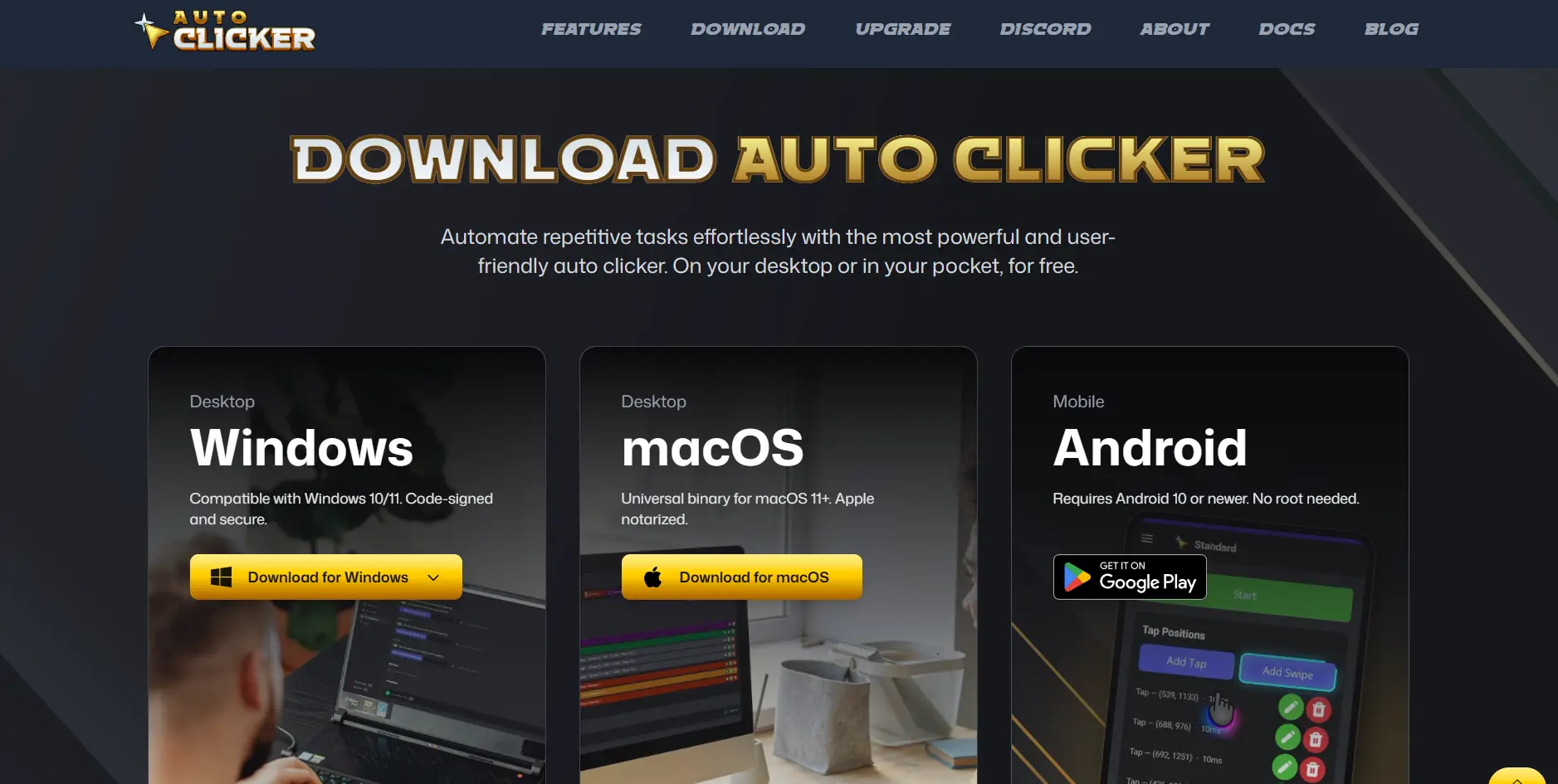
AutoClicker is appropriate if you first need configurable intervals, buttons, click types, and coordinates in free mode, while later you may need recording or visual recognition in the full version. It is an option for Windows, macOS, or Android users willing to move to a one-time paid version for advanced automation. Visit the official AutoClicker download page ; descriptions of recording and sequence modes are available in the official documentation .
Pro Auto Clicker
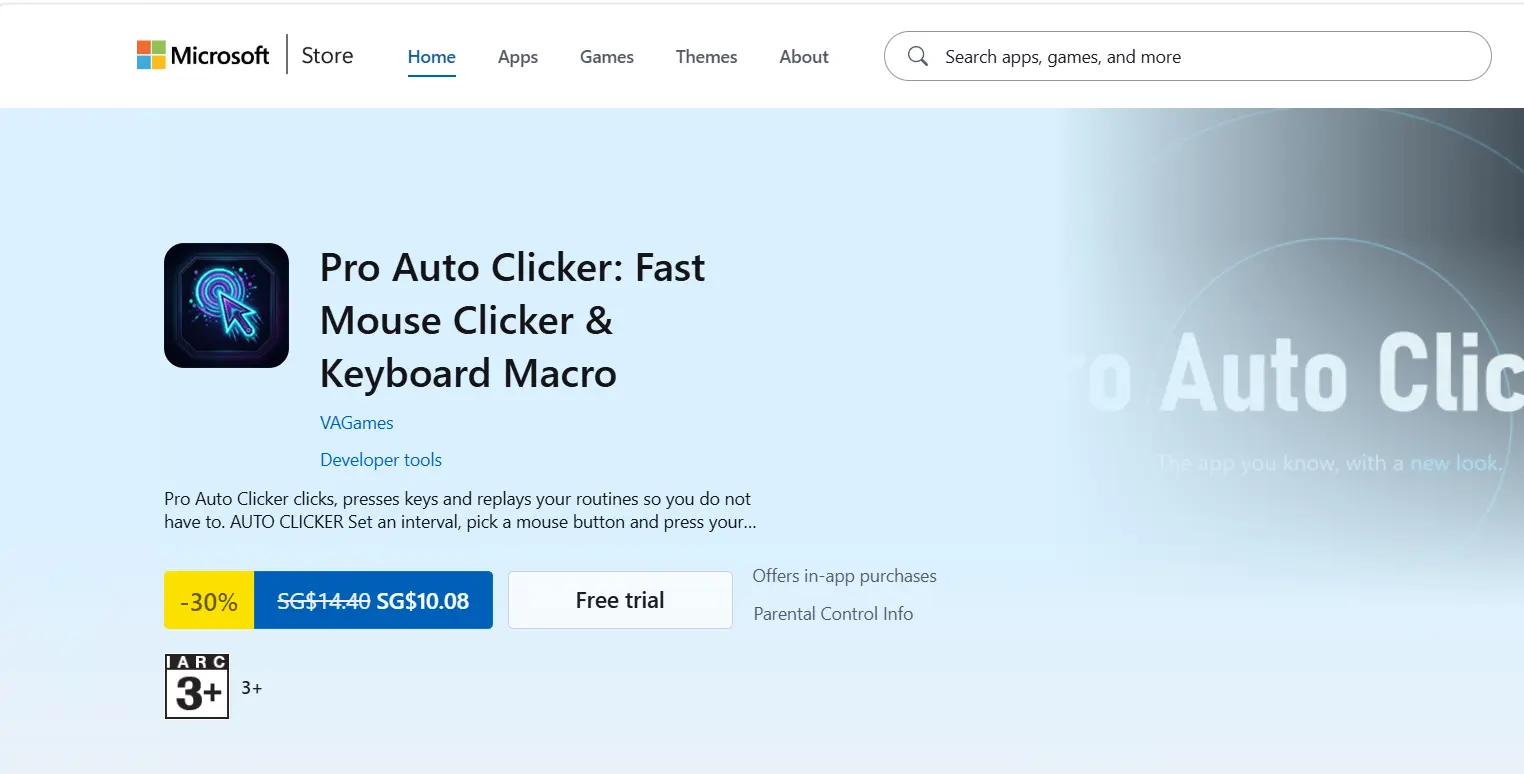
Choose Pro Auto Clicker on Windows 10/11 x64 when a scenario must respond to a color, image, or text on screen and you need editable mouse and keyboard recordings. It is designed for users who value on-screen conditions and a macro timeline. Features and terms are available on the official Pro Auto Clicker website .
Macro Recorder
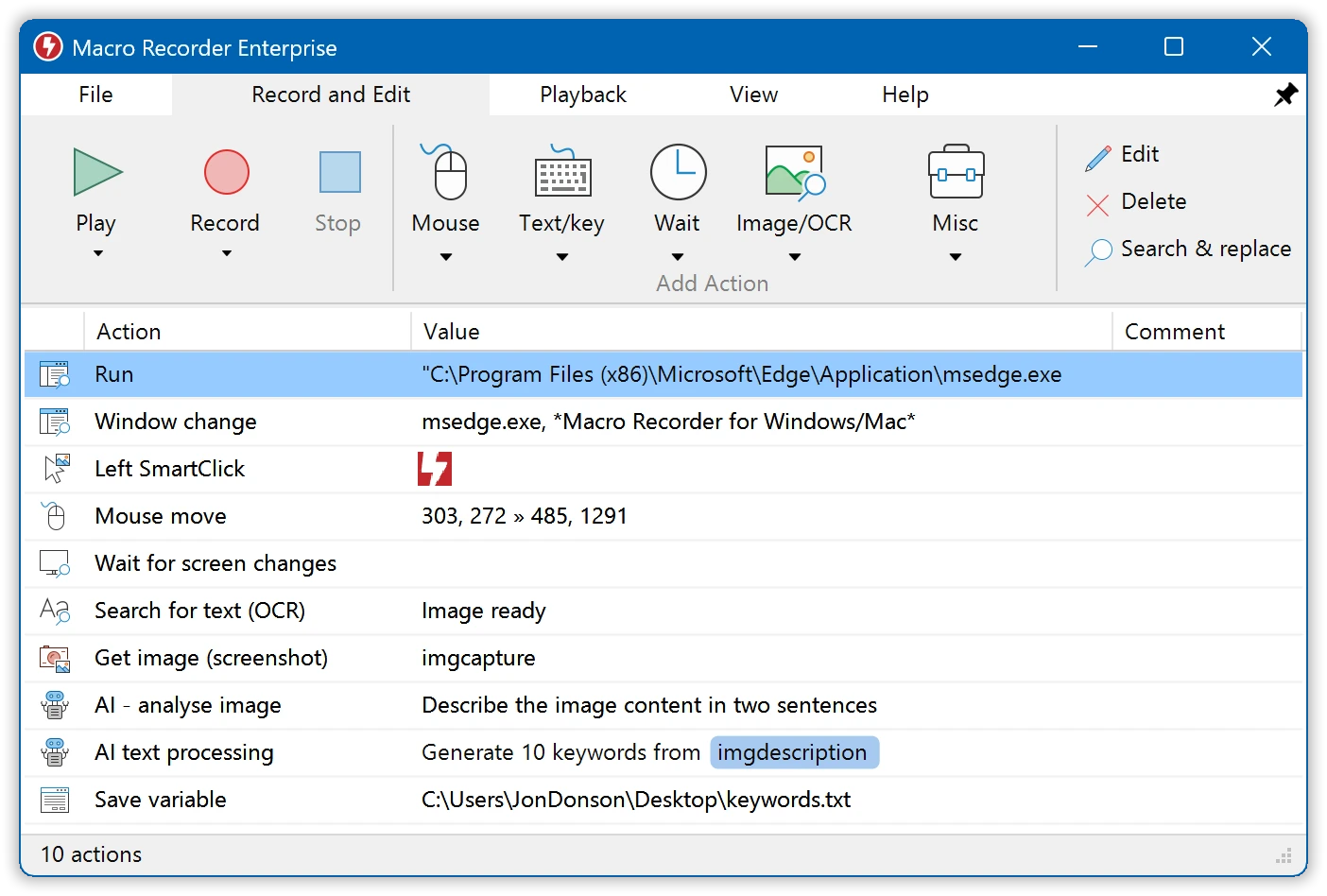
Macro Recorder suits people who want to turn recorded actions into more complex macros with conditions, repetitions, scheduling, or EXE compilation. It is a choice for Windows workflows where logic and distributing a finished macro to Windows-compatible computers matter. See the official Macro Recorder page and license terms .
How the comparison was conducted
We compared only manufacturer-stated capabilities using the same criteria: supported system, automation depth, basic clicking and input, licensing model, and practical limitations. This is a documentation comparison, not the results of hands-on testing.
How to choose
Need only repeated clicking in Windows? Compare Fionn Auto Clicker and AutoClicker’s free mode against the limitations that matter to you. Need action recording and room to develop a scenario? Consider Fionn Auto Clicker, Pro Auto Clicker, or Macro Recorder. If the task requires timeline editing and on-screen triggers, focus on Pro Auto Clicker; if you need an EXE file or IF/THEN logic, focus on Macro Recorder.
Final verdict
Consider Fionn Auto Clicker first if you use Windows 10/11 and want to start with controlled clicks while retaining the option of recording, scenarios, and scheduling. Choose AutoClicker for free basic clicks on its stated supported systems, while accounting for ads and paid access to advanced features. Pro Auto Clicker is sensible for Windows x64 with on-screen triggers, and Macro Recorder for logic, scheduling, and EXE macros. Before choosing, consider the license and the target service’s rules.
Frequently asked questions
Can I use a programmable auto clicker in online games?
Only if the rules of the specific game permit automated input. Restrictions may apply even when clicking is technically possible.
Which option supports keyboard and mouse recording?
Recording and playback are stated for Fionn Auto Clicker, the full version of AutoClicker, Pro Auto Clicker, and Macro Recorder. Their editing tools and licensing terms differ.
Why might background clicking not work?
Background-window support depends on the application. Fionn Auto Clicker states that some windows may not be supported, while Pro Auto Clicker explicitly does not send clicks to background windows.
Which product can create an EXE from a macro?
Macro Recorder states that it can compile a macro into an EXE that runs on Windows-compatible computers.


