 Emily CarterAuto Clicker
How do you choose desktop auto clicker software?
If you only need repeated clicks at a fixed position in Windows, all four tools provide different levels of click control. If you also need to record keyboard and mouse workflows, recognize conditions, or schedule tasks, the choice becomes more distinct. Windows users can start with Fionn Auto Clicker: it is confirmed to support fixed or current-position clicking, keyboard and mouse recording and playback, global hotkeys, and scheduling. For macOS or Linux, Infinite Autoclicker has more complete cross-platform support, but Linux is limited to X11 and does not support Wayland.
Quick conclusions: choose by need
- From Windows clicking to advanced desktop workflows: Fionn Auto Clicker combines basic clicking, recording and playback, text input, image/color/text recognition, and scheduling in one tool. Unlimited clicking, recording, custom scripts, and scheduling require membership.
- Across Windows, macOS, and Linux: Infinite Autoclicker is an open-source MIT-licensed option with macros, color clicking, and scheduling. Linux users must confirm that their desktop environment uses X11.
- Traditional Windows clicking interface: Auto Clicker provides left, right, and middle buttons; fixed or current position; limited or unlimited clicks; and system-level hotkeys. It requires payment after 20 trial uses, and installation requires administrator rights.
- Profiles, system tray, and command-line integration: FluAutoClicker suits users comfortable with its early beta status. It includes profiles, a system tray, and command-line hooks, but Linux support remains experimental.
Quick comparison table
Fionn Auto Clicker
If your work extends from single-point clicking to recording keyboard and mouse actions, text input, condition recognition, or scheduling, Fionn Auto Clicker is an integrated Windows option to consider first. It is confirmed to provide left, right, and middle buttons; fixed or current-position clicking; interval and repeat rules; keyboard and mouse recording and playback; and image, color, and text recognition. This lets you record and replay a fixed workflow instead of repeating only one mouse click. It suits Windows users who need basic clicking and may also need to expand repeated desktop work into recorded or scheduled tasks. Visit Fionn Auto Clicker for product information.
How to use it
- For standard auto-clicking only, open Fionn Auto Clicker and select “Mouse Clicking” > “Standard Clicking.” Choose the mouse button, click type, and click position, set the click interval and repeat options, then select “Start Auto Clicking” (F6). This feature is separate from recording; to record and replay actions, go to step 2.

- Recording and playback start here: open “Keyboard and Mouse Recording,” enter a recording name, and choose the action types to capture: clicks, action intervals, scroll wheel activity, and movement. Select “Start Recording” (F7); you do not need to complete step 1 first.
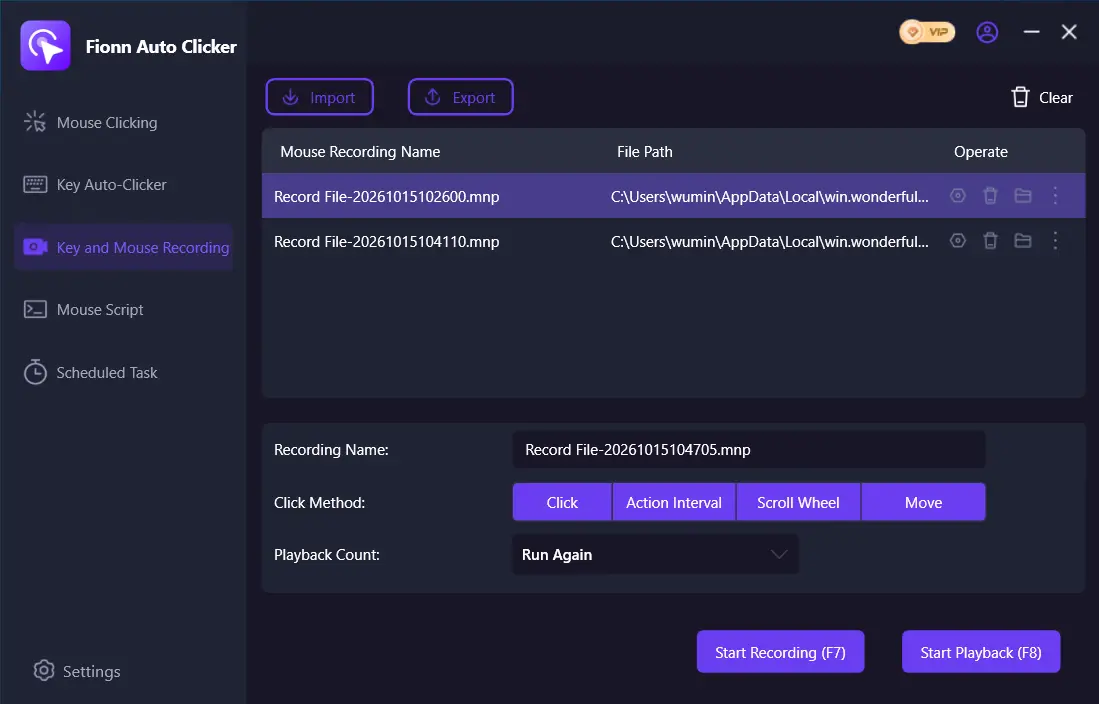
- Perform the actions you want to record. While recording is active, the button changes to “Stop Recording” (F7).
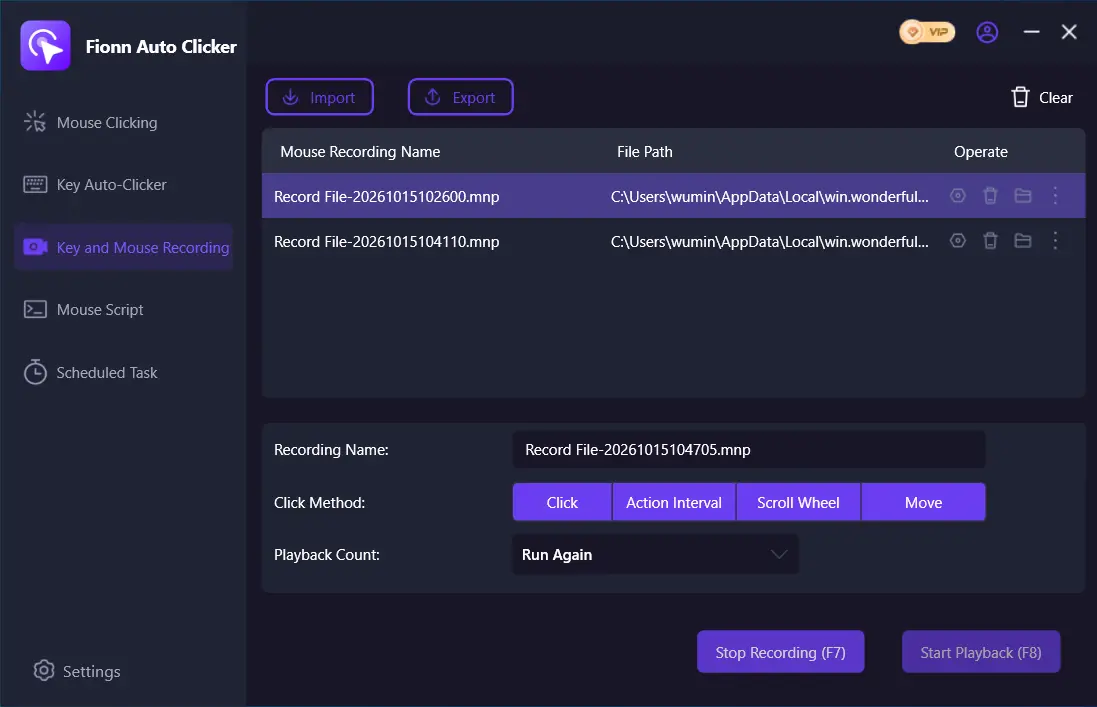
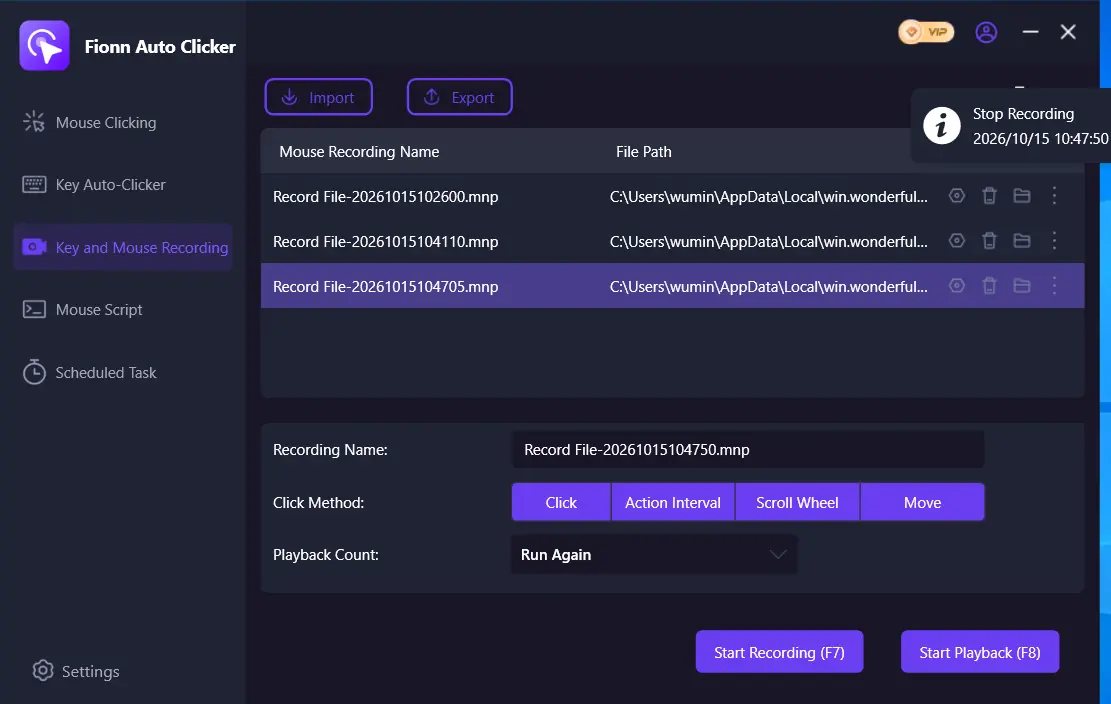
- Select “Stop Recording” or press F7 to finish. Confirm that the new recording appears in the list, then select the recording to replay.
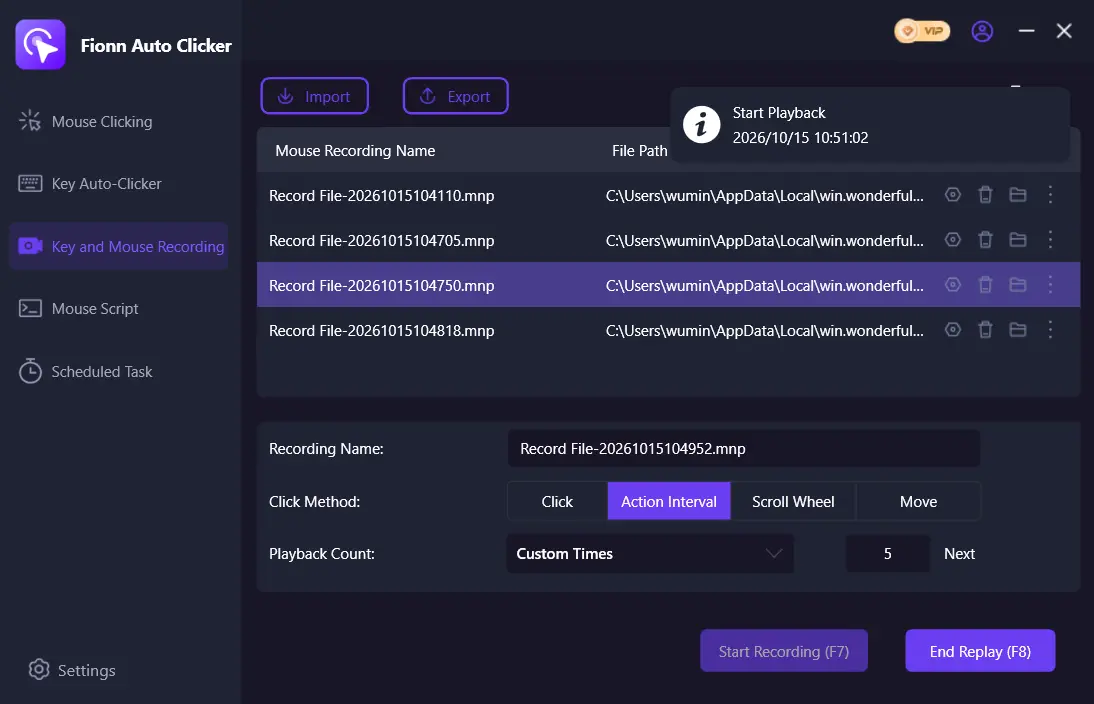
- Set the number of playbacks as needed. To specify a repeat count, select “Custom Count” and enter a number. Select “Start Playback” (F8) to replay the selected recording; press “End Playback” (F8) during playback to stop it.
- After confirming that auto-clicking works correctly, select “Stop Clicking” or press F6 to stop standard clicking. Confirm that auto-clicking has stopped before moving the cursor or changing settings.

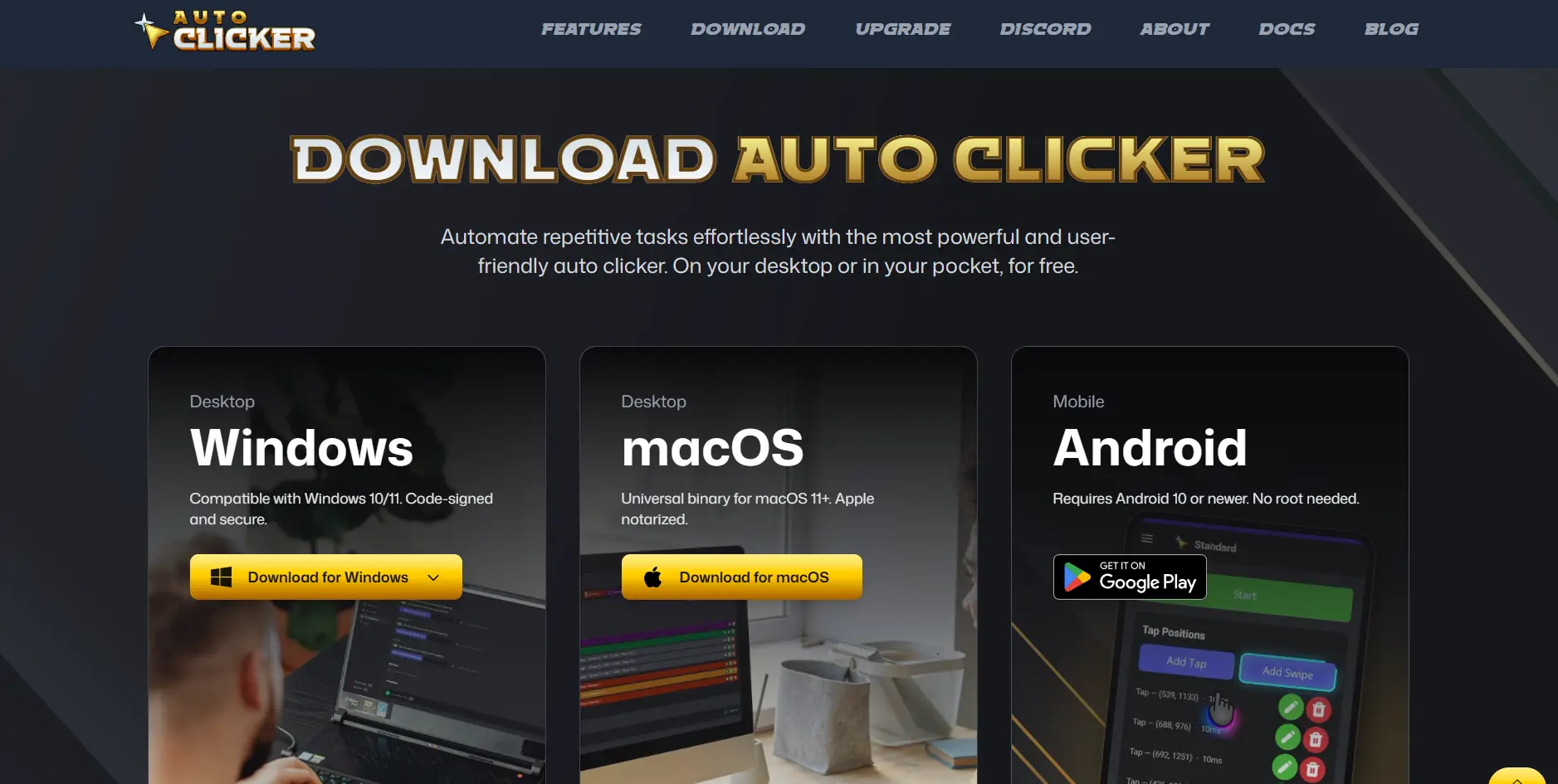
Auto Clicker
For a traditional Windows clicker interface, Auto Clicker provides left, right, and middle buttons; fixed or current position; configurable intervals; limited or unlimited click counts; and system-level hotkeys. It also declares integration with Macro Recorder, Key Presser, and Color Clicker, giving it a clear interface focus for people who mainly need to adjust click parameters directly. It suits users who want fixed- or current-position clicking in Windows and need global hotkeys. See its official product page.
Infinite Autoclicker
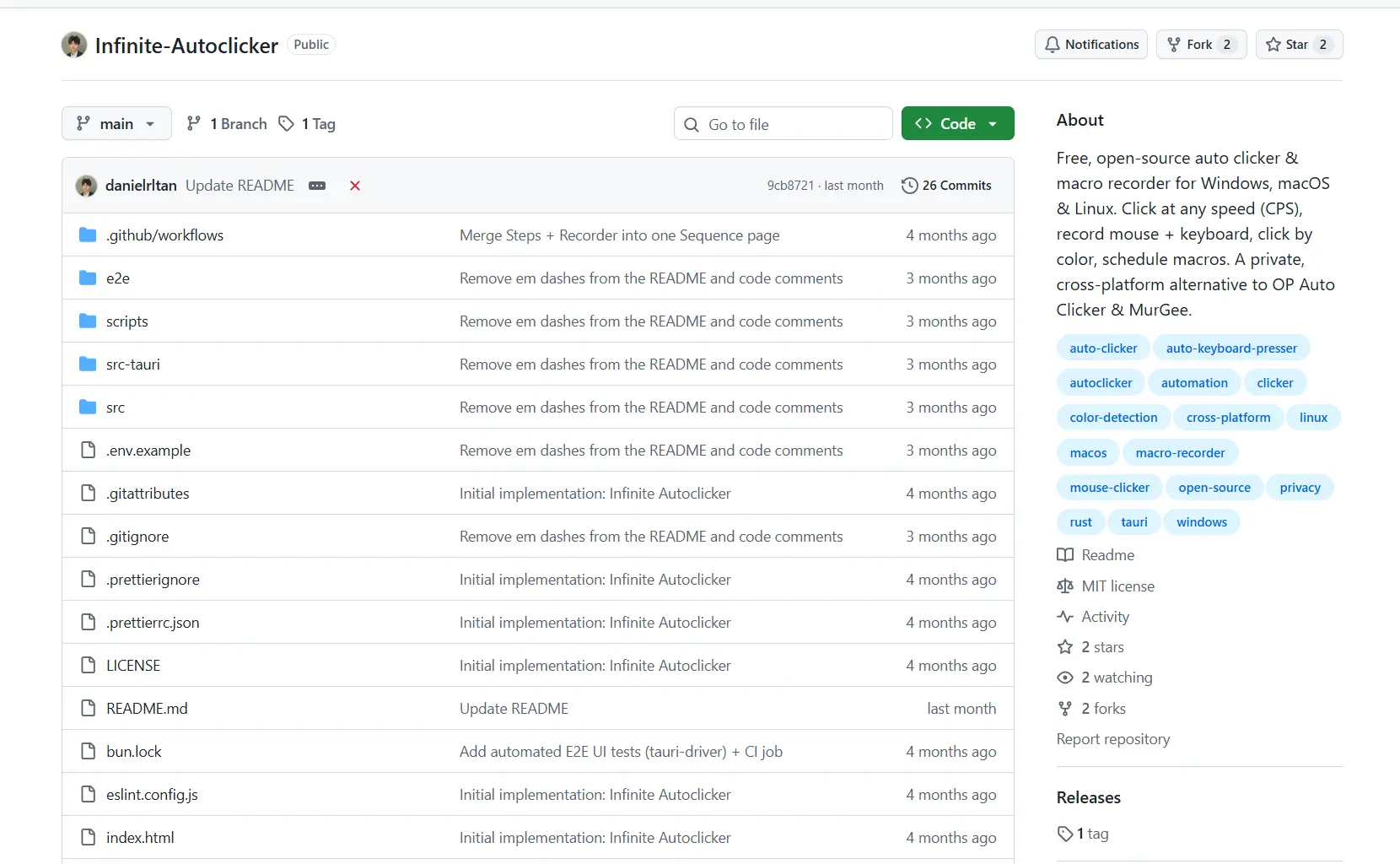
If you switch between desktop operating systems, Infinite Autoclicker provides clicking, keyboard and mouse recording and playback, color clicking, a macro library, scheduling, and configurable global hotkeys. It is a free, MIT-licensed open-source project and explicitly supports Windows 10/11, macOS 12+, and Linux X11. It suits users who need cross-platform macros or color-triggered clicking and can meet the operating-system permission and Linux desktop-environment requirements. See the official project page.
FluAutoClicker
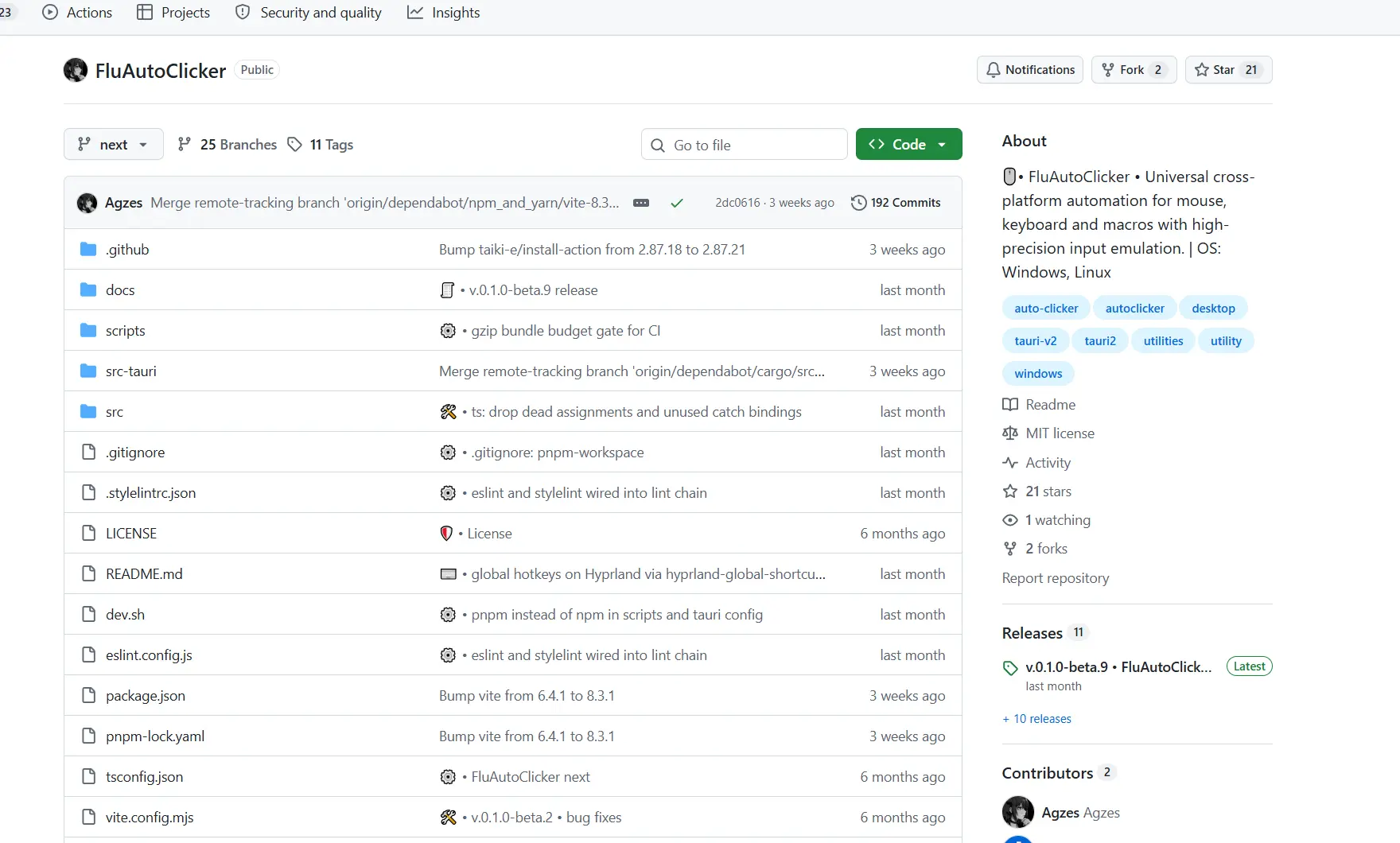
If you value saving different automation configurations and controlling them from the system tray or command line, FluAutoClicker documents support for mouse and keyboard automation, macro recording and playback, profiles, global hotkeys, a system tray, and command-line hooks. It is MIT licensed but is currently an early beta. It suits Windows users, as well as technical users who can handle Linux permissions and beta limitations and need profiles and command-line control. See the official project page.
How we compared the tools
This comparison is organized from publicly available official information and supplied product facts; it does not include hands-on testing. Each tool is reviewed on the same six dimensions: desktop operating-system support, click controls, keyboard/mouse and conditional automation, control methods, pricing or license limits, and installation and permission requirements. Capabilities not confirmed in the supplied information are not treated as supported.
The key difference is not simply whether a tool can auto-click, but your operating system, whether you need to save or record workflows, and whether you can accept licensing or environment limits.
How to choose
Start by confirming your operating system. If you use only Windows, choose among all four based on your workflow. For macOS or Linux X11, review Infinite Autoclicker first. If Linux uses Wayland, do not choose Infinite Autoclicker; FluAutoClicker also does not yet support other Wayland compositors.
Then separate the task. For repeated clicking at a fixed position and interval, prioritize click controls and trial limits. For recorded keyboard and mouse work, choose a tool with confirmed playback. For actions based on on-screen colors, the confirmed capabilities of Infinite Autoclicker or Fionn Auto Clicker are closer to that need. Finally, check permissions before installation: Auto Clicker requires administrator rights, Infinite Autoclicker requires permissions on macOS, and FluAutoClicker automation on Linux may require writable /dev/uinput.
Final verdict
For primarily Windows-based users who want to keep basic clicking, recording, conditional recognition, or scheduling in one place, consider Fionn Auto Clicker first. Note that it provides three free tries, while unlimited clicking, recording, custom scripts, and scheduling are unlocked by membership. If your primary requirement is a free MIT-licensed tool across Windows, macOS, and Linux X11, Infinite Autoclicker is a closer fit, but do not use it on Wayland. If you prefer a traditional Windows clicker interface and can accept the 20-use trial and administrator installation requirement, choose Auto Clicker. If you need profiles, a system tray, and command-line hooks and can accept early-beta risk, then consider FluAutoClicker.
Frequently asked questions
Can desktop auto clicker software work in a background window?
Fionn Auto Clicker is confirmed to support background clicking, but some windows may not support it. Background-clicking capability is not confirmed for the other candidates in the supplied information. If it is essential, verify it in your target program and within the applicable usage rules.
Which option works on macOS?
In this comparison, Infinite Autoclicker is confirmed to support macOS 12+, but it requires the relevant permissions. macOS support is not guaranteed for FluAutoClicker, while Fionn Auto Clicker and Auto Clicker are listed as Windows tools.
Can I use Infinite Autoclicker on Linux Wayland?
No. Infinite Autoclicker explicitly states that Linux Wayland is unsupported; its Linux support requires X11.
What are the free-use limits for Fionn Auto Clicker?
It is confirmed to offer three free tries and membership plans. Membership unlocks unlimited clicking, recording, custom scripts, and scheduled tasks.


