 Emily CarterAuto Clicker
Introduction
If you need an action recording auto clicker , start by choosing based on your operating system and the depth of automation you need. For Windows, where you need both standard clicks and mouse-and-keyboard recording, consider Fionn Auto Clicker first. For Mac, choose Macro Recorder. For a free option with deeper command editing, use Pulover's Macro Creator; TinyTask works well for short, visible actions without scripting.
Top Picks
- Fionn Auto Clicker — for Windows and a combination of clicking, recording, editing, loops, and scheduling.
- Macro Recorder — for Windows and Mac when you need a recording editor and playback with visual click-point context.
- Pulover's Macro Creator — for free Windows automation with conditions, loops, and AutoHotkey export.
- ReMouse — for Windows 7–10 when you need mouse-and-keyboard recording along with triggers and a scheduler.
- TinyTask — for simple personal macros in visible windows without writing scripts.
Quick Comparison Table
Fionn Auto Clicker
It is a practical first choice for Windows users who need one tool for standard auto-clicking and recorded macros. It records, plays back, edits, and exports mouse and keyboard actions; click options include mouse buttons, the current or a fixed position, interval, and loops. Separate hotkeys for tasks, recording, and playback, plus scheduling, help run repeatable workflows without manual supervision.
There are three free trials; unlimited clicking, recording, custom workflows, and scheduling are unlocked with membership. Background clicking may not be supported in some windows. A choice for Windows workflows where simple clicks may grow into editable action recordings. Learn more about its capabilities on Fionn Auto Clicker .
How to Use It
- For standard auto-clicking only, without recording: open Fionn Auto Clicker and select “Mouse Clicking” → “Normal Click.” Set the mouse button, click method and position, interval, and repeats, then select “Start Auto Click” (F6). This is a standalone feature; for recording, go directly to step 2.

- For recording and playback, open “Keyboard and Mouse Recording.” Enter a recording name, choose action types—click, action interval, mouse wheel, and movement—then select “Start Recording” (F7). Step 1 is not required.
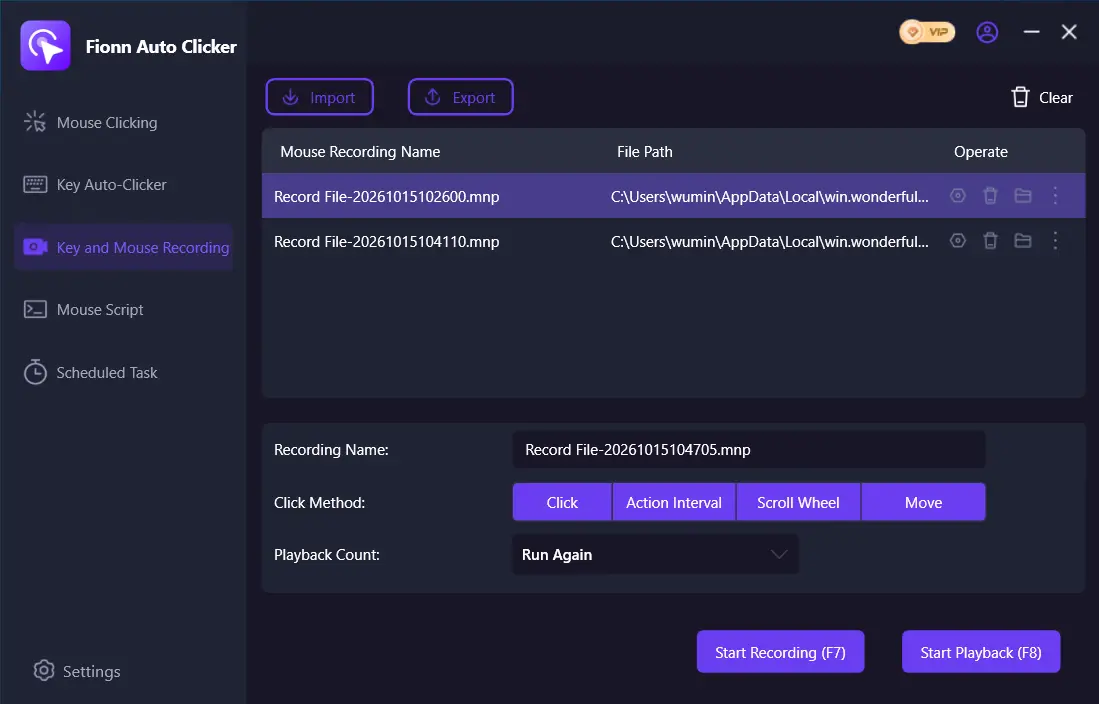
- Perform the actions you want to record. During recording, the button changes to “Stop Recording” (F7).
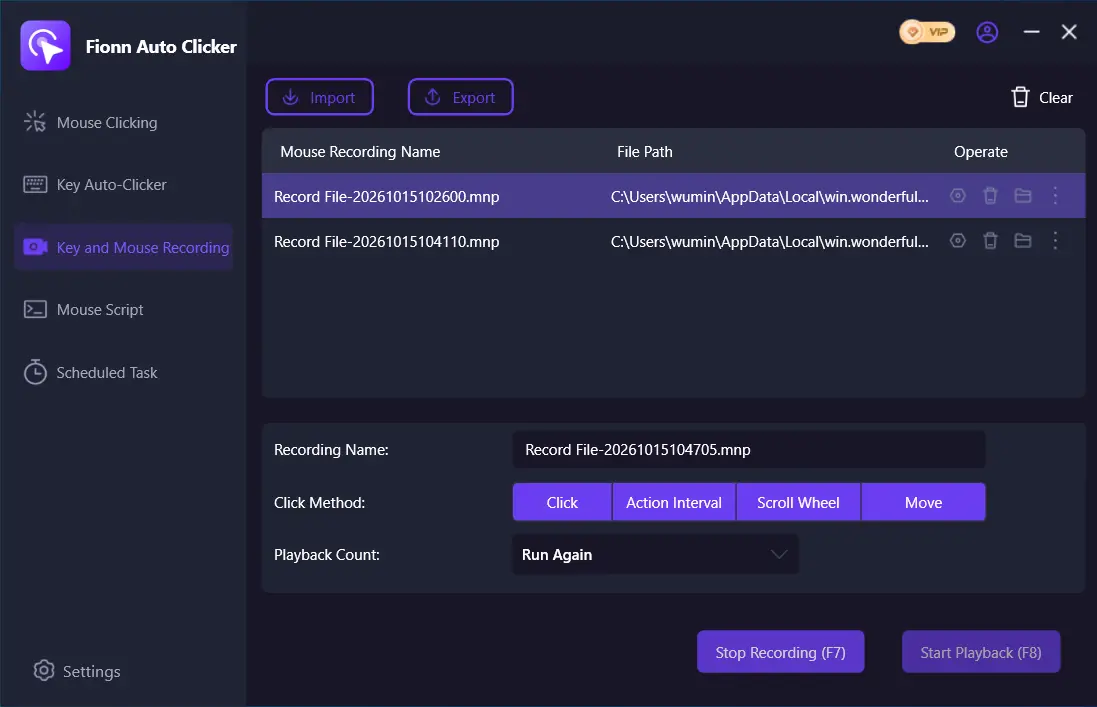
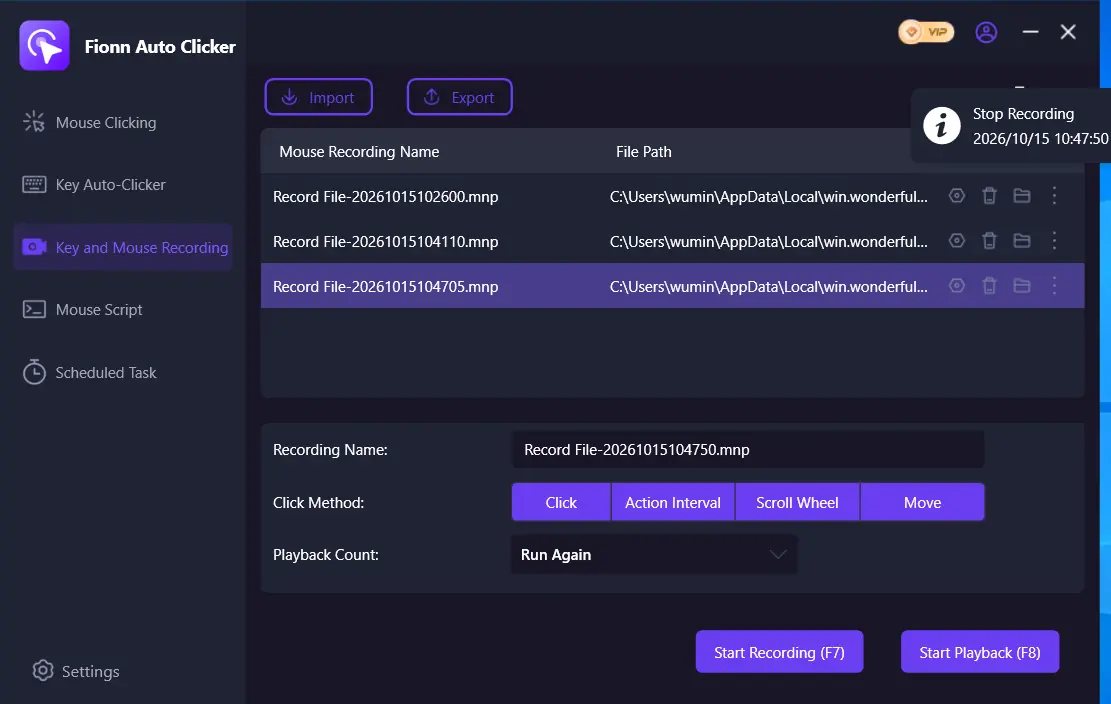
- Select “Stop Recording” or press F7. Confirm that the new recording appears in the list, then select it for playback.
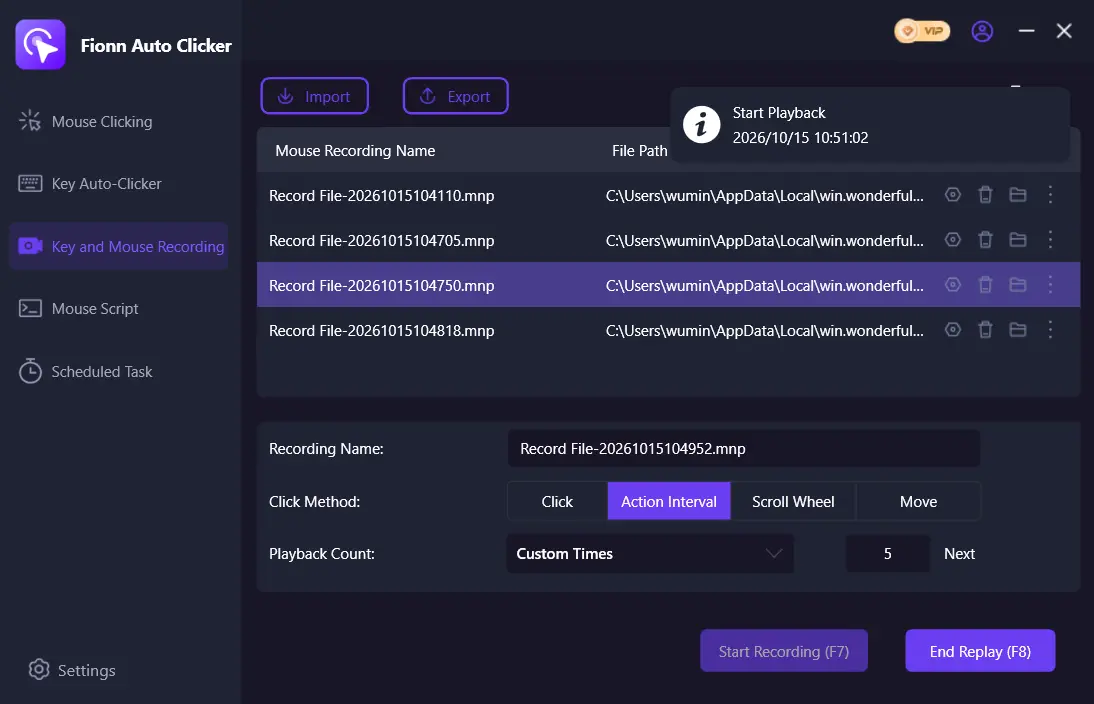
- Set the number of playbacks. For an exact number, select “Custom Count” and enter a value. Select “Start Playback” (F8); to stop it, select “End Repeat” (F8).
- After testing a standard click series, stop it with “Stop Clicking” or F6. Before moving the pointer or changing settings, make sure auto-clicking has stopped.

Macro Recorder
Choose Macro Recorder for Windows or Mac when you need to review and edit a recording before running it. It records mouse movement, clicks, scrolling, keystrokes, and text, and its built-in editor lets you expand the recording. Rather than fixed X/Y coordinates, it uses the visual context of the click point, which is useful for interfaces where the window changes position.
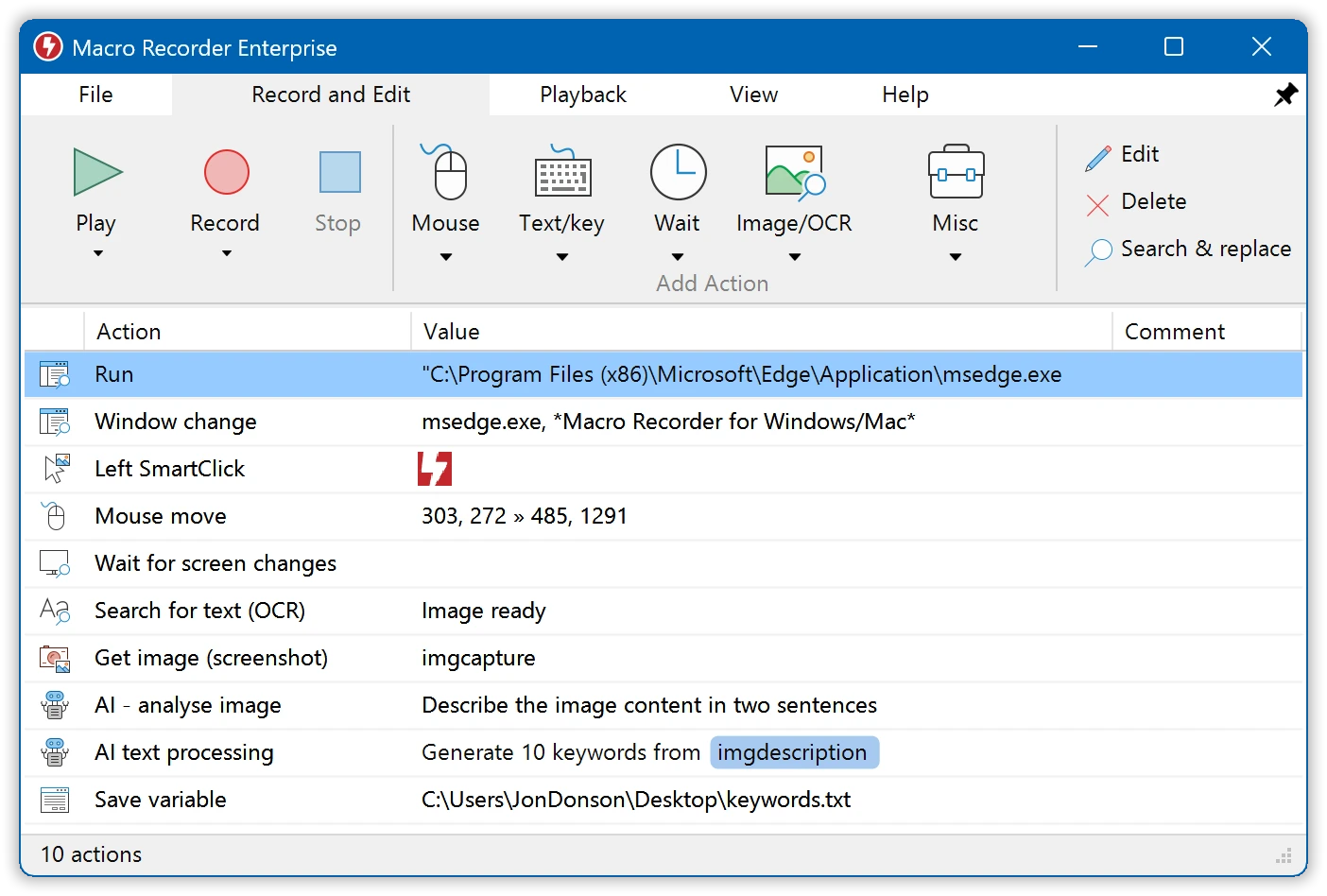
Freeware is limited to ten repeats. It is an option for editable macros on two desktop platforms if that limit is acceptable. Find the description and terms on the official Macro Recorder page and in the playback documentation .
ReMouse
ReMouse makes sense for users of the stated Windows versions who need action recording and launches based on time or events. It records and plays back keyboard and mouse events and saves them as workflows; an action editor is also available. Its documentation lists hotkeys, repeat, a scheduler, flexible triggers, and a task manager.
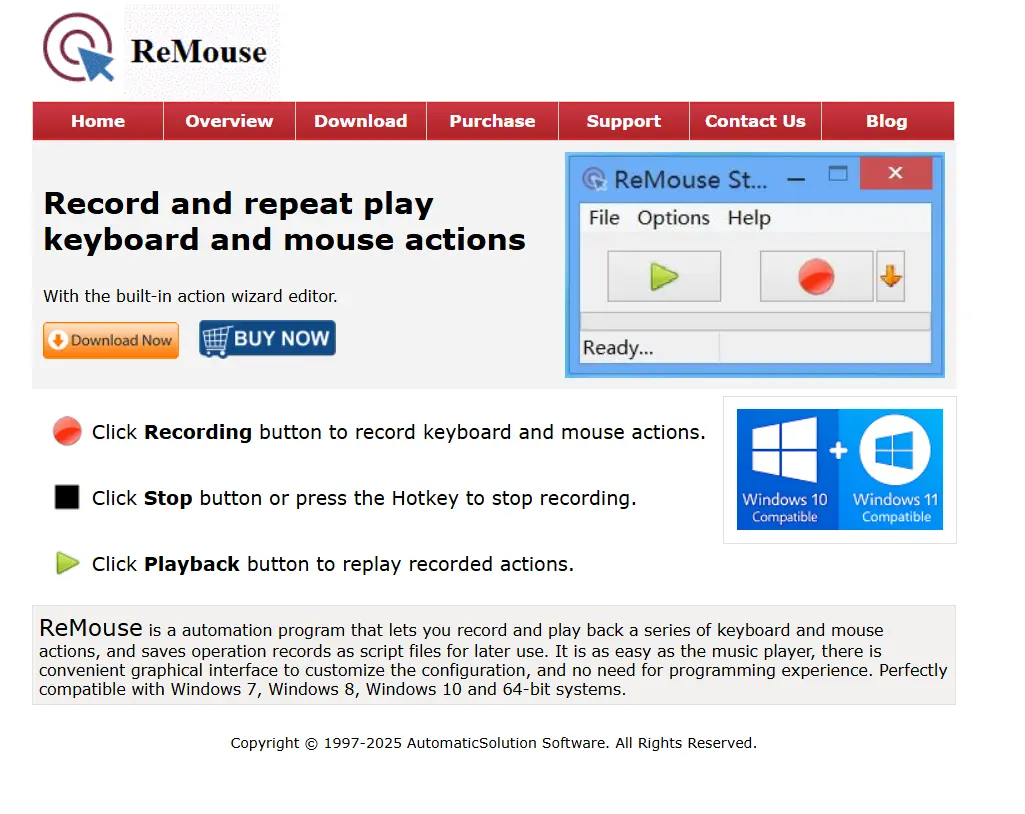
Confirmed compatibility lists Windows 7, 8, 10, and 64-bit systems. Suitable when scheduling and triggers matter more than a known upfront price. Check the details on the official ReMouse page .
Pulover's Macro Creator
Pulover's Macro Creator is an option for Windows users who are ready to work with more detailed commands instead of only playing back a recording. It is a free AutoHotkey-based tool with a built-in recorder; its commands let you edit repeats and delays. It supports loops, conditions, variables, hotkeys, a timer, scheduling through Windows Task Scheduler, and AutoHotkey export.
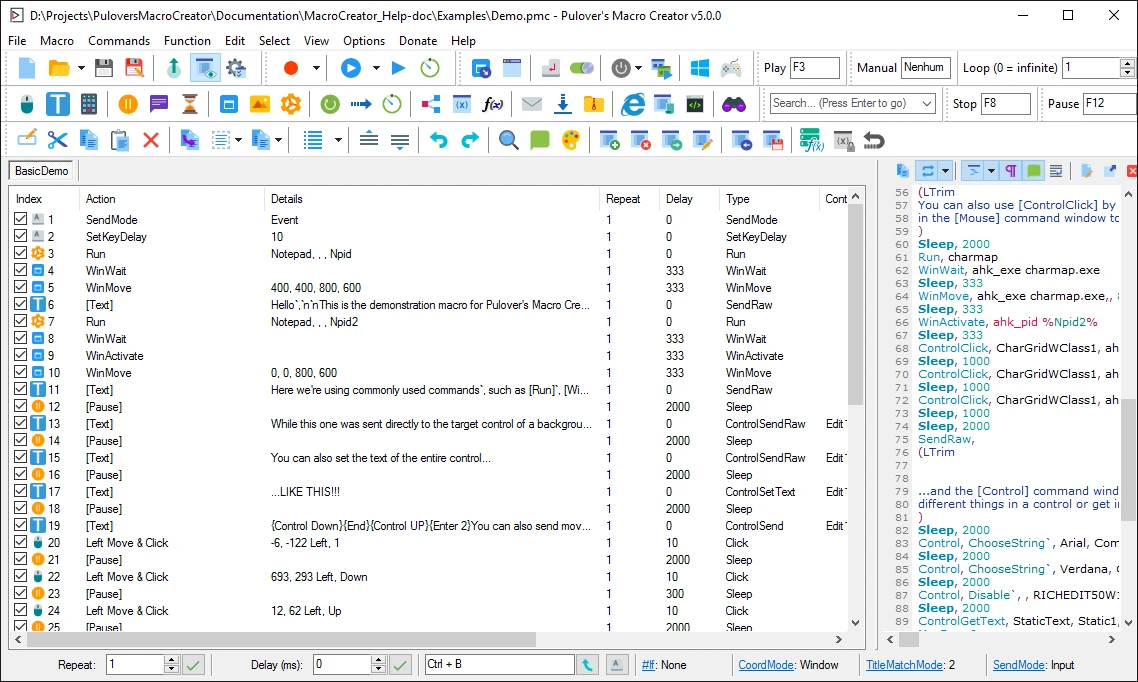
Supported platforms are listed as Windows 7, 8, 8.1, and 10; XP and Vista were not tested. Macros or screenshots may require administrator rights on some systems. Best for free automation that needs conditions and command customization. The source project and documentation are available on the official Pulover's Macro Creator page .
TinyTask
TinyTask is worth considering for short repeatable actions in a visible window without workflows or complex settings. It records, saves, and plays back macros, and playback speed can be adjusted. Its minimalist, portable approach requires no scripting.
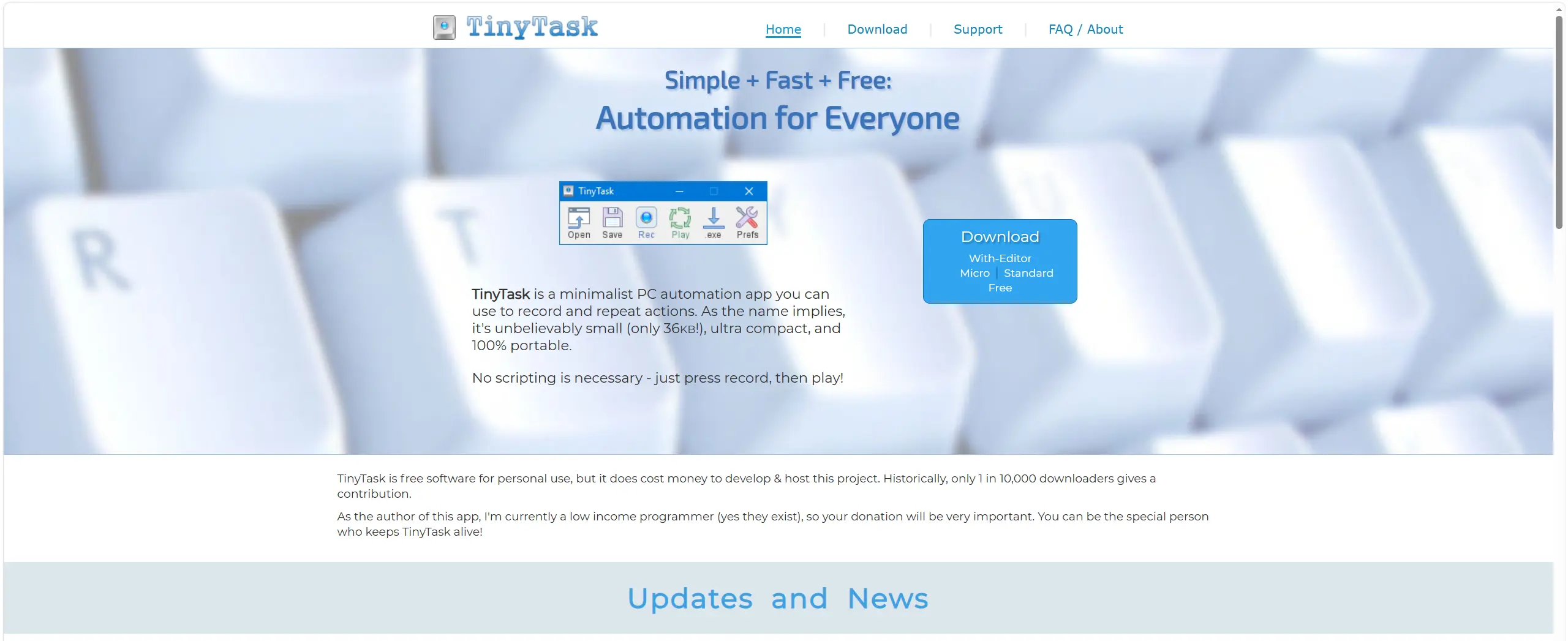
The tool works only with visible foreground applications and does not offer formal technical support. Suitable for simple personal macros when you do not need confirmed triggers, scheduling, or a step editor. Learn more on the official TinyTask page .
How the Tools Were Compared
The comparison uses the same criteria: supported operating systems, recording and editing coverage, click and launch controls, licensing model, and limitations. The comparison distinguishes documented capabilities from details that are not specified.
How to Choose
Start with your operating system: Macro Recorder is the option in this list for Mac; the other choices target Windows or PCs with unspecified OS versions. Then assess your workflow. For recording followed by editing and scheduling on Windows, choose Fionn Auto Clicker; for visually contextual clicks, choose Macro Recorder. If free customization of conditions and loops is the priority, choose Pulover's Macro Creator and account for possible administrator rights. For short recordings in an active visible window, TinyTask is enough.
Final Verdict
For Windows, consider Fionn Auto Clicker first if you need standard clicking plus mouse-and-keyboard recording, editing, loops, and scheduling; keep in mind that advanced capabilities require membership after three free trials. Choose Macro Recorder if you also need Mac support and want to edit a recording with visual click context, but remember the Freeware limit of 10 repeats. Pulover's Macro Creator is better for free, complex Windows macros, while TinyTask is best for simple recording in a visible window.
Frequently Asked Questions
Does an auto clicker record the keyboard together with the mouse?
Yes. Fionn Auto Clicker, Macro Recorder, ReMouse, and Pulover's Macro Creator record keyboard and mouse actions. TinyTask records and plays back macros.
Which option supports Mac?
In this comparison, Macro Recorder supports both Windows and Mac. Do not assume macOS support for the other programs without checking their official materials.
Is there a free action recording auto clicker?
Pulover's Macro Creator is listed as a free tool. TinyTask is free for personal use. Macro Recorder has a Freeware edition, but it is limited to ten repeats; Fionn Auto Clicker provides three free trials and a membership plan.
Why might a recorded macro fail in a background window?
TinyTask works only with visible foreground applications. Fionn Auto Clicker supports background clicking, but some windows may not support it. For these tasks, first test one short repeat in the target application.


