 Emily CarterAuto Clicker
Introduction
For a Photoshop macro recorder, start with Macro Recorder if you want recorded mouse paths, editable actions, and window restoration on Windows or Mac. Fionn Auto Clicker and Myna offer useful Windows alternatives. Photoshop-specific playback is not established for any of the three, so check the result on a copy of an image before relying on repetition.
Top Picks
- Start with Macro Recorder: Its documented mouse-path replay and window restoration are useful when a sequence depends on cursor movement and window placement.
- For Windows recording and scheduled tasks: Fionn Auto Clicker combines editable recordings with recognition and scheduling; membership unlocks advanced features.
- For readable scripts and click sequences: Myna Macro Recorder & Auto Clicker supports image anchors and individually timed points on 64-bit Windows 10 and 11.
Quick Comparison Table
Fionn Auto Clicker
Choose Fionn Auto Clicker on Windows 10 or 11 when you want to record a repeatable desktop sequence and have the option to schedule it.
It records, replays, edits, and exports mouse and keyboard actions. Editable scripts can combine actions and waits, giving you a way to adjust a sequence instead of recording it again.
Visit Fionn Auto Clicker to consider the Windows tool, then check the resulting image after a short playback.
How to use
- Recording and playback workflow starts here: Open Key and Mouse Recording. Enter a Recording Name and select the action types to capture: Click, Action Interval, Scroll Wheel, and Move. Click Start Recording (F7).
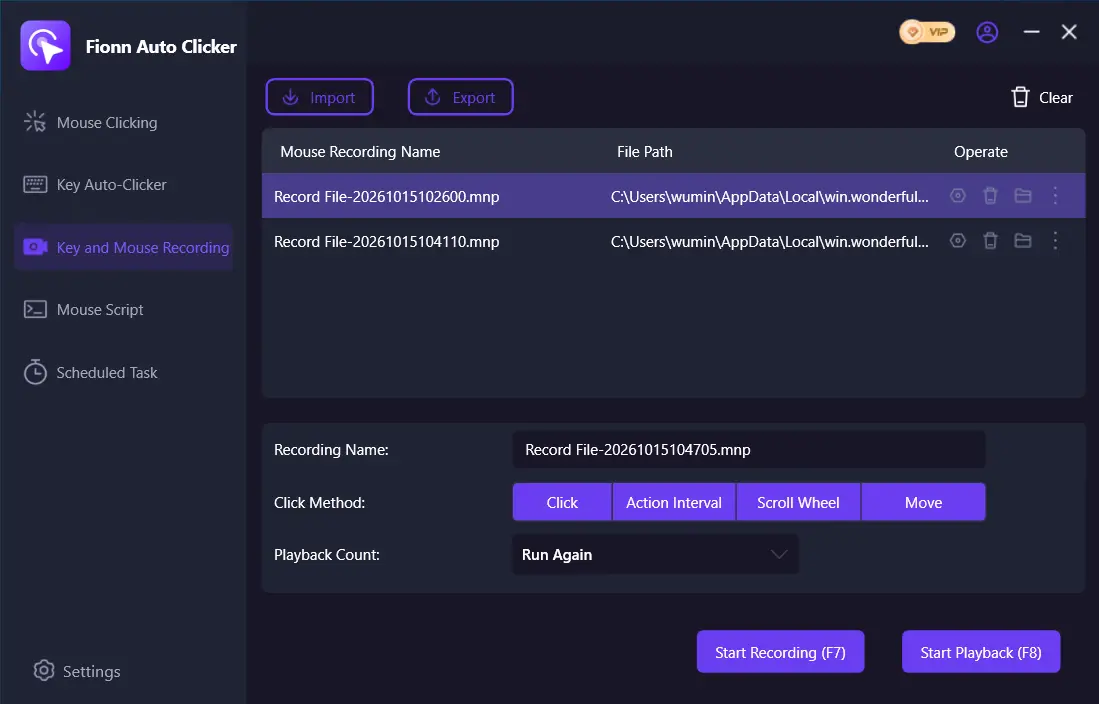
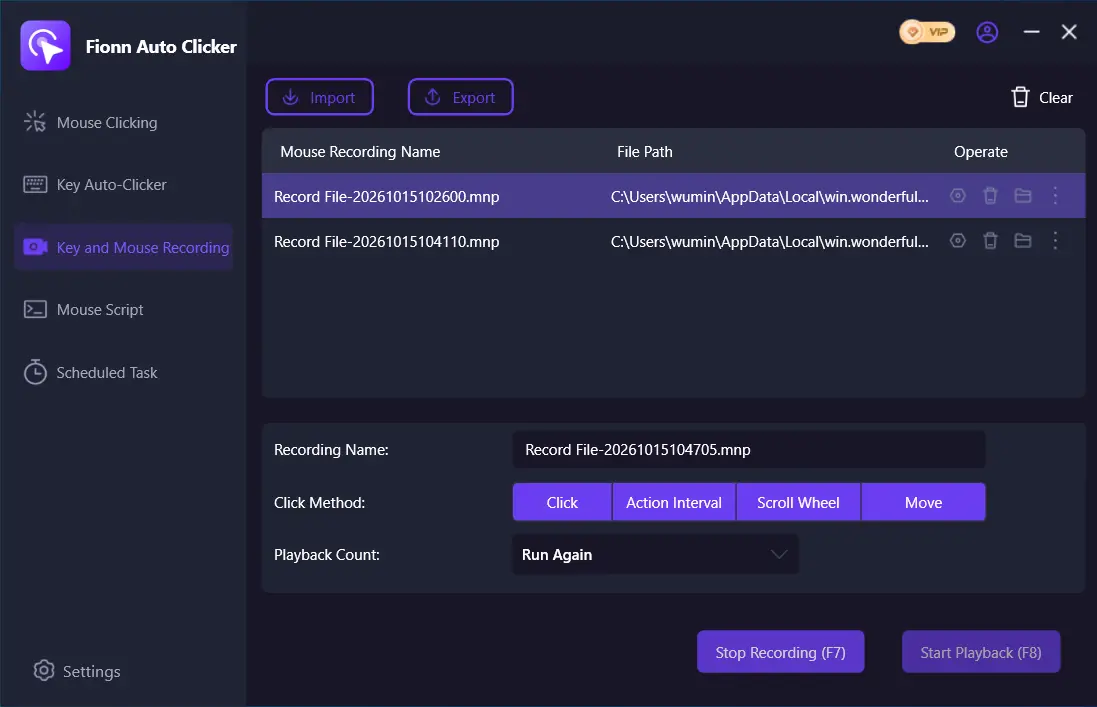
- Perform the actions you want to record. While recording is active, the button changes to Stop Recording (F7).
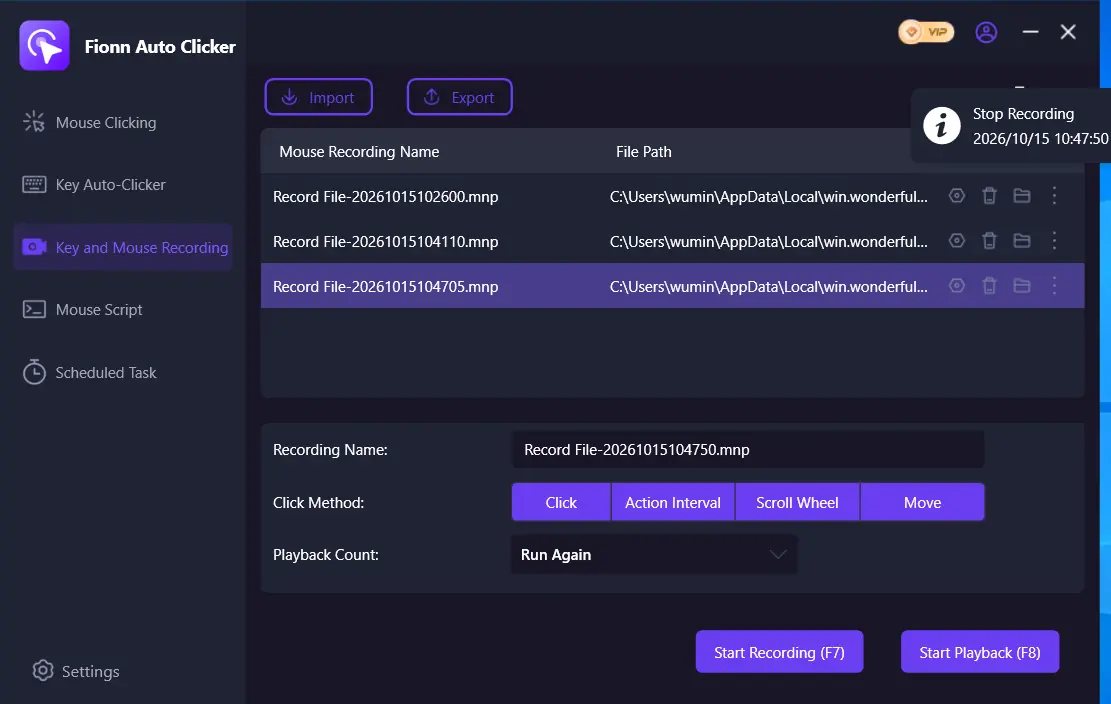
- Click Stop Recording or press F7 to finish. Confirm that the new recording appears in the list, then select the recording you want to replay.
- Set Playback Count as needed. To specify a repetition count, choose Custom Times and enter a number. Click Start Playback (F8) to replay the selected recording. During playback, click End Replay (F8) to stop.
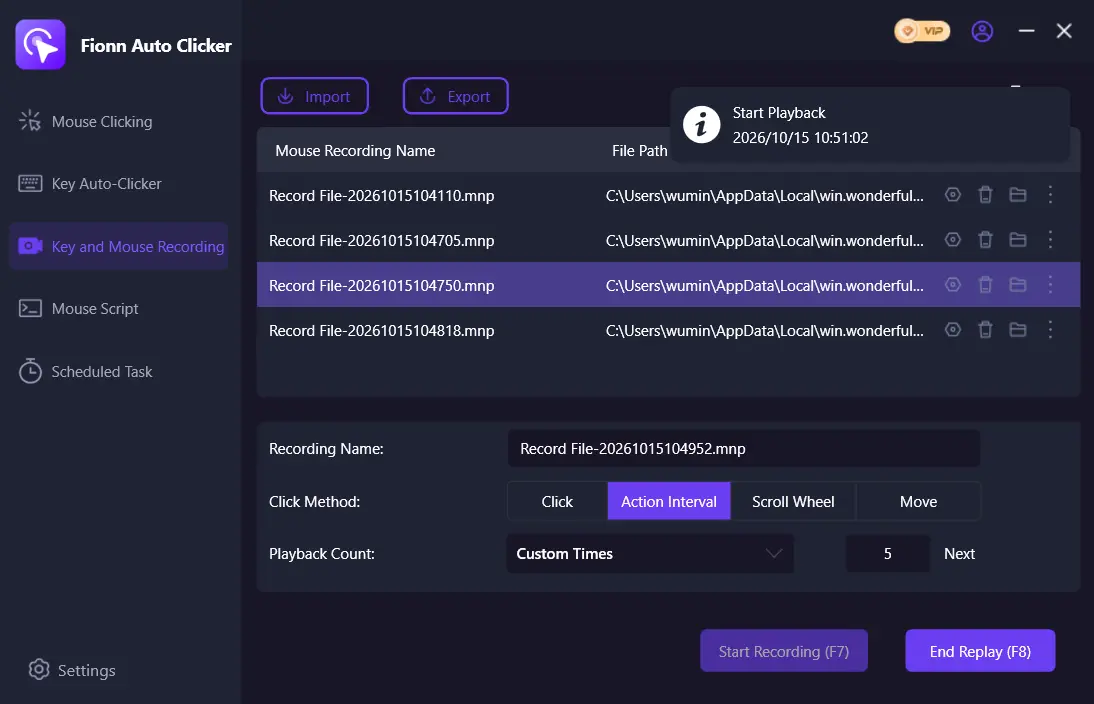
A listed recording confirms it was saved; inspect the image separately to determine whether the replay produced the intended edit.
Macro Recorder
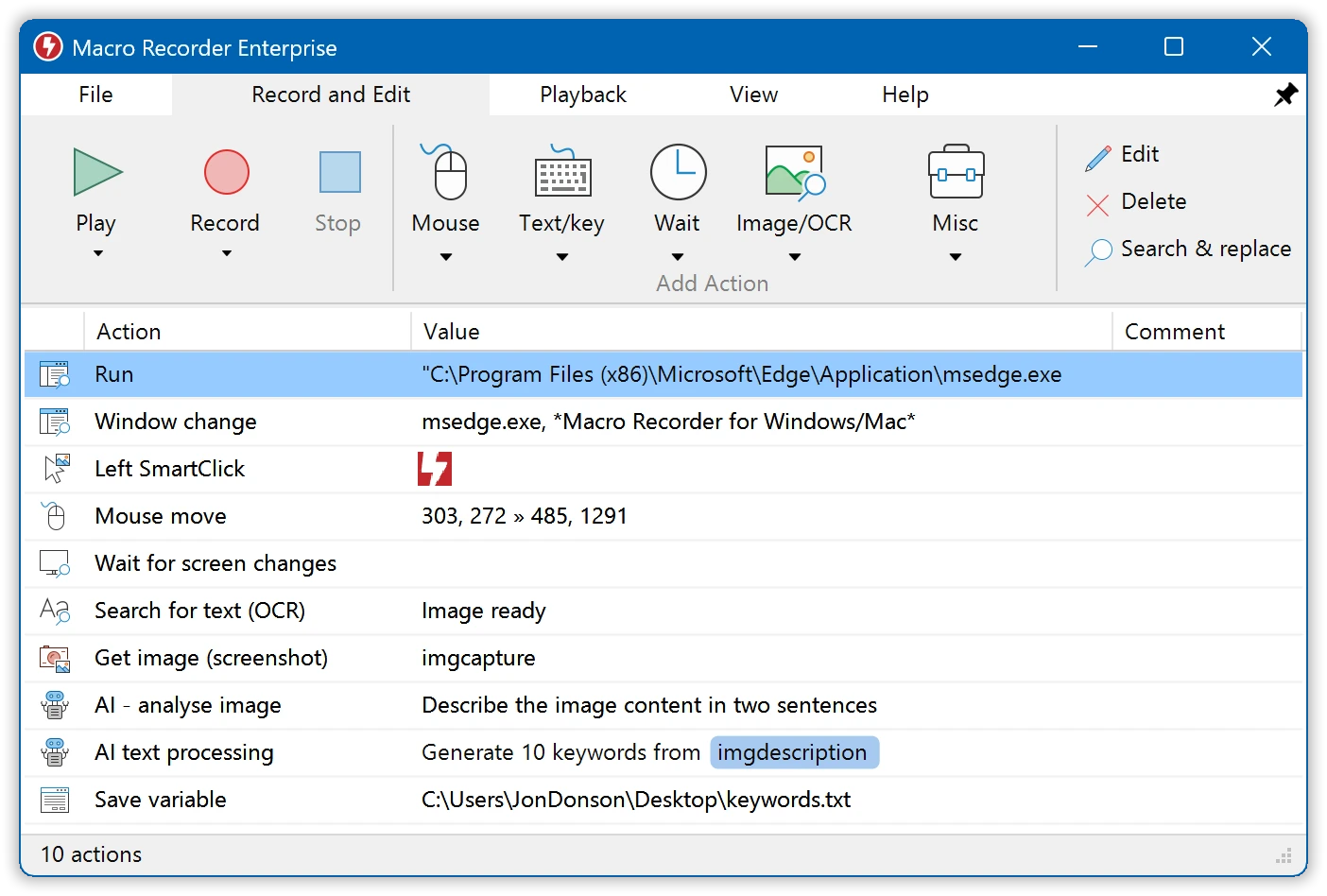
Choose Macro Recorder for a desktop sequence where mouse movement and window placement matter, or when you need a Mac option.
It captures keyboard input, clicks, scroll-wheel actions, and mouse movements. Recorded steps and mouse paths can be edited, making it useful when a sequence needs adjustment.
See the official Macro Recorder page and its troubleshooting guidance for display and focus considerations.
Myna Macro Recorder & Auto Clicker
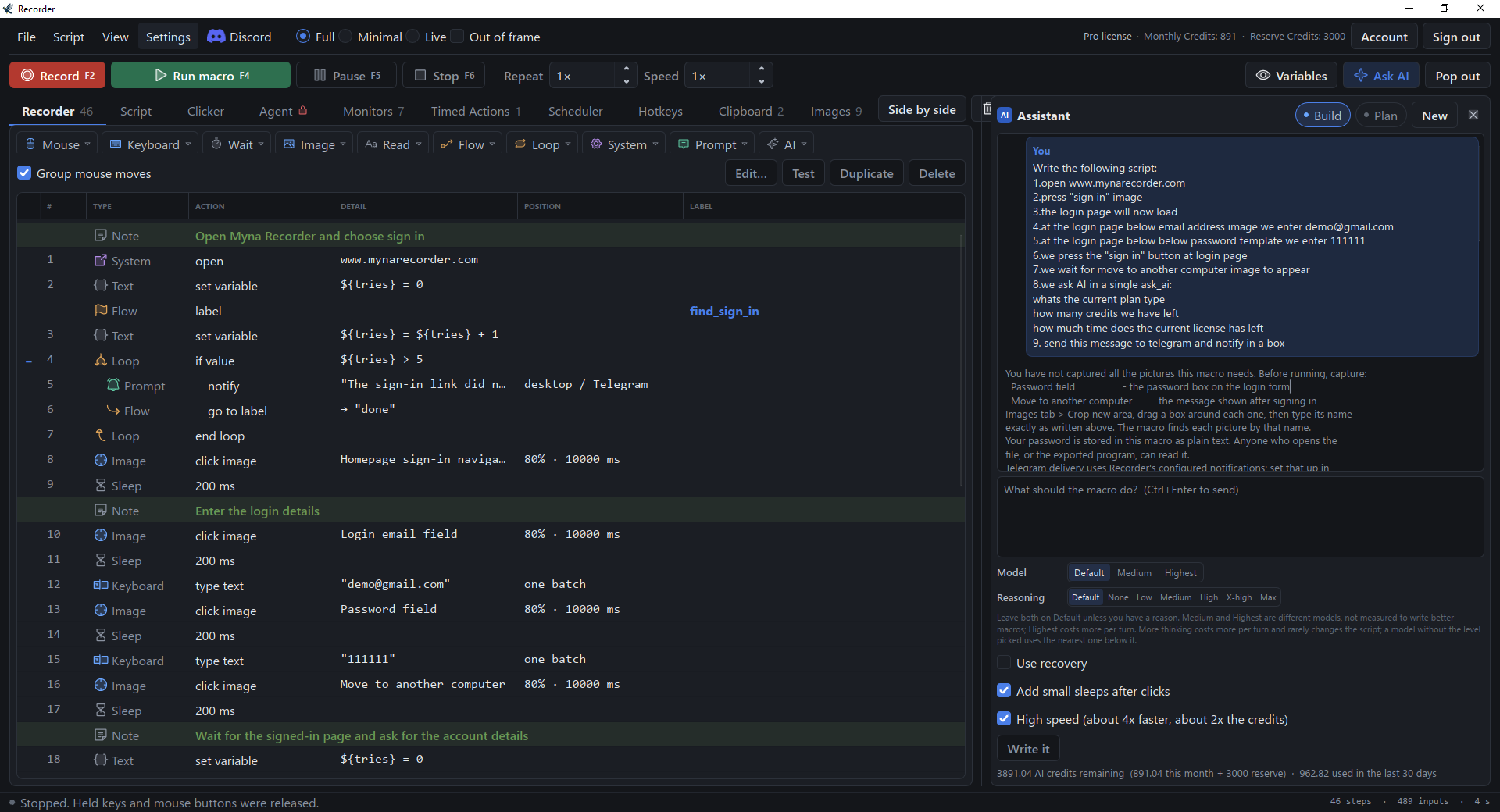
Consider Myna Macro Recorder & Auto Clicker when readable scripts and a sequence of timed click positions are central to your Windows workflow.
Myna records keyboard and mouse input into editable scripts, with adjustable playback speed, repeat counts, and selected-row test runs.
Check the official Myna product page for its current features and the pricing page for plan details.
How We Compared
We compared official product information and supplied product documentation across operating systems, recording, editing, targeting, pricing, and maintenance. This is a documentary comparison, not a hands-on test or a measure of Photoshop performance. Changelog entries do not necessarily identify a stable release.
How to Choose a Photoshop Macro Recorder
First check your operating system and license limits. Then consider whether your sequence depends on a moving window, a particular mouse path, or several timed click positions. Recognition and window restoration can help address placement changes, but they do not establish reliable results for every Photoshop layout or image size.
Try a short sequence on a copy and inspect the actual image before repeating it. A completed playback alone does not confirm that the intended edit was applied.
Final Verdict
Consider Macro Recorder first for editable mouse paths and window restoration on Windows or Mac; its freeware permits 10 repetitions, and its license price is not verified. On Windows 10 or 11, consider Fionn Auto Clicker for editable recordings and scheduling, keeping its three free attempts and membership requirements in mind. On 64-bit Windows 10 or 11, Myna is an alternative for readable scripts and timed click sequences; check its current plan details before choosing.
FAQ
Can these tools automate Photoshop batch processing?
Photoshop-specific batch processing has not been verified for these products. General recording and repetition should not be assumed to provide a reliable Photoshop batch workflow.
Will a macro still work if I move the Photoshop window?
Macro Recorder documents window restoration, and Myna documents image anchors for moved windows. Neither establishes that every Photoshop sequence will work after a layout change. Fionn supports recognition, but its reliability after window movement is not verified.
Can I record keyboard shortcuts as well as mouse actions?
All three products document recording and replaying keyboard and mouse input. Test the particular Photoshop sequence and inspect its result before repeating it.
Which option supports Mac?
Macro Recorder lists Windows and Mac support. Fionn Auto Clicker lists Windows 10 and 11, while Myna lists 64-bit Windows 10 and 11.


