 Emily CarterDLL Errors
Introduction
A
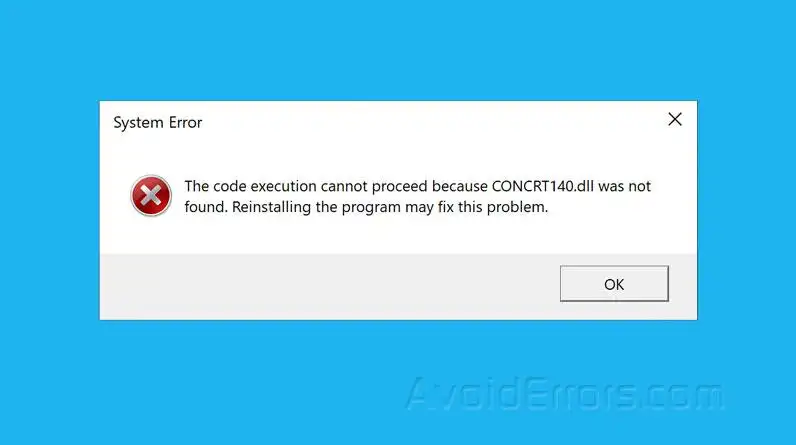
concrt140.dll missing
message means an application cannot load the Concurrency Runtime file it expects. Microsoft documents
concrt140.dll
as part of the C++ Redistributable package. Use the four methods below in order: repair the affected application, install the official runtime package, check Windows system files when failures are widespread, and optionally run a dedicated DLL scan. Do not download the DLL by itself from an unofficial library.
Quick Diagnosis
The failing pattern should determine the repair. One affected application usually points to that application's installation or runtime requirements. Similar errors across several applications justify a broader Windows integrity check.
| Observed situation | Best starting method | Why |
|---|---|---|
| Only one application fails | Repair or reinstall the application | Restores files and dependencies supplied by its installer |
The message names
concrt140.dll
| Install the official Visual C++ Redistributable | Microsoft identifies the file as part of that package |
| Several applications fail or Windows is unstable | Run DISM, then SFC | Checks the Windows component store and protected system files |
| The cause remains unclear | Run an optional DLL diagnostic scan | Checks for missing, damaged, or mismatched DLL issues |
Method 1: Repair or Reinstall the Affected Application
When to use this method
Start here when the error appears in one application. Microsoft notes that some Windows programs provide Repair or Change options, although these options are not available for every program.
Steps
- Close the affected application and save any open work.
- Open
Start > Settings > Apps > Installed apps
in Windows 11. On Windows 10, open
Apps > Apps & features
.
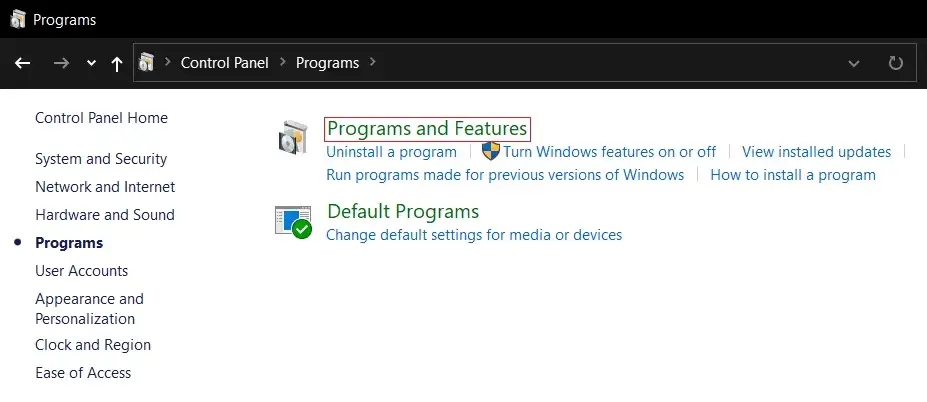
- Open the application's advanced options and select Repair , if available.
- If no repair option exists, uninstall the application and restart Windows.
- Download the installer from the application's official publisher and reinstall it.
Microsoft's official instructions for repairing Windows applications show both Settings and Control Panel procedures.
How to Verify
Launch the same application and repeat the action that produced the error. If it opens without the message, its installer restored the required dependency. If the message still names
concrt140.dll
, continue with Method 2.
Method 2: Install the Official Microsoft Visual C++ Redistributable
When to use this method
Use this method when repairing the application does not help. Microsoft states that
concrt140.dll
was added to the C++ Redistributable package. The package architecture must match the target application's architecture, not merely the Windows architecture.
Steps
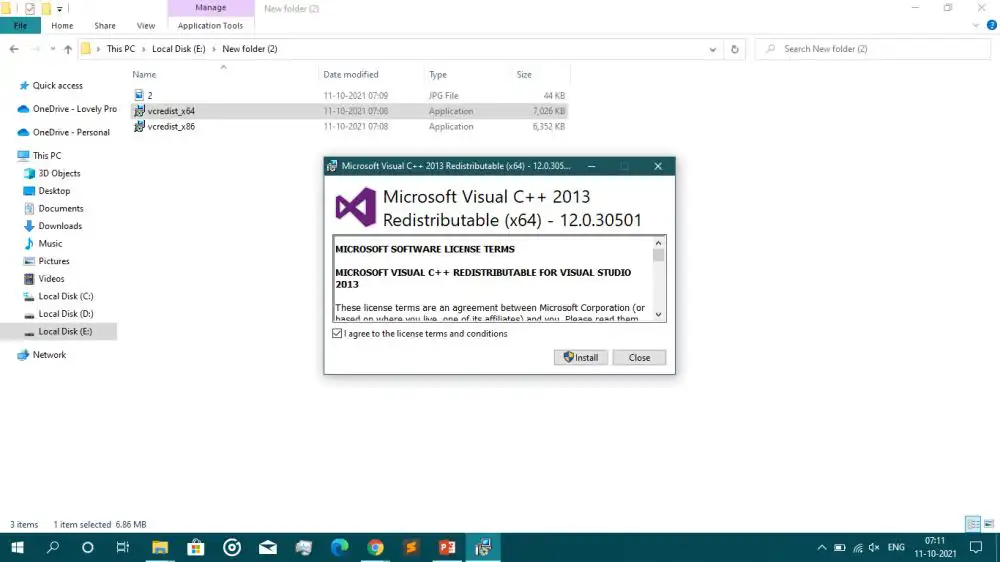
- Open Microsoft's latest supported Visual C++ Redistributable downloads page.
- Download the x86 package for a 32-bit application or the x64 package for a 64-bit application. If the publisher does not state the architecture, ask its support team.
- Run the downloaded Microsoft installer and accept its license terms.
- Select Install or Repair , depending on the available option.
- Restart Windows after the installation completes.
Note: A 32-bit process cannot load a 64-bit DLL, and a 64-bit process cannot load a 32-bit DLL. On 64-bit Windows, applications of both architectures may therefore require their matching packages.
How to Verify
Open the affected application after restarting. A successful launch confirms that the required runtime can now be loaded. If the installer fails or the application requires a specific package, follow the application publisher's documented requirements.
Method 3: Check Windows System Files with DISM and SFC
When to use this method
Reserve this method for broader symptoms, such as several applications failing, Windows features malfunctioning, or other system-file errors. It is less targeted than repairing one application or its redistributable package.
Steps
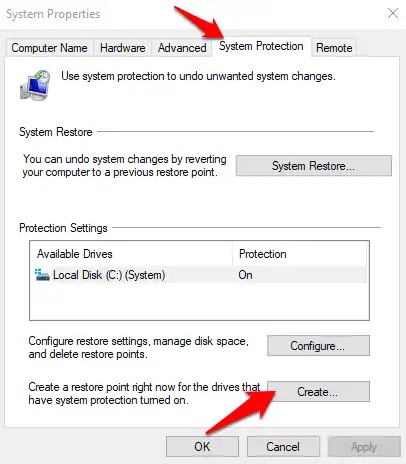
- Search for Command Prompt , right-click it, and select Run as administrator .
- Enter the following command and wait for it to finish:
DISM.exe /Online /Cleanup-image /Restorehealth
- Enter the following command after DISM reports successful completion:
sfc /scannow - Keep Command Prompt open until verification reaches 100 percent.
- Restart Windows if repaired files are reported.
Microsoft's System File Checker procedure recommends running DISM before SFC.
How to Verify
Read the final SFC message. “Windows Resource Protection did not find any integrity violations” means protected system files passed the check. If files were repaired, restart and test the application. If SFC cannot repair files, use Microsoft's documented recovery guidance or contact qualified support.
Method 4: Scan with Fionn DLL Fixer
When to use this method
This optional method suits an unresolved error when you want a categorized scan for missing, damaged, version-mismatched, or path-related DLL problems. Official and application-specific fixes should be attempted first.
Steps
- Launch Fionn DLL Fixer. The software automatically scans your PC for DLL and system issues and displays the detected results when the scan is complete.

- After the scan finishes, click “Repair” to start fixing all detected DLL and system issues automatically.

- Wait while the repair is in progress. During this process, the button changes to “Fixing” until all issues have been repaired.

- When the repair is complete, click “Ok” in the confirmation dialog. If prompted, restart your computer before checking whether the problem has been resolved.

- If the issue still persists after restarting, click “Recheck” to perform another scan. If new issues are found, click “Repair” again to fix them.

Note: The free version displays three free attempts. VIP access unlocks DLL, DirectX, runtime, and system-repair benefits.
How to Verify
Run the product's recheck and then open the affected application. Treat a clean scan plus a successful application launch as stronger confirmation than either result alone.
Common Mistakes to Avoid
- Downloading a loose DLL from an unknown website: its source, architecture, and version may not match the application.
- Copying the file into random system folders: this can conceal the underlying package problem and create an architecture mismatch.
- Registering the file blindly:
a missing runtime dependency is not automatically solved by running
regsvr32. - Starting with system-wide repairs: repair the affected application first when only that application fails.
- Skipping verification: always retest the exact launch or action that originally triggered the message.
Conclusion
For a
concrt140.dll missing
error limited to one application, repair or reinstall that application first. Next, install the matching Microsoft Visual C++ Redistributable from Microsoft's official page. Use DISM and SFC only when multiple failures suggest a wider Windows problem. Verify every method by repeating the original action after restarting when required. If the cause remains unclear,
Fionn DLL Fixer
can provide an optional scan and post-repair recheck. Persistent failures should be referred to the application's publisher with the complete error text and the steps already attempted.
Frequently Asked Questions
What is concrt140.dll?
concrt140.dll
implements Microsoft Concurrency Runtime functions. Microsoft documents it as a file included in the C++ Redistributable package and required by applications that use relevant C++ parallel or synchronization features.
Should I download concrt140.dll by itself?
No. Use the affected application's official installer or Microsoft's official Visual C++ Redistributable package. A loose file from an unverified source may have the wrong version or architecture and does not repair the installation that should manage it.
Do I need the x86 or x64 Visual C++ package?
The package must match the application's target architecture. A 32-bit application needs x86 runtime files, even on 64-bit Windows. A 64-bit application needs x64 files. Check the publisher's requirements instead of choosing solely from the Windows system type.
Why does the error remain after installing the Redistributable?
The application may be damaged, require a different architecture, or have another dependency problem. Repair or reinstall it from the official source. If several applications fail, run DISM and SFC. Contact the publisher when its required runtime remains uncertain.


