 Emily CarterDLL Errors
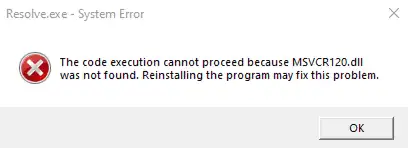
If Windows reports
msvcr120.dll missing
, install or repair the Microsoft Visual C++ 2013 Redistributable that matches the affected application. Microsoft lists
msvcr120.dll
as a Visual C++ 2013 runtime file, so newer runtime packages do not replace this specific side-by-side package. The four methods below start with Microsoft’s official installer, continue with package and application repair, and end with an optional diagnostic tool. Test the affected application after each method and stop when it opens normally.
Quick diagnosis: choose the right method
The error means the application cannot load the required file. The file may be absent, the installed runtime may be damaged, or the application may have an incomplete installation. Match the visible scenario to the least disruptive method first.
| Scenario | Start with | Why |
|---|---|---|
| The error appeared on a new PC or after reinstalling Windows | Method 1 | The required Visual C++ 2013 package may not be installed. |
| Visual C++ 2013 is already listed in Installed apps | Method 2 | The existing package may need repair or clean reinstallation. |
| Only one application fails | Method 3 | That application’s installation may be incomplete or damaged. |
| Several applications fail or the cause remains unclear | Method 4 | A broader dependency scan may help identify additional problems. |
Safety rule: Do not download an individual DLL from an unofficial file site or paste one into Windows system folders. Installing the signed runtime package preserves the correct file set, architecture, and installer registration.
Method 1: Install the official package for msvcr120.dll missing
When to use
Use this method first when Visual C++ 2013 is absent or the error began after Windows was installed again. Microsoft documents
msvcr120.dll
in both the x86 and x64 Visual C++ 2013 runtime sets.
Step-by-step guide
- Close the application displaying the missing-file error.
- Open Microsoft’s official Visual C++ Redistributable download page .
- Scroll to Visual Studio 2013 (VC++ 12.0) .
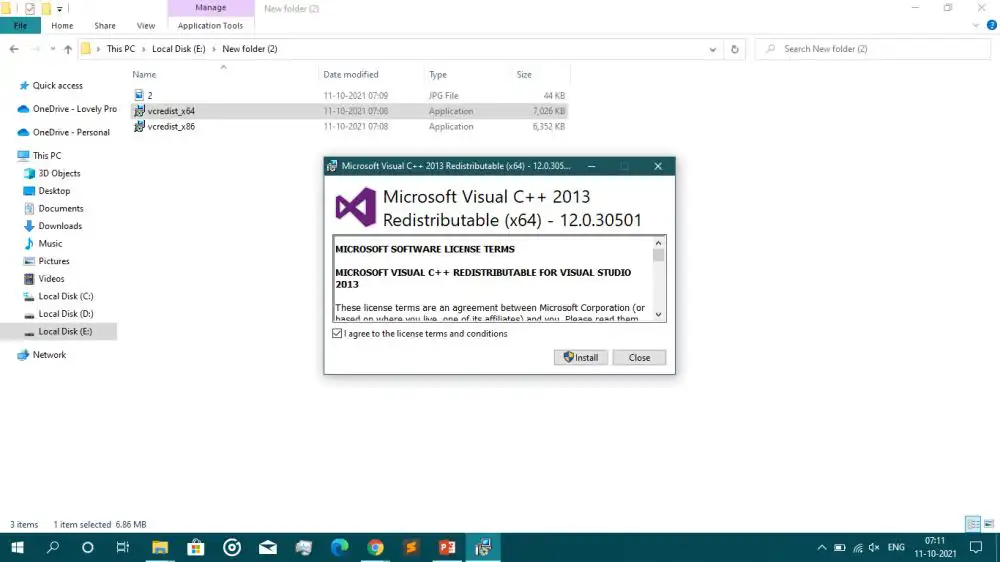
- Download the x86 installer for a 32-bit application or the x64 installer for a 64-bit application. If the application’s architecture is unknown on 64-bit Windows, installing both packages covers 32-bit and 64-bit applications because the runtimes remain side by side.
- Run each downloaded installer and accept its license terms.
- Restart Windows if the installer requests it, then open the affected application.
Note: Microsoft identifies Visual Studio 2013 as an unsupported legacy version, although its latest available redistributable packages remain downloadable. Use only Microsoft’s listed packages.
How to verify
Launch the same application through the same shortcut or executable that produced the error. The fix is verified if the missing-file dialog no longer appears and the application reaches its normal opening screen.
If the installer reports that a package is already present, repair that installation next.
Method 2: Repair or reinstall the Visual C++ 2013 packages
When to use
Choose this method when Microsoft Visual C++ 2013 Redistributable appears in Windows, but the error continues. Repairing the package restores its registered runtime files without manually replacing a DLL.
Step-by-step guide
- Press Windows + R .
- Enter
appwiz.cpland select OK . - Select each Microsoft Visual C++ 2013 Redistributable entry.
- Choose Change , then select Repair when that option is available.
- Restart Windows and test the affected application.
- If repair fails, uninstall only the 2013 entries, restart Windows, and reinstall the correct packages from the Microsoft page used in Method 1.
Note: Do not remove unrelated Visual C++ versions. Different applications can require different runtime releases, and Microsoft states that the 2013 and earlier packages remain installed side by side.
How to verify
Return to Programs and Features and confirm that the repaired or reinstalled 2013 entries appear. Then launch the affected application twice. A second successful launch helps confirm that the result was not limited to the first post-installation run.
Method 3: Repair or reinstall the affected application
When to use
Use application repair when only one program fails after the official runtime has been installed successfully. This path addresses missing application files, incomplete setup actions, or a damaged local installation.
Step-by-step guide
- Back up any application-specific projects, saved games, or custom settings.
- Open
Settings > Apps > Installed apps
.
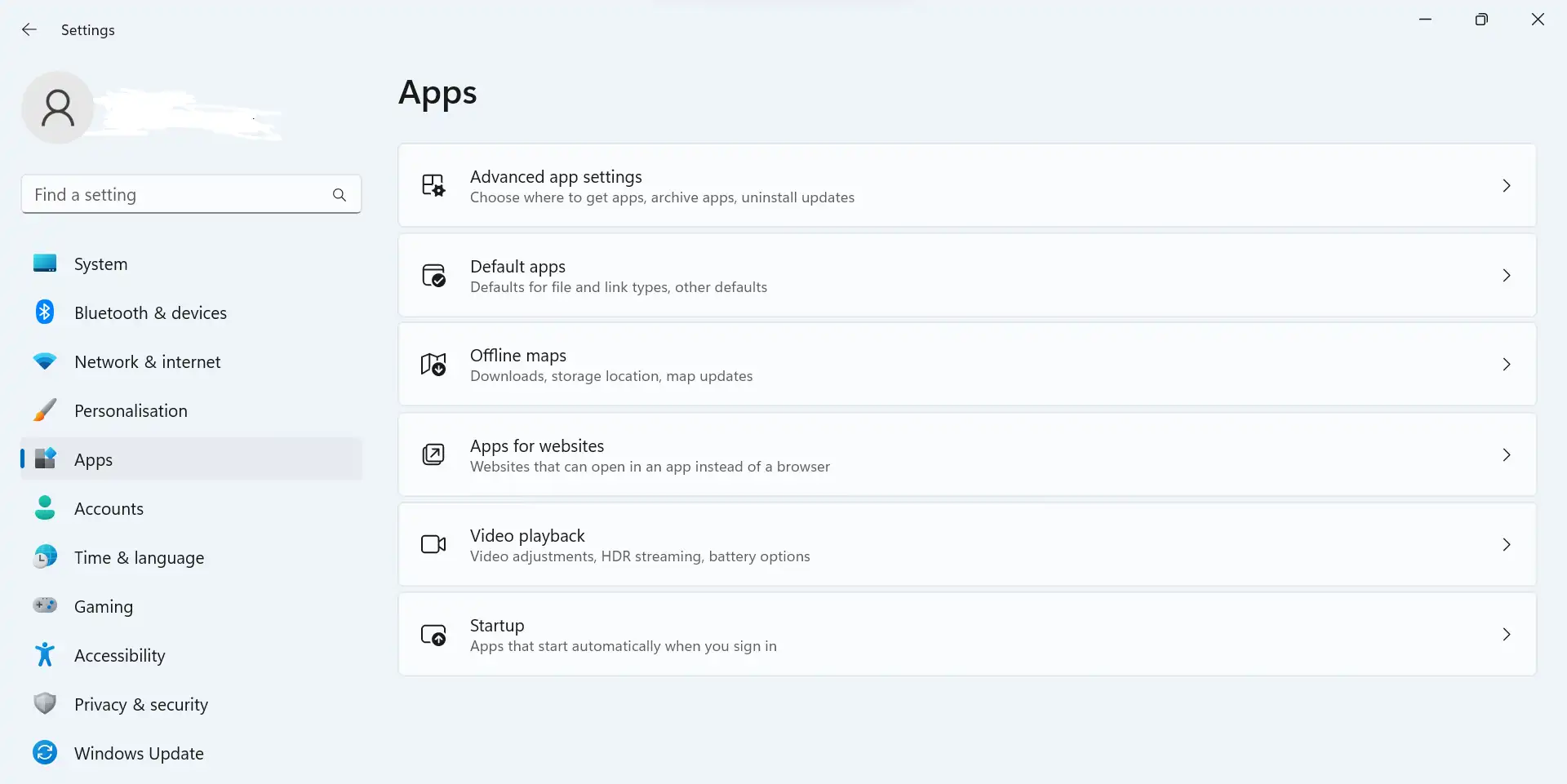
- Open the affected application’s available options and select Repair if offered.
- Test the application after repair finishes.
- If no repair option exists, uninstall the application.
- Download its current installer from the publisher’s official source, reinstall it, and restart Windows if requested.
How to verify
Open the application from its newly created Start menu entry. If the application starts without the
msvcr120.dll
message, the local installation was the likely failure point. If several unrelated programs show the same error, use the broader scan below.
Method 4: Scan with Fionn DLL Fixer
When to use
This optional method suits users who still see dependency-loading failures or errors across multiple applications. Fionn DLL Fixer scans Windows DLL and system issues, supports automatic repair, and performs a post-repair recheck. It should follow the official and manual options above.
Step-by-step guide
- Launch Fionn DLL Fixer. The software automatically scans your PC for DLL and system issues and displays the detected results when the scan is complete.

- After the scan finishes, click
Repair
to start fixing all detected DLL and system issues automatically.

- Wait while the repair is in progress. During this process, the button changes to
Fixing
until all issues have been repaired.

- When the repair is complete, click
Ok
in the confirmation dialog. If prompted, restart your computer before checking whether the problem has been resolved.

- If the issue still persists after restarting, click
Recheck
to perform another scan. If new issues are found, click
Repair
again to fix them.

How to verify
Complete the recheck, then reopen the affected application. Confirm both that the scan no longer reports the relevant issue and that Windows no longer displays the missing-file message. The free version provides three attempts; VIP unlocks additional DLL, runtime, DirectX, and system repair access.
Common mistakes to avoid
- Installing only a newer runtime: Visual C++ 2015–2022 does not replace the side-by-side Visual C++ 2013 package.
- Choosing by Windows architecture alone: The package must match the application. A 32-bit program on 64-bit Windows still needs x86 runtime files.
- Moving files between system folders:
Microsoft places x86 files in
%WinDir%\SysWOW64on x64 Windows and x64 files in%WinDir%\System32. The names can seem counterintuitive, so let the installer manage them. - Starting with system-file repair commands: Microsoft documents this DLL as part of the Visual C++ 2013 runtime. Repairing that runtime is more targeted than beginning with a general Windows system scan.
Conclusion
Start by installing the official Visual C++ 2013 package that matches the affected application. Repair or reinstall that runtime if it already exists, then reinstall the application when only one program fails. Use Fionn DLL Fixer only as an optional broader scan after those targeted steps. Verify the result by reopening the same application and confirming that it reaches its normal start screen without the DLL message. If the error remains, record the exact wording and contact the application publisher or Fionn support with the scan results.
Frequently Asked Questions
What is msvcr120.dll?
msvcr120.dll
is a Microsoft Visual C++ 2013 C runtime file. Microsoft lists it in both the x86 and x64 VC120 runtime folders. Applications built for that runtime can fail to start when the required architecture is absent or damaged.
Should I download msvcr120.dll by itself?
No. Use Microsoft’s complete Visual C++ 2013 Redistributable instead. A standalone file from an unofficial source may have the wrong architecture or version and bypasses the package installer that places and registers the runtime files correctly.
Do I need x86 or x64 Visual C++ 2013?
Match the package to the application, not only to Windows. A 32-bit application requires x86 even on 64-bit Windows. If the application architecture is unknown on a 64-bit PC, the official x86 and x64 packages can coexist.
Why did installing Visual C++ 2015–2022 not fix the error?
msvcr120.dll
belongs to the VC++ 12.0 runtime used by Visual Studio 2013. Microsoft documents the 2013 and earlier redistributables as side-by-side packages, so installing a newer v14 runtime does not supply this older runtime file.
Why does the error remain after installing Visual C++ 2013?
The wrong architecture may be installed, the package may be damaged, or the affected application may have an incomplete installation. Repair both applicable 2013 entries first, restart Windows, and then repair or reinstall the one application that still fails.


