 Emily CarterDLL Errors
Introduction
The
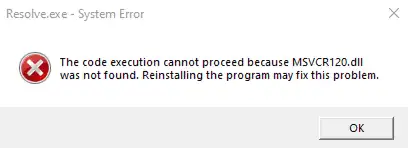
msvcp120.dll missing
message usually means an app cannot load the Visual C++ 2013 runtime component it requires. Use the three methods below in order: repair or reinstall the affected app, install Microsoft's Visual C++ 2013 Redistributable packages, and use Fionn DLL Fixer only as an optional diagnostic method. Do not download a loose DLL from an unofficial file site. Installing the complete runtime package is safer because it supplies the expected components together.
Quick diagnosis and method comparison
msvcp120.dll
is identified by Microsoft as version 12 of its C++ runtime library. Microsoft's Visual Studio 2013 redistribution documentation also lists this exact file. That confirmed relationship makes Visual C++ 2013—not a newer runtime selected by filename similarity—the relevant package.
| Observed situation | Start with | Why |
|---|---|---|
| Only one app fails | Repair or reinstall that app | The app's installation may be incomplete or damaged. |
| Several older apps report the same file | Install the x86 and x64 Visual C++ 2013 packages | The shared runtime may be absent or damaged. |
| The cause remains unclear after manual repairs | Fionn DLL Fixer | A broader DLL and dependency scan may expose additional issues. |
Method 1: Repair or reinstall the affected app
When to use this method
Start here when the error affects one app while other programs open normally. A clean reinstall can restore the app's packaged prerequisites and reverse damaged local files without changing unrelated software.
Step-by-step guide
- Close the affected app and save any work in other programs.
- Open Settings , select Apps , and then open Installed apps on Windows 11 or Apps & features on Windows 10.
- Open the affected app's options and select Repair if that choice is available.
- If repair is unavailable or ineffective, uninstall the app while preserving personal files when its uninstaller offers that option.
- Restart Windows, then reinstall the app using its official installer or original store.
How to verify
Launch the same app from its normal shortcut and repeat the action that produced the error. If it opens without mentioning
msvcp120.dll
, the repair is complete. If the message remains—or several apps show it—continue with the runtime installation.
Method 2: Install the Microsoft Visual C++ 2013 Redistributable
When to use this method
Use this method when reinstalling the app does not help, multiple programs fail, or Visual C++ 2013 is absent. Microsoft states that the package installs runtime components required by applications built with Visual Studio 2013.
Step-by-step guide
- Close the programs displaying the error.
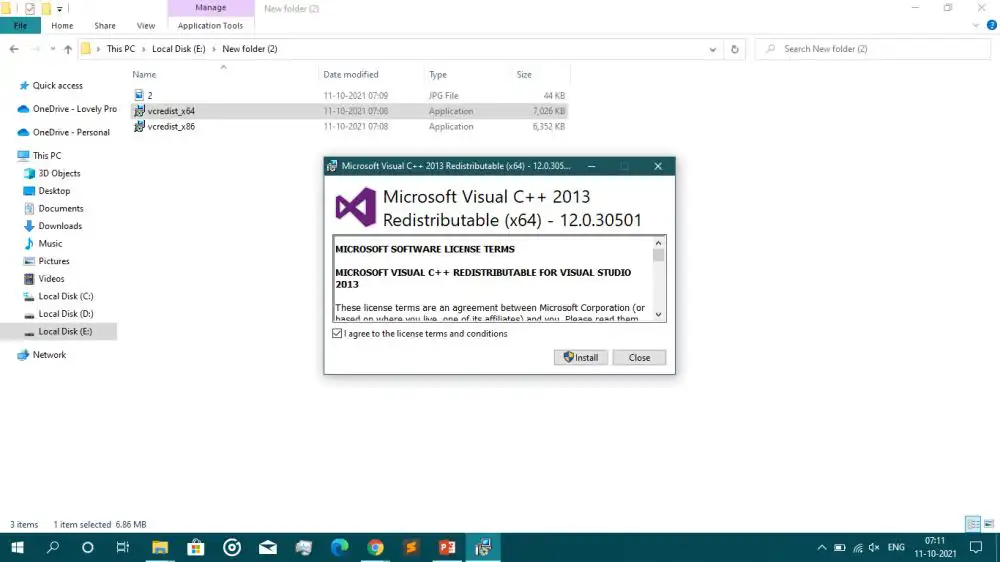
- Open Microsoft's latest Visual C++ Redistributable downloads page and locate Visual Studio 2013 (VC++ 12.0) .
- Download the listed
vcredist_x86.exeandvcredist_x64.exeinstallers from Microsoft. - Run
vcredist_x86.exeand complete its installation or repair option. - Run
vcredist_x64.exeand complete its installation or repair option. - Restart Windows before testing the affected app.
How to verify
Open the affected app again and reproduce the original action. You can also check Settings > Apps > Installed apps for Microsoft Visual C++ 2013 Redistributable entries. The decisive test is whether the app starts without the missing-file message.
If the installer fails, record its error code and follow Microsoft's Visual C++ Redistributable installation troubleshooting guidance rather than substituting a DLL from another computer.
Method 3: Scan with Fionn DLL Fixer
When to use this method
Use this optional method when the official runtime installation and app reinstall do not resolve the problem, especially if there are other startup or dependency-loading errors. It supplements the manual methods; it does not replace Microsoft's package.
Step-by-step guide
- Launch Fionn DLL Fixer. The software automatically scans the PC for DLL and system issues, then displays the detected results when the scan finishes.

- After the scan finishes, click
Repair
to begin fixing all detected DLL and system issues automatically.

- Wait while the repair runs. The button displays
Fixing
until all detected issues have been repaired.

- When the repair finishes, click
OK
in the confirmation dialog. If prompted, restart the computer before checking the result.

- If the issue remains after restarting, click
Recheck
to scan again. If new issues appear, click
Repair
again.

How to verify
Confirm that the follow-up scan no longer reports the relevant missing or damaged DLL issue. Then launch the affected app and repeat the action that previously failed. The app test matters because a clean scan cannot confirm that every app-specific file is intact.
Common mistakes to avoid
- Downloading a standalone DLL from an unofficial repository: its origin, version, and architecture may not match the app.
- Installing only the newest Visual C++ package: Microsoft says Visual C++ 2013 and earlier redistributables remain installed side by side. A newer package is not automatically a replacement for version 12.
- Running
regsvr32 msvcp120.dll: this runtime DLL is not repaired by registering it as a COM server. - Copying the file into system folders manually: this can conceal an incomplete runtime installation and introduce an incompatible copy.
- Ignoring installer errors: save the exact code and resolve the installation problem before repeating the same setup.
Conclusion
Begin by repairing the affected app when only that program fails. If the error remains, install both applicable Visual C++ 2013 Redistributable packages directly from Microsoft, restart Windows, and test the original action. Use
Fionn DLL Fixer
only when broader DLL diagnosis is useful. The final verification is a successful app launch without the
msvcp120.dll
message. If the error persists, capture the full message and installer codes, then contact the app vendor because its build or packaged dependencies may require app-specific support.
FAQ
What is msvcp120.dll?
msvcp120.dll
is the version 12 Microsoft C++ runtime library associated with Visual Studio 2013. Applications built against that runtime may fail to start when the required component is missing, damaged, or unavailable to the application's loading process.
Should I download msvcp120.dll by itself?
No. Prefer Microsoft's complete Visual C++ 2013 Redistributable. A loose DLL from an unofficial source may have an unknown origin or incompatible architecture. The official installer supplies the runtime as a managed package and supports installation or repair.
Do I need both x86 and x64 packages on 64-bit Windows?
Often, yes. A 64-bit Windows computer can still run 32-bit applications, and those applications require x86 runtime components. Installing both official packages covers both application architectures. This is different from assuming every program matches the operating system's architecture.
Will SFC repair msvcp120.dll?
SFC is intended to check protected Windows system files.
msvcp120.dll
belongs to a separately installed Visual C++ 2013 runtime, so reinstalling or repairing that Microsoft package is the more targeted response to this exact error.
Why does the error remain after installing the runtime?
The app may need a different architecture, its local installation may be damaged, or the redistributable installer may not have completed successfully. Install both applicable packages, restart, repair the app, and record any installer code. Persistent failures should be referred to the app vendor.
Optional DLL diagnosis
If official and app-specific repairs have not identified the cause, run a Fionn DLL Fixer scan to check for missing, damaged, or mismatched DLL and dependency-loading issues. Review the findings before applying repairs.


