 Emily CarterDLL Errors
To register a DLL file on Windows, run the built-in
Regsvr32
tool from an elevated Command Prompt and use the version that matches the DLL's architecture. This applies only to eligible self-registering COM DLLs.
Regsvr32 is not a general DLL repair tool.
If Windows says a Visual C++, DirectX, or ordinary application DLL is missing, repair or reinstall the affected software instead. This guide covers direct registration, re-registering a previously registered COM component, and a separate diagnostic path for broader DLL problems.
When Should You Register a DLL?
| Situation | Should You Use Regsvr32? |
|---|---|
| The software vendor specifically instructs you to register a COM DLL | Yes |
| The DLL is documented as supporting self-registration | Yes |
| The DLL was not found | Usually no |
| A Visual C++ or DirectX DLL is missing | No |
| The file is an ordinary application dependency DLL | Not necessarily; it may not support registration |
| You do not know the DLL's purpose or whether it supports registration | Confirm its source and intended use first |
Before you register a DLL, obtain it from the software vendor or its installer, keep its full path available, and close the affected app. If the installer offers Repair or reinstall, use that route for a missing or replaced application file.
Quick Method Comparison
| Method | Best For | Efficiency | User Effort |
|---|---|---|---|
| Register with Regsvr32 | A known self-registering COM DLL that needs registration | High | Moderate |
| Re-register a COM DLL | A previously registered component with a suspected stale registration | Moderate | Moderate |
| Diagnose with Fionn DLL Fixer | Missing, damaged, mismatched, or system-path-related DLL symptoms | Depends on the detected issue | Low |
Method 1: Register the DLL with Regsvr32
When to use: Use this method only when trusted vendor documentation identifies the file as a self-registering COM DLL and asks you to register it.
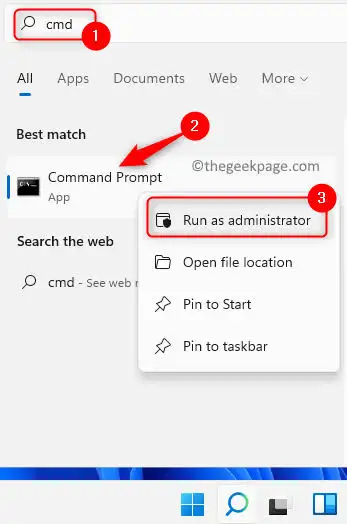
- Open Start, search for
Command Prompt
, and select
Run as administrator
.
- Choose the registration tool that matches the DLL, not merely the Windows installation. On 64-bit Windows, use
C:\Windows\System32\regsvr32.exefor a 64-bit DLL andC:\Windows\SysWOW64\regsvr32.exefor a 32-bit DLL. - Run the matching command, replacing the example with the full DLL path.
C:\Windows\System32\regsvr32.exe "C:\Path\To\Example.dll"For a 32-bit DLL on 64-bit Windows, use:
C:\Windows\SysWOW64\regsvr32.exe "C:\Path\To\Example.dll" - Confirm that the result says
DllRegisterServer succeeded, then reopen the affected app and test the feature that uses the component.
Method 2: Re-register a Previously Registered COM DLL
When to use: Use this only for a self-registering COM component that was previously registered and may have an incorrect or stale registration. It is not the default next step when Method 1 fails.
- Open Command Prompt as administrator and select the 32-bit or 64-bit Regsvr32 executable that matches the DLL.
- Unregister the known component by adding
/uto its matching Regsvr32 command.regsvr32 /u "C:\Path\To\Example.dll"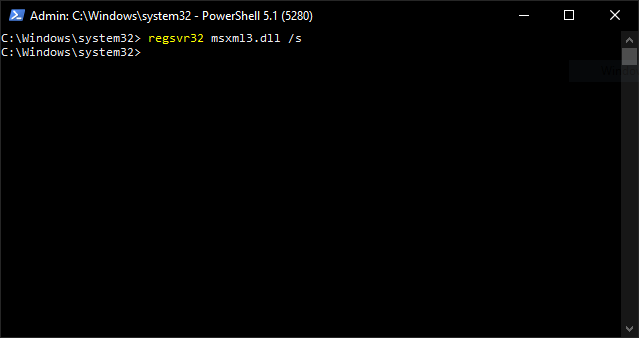
- Register that same DLL again with the matching executable and no
/uswitch.regsvr32 "C:\Path\To\Example.dll" - Restart the affected application and repeat the action that previously produced the registration-related error.
Verification: The component should register successfully and the affected feature should load without its prior registration error. Preserve the exact message if it does not.
Method 3: Diagnose and Fix DLL Issues with Fionn DLL Fixer
When to use: This separate method fits missing, damaged, version-mismatched, or System32-path-related DLL issues. It does not replace vendor-directed COM registration with Regsvr32.
- Launch Fionn DLL Fixer. It scans the PC for DLL and system issues and displays detected results when the scan completes.

- After the scan finishes, click
Repair
to begin fixing all detected DLL and system issues.

- Wait for the repair process. The button changes to
Fixing
until detected issues have been repaired.

- When repair completes, click
Ok
in the confirmation dialog. Restart the computer if prompted before testing again.

- If the problem persists after restarting, click
Recheck
to scan again. If new issues appear, click
Repair
again.

Verification: After the recheck, open the affected app or game and see whether the original missing-DLL or loading symptom has changed.
Common Regsvr32 Errors and What They Mean
| Regsvr32 message | Meaning and next step |
|---|---|
DllRegisterServer succeeded
| Registration succeeded. Test the affected feature. |
DllRegisterServer was not found
| The DLL may not support self-registration. Check the vendor's instructions. |
The module failed to load
| Check the path, dependent modules, and 32-bit or 64-bit match. |
The specified module could not be found
| The target DLL may exist, but one of its dependencies may be unable to load. |
0x80070005
| This commonly indicates an access-denied issue. Run an elevated Command Prompt and confirm permission to use the component. |
For command options and Microsoft terminology, review Microsoft's Regsvr32 reference . Do not repeatedly try unrelated DLL files when an entry point is missing.
- Wrong architecture: Match Regsvr32 to the DLL architecture.
- Unquoted paths: Use quotation marks around a path containing spaces.
- Missing elevation: Start Command Prompt as administrator for system-wide registration.
- Using registration as a missing-file fix: Reinstall or repair the source application instead.
Conclusion
First confirm that the DLL is a vendor-identified, self-registering COM component. Then run the Regsvr32 executable that matches the DLL's architecture, verify the success message, and test the affected application. Re-register only a component that was already registered and is known to support unregistration. For missing, damaged, version-mismatched, or dependency-related DLL symptoms, Fionn DLL Fixer offers a separate scan, repair, and recheck workflow. If the error remains, use the complete message and the software vendor's repair instructions to identify the next step.
Frequently Asked Questions
Can every DLL file be registered?
No. Regsvr32 is for self-registering COM DLLs that expose the required registration entry point. Many ordinary DLLs do not.
Should I use 32-bit or 64-bit Regsvr32 on 64-bit Windows?
Choose the version that matches the DLL. Use
System32
for 64-bit DLLs and
SysWOW64
for 32-bit DLLs.
Why does Regsvr32 say the specified module could not be found when the DLL is present?
The message can refer to a dependency that the target DLL needs, not only to the target DLL itself. Check the file source, architecture, and application repair options.
Should I register a DLL to fix a missing Visual C++ or DirectX DLL?
No. Those errors usually require the affected application's installer, repair option, or supported runtime installation rather than COM registration.
Do I need to restart Windows after registering a DLL?
Usually restarting the affected app is enough. Restart Windows when the vendor requests it or the process may still hold an older component state.


