 Emily CarterVoice Changer
When choosing a Voicemod alternative, start with the destination for your changed voice. Some tools provide a virtual microphone or cable that a receiving app can select; Clownfish instead processes a selected Windows capture device. The options below have different documented setup paths, so a local preview alone should not be treated as proof that a game, call, or stream is receiving the changed audio.
What differs between Voicemod alternatives?
The products in this guide share the broad task of changing a voice in real time, but their documented routing models differ. Voice.ai documents a virtual-cable route. MorphVOX Pro documents a Discord-specific input setup. Clownfish documents processing at the Windows capture-device level. Fionn VoxMagic provides device selection, preview, and a Fionnshare Virtual Audio virtual microphone for third-party apps to select; its external routing for a particular game or calling app should be confirmed in that app before relying on it.
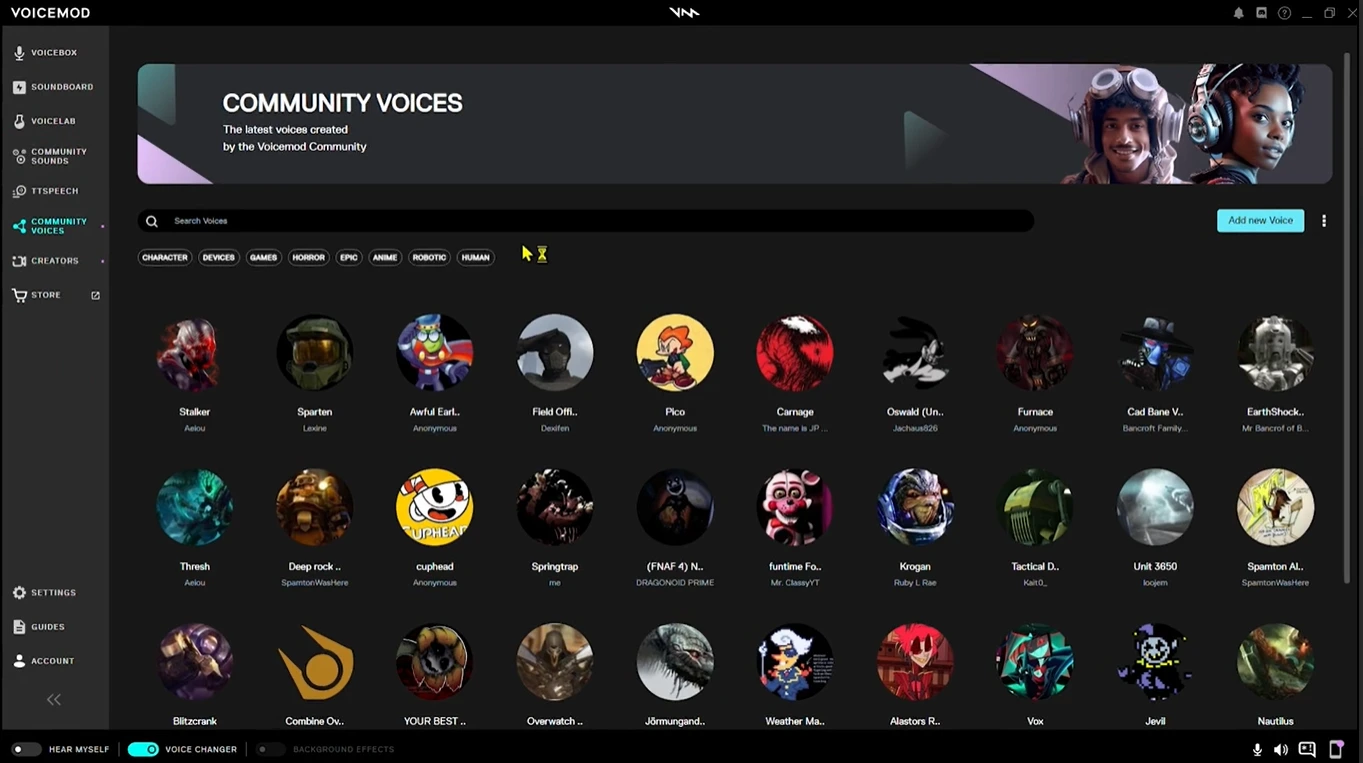
Compatibility details are not interchangeable. For example, Voicemod documents 64-bit Windows support and separate macOS support, while Clownfish lists Windows Vista through Windows 11. Those statements describe the vendors’ documented support, not a general advantage for one product over another.
Quick comparison
| Option | Documented fit | How the receiving software gets audio | What to verify |
|---|---|---|---|
| Fionn VoxMagic | Windows users who want in-app device selection and preview | Fionnshare Virtual Audio can be selected by a third-party app | Preview and level meters first; then confirm the receiving app accepts the selected input |
| Voice.ai | Live voice changing through its virtual cable | Windows input is set to Microphone Array (Voice.ai Audio Cable) | Confirm the destination software can select the cable |
| Clownfish Voice Changer | System-level processing on a chosen Windows capture device | Installed on the capture device to modify | Listen with Hear microphone; check the intended app separately |
| MorphVOX Pro | Discord users wanting a documented input path | Discord input is set to Screaming Bee Audio | Discord receives the morphed output |
Fionn VoxMagic for in-app preview
Fionn VoxMagic is a Windows option for selecting an input and playback device, enabling an effect, and checking it in headphone preview before moving to a receiving app. This is useful when you want to correct microphone selection or the chosen effect before a call. It creates the Fionnshare Virtual Audio virtual microphone for third-party applications to select, but the available routing steps depend on the destination application.
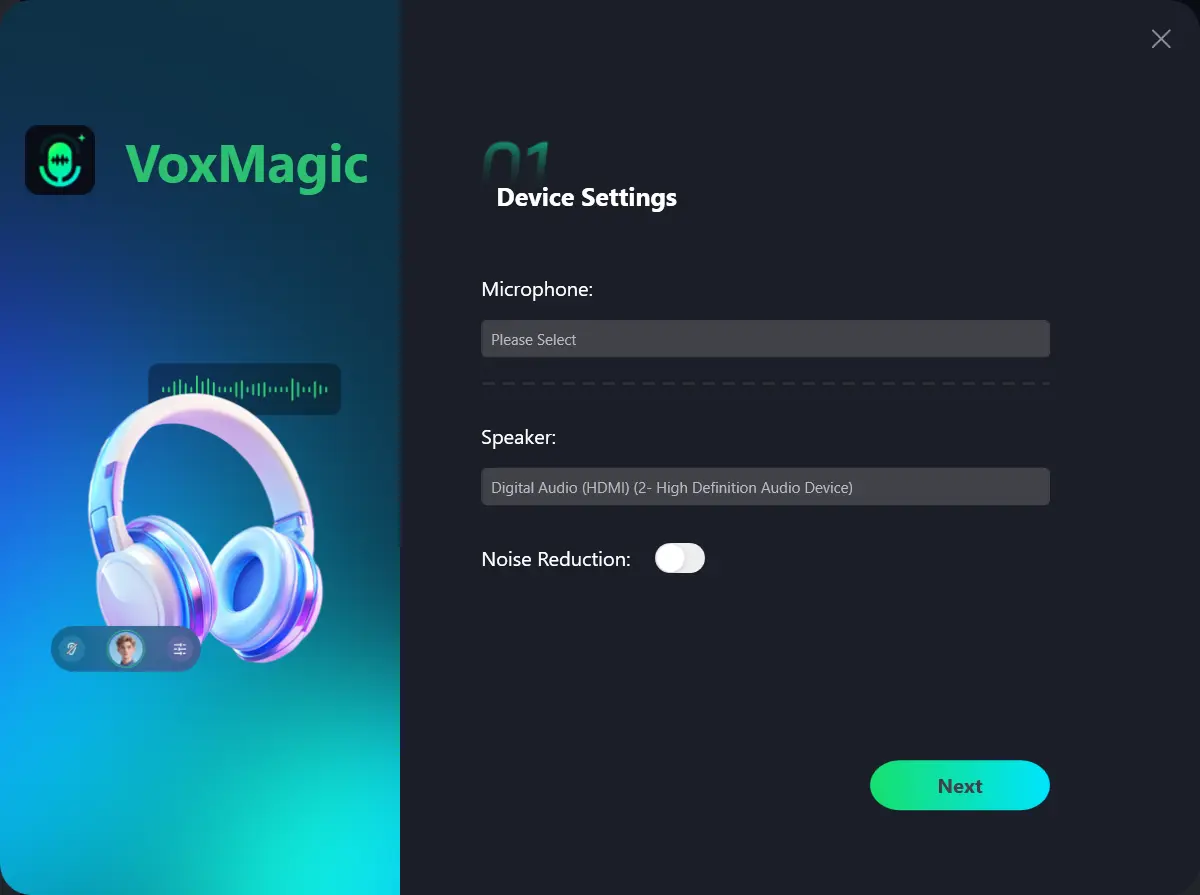
- Open Fionn VoxMagic. In Device Settings, select your microphone and playback device. Enable Noise Reduction if needed, then click Next.
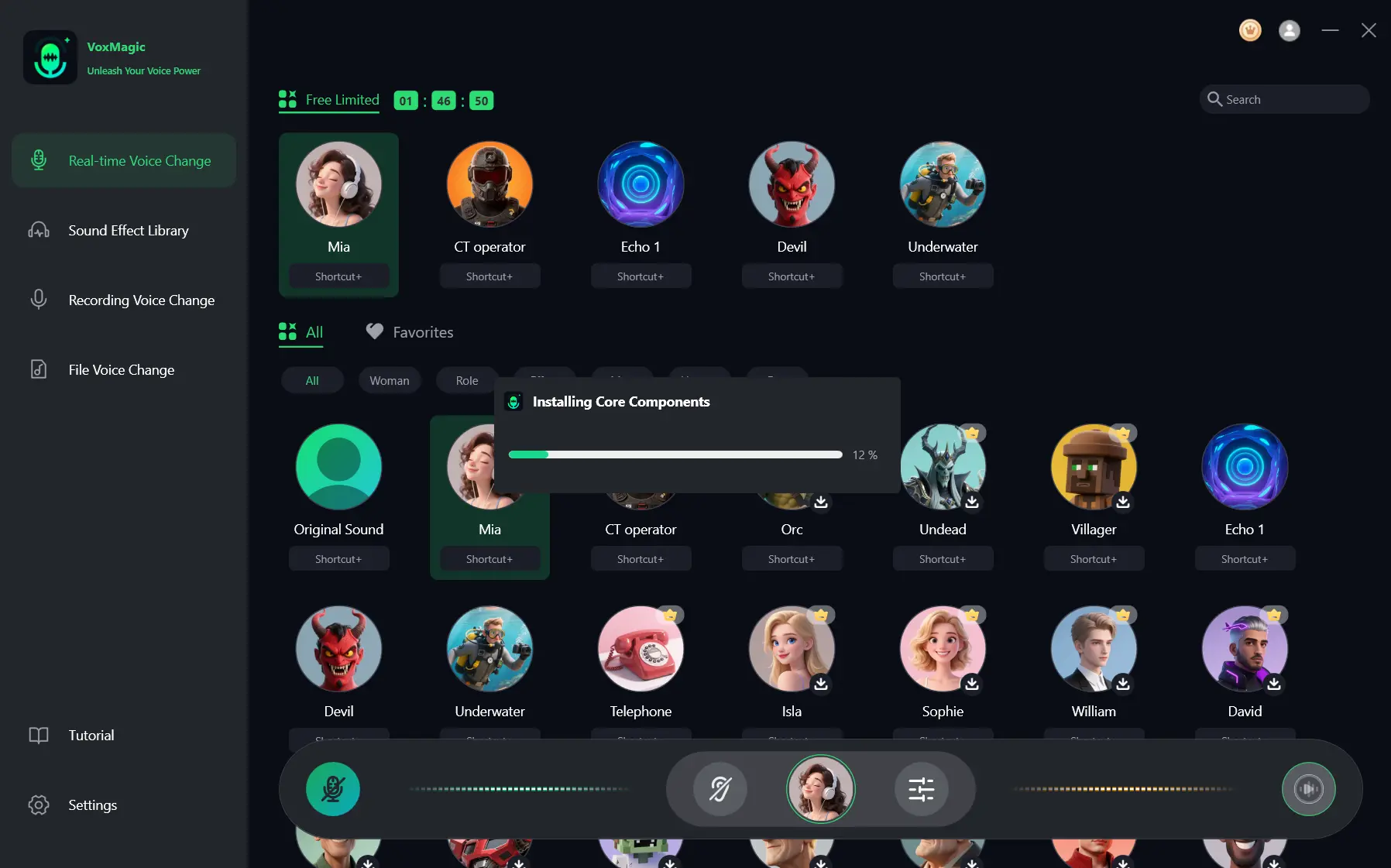
- If the Installing Core Components dialog appears, wait for the installation to finish before continuing.
- Open Real-time Voice Change and select a voice effect, such as Mia. The selected effect is highlighted and appears in the bottom control bar.
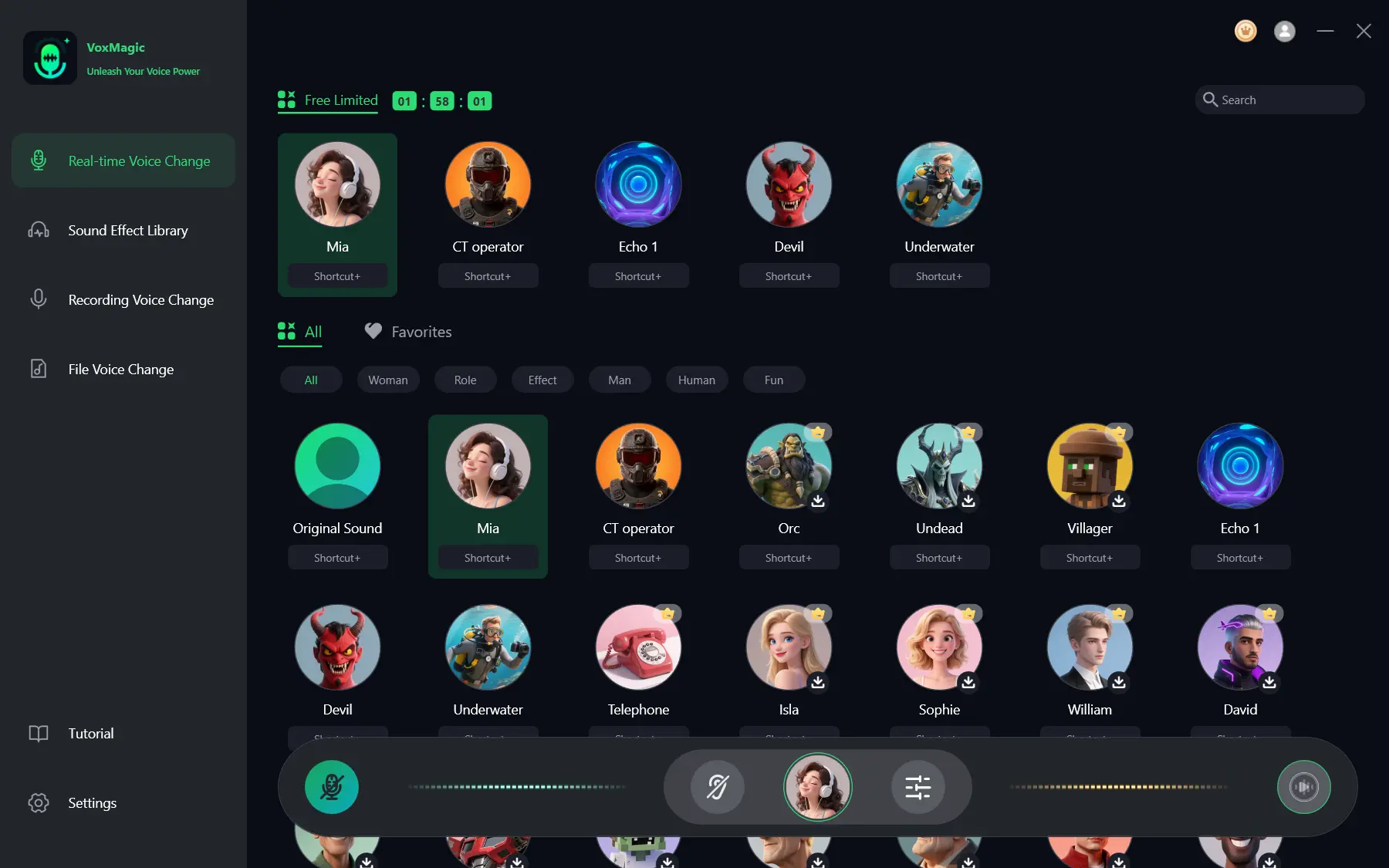
- Click the microphone button labeled Enable Voice Changer in the bottom-left corner of the control bar to turn on voice changing.
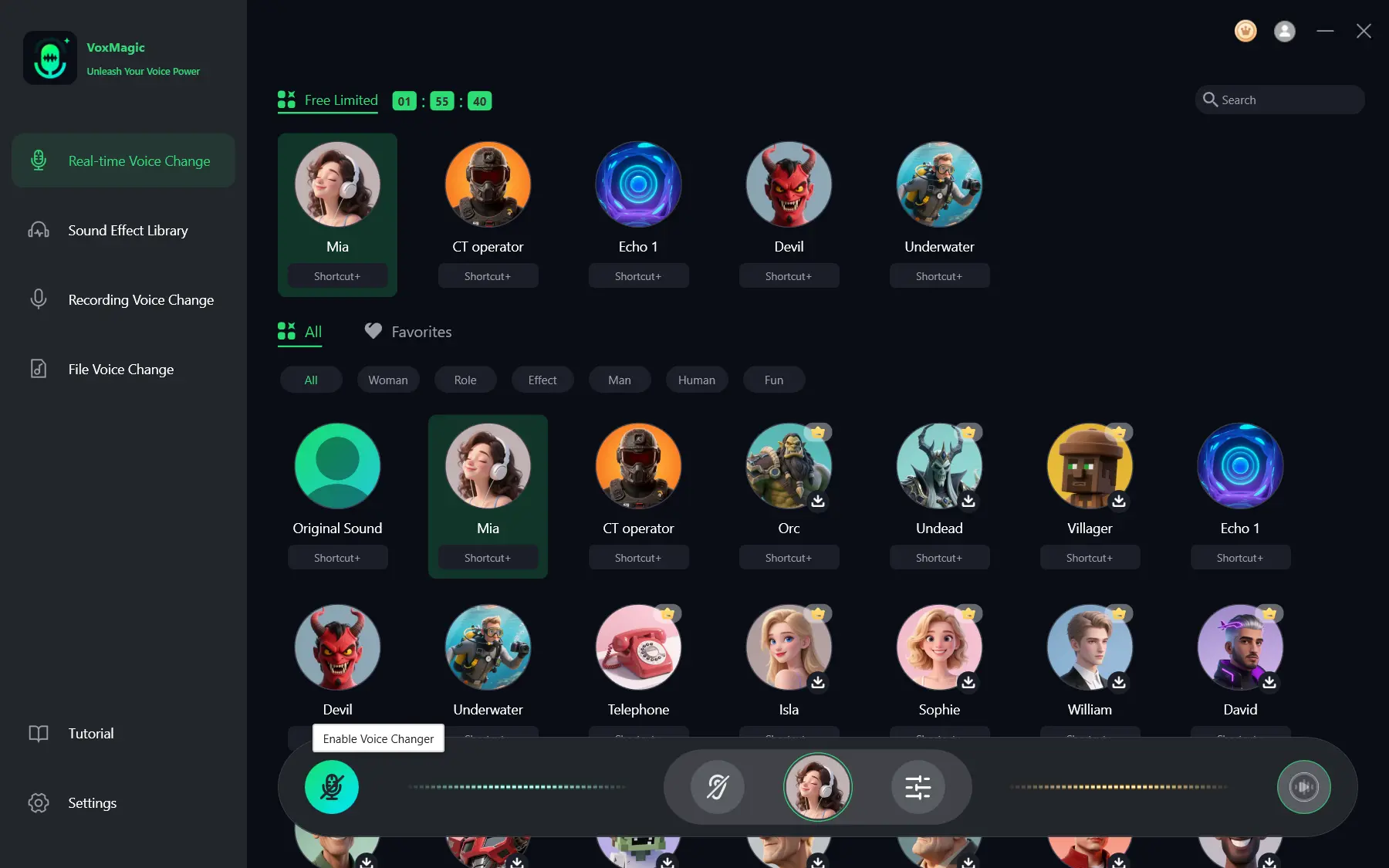
- Click the ear icon in the bottom control bar to enable voice preview. Use headphones to listen to your voice while testing the selected effect.
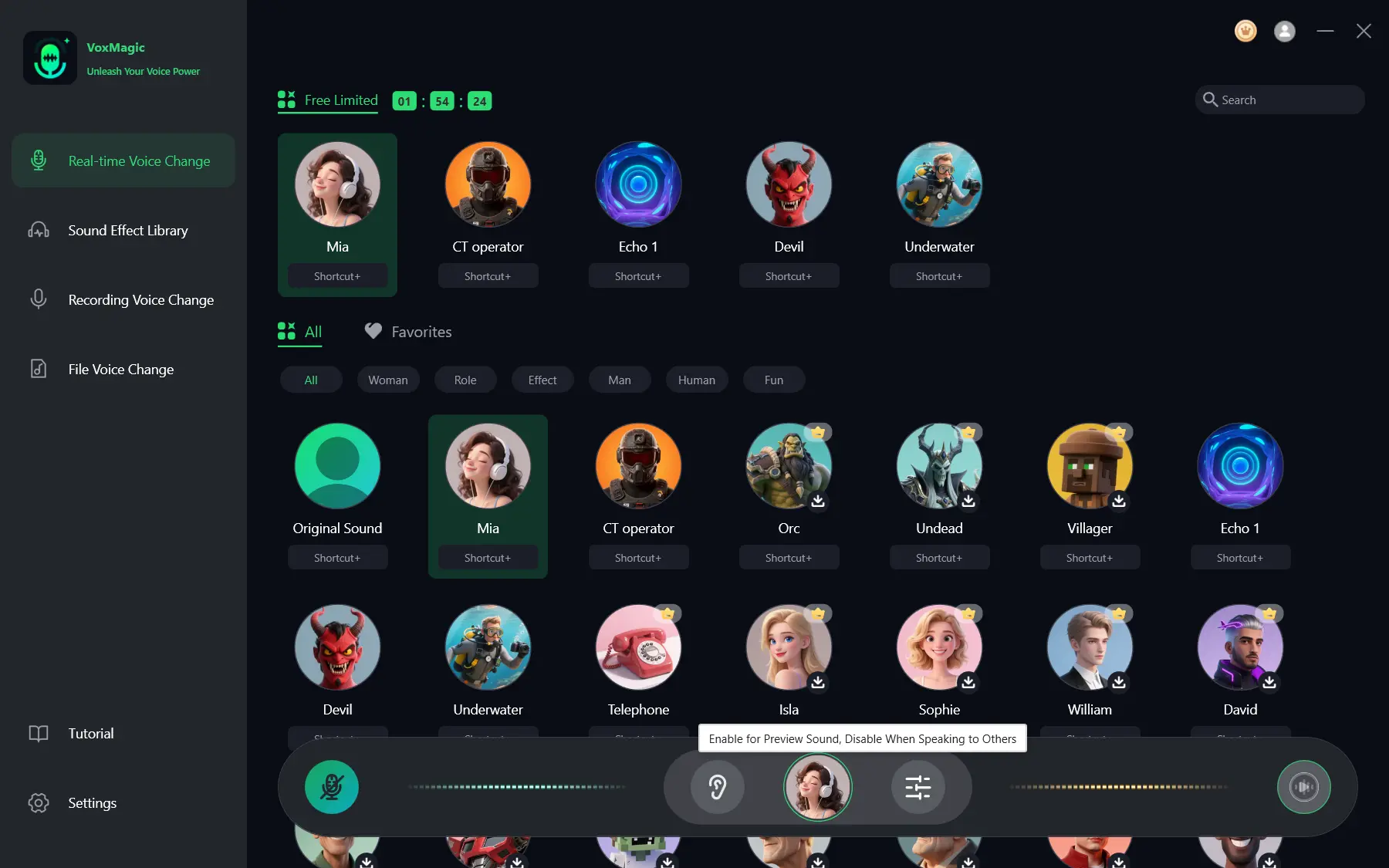
- Speak into your microphone and listen to the preview to check the selected voice effect. Check that the audio level meters respond as you speak. Disable voice preview before speaking to others.
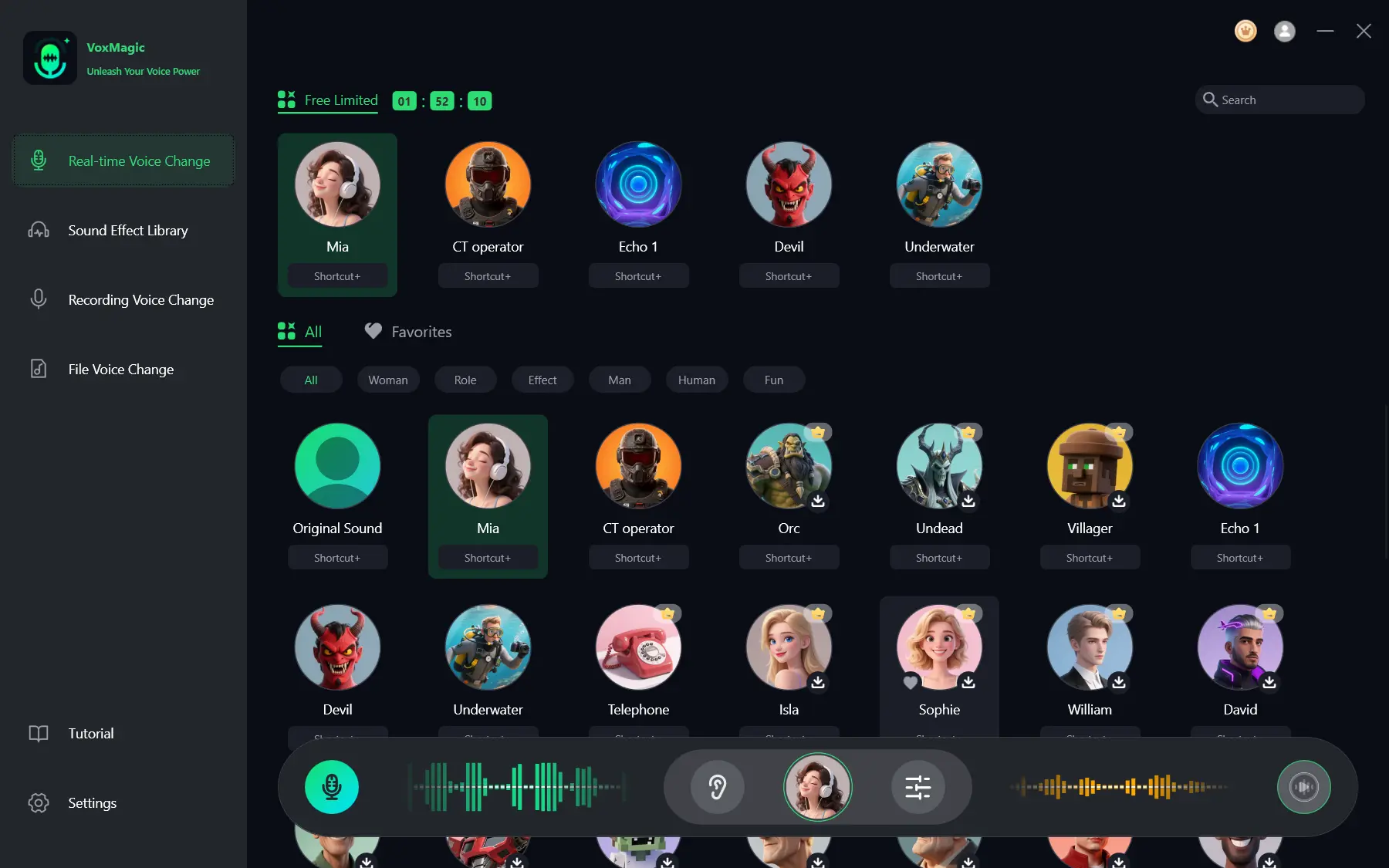
The in-app check succeeds when the meters respond while you speak and the headphone preview reflects the selected effect. This confirms local processing, not delivery to another application. If noise reduction changes the sound undesirably, reduce its level; higher levels can affect sound quality.
If your destination application has a microphone selector, choose the Fionn VoxMagic virtual input under the name shown there, then use that application’s own input indicator or a short recording to confirm delivery.
Voice.ai for virtual-cable routing
Voice.ai is relevant when the receiving software can use its virtual cable. Its documented procedure begins by selecting the physical microphone in the Desktop App and routing Windows input to the Voice.ai audio cable.
- Turn on the voice changer and select your physical microphone as the Desktop App input.
- In Windows Sound Settings, set the input device to
Microphone Array (Voice.ai Audio Cable)
.

- In the destination software, select the Voice.ai virtual cable if that software provides an input-device selector.
These steps establish the documented Windows-side route. Confirm the actual task by checking the destination app’s input indicator or recording there; the supplied documentation does not provide a complete destination-app verification sequence. Voice.ai documents Windows 8 and 4 GB RAM as minimum Desktop App requirements, and notes that minimum requirements do not guarantee zero latency or optimal performance.
Source: Voice.ai routing instructions .
Clownfish Voice Changer for capture-device processing
Clownfish Voice Changer is suited to a Windows setup where you want a system-level effect on a particular capture device. Its documentation says that applications using a microphone or other audio-capture device are affected after the tool is installed on that device.
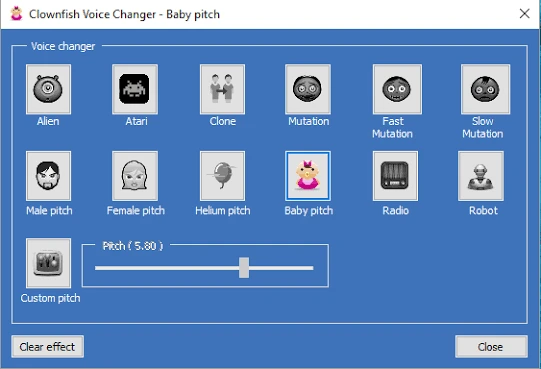
- Install Clownfish on the capture device you want to modify. Administrative rights are required to install or remove it.
- Open the main menu’s Set Voice Changer option and choose an active effect.
- Enable Hear microphone to monitor the modified voice locally.
Hearing the changed voice is a local monitoring check. Before using the result in a call or game, confirm that the receiving application is using the intended capture device. Match the installer architecture to Windows: the vendor states that 64-bit and 32-bit packages do not install on the opposite operating-system architecture.
Source: Clownfish Voice Changer documentation .
MorphVOX Pro for Discord
MorphVOX Pro has a documented route specifically for Discord. Choose it when Discord is the destination and you want an official procedure that includes both device selection and a receiving-app success signal.
- Run MorphVOX, then open Discord.
- Open Discord’s user settings and select the Voice tab.
- For INPUT DEVICE , select Screaming Bee Audio .
- Turn off automatic input sensitivity. Speak and adjust sensitivity until the indicator is green while you talk.
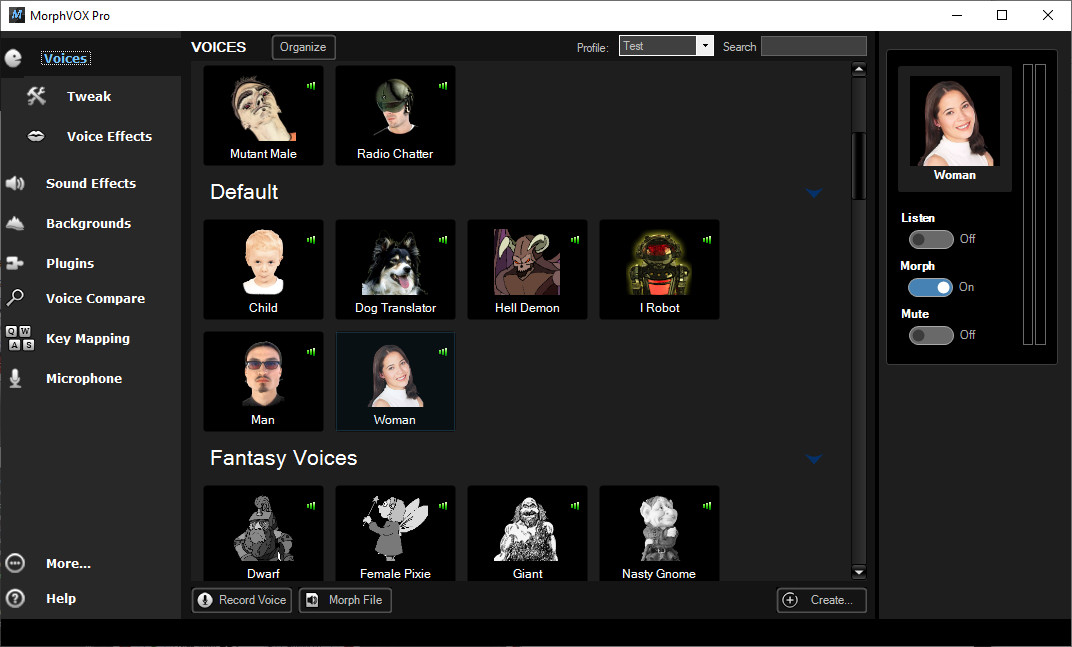
Discord should then use MorphVOX’s morphed output. The green indicator helps set a usable input level; the final success signal is that Discord receives the changed voice.
Source: MorphVOX Pro Discord setup guide .
Choosing an option
Choose based on the route you can actually configure, rather than on generic claims that one voice changer is universally better.
Use headphones for local monitoring. Then perform the final check in the program that matters: look for its input meter responding or make a short recording. A preview confirms that the changer is processing audio; it does not by itself confirm that another app receives it.
Conclusion
For documented Discord routing, follow MorphVOX Pro’s Discord procedure. For a system-level capture-device approach, consider Clownfish. For a virtual-cable route, use Voice.ai’s documented Windows setup and verify the destination app separately. If you want to select devices and validate an effect with preview before routing, start with Fionn VoxMagic , then select its virtual input in a destination app that exposes a microphone selector.
FAQ
Which alternatives have a documented Discord path?
MorphVOX Pro has a complete supplied Discord procedure using the Screaming Bee Audio input device. Voice.ai documents routing its virtual cable for Discord and other software that can select the cable, but the supplied procedure does not include a complete in-app verification sequence.
How do I know whether the voice change is actually working?
First use local monitoring or preview: Fionn VoxMagic provides headphone preview and responsive meters, while Clownfish provides Hear microphone. Then check the destination app’s input meter or make a recording there. Only the second check confirms delivery to that app.
Which option has the broadest documented Windows version coverage?
Among the supplied evidence, Clownfish lists Windows Vista, 7, 8, 8.1, 10, and 11. This is a support-listing comparison only; it does not establish that Clownfish is the best option for every Windows setup.
Can Fionn VoxMagic use custom sounds?
Yes. It supports importing and naming custom sound effects, assigning covers and hotkeys, with imported audio limited to 60 minutes.
Why might a live AI voice sound delayed?
Voicemod notes that AI voices can require more processing power than standard voices. Voice.ai also states that its minimum requirements do not ensure zero latency or optimal performance. Test the effect in your intended destination before using it live.


