 Emily CarterVoice Changer
Set up Fionn VoxMagic by choosing your physical microphone and headphones, enabling a real-time effect, and checking that its input meter moves while you speak. You can then use the documented Steam or Discord routing steps if needed.
Local preview confirms that VoxMagic can hear your microphone and play the changed voice to your headphones. It does not by itself confirm that a game, chat app, or another person receives that voice.
Before You Start
- Use Windows 10 or Windows 11.
- Connect the microphone and headphones you plan to use. Headphones help prevent playback from feeding back into the microphone.
- If you enable noise reduction, use the setting that gives you acceptable sound. Stronger reduction may affect voice quality.
Set Up and Preview Fionn VoxMagic
VoxMagic provides device selection, real-time effects, headphone preview, and input-level monitoring for this local setup.
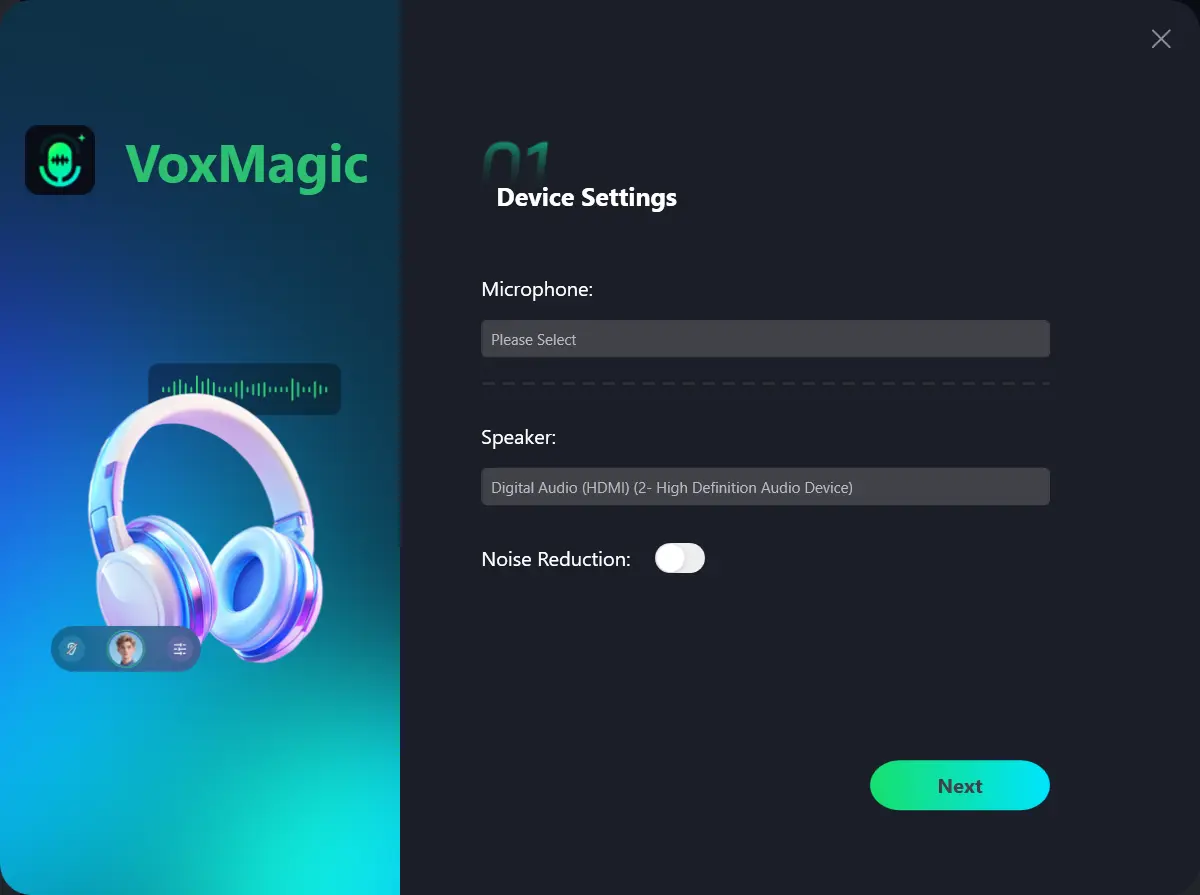
- Open Fionn VoxMagic. In Device Settings, select your microphone and playback device. Enable Noise Reduction if needed, then click Next.
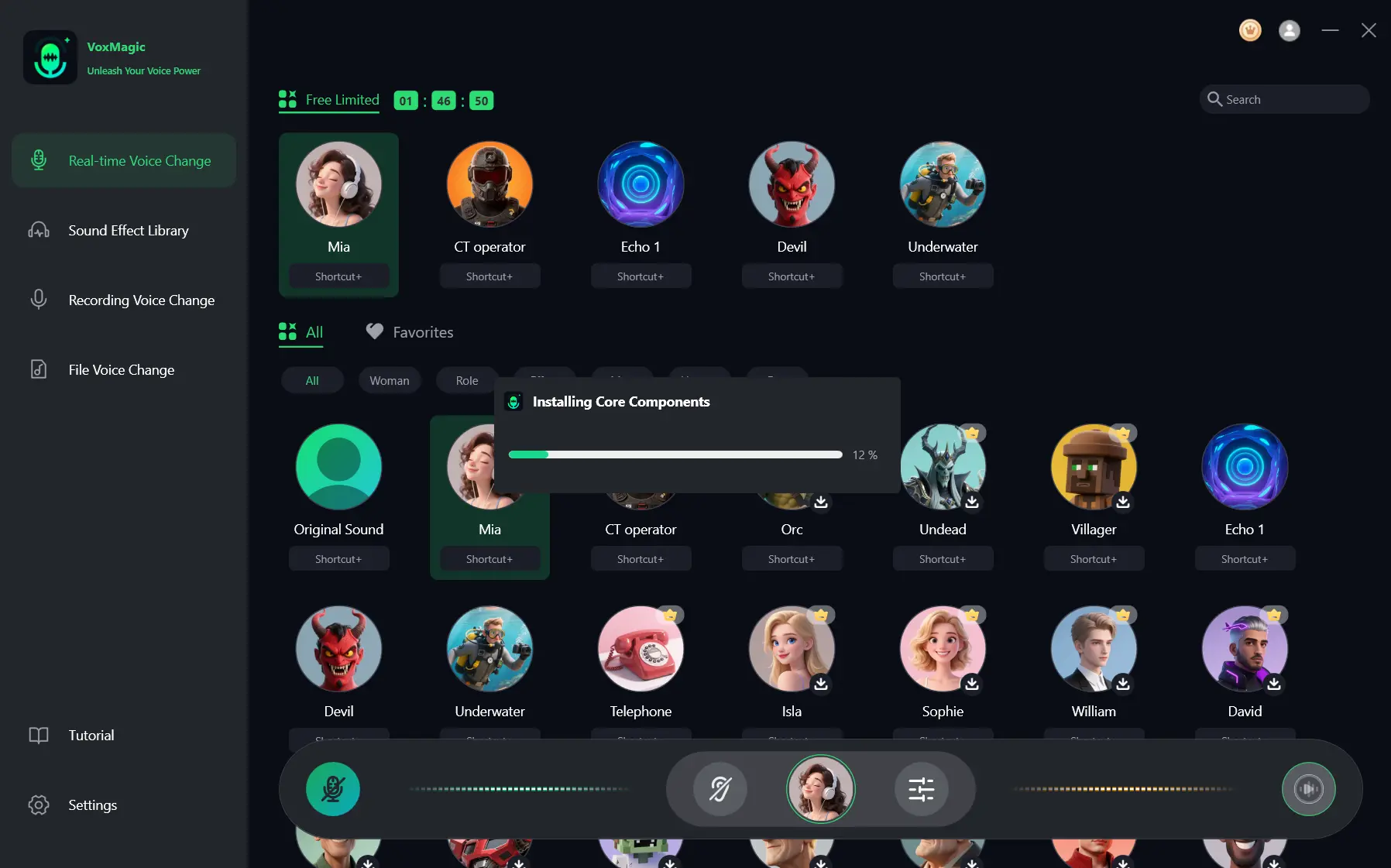
- If the Installing Core Components dialog appears, wait for the installation to finish before continuing.
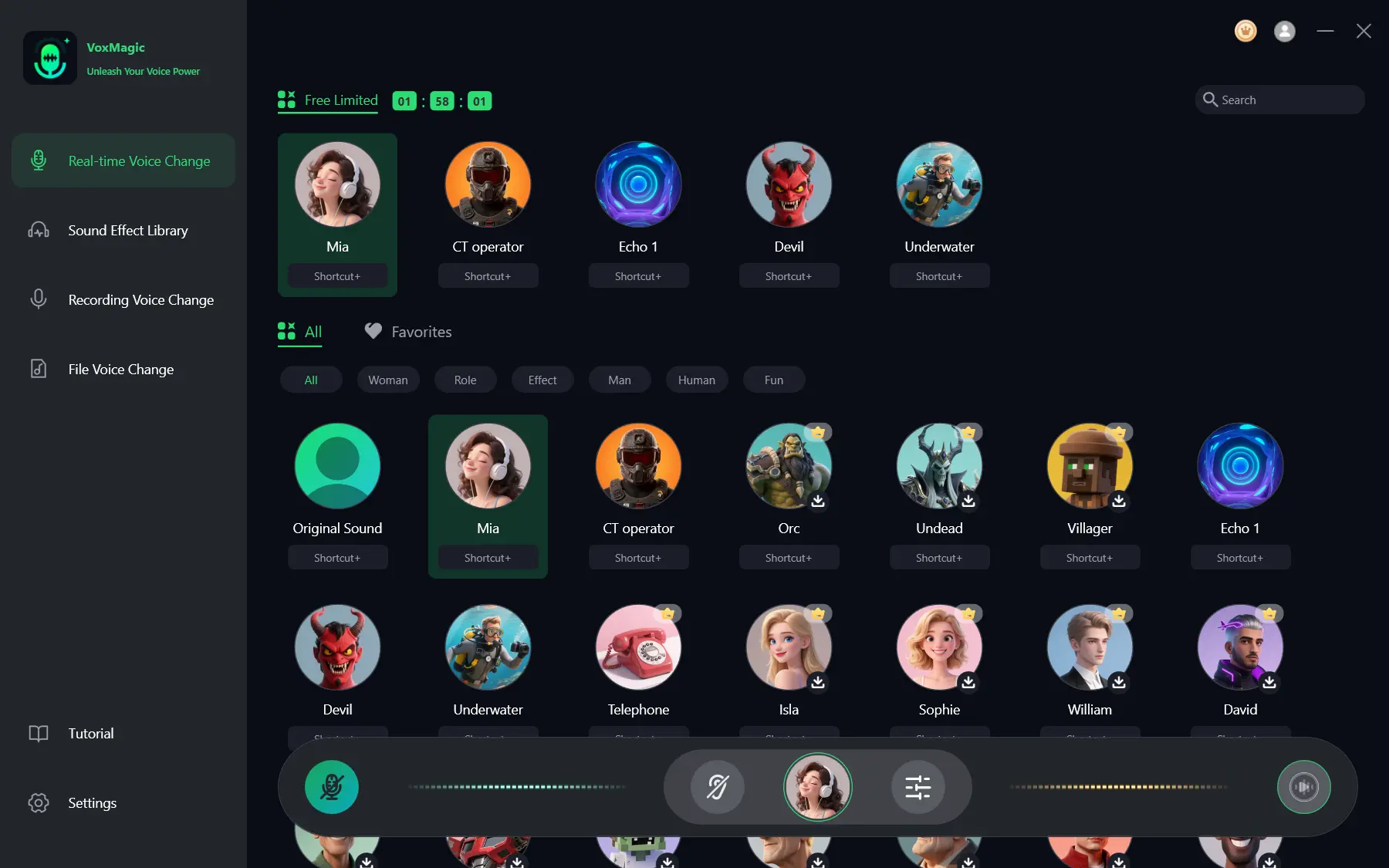
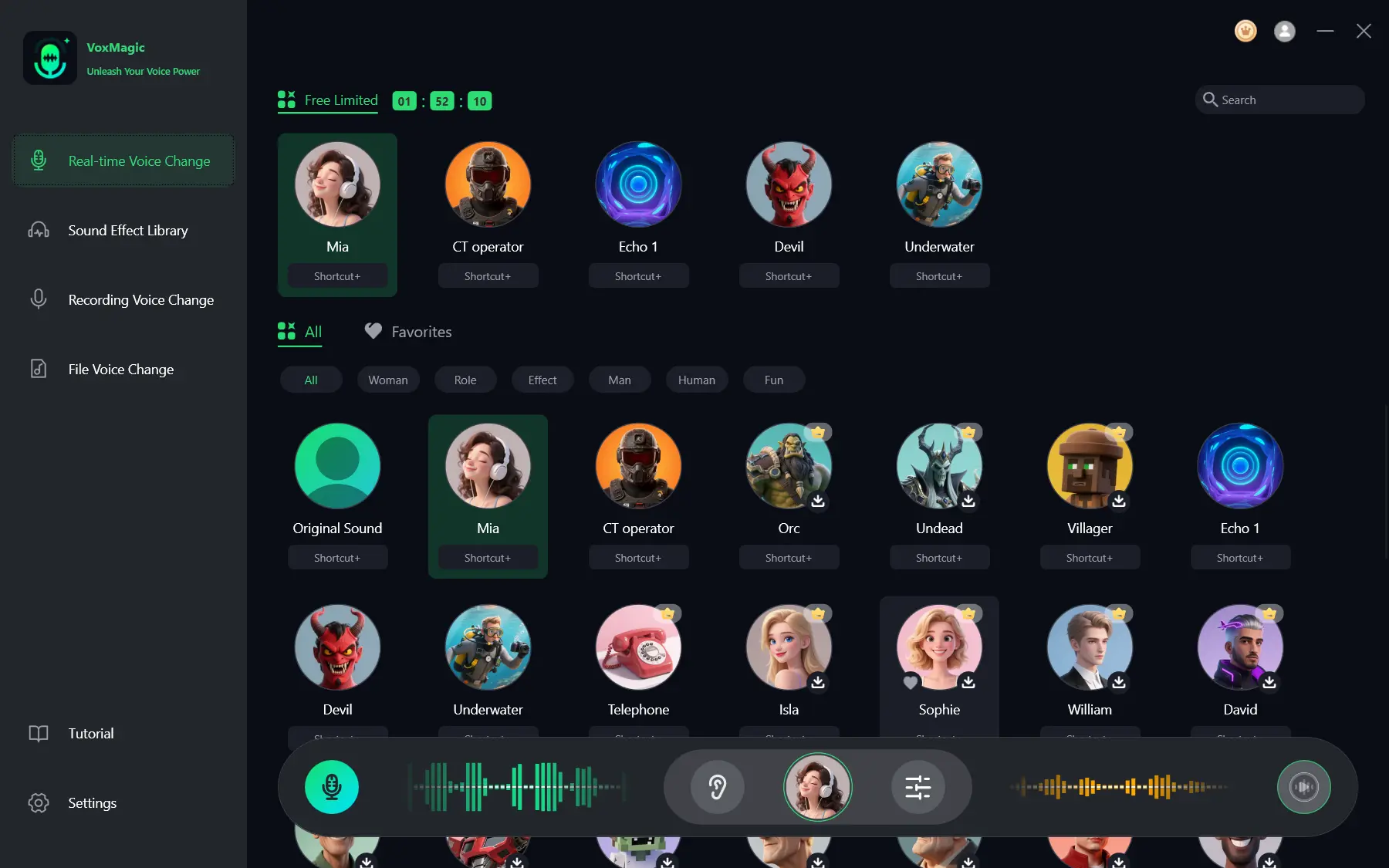
- Open Real-time Voice Change and select a voice effect, such as Mia. The selected effect is highlighted and appears in the bottom control bar.
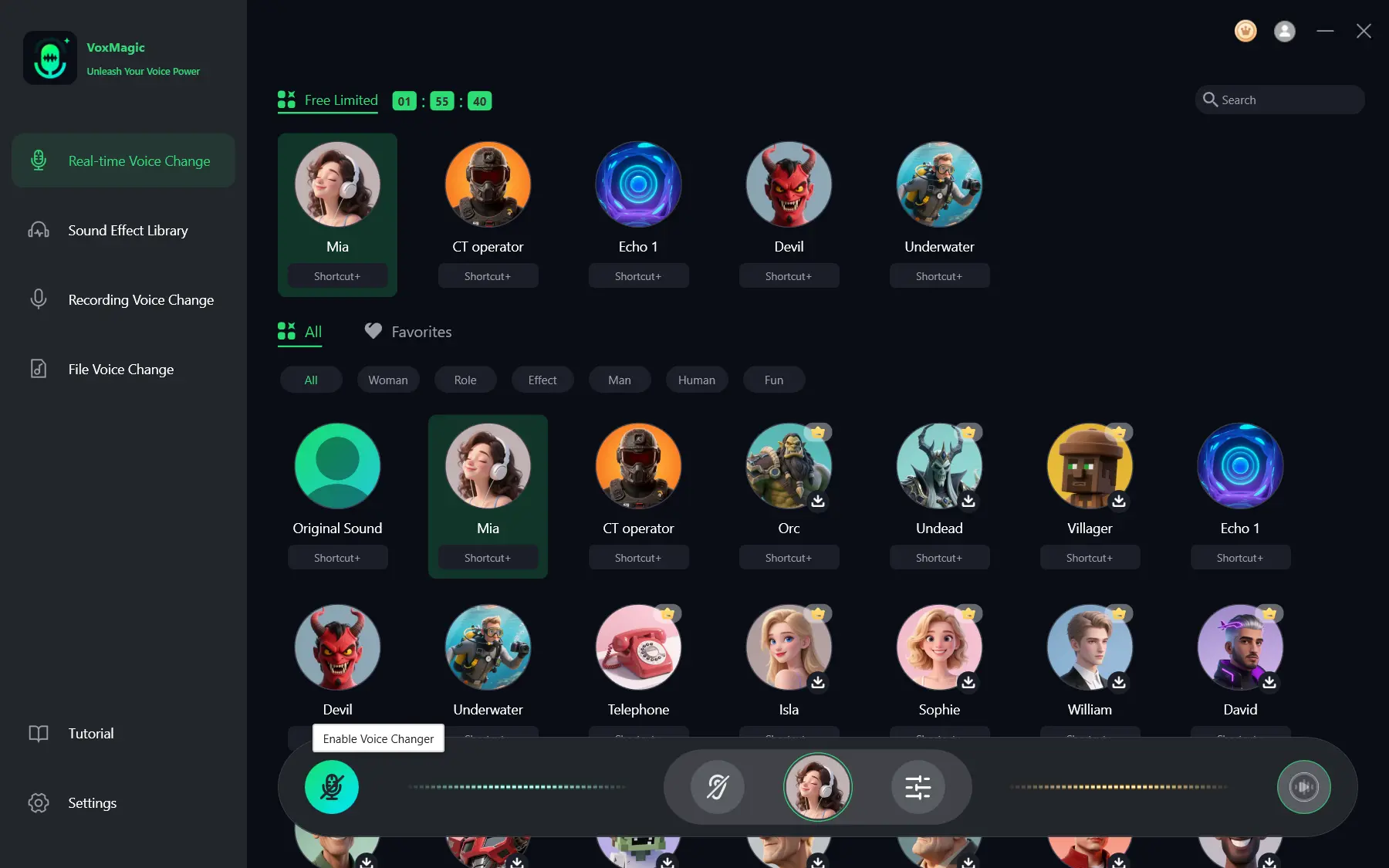
- Click the microphone button labeled Enable Voice Changer in the bottom-left corner of the control bar to turn on voice changing.
- Click the ear icon in the bottom control bar to enable voice preview. Use headphones to listen to your voice while testing the selected effect.
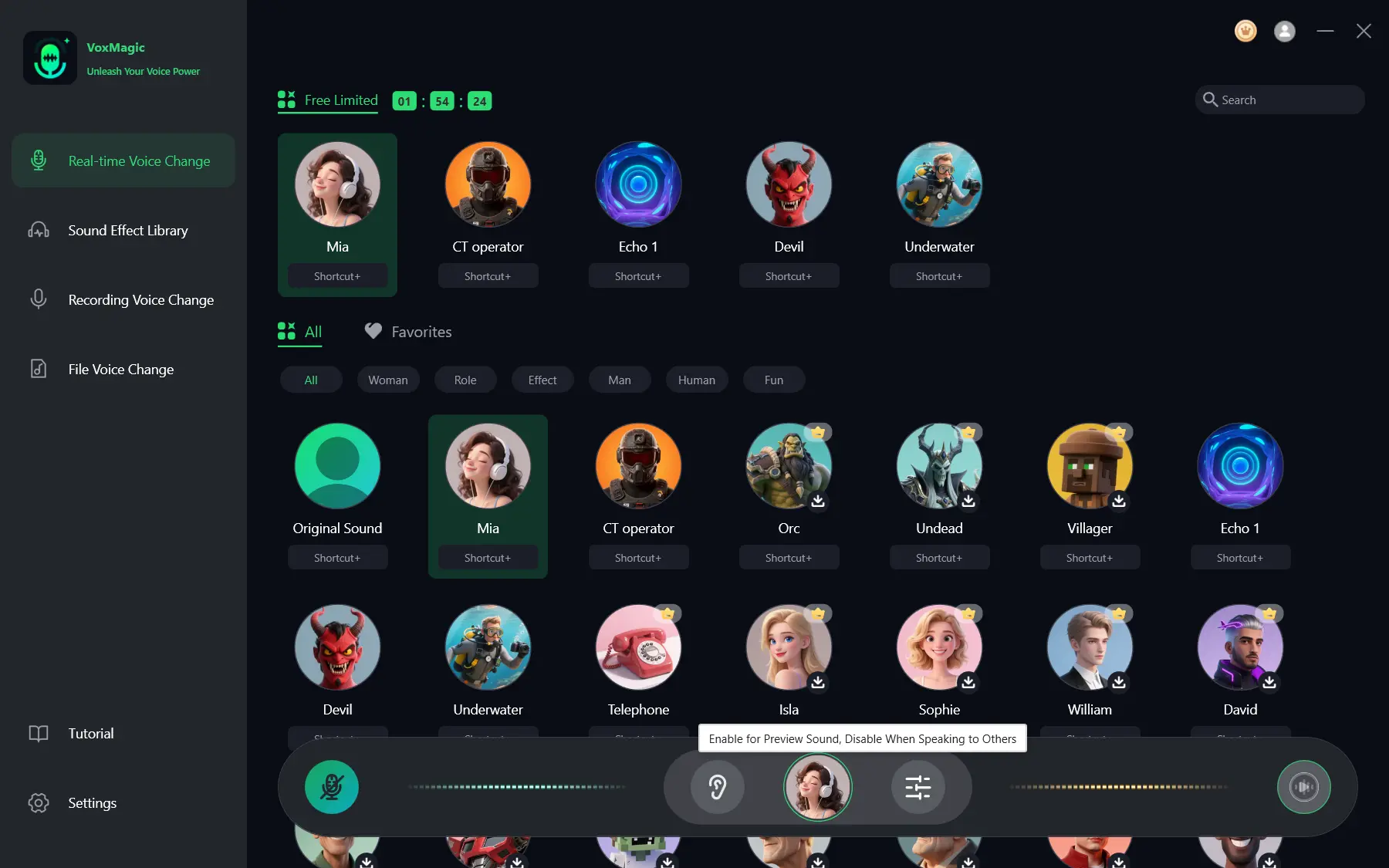
- Speak into your microphone and listen to the preview to check the selected voice effect. Check that the audio level meters respond as you speak. Disable voice preview before speaking to others.
Route the Voice to Steam
After local preview works, use the documented Steam configuration in the official Steam and VoxMagic setup guide.
- Open Steam and select Settings from the Steam menu.
- Open Voice, then select the VoxMagic/Fionn virtual input under the name shown in your installed device list.
- Keep Steam playback on the default device or your physical headphones, not the virtual speaker.
- Turn off VoxMagic’s Hear Yourself control before running Steam’s microphone test.
- Run Steam’s microphone test.
The microphone test checks Steam’s microphone path. It does not prove delivery in a particular game or confirm what another player hears.
Route the Voice to Discord
Use the documented Discord configuration in the official Discord and VoxMagic setup guide.
- In VoxMagic, choose an effect, enable pitch change and self-monitoring, then confirm that the local volume and sound quality are appropriate.
- Open Discord User Settings.
- Open Voice & Video and select the VoxMagic/Fionn virtual input under the name shown in your installed device list.
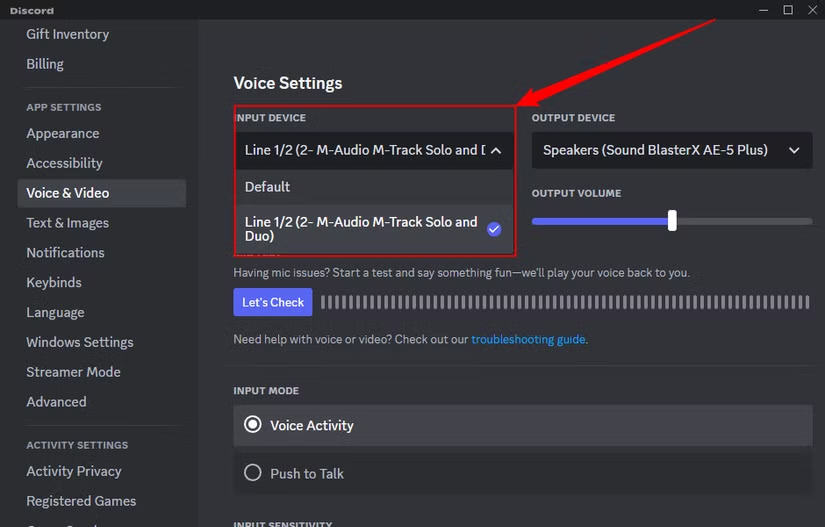
- For the documented better-effect configuration, turn off automatic input sensitivity detection, echo cancellation, noise suppression, and automatic gain control.
- Make a real voice test in the Discord context you plan to use and confirm what the recipient hears.
The Discord processing changes are the supplied effect-focused configuration, not a universal requirement. The recipient check is an end-to-end test; local preview alone cannot replace it.
If a New Microphone or Playback Device Is Missing
When a newly added device is absent from VoxMagic, follow the documented recovery path in the official setup guide.
- In VoxMagic Settings, select the input and output devices you intend to use.
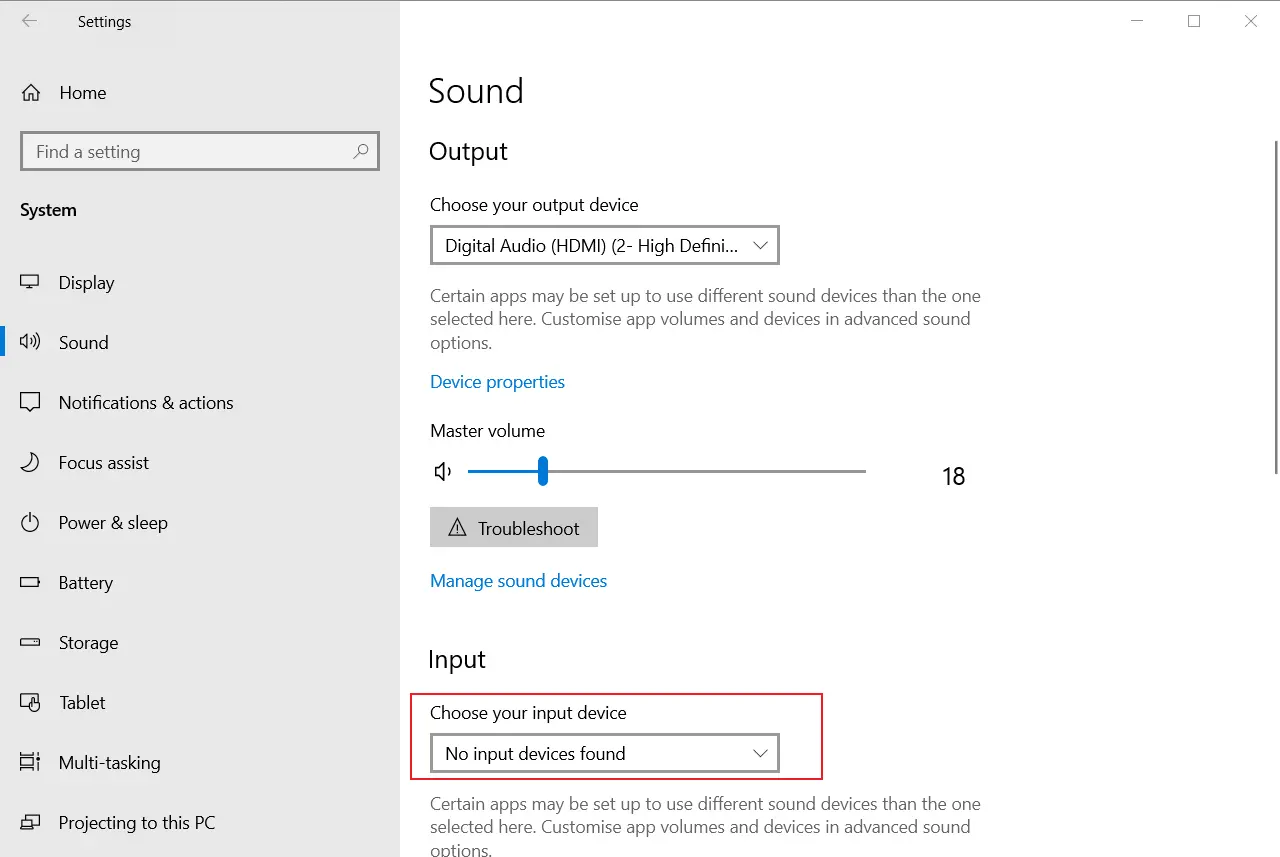
- Select Refresh.
- Check the device list for the newly added microphone or playback device.
This check is complete when the new device appears in VoxMagic’s device list.
What the Checks Confirm
For local setup, the outcome is a selected effect that you can hear through headphones while VoxMagic’s input meter responds to your speech. Steam’s microphone test adds a Steam-side microphone-path check. For Discord, confirm the recipient’s result in the intended Discord context before relying on the route. No guidance here establishes compatibility with other applications.


