 Emily CarterScreen Recording
To record game audio and Discord voice in one video, route both through the Windows playback path your recorder captures, then make a short private sample and play the saved video before recording a full session. This guide covers three Windows methods: Fionn Screen Recorder , Xbox Game Bar, and OBS Studio. Choose the method that fits your goal: a straightforward recording, a short built-in clip, or a recording with visible audio meters.
Before You Record: Choose the Audio You Want and Run a Private Test
- Decide whether the recording should contain game audio and Discord voice only, or also your own microphone.
- Join the Discord voice channel and launch the game before making a test recording.
- Confirm that game sound and other callers are audible through the same Windows output device if you want both in the recording.
- Use headphones when recording your microphone to reduce the chance of capturing playback twice.
- Record a short private test first, especially when other participants have not agreed to be recorded.
Choose the Right Method
| Method | What It Records | Final Output | Best For | User Effort |
|---|---|---|---|---|
| Fionn Screen Recorder | Gameplay with the selected supported sound option | A recording accessible in Media Library for playback, editing, locating, or deletion | A direct workflow with format selection and an in-app review step | Low |
| Xbox Game Bar | A short game clip; confirm the shared playback result with a test | A saved clip to locate and play using the access path shown by your current installation | Quick built-in Windows captures | Low |
| OBS Studio | A mixed desktop-audio recording containing the game and Discord when both use the captured output | A recording file accessible from the output location configured in OBS | Meter-based checks and a reusable recording scene | Moderate |
Fionn limit: Non-members can save recordings up to 2 minutes at 720p. For a longer session, use an eligible plan or another method.
Method 1: Record Game Audio and Discord Voice with Fionn Screen Recorder (Recommended)
When to use: Choose this method when you want a direct Windows recording workflow with format selection and Media Library access. Fionn Screen Recorder supports no sound, microphone only, or system sound with microphone. For the target result, test the supported sound choice that carries the shared playback and your microphone when you intend to include it.
- Open Fionn Screen Recorder and choose the area you want to capture: Full Screen, Window, or Region.

- Choose the supported sound option: no sound, microphone only, or system sound with microphone. Use a short test to confirm the intended game, Discord, and microphone mix.

- Select MP4 or another video format before you start recording.

- Click Start to begin recording, then use Pause or Stop when you are finished.

- Open Media Library to play, edit, locate, or delete your recorded videos.

Verify: In Media Library, play the saved video and listen for the game, a Discord participant, and—if you intentionally included it—your microphone. If an intended source is missing, correct the playback routing or sound choice and repeat the private test.
Method 2: Capture a Short Game-and-Discord Clip with Xbox Game Bar
When to use: Use Xbox Game Bar for a quick recording when you prefer a built-in Windows capture path and do not need a detailed recording layout.
- Open the game and join the Discord call so both sources are already playing through Windows.
- Press
Windows+Gto open Xbox Game Bar.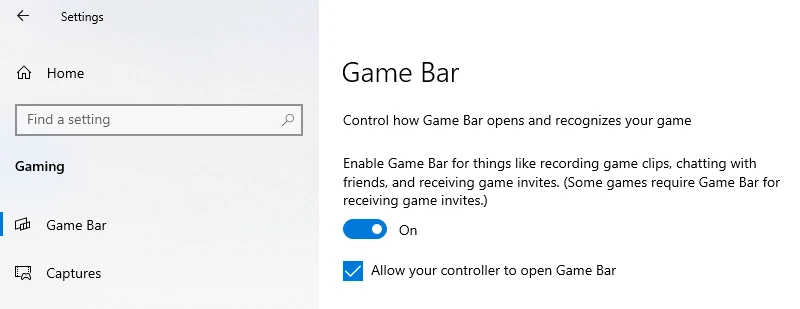
- Check the audio settings available in your current Game Bar installation and make a short sample while game sound and a Discord participant are audible. Do not assume the shared playback is included until the saved clip confirms it.
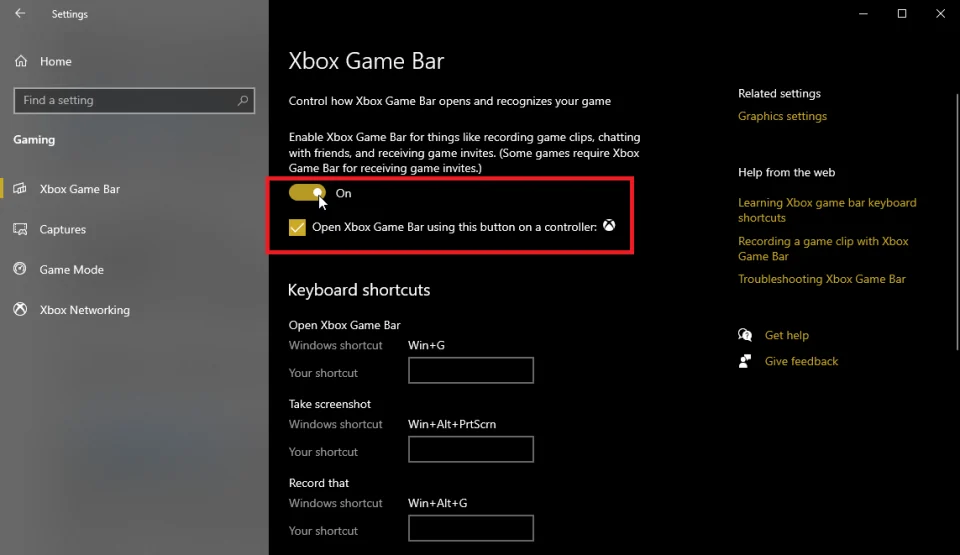
- Begin recording from the Capture widget, then end the capture after the moment you want to save.
- Locate the saved clip using the save location or access option shown by your current Game Bar installation.
- Play the clip and confirm that both game audio and Discord speech are audible.
Expected result: A short game clip that contains the audio routed through the Windows playback device during capture, if the sample playback confirms it.
Method 3: Record a Mixed Game-and-Discord Video with OBS Studio
When to use: Choose OBS Studio when you need to see audio meters, troubleshoot a missing source, or build a reusable scene for regular recordings. This workflow records a mixed desktop-audio result when the game and Discord use the captured Windows output; it does not claim separate game and Discord tracks.
- Create a new scene in OBS Studio and add a game capture source for the running game.
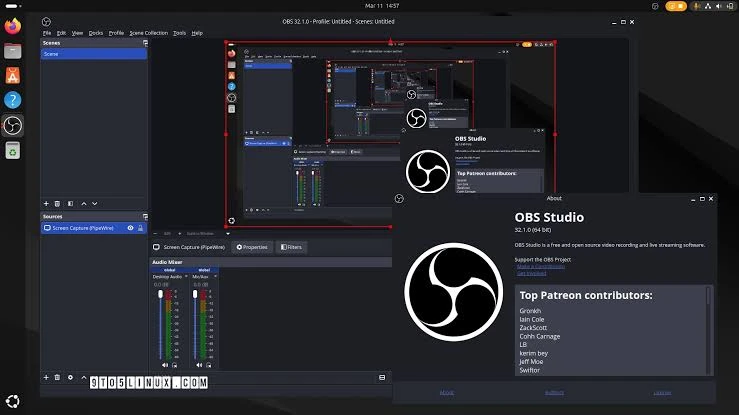
- Add desktop audio for the Windows output that carries the game and Discord call.
- Add a microphone or auxiliary audio source only if you want your own voice in the video.
- Watch the Audio Mixer while game sound and Discord speech are playing; each intended source should show activity.
- Start a short recording, then stop it.
- Open the recording from the output location configured in your OBS installation, then play it before beginning the full session.
For source setup details, consult the OBS Studio official Quick Start Guide .
Verify: Confirm that the saved sample contains game sound and Discord speech. If you added a microphone source, confirm it only when you intended to include commentary.
Verify the Saved Video Before Recording a Full Session
- Locate or open the saved sample video.
- Play it from beginning to end.
- Confirm that game sound is audible.
- Confirm that a Discord participant is audible.
- Confirm microphone audio only if you intentionally included it.
- If a source is missing, correct the playback routing or recording setup and repeat the private test before recording the full session.
Tips for Clear Voice-Chat Recordings
- Use headphones if you are recording your own microphone. This helps prevent the microphone from picking up game or Discord playback a second time.
- Keep Discord output and game output on the same Windows playback device when your chosen method records system audio as one mix.
- Check the first 10–20 seconds of every new setup. A visible game image does not prove that voice chat is present.
- Tell participants before recording and follow the consent, privacy, and platform rules that apply to your call.
Conclusion
For a quick Windows clip, try Xbox Game Bar and verify the saved sample before a full match. Use OBS Studio when visible meters and a mixed desktop-audio recording are more important than speed. For a direct workflow with format selection and Media Library playback, use Fionn Screen Recorder , keeping its non-member two-minute, 720p save limit in mind. Whichever method you choose, open the saved video first and confirm game audio, Discord speech, and any intentionally included microphone audio before recording a longer session.
FAQ
Can I record game audio and Discord voice without recording my microphone?
It depends on the recorder and its available audio choices. Route the game and Discord through the captured Windows playback path, then make a short sample and play it back to confirm the result. For Fionn Screen Recorder, use only the verified sound choices listed in its method.
Why is the game audible but Discord voice missing?
Discord may be assigned to a different output device, or the selected capture setting may not include the shared playback path. Check the Windows and Discord output selections, then run another short test while another participant speaks.
Why does my recording contain an echo?
An echo often occurs when a microphone picks up speaker playback. Use headphones, or avoid adding a microphone source when your own commentary is not needed.
Should I use system audio or a microphone source for Discord?
Discord callers are normally heard through the Windows playback path, while a microphone source captures what your microphone receives. Use a private sample to verify the mix your selected recorder produces.
How can I confirm the recording worked before a long game session?
Record a private 10–20 second sample while the game and a Discord participant are audible. Locate the saved file, play it immediately, and check every sound source you intended to include.
What is the Fionn Screen Recorder non-member recording limit?
Non-members cannot save recordings longer than two minutes, and free resolution is 720p.


