 Emily CarterScreen Recording
If OBS shows a black screen while recording, do not start by changing the GPU or running it as an administrator. First identify the source type: Display Capture , Window Capture , or Game Capture . They have different causes and next steps. Below are five methods, from checking the current source to adjusting the capture method; the last one lets you temporarily record your desktop while OBS is still being diagnosed.
Problem symptoms
- The OBS preview is black immediately after adding a source.
- The preview looks normal, but the saved video has no picture.
- Only a game produces an OBS black screen during Game Capture.
- One specific window cannot be captured even though the desktop is visible.
- OBS Studio shows a black screen in Windows on only one monitor.
The issue does not necessarily affect all of Windows and does not always mean there is a GPU conflict. One source may be configured incorrectly while another works normally.
Quick diagnosis
- Black preview for one source: go to Method 1 and check the scene, visibility, and properties for that specific source.
- Only the game is black: after Method 1, use Method 2 if the application has elevated permissions, or Method 3 if overlays are active.
- A separate window is black: make sure the correct window is selected in Method 1; then proceed to Method 4 only on a system with multiple GPUs.
- Display Capture is black: in Method 4, check Capture Method first; change GPU settings according to the OBS guide and one setting at a time.
- The preview works but the file is black: make a short test recording and follow the checks in the “Verify the result” section; this is not the same symptom as an empty source.
Method comparison
| Method | Best for | Effectiveness | User effort |
|---|---|---|---|
| 1. Source properties | Incorrect scene, window, or monitor | High for one source | Low |
| 2. Administrator | Game Capture and an application with elevated permissions | Situational | Low |
| 3. Overlays | A game does not appear during capture | High when there is a conflict | Medium |
| 4. Capture Method and GPU | A laptop or multiple GPUs | Situational | Medium |
| 5. Fionn Screen Recorder | You urgently need to record a screen, window, or region | A practical alternative | Low |
Method 1: Check the scene and source properties
When to use it: always start with this method when OBS is not capturing the screen, a window, or a game in the current scene.
- Select the scene in which recording should take place.
- In the Sources panel, make sure visibility is enabled for the required source.
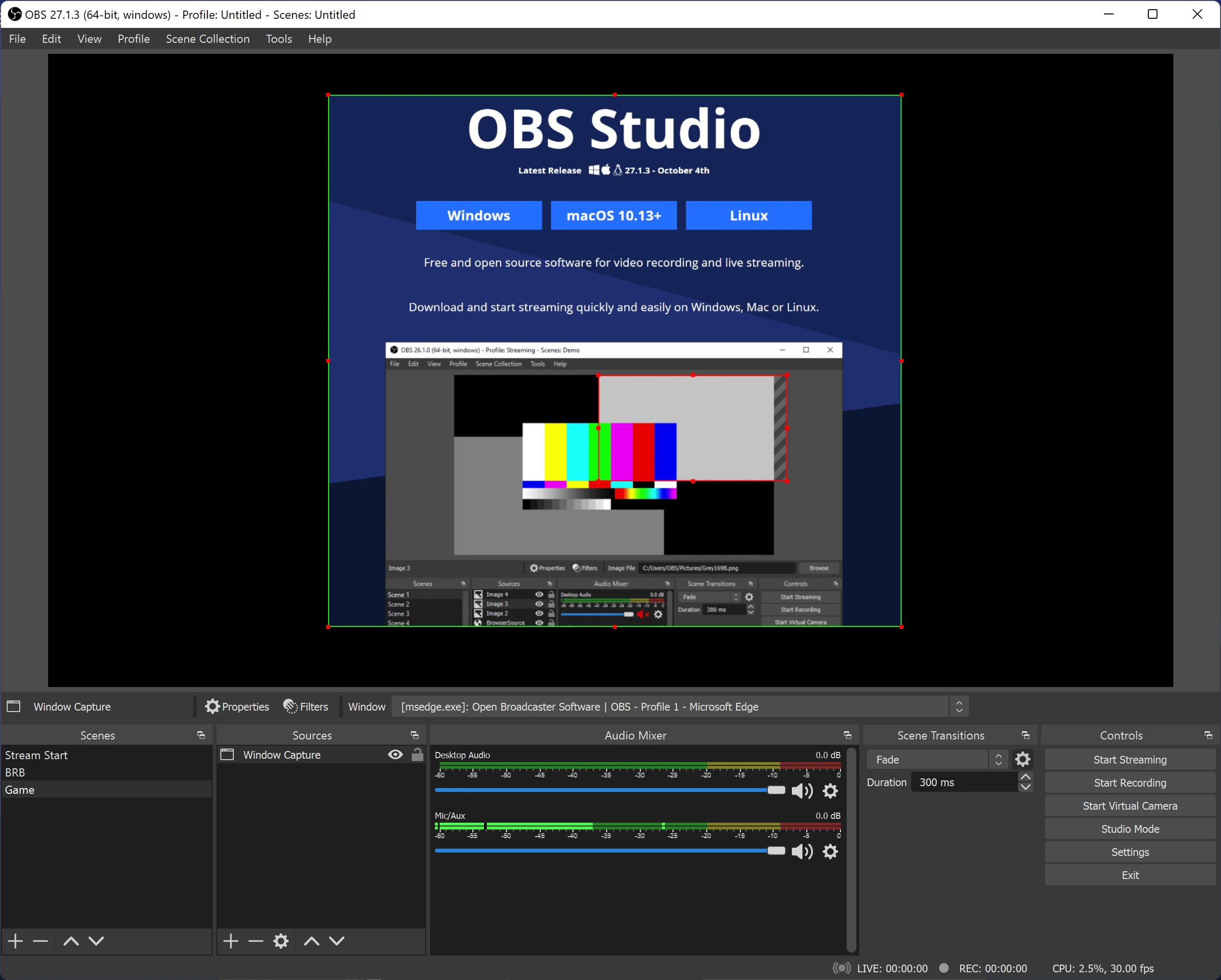
- Check the source type: Display Capture for a monitor, Window Capture for an application, and Game Capture for a game.
- Open the source properties and select the correct monitor, window, or running game.
- Return to the preview and make a short test recording.
How to verify: the intended picture is visible in the preview and in the saved test file. Do not delete the source as your first action: change its properties first. Add a new source only when you cannot select the needed item or the existing settings are corrupted.
Method 2: Run OBS as an administrator only for relevant symptoms
When to use it: Game Capture remains black, the game or specific application runs with elevated permissions, or the game developer explicitly states that OBS must run as an administrator.
- Close OBS.
- Right-click the OBS shortcut and select Run as administrator.
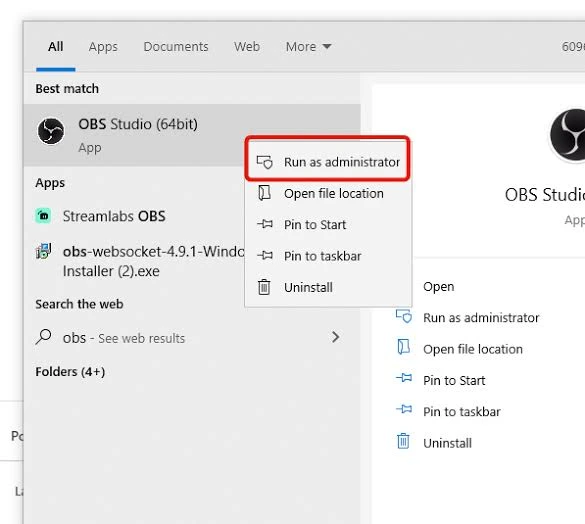
- Open the previous scene and test Game Capture with a short recording.
How to verify: if the picture appears, permissions may have been one factor, but this does not prove they were the only cause. If there is no effect, return to normal startup and continue with overlays.
Method 3: Check for conflicts with overlays and capture software
When to use it: OBS shows a black screen during Game Capture, especially if an FPS counter, game overlay, or other recording tool is running at the same time. OBS publishes a list of known application conflicts; consult the official OBS application-conflicts page .
- Temporarily close suspected overlays and other recording programs.
- Do not change the scene, source, and GPU settings at the same time.
- Restart the game or application you need to record.
- Restart OBS.
- Record a short video using the same Game Capture source.
How to verify: if the picture appears only after closing a specific program, a conflict is likely. Re-enable programs one at a time to find the cause. Do not indiscriminately disable system security tools.
Method 4: Check the capture method and GPU settings
When to use it: the issue persists on a laptop or PC with multiple GPUs. First record the current values and the OBS and Windows versions. For Display Capture in OBS 27+ on Windows 10 version 1903+, the Windows capture method is available; OBS recommends trying Automatic first and, if necessary, manually choosing Windows Capture Method in the source properties.
- Open the Display Capture properties and test Automatic first, then an appropriate Windows Capture Method.
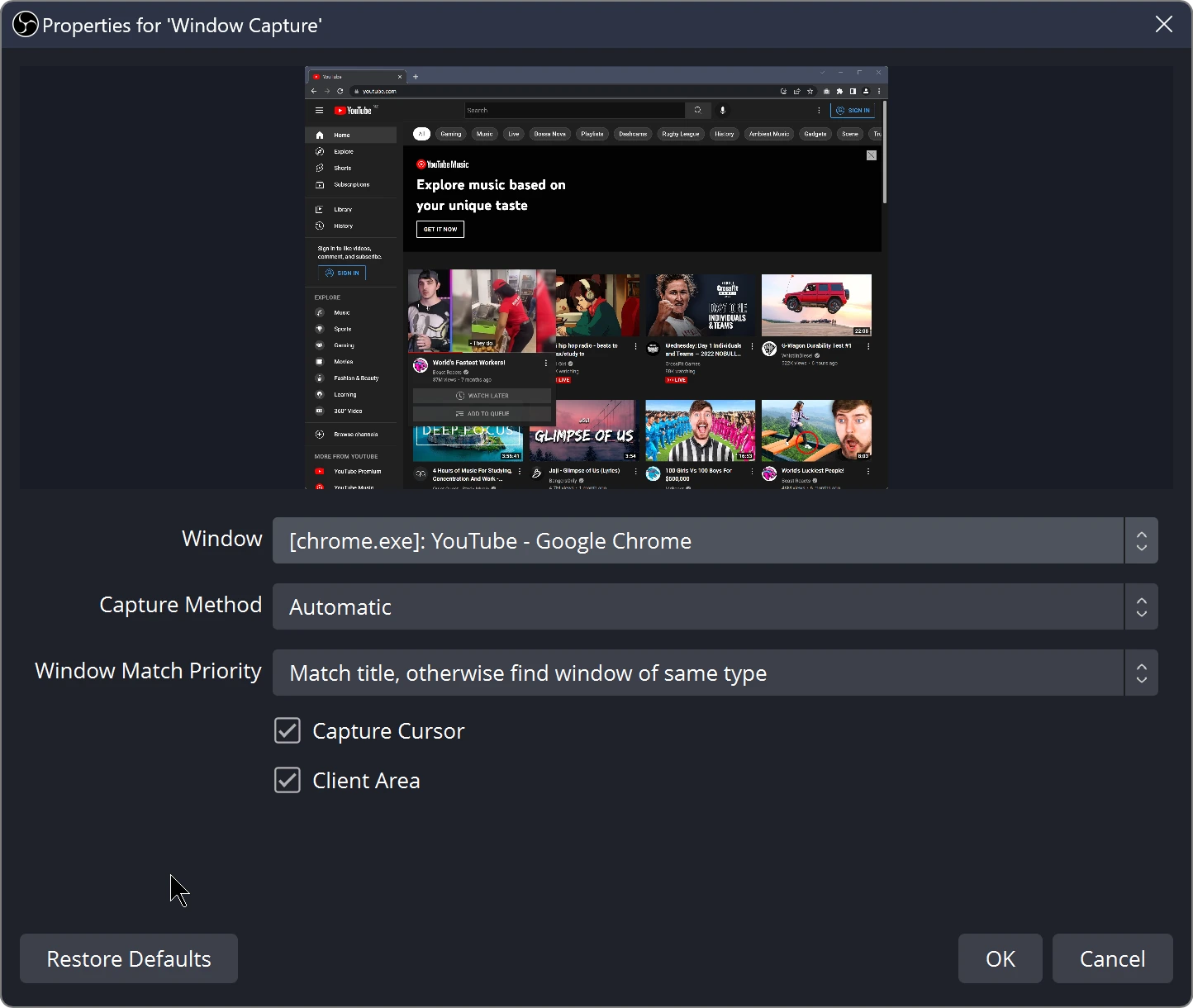
- For Game Capture or Window Capture, compare your configuration with the OBS GPU Selection Guide .
- Save the current configuration before making a change.
- In Windows, open Settings → System → Display → Graphics and find OBS Studio.
- Change only one GPU setting, restart OBS, and test the same source.
How to verify: for Game Capture and Window Capture, the official OBS guide indicates the high-performance option; for Display Capture, it indicates power saving. This is not a rule that one GPU works for everything: the choice depends on the capture type and configuration. If settings were changed previously, also consult the OBS laptop troubleshooting guide .
Method 5: Record your screen with Fionn Screen Recorder if OBS is not working
When to use it: you need to record a desktop, window, or region without delay while OBS diagnosis is not complete. Fionn Screen Recorder is an independent recording alternative and does not fix OBS’s internal capture settings. Make a short test first: another program is not guaranteed to capture every item that is black in OBS.
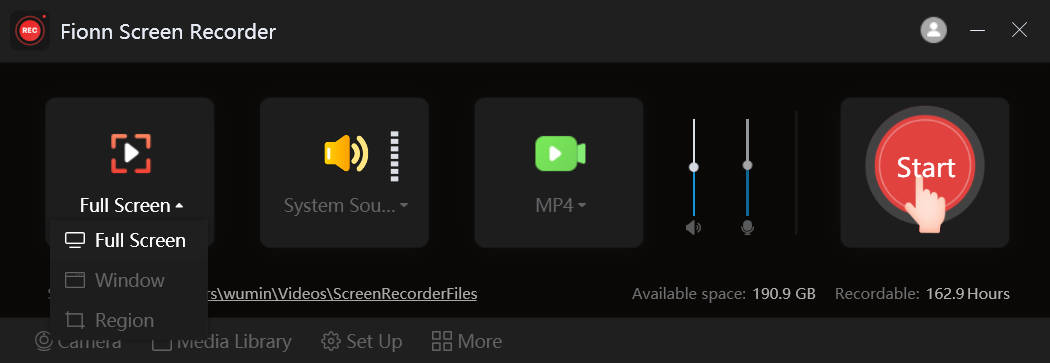
- Open Fionn Screen Recorder and select the recording area: Full Screen, Window, or Region.

- Select audio: system audio, microphone, both sources, or no sound.

- Before starting, select MP4 or another video format.

- Click Start to begin recording; when finished, use Pause or Stop.

- Open Media Library to play, edit, locate, or delete recorded videos.

How to verify: open the short video in Media Library and confirm that the expected frames are visible and the selected audio is audible.
Verify the result
- A. OBS preview is black: repeat Method 1 for the specific source.
- B. The preview is normal but the file is black: check the saved test file itself and the scene used before recording started.
- C. Game Capture is black: check permissions and overlays, then check the GPU match.
- D. Window Capture is black: make sure the correct window is selected, then check a multiple-GPU configuration.
- E. Display Capture is black: check the monitor and Capture Method, then GPU settings.
Success means four observable results: the program displays the intended picture, the saved file contains a picture, it includes the expected audio, and recording still works after reopening the recording configuration.
OBS logs for further diagnosis
If the cause is unclear, select Help → Log Files → Upload Last Log File in OBS. Paste the resulting link into OBS Log Analyzer . The analyzer checks for common configuration issues and offers guidance, but it cannot guarantee automatic detection of every black-screen cause.
Conclusion
When OBS has a black screen while recording, first match the symptom to the source type, then check the scene, visibility, and selected monitor, window, or game. For Game Capture, separately assess elevated permissions and overlay conflicts. Move on to Capture Method and GPU settings after these simple checks, record the original values, and change one setting at a time. Confirm the result with a saved video, not only the preview. If you need a recording before diagnosis is complete, Fionn Screen Recorder can be a temporary alternative. If the issue persists, attach a log to official OBS support or the developer of the application being recorded.
Frequently asked questions
Why does OBS show a preview, but the saved video is black?
This is a separate symptom. Confirm that the correct scene is active before recording starts, then make a short test and open the saved file itself.
Do I always need to run OBS as an administrator?
No. It is appropriate for a black Game Capture from an application with elevated permissions or when a game officially requires it.
Why should I not immediately delete and recreate the source?
Recreating it can erase useful settings. It is safer to first check the type, selected item, visibility, and properties of the existing source.
Which GPU should I choose for OBS?
There is no single choice. Follow the OBS guide for Display Capture, Game Capture, or Window Capture, and change only one setting for each test.
Does Fionn Screen Recorder fix OBS?
No. It is a separate tool for temporarily recording a screen, window, or region; it does not change the cause of an OBS failure.


