 Emily CarterScreen Recording
The right free recording program for PC depends on the recording you need to deliver. OBS Studio is an open-source option for desktop, window, Windows 3D game, webcam, and selectable audio-source recording. VSDC Free Screen Recorder is documented as a completely free Windows recorder with full-screen or selected-area capture. ShareX is another completely free, open-source Windows option with screen recording and GIF recording. Clipchamp is useful when you want to edit a screen or screen-and-camera recording before exporting an MP4.
Choose the tool based on the capture target and audio you need, then make a short recording and inspect the saved result before recording anything important. Fionn Screen Recorder appears below as a limited option, not as a fully free recommendation: its non-member version cannot save videos longer than two minutes and is limited to 720p.
Quick Comparison
| Option | Documented fit | Important condition |
|---|---|---|
| OBS Studio | Desktop, window, Windows 3D game, webcam, and configurable audio sources | On Windows, OBS lists Windows 10 or 11 and a DirectX 10.1-compatible GPU. |
| VSDC Free Screen Recorder | Full-screen or selected-area Windows capture with optional webcam and microphone | Its documented workflow includes an output-folder check. |
| ShareX | Windows screen recording or GIF recording with fullscreen, window, monitor, and region capture choices | The supplied documentation does not establish its current device-selection or playback-check path. |
| Clipchamp | Screen or screen-and-camera recordings that will be edited and exported as MP4 | Documented recording audio works when sharing a browser tab. |
| Fionn Screen Recorder | Short screen, window, or region recordings with selectable audio | Non-members are limited to two-minute, 720p saves. |
Use OBS Studio when you need its documented game-capture or source-based workflow. Choose VSDC when selected-area capture and locating the completed file from an output folder matter. Choose ShareX for its documented free Windows capture choices. Choose Clipchamp when browser-tab audio and timeline editing fit the task.
Record with OBS Studio
Follow OBS Studio’s official Quick Start Guide when you need an open-source recorder for a desktop, a single window, a Windows 3D game, or a webcam. On Windows, it requires Windows 10 or Windows 11 and a DirectX 10.1-compatible GPU.
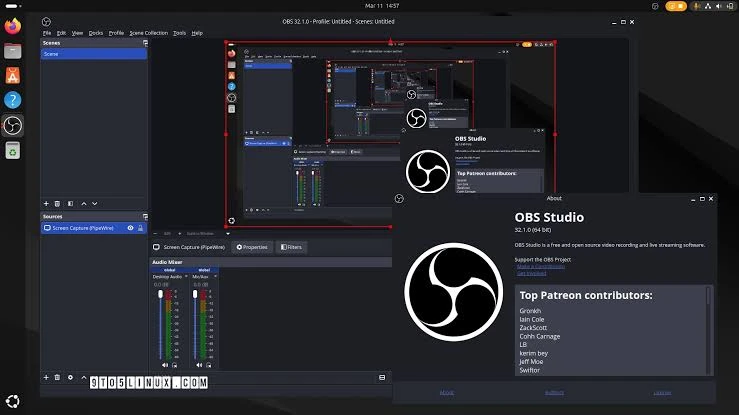
- Open Tools and run the Auto-Configuration Wizard if it did not appear on first launch.
- Select the plus sign in the Sources dock and add the capture source required for the task.
- Use Display Capture for a desktop, Window Capture for one app, or Game Capture for a Windows 3D game.
- Check the Audio Mixer meters. If the wrong device is selected or meters do not move, choose the device in Settings > Audio .
- Review Settings > Output , then select Start Recording .
Before the main recording, make a short test. The setup is ready only when the test clip contains the intended picture and intended sound when you play it back; moving meters alone do not confirm the saved recording is usable.
Record with VSDC Free Screen Recorder
VSDC Free Screen Recorder is described by its publisher as a completely free Windows screen recorder. It supports four capture modes, including full screen and a manually selected area, and can record a screen and webcam together with microphone recording enabled.
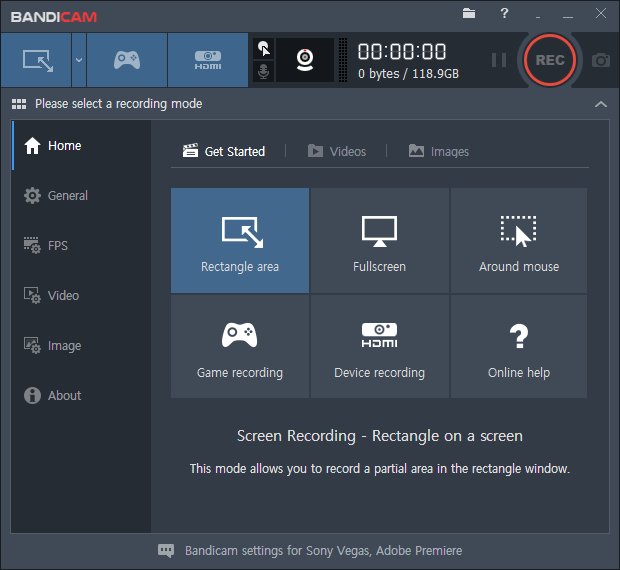
- Open Settings with the gear button. Use Common for the output folder, Mixer for recording devices, and Export for quality and hotkeys.
- Select full-screen capture, draw a capture frame manually, or choose a resolution preset.
- Enable the camera and microphone from the dashboard when they are needed, and confirm the correct devices in Mixer.
- Use Export settings before recording if you need to set resolution, FPS, or the output-quality slider.
- Start recording; after stopping, select Open output folder to find the result.
Open the saved result from the output folder and check its beginning, middle, and end. If you enabled a camera or microphone, confirm that each is present in the file rather than relying only on the dashboard settings.
Record and Edit with Clipchamp
Use Clipchamp’s documented screen-recording workflow when you want a screen-only or screen-and-camera clip that you can edit and export as MP4. Its documented audio-capture path requires sharing a browser tab and enabling audio sharing.
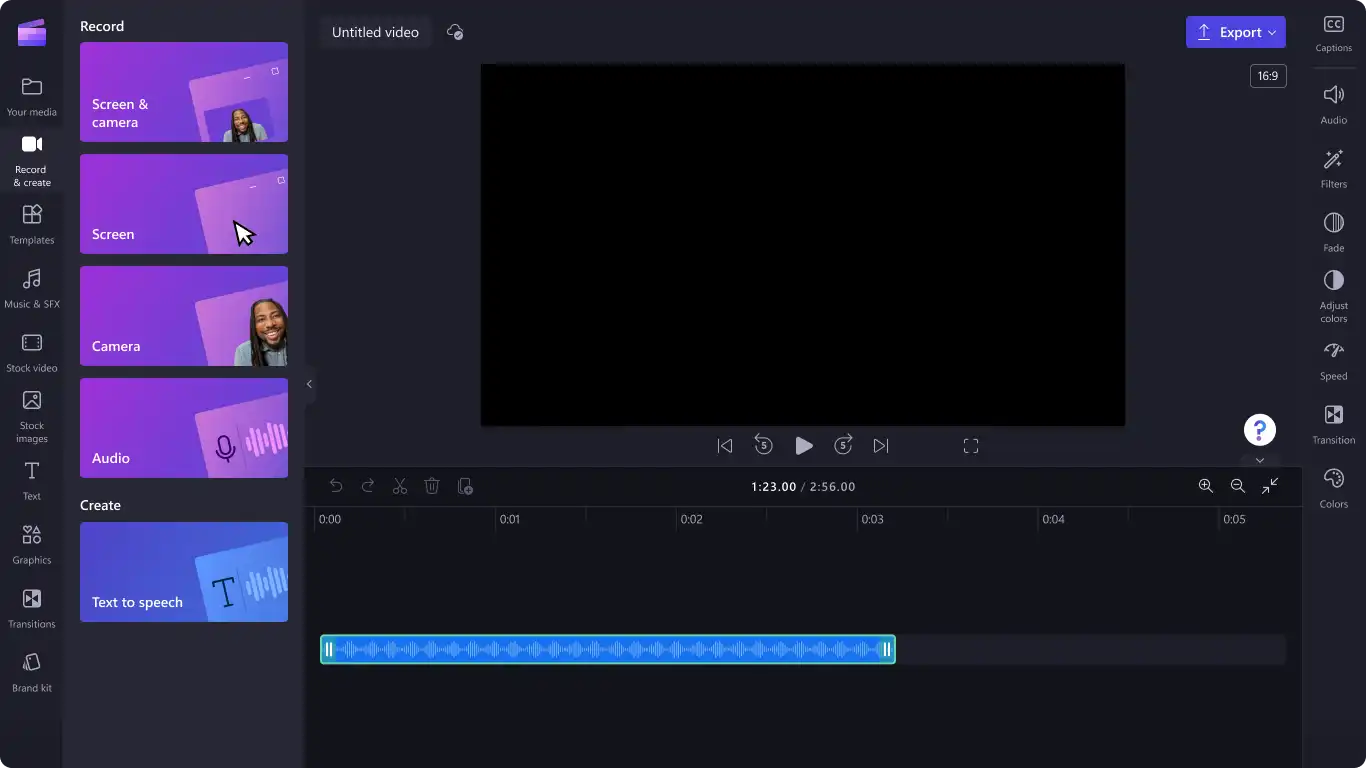
- Open Record & create and select Screen or Screen & camera .
- Allow camera and microphone access when prompted.
- Select the microphone source, start recording, and choose a browser tab, window, or entire screen.
- For browser-tab audio, turn on audio sharing before selecting Share.
- Stop sharing, use Play to preview the recording, and select Save and edit or Retake recording.
- Use Export in the top-right to save the edited project as MP4.
The recording is ready to export when the preview shows the intended screen and its audio is audible without the preview audio control being muted. For a workflow that needs audio from something other than a shared browser tab, choose a recorder whose documented audio path fits that task.
Record with Fionn Screen Recorder
Fionn Screen Recorder can capture a full screen, window, or region and lets you select system audio, microphone audio, both, or no sound. It can be useful for a short capture when the non-member save limit is acceptable: saves cannot exceed two minutes and are limited to 720p.
- Open Fionn Screen Recorder and choose the area you want to capture: Full Screen, Window, or Region.

- Choose whether to record system audio, microphone audio, both, or no sound.

- Select MP4 or another video format before you start recording.

- Click Start to begin recording, then use Pause or Stop when you are finished.

- Open Media Library to play, edit, locate, or delete your recorded videos.

In Media Library, review the beginning, middle, and end of the recording. The task is complete only if the needed moment and chosen audio are present; trim and export the clip if needed. This documented workflow is sourced from Fionn’s recording guide.
Conclusion
There is no supported basis for naming one recorder best for every PC task. Start with OBS Studio for its source-based desktop, window, game, webcam, and audio workflow; use VSDC when its selected-area and output-folder process fits better; and use ShareX when its free Windows capture choices match your target. Use Clipchamp for a browser-tab recording that you plan to edit. Whichever tool you choose, play the saved file through with sound before sharing it or deleting source material.
FAQ
Is OBS Studio free for PC screen recording?
OBS Studio is an open-source project. Its official guide documents desktop, window, Windows game, webcam, and audio-source recording. On Windows, check its listed Windows 10/11 and DirectX 10.1-compatible GPU requirements before relying on it.
Which recorder should I use for a Windows 3D game?
OBS Studio documents Game Capture for Windows 3D games. Run a brief test recording before the primary session, because your usable result depends on the selected source and audio-device configuration.
Can I record a screen and webcam together?
Yes. Clipchamp documents screen-and-camera recording, VSDC documents simultaneous screen and webcam capture, and OBS Studio documents webcam capture through a Video Capture Source.
Why is there no sound in my Clipchamp screen recording?
For Clipchamp’s documented screen-recording audio workflow, select a browser tab and enable audio sharing before sharing it. Then preview the recording and confirm its audio control is not muted.
Is Fionn Screen Recorder completely free?
No. The non-member version cannot save videos longer than two minutes and is limited to 720p, so it should be considered only when that short recording limit is acceptable.


