 Emily CarterPrinter Drivers
An HP LaserJet P1007 driver is needed for Windows to communicate with the printer. First confirm the printer’s full model name, your Windows version, and whether it is connected by USB or through your network. Then use one of the installation paths below and finish by printing a Windows test page.
If you want guided detection and driver matching, Fionn Printer Driver is the recommended starting option. It supports Windows 10 and Windows 11, supports HP among other popular printer brands, and can search for compatible driver versions. An internet connection is required when it searches for current compatible drivers.
HP LaserJet P1007 Driver: Quick Method Comparison
| Method | Best For | Efficiency | User Effort |
|---|---|---|---|
| Fionn Printer Driver | Guided driver detection and matching | High | Low |
| HP support page | Choosing an option offered for your exact model and Windows version | Moderate | Moderate |
| Windows Settings | A connected printer that Windows may discover automatically | Moderate | Low |
Use the HP route when you prefer the manufacturer’s model-support entry. Use Windows Settings when the printer is already connected and Windows has not added it automatically. If the printer is already installed but still will not print, check its connection, print queue, and Windows printing service after verifying the driver.
Method 1: Install an HP LaserJet P1007 Driver with Fionn Printer Driver
This method suits Windows 10 or Windows 11 users who want the app to detect the connected printer and present a matching driver. It can be especially useful when the correct driver is unclear.
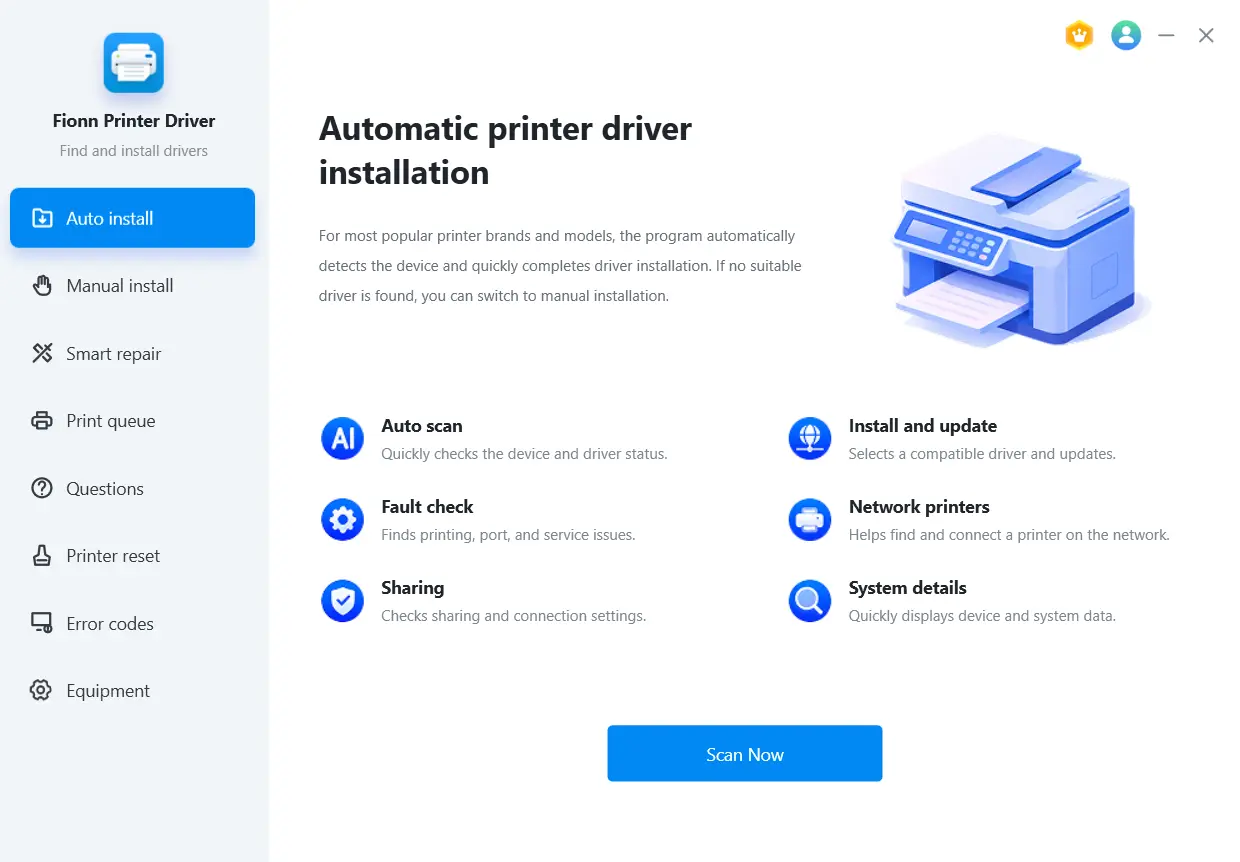
- Turn on the printer and connect it to the computer. Open Fionn Printer Driver, select
Auto install
in the sidebar, and click
Scan Now
.
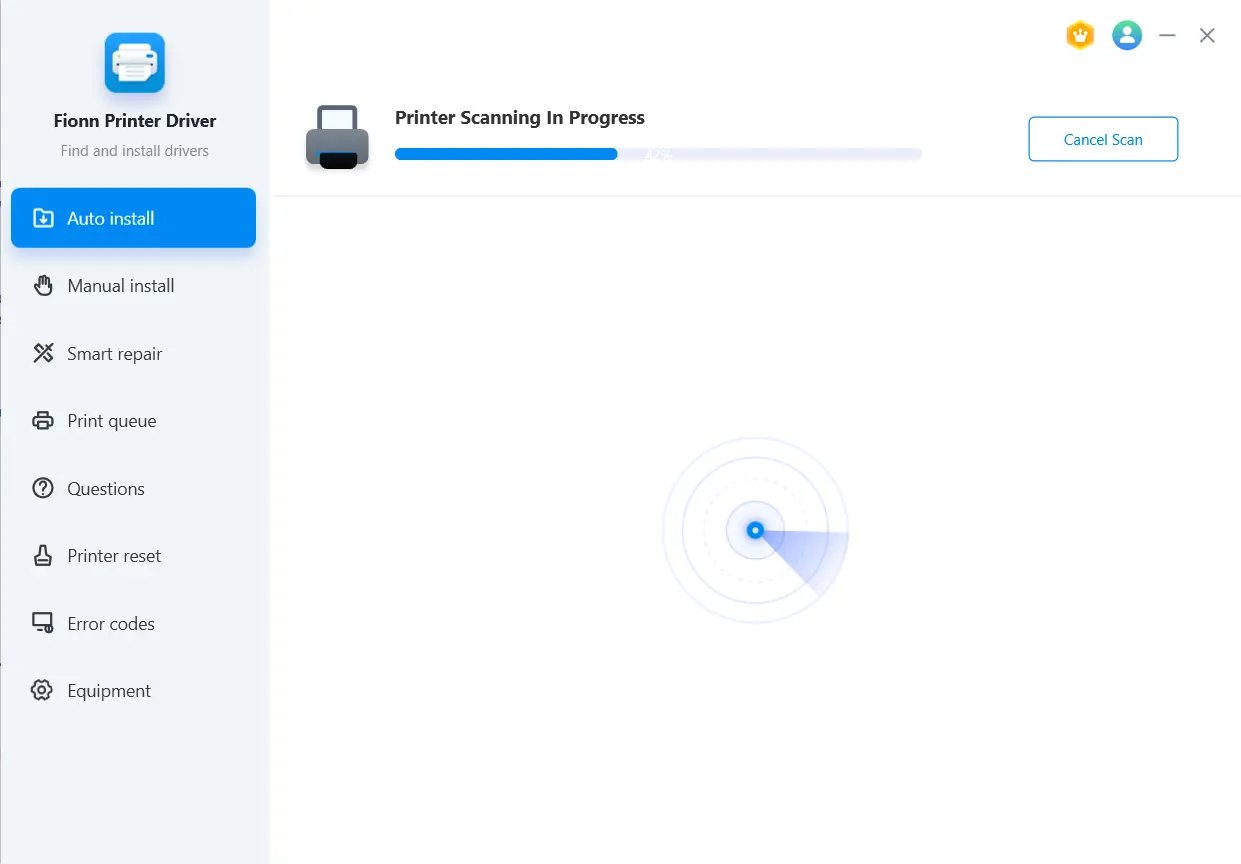
- Keep the printer connected while the scan runs. Wait for the detected printer and the driver list to appear.
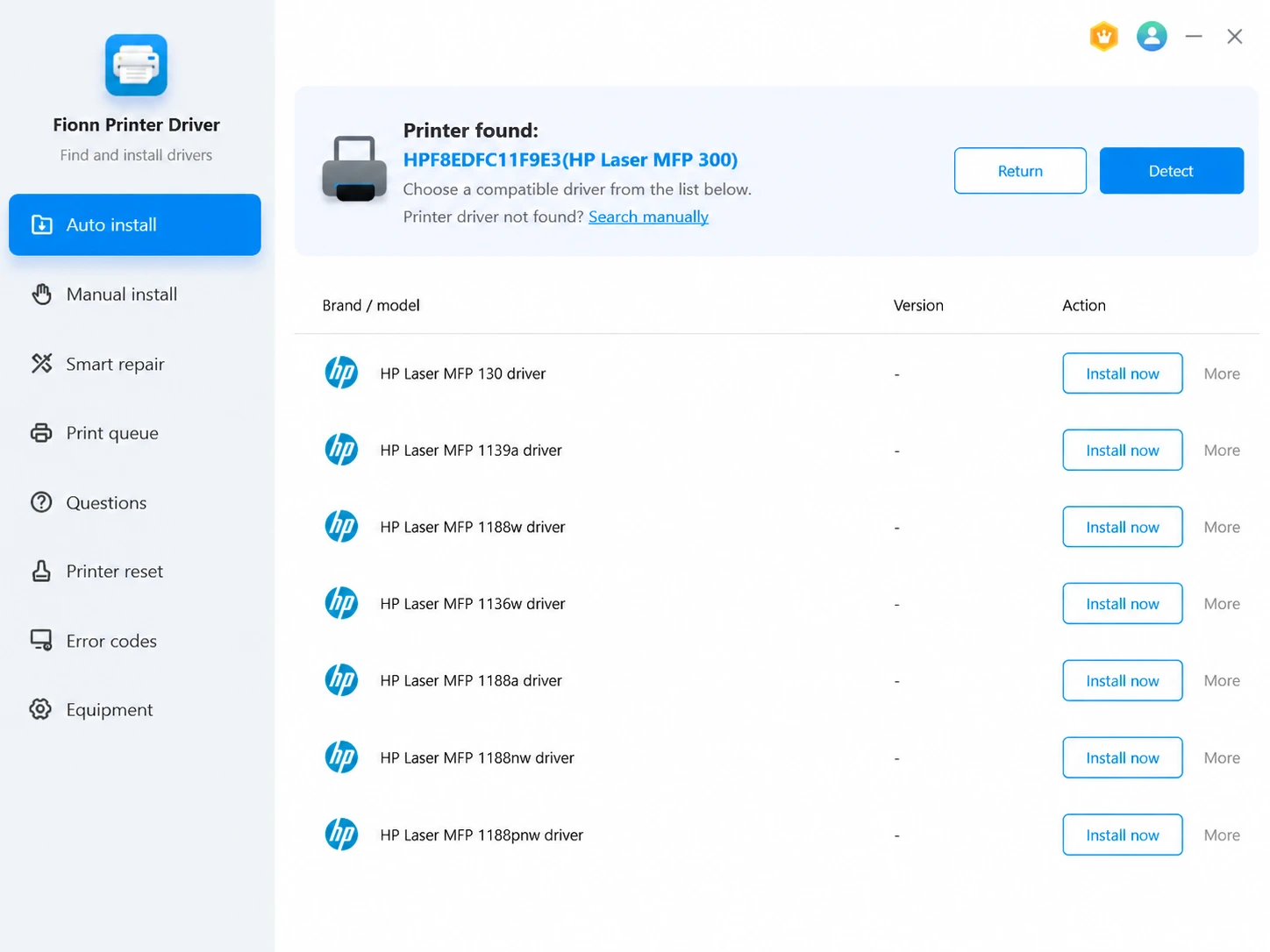
- Confirm the printer’s exact model, then click
Install now
beside the matching driver. If no match appears, click
Search manually
and look up the full model name.
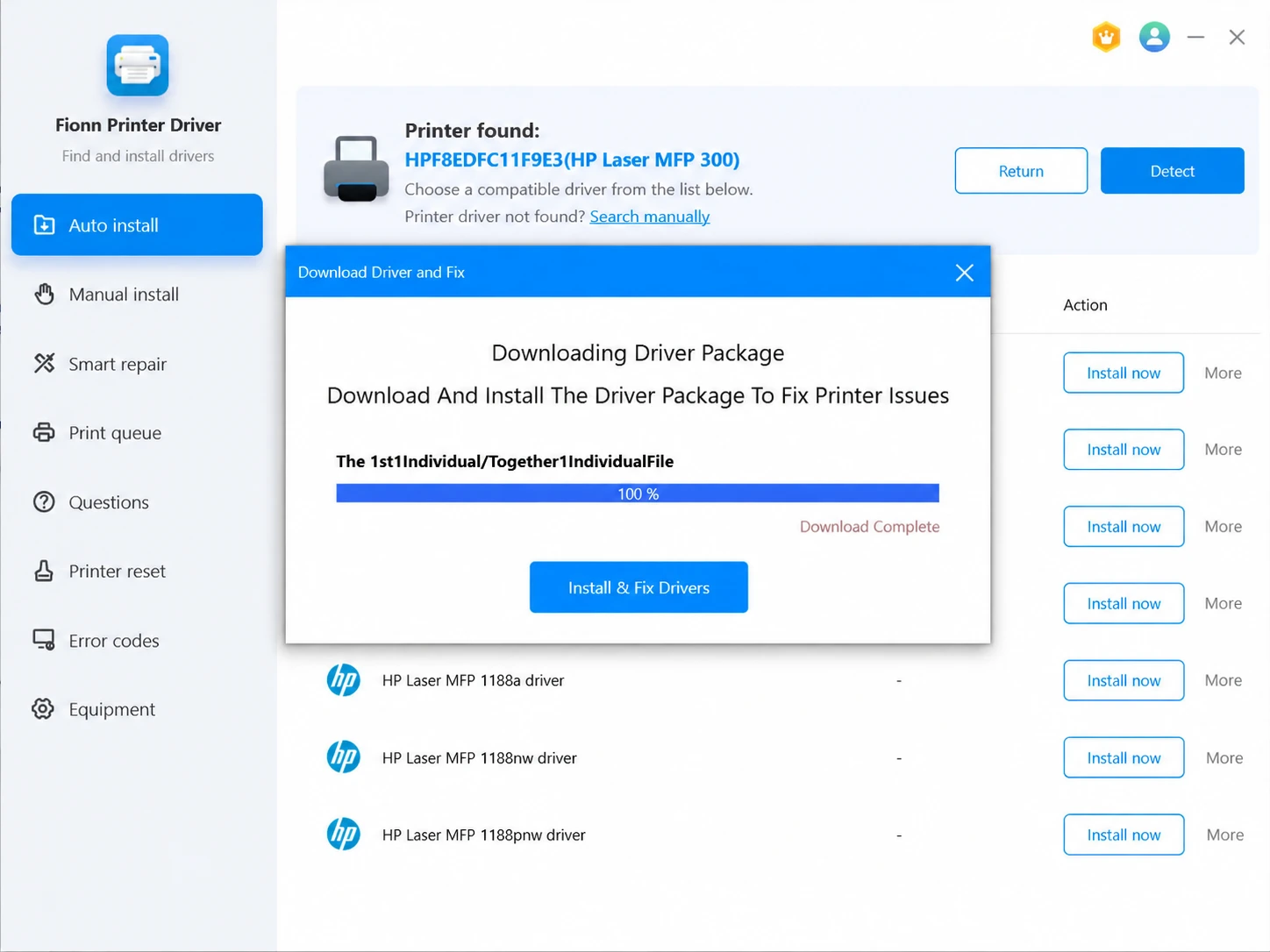
- When the dialog shows
Download Complete
, click
Install & Fix Drivers
and follow the prompts. After installation, print a test page from Windows to confirm that the printer works.
For an existing printer that remains unavailable after installation, the app can check the driver, print service, and connection status. It can also diagnose printer ports and unfinished or paused print jobs.
Method 2: Use the official HP LaserJet P1007 support page
Choose this route when you want to review options supplied by HP for the exact model. The support entry is also useful when you need to confirm the model before selecting anything.
- Open the official HP LaserJet P1007 driver and support page .
- Confirm that the page identifies your printer as HP LaserJet P1007.
- Select your installed Windows version on the support page, then review only the installation options HP presents for that combination.
- Install only a package explicitly offered for your model and Windows version, following HP’s on-page instructions.
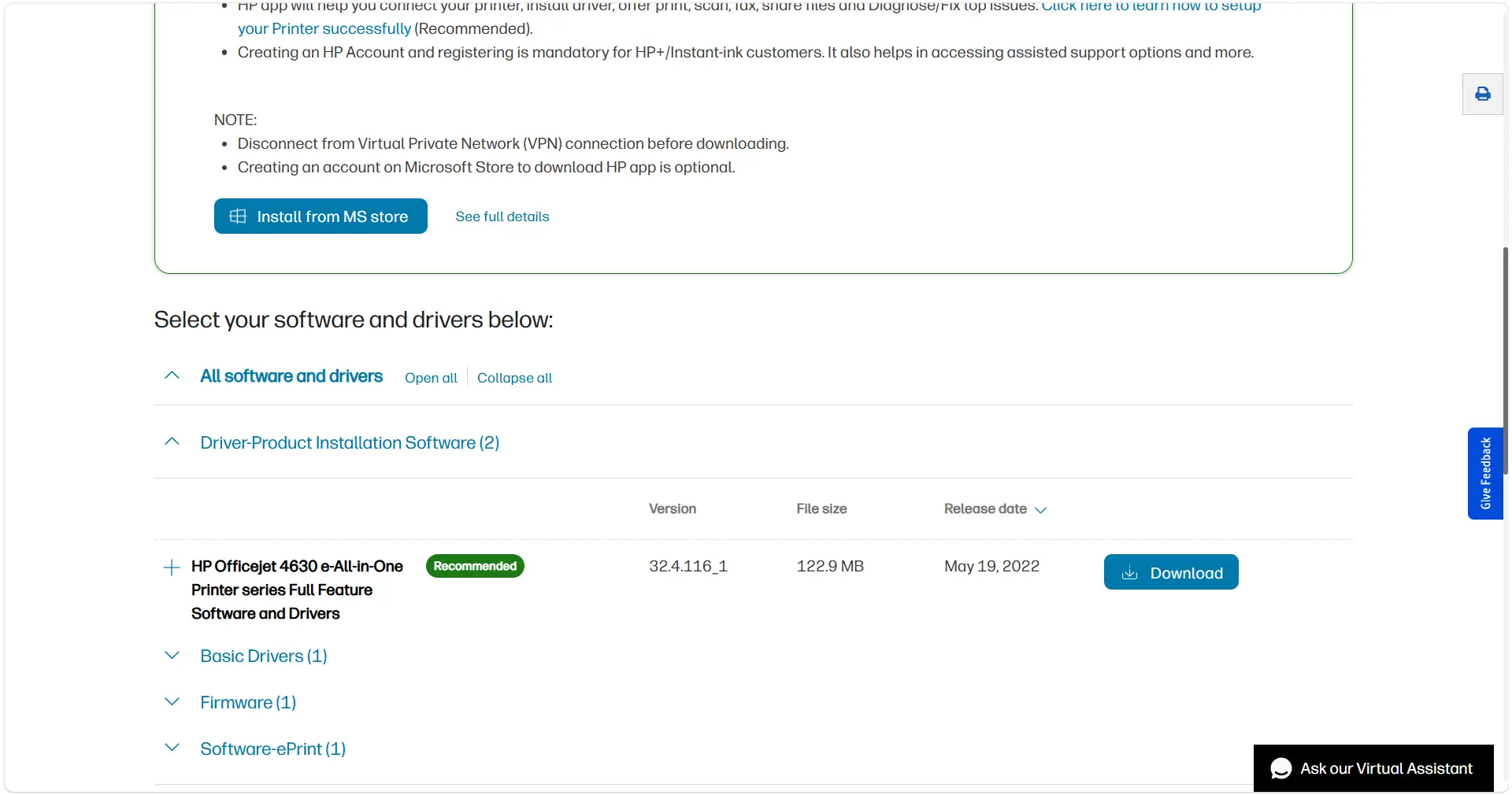
After the installation finishes, continue to the test-page check below. A test page is the practical confirmation that Windows can send a print job to the printer.
Method 3: Add the printer through Windows Settings
Windows normally installs a directly connected printer after it is plugged in and turned on. Use this path when that automatic setup did not happen or the printer is not listed.
- Connect the printer to the Windows device, such as by USB, and turn the printer on.
- Open the Printers & scanners page in Windows Settings.
- Select
Add device
beside
Add a printer or scanner
if the printer is not already installed.

- If Windows does not find the printer, select the option to add a device manually and follow the Add Printer window instructions.
- After Windows adds the printer, check Windows Update for an updated printer driver.
This method is for discovery and addition through Windows; it does not confirm output until you print a test page.
Verify the installation with a Windows test page
On Windows 11, open
Settings > Bluetooth & devices > Printers & scanners
, select the printer, choose
Printer properties
, and on the
General
tab select
Print Test Page
. A printed page is the observable result to look for.
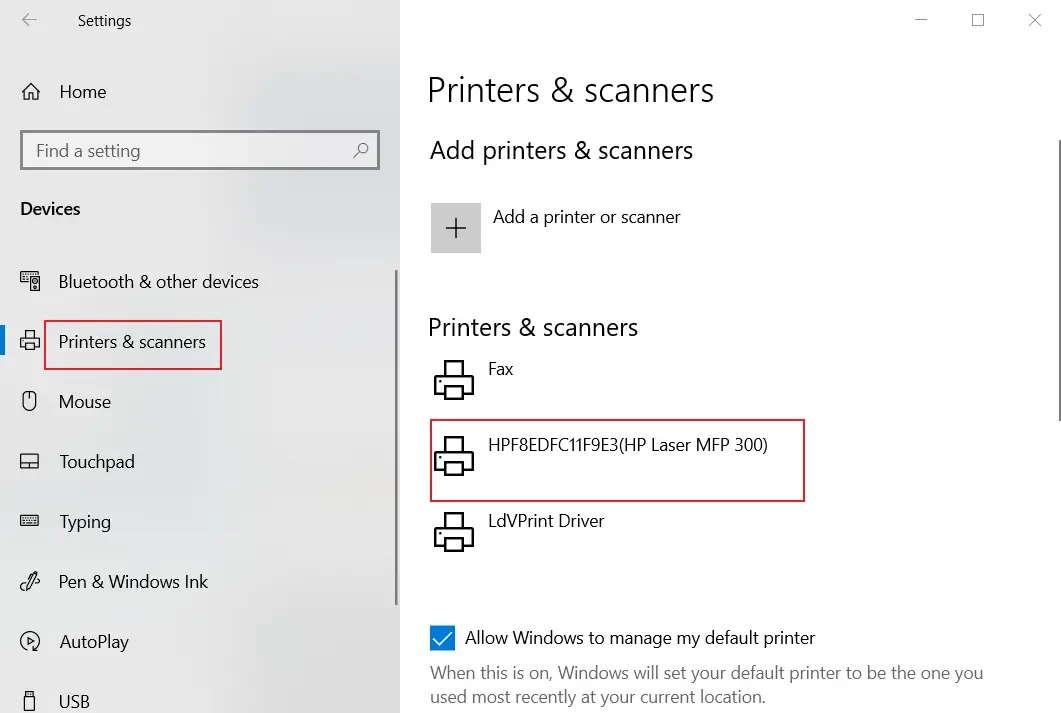
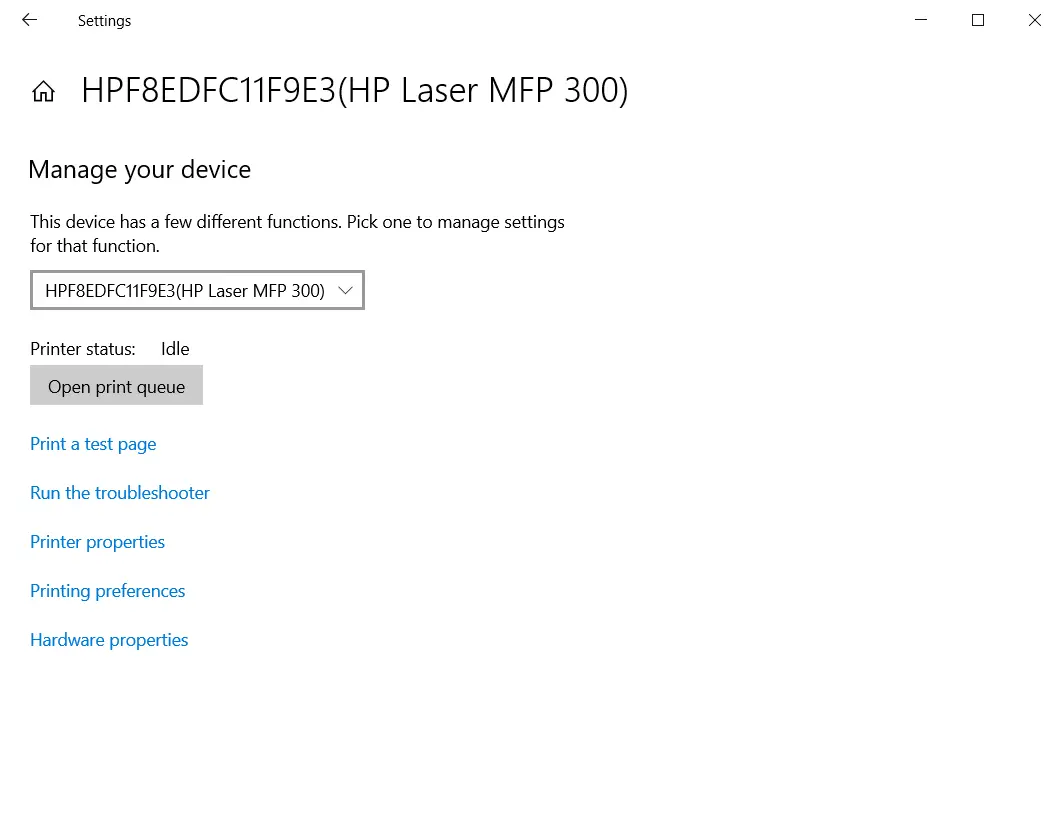
If the page does not print, check that the printer is powered on and connected, then look for paused or unfinished jobs in the print queue. If the printer appears offline or unavailable, its connection, print service, port, or driver may need attention.
Conclusion
Start with Fionn Printer Driver when you want guided detection and driver matching. Choose the HP support page when you want manufacturer-provided options for the exact model, or try Windows Settings when a connected printer is simply missing from the device list. In every case, print a Windows test page to verify the result. If it still fails, focus next on the connection, queue, printer service, and port rather than reinstalling unrelated drivers.
Frequently Asked Questions
Does Windows need a driver for the HP LaserJet P1007?
Yes. Printers, like other hardware devices, need drivers to work with Windows. Windows may install a directly connected printer automatically, but you can use Windows Settings or another installation path when it does not.
What should I do if Windows cannot find the printer?
Make sure the printer is on and connected to the PC. In Printers & scanners, use Add device. If discovery still fails, choose the manual-add option and follow the Add Printer window.
How do I know I selected the right driver?
Match the driver to the full HP LaserJet P1007 model name and your installed Windows version. If using a detection tool, confirm the displayed model before installing. A successful test page is the final check.
Why does the driver appear installed but the printer still does not print?
Driver installation is only one part of the printing path. Check the printer’s connection, the Windows print service, the printer port, and whether the print queue contains paused or unfinished jobs.
Should I use a manufacturer installer on an ARM PC?
Check the available instructions carefully. Microsoft notes that some ARM PCs may be unable to add or install a printer through a manufacturer-supplied installer, so Windows Settings may be a useful alternative path.


