 Emily CarterPrinter Drivers
Introduction
To install an HP LaserJet P1006 driver, first confirm that the printer is the P1006, identify your Windows version, and check whether it is connected directly by USB. Start with HP’s model support page when you want the manufacturer’s installation option. If Windows cannot find the printer, add it from Settings. For a guided scan of drivers and common printing conditions, Fionn Printer Driver is a practical option for Windows 10 and Windows 11.
A successful installer or scan is not proof that printing works. Finish every route by printing a Windows test page.
Before You Start
- Check the printer label to confirm the full model is HP LaserJet P1006.
- For a USB setup, connect the printer to the PC and turn it on before searching for it.
- Use the Windows version requested by the manufacturer’s support page; do not install a package unless that page offers it for your selected combination.
Quick Method Comparison
| Method | Best For | Efficiency | User Effort |
|---|---|---|---|
| HP support | Choosing the manufacturer-provided option for your Windows version | Direct | Moderate |
| Fionn Printer Driver | Finding missing or outdated drivers and checking common printer issues | Guided | Low |
| Windows Settings | A USB printer that Windows has not added | Direct | Moderate |
| Remove and add again | An installed printer that remains unresponsive | Corrective | Moderate |
Method 1: Install Through HP Support
Use this route when you want to select an installation option from HP for the exact printer model and your Windows version. The model page is an entry point; its available downloads can vary by the operating system you choose.
- Open the HP LaserJet P1006 support page .
- Confirm the displayed model and select your Windows version if the page requests it.
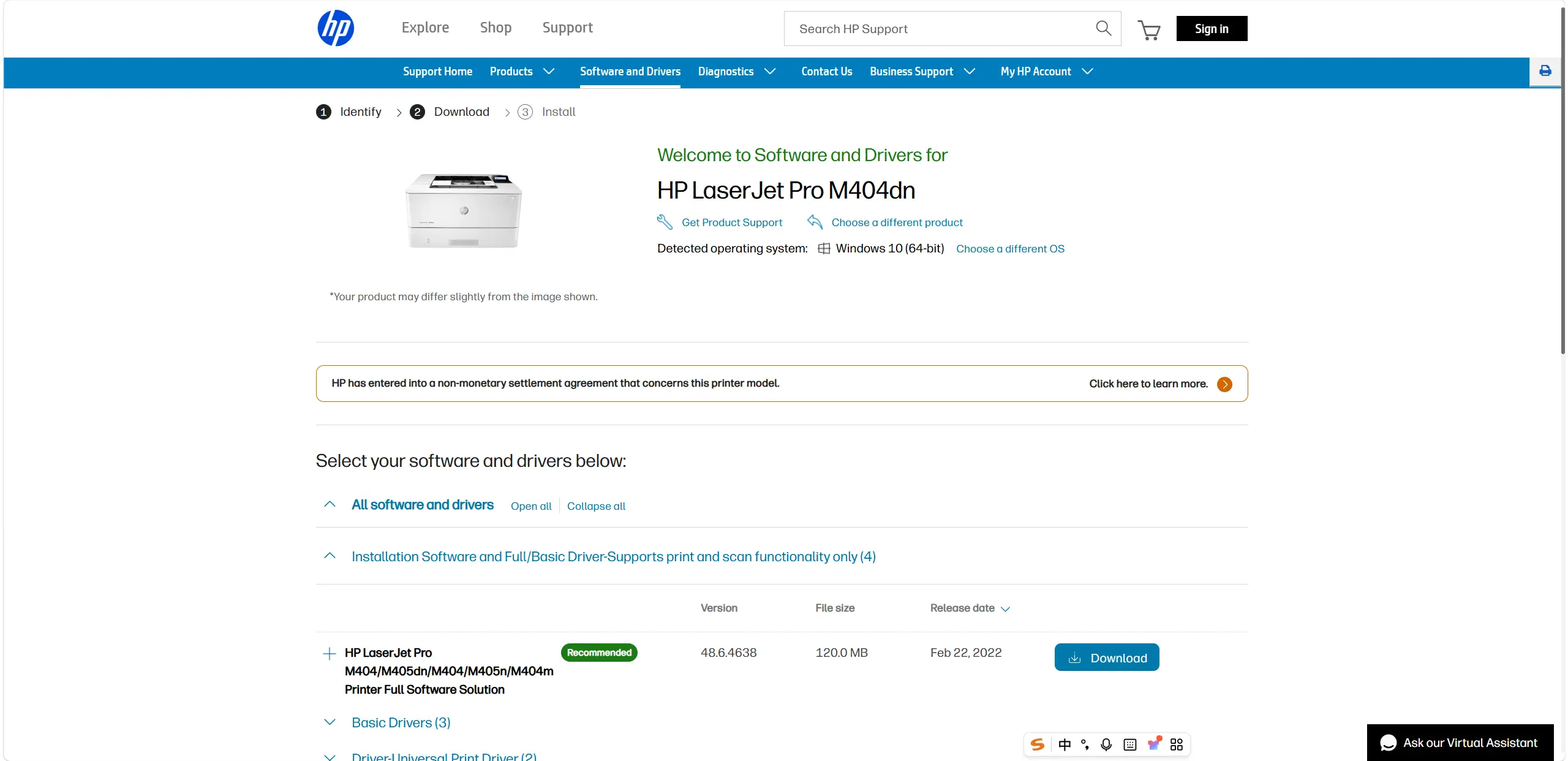
- Choose only software or a driver package explicitly offered for that Windows selection, then follow HP’s on-page installation instructions.
- Open the printer in Windows and print a test page.
If the test page does not print, do not assume the downloaded package is the only cause. Continue with Windows Settings or check the connection and print queue.
Method 2: Use Fionn Printer Driver for a Guided Driver Check
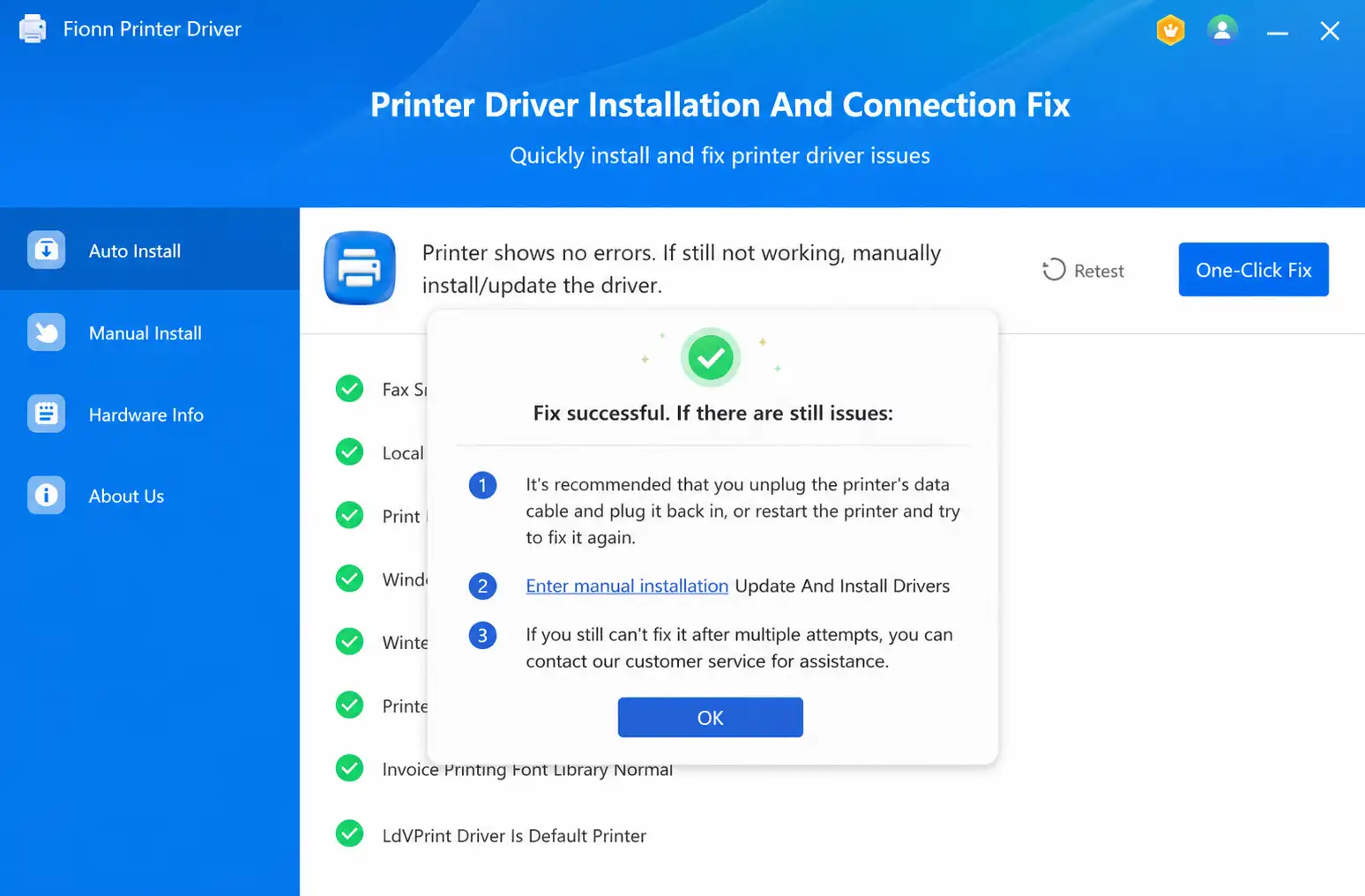
Recommended for a guided check: Fionn Printer Driver can detect installed printers and drivers, find missing or outdated printer drivers, and check items such as the print queue, ports, and Windows Printer Service. It requires an internet connection to search for the latest compatible drivers.
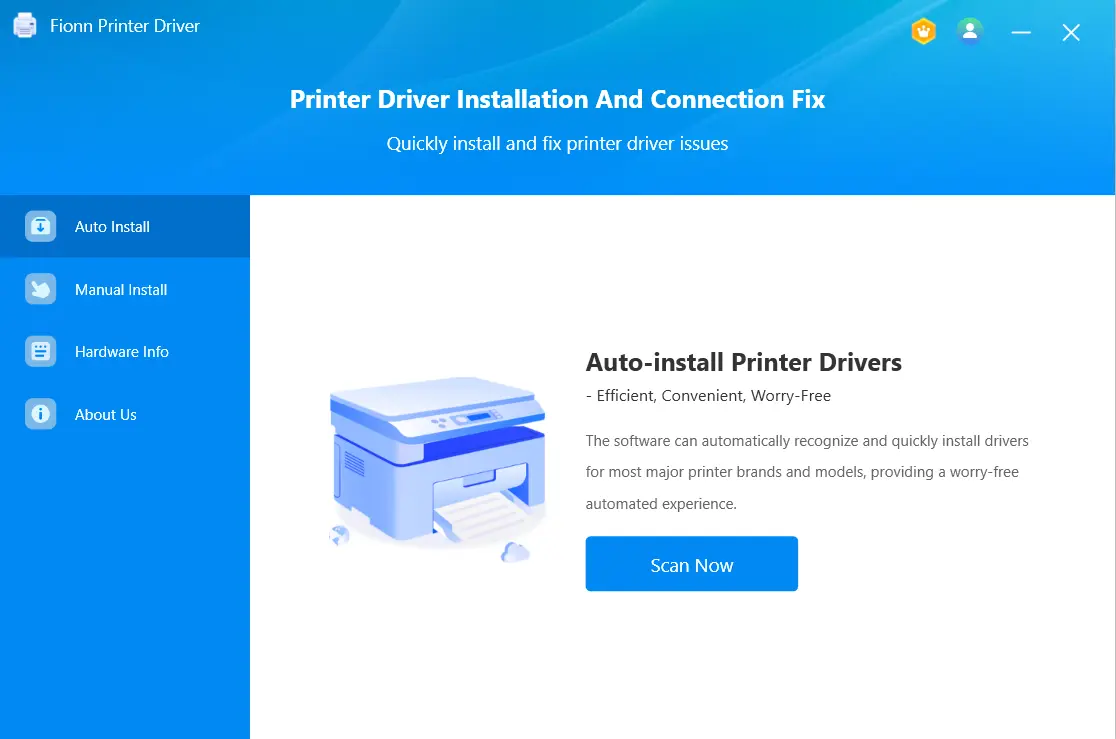
- Launch Fionn Printer Driver and click “Scan Now” to scan your computer for printer drivers and related issues.
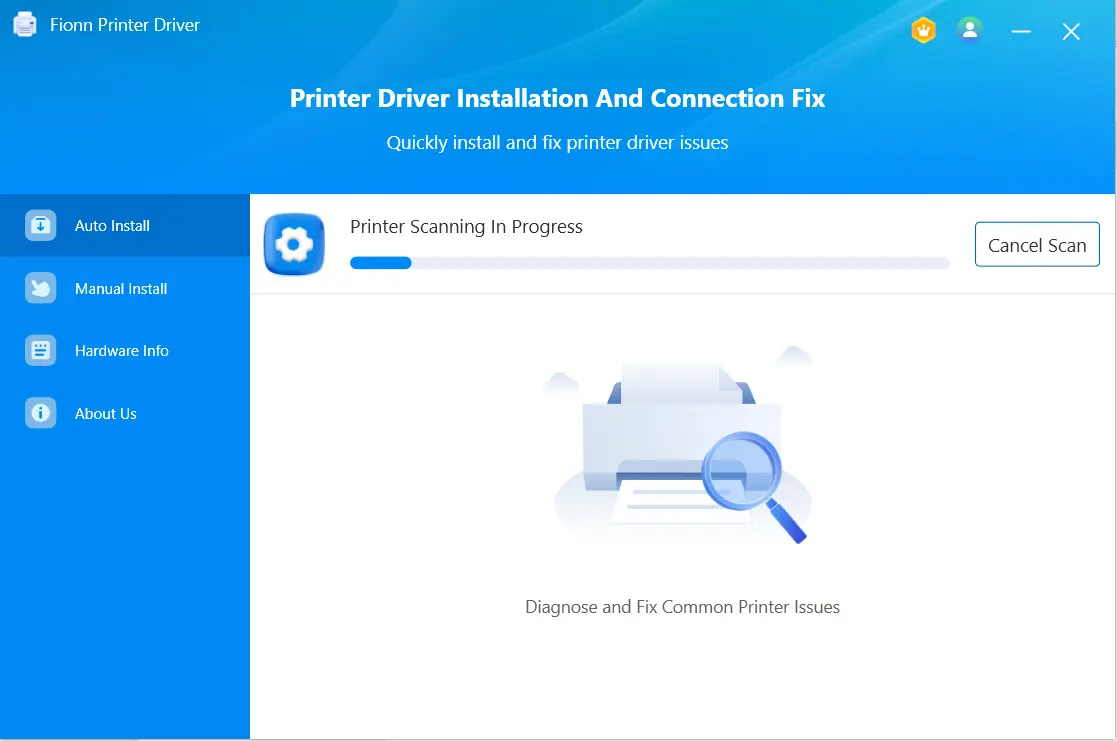
- Wait while Fionn Printer Driver scans your system for installed printers, drivers, and common printer issues.
- After the scan finishes, review the detected driver issue, then click “One-Click Fix” to start the suggested installation or repair.
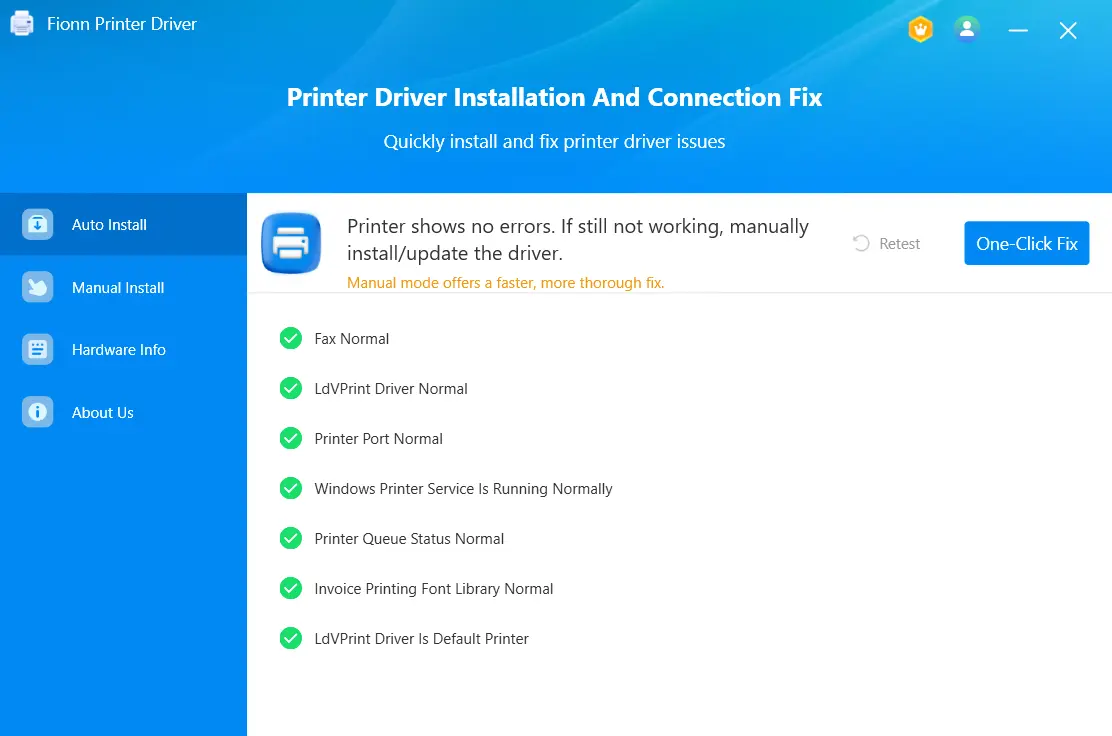
- Wait for the operation to finish and review its result. Then print a Windows test page to check whether the printer actually works.
Method 3: Add the HP LaserJet P1006 in Windows Settings
Choose this method when the printer is directly connected by USB but does not appear in the installed-printer list. Microsoft documents this as the standard add-device route.
- Connect the HP LaserJet P1006 to the Windows PC by USB and turn it on.
- Open
Settings > Bluetooth & devices > Printers & scanners. - Select Add device beside Add a printer or scanner.
- If Windows does not find the printer, select the manual-add option and follow the Add Printer window.
- After installation, check Windows Update for available printer-driver updates.

- Print a Windows test page to confirm that the printer works.
Method 4: Remove and Add the Printer Again
Use this corrective route only when the P1006 is already installed but remains unresponsive. Reinstalling can prompt Windows Update to obtain an updated driver.
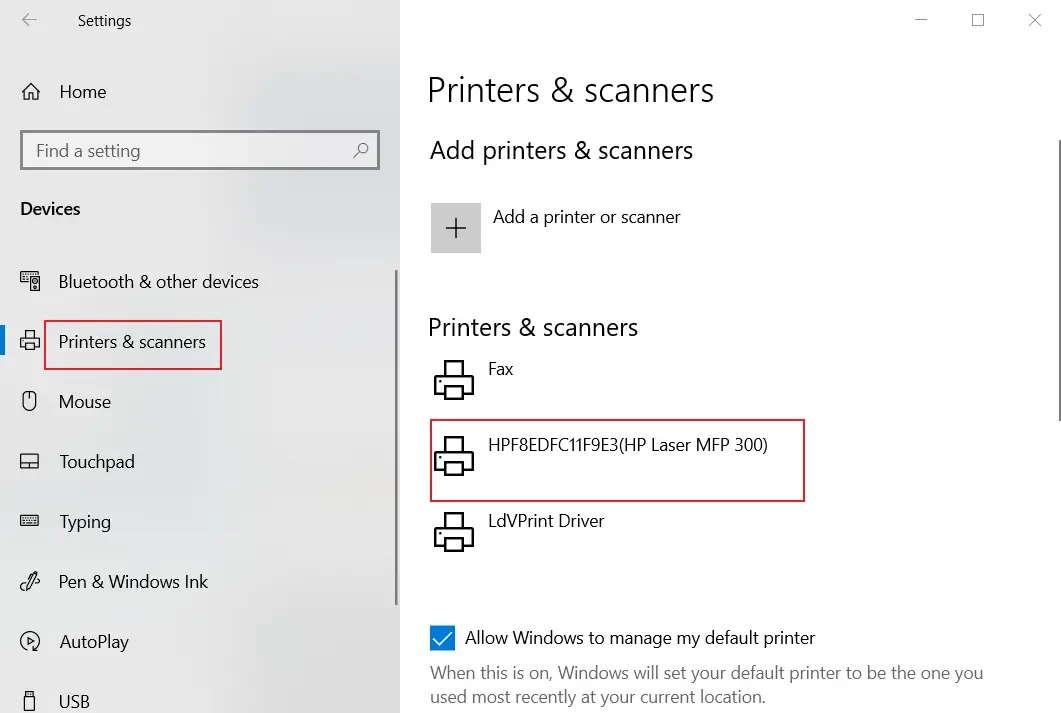
- Open
Settings > Bluetooth & devices > Printers & scannersand select the HP LaserJet P1006. - Select Remove and confirm the removal.
- Make sure the printer is powered on and connected, then select Add device or Refresh .
- Select Add device when the printer appears.
- Use Windows Update to check for driver updates, then print a test page.
Conclusion
Start with HP support if you want the manufacturer’s route for your Windows version. Use Windows Settings for a USB printer that is not discovered, and remove then re-add the printer only when an installed device stays unresponsive. If you want a guided check of the driver and common printing conditions, Fionn Printer Driver can help. In every case, a Windows test page is the final confirmation that the HP LaserJet P1006 can actually print.
Frequently Asked Questions
Does Windows install the HP LaserJet P1006 driver automatically?
Windows normally installs a directly connected local or wired printer after it is plugged in and turned on. If the printer is not added, use Printers & scanners and select Add device.
What should I do if Windows cannot find the printer?
In Printers & scanners, use the manual-add option shown when automatic discovery fails. For a USB connection, confirm the cable is connected and the printer is powered on first.
How do I know whether the driver installation worked?
Print a Windows test page. Microsoft identifies a test page as a way to confirm that the printer is working; an installer completion message alone does not confirm printing.
Should I use Windows Update for printer drivers?
Yes. Microsoft recommends Windows Update to download, install, and update printer drivers. Check it after Windows adds or reinstalls the printer.
Why is the printer installed but still unable to print?
The issue may extend beyond the driver. Check the USB connection and then investigate conditions such as a paused queue, printer port issue, or Windows Printer Service problem. A guided diagnostic can help identify those conditions.


