 Emily CarterPrinter Drivers
To install the HP LaserJet Pro MFP M132a Driver, first confirm the exact printer model, your Windows version, and whether the printer is connected by USB or through a network. Then use HP’s model support page or Windows Settings. If the driver state or printing path is unclear, Fionn Printer Driver can scan installed printers, drivers, and common printer issues before you test the printer in Windows.
A completed installer or scan is not proof that the printer works. The practical finish line is a Windows test page that prints successfully.
Before you install
- Check the label on the printer for HP LaserJet Pro MFP M132a ; do not select a similarly named model.
- For a USB connection, connect the printer to the Windows computer and turn it on before attempting discovery.
- For a network connection, make sure the printer is powered on and available on the intended network before adding it.
- Know whether you use Windows 10 or Windows 11. HP’s support page asks you to select the operating system and version before showing available downloads.
Quick Method Comparison
| Method | Best For | Efficiency | User Effort |
|---|---|---|---|
| HP official support | You want HP’s model-specific download choices | Direct | Moderate |
| Windows Settings | A connected printer is discoverable by Windows | High for detected devices | Low |
| Fionn Printer Driver | You need a scan for driver and common printing issues | Guided | Low |
Method 1: Install from HP’s official support page
Use this route when you want to choose the download HP presents for the M132a and your specific Windows installation. HP’s page is the appropriate place to confirm the operating system and available installation options.
- Open
HP’s HP LaserJet Pro MFP M132a software and driver downloads page
.
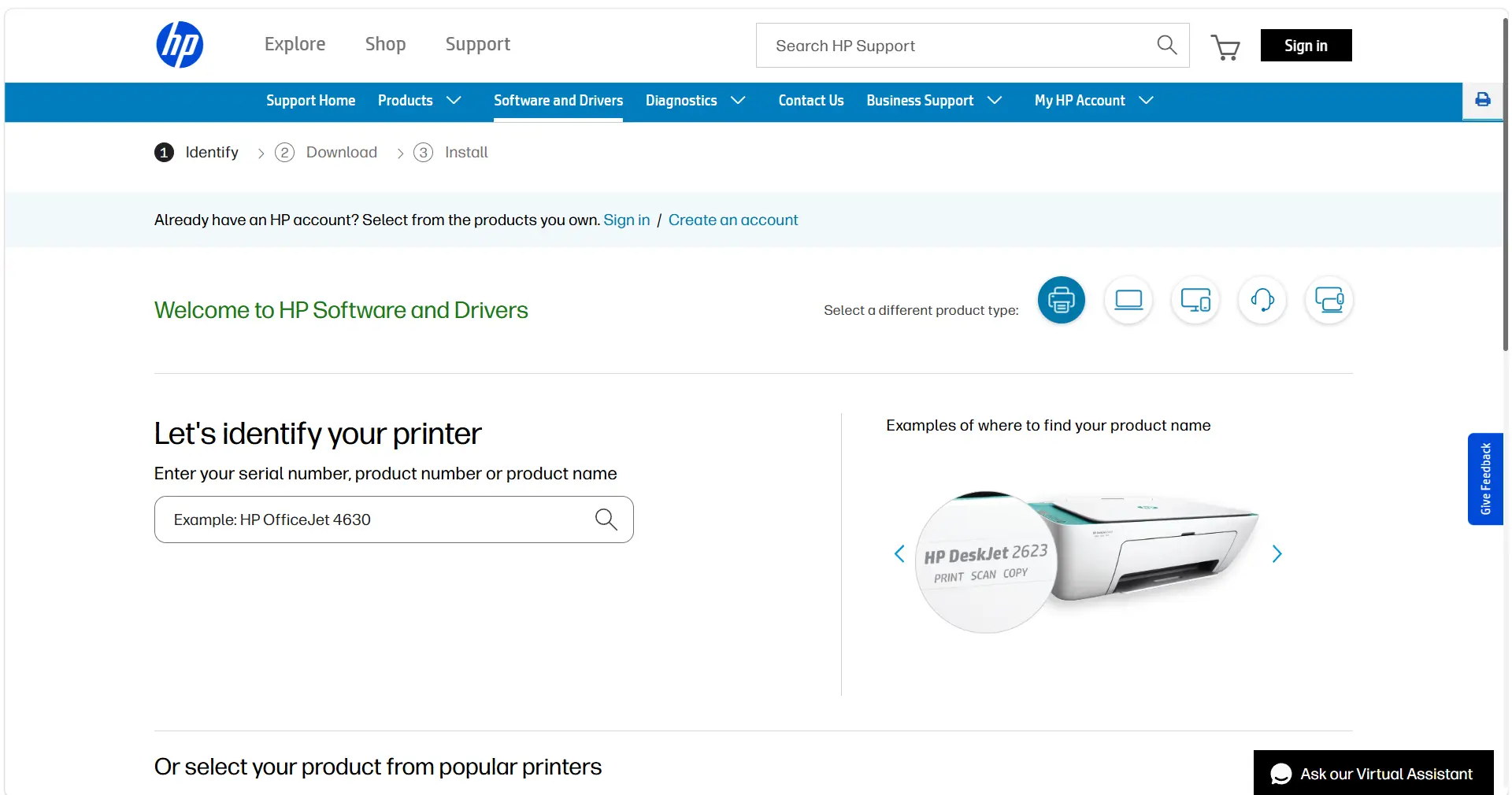
- Select your Windows operating system and its version.
- Review the software and driver choices shown for that selection.
- Download and run only the installer HP offers for the displayed model and operating-system combination.
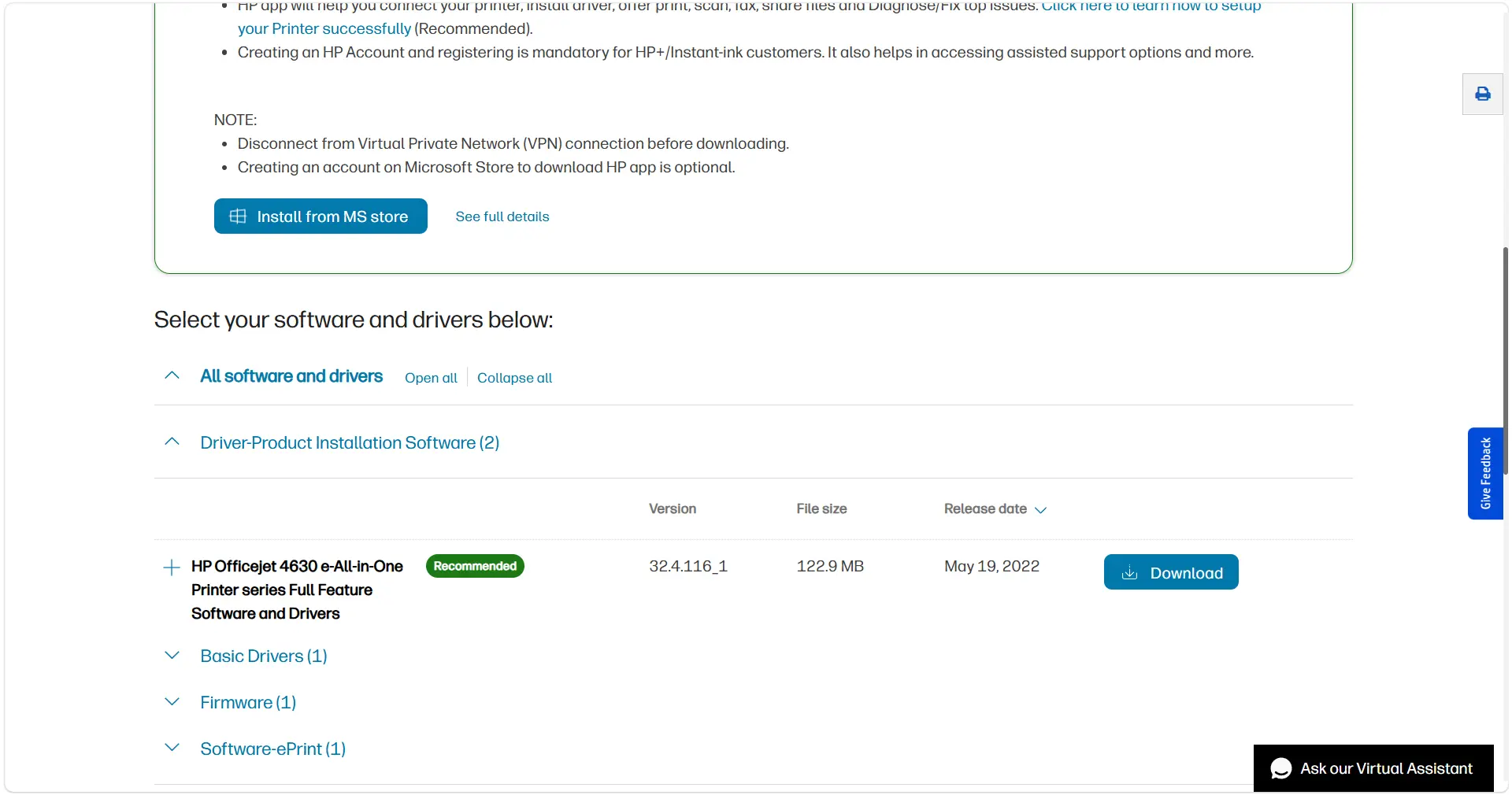
After installation, open Windows printer settings and print a test page. If the page does not print, use the Windows method below to check whether the printer can be discovered and added.
Method 2: Add the printer through Windows Settings
This is a practical choice when the M132a is connected but Windows has not installed it automatically. Microsoft documents this path for Windows 10 and Windows 11.
- Connect the printer to the Windows device, such as by USB, and turn the printer on.
- Open Settings , then go to Printers & scanners .
- Select
Add device
beside the printer you want to add when it appears.

- If the printer is not listed, choose the manual-add option and follow the Add Printer instructions.
- After the printer is installed, check Windows Update for updated printer drivers.
To verify the result, select the installed printer, open Printer properties , and select Print Test Page on the General tab. A printed test page confirms that Windows can communicate with the printer.
Method 3: Install or repair with Fionn Printer Driver
Recommended when the issue is unclear. Fionn Printer Driver is a Windows tool that can recognize many mainstream printer brands and models, offer manual brand/model matching, and check driver, port, print-queue, device-status, and Windows Printer Service issues. Use it when the M132a is not recognized, the driver appears unavailable, or the printer remains unable to print after a normal setup attempt.
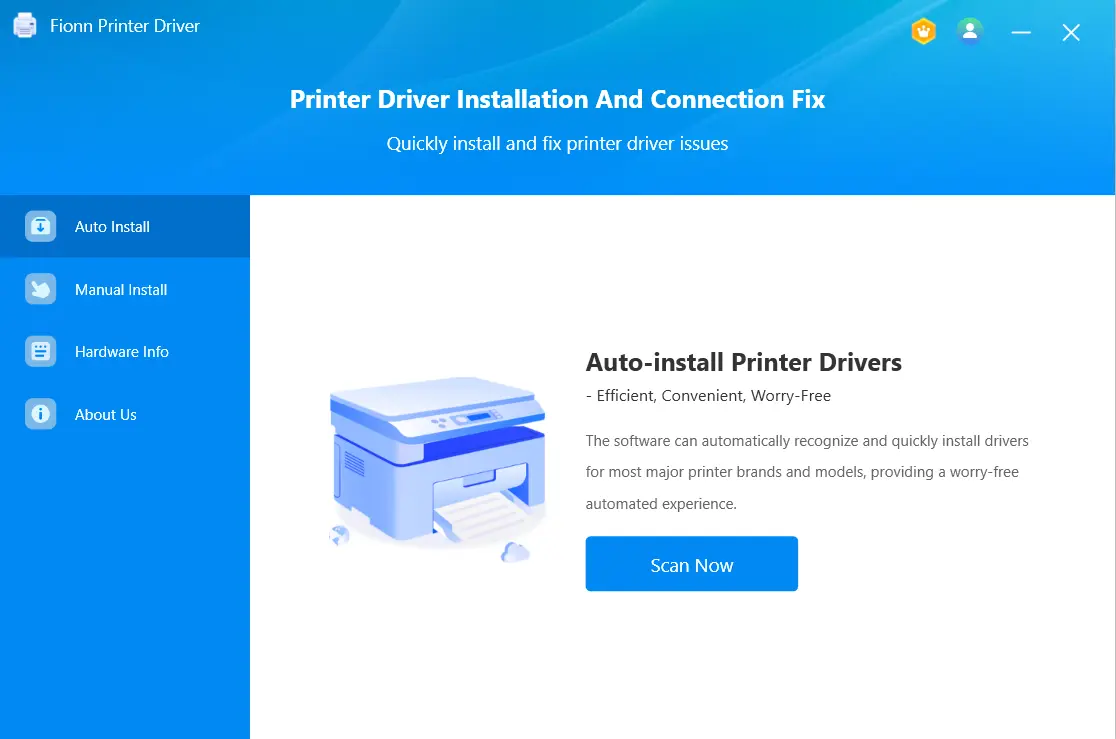
- Launch Fionn Printer Driver and click
Scan Now
to scan your computer for printer drivers and related issues.
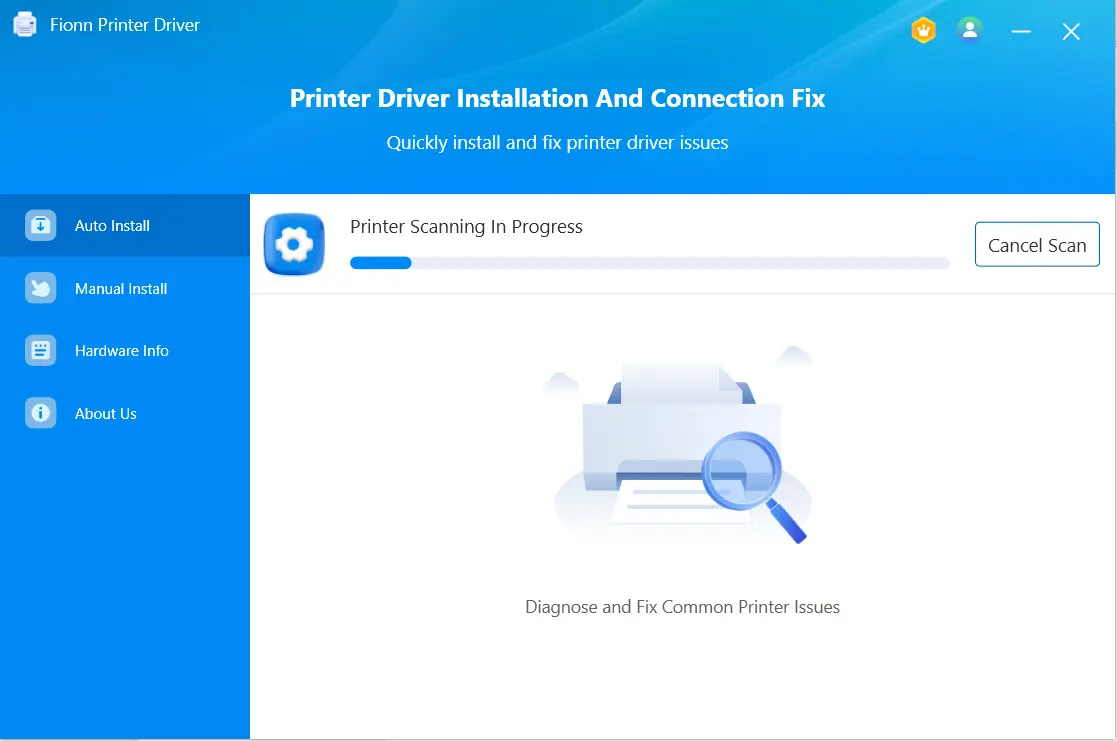
- Wait while Fionn Printer Driver scans your system for installed printers, drivers, and common printer issues.
- After the scan finishes, review the detected driver issue, then click
One-Click Fix
to start the suggested installation or repair.
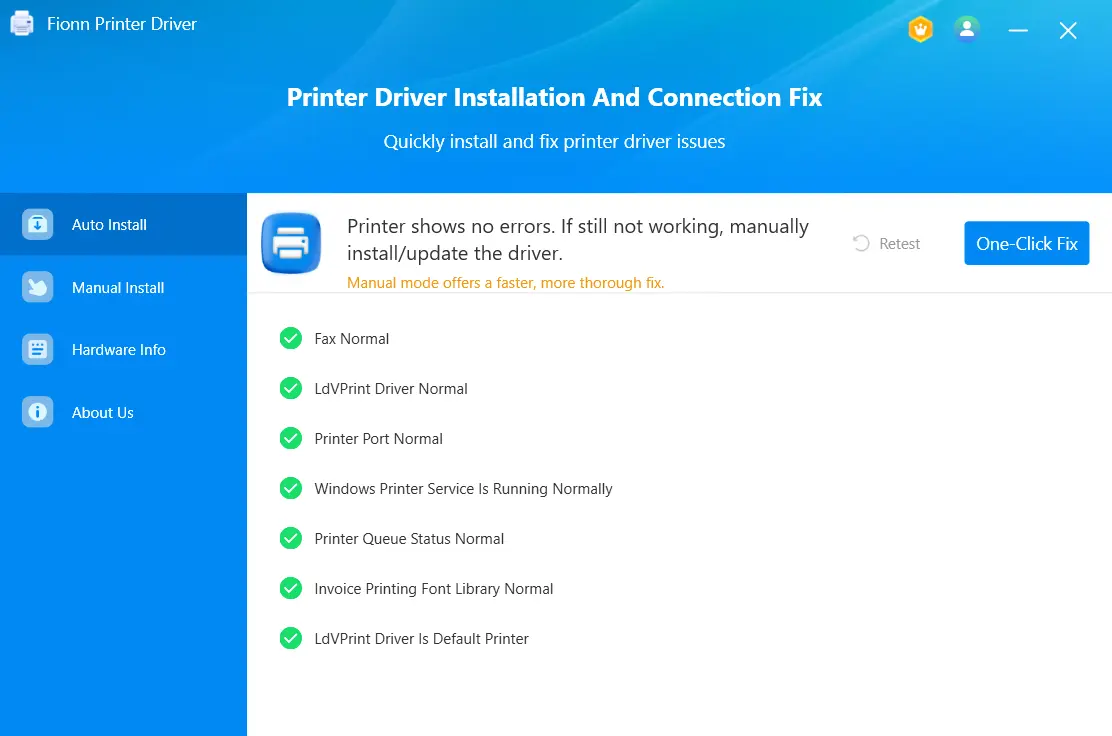
- Wait for the operation to finish and review its result. Then print a Windows test page to check whether the printer actually works.
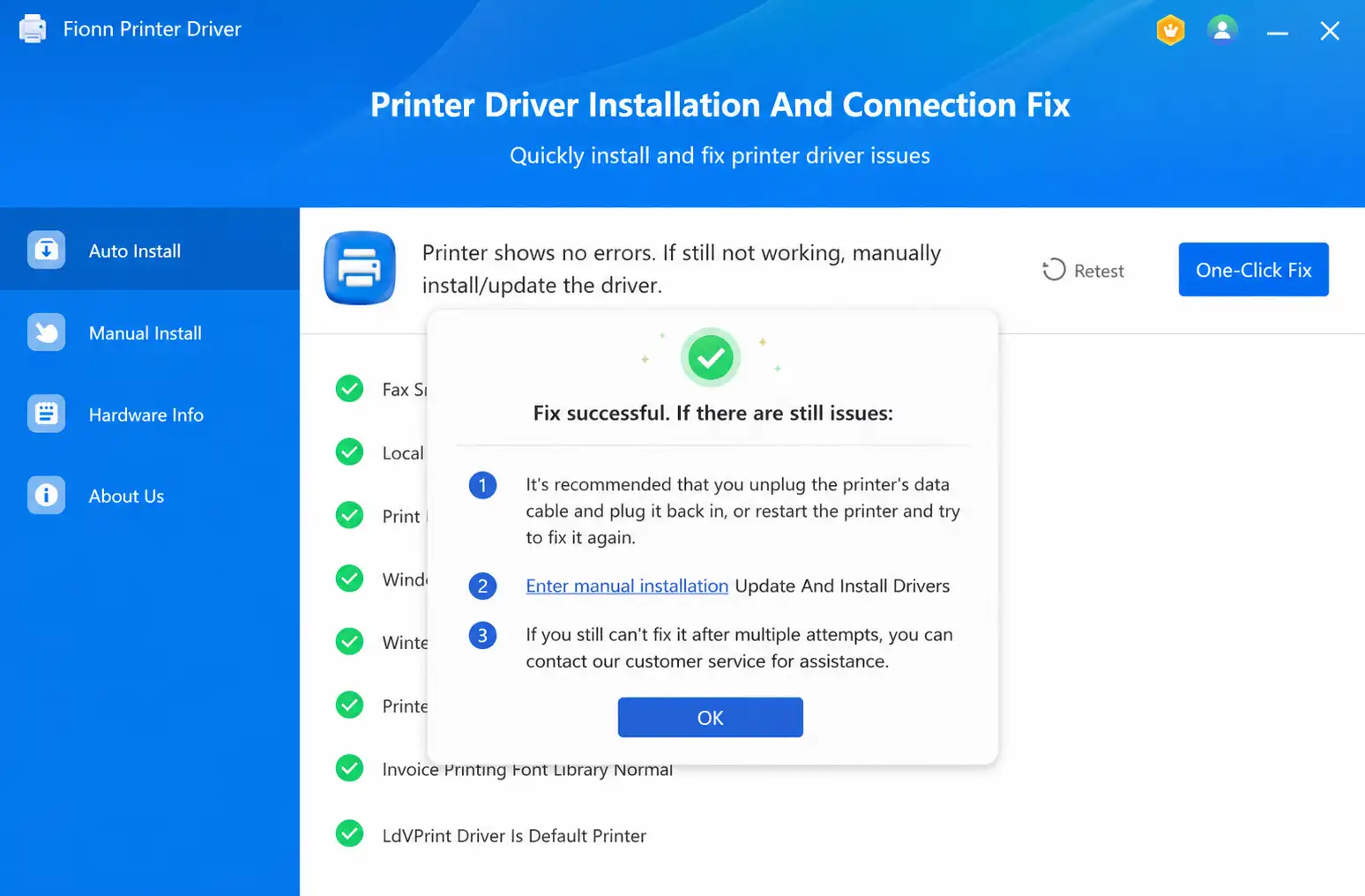
If the scan identifies the printer but printing still fails, check the connection, queued or paused jobs, and the Windows printing service before repeating the test page.
If printing still fails
Match the symptom to the next check. If Windows cannot find the printer, confirm the USB or network connection and use the manual-add option. If the printer is installed but jobs remain stuck, Microsoft documents clearing the Print Spooler only after earlier troubleshooting has not resolved the issue. Open
Services
, stop
Print Spooler
, clear the files in
%WINDIR%\system32\spool\PRINTERS
, then start the service and set its startup type to Automatic. Print another test page afterward.
Conclusion
Start with HP’s official M132a support page when you need HP’s download choices. Use Windows Settings when the connected printer should be detected locally. Choose Fionn Printer Driver when you need a guided scan of the driver and common Windows printing conditions. Whichever route you use, verify the result by printing a Windows test page. If that test fails, check the connection and queue, then use Microsoft’s documented spooler-reset process if earlier checks do not resolve the problem.
FAQ
Where can I download the HP LaserJet Pro MFP M132a Driver?
Use HP’s official M132a software and driver page. Select your operating system and version first, then choose only a package HP presents for that combination.
Does Windows automatically install the M132a driver?
Windows normally installs a wired or local printer after it is connected and powered on. If it does not, go to Settings, open Printers & scanners, and select Add device.
How do I know whether the driver installation worked?
Print a Windows test page from Printer properties. A successful page is the clearest check that Windows can communicate with the printer.
What should I do if Windows cannot find the printer?
Confirm that the printer is on and connected by the intended USB or network path. Then use the manual-add option in Printers & scanners and follow the Add Printer instructions.
Why is my printer installed but still not printing?
A driver is only one part of the printing path. Check for paused or unfinished jobs, connection problems, and the Print Spooler service. A scan with Fionn Printer Driver can also check the driver, queue, service, port, and device status.


