 Emily CarterPrinter Drivers
If Windows reports that an HP scanner driver is not found, first identify the exact model of the connected device and confirm that it is connected and visible to Windows.
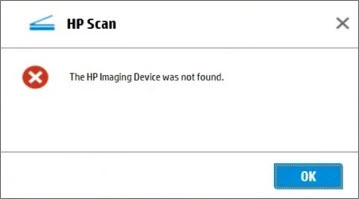
This matters because an HP multifunction printer can have separate printing and scanning functions, and a driver that helps printing does not by itself prove that scanning is ready.
For a Windows 10 or Windows 11 computer, Fionn Printer Driver can check printer-driver-related issues and the printing environment; use it as a practical first check when the affected HP device is also a printer.
Start by recording the full model shown on the device label or in Windows.
Then check whether the problem affects scanning only or whether printing also fails. That distinction helps you avoid treating a connection or printing-service problem as a scanner-only driver issue.
Before You Start: Identify the Exact HP Device
Locate the complete HP model name before looking for a driver. Check the label on the device, or open the Windows Devices and Printers section and compare the listed device with the connected hardware. Use the full model name when choosing any driver or support option.
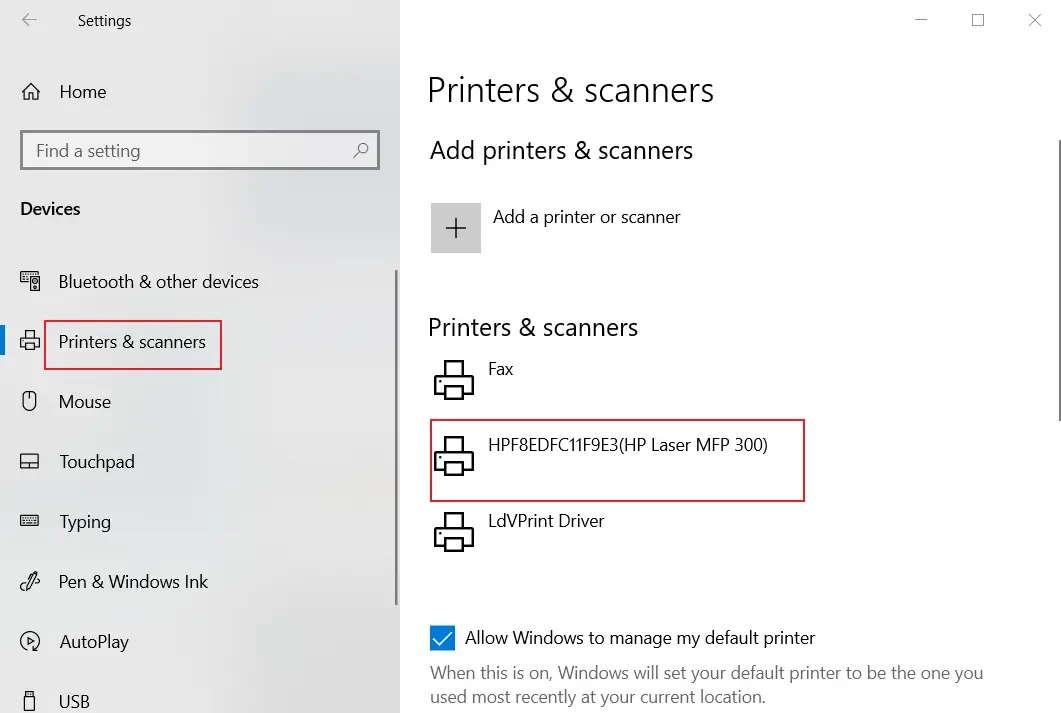
Also confirm that the computer has an internet connection if you plan to search for the latest compatible driver. Fionn Printer Driver requires an internet connection for that search.
Check Driver-Related Issues with Fionn Printer Driver
Use this option when the HP device is a printer or multifunction printer and you need a guided check for missing or outdated printer drivers or related printing conditions. Fionn Printer Driver supports Windows 10 and Windows 11 and lists HP among compatible popular printer brands. It can help reduce manual driver matching, but the completion message does not prove that the scanner is working; test the device afterward.
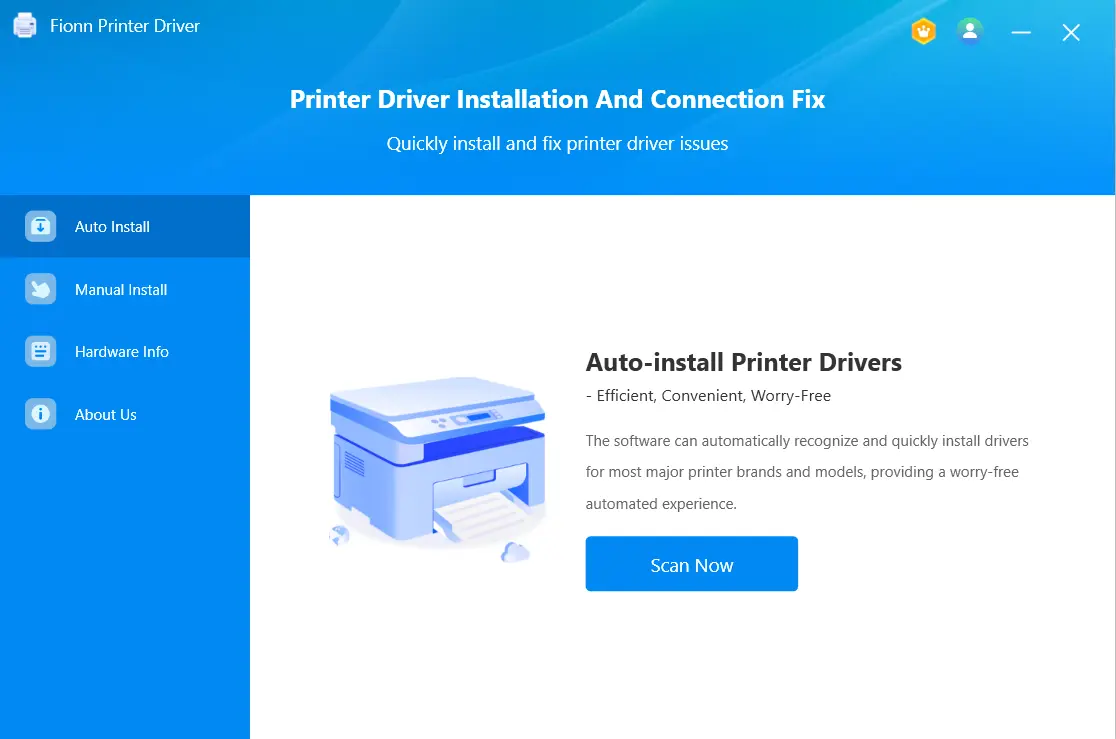
- Launch Fionn Printer Driver and select
Scan Now
to scan the computer for printer drivers and related issues.
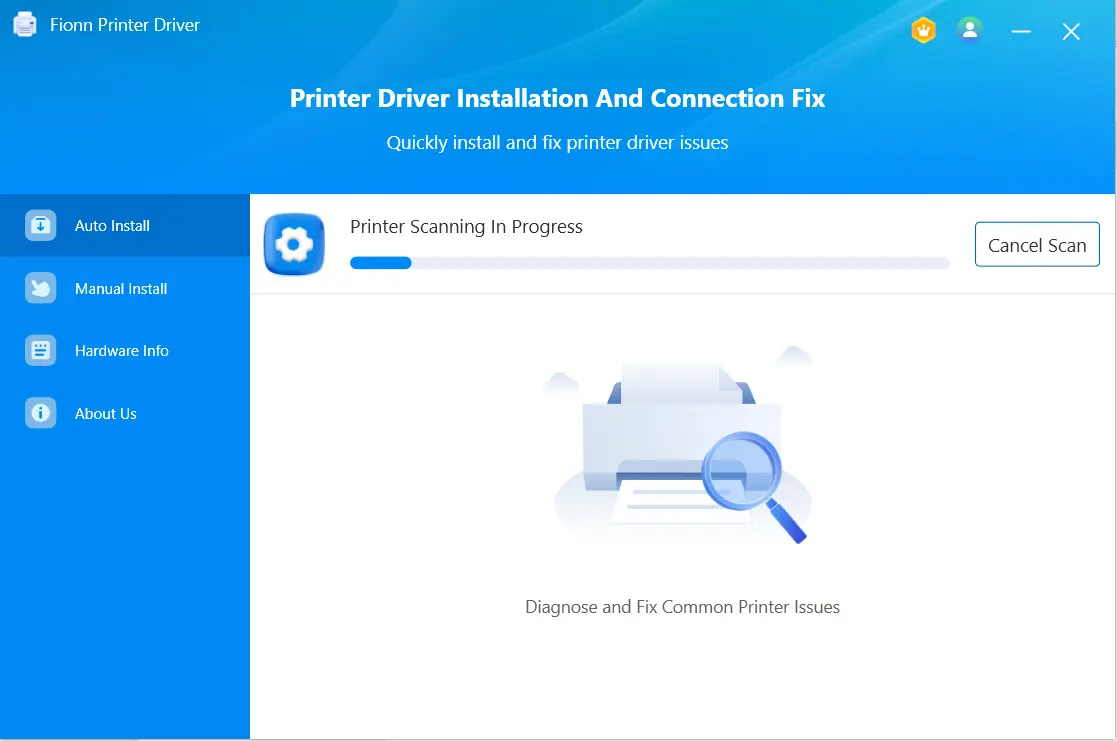
- Wait while Fionn Printer Driver scans the system for installed printers, drivers, and common printer issues.
- After the scan finishes, review the detected driver issue, then select
One-Click Fix
to start the suggested installation or repair.
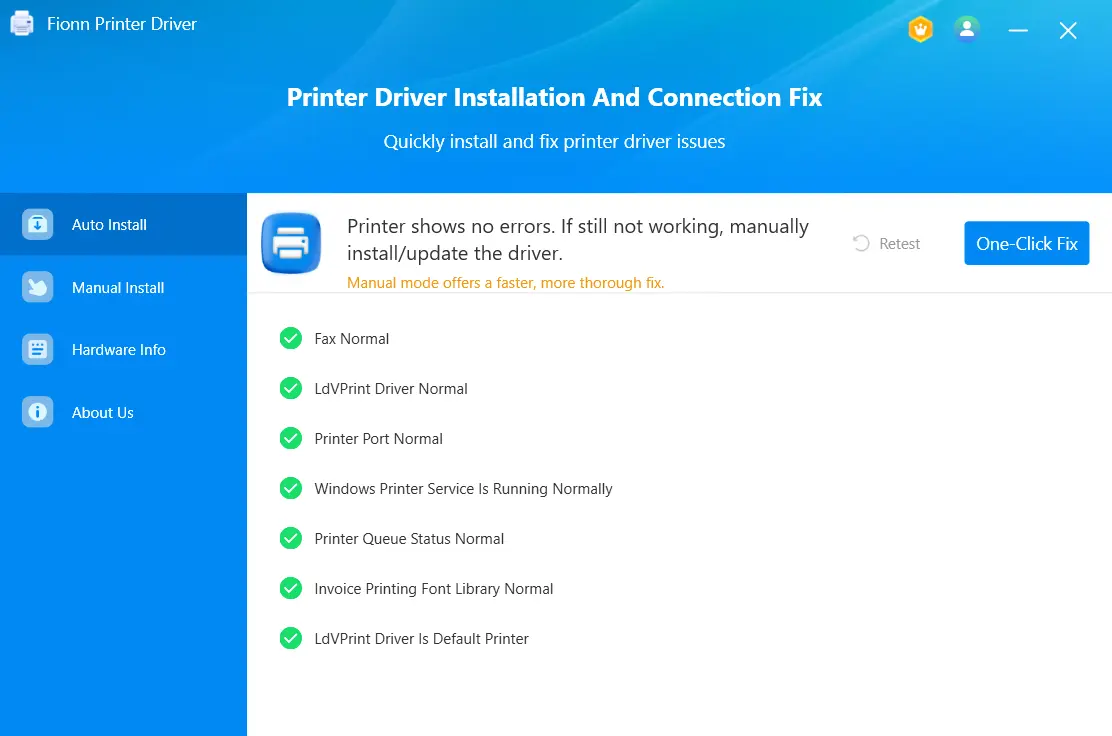
- Wait for the operation to finish and review the result. Then print a Windows test page to check whether the printer actually works.
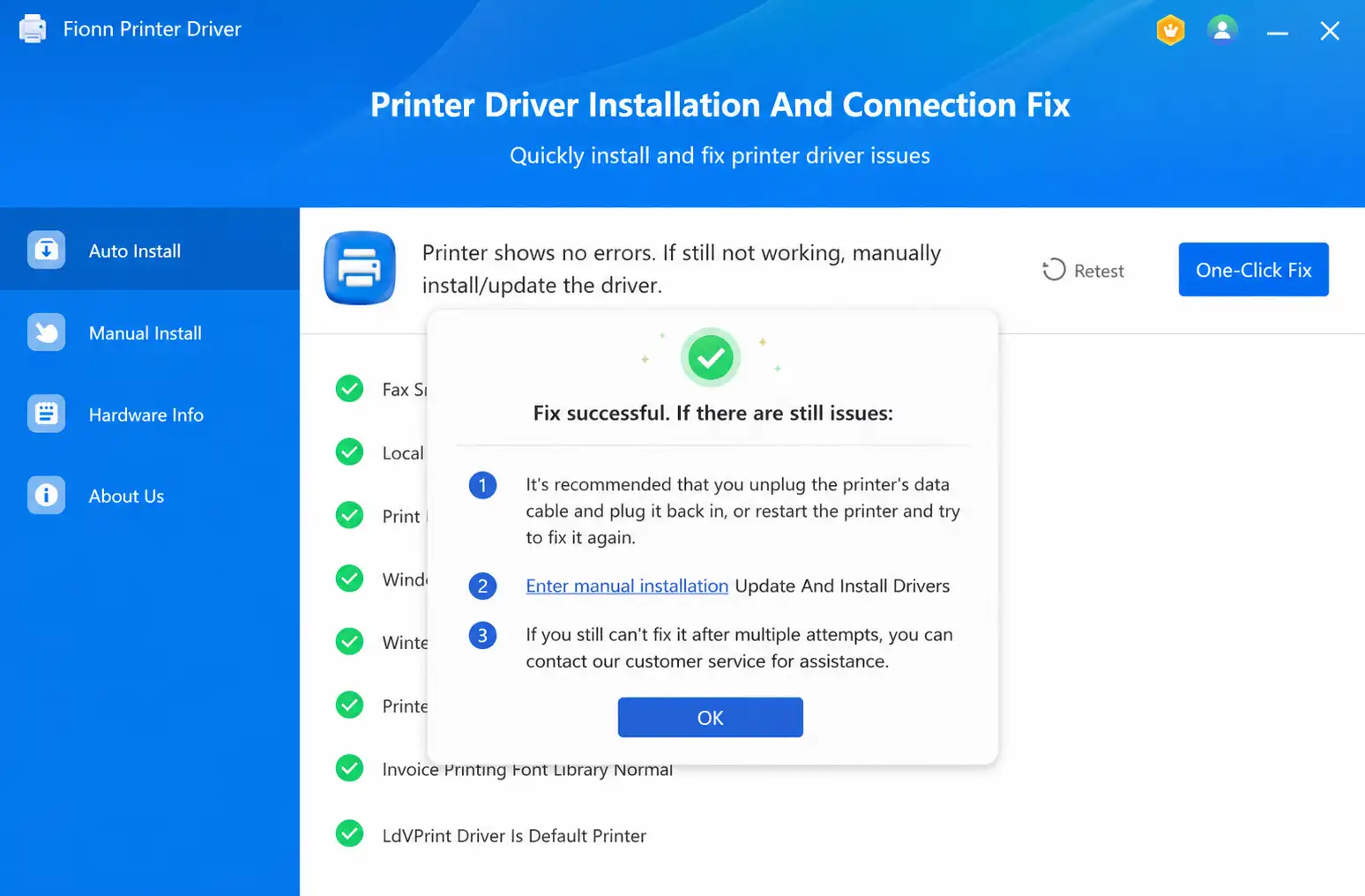
For a meaningful result, Windows should recognize the connected device and the Windows test page should print successfully. If the tool identifies a driver issue, review the result before attempting another change.
If Printing Fails Too, Narrow the Symptom
When an HP multifunction device cannot print as well as scan, the problem may extend beyond the scanner function. Check whether the device is connected, then look for a paused or unfinished print job. A printer-driver utility can also check driver status, the Windows Printer Service, and connection status.
- Device is absent from Windows: confirm the exact model from the label and verify the device connection before selecting a driver.
- Device appears but printing fails: check the driver, print service, connection status, and any unfinished or paused print jobs.
- Printing works but scanning fails: retain the exact model and pursue scanner-specific support or installation options for that model rather than assuming a printer test page resolves scanning.
Conclusion
For an HP Scanner Driver Not Found message, begin by identifying the exact connected device and separating a scan-only issue from a broader printer problem. If the HP device is a multifunction printer and printing also fails, Fionn Printer Driver is a convenient way to check printer-driver-related conditions and apply its suggested repair. Verify the outcome with a Windows test page, then continue with model-specific scanner support if scanning remains unavailable.
Frequently Asked Questions
How do I find my HP device model before searching for a driver?
Check the model on the device label or in Windows Devices and Printers. Compare the listed name with the connected hardware and use the complete model name for driver selection.
Does a successful Windows test page prove that my scanner works?
No. A Windows test page verifies printing. It is useful when the HP device is a multifunction printer, but scanning must be checked separately after the printing test succeeds.
What if my HP device is not listed in Windows?
Confirm the full model from the device label and check the connection first. A device that Windows does not detect may need connection or device-recognition troubleshooting before a driver search can be effective.
Can Fionn Printer Driver help with an HP multifunction printer?
It can scan for printer drivers and related issues, find missing or outdated printer drivers, and check printer-driver, print-service, and connection status. Its documented workflow is most relevant to the printer side of a multifunction device; it does not replace a scanner-specific verification step.
Do I need an internet connection to search for a compatible driver with Fionn Printer Driver?
Yes. An internet connection is required to search for the latest compatible drivers. Once a driver is downloaded, it can be installed normally.


