 Emily CarterData Recovery
When an external HDD detected but not opening appears in Windows, the disk may have no usable drive letter, be offline, have file-system errors, or have a connection or driver problem. Start with checks that do not alter the drive, then use Windows repair tools only after deciding whether the files are more important than immediate access. This guide covers four routes, from recovering visible files to assigning a drive letter, checking the file system, and isolating the connection.
Symptoms
- The drive appears in Disk Management or Device Manager but not in File Explorer.
- File Explorer shows a drive letter, but opening it produces an access, location, or formatting prompt.
- Disk Management shows the disk as Offline, healthy but without a drive letter, or with an unreadable volume.
- The drive repeatedly disconnects, disappears when the cable moves, or displays a Device Manager warning symbol.
The scope matters. If only this external drive will not open while Windows and other USB storage work, focus on the drive letter, file system, cable, port, or device driver. If the drive opens on another computer, the first computer’s USB connection or driver path is more likely involved.
Quick Diagnosis Checklist
- The disk is visible in Disk Management but has no letter or is Offline: use Method 2. Do not initialize or format a disk containing files you need.
- The drive has a letter but Windows reports errors or cannot read the location: use Method 3 only after considering recovery in Method 1.
- The drive disconnects or is missing from Device Manager: use Method 4 before attempting a file-system repair.
- Files are the priority and the drive is detected: start with Method 1, which is intended to locate and restore lost or inaccessible files to another disk.
Quick Method Comparison for an External HDD Detected but Not Opening
| Method | Best For | Efficiency | User Effort |
|---|---|---|---|
| Fionn Data Recovery | Recovering files before repair or when the volume is inaccessible | Guided scan and file selection | Low |
| Disk Management | A detected disk that is offline or lacks a drive letter | Fast when the volume is otherwise healthy | Low |
| CHKDSK | A lettered drive with file-system errors | Depends on drive size and errors | Medium |
| Connection and driver check | Intermittent detection or a Device Manager warning | Fast isolation step | Medium |
Method 1: Fix External HDD File Access with Fionn Data Recovery
When to use: Choose this route when the external HDD is detected and your priority is retrieving files before making changes to the volume. It is especially useful when a partition is inaccessible or a normal path is missing.
Step-by-step guide:
- Launch Fionn Data Recovery and select the recovery option for the type of data or storage location you want to recover.
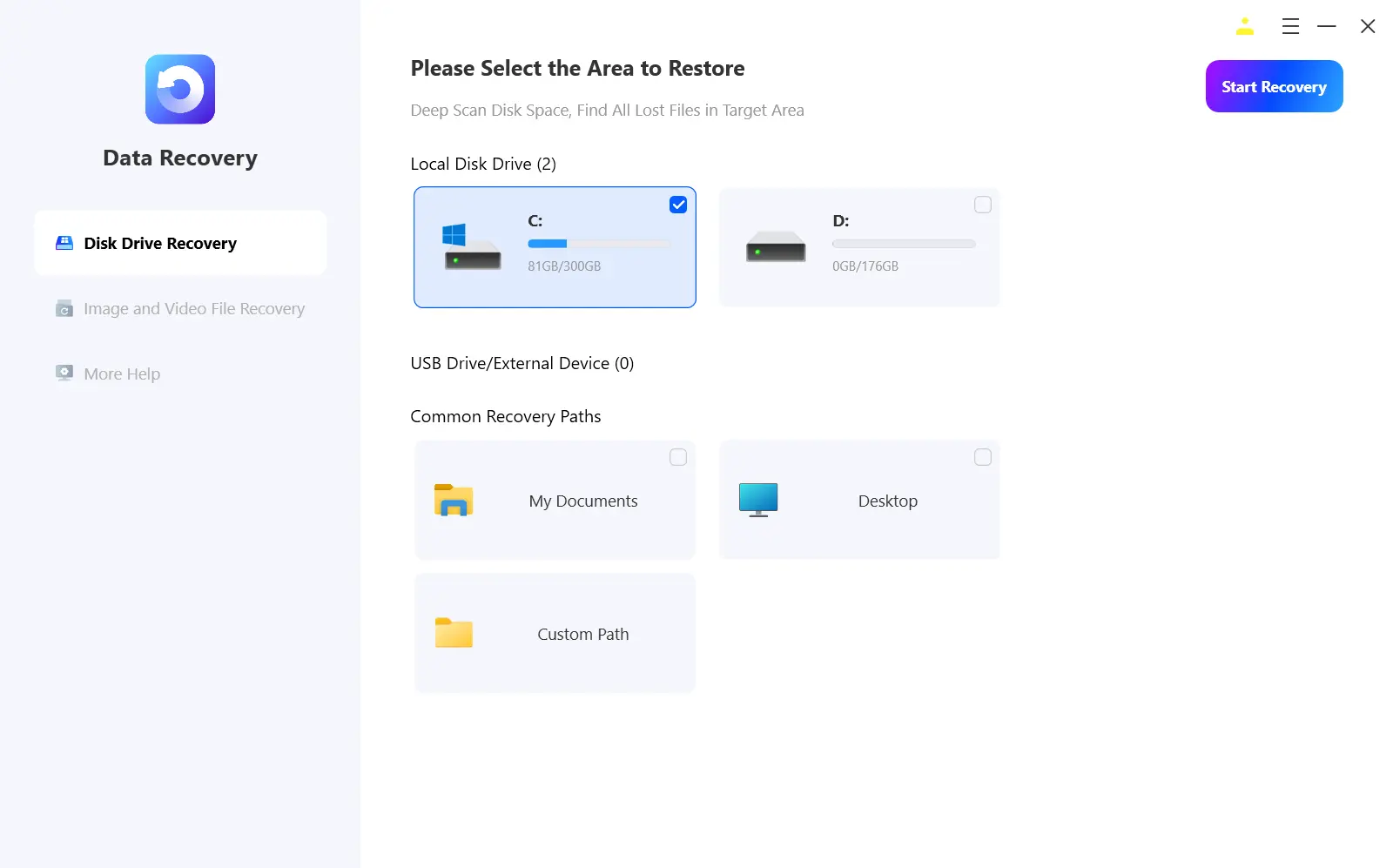
- Start the automatic scan and wait while Fionn Data Recovery searches the selected location for deleted or lost files.
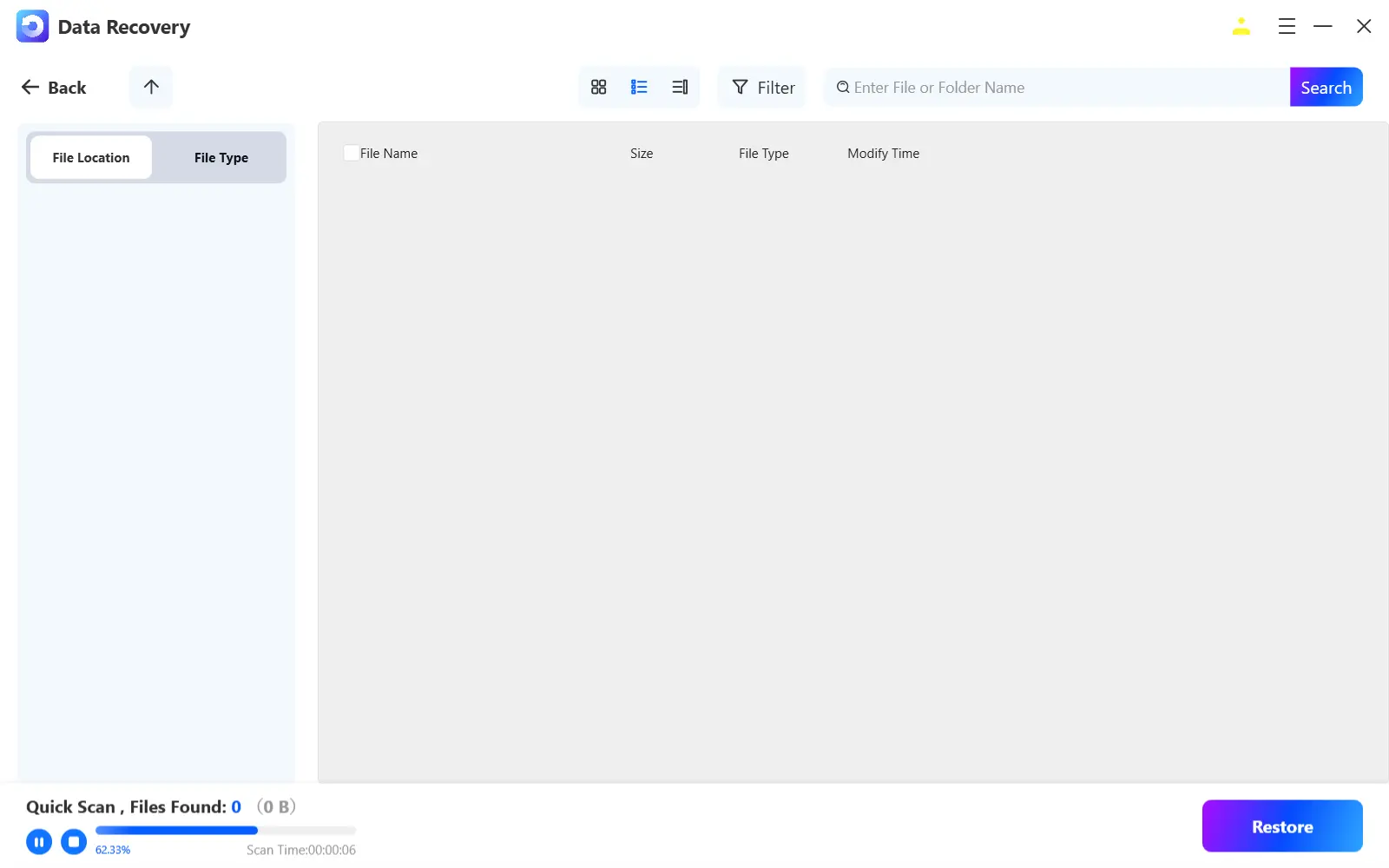
- After the scan finishes, browse the results and preview the files to select the data you want to restore.
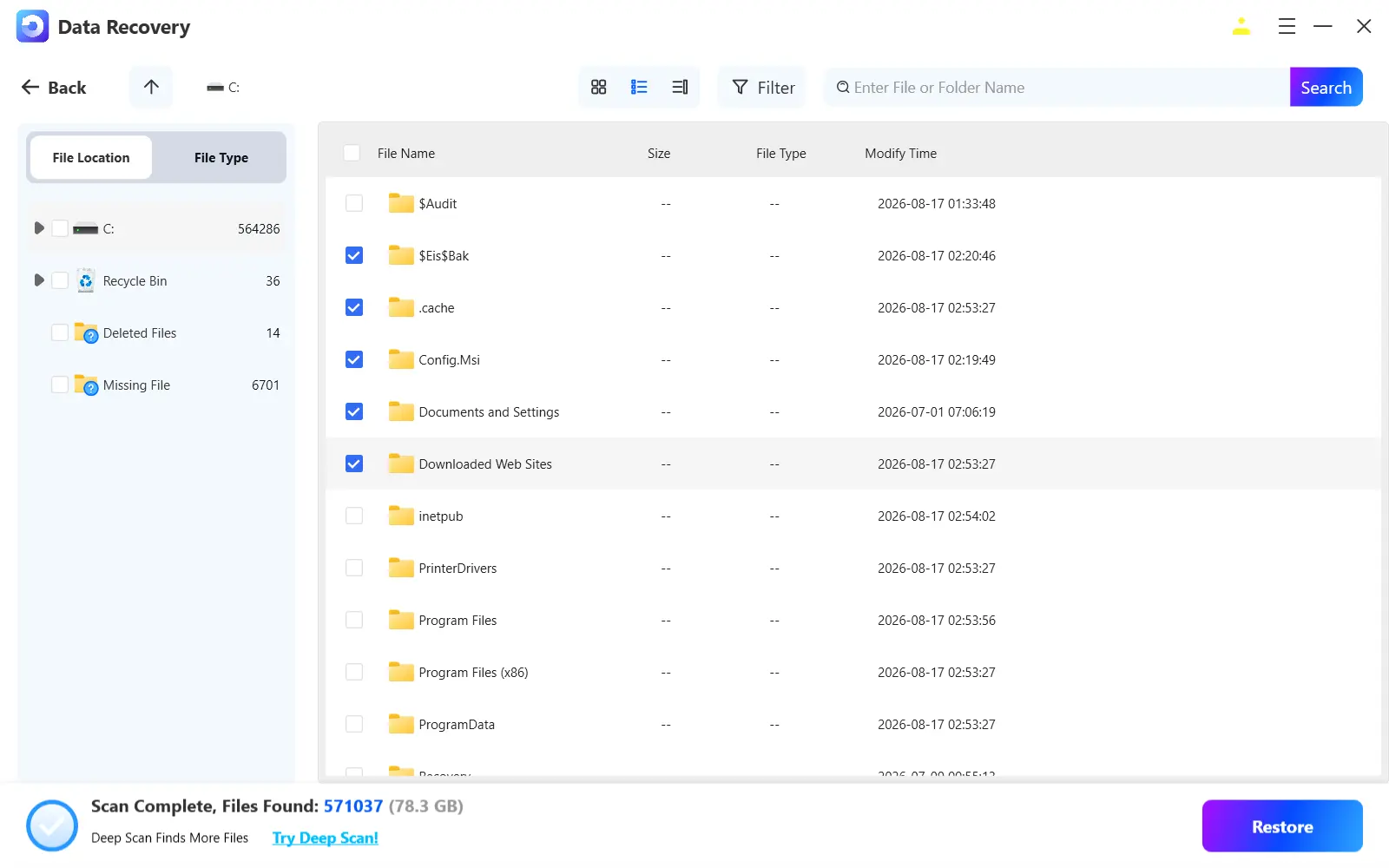
- Select a destination folder to save the recovered files, then start the recovery process.
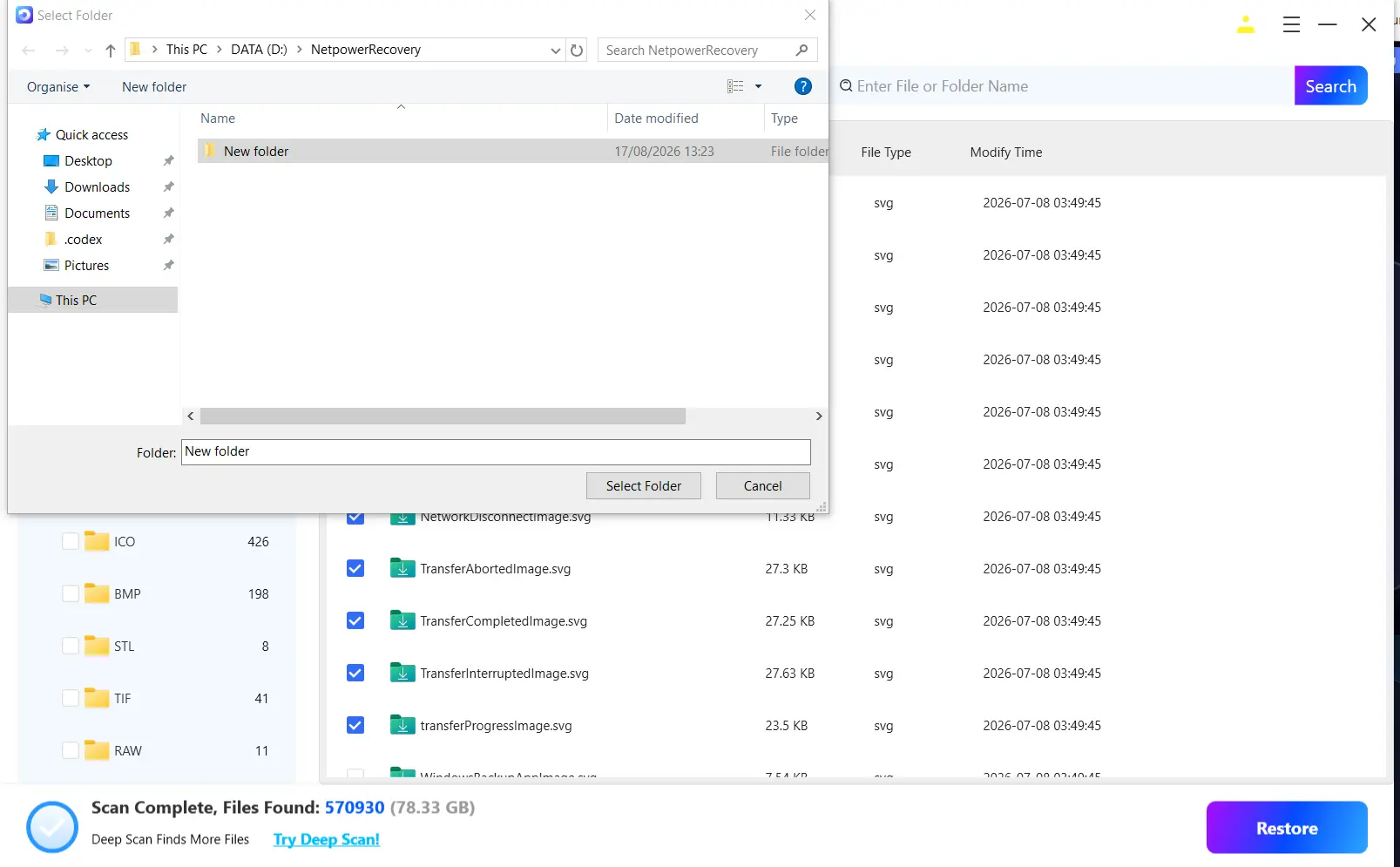
How to verify: Open several recovered files from the destination folder on a different disk. Confirm that the files open and that the content shown in preview matches the files you intended to restore.
Method 2: Assign a Drive Letter or Bring the Disk Online
When to use: Use this method when Disk Management detects the external HDD, but File Explorer does not show it. Windows 10 and Windows 11 Disk Management can bring a disk online and change drive letters.
Step-by-step guide:
- Right-click the Start button and select Disk Management.
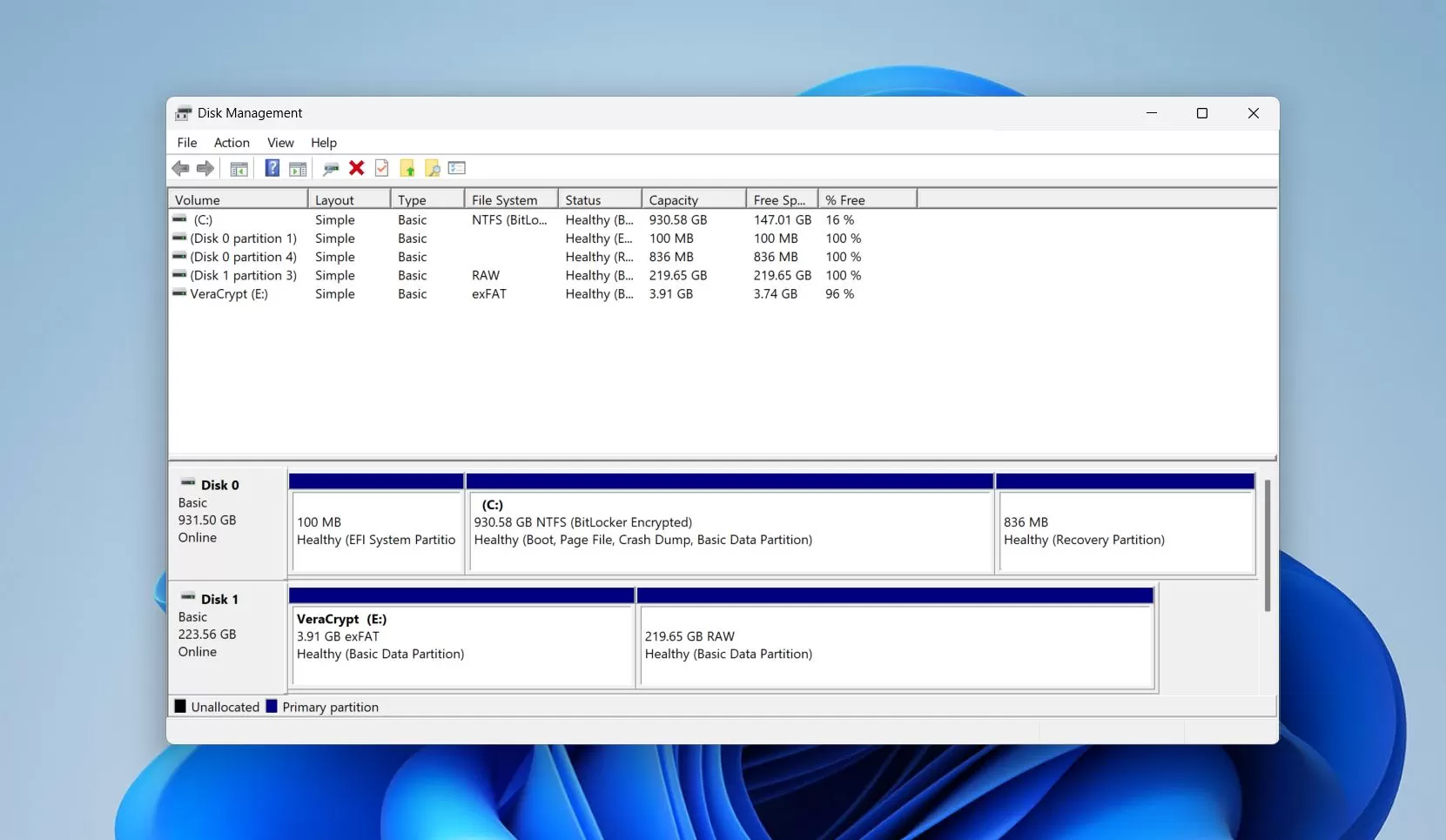
- Find the external HDD by its capacity, then confirm it is the correct disk before making a change.
- If the disk status is Offline, right-click the disk label and select Online.
- If the volume is healthy but has no drive letter, right-click the volume, choose Change Drive Letter and Paths, and assign an unused letter.
How to verify: Open File Explorer and select the newly assigned letter. If the folder list loads, immediately copy essential files to another location.
Microsoft documents Disk Management as the Windows tool for changing drive letters and managing disk status. Avoid its initialize and format options unless you have confirmed that no needed data remains on the disk.
Method 3: Scan the External HDD for File-System Errors
When to use: Use this method only when the external HDD has a drive letter, remains connected reliably, and Windows reports a file-system problem. If the data is irreplaceable, recover what you can first.
Step-by-step guide:
- Close files and applications that may be using the external HDD.
- Open Command Prompt as an administrator.
- Run a read-only scan, replacing
Xwith the external drive letter:chkdsk X: /scan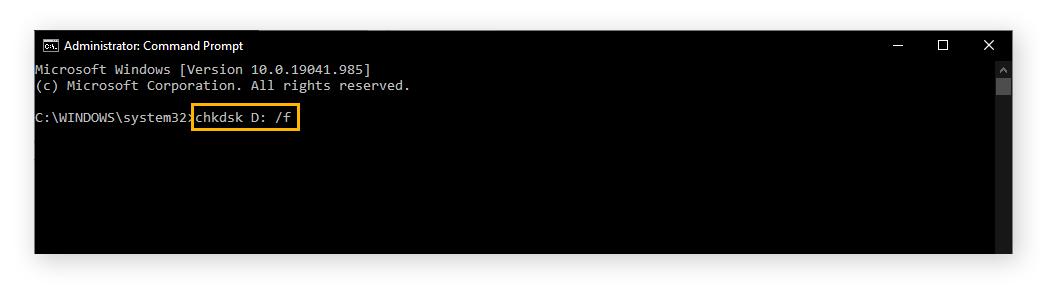
- If the scan reports errors and you accept a repair operation, run:
chkdsk X: /f
How to verify: Wait for the command to finish, read its final report, and reopen the drive in File Explorer. If it opens, copy important files elsewhere before further troubleshooting.
Method 4: Check the USB Connection and Device Driver
When to use: Choose this method when the external HDD disconnects, appears only sometimes, or has a warning icon in Device Manager.
Step-by-step guide:
- Disconnect the external HDD using Safe Removal if it is available, then reconnect it directly to another USB port.
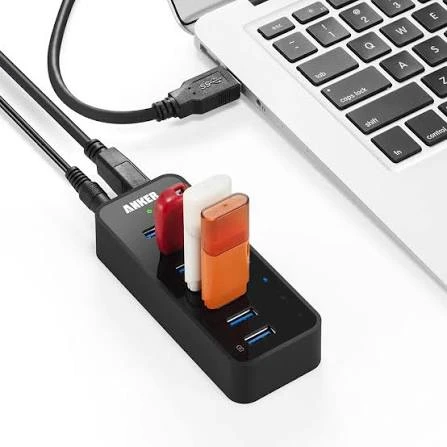
- Try a known-good compatible cable and avoid a hub temporarily.
- Open Device Manager and locate the affected device under Disk drives or Universal Serial Bus controllers.
- If Device Manager reports a driver issue, right-click the device and select Update driver; if the issue remains, use Action > Scan for hardware changes after reconnecting the drive.
How to verify: Keep the drive connected for several minutes, then check that it remains in Device Manager, Disk Management, and File Explorer without repeated disconnects.
Verification Checklist
- The external HDD remains visible after reconnecting it.
- Disk Management shows the expected capacity and an online status.
- File Explorer opens the drive letter without an error or formatting prompt.
- Several folders and files open normally, or selected recovered files open from a separate destination disk.
- Important data has been copied or recovered before further repair attempts.
Conclusion
For an external HDD that Windows detects but will not open, first protect the files and identify what Windows sees. Use Fionn Data Recovery when accessible files need to be retrieved before repair. If the disk is healthy but invisible in File Explorer, assign a drive letter or bring it online. Run CHKDSK only for a stable, lettered volume with file-system errors, and investigate the cable, USB port, and driver when detection is intermittent. Verify success by opening files or recovered copies. If the drive continues to disconnect or remains unreadable, contact the drive manufacturer or Microsoft support.
FAQ
Why is my external HDD detected but missing from File Explorer?
The volume may not have a drive letter, or the disk may be offline. Check Disk Management first and assign a letter only after confirming the correct disk.
Should I format an external HDD that Windows asks me to format?
Not if you need the files. A format changes the volume structure. Recover or copy important data first, then decide whether formatting is appropriate.
Will CHKDSK recover my files?
CHKDSK checks and repairs file-system errors. It is not a replacement for recovery, so retrieve important accessible data before running a repair command.
What if the drive appears on one computer but not another?
Test the cable and a direct USB port on the affected computer, then inspect Device Manager for a driver issue. The drive itself may be readable if it remains stable on the other computer.


