 Emily CarterAuto Clicker
Right Click Auto Clicker Options for Windows
A right click auto clicker should let you select the right mouse button, set a safe interval and stop the routine reliably. For a Windows user who may later need recorded keyboard and mouse actions, Fionn Auto Clicker is the first tool to consider: it supports button selection, configurable intervals and repetition, plus recorded or scripted automation. Choose a simpler alternative when a free license, portable use, image targeting, or stop-zone controls matter more.
Top Picks
Start with Fionn Auto Clicker when right-click repetition may grow into a multi-step desktop routine; its documented recording, playback, area clicking and global hotkeys provide that path. Choose AutoClick's official site for a freeware Windows 10/11 64-bit utility with saved coordinate patterns. Windows Autoclicker suits image-targeted or command-line automation with documented safety stops. Use autoclickr when its paid macro builder is the main need, or BlurAutoClicker for a free GPL-3.0 option with sequences and stop zones.
Quick Comparison Table
Fionn Auto Clicker Review
Choose Fionn Auto Clicker when a basic right-click routine may become a recorded or scripted task. It supports left, middle and right clicks at the current pointer or fixed coordinates, along with random or sequential clicks in a specified area and keyboard/mouse recording and playback.
It is best for Windows users who want simple clicking now and a route to reusable multi-step automation later.
How to use
- For normal auto-clicking only, open Fionn Auto Clicker and select Mouse Clicking > Normal Click. Choose the right mouse button, then select the click method and click position. Set the interval and repetition options, then select Start Auto-Click (F6).

- After confirming the routine works, select Stop Clicking or press F6. Confirm automatic clicking has stopped before moving the pointer or changing settings.

AutoClick Review
AutoClick is a practical choice for straightforward recorded coordinate patterns on supported 64-bit Windows systems. It documents right-click and double-click selection, per-position settings, saved patterns and global hotkeys. Visit the official AutoClick page for its installer or portable option.
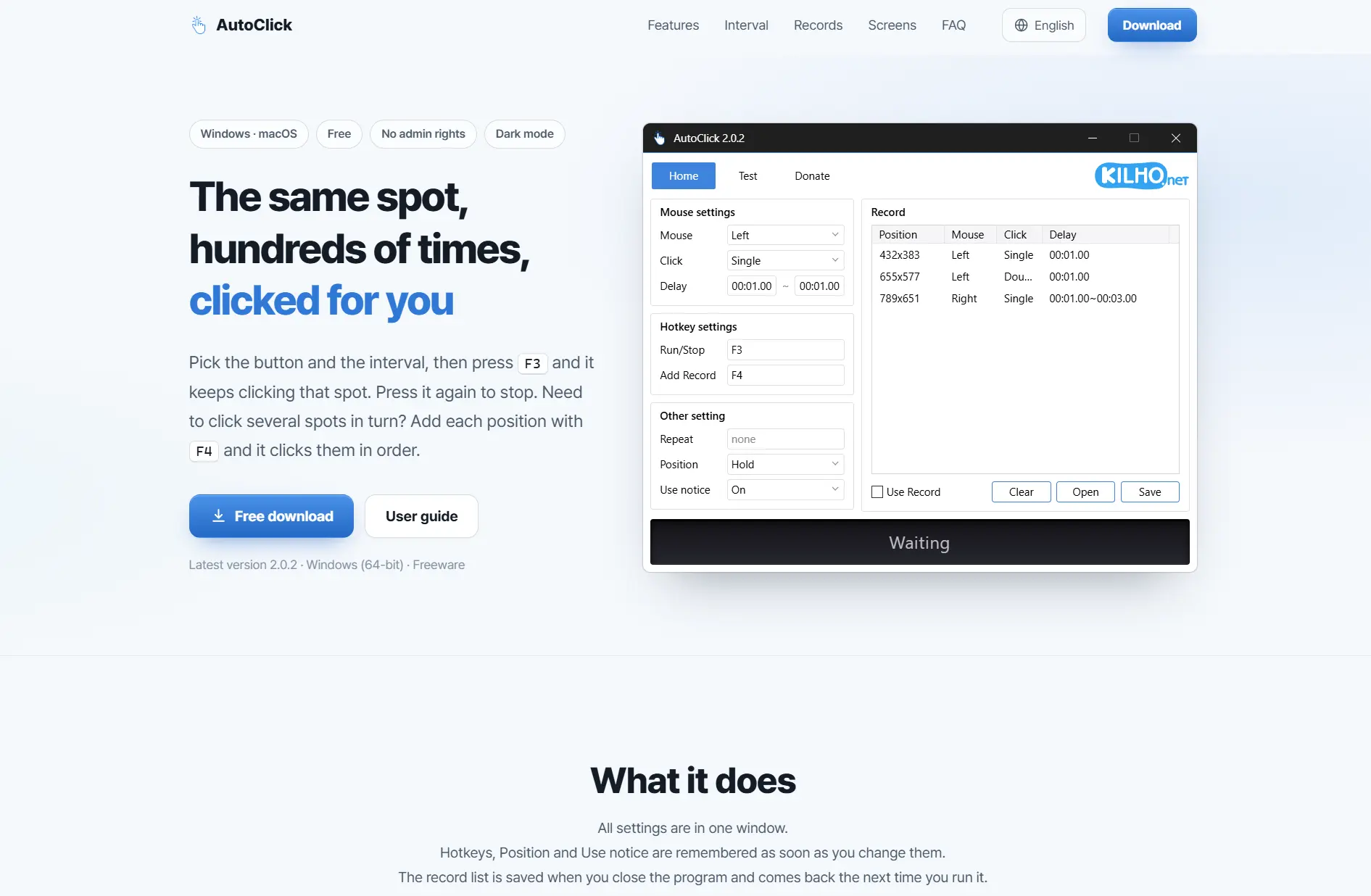
It fits users who need portable deployment and a simple sequence of saved click positions rather than broader macro editing.
autoclickr Review
Consider autoclickr for a combined click repeater, input recorder and macro builder. Its official materials document right, middle and left single or double clicks, loopable recordings and hand-built macros; see the official autoclickr site .
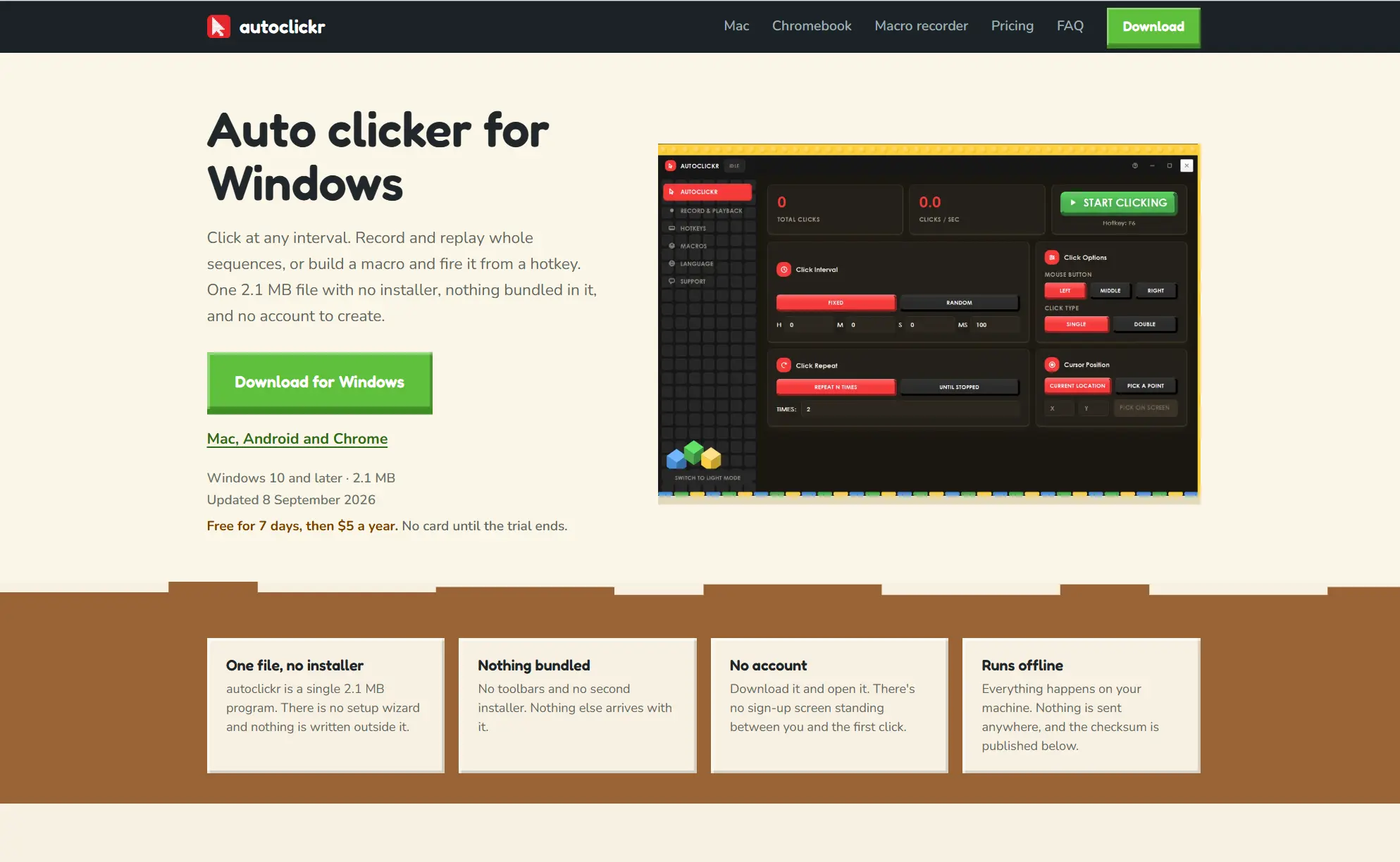
It is suited to Windows desktop users who value a macro builder alongside click repetition and accept its subscription model.
Windows Autoclicker Review
Windows Autoclicker is the stronger fit when a click must respond to an on-screen image or run from the command line. Its documented scope includes click routines, image targets, key actions, profiles and schedules; details are on the official Windows Autoclicker page .
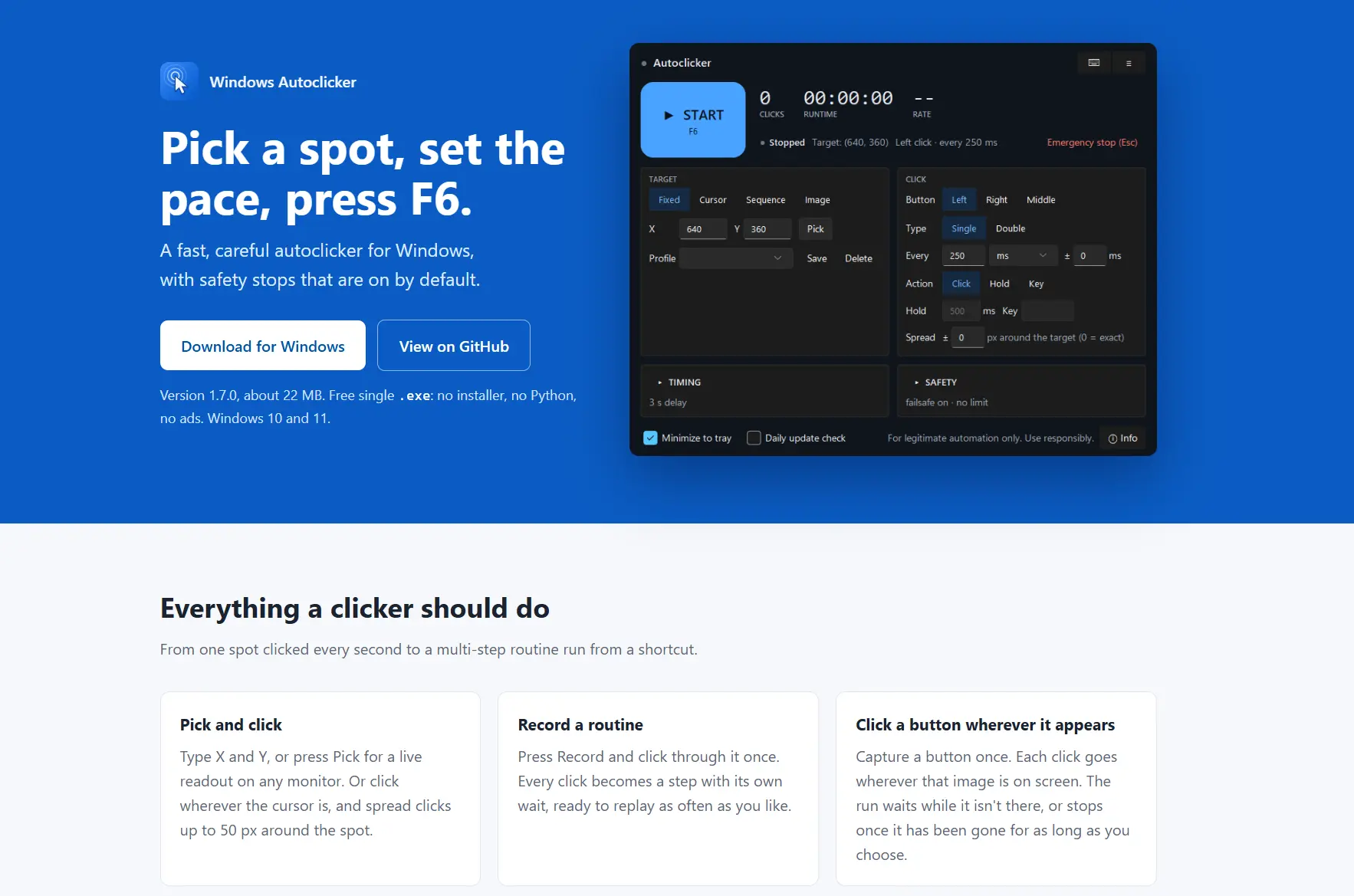
It is best for Windows 10/11 workflows needing image-based targeting, safety controls or command-line execution.
BlurAutoClicker Review
BlurAutoClicker is a good free option for multi-point right-click sequences and configurable stop behavior. It documents left, right and middle input, double clicking, keyboard actions, presets and local statistics on its official BlurAutoClicker site .
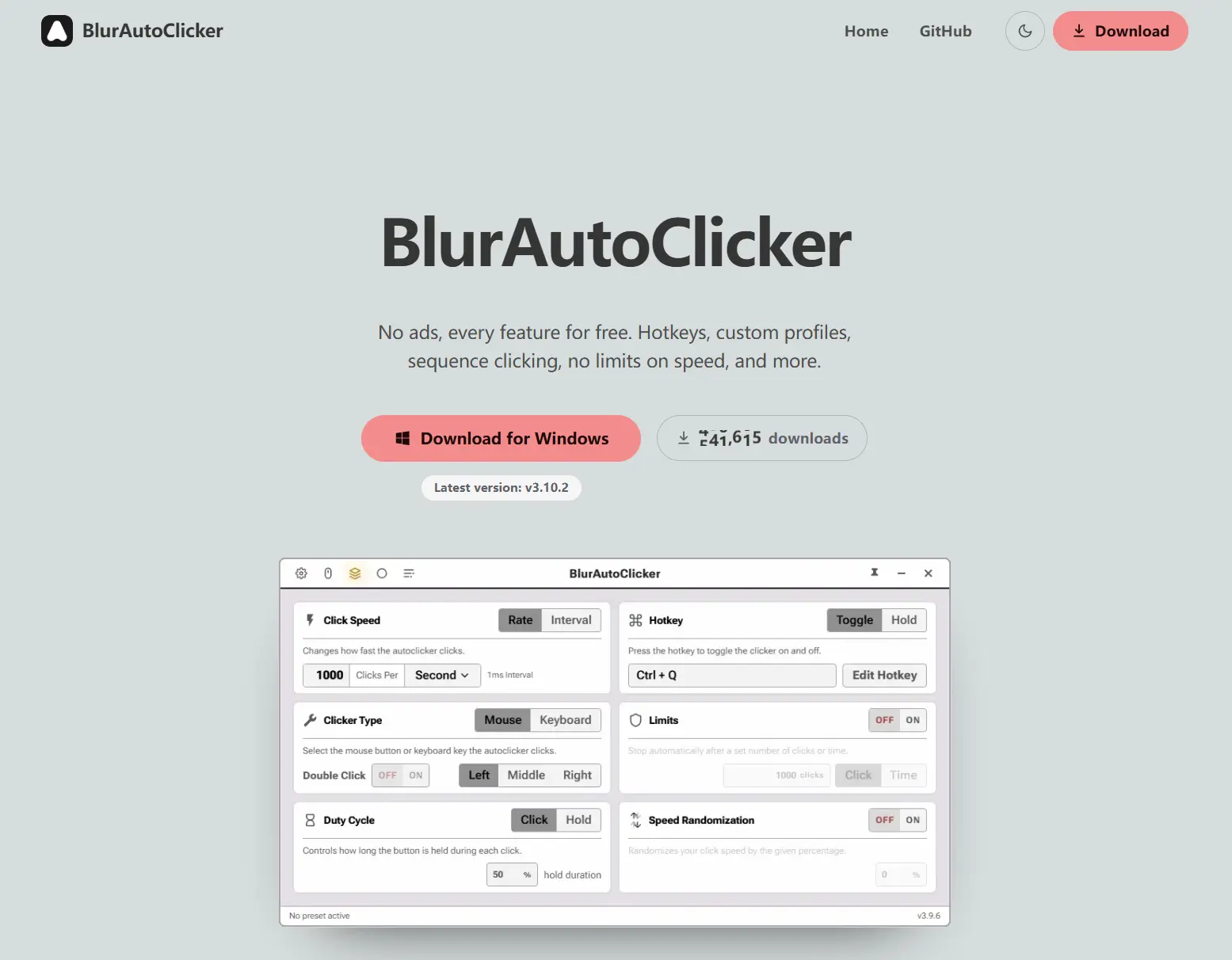
It fits users who want a free Windows tool with point sequences, hotkey flexibility and explicit stop-zone controls.
How We Compared
The comparison uses the same six decision points for every tool: Windows availability and installation, right/double-click controls, sequences or replay, timing and hotkeys, broader automation and safety, then price or license limits. This separates a simple right-click task from work that needs saved positions, recorded input, image targeting or a stop safeguard. Official product documentation supplied the feature and license details.
How to Choose
Need only a saved coordinate sequence on 64-bit Windows 10/11? Choose AutoClick. Need free Windows-only sequence clicking with stop zones? Choose BlurAutoClicker. Need image targeting, command-line runs or controls around elevated windows? Choose Windows Autoclicker, while accounting for Windows input isolation. Choose autoclickr when a macro builder justifies its annual fee. For a right-click routine that may expand to recording, editable playback, scripts or scheduling, choose Fionn Auto Clicker and check its membership limits first.
Final Verdict
Consider Fionn Auto Clicker first for Windows right-click automation that may become a recorded or scripted workflow, provided its three free trials and membership-gated advanced functions fit your needs. AutoClick is the clearer free alternative for documented Windows 10/11 64-bit saved patterns. Pick Windows Autoclicker for image or command-line control, BlurAutoClicker for GPL-3.0 sequence and stop-zone features, and autoclickr only when its macro builder is worth $5 per year after the seven-day trial.
Frequently Asked Questions
Can a right click auto clicker also double-click?
All five tools document right-click selection. AutoClick, autoclickr, Windows Autoclicker and BlurAutoClicker explicitly document single and double clicks. Fionn Auto Clicker lets you select the mouse button and click method in Normal Click settings.
Which option is free?
AutoClick is documented as freeware. BlurAutoClicker is free under GPL-3.0. Windows Autoclicker is free for non-commercial use under CC BY-NC 4.0. Fionn Auto Clicker provides three free trials, while autoclickr has a seven-day trial followed by a $5 annual subscription.
Why might automated clicks fail in an administrator window?
Windows Autoclicker documents that a normal application cannot send input to an elevated window; it must run with elevation for that target. This limitation is specific to its documented behavior and should be checked before relying on automated input in administrator windows.
Can I stop Fionn Auto Clicker quickly?
For the Normal Click routine, use Stop Clicking or press F6. Confirm that clicking has stopped before moving the pointer or changing settings.


