 Emily CarterAuto Clicker
Which game auto clicker should you choose?
If you need a game auto clicker with simple mouse settings in Windows, start with Fionn Auto Clicker: click type, interval, repeat count, and hotkey selection are confirmed. For a free portable clicker, consider OP Auto Clicker; for recording actions on Windows x64, consider Kofge-Clicker. For macOS or Linux X11, Infinite Autoclicker is the most complete fit.
Best options by use case
- For configurable clicks and more advanced automation in Windows: Fionn Auto Clicker — in addition to clicks, it supports recording and replaying mouse and keyboard actions; unlimited clicking, recording, custom scenarios, and scheduled tasks are membership features.
- For a basic free portable clicker: OP Auto Clicker — offers clicks at the cursor position or a fixed point, supports background hotkeys, and is presented as a free open-source project.
- For portable macros in Windows x64: Kofge-Clicker — a free no-install option with profiles, global hotkeys, and window targeting.
- For macOS or Linux X11: Infinite Autoclicker — supports macro recording, color clicking, and scheduling; Wayland is not supported.
Quick comparison table
The key tradeoff is between platform coverage and automation depth: Infinite Autoclicker covers several desktop operating systems, while Fionn Auto Clicker and Kofge-Clicker focus on Windows.
Fionn Auto Clicker
It is a practical first choice for a Windows user who needs both a standard clicker and a path to recording repetitive actions. Configuring click type, interval, repeats, and hotkeys is confirmed, as are recording and replaying mouse and keyboard actions with editing or export options. For game tasks, control matters: you can start and stop with hotkeys, but use automation only in game-approved modes.
Best for Windows users who need configurable clicks now but may later need recording or task automation. Open Fionn Auto Clicker if you want to test standard click configuration in a permitted scenario.
How to use standard clicks
- Open Fionn Auto Clicker and select “Mouse Clicks” > “Standard Click.” Specify the mouse button, click method and position, set the interval and repeats, then select “Start Auto Click” or press F6.

- After checking, stop standard clicking with “Stop Clicking” or F6. Confirm that automatic clicks have stopped before moving the pointer or changing settings.

OP Auto Clicker
Choose OP Auto Clicker when you need a simple free clicker with portable use and recording complex scenarios is not the main task. It can click at the current cursor position or a fixed point, select single, double, or triple clicking, limit the number of clicks, or leave it unlimited. The official page also states that background hotkeys are available.
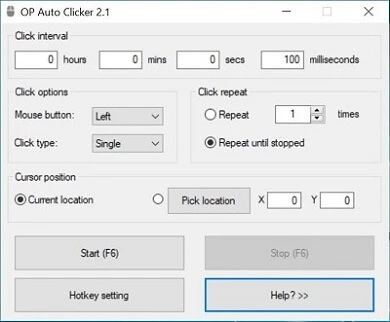
Best for people who need basic fixed-point or cursor-position clicks without a paid license. Details are available on the official OP Auto Clicker page .
Auto Clicker
Consider Auto Clicker from MurGee for Windows if you need left, right, or middle button selection, position configuration, and a global shortcut to start and stop. Variable or fixed speed, the current or a fixed position, interval, and a finite or unlimited click count are confirmed.
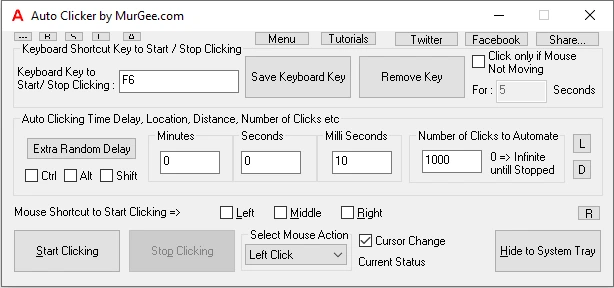
Best for Windows users who need detailed configuration of the click button, point, and interval with a clear trial model. Visit the official Auto Clicker page .
Auto Mouse Clicker and Recorder
This option makes sense for people who value recording and saving click scenarios more than a confirmed list of supported operating systems. The official page describes recording mouse movement and left/right clicks, configuring time, repeats, and hotkeys, and saving and loading scenarios.
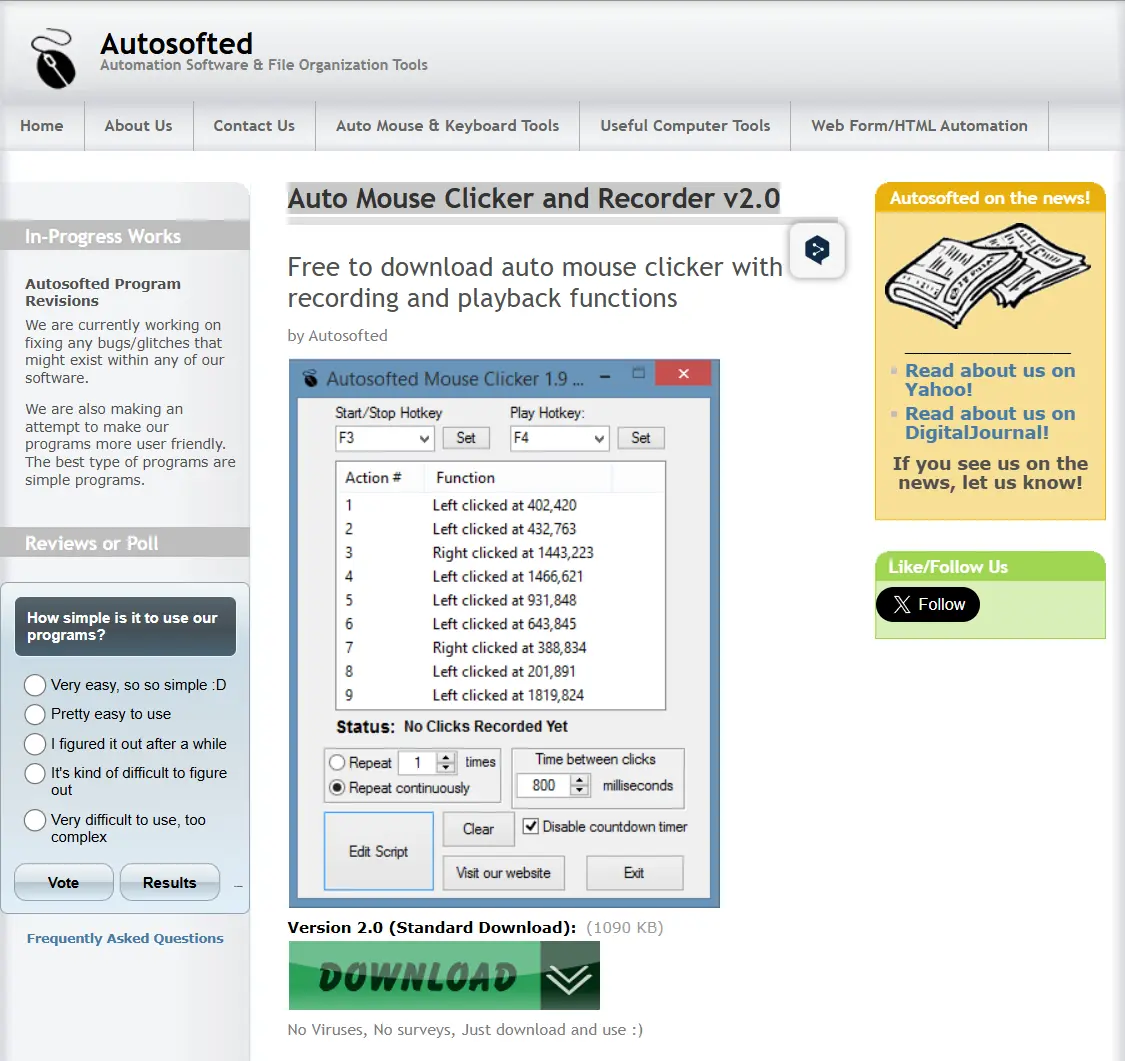
Best for mouse recording and playback tasks if you are prepared to check the SmartScreen warning and acquisition terms before installation. Learn more on the official Auto Mouse Clicker and Recorder page .
Kofge-Clicker
Kofge-Clicker is a strong alternative for Windows 10 x64 or Windows 11 x64 users who need a portable free tool with macros and profiles. Configurable clicks, macro recording and playback, global hotkeys, profile management, and target-window selection are confirmed.
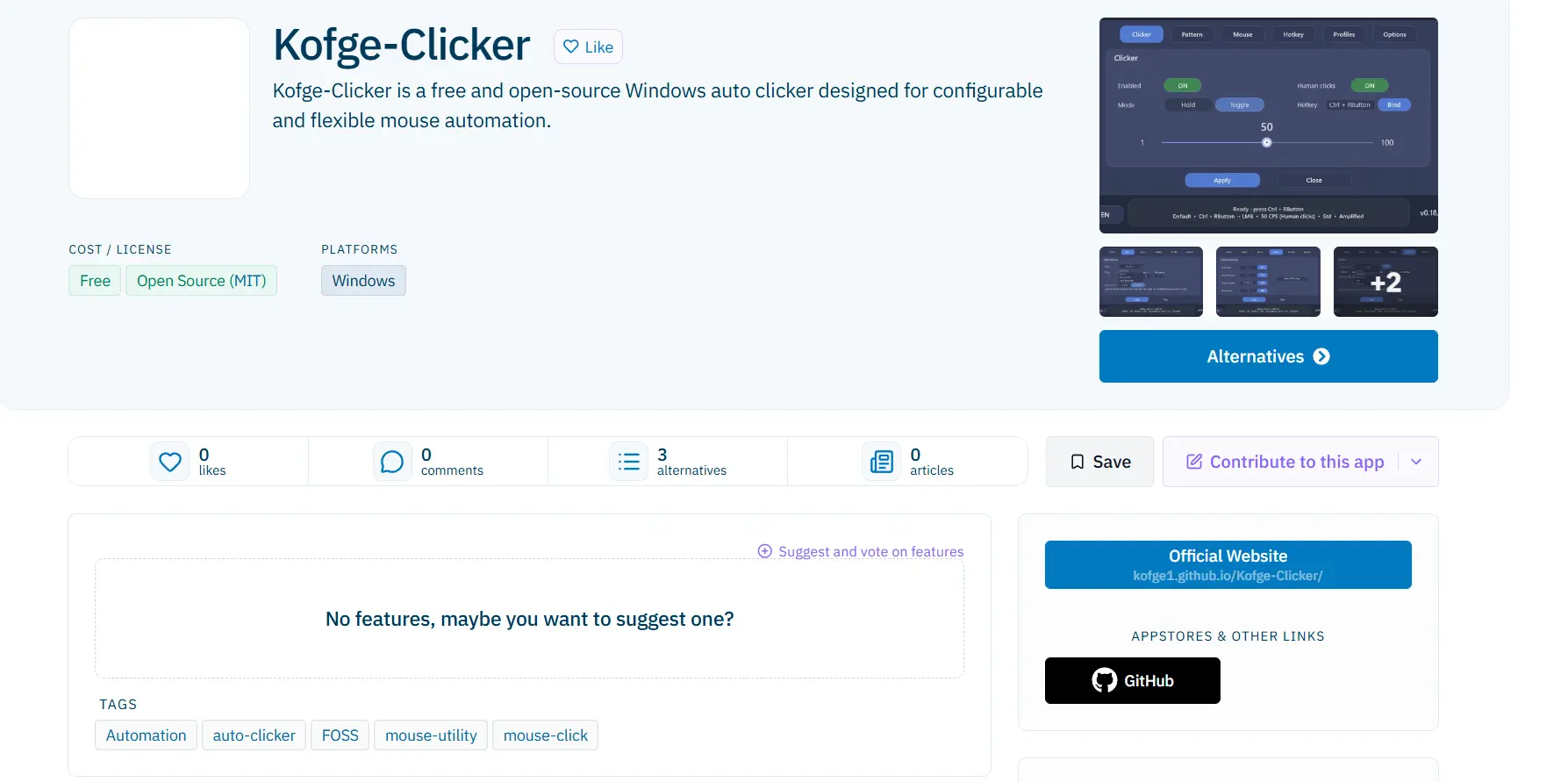
Best for Windows x64 owners who value a standalone file, profiles, and automation in a selected window. See the official Kofge-Clicker page .
Infinite Autoclicker
Consider Infinite Autoclicker when working across multiple desktop platforms, especially when macros, color clicking, or scheduling are needed. The project supports clicks in CPS, mouse and keyboard recording and playback, clicks on color targets, and scheduled macro launches.
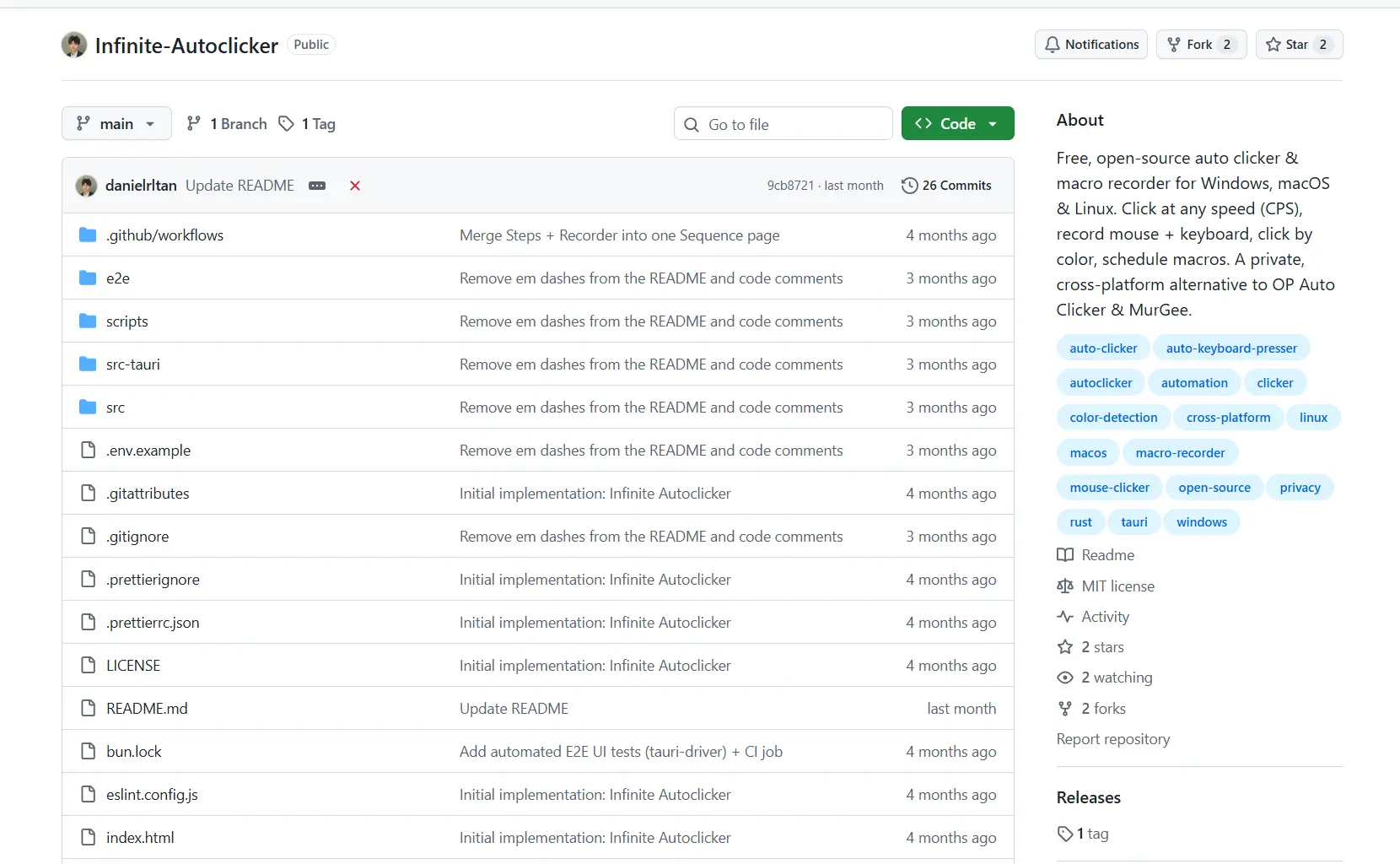
Best for desktop tasks outside Wayland limitations and for people who value macOS/Linux X11 support and color-based automation. System requirements are listed in the official Infinite Autoclicker repository .
How the comparison was conducted
The comparison is based on developer-stated capabilities and internally verified facts for Fionn Auto Clicker, rather than hands-on testing. Each product was compared by operating system support, automation modes, license or listed price, installation and portability limitations, and explicitly stated information about game use. If an official source did not confirm a fact, it was not presented as supported.
How to choose an auto clicker
- Need only repeated clicks in Windows with the option to expand the task into recording — choose Fionn Auto Clicker; first make sure the game mode permits automation.
- Need a free portable clicker for the cursor position or a fixed point — compare OP Auto Clicker and Kofge-Clicker; the latter is specifically confirmed for Windows x64 and adds profiles with window selection.
- Need to work on macOS or Linux X11 — choose Infinite Autoclicker and grant the necessary macOS permissions in advance or use an X11 session.
- Mouse recording scenarios and saving them matter — evaluate Auto Mouse Clicker and Recorder, but check the SmartScreen warning and acquisition terms.
Final verdict
For Windows 10/11, consider Fionn Auto Clicker first if you need configurable clicks, hotkeys, and the option to move into action recording; advanced capabilities are subject to membership terms. If a free portable option is the priority, OP Auto Clicker fits basic modes, while Kofge-Clicker fits Windows x64 with profiles and macros. For Windows, macOS 12+, and Linux X11, choose Infinite Autoclicker, remembering that Wayland is not supported. In every case, the game’s rules and anti-cheat policy remain the final criterion.
Frequently asked questions
Is an auto clicker allowed in online games?
It depends on the rules of the specific game or service. Fionn Auto Clicker and Infinite Autoclicker explicitly remind users of such limitations; check game and anti-cheat rules before use.
Which option is suitable for macOS?
Among the reviewed tools, Infinite Autoclicker states support for macOS 12+. It requires system permissions to control the mouse and keyboard.
Is there a free auto clicker without installation?
Kofge-Clicker is presented as a free no-install tool distributed as one executable file for Windows 10 x64 and Windows 11 x64. OP Auto Clicker is also presented as free and portable.
Why might a clicker not work with a game window?
Some applications run with elevated rights. Kofge-Clicker states that administrator mode may be needed to interact with such applications. This does not override game rules or guarantee anti-cheat compatibility.
Is Linux Wayland supported?
Infinite Autoclicker supports Linux X11 but not Wayland: the developer explains that Wayland blocks global input.


