 Emily CarterAuto Clicker
If you are looking for an Auto Clicker for Geometry Dash, begin with a tool that gives you a clear stop control and only use it where the game’s rules allow automated input. WindowsAutoClicker is the strongest first consideration for safeguards and configurable targets; Fionn Auto Clicker is a practical alternative when you also need recorded keyboard-and-mouse playback. Confirm that your intended use is permitted before starting any routine.
Auto Clicker for Geometry Dash: What Matters
A useful choice depends on more than click speed. For a single repeated click, a simple global hotkey and finite repeat count can be enough. For a repeatable sequence, look for saved positions or a recorded routine. Some games may ignore synthetic input, and a target window can fail to accept a click routine, so start with a short, deliberate run rather than continuous operation.
Top Picks
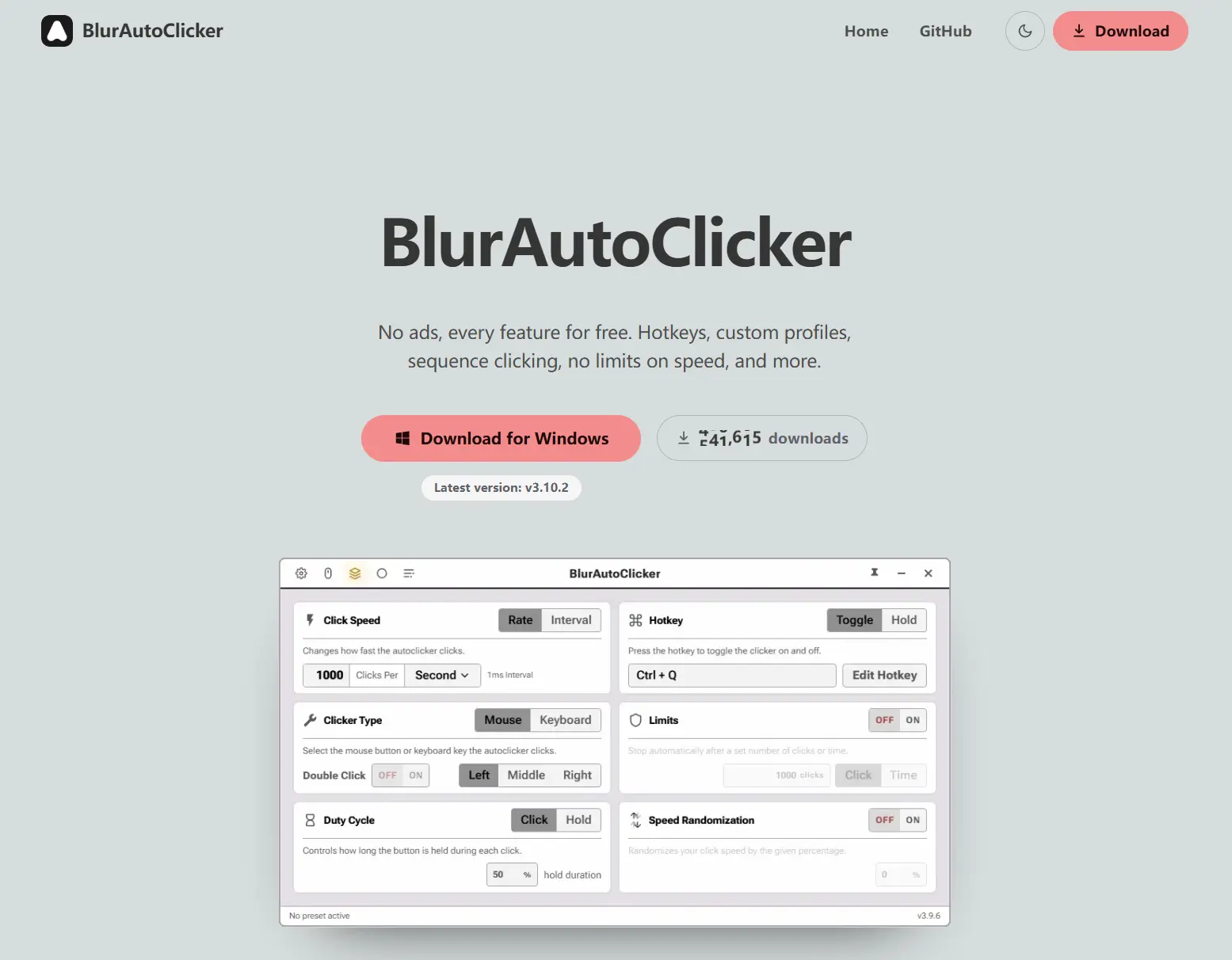
- Start with WindowsAutoClicker when stopping safeguards, image targets, holds, or key actions matter. Its official documentation lists an emergency stop, click and time limits, and a runaway-speed guard.
- Choose Fionn Auto Clicker for simple clicking plus recorded keyboard-and-mouse playback on Windows 10 or 11. Its advanced and unlimited use is membership-gated after three free runs.
- Choose AutoClick when you want freeware and an ordered list of saved click positions without needing a full keyboard macro recorder.
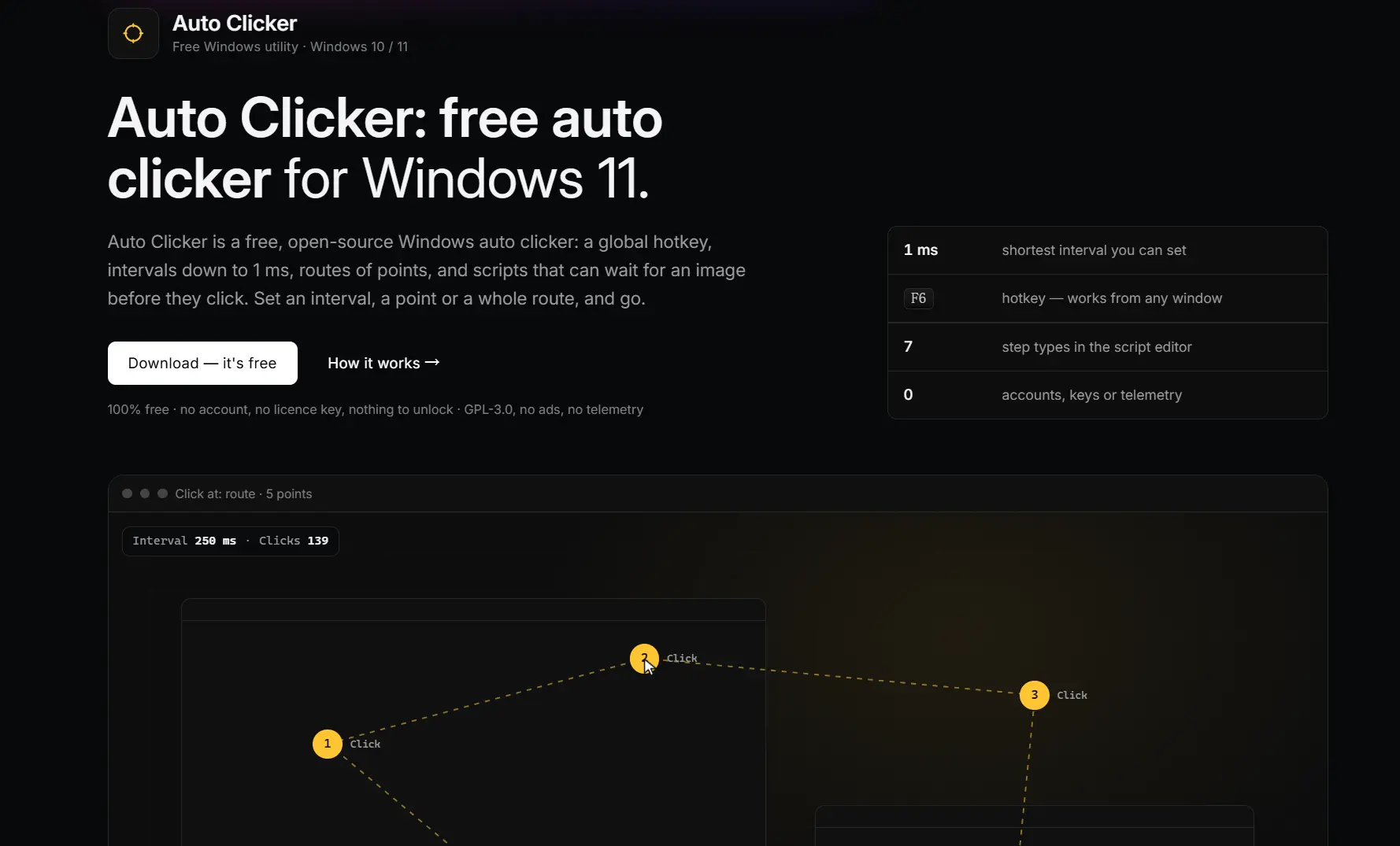
- Choose Auto Clicker when a fully free GPL-3.0 option with routes and image-aware scripts matters more than button-hold or keyboard-key actions.
Quick Comparison Table
Fionn Auto Clicker
Consider Fionn Auto Clicker when you need ordinary repeated clicks and recorded keyboard-and-mouse playback on Windows 10 or 11, and the game permits the routine. It supports current-position, coordinate, and area clicking, plus recorded action playback with a selected repeat count. The documented F6, F7, and F8 controls make it possible to separate normal clicking from recording and replay.
Visit Fionn Auto Clicker for the product page, and see the official game-macro guidance for its documented playback context.
How to use
- Normal auto-clicking only (no recording): Open Fionn Auto Clicker and select Mouse Clicking > Normal Click. Choose the mouse button, click method, and click position. Set the click interval and repetition options, then click Start Auto-Click (F6).

- After you have confirmed the click routine is working, stop Normal Click by clicking Stop Clicking or pressing F6. Check that automatic clicking has stopped before moving the pointer or changing the settings.

AutoClick
AutoClick fits Windows users who want a free ordered series of click positions rather than a keyboard macro recorder. Each record can retain its position, button, click type, and delay, and saved positions can run in order. Its official page is especially relevant for a repeatable multi-point click pattern.
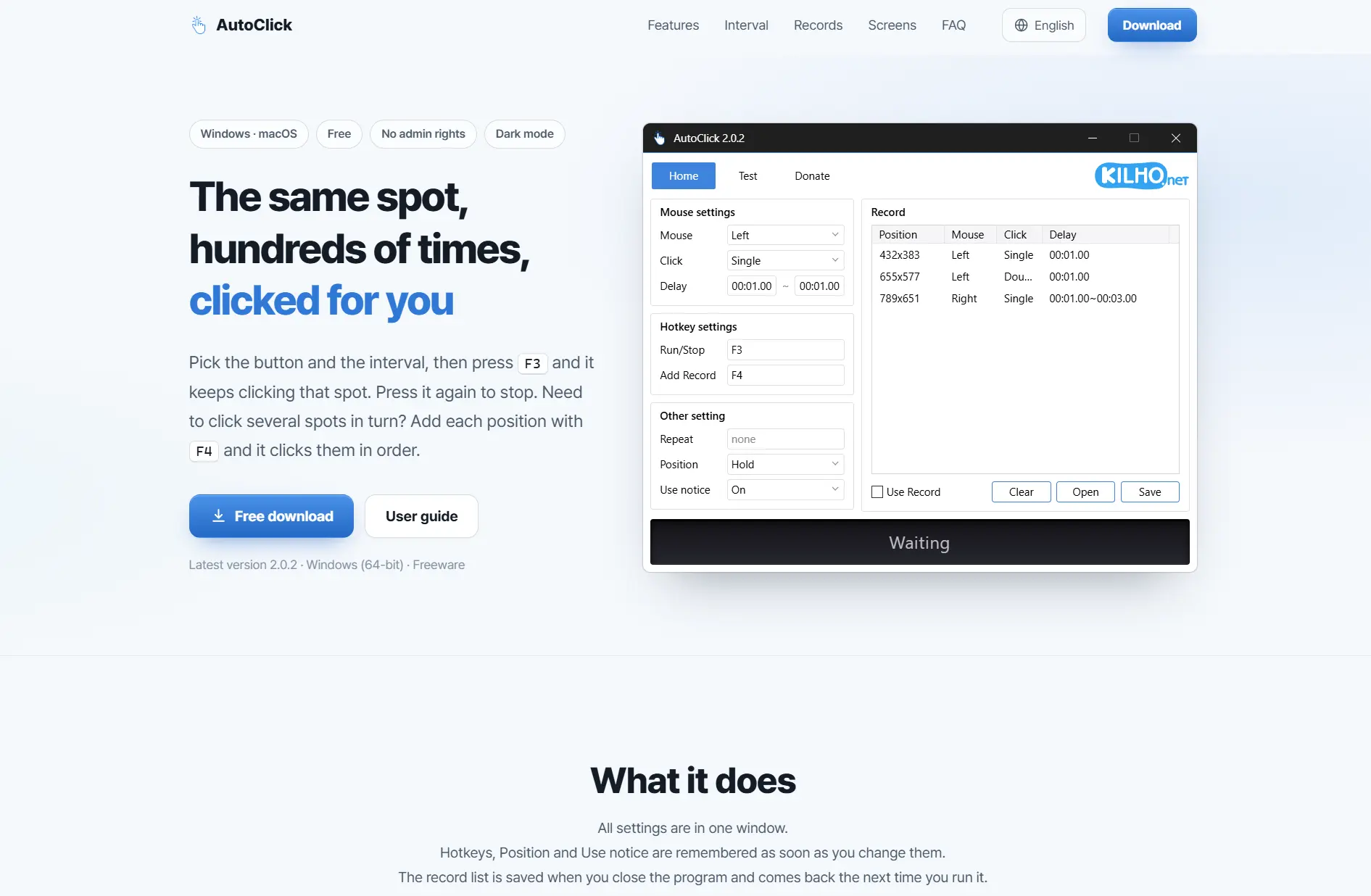
Read the official AutoClick page and its freeware license notice .
WindowsAutoClicker
WindowsAutoClicker is the first tool to consider for Windows 10/11 routines that need image targets, holds, key actions, and explicit stopping safeguards. It supports fixed-point, cursor, sequence, and captured-image targets, together with waits, profiles, and image or pixel checks. These controls give users a way to bound a routine instead of relying on an open-ended click loop.
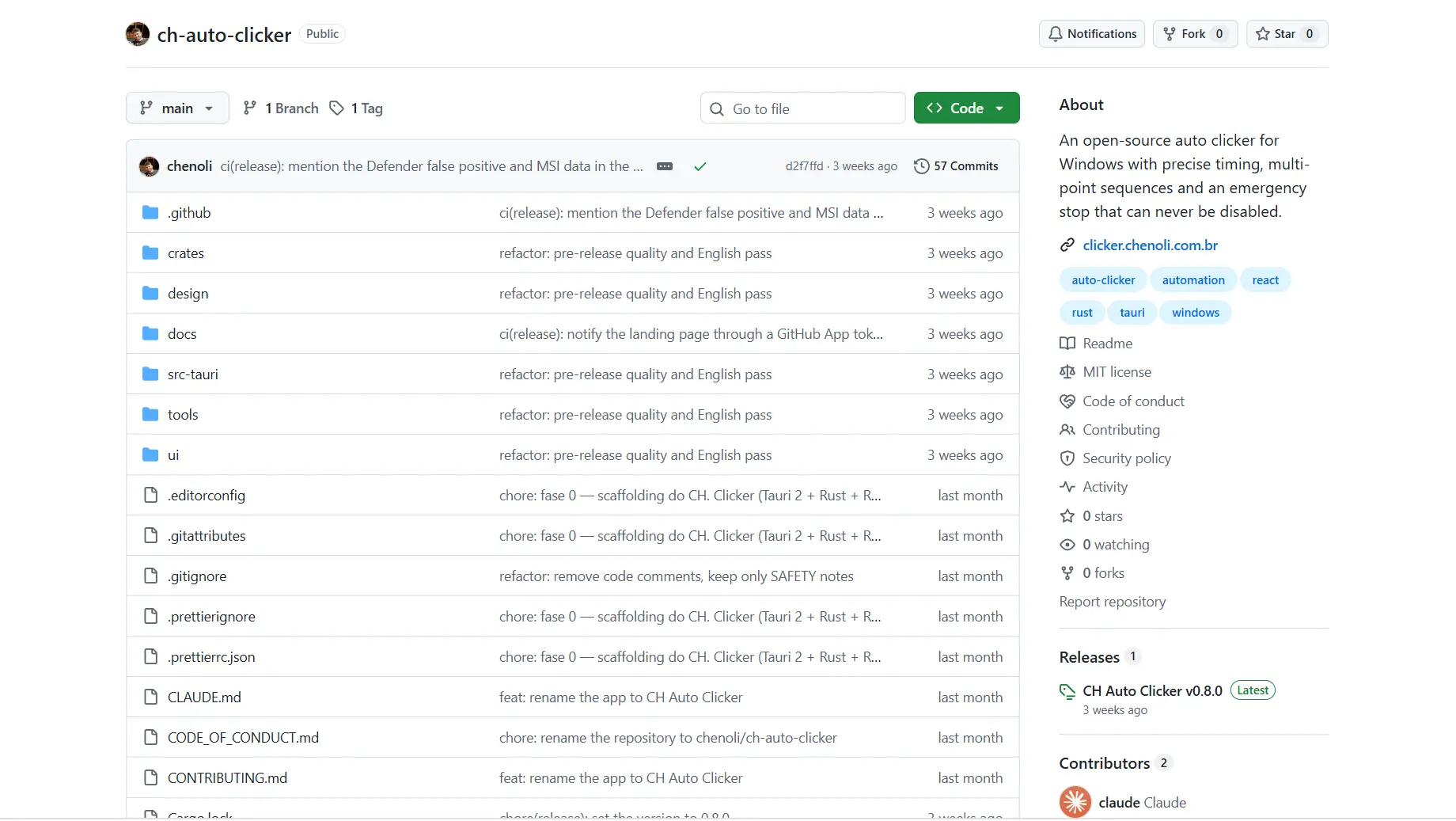
See the official WindowsAutoClicker repository and its release page .
Auto Clicker
Auto Clicker suits Windows 10/11 users who want free, open-source routes and conditional scripts without an account or feature lock. It offers a global hotkey, multi-point routes, random intervals, and scripts that can use waits and image or pixel conditions. Choose it for mouse-oriented scripted logic, not for a routine that requires holding a button or pressing keyboard keys.
Review the official Auto Clicker page for its supported controls and limits.
How We Compared
These four candidates were compared on the same decision points: supported Windows delivery, target selection, timing and repeat controls, playback or macro scope, licensing limits, and controls that help stop or constrain a routine. The practical distinction is not a claim of performance: it is whether the documented control set matches a single click, an ordered route, a recorded sequence, or a conditional routine.
How to Choose
- Need a bounded routine with explicit safety controls, image targets, or key actions? Choose WindowsAutoClicker.
- Need to record and replay both mouse and keyboard actions? Choose Fionn Auto Clicker, accounting for its three free runs and membership limit.
- Need only a free saved sequence of click positions? Choose AutoClick.
- Need a free scripted route with image conditions but no keyboard-key actions or holds? Choose Auto Clicker.
Final Verdict
For an Auto Clicker for Geometry Dash on Windows, consider WindowsAutoClicker first when you need the most documented stopping safeguards and more complex targeting. Choose Fionn Auto Clicker instead when keyboard-and-mouse recording and replay are the deciding requirement, provided the game permits automation and the membership limit fits your use. AutoClick is the simpler freeware choice for ordered click positions, while Auto Clicker is the fully free GPL-3.0 option for routes and conditional mouse scripts. All four candidates are documented for Windows; their licensing and feature limits differ materially.
Frequently Asked Questions
Can an auto clicker be used in Geometry Dash?
Only use one when the game’s rules and the relevant service allow automated input. A tool can also fail technically because some games ignore synthetic input.
Which option records keyboard actions as well as mouse actions?
Fionn Auto Clicker is documented to record and replay mouse and keyboard actions. WindowsAutoClicker documents key actions and click routines. AutoClick’s keyboard recording is not verified, and Auto Clicker states that it does not press keyboard keys.
What should I do if clicks do not reach the game?
Stop the routine, confirm the intended window is in the foreground, and test a longer interval with a short finite run. Some games may ignore synthetic input, and Fionn Auto Clicker notes that some windows may not support background clicking.
Which option is free without a feature lock?
Auto Clicker is documented as free GPL-3.0 software with no account, license key, feature lock, ads, or telemetry. AutoClick is freeware. WindowsAutoClicker permits non-commercial use under CC BY-NC 4.0, while Fionn Auto Clicker provides three free runs before membership-gated advanced and unlimited use.


