 Emily CarterScreen Recording
To record Escape the Backrooms with friends, you need to capture the game screen, game audio, participants’ voices, and, if needed, your own microphone. Before starting the playthrough, check whether you are using in-game voice chat or Discord, then make a short test recording. The key rule is that enabling only a microphone is not enough to capture friends’ voices: the audio output through which you hear them must be included in the file. Below is a two-method process: prepare the session, then record it in Fionn Screen Recorder.

Quick Recording Plan
| Stage | When It Is Needed | Result | Effort |
|---|---|---|---|
| Prepare and check voice chat | Before every co-op session | You know where each voice comes from | Low |
| Test in the game | After all participants join | Video, voices, and game audio are confirmed | Low |
| Record with Fionn Screen Recorder | To capture the screen and available audio sources in Windows | A saved video ready for review | Medium |
Method 1: Prepare to Record Escape the Backrooms with Friends
When to use: before starting the main recording, especially when some teammates communicate in the game while others use Discord. According to the official Escape the Backrooms page on Steam , the game supports co-op for one to four players and proximity voice chat. Nearby entities can also hear players speaking.
- Choose the player whose screen will record the co-op playthrough.
- Ask each participant where they will speak: in the in-game chat or in Discord.
- Decide which voices and game sounds should remain in the final video.
- Get participants’ consent to record their voices.
Check: before the session begins, you know whose screen is being recorded and which communication channel should be audible in the video.
Set Up Voice Chat
In-game chat and Discord may play through different audio outputs. Do not assume both sources will automatically be included in the video. To save friends’ voices from Escape the Backrooms in the video, record the audio output through which the game voice chat or Discord is heard, and check your own microphone separately.
- If the team talks in the game, listen to a test conversation within the connected multiplayer session.
- If the team uses Discord, confirm in a test that the conversation is audible in the computer’s playback audio.
- If both channels are used, avoid sending the same voice through both paths at once, as this can create duplicates or echo.
What Audio Should You Record?
| What Should Be Included in the Video | Source to Check |
|---|---|
| Your own voice | Microphone input |
| Game sounds | Game or system audio output |
| Friends’ voices in in-game chat | The audio output that carries the game voice chat |
| Friends’ voices in Discord | The audio output that carries Discord |
| All sources together | Check the microphone and the required playback audio sources |
Enabling the microphone does not mean friends’ voices will automatically appear in the recording. A microphone captures your input; other participants’ voices usually need to be captured from playback audio.
Method 2: Record Escape the Backrooms with Fionn Screen Recorder
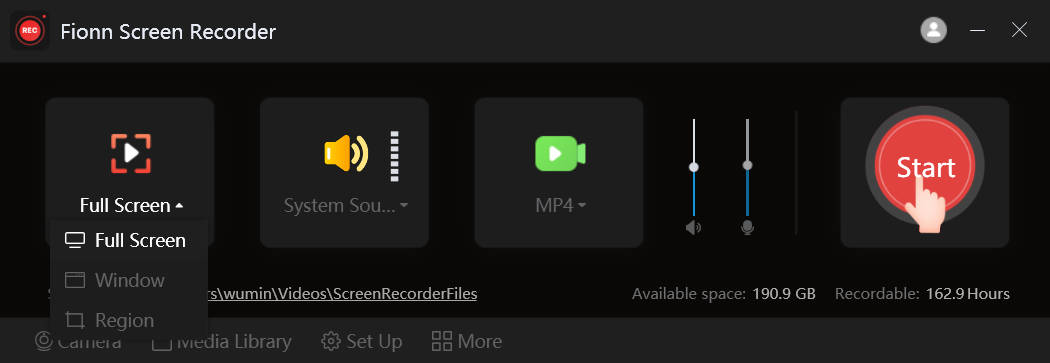
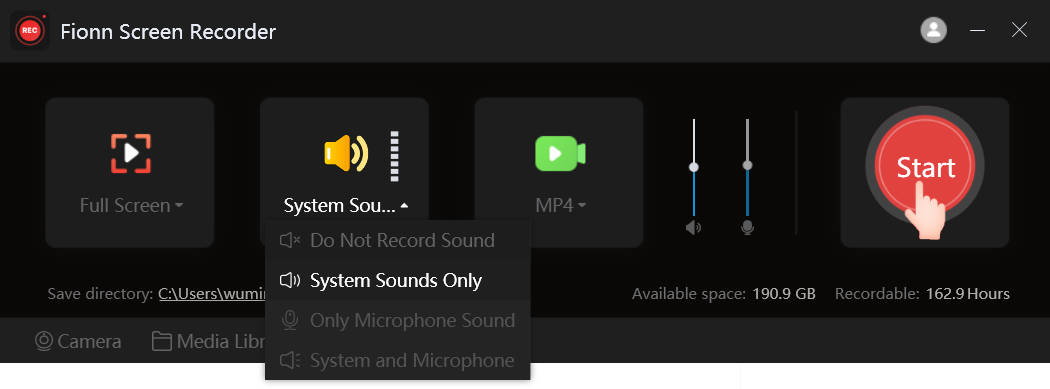
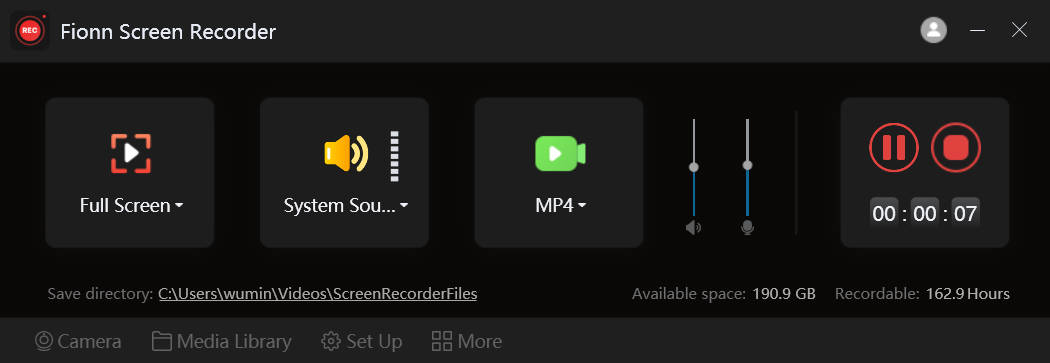
When to use: if you are recording on Windows and want to select a screen, window, or area, configure audio, and review the saved video. This is a practical option for recording gameplay with friends’ voices: Fionn Screen Recorder supports full-screen, window, and custom-area capture, as well as confirmed No Audio, Microphone Only, and System Audio and Microphone modes.
- Launch Fionn Screen Recorder.
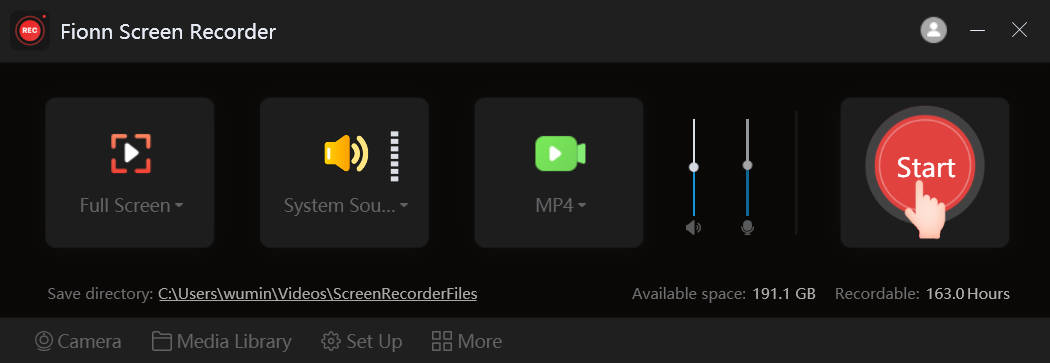
- Select the game window, full screen, or required area.
- Configure system audio and the microphone according to the voices and sounds you want to save.
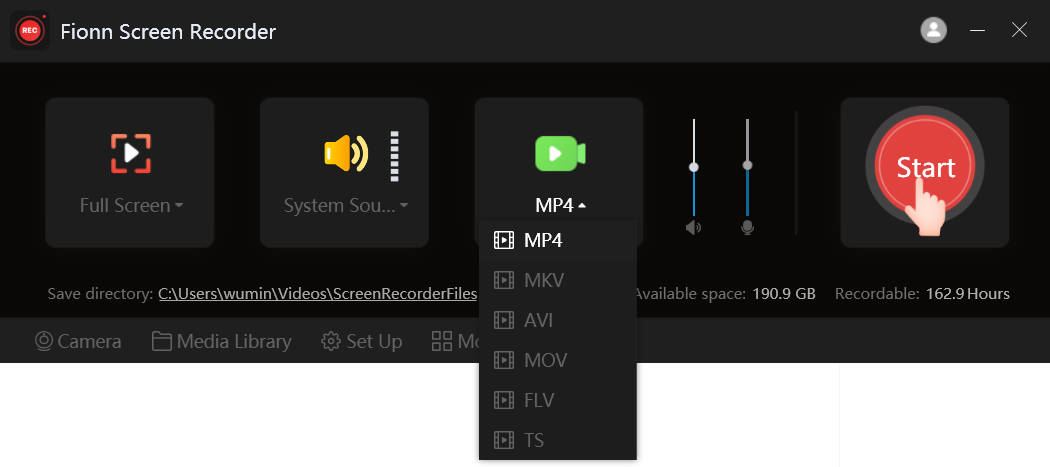
- Configure output settings, such as the video format, before starting the recording.
- Record a short co-op segment, then stop the recording.
- Open the saved clip in the media library and listen to it.
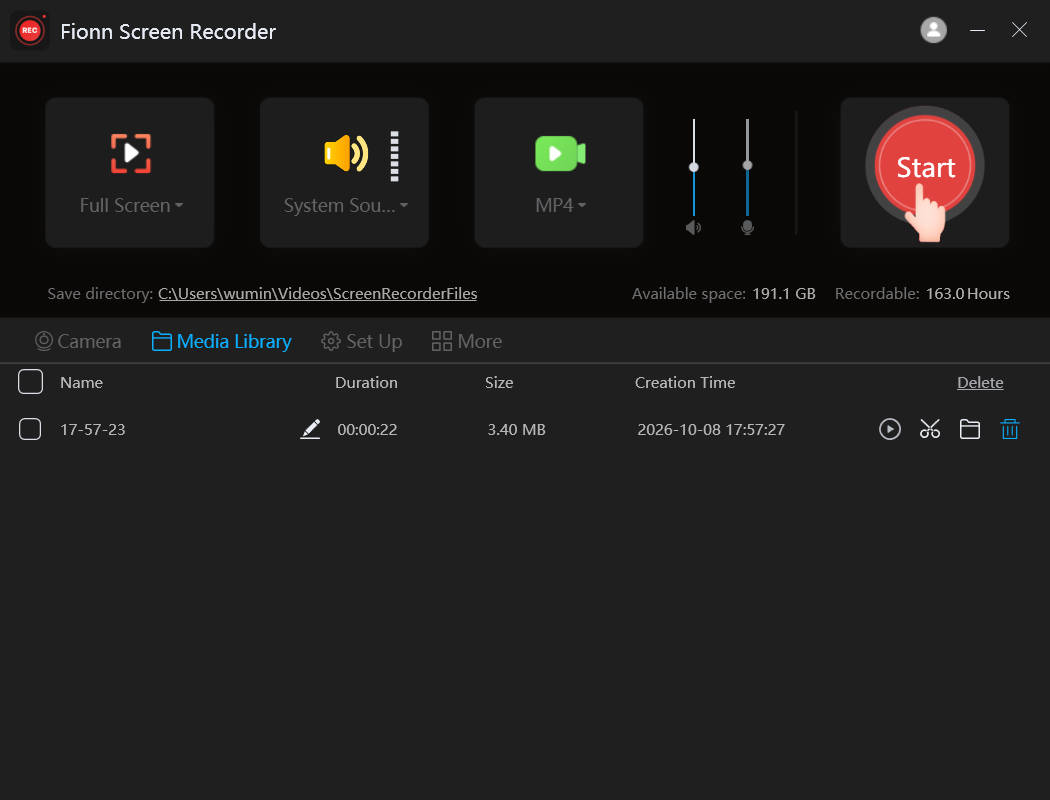
- After the check succeeds, start the full playthrough recording.
- When finished, play the saved file again before closing the game.
Check: the saved video shows the gameplay, includes the planned audio sources, and has no unexpected duplicate voices.
Check Audio Before the Playthrough
A desktop test does not prove that in-game voice chat recording will work. Test the exact session you intend to record.
- Open Escape the Backrooms.
- Join the intended multiplayer session.
- Ask each participant to say a short phrase once.
- Record a short segment with conversation and environmental audio.
- Stop the recording and play the saved clip.
- Check your own voice, friends’ voices, and game sounds separately.
If you use only Discord, make sure that its conversation is included in the output file. Change one source at a time and repeat the short test.
Why Can’t You Hear Friends in an Escape the Backrooms Recording?
| Symptom | What to Check |
|---|---|
| Your voice is present, but friends are missing | Check playback-audio capture and the voice-chat output. |
| Friends are audible in Discord but absent from the video | Check whether the recording includes the audio output used by Discord. |
| A friend cannot be heard in the game | First check proximity voice chat and in-game communication, not the recording settings. |
| Environmental sounds are missing | Check system or game-audio capture. |
| There is echo or duplicate voices | Check for overlapping voice-chat paths and duplicated audio capture. |
| There are no voices or game sounds | Check the selected audio sources and repeat a short in-game test. |
Conclusion
Start a co-op playthrough recording by identifying the voice channel: in-game chat and Discord require checking the audio output through which you hear your friends. Then select the gameplay view, enable the required audio sources in Fionn Screen Recorder , and make a short test within the multiplayer session. A successful test includes the game, your voice when needed, teammates’ voices, and environmental audio without echo. If something is missing, first determine whether the sound is absent in the game itself, then adjust one source and repeat the test.
Frequently Asked Questions
How do I record friends’ voices in Escape the Backrooms?
Record the playback audio output through which you hear the in-game chat or Discord, then confirm the result with a short clip. The recorder’s microphone alone does not replace that source.
Can I record the game and Discord at the same time?
This is possible only if a test video confirms that both sounds are present in the captured playback audio. Do not assume the game and Discord always use the same output.
Why can’t I hear a friend in the in-game voice chat?
Escape the Backrooms uses proximity voice chat. If a player is far away, their voice may not be audible; check in-game communication and player positions before troubleshooting the recorder.
Can I record only the game without voice?
This is not the same as No Audio. Game audio without voice means preserving the game’s audio output without a microphone; Microphone Only preserves only your voice; System Audio and Microphone preserves both; No Audio preserves neither source. Fionn Screen Recorder has confirmed No Audio, Microphone Only, and System Audio and Microphone modes; check the current interface and a test file to confirm whether a separate System Audio Only mode is available.
Does every player need to record their screen?
No. For one shared video, one selected screen is usually enough. Separate recordings are useful only when you need different viewpoints or backup footage.
How do I remove voice echo from a recording?
Do not duplicate the same conversation through in-game chat and Discord when both paths are included in captured audio. After making a change, run another short test.


