 Emily CarterDLL Errors
Introduction
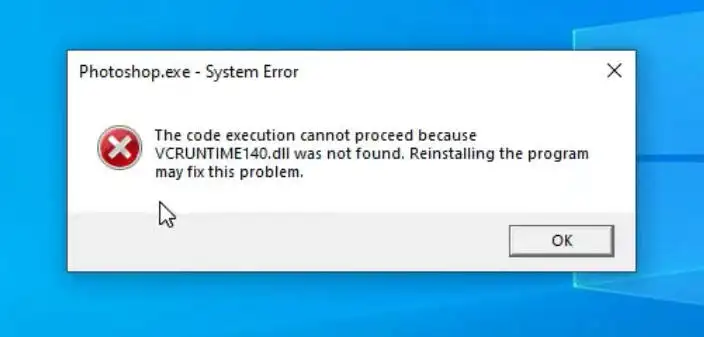
A vcruntime140.dll missing or not found message usually means an application cannot load the Microsoft runtime file it needs. Do not download a loose DLL from an unofficial file site. Use these three methods instead: repair the affected application, install or repair the official Microsoft Visual C++ Redistributable, and use an optional broader DLL scan. Start with Method 1 when only one application fails. Start with Method 2 when several applications show related runtime errors.
Quick Overview
| Observed scenario | Best starting method | Reason |
|---|---|---|
| One application fails after installation or an update | Repair the application | The application's local installation may be incomplete. |
| Several applications report runtime or DLL errors | Install or repair the official Redistributable | The shared runtime installation may need attention. |
| The error remains after both official methods | Use Fionn DLL Fixer | A broader scan can check for missing, damaged, or mismatched DLL issues. |
What a vcruntime140.dll Error Means
Microsoft documents the vcruntime library as compiler-specific runtime code used for functions such as exception handling, runtime checks, and type information. An error does not prove that the file is absent from every Windows folder. The requesting application may be unable to load a compatible copy because its installation is incomplete or the required runtime package is missing, damaged, outdated, or built for another architecture.
The safest download route is the complete, signed Microsoft package. Microsoft's deployment documentation recommends central installation through a Redistributable package instead of manually copying individual runtime DLLs. This approach also allows the runtime libraries to receive servicing independently.
Method 1: Repair the App Reporting vcruntime140.dll
When to Use
Use this low-risk Windows option when one program fails but other applications open normally. Microsoft notes that repair options are not available for every application.
Step-by-Step Guide
- Close the application displaying the error.
- Open
Start > Settings > Apps > Installed appsin Windows 11. - Select the application's More button, open
Advanced options, and chooseRepairwhen available. - If that option is absent, open
Control Panel > Programs > Programs and Features, right-click the application, and selectRepairorChange.
These paths follow Microsoft's official Windows app repair instructions . If neither interface offers repair, reinstall the application from its official publisher rather than downloading a separate DLL.
How to Verify
Launch the same application from the same shortcut. Method 1 worked if the application opens and the vcruntime140.dll dialog does not return. If several applications still fail, continue to Method 2.
Method 2: Install or Repair the Official Visual C++ Redistributable
When to Use
Use this method when multiple applications fail, app repair is unavailable, or the error names a Microsoft runtime component. Microsoft states that a Visual C++ Redistributable installs Microsoft C and C++ runtime libraries required by many applications built with MSVC tools.
Step-by-Step Guide
- Close every affected application and save your open work.
- Open Microsoft's latest supported Visual C++ Redistributable downloads page.
- Select the package that matches the application's target architecture:
x86,x64, orARM64. Ask the application publisher when the target is unclear. - Run the downloaded, Microsoft-signed installer. Choose
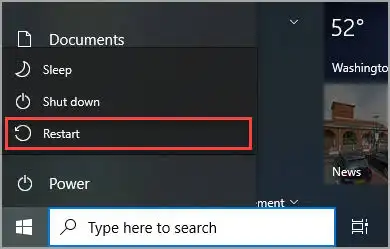
Repairif it is offered; otherwise complete the installation. - Restart Windows if prompted, then reopen the affected application.
How to Verify
Confirm that the installer completes without an error. Then launch each affected application. Success means the original vcruntime140.dll message is gone and normal startup continues. File presence alone is not sufficient verification because an incompatible architecture or version may still fail to load.
If the installer itself fails, follow Microsoft's Visual C++ Redistributable installation troubleshooting . Microsoft advises using its own signed installers and provides log-based guidance for installation errors.
Method 3: Scan with Fionn DLL Fixer
When to Use
Use this optional method after the Windows and Microsoft package methods when the cause remains unclear. The tool can scan for application crashes, startup failures, dependency-loading problems, and missing, damaged, or mismatched DLL files. It does not replace application publisher support or official Microsoft packages.
Step-by-Step Guide
- Launch Fionn DLL Fixer. The software automatically scans your PC for DLL and system issues and displays the detected results when the scan is complete.

- After the scan finishes, click "Repair" to start fixing all detected DLL and system issues automatically.

- Wait while the repair is in progress. During this process, the button changes to "Fixing" until all issues have been repaired.

- When the repair is complete, click "Ok" in the confirmation dialog. If prompted, restart your computer before checking whether the problem has been resolved.

- If the issue still persists after restarting, click "Recheck" to perform another scan. If new issues are found, click "Repair" again to fix them.

How to Verify
Run the supplied recheck, then launch the application that produced the error. The repair is verified only when the scan no longer reports the issue and the application starts without the same vcruntime140.dll message.
Common Mistakes to Avoid
- Downloading one DLL from a file mirror: Use the official runtime package or application installer instead.
- Choosing a package from Windows architecture alone: The Redistributable must match the application's target architecture.
- Copying files into system folders: Manual placement can leave an incompatible or unserviceable copy. Prefer Microsoft's central deployment package.
- Checking only that the file exists: Relaunch the exact failing application to verify the result.
Conclusion
Repair the affected application first when the error is isolated to one program. Install or repair the official Microsoft Visual C++ Redistributable when several programs fail or app repair does not help. Verify every method by reopening the original application, not by searching for the DLL alone. If the message remains, record the exact filename and installer error, then contact the application's publisher. For a broader post-repair scan and recheck, Fionn DLL Fixer is an optional next step.
FAQ
Is vcruntime140.dll safe to download?
A standalone copy from an unknown DLL website is not the recommended route. Download the signed Visual C++ Redistributable from Microsoft or reinstall the affected application from its official publisher. The package installs and registers the runtime libraries together.
Which Redistributable architecture should I install?
Match the Redistributable to the application's target architecture. An x86 application needs x86 libraries even on 64-bit Windows. Use the application's support documentation when unsure. Microsoft's current x64 package also contains x64 and ARM64 binaries, but that does not replace x86 libraries.
Why does the error appear when vcruntime140.dll already exists?
The application may be loading a different path, architecture, or incompatible runtime version. A damaged application installation can produce the same symptom. Repair the application first when only one program fails, then repair or install the correct official Redistributable.
Should I copy vcruntime140.dll into System32 or SysWOW64?
Manual copying is not the preferred user repair. Microsoft's central Redistributable package places and registers the appropriate libraries and supports later servicing. Copying an arbitrary file can introduce an architecture or version mismatch without fixing the underlying installation.
What should I do if all three methods fail?
Capture the complete error message and note which application triggers it. Check the Visual C++ installer logs if package installation failed. Then contact the application publisher with the app version, Windows version, package architecture, and exact error text.


