 Emily CarterDLL Errors
To fix a VCRUNTIME140.dll missing or not found error on Windows 10 or 11, install or repair the Microsoft Visual C++ Redistributable that matches the affected application. A 32-bit app needs x86 libraries even on 64-bit Windows. If the runtime repair completes but the same app still fails, repair its installation and retest. This guide explains the actual error messages, safe download options, architecture choices, and the related VCRUNTIME140_1.dll error.
Quick Overview
| Observed scenario | Best starting method | Reason |
|---|---|---|
| One application fails after installation or an update | Repair the application | The application's local installation may be incomplete. |
| Several applications report runtime or DLL errors | Install or repair the official Redistributable | The shared runtime installation may need attention. |
| The error remains after both official methods | Use Fionn DLL Fixer | A broader scan can check for missing, damaged, or mismatched DLL issues. |
What a vcruntime140.dll Error Means
Microsoft documents the vcruntime library as compiler-specific runtime code used for functions such as exception handling, runtime checks, and type information. An error does not prove that the file is absent from every Windows folder. The requesting application may be unable to load a compatible copy because its installation is incomplete or the required runtime package is missing, damaged, outdated, or built for another architecture.
The safest download route is the complete, signed Microsoft package. Microsoft's deployment documentation recommends central installation through a Redistributable package instead of manually copying individual runtime DLLs. This approach also allows the runtime libraries to receive servicing independently.
Recognize the Exact VCRUNTIME140.dll Error
The wording helps you choose the next check. Copy the full message and the program name before closing the dialog.
| What you see | What it tells you | Where to start |
|---|---|---|
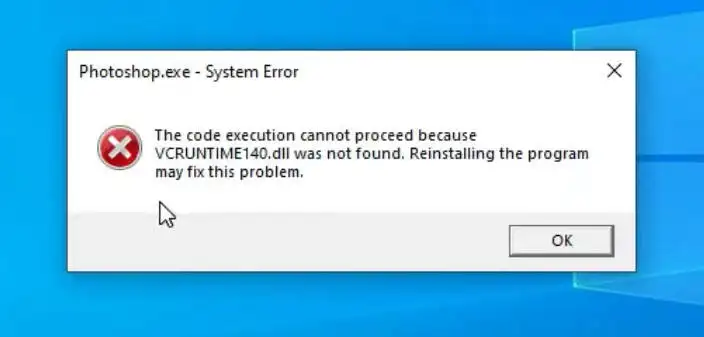
| The code execution cannot proceed because VCRUNTIME140.dll was not found. Reinstalling the program may fix this problem. | The application cannot load a required runtime dependency. The dialog alone does not identify which installation is at fault. | Install or repair the matching Visual C++ v14 package; repair the app if the error remains. |
| The program can't start because VCRUNTIME140.dll is missing from your computer. | This is another common missing-dependency message. | Check both the runtime package and the affected program. |
| VCRUNTIME140_1.dll was not found. | The message names a different file in the Visual C++ runtime family. | Use a current compatible runtime and check the application's requirements; do not rename VCRUNTIME140.dll. |
| A bad image or entry-point message names VCRUNTIME140.dll. | This is not simply the same missing-file symptom. The complete message matters. | Record the exact wording, repair the runtime and application, and investigate any remaining error separately. |
If one dialog disappears and another names
MSVCP140.dll
or
VCRUNTIME140_1.dll
, do not start collecting individual DLL files. Several runtime dependencies can be involved in the same application. Install the appropriate complete package and test again.
VCRUNTIME140.dll Download: Use the Microsoft Runtime Package
If you searched for a VCRUNTIME140.dll download for Windows 10 or Windows 11, download the Visual C++ Redistributable installer , rather than a loose DLL. It installs the runtime as a package. You do not need to buy or install the Visual Studio development environment to use its Redistributable.
Use Microsoft's current download page as the starting point. Its official installer links are vc_redist.x86.exe for x86 applications, vc_redist.x64.exe for x64 applications, and vc_redist.arm64.exe for ARM64 applications. Follow any specific runtime requirement supplied by your application publisher.
You may see an older installed entry named Microsoft Visual C++ 2015–2022 Redistributable , while Microsoft's current download uses the Visual C++ v14 Redistributable name. Do not assume that only an old installer labelled 2015 can address a filename containing 140. Also, Visual C++ 2013 and earlier packages are separate dependencies: removing them all is not a useful shortcut.
Should You Install x86, x64, or Both?
The deciding factor is the application's architecture . “64-bit Windows” describes the operating system; it does not mean every installed program is 64-bit.
| Computer and application | Runtime to check | Practical example |
|---|---|---|
| 32-bit application on 32-bit Windows | x86 | An x64 package cannot be installed as a substitute on this system. |
| 32-bit application on 64-bit Windows | x86 | An older launcher may need x86 even if its game is x64. |
| 64-bit application on 64-bit Windows | x64 | Installing only x86 does not supply that application's x64 runtime. |
| A mix of x86 and x64 applications on 64-bit Windows | Both matching packages may be needed | Install them separately; one does not replace the other. |
| Windows on ARM | Match each application's architecture | Check the vendor guidance for native ARM64 and emulated applications. |
To check Windows itself, open Settings > System > About and read System type . Then check the application's download page or support documentation for its architecture. If a program includes a launcher and helper processes, ask its publisher which packages are required instead of guessing from the main executable alone.
Method 1: Repair the App Reporting vcruntime140.dll
When to Use
Use this low-risk Windows option when one program fails but other applications open normally. Microsoft notes that repair options are not available for every application.
Step-by-Step Guide
- Close the application displaying the error.
- Open
Start > Settings > Apps > Installed appsin Windows 11. - Select the application's More button, open
Advanced options, and chooseRepairwhen available.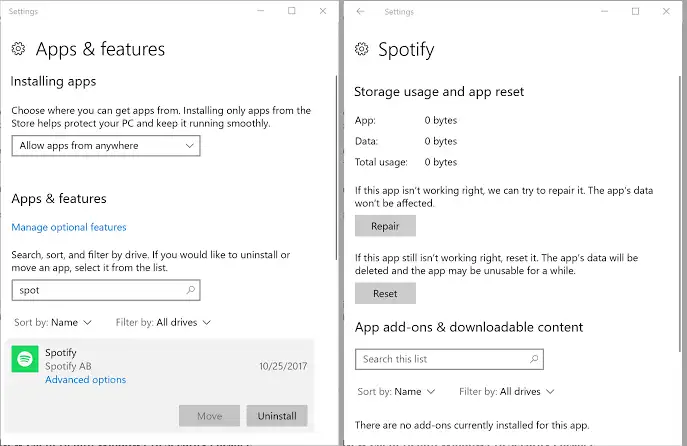
- If that option is absent, open
Control Panel > Programs > Programs and Features, right-click the application, and selectRepairorChange.
These paths follow Microsoft's official Windows app repair instructions . If neither interface offers repair, reinstall the application from its official publisher rather than downloading a separate DLL.
How to Verify
Launch the same application from the same shortcut. Method 1 worked if the application opens and the vcruntime140.dll dialog does not return. If several applications still fail, continue to Method 2.
Method 2: Install or Repair the Official Visual C++ Redistributable
When to Use
Use this method when multiple applications fail, app repair is unavailable, or the error names a Microsoft runtime component. Microsoft states that a Visual C++ Redistributable installs Microsoft C and C++ runtime libraries required by many applications built with MSVC tools.
Step-by-Step Guide
- Close every affected application and save your open work.
- Open Microsoft's
latest supported Visual C++ Redistributable downloads
page.
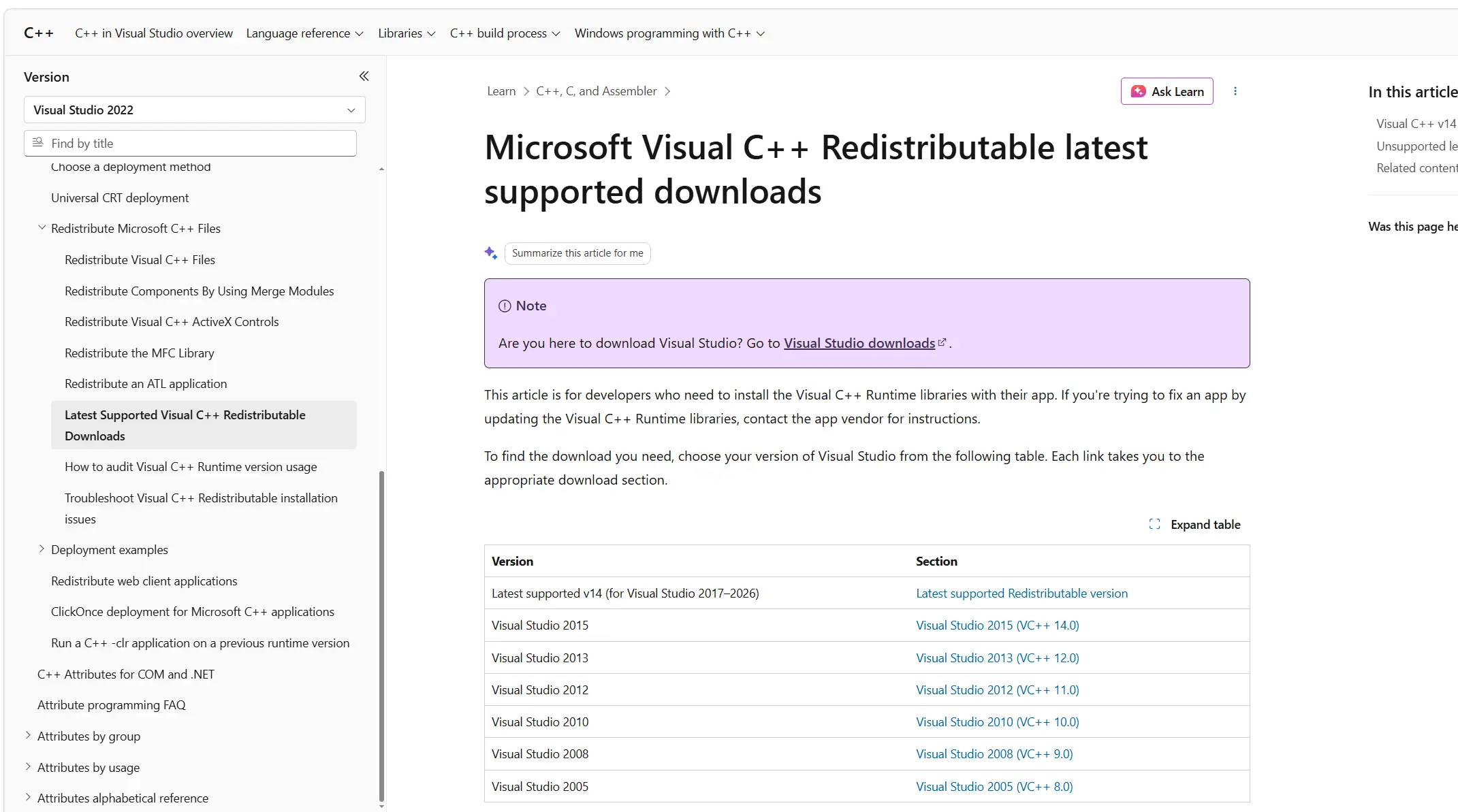
- Select the package that matches the application's target architecture:
x86,x64, orARM64. Ask the application publisher when the target is unclear. - Run the downloaded, Microsoft-signed installer. Choose
Repairif it is offered; otherwise complete the installation. - Restart Windows if prompted, then reopen the affected application.
How to Verify
Confirm that the installer completes without an error. Then launch each affected application. Success means the original vcruntime140.dll message is gone and normal startup continues. File presence alone is not sufficient verification because an incompatible architecture or version may still fail to load.
If the installer itself fails, follow Microsoft's Visual C++ Redistributable installation troubleshooting . Microsoft advises using its own signed installers and provides log-based guidance for installation errors.
If Visual C++ Is Already Installed: Repair It
An entry in Installed apps proves that a package was registered, not that the affected application can load the required file. Repair is a useful next step when the correct architecture is already present.
- Close the affected app and launcher. Open
Control Panel > Programs > Programs and Features
.
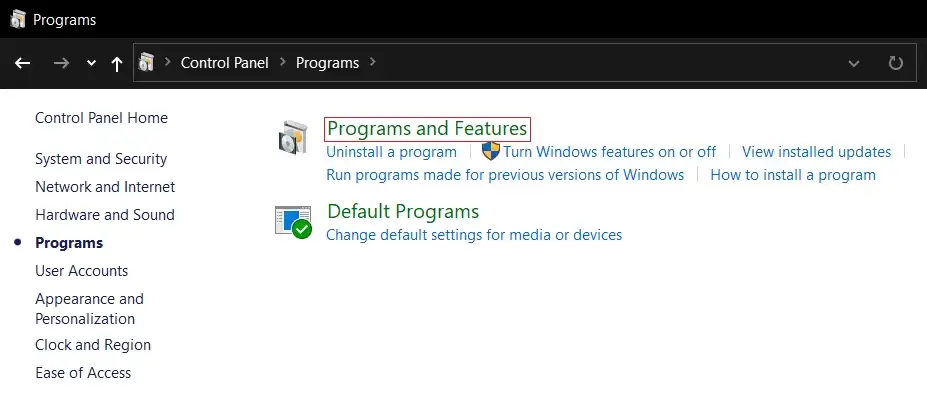
- Find the relevant Microsoft Visual C++ v14 or 2015–2022 Redistributable entry. Check whether it says x86 or x64.
- Select Change , then Repair if the maintenance window offers it. Alternatively, run the official matching installer and use its repair option.
- If the program requires both architectures, check each corresponding entry separately. Restart if requested and relaunch the original app.
Do not uninstall every Visual C++ package as a first step. Other programs may rely on them. If a repair cannot complete, capture its exact error before deciding whether a targeted reinstall is necessary.
If the Installer Says a Version Is Already Installed
A message that a newer or another version is installed is not evidence that the app is repaired. Avoid forcing an older installer over a newer package. Recheck the architecture, use the installed package's repair option, and consult the app publisher if it requires a particular release.
If setup fails, note its error code, restart after pending installations finish, and retry using a fresh official installer. Preserve the setup log for support. Microsoft's Redistributable installation troubleshooting guide covers failed setup and log collection.
Method 3: Scan with Fionn DLL Fixer
When to Use
Use this optional method after the Windows and Microsoft package methods when the cause remains unclear. The tool can scan for application crashes, startup failures, dependency-loading problems, and missing, damaged, or mismatched DLL files. It does not replace application publisher support or official Microsoft packages.
Step-by-Step Guide
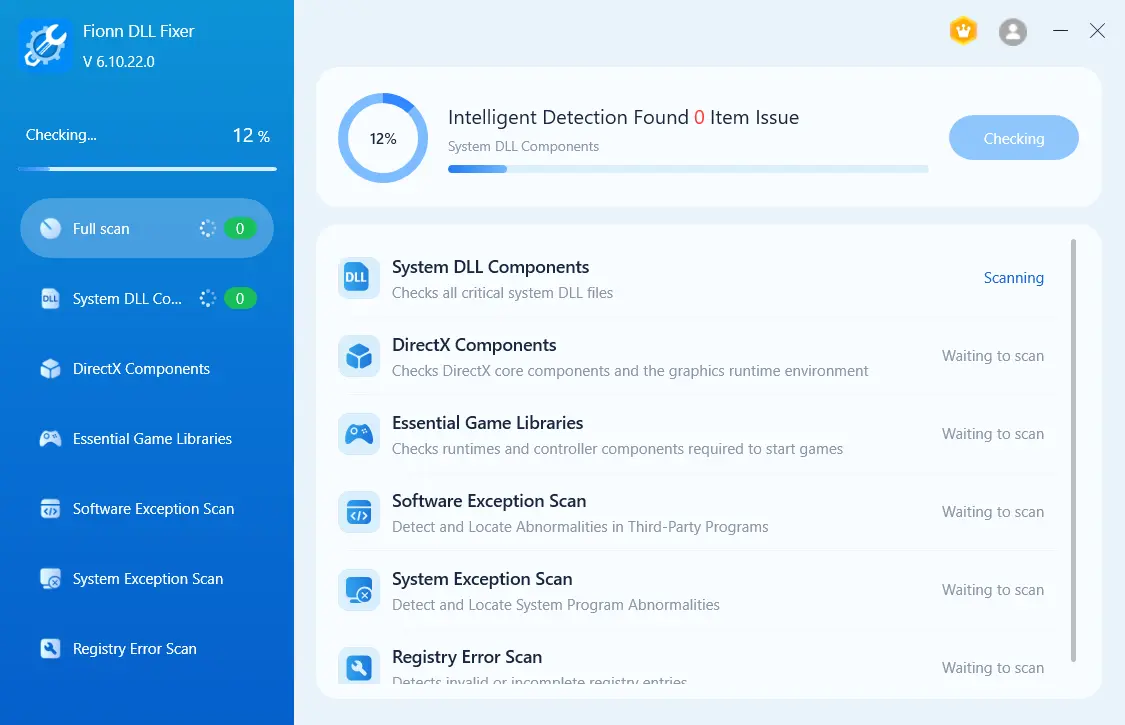
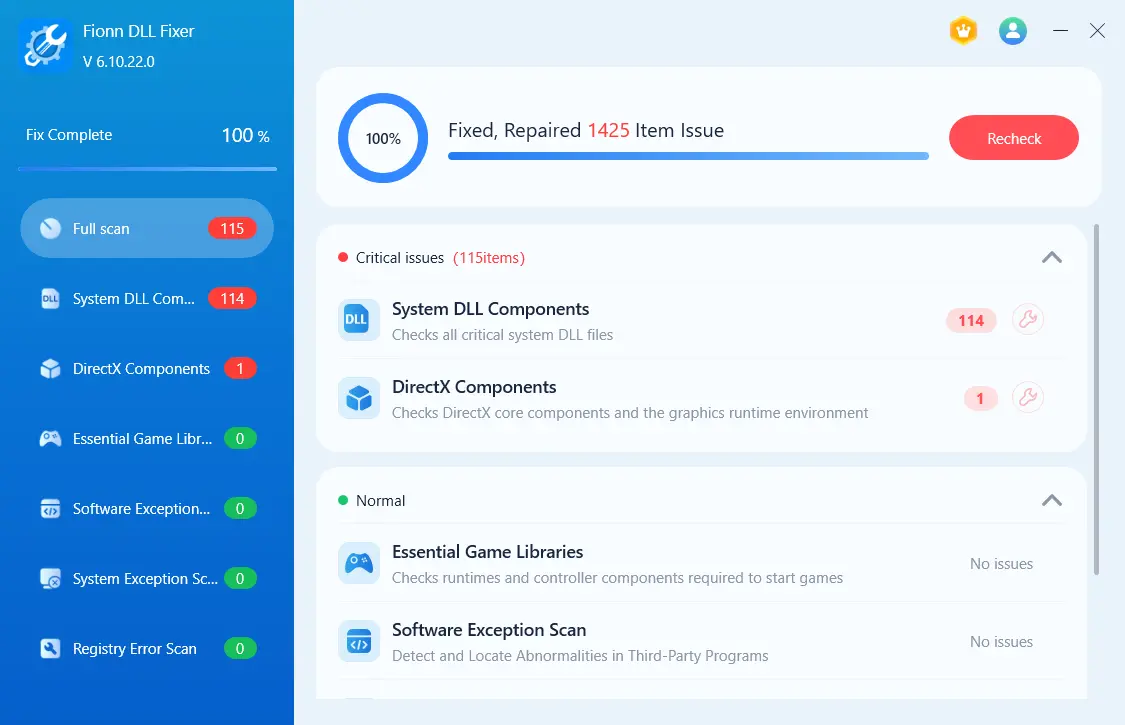
- Launch Fionn DLL Fixer. The software automatically scans your PC for DLL and system issues and displays the detected results when the scan is complete.
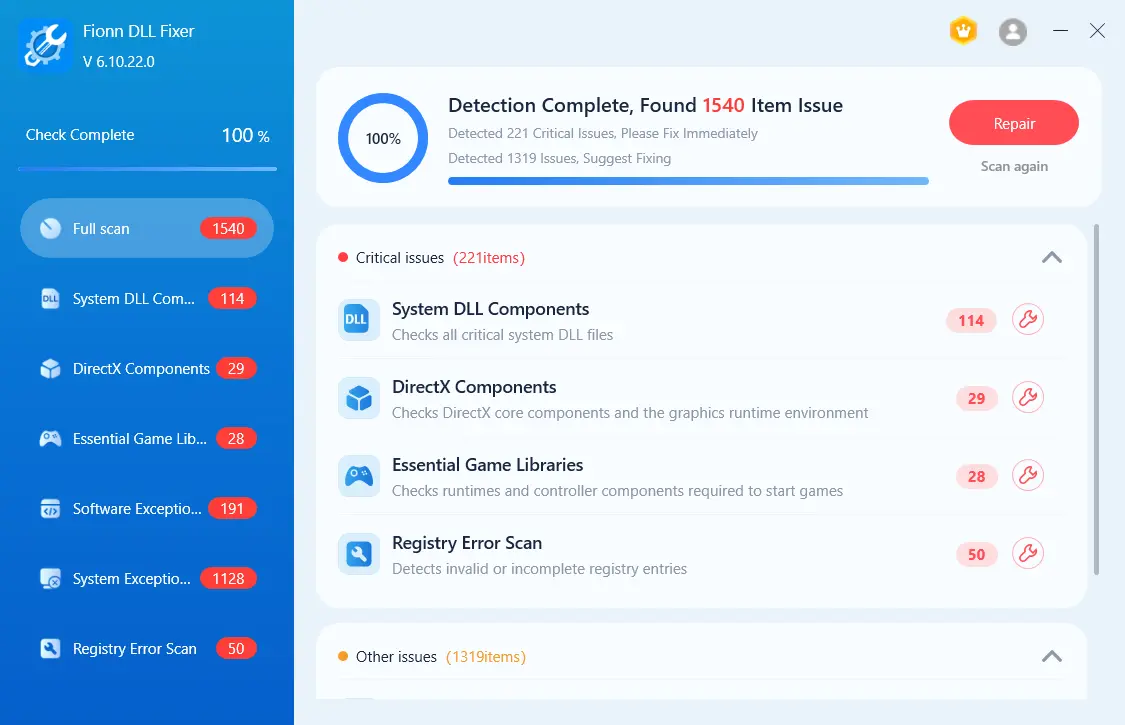
- After the scan finishes, click "Repair" to start fixing all detected DLL and system issues automatically.
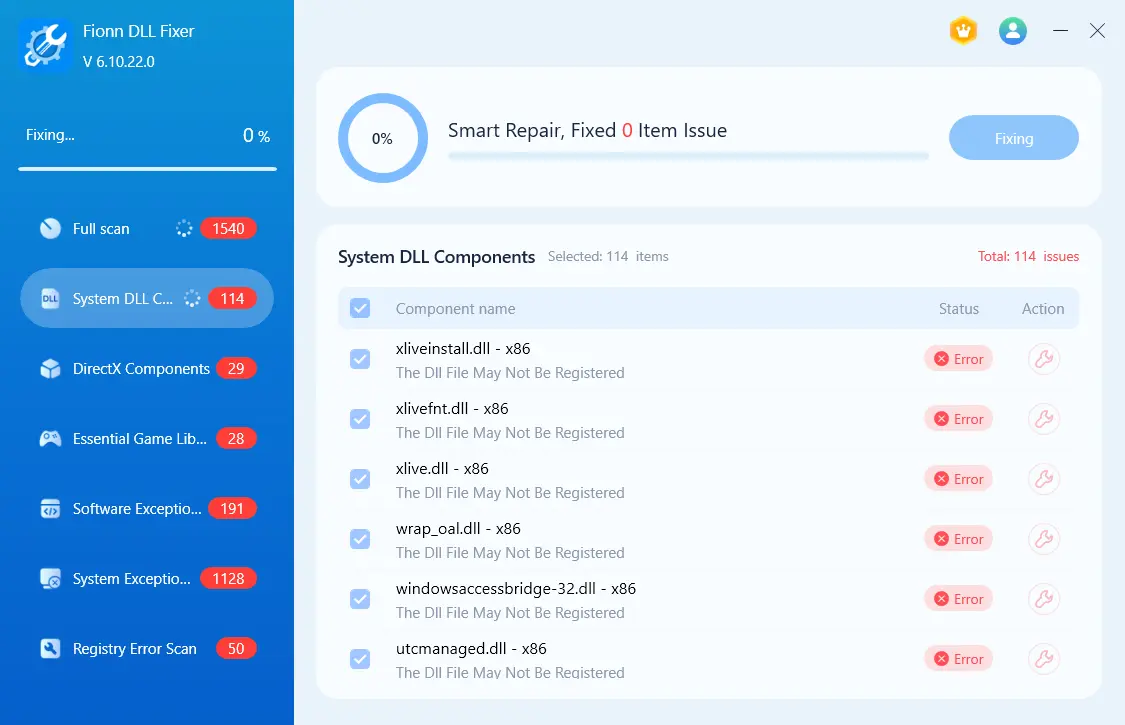
- Wait while the repair is in progress. During this process, the button changes to "Fixing" until all issues have been repaired.
- When the repair is complete, click "Ok" in the confirmation dialog. If prompted, restart your computer before checking whether the problem has been resolved.
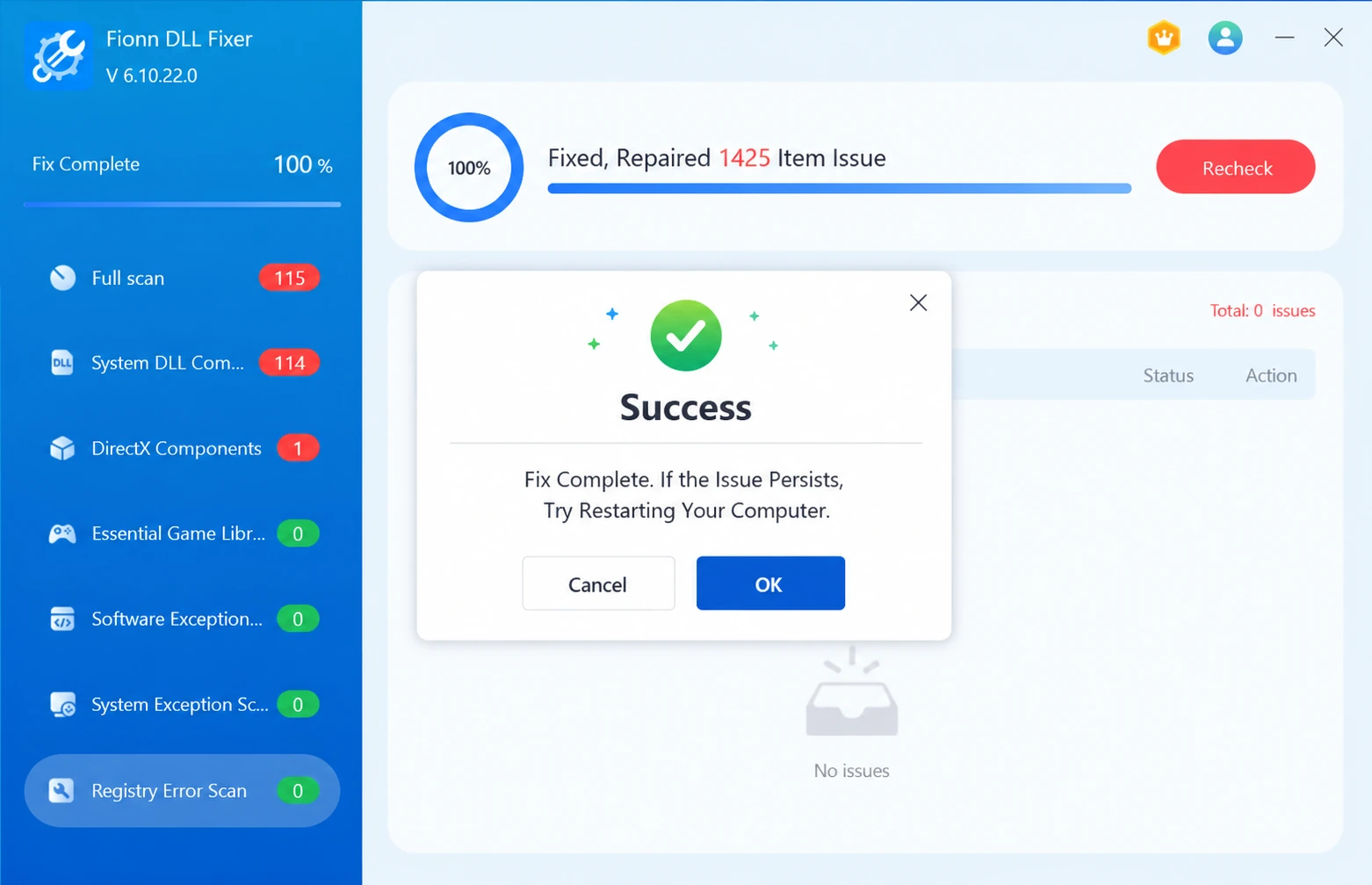
- If the issue still persists after restarting, click "Recheck" to perform another scan. If new issues are found, click "Repair" again to fix them.
How to Verify
Run the supplied recheck, then launch the application that produced the error. The repair is verified only when the scan no longer reports the issue and the application starts without the same vcruntime140.dll message.
VCRUNTIME140.dll vs VCRUNTIME140_1.dll: What Is Different?
They are different DLL filenames , not two spellings of one file. Both belong to the Visual C++ runtime family, but an application may request one or both. Having VCRUNTIME140.dll on the PC does not establish that VCRUNTIME140_1.dll is available to the same application.
For either error, check the current compatible Visual C++ Redistributable and the application's installation. Never rename one DLL to the other: changing a filename does not change its functions or make it satisfy another dependency. Autodesk's VCRUNTIME140_1.dll troubleshooting guidance likewise directs affected users to runtime installation and repair.
If the exact file in your message includes
_1
, use the dedicated
VCRUNTIME140_1.dll guide
only if that is the matching error. Keep the complete filename in your support notes.
Still Missing After Installing Visual C++? Check These Results
- Same message, one app only: repair or reinstall that app using its original installer. A shared runtime repair may not replace the app's local files. Back up saves and settings before reinstalling.
- Same message, several apps: confirm which architecture each app requires and whether the matching package repair actually completed.
- The error changes: record the new filename and code. A different message is a new diagnostic result, not proof that startup is fixed.
- The error returns after an update: record the app and runtime versions and ask the publisher whether its update has additional dependency requirements.
- Installation fails: resolve that setup failure first; downloading another copy of the DLL does not complete the failed runtime installation.
For support, provide the full dialog, application name and version, Windows version, application architecture, installed runtime entries, and the result of each repair. If normal startup works, also test the operation that originally triggered the failure.
Common Mistakes to Avoid
- Downloading one DLL from a file mirror: Use the official runtime package or application installer instead.
- Choosing a package from Windows architecture alone: The Redistributable must match the application's target architecture.
- Copying files into system folders: Manual placement can leave an incompatible or unserviceable copy. Prefer Microsoft's central deployment package.
- Checking only that the file exists: Relaunch the exact failing application to verify the result.
Conclusion
Repair the affected application first when the error is isolated to one program. Install or repair the official Microsoft Visual C++ Redistributable when several programs fail or app repair does not help. Verify every method by reopening the original application, not by searching for the DLL alone. If the message remains, record the exact filename and installer error, then contact the application's publisher. For a broader post-repair scan and recheck, Fionn DLL Fixer is an optional next step.
FAQ
Is vcruntime140.dll safe to download?
A standalone copy from an unknown DLL website is not the recommended route. Download the signed Visual C++ Redistributable from Microsoft or reinstall the affected application from its official publisher. The package installs the required runtime libraries together.
Which Redistributable architecture should I install?
Match the Redistributable to the application's target architecture. An x86 application needs x86 libraries even on 64-bit Windows. Use the application's support documentation when unsure. Microsoft's current x64 package also contains x64 and ARM64 binaries, but that does not replace x86 libraries.
Why does the error appear when vcruntime140.dll already exists?
The application may be loading a different path, architecture, or incompatible runtime version. A damaged application installation can produce the same symptom. Repair the application first when only one program fails, then repair or install the correct official Redistributable.
Should I copy vcruntime140.dll into System32 or SysWOW64?
Manual copying is not the preferred user repair. Microsoft's central Redistributable package installs the appropriate libraries and supports later servicing. Copying an arbitrary file can introduce an architecture or version mismatch without fixing the underlying installation.
Can I fix the error with regsvr32?
Do not use DLL registration as a generic runtime repair. Install or repair the Visual C++ package and the affected app; a registration command does not install a missing dependency or correct its architecture.
Do I need Visual Studio or DirectX for VCRUNTIME140.dll?
You do not need the Visual Studio development environment just to run an application. VCRUNTIME140.dll is a Visual C++ runtime dependency; a DirectX installer addresses a different family of libraries. Use the dependency named in the exact error.
Is VCRUNTIME140.dll an error in Windows itself?
The message appears on Windows, but it often concerns a dependency required by a particular application. Start with the matching runtime and app installation rather than assuming Windows needs to be reinstalled.
What should I do if all three methods fail?
Capture the complete error message and note which application triggers it. Check the Visual C++ installer logs if package installation failed. Then contact the application publisher with the app version, Windows version, package architecture, and exact error text.


