 Emily CarterDLL Errors
Introduction
Direct answer:
vcruntime140_1.dll is part of the Microsoft Visual C++ runtime used by applications built with Microsoft C++ tools. If it is missing, repair or reinstall the affected application first, then repair or install the current Microsoft Visual C++ Redistributable that matches the application’s architecture. Do not download the DLL individually or copy it manually into
System32
.
This guide covers four methods. Start with the application when only one program fails; move to the shared runtime when several programs fail; use Windows repair commands only for broader system symptoms. A Fionn DLL Fixer scan is also available for diagnosing multiple DLL or runtime issues.
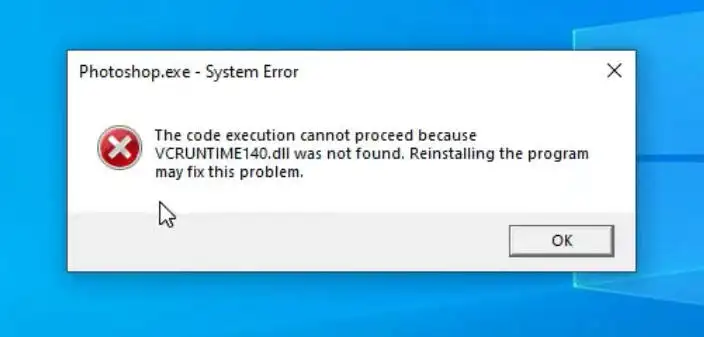
Why Is vcruntime140_1.dll Missing?
- The affected application installation is incomplete or damaged.
- The required Visual C++ runtime is missing, damaged, or older than the application requires.
- The application architecture and installed runtime do not match.
- An application update expects a newer compatible runtime.
- Windows component corruption may be involved when several applications or Windows features also fail.
Quick Method Comparison: Choose the Right Method
| Symptom | Likely cause | Start here | User effort |
|---|---|---|---|
| One application fails | App installation or dependency issue | Repair or reinstall the app | Low |
| Several applications fail | Shared Visual C++ runtime issue | Repair or install the redistributable | Medium |
| 32-bit app fails on 64-bit Windows | x86 runtime may be missing | Check the x86 redistributable | Medium |
| Error began after an app update | Runtime requirement changed | Update or repair the app and runtime | Medium |
| Windows components also fail | Possible system corruption | Run DISM, then SFC | Medium |
| Cause is unclear | Multiple DLL or runtime issues | Use a diagnostic scan | Low |
Method 1: Repair or Reinstall the Affected Application
When to Use
Use this first when only one application shows the error, especially after that application was installed or updated. Software publishers often package the runtime dependencies required by their application.
Steps
- Close the affected application and save open work.
- Open
Settings > Apps > Installed appsin Windows 11, orSettings > Apps > Apps & featuresin Windows 10.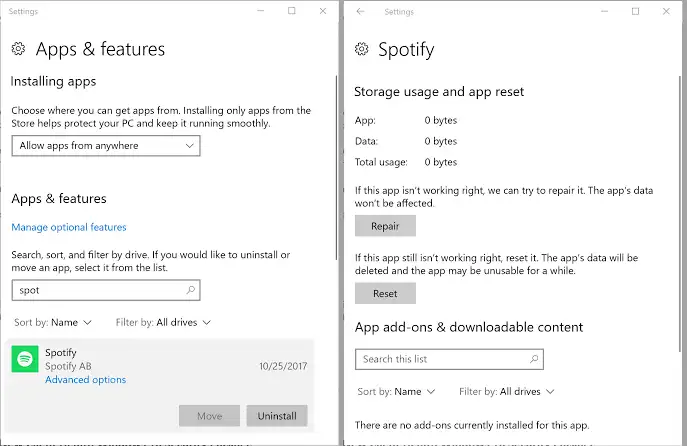
- Open the app’s options and select Repair if available. Microsoft documents these controls on its official app repair page .
- If Repair is unavailable, use
Control Panel > Programs > Programs and Featuresand select Repair or Change , if offered. - If repair does not work, reinstall the application from its official publisher or trusted distribution platform.
Verification
Launch the same executable that previously failed. If it opens without the message, the application installation was likely the cause.
Method 2: Repair or Install Microsoft Visual C++ Redistributable
When to Use
Use this when application repair fails or multiple programs report the error. Microsoft Visual C++ Redistributable packages install the C and C++ runtime libraries required by applications built with Microsoft Visual C++ tools.
Which Visual C++ Redistributable Do I Need?
- 32-bit application: x86
- 64-bit application: x64
- ARM64 application: ARM64
- 64-bit Windows does not mean every application is 64-bit.
Steps
- Identify whether the failing application is x86, x64, or ARM64 from its publisher documentation or system requirements.
- Open Microsoft’s latest supported Visual C++ Redistributable downloads .
- Download the current v14 package matching the application architecture.
- Run the Microsoft installer and select
Repair
when the package is already installed; otherwise, complete installation.
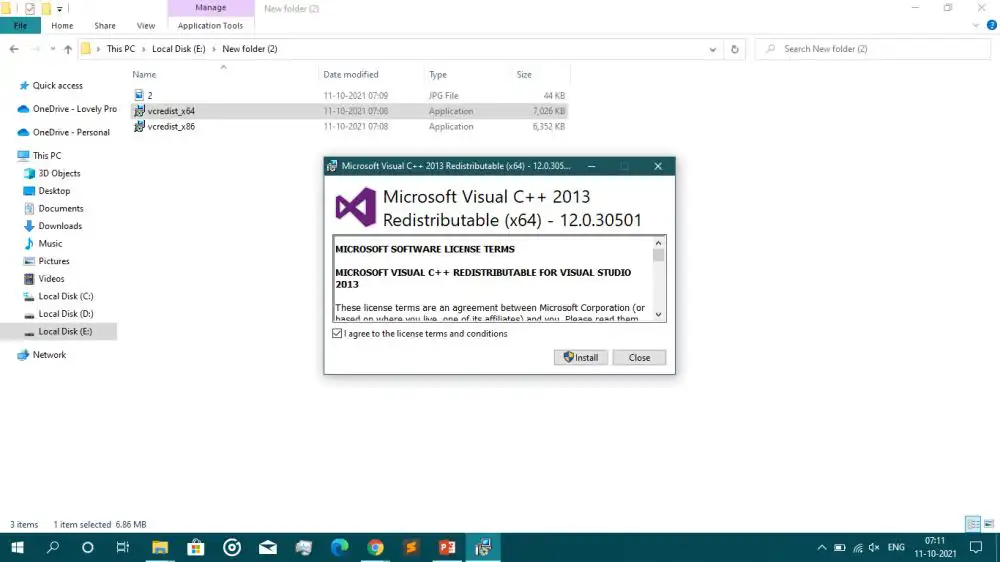
- Restart Windows and reopen the application.
Verification
Test the original application and any second program that showed the same error. A different error message is a new diagnostic clue; it does not mean another DLL should be downloaded individually.
Method 3: Repair Windows Components with DISM and SFC
When to Use
Use this method when several applications or Windows components show related errors, or when repairing the application and Visual C++ Redistributable did not resolve the issue.
Steps
- Open Command Prompt as administrator.
- Run the following command and wait for it to finish:
DISM.exe /Online /Cleanup-image /Restorehealth - Run the following command after DISM completes:
sfc /scannow - Restart Windows after SFC completes.
Verification
After restarting, repeat the action that triggered the error. If the issue remains limited to one program, contact that application’s publisher for its required runtime or installer guidance.
Method 4: Diagnose and Fix vcruntime140_1.dll Missing with Fionn DLL Fixer
When to Use
Recommended for unclear or multiple dependency problems: Fionn DLL Fixer can scan for missing, damaged, version-mismatched, and System32-path-related DLL issues, including Visual C++ runtime dependencies. It is useful when manual architecture and component checks have not identified the cause.
Steps
- Launch Fionn DLL Fixer. It automatically scans the PC for DLL and system issues and displays detected results.

- After the scan, click
Repair
to begin repairing detected DLL and system issues.

- Wait while repair is in progress. The button changes to
Fixing
until completion.

- Click
Ok
in the confirmation dialog and restart if prompted.

- If the issue remains after restarting, click
Recheck
; repair newly detected issues if needed.

Verification
Reopen the affected application, then use Recheck to confirm the detected issue remains resolved. The free version provides three attempts; VIP unlocks additional DLL, runtime, DirectX, and system repair functions.
What You Should Not Do with vcruntime140_1.dll
- Do not download vcruntime140_1.dll from random DLL sites.
- Do not copy it manually into
System32orSysWOW64. - Do not use
regsvr32as a generic vcruntime140_1.dll fix; this runtime DLL is not a general self-registration problem. - Do not assume 64-bit Windows means that only the x64 redistributable is needed.
Conclusion
Start with the smallest repair scope: repair or reinstall the one affected application, then install the current Visual C++ Redistributable that matches the application architecture. Use DISM followed by SFC only when wider Windows symptoms point to system corruption. When several runtime or DLL issues remain unclear, Fionn DLL Fixer can provide a scan, repair, and recheck workflow. Verify every method by reopening the exact application and repeating the action that originally produced the error. If it still fails, the application publisher can confirm its required runtime version.
Frequently Asked Questions
What is vcruntime140_1.dll?
It is a runtime DLL used by applications built with Microsoft C++ tools. The error occurs when an application cannot load the required runtime component.
Should I download vcruntime140_1.dll by itself?
No. Use the affected application installer or Microsoft’s official Visual C++ Redistributable instead of an isolated DLL download.
Do I need x86 or x64?
Match the package to the application: 32-bit applications need x86, and 64-bit applications need x64. This remains true on 64-bit Windows.
Why did the error start after an update?
The updated application may require a newer compatible runtime. Repair or update the application, then repair or install the matching current redistributable.


