 Emily CarterPrinter Drivers
If you need an HP LaserJet 1020 driver for Windows, first check the official HP catalog and your selected system version. If the printer is connected by USB, Windows may also add it automatically and obtain the driver through Windows Update. Below are three independent methods: the official HP package, built-in Windows installation, and automated checking through Fionn Printer Driver . After each method, print a test page: this distinguishes a successful driver installation from issues with the cable, queue, or printer status.
Before you begin: model, USB connection, and Windows version
- Check the model name on the device: it must be HP LaserJet 1020.
- Turn on the printer and make sure the USB cable is securely connected to the printer and computer.
- Identify your installed Windows version to select the appropriate installation path and driver package.
This is a general guide for compatible Windows versions. A specialized guide is available for Windows 11; an internal link to it can be added after an approved URL is provided.
Which method should you choose to install the HP LaserJet 1020 driver?
| Method | Best suited for | Effectiveness | User effort |
|---|---|---|---|
| Windows tools | An enabled USB printer is already connected to the computer | High | Low |
| Official HP website | You need to manually select a package for HP LaserJet 1020 | High | Moderate |
| Fionn Printer Driver | The cause of the issue is unclear or you need comprehensive diagnostics | High | Low |
Start with Windows tools if the printer is already connected by USB. Choose the official HP website when you need to select a package for your system version yourself. If installation did not help or it is unclear why printing does not start, Fionn Printer Driver can help check the driver and related parts of the printing chain.
Method 1: add HP LaserJet 1020 using Windows tools
When to use: the printer is connected by USB and powered on, but it does not appear among available devices after installing or updating Windows. After adding the device, check Windows Update and install available driver updates.
- Connect HP LaserJet 1020 to the computer by USB and turn on the printer.
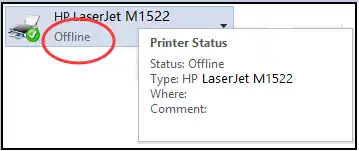
- Open Start → Settings → Bluetooth & devices → Printers & scanners.
- Click Add device next to the printer addition section.
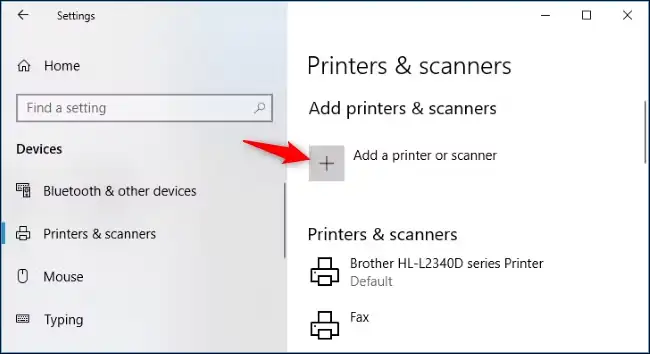
- Select the detected HP LaserJet 1020 and confirm the addition.
- Open Windows Update and install available driver updates.
If the device is not found, click The printer that I want isn't listed and follow the manual-addition wizard. For a local USB printer, select the existing port to which the printer is connected.
Method 2: download the HP LaserJet 1020 driver from the HP website
When to use: the model is listed on the device as HP LaserJet 1020, Windows did not install the printer automatically, or you need to reinstall the driver.
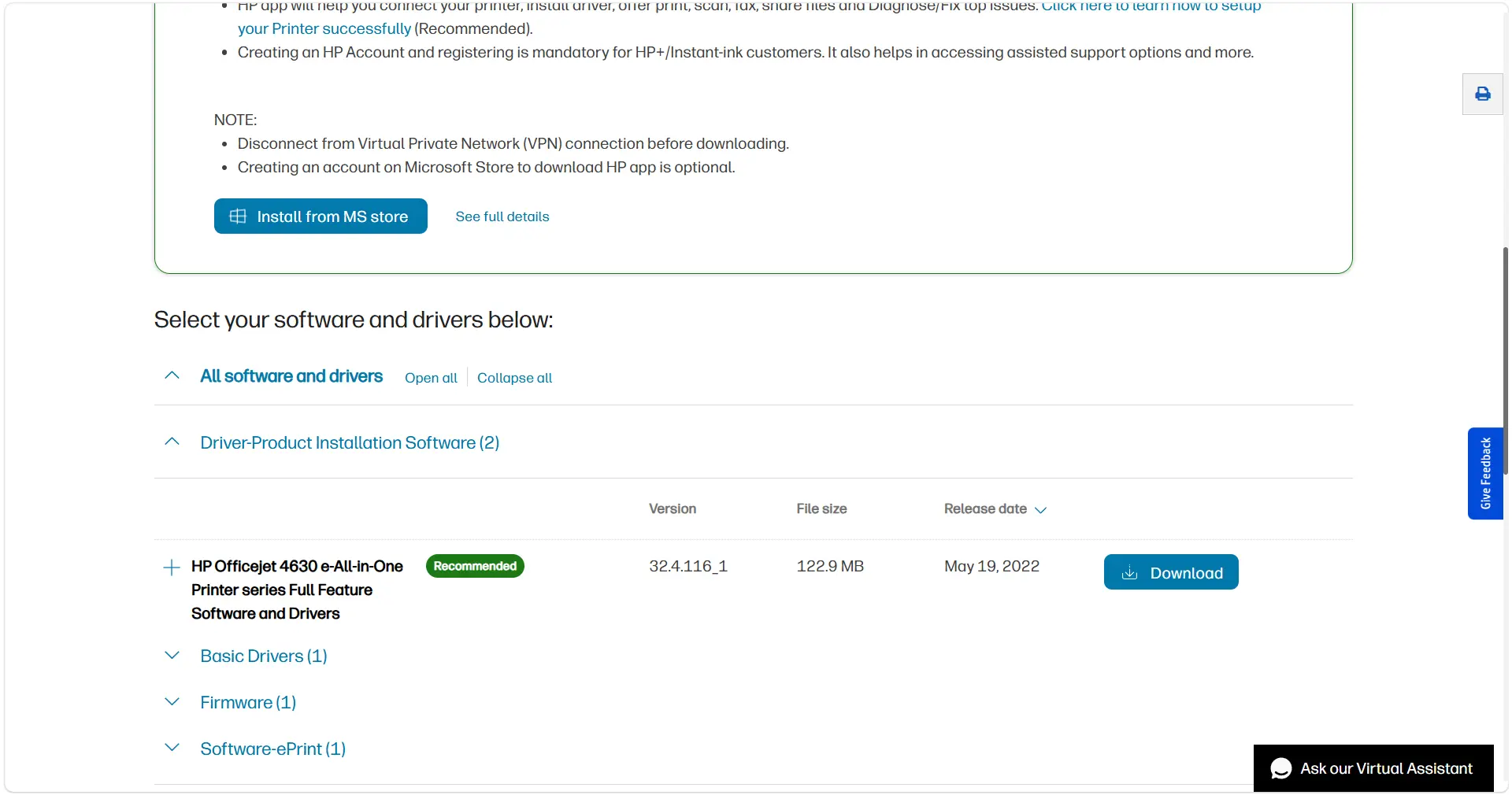
- Open the HP LaserJet 1020 software and driver download page .
- Select your installed Windows version and system architecture if the page requests this information.
- Download the driver offered for the selected system.
- Open the downloaded file and follow the installation program instructions.
- Connect the powered-on printer by USB when the installer asks you to do so.
Method 3: diagnose and resolve the issue with Fionn Printer Driver
When to use: the exact driver is unknown, installation did not help, or you need to check the driver and common causes of failed printing at the same time. Fionn Printer Driver recognizes common brands and models, installs or updates drivers, and also checks the print service, port, queue, and device status.
- Launch Fionn Printer Driver and click Scan Now to scan your computer for printer drivers and related issues.

- Wait while Fionn Printer Driver scans your system for installed printers, drivers, and common printer issues.

- After the scan finishes, click One-Click Fix to automatically install or repair the required printer driver.

- Wait for the repair to finish and confirm that the printer issue has been fixed successfully.

How to verify the installation and what to do if the printer does not print
Open Settings → Bluetooth & devices → Printers & scanners, select HP LaserJet 1020, and send a test page. A successful result means the page prints and the job does not remain in the queue.
Printer not found
Make sure the printer is powered on and the USB cable is connected, then use The printer that I want isn't listed. For a local USB printer, specify the existing connected port.
A job is stuck in the queue
Check whether printing is paused or unfinished jobs remain. If jobs do not leave the queue, the cause may be the queue or print service rather than the driver itself.
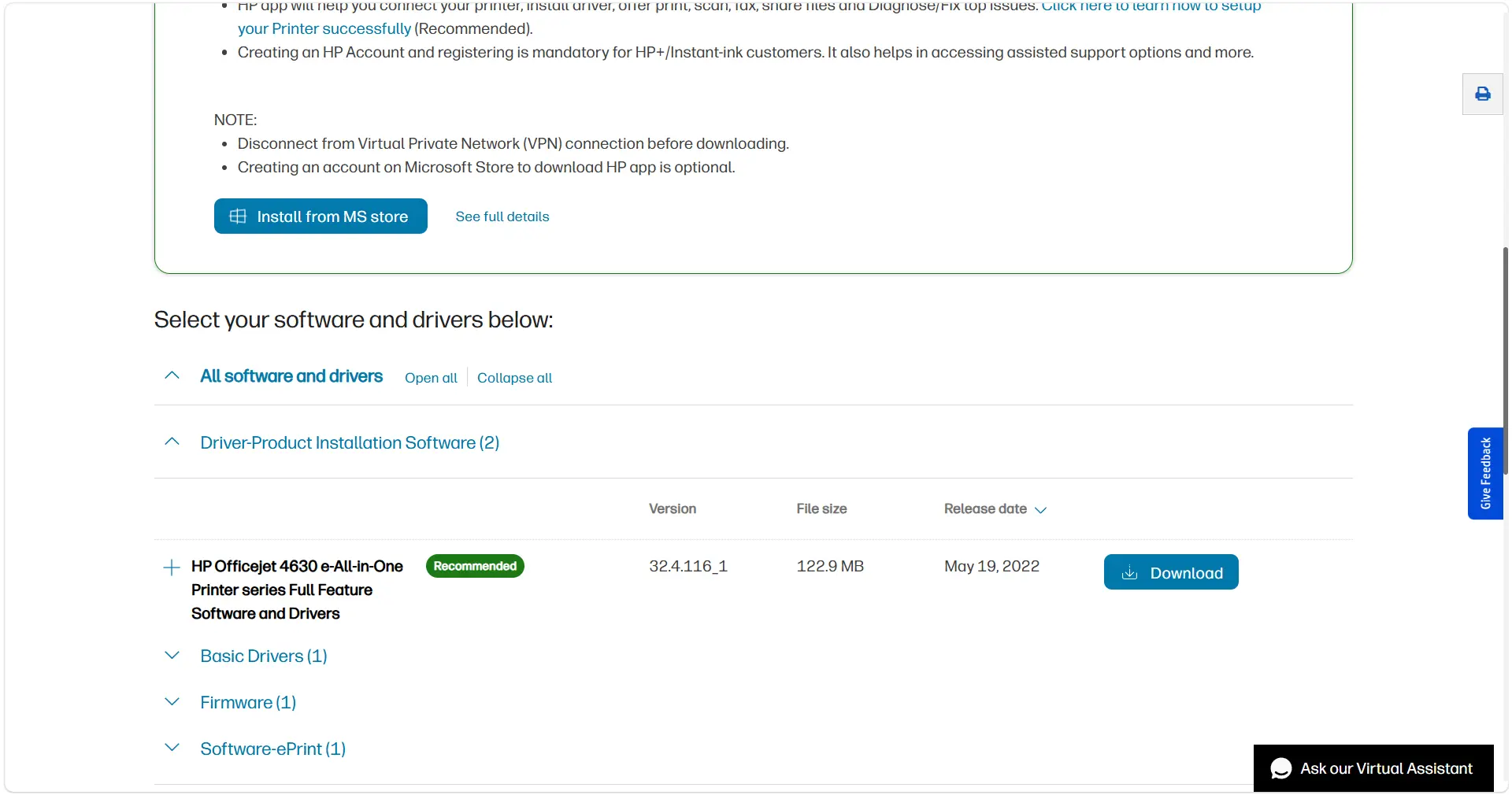
The device appears as Offline
Check the power, USB connection, and device status in Windows. Then make sure HP LaserJet 1020 is selected rather than a disconnected printer instance.
Only one application prints
Check the print settings and the document itself in that application. If the Windows test page prints, the driver and communication with the device are working.
There is a paper or jam message
Installing a driver will not resolve a mechanical jam, lack of paper, or low consumable levels. First read the printer status and Windows message.
Conclusion
For HP LaserJet 1020, start by checking the model, power, and USB connection. If the printer is already connected, first add it through Printers & scanners. When you need to select a package manually, use the official HP catalog and match the driver to your Windows version. If the cause of the issue is unclear or printing does not return after installation, Fionn Printer Driver helps check the driver and elements of the printing chain. There is one success criterion: the test page prints without an error and the job does not remain in the queue. If that does not happen, note the device status and Windows message before further troubleshooting.
Frequently asked questions
Where can I safely download the HP LaserJet 1020 driver?
Use the HP support page for this model or Windows Update. On the HP website, select your operating system to see applicable downloads.
Do I need a separate driver in Windows 11?
Not always. Windows may install a connected printer automatically and offer a driver update through Windows Update. If the device is not added, use manual addition or the official HP package.
Why is the driver installed but the printer does not print?
The cause may not be the driver: check the queue, Offline status, print service, port, paper, and jams. A test page helps isolate the problem.
What should I do if HP LaserJet 1020 does not appear when I add it?
Make sure the printer is powered on and the USB cable is connected, then select the manual-addition option in the printer search window. For a local USB printer, specify the existing connected port.
Can I install a driver without knowing the exact package?
You can start by adding the device in Windows. If you need help identifying and checking the driver, Fionn Printer Driver supports automatic recognition of most common brands and models, as well as manual searches by brand or model.


