 Emily CarterScreen Recording
If you need to know how to record a PowerPoint presentation with audio, first decide whether you need editable narration and timings saved in the deck or a standalone video of the visible slideshow. PowerPoint is suited to the first outcome, while a screen recorder captures what appears on screen. This Windows-focused guide covers PowerPoint, Fionn Screen Recorder , and OBS Studio. Before recording the full presentation, make and review a short test for voice level, slide timing, and framing.
Choose the Right Recording Method
| Method | Best For | Efficiency | User Effort |
|---|---|---|---|
| PowerPoint Record | Narration and timings embedded in a presentation | High | Low |
| Fionn Screen Recorder | Capturing the visible slideshow with selected audio sources | High | Low |
| OBS Studio | Customized scene-based capture | Moderate | Higher |
Choose PowerPoint when the finished result should remain a slide deck with editable narration and timings. Choose Fionn Screen Recorder when you need a video of a window, region, or full screen with microphone and/or system sound. Choose OBS Studio when you need a reusable scene or additional on-screen material.
Before You Record: Audio and Test Checklist
- Decide whether viewers need microphone audio, system audio, or both.
- Close notification-heavy apps and silence notification sounds.
- Record a brief test using the same slideshow and audio setup you plan to use.
- Play back the test and confirm that narration, slide changes, and the intended capture area are all present.
Method 1: How to Record a PowerPoint Presentation With Audio in PowerPoint
When to use: Use this method when you want a supported desktop PowerPoint version to retain narration and timings on individual slides, with the option to export the finished deck as a video.
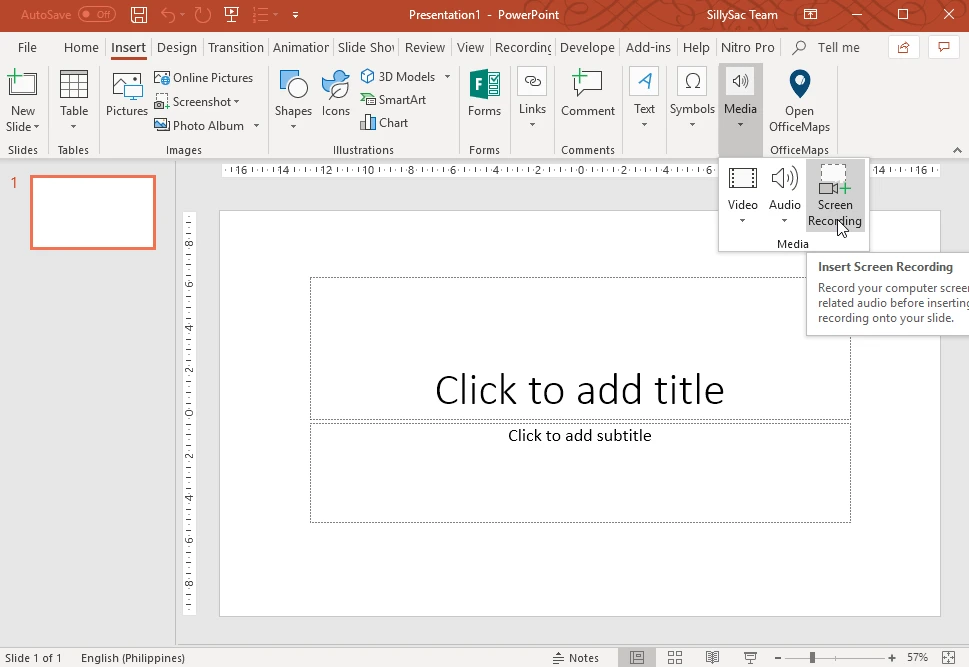
- Open the presentation and select the slide where you want recording to begin.
- Open PowerPoint’s recording controls in your desktop version.
- Confirm that the microphone is enabled, then begin recording after the available countdown or prompt.
- Speak as you advance through the slides, pausing or stopping the recording when needed.
- Preview the recorded slides, then save the presentation or use its export options to create a video.
Microsoft states that narration and timings are saved in the presentation; recording does not automatically create a video file. Export after review when you need a shareable video.
Verify: Start the slideshow from the first recorded slide. Confirm that the audio icon appears on narrated slides and that narration plays in sync with the animations. See Microsoft’s official PowerPoint recording instructions for controls available in your version.
Method 2: Fix the Need for a Separate Presentation Video with Fionn Screen Recorder
When to use: Use this route when you need a direct video of the visible slideshow rather than narration embedded in a .pptx file. Fionn Screen Recorder supports full-screen, window, and custom-region capture, plus microphone-only or system-sound-and-microphone audio selection.
- Open Fionn Screen Recorder and choose the area you want to capture: Full Screen, Window, or Region.

- Choose whether to record system audio, microphone audio, both, or no sound.

- Select MP4 or another video format before you start recording.

- Click Start to begin recording, then use Pause or Stop when you are finished.

- Open Media Library to play, edit, locate, or delete your recorded videos.

Verify: Play the saved recording from Media Library and check that the selected capture area contains the slideshow and the expected audio is audible. The free version cannot save videos longer than two minutes and is limited to 720P; membership unlocks unlimited duration, 2K/4K, no watermark, and full recording modes.
Method 3: Capture a PowerPoint Presentation in OBS Studio
When to use: Use OBS Studio when you need to build a reusable scene, such as a slideshow source alongside a webcam or other on-screen material. It takes more setup than the other two options.
- Open the PowerPoint slideshow and keep it ready in the display or window you plan to capture.
- In OBS Studio, create a scene and add a capture source that displays the slideshow.
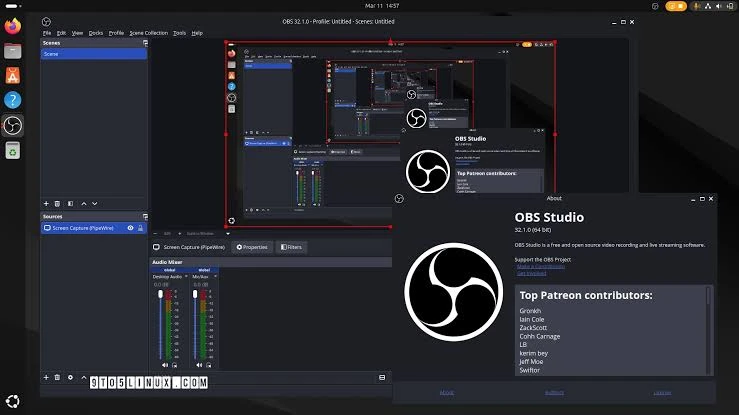
- Add and test your microphone source, confirming that its activity is visible while you speak.
- Make a short test recording and confirm the slideshow and voice are both present.
- Start recording, present the slides, then stop recording and review the saved file.
Verify: Open the test file before recording the full presentation. If you need application-specific audio, check the OBS Application Audio Capture Guide for currently supported Windows versions and setup details.
Troubleshoot Audio and Timing Before Sharing
- Use headphones when system audio is playing to prevent speakers from feeding back into the microphone.
- Close notification-heavy apps and turn off notification sounds before recording.
- Pause briefly during slide transitions: Microsoft notes that narration is not recorded during transitions.
- Keep the microphone at a consistent distance and speak at a steady level.
- Review the first and last slide specifically; these are common places for missed audio or premature stopping.
Conclusion: Choose the Output You Need
Use PowerPoint when you need editable narration and timings in the presentation itself, then export after playback when you also need a video. Use Fionn Screen Recorder for a direct recording of the visible slideshow, and use OBS Studio when a customized scene is required. Before sharing, review the final file for the intended image, audible narration, and slide timing.
Frequently Asked Questions
Can PowerPoint record my voice and slide timings?
Yes. Supported desktop versions can record narration and the time spent on slides. The results are stored with the presentation, and you can then export the presentation as a video.
Why is there no audio in my PowerPoint recording?
First, check that the correct microphone is selected and enabled. Record a short test, then play it back before continuing. Also avoid speaking during slide transitions because PowerPoint does not record narration during those transitions.
Does recording in PowerPoint automatically make an MP4?
No. The recording is saved in the presentation. Use PowerPoint’s Export options after recording when you need a video file.
Can I record only one PowerPoint slide again?
Yes. Start recording from that slide and re-record it. Be aware that replacing narration on the slide removes the prior narration for that slide.
Should I record system audio as well as my microphone?
Select both only when the presentation includes sound that viewers need to hear, such as embedded media. For spoken narration alone, microphone audio is usually sufficient and helps avoid unwanted notification sounds.


