 Emily CarterPrinter Drivers
If HP Smart cannot find your printer, first confirm the exact printer model and check the Windows printing environment. Fionn Printer Driver can scan for driver issues and check the driver, print service, connection status, port, printer settings, and paused or incomplete print jobs.
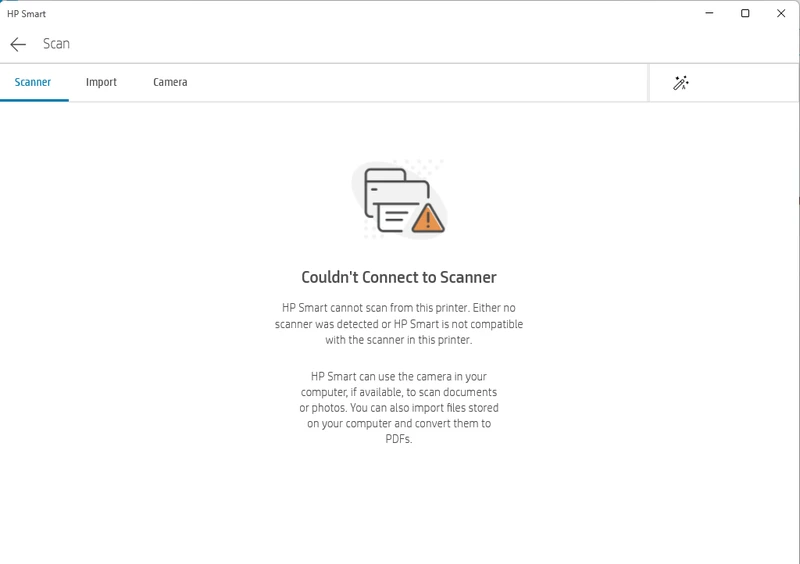
These checks can help establish whether Windows is ready to print, but they do not by themselves prove that HP Smart will discover the printer. After completing them, retest whether the printer appears in HP Smart.
Before You Start
Keep the printer connected and powered on. Fionn Printer Driver supports Windows 10 and Windows 11. An internet connection is required when searching for the latest compatible drivers.
Identify the Connected HP Printer Model
Use this check when the printer is not detected automatically and you need its exact model before selecting a driver.
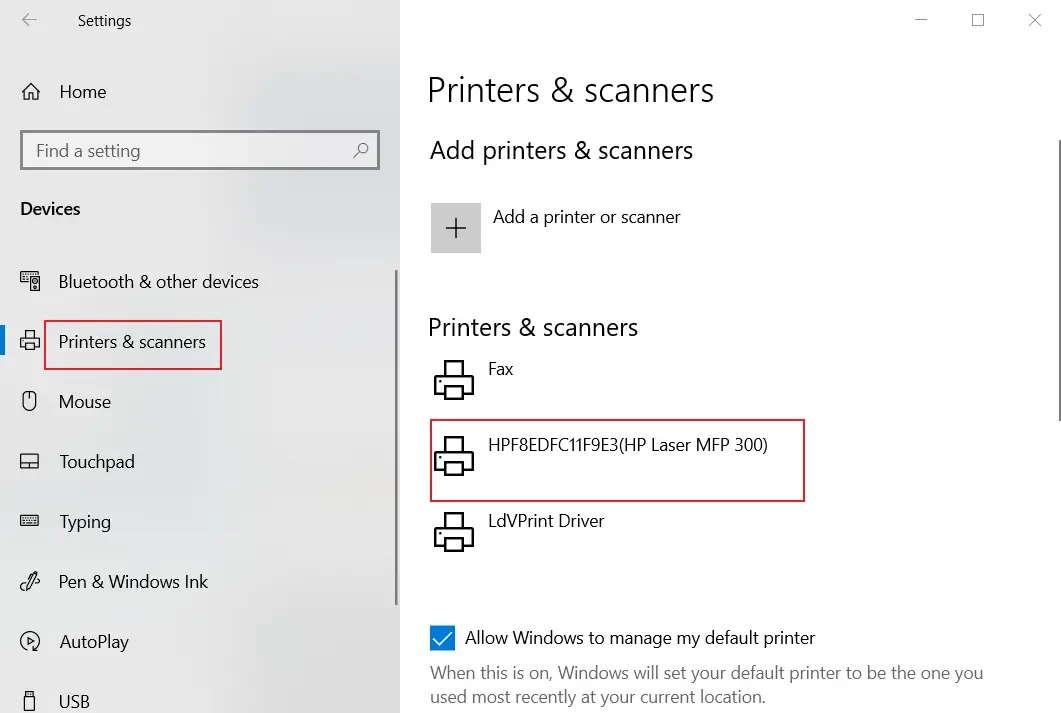
- Check the model on the printer label, or open the Windows Devices and Printers section to find it.
- Compare the model name with the connected printer before using it for driver selection.
Confirm that the model matches the connected printer before proceeding. Source: Fionn Printer Driver documentation.
Check Windows Printing Conditions with Fionn Printer Driver
Use this guided check when the driver status or Windows printing conditions are unclear. The product can check the driver, print service, connection status, port, printer settings, and incomplete or paused print jobs; it can also offer an appropriate driver version when Windows cannot install one automatically.
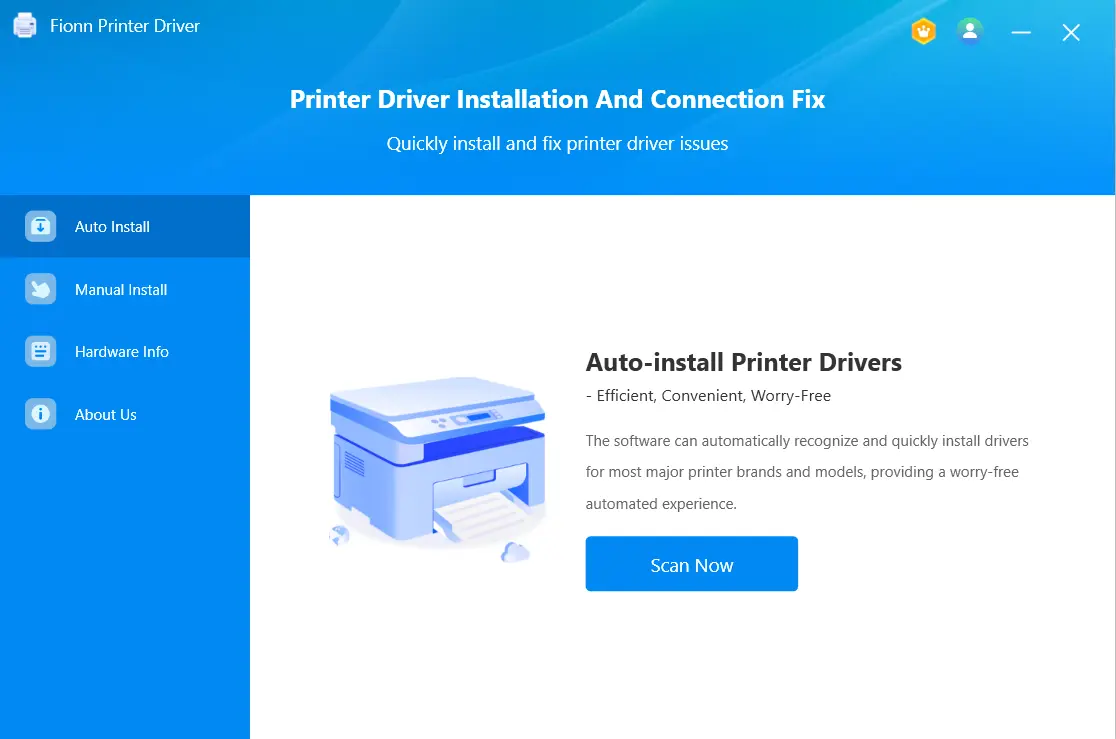
- Launch Fionn Printer Driver and click
Scan Now
to scan your computer for printer drivers and related issues.
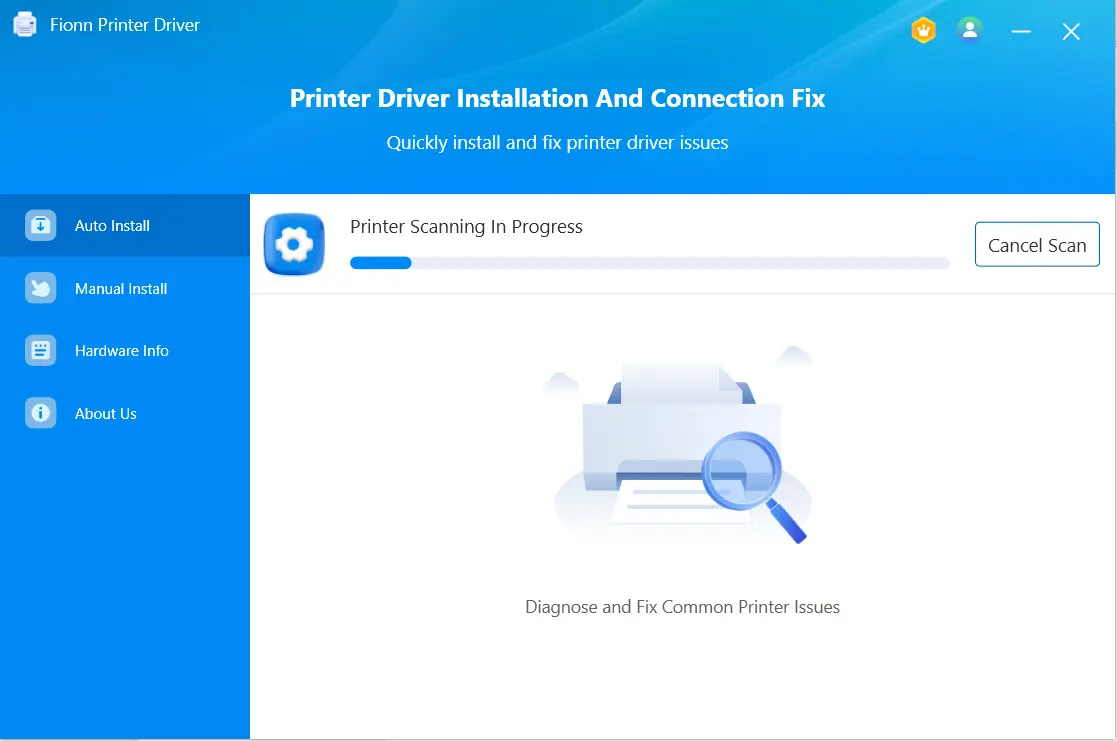
- Wait while Fionn Printer Driver scans your system for installed printers, drivers, and common printer issues.
- After the scan finishes, review the detected driver issue, then click
One-Click Fix
to start the suggested installation or repair.
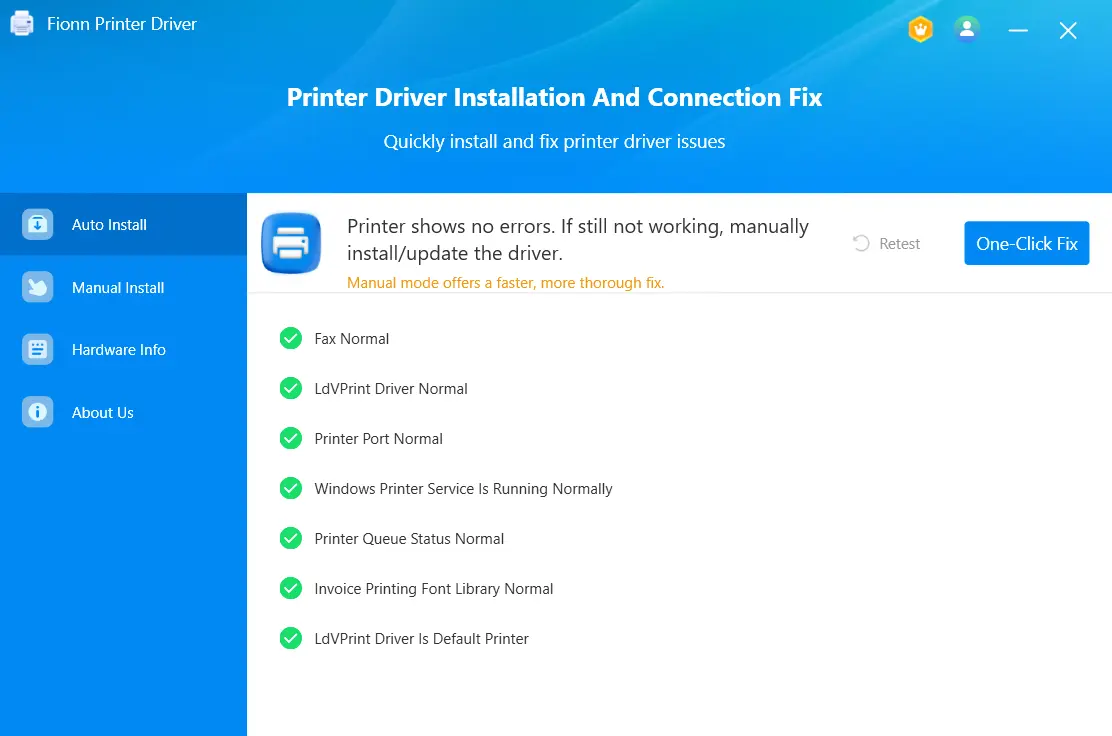
- Wait for the operation to finish and review its result. Then print a Windows test page to check whether the printer actually works.
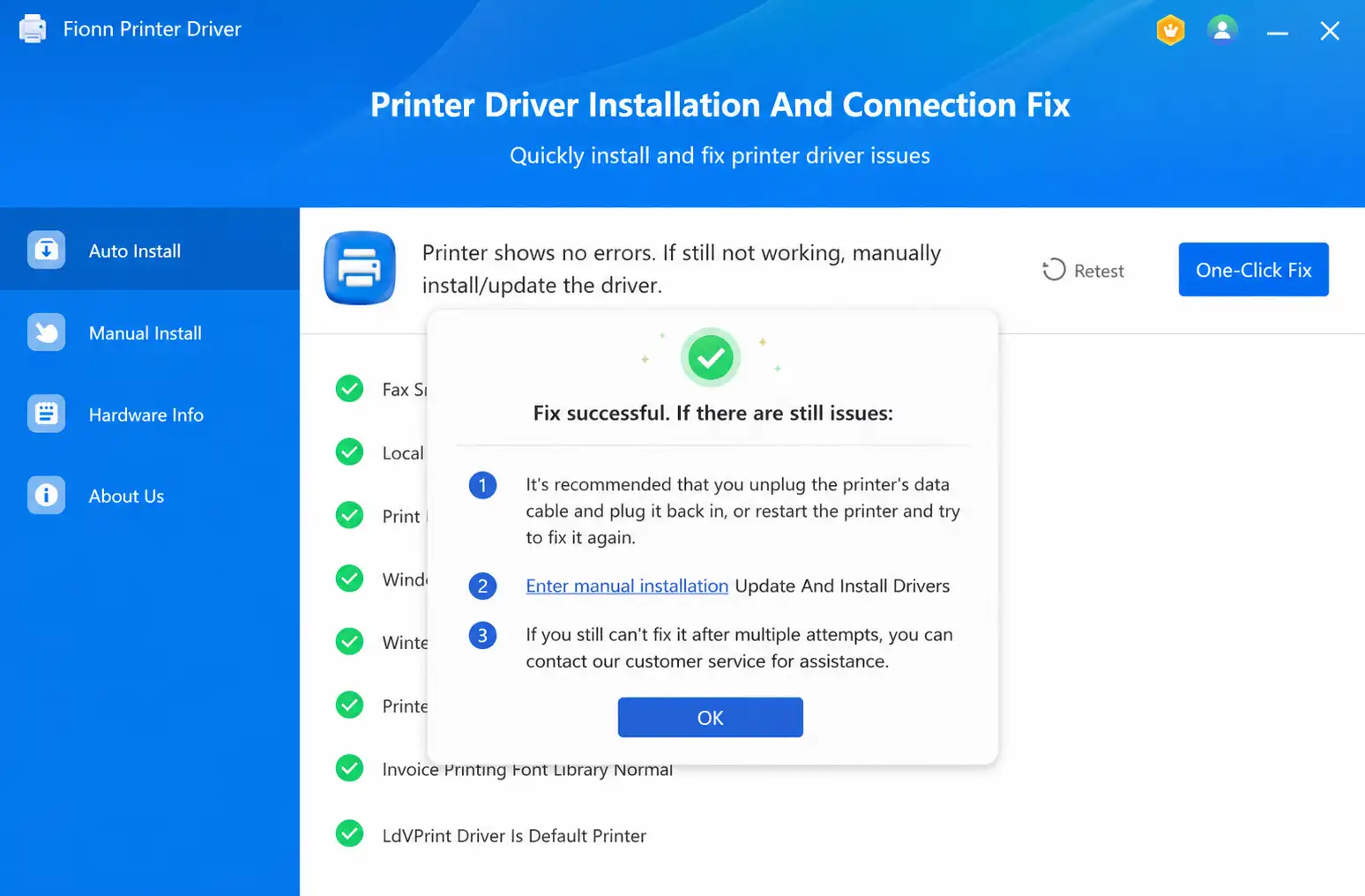
A Windows test page is an intermediate check: it verifies printing, not HP Smart discovery. If printing still fails, use the reported condition to focus on the connection, port, print service, queue, or driver.
Retest HP Smart
After the Windows check, open HP Smart and see whether the printer now appears. If it does not, the available documentation does not provide an HP Smart-specific setup path or establish that a Windows driver repair makes HP Smart discover a printer.
Conclusion
Start by identifying the exact HP printer model, then check the Windows driver and printing environment. Fionn Printer Driver is relevant when you want one guided check of the driver, connection, print service, port, settings, and queue. Print a Windows test page to confirm printing, then retest HP Smart separately to confirm that its discovery issue is resolved.
FAQ
How do I find my HP printer model?
Check the label on the printer. You can also use the Windows Devices and Printers section. Confirm that the model matches the connected printer before selecting a driver.
What can Fionn Printer Driver check?
It can check the driver, print service, connection status, port, printer settings, and incomplete or paused print jobs. It supports HP and other popular printer brands.
Does a successful Windows test page mean HP Smart will find the printer?
No. A Windows test page confirms that Windows can print; it does not confirm HP Smart discovery. Check HP Smart again after the Windows test.
What if HP Smart still cannot find the printer?
The supplied documentation does not include an HP Smart-specific discovery procedure. Keep the confirmed printer model and the Windows test result available when seeking HP Smart-specific support.


