 Emily CarterDLL Errors
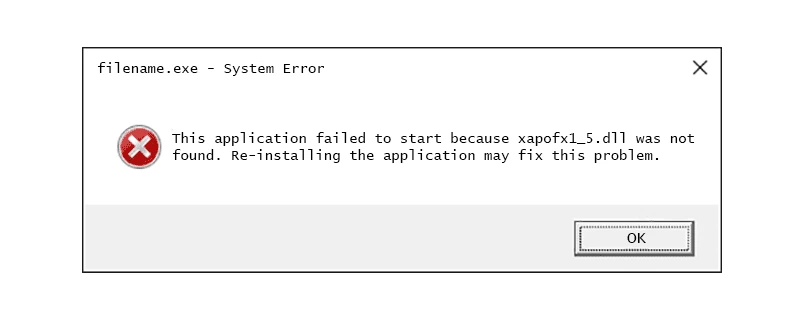
The message “XAPOFX1_5.dll was not found” usually means an application needs a legacy DirectX SDK component that is not available to it. XAPOFX1_5.dll is part of the legacy DirectX side-by-side DLL set. Start by recording the exact message and affected app, then choose a repair path: use the app’s repair option when one program fails, install Microsoft’s legacy runtime when the app needs old DirectX components, or scan for related dependency problems.
Do not download a standalone copy of the DLL from an unverified DLL-download site. A matching filename alone does not prove that a file is suitable for the affected application.
When Windows Reports “XAPOFX1_5.dll was not found”
- A game or Windows application stops at launch and names
XAPOFX1_5.dllin its error dialog. - Only one installed application fails, while other software opens normally.
- The error returns after an app update, reinstall, or move to another PC.
- The application may close immediately or never reach its normal start screen.
The issue does not automatically mean that all of Windows or the current DirectX runtime is broken. Microsoft notes that the DirectX version shown by Windows does not confirm whether optional legacy components are installed.
Quick Diagnosis Checklist for “XAPOFX1_5.dll was not found”
- One application fails and it offers Repair: use Method 3 first. This targets the application’s own installation without changing unrelated software.
- The app or game needs a legacy DirectX SDK component: use Method 2. Microsoft’s legacy package installs runtime libraries used by some older games, including XAudio 2.7.
- The cause is unclear or other launch/dependency errors appear: use Method 1. It scans DLL, DirectX, and runtime-library issues together.
- You only want to inspect DirectX information:
search Windows for
dxdiag. DxDiag reports installed DirectX component and driver information, but do not use its version number alone to rule out missing optional components.
Quick Method Comparison
| Method | Best For | Efficiency | User Effort |
|---|---|---|---|
| Fionn DLL Fixer | Unclear DLL or dependency issues | Scans related issues in one workflow | Low |
| Microsoft legacy DirectX runtime | Confirmed legacy DirectX component requirement | Targets legacy runtime libraries | Moderate |
| App repair or reinstall | One affected application | Restores that app’s installation | Moderate |
Method 1: Diagnose the “XAPOFX1_5.dll was not found” Error with Fionn DLL Fixer
Recommended for unclear or repeated launch failures. Fionn DLL Fixer checks DLL files, DirectX components, and runtime-library issues, which can reduce the manual work of narrowing down a related dependency problem. It is listed for Windows 10 and Windows 11. A completed repair still needs to be confirmed by opening the affected application.
- Launch Fionn DLL Fixer. The software automatically scans your PC for DLL and system issues and displays the detected results when the scan is complete.
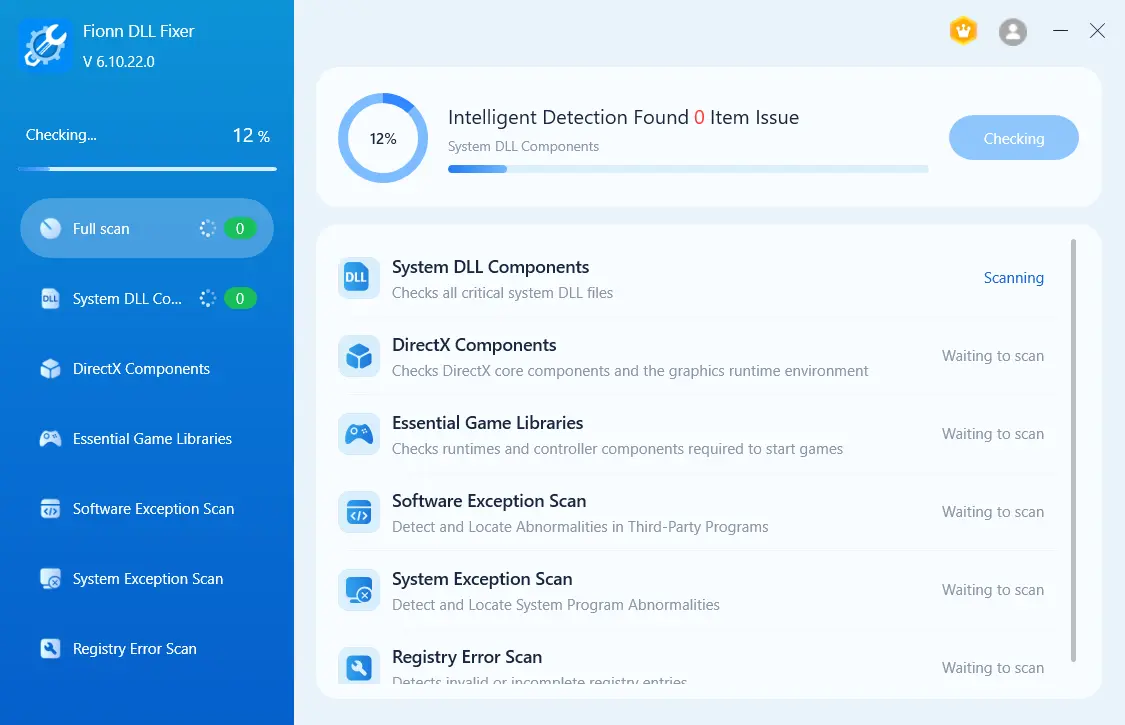
- After the scan finishes, select
Repair
to start fixing all detected DLL and system issues automatically.
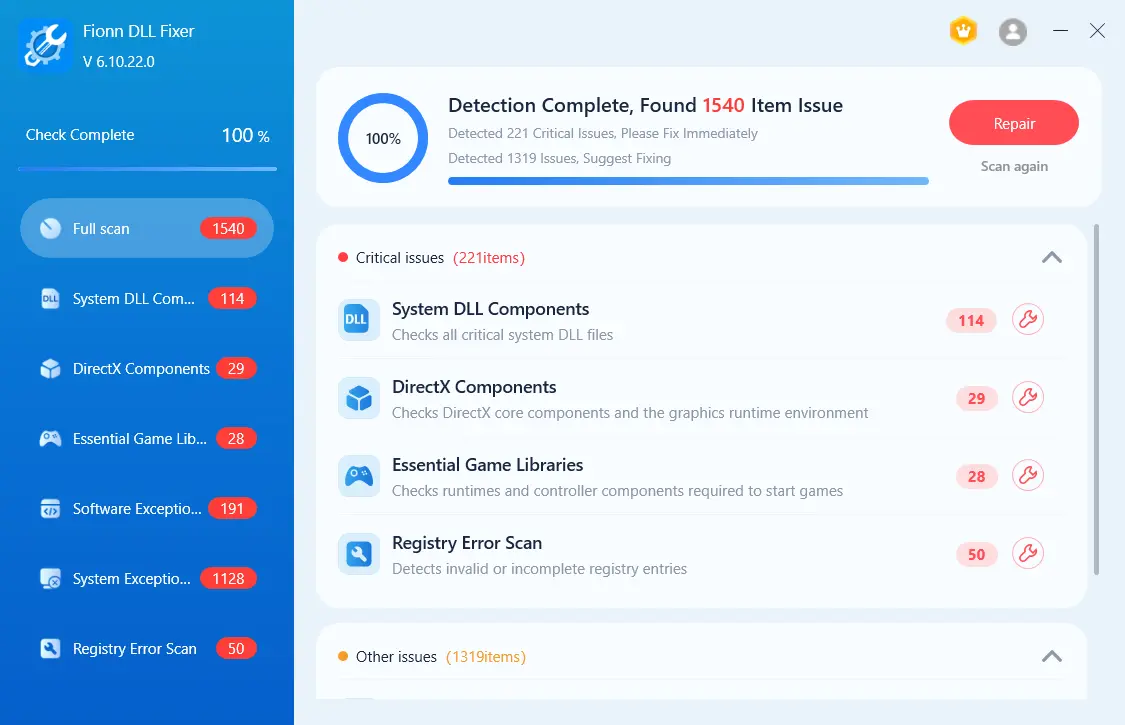
- Wait while the repair is in progress. During this process, the button changes to
Fixing
until all issues have been repaired.
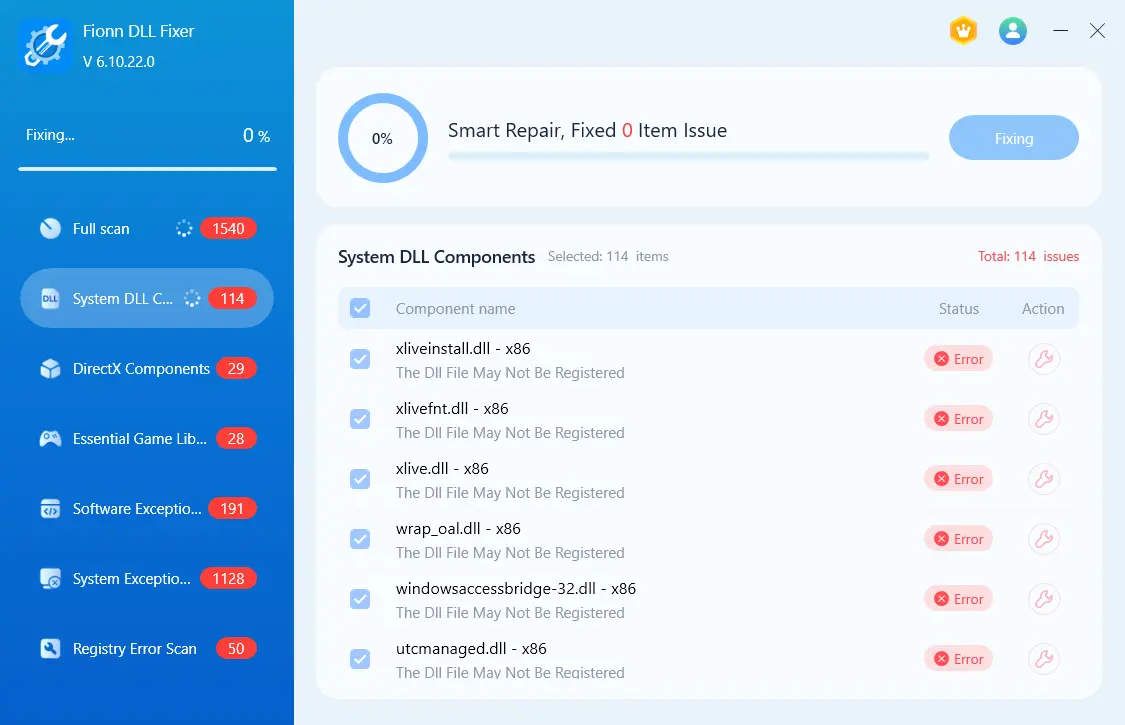
- When the repair is complete, select
OK
in the confirmation dialog. If prompted, restart your computer before checking whether the problem has been resolved.
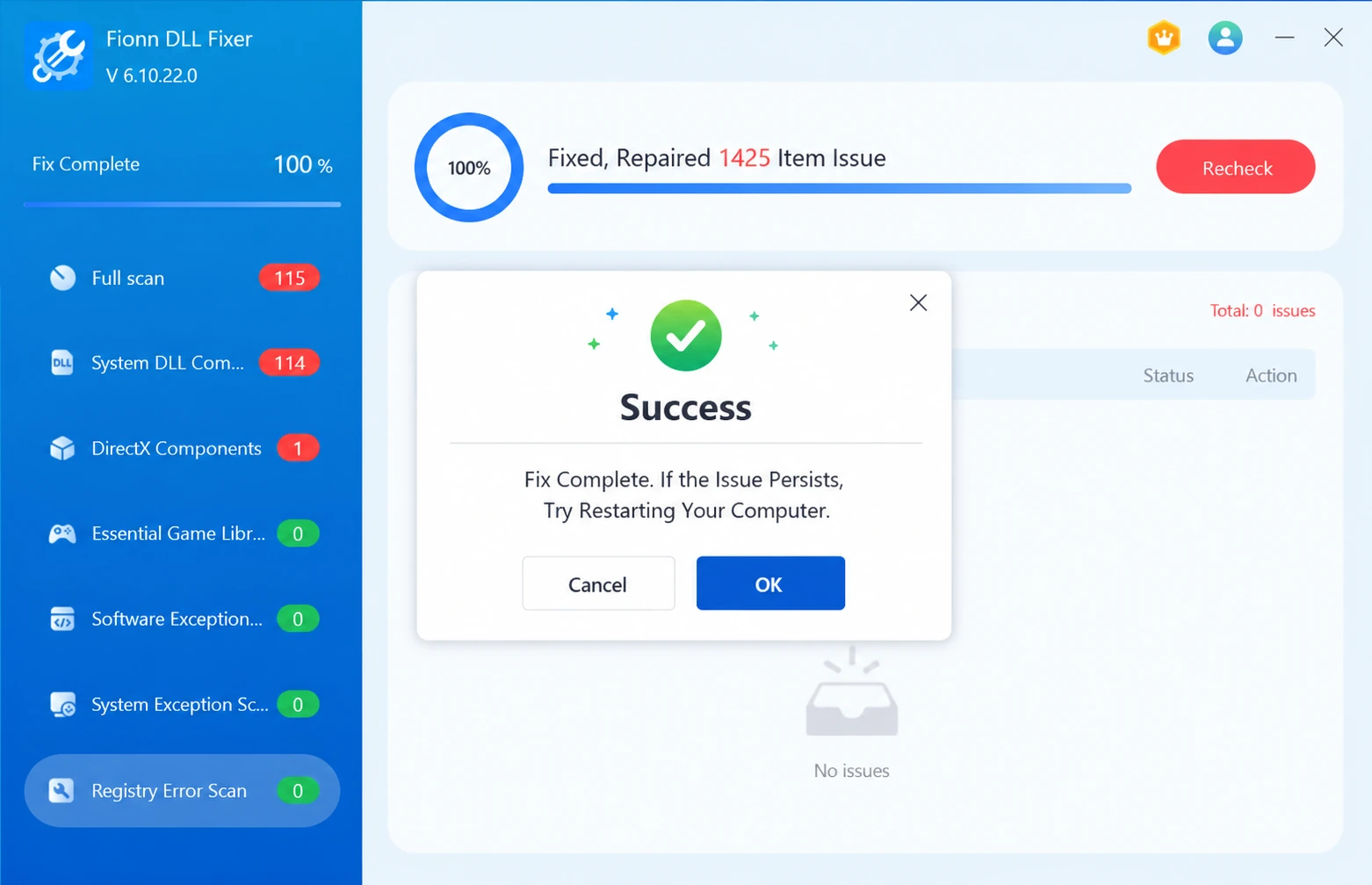
- If the issue still persists after restarting, select
Recheck
to perform another scan. If new issues are found, select
Repair
again to fix them.
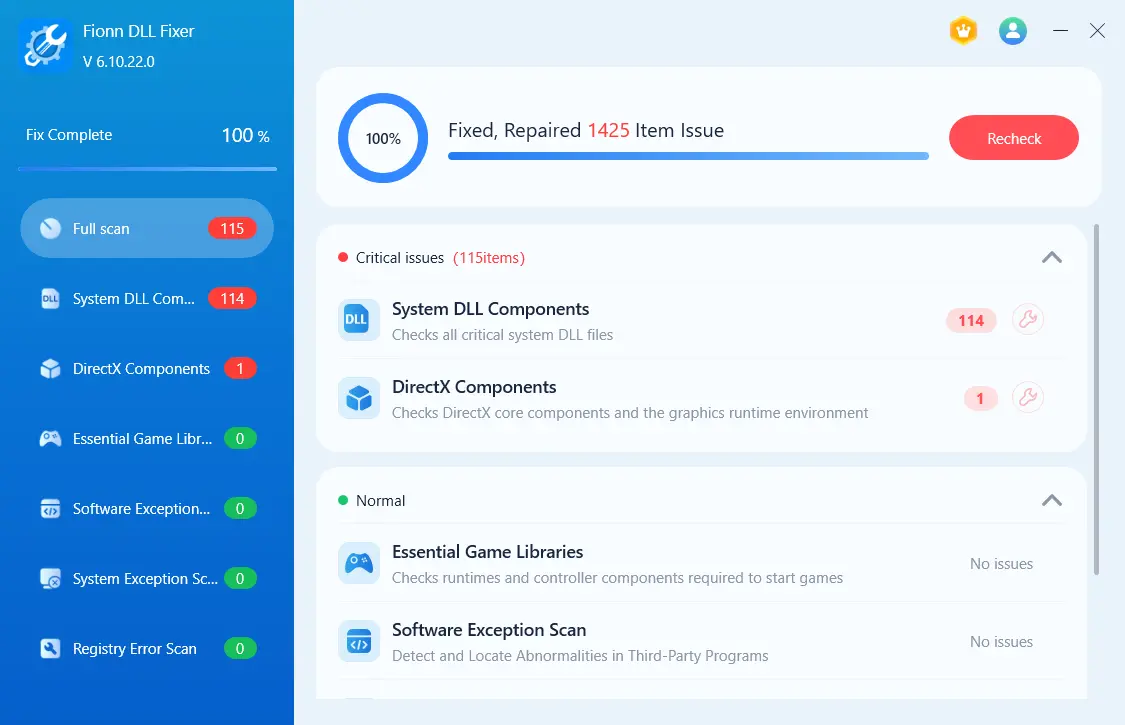
Success means the original app opens normally without the XAPOFX1_5.dll message. If it does not, continue with the app-specific or Microsoft repair path below.
Method 2: Install Microsoft’s Legacy DirectX Runtime
Use this route when the affected game or application specifically requires legacy DirectX SDK libraries. The DirectX End-User Runtimes (June 2010) download page states that its package installs legacy runtime libraries for some games, including XAudio 2.7. It does not modify the DirectX runtime already installed with Windows.
- Open the official Microsoft download page for DirectX End-User Runtimes (June 2010).
- Select Download to obtain the package.
- Select Run to begin installation immediately, or select Save to install it later.
- After installation, open the same application that displayed the error.
Method 3: Repair or Reinstall the Affected Application
Choose this method when only one application fails, especially when the error points to that application’s installation directory. Repairing the app first can restore files supplied by its publisher without applying a broad system repair.
- Close the affected application and save any local projects or data that its publisher says removal could delete.
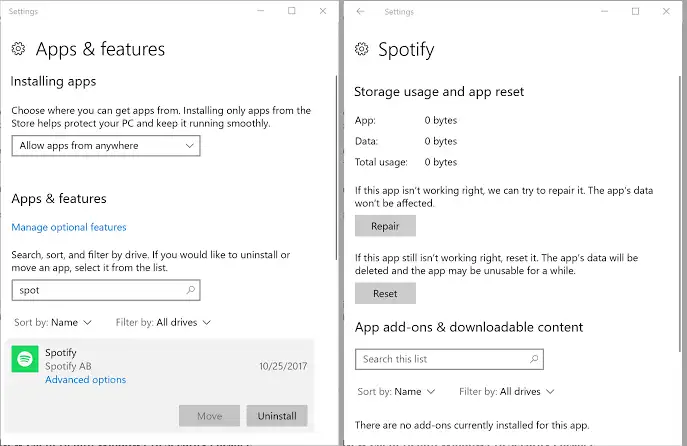
- In Windows Settings, find the application, open its More menu, and select Advanced options when available.
- Select Repair if Windows provides that option.
- If Repair is unavailable or does not solve the problem, uninstall the app through Windows Settings and reinstall it from the original publisher or store source.
A successful repair takes the same app to its normal start screen without the original missing-DLL dialog.
Verification Checklist
- Open the exact application or game that previously failed.
- Confirm that the “XAPOFX1_5.dll was not found” dialog does not reappear.
- Confirm that the application reaches its normal start screen, not merely a launcher window.
- If the error remains, record the full message, DLL path, and affected app before contacting the application developer or official support.
Conclusion
For one affected program, repair or reinstall that program first. When the application needs legacy DirectX libraries, install Microsoft’s official legacy runtime. When the cause is unclear or related dependency errors are present, Fionn DLL Fixer provides a scan, repair, and recheck workflow. In every case, the meaningful result is that the original application starts without the DLL error. If it still fails, contact the app developer or its official support channel with the recorded error details.
FAQ
What is XAPOFX1_5.dll?
XAPOFX1_5.dll is listed among legacy DirectX SDK side-by-side DLLs. An application that depends on that legacy component can fail to start when the required runtime files are unavailable.
Will updating Windows fix “XAPOFX1_5.dll was not found”?
Not necessarily. Microsoft states that Windows Update and service packs do not provide DirectX optional components. Use the official legacy DirectX runtime when the application requires those components.
Should I download XAPOFX1_5.dll by itself?
No. Avoid replacing an individual DLL from an unverified DLL-download site. Use the application’s supported repair path or Microsoft’s official runtime package instead.
Why does only one game show this error?
Different applications use different dependency sets. If one game alone fails, its own files or its legacy runtime requirement may be the relevant cause, so app repair or reinstall is a sensible first check.


