 Emily CarterDLL Errors
If Windows says MSVCP140.dll is missing or was not found , start by installing or repairing the Microsoft Visual C++ Redistributable required by the affected application. Match the package to the application's architecture : a 32-bit program can need x86 even on 64-bit Windows. If the runtime is already installed, repair it before replacing files or reinstalling Windows.
This guide explains what the file does, where to get the official installer, and what to check when the same error remains after installation. Keep the complete error message and the name of the program that shows it; a different DLL name or error code can require a different diagnosis.
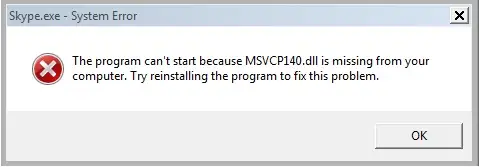
Quick answer: choose the next step from your error
| What happens | Start here | Check afterward |
|---|---|---|
| MSVCP140.dll was not found when opening a program | Install the matching official Visual C++ package | Reopen the program and repeat the failing action |
| Visual C++ is installed, but the same message appears | Repair the matching x86 or x64 runtime | Confirm that repair completed successfully |
| Only one game or application still fails | Repair its files or reinstall it from its publisher | Test the launcher and the application separately |
| The installer itself fails | Record the setup error and inspect installation logs | Resolve setup before assuming the runtime was restored |
| Several dependency problems remain | Consider the optional Fionn scan after the targeted repairs | Verify the actual application launch, not just the scan result |
What is MSVCP140.dll, and why is it missing?
MSVCP140.dll belongs to the Microsoft Visual C++ runtime's C++ standard library components. Applications built with compatible Microsoft C++ tools can depend on it. It is a runtime dependency, so you do not need to install the Visual Studio development environment simply to run the affected program.
“Missing” describes a loading failure from the application's point of view. The file might be absent, but the same symptom can also follow an incomplete app installation, a damaged runtime package, an incompatible local copy, or the wrong architecture. Finding a file with that name somewhere on the computer does not prove the program can use it.
The number 140 does not mean you must search for an old individual DLL download or remove newer Visual C++ packages. Follow your application's prerequisite requirements and Microsoft's supported runtime guidance. Older Visual C++ generations can coexist because other software may still need them.
Common MSVCP140.dll error messages
- The program can't start because MSVCP140.dll is missing from your computer. Check the required runtime and the affected application's installation.
- The code execution cannot proceed because MSVCP140.dll was not found. Reinstalling the program may fix this problem. Repairing or installing the runtime is a useful first check; app repair follows if startup still fails.
- MSVCP140.dll was not found after installing a game or moving a program folder. Moving files may omit prerequisites installed by the original setup program.
- Bad Image , an entry-point error, or another code naming MSVCP140.dll. Save the exact wording. Treat a changed error as another diagnostic result rather than assuming it is an identical missing-file problem.
Fix 1: download and install the official Visual C++ runtime
If you searched for an MSVCP140.dll download for Windows 10 or 11 , use the complete Microsoft Visual C++ Redistributable installer. A loose DLL from an unknown download site does not reliably restore related dependencies, select the correct architecture, or repair the package installation.
Open Microsoft's official Visual C++ Redistributable download page . It lists current supported packages and architecture requirements. The installer should be downloaded from Microsoft and have a Microsoft digital signature. If your app vendor specifies a particular prerequisite, compare that requirement with the official documentation.
| Application you need to run | Official installer | Important distinction |
|---|---|---|
| 32-bit / x86 application | vc_redist.x86.exe | Can be required on both 32-bit and 64-bit Windows |
| 64-bit / x64 application | vc_redist.x64.exe | The x86 package does not replace its x64 dependencies |
| Native ARM64 application | vc_redist.arm64.exe | On Windows on Arm, follow the vendor's native and emulated-app guidance |
Do I need both x86 and x64? You may need both on 64-bit Windows if your software includes both kinds of applications. For example, a launcher and a game may have different prerequisites. Check the publisher's requirements rather than choosing only from your Windows system type. You can find the Windows architecture under Settings > System > About > System type .
- Save your work and close the affected application and its launcher.
- Choose the official installer that matches the application. Download another architecture only when your installed software requires it.
- Run the installer, check its publisher, and approve the administrator prompt if requested.
- Select Install and follow the prompts. If maintenance options appear instead, use Repair as described below.
- Restart Windows if requested. Open the same program and repeat the action that originally triggered the error.
Success check: the original application launches and the original action works without the MSVCP140.dll dialog. A completed download alone is not a completed runtime installation.
If Visual C++ is already installed: repair the matching package
An Installed apps entry does not prove that every required runtime component is usable. Repair is the next targeted action when the correct architecture is already present.
- Close the affected program. Open Control Panel > Programs > Programs and Features .
- Find the relevant Microsoft Visual C++ Redistributable entry. Its name may include 2015–2022 or v14 ; read whether it is x86 or x64.
- Select Change , then Repair when the maintenance window offers it. You can also rerun the matching official installer and choose its repair option.
- Repeat only for other architectures the application requires. Restart if prompted and retest.
A message that a newer version is installed is not a reason to force an older package over it. Use the installed package's repair option and check the vendor's requirements. Avoid uninstalling every Visual C++ version: unrelated programs may depend on those packages.
Fix 2: repair the affected application or game
If the runtime repair succeeds but one program still fails, focus on that installation. The application may have incomplete files or its own local dependency copy. Reinstalling a shared runtime does not necessarily replace files stored inside the program's folder.
For a Windows application
- In Windows 11, open Settings > Apps > Installed apps . In Windows 10, use Settings > Apps > Apps & features .
- Select the affected application and open
Advanced options
if available. Choose
Repair
. Not every application provides this option.
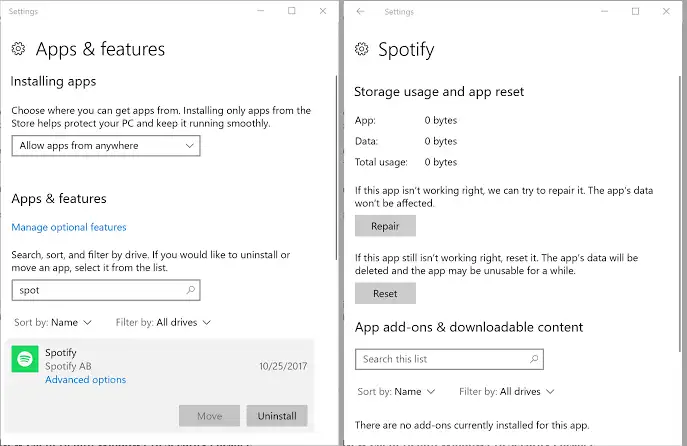
- For a traditional desktop program, open Control Panel > Programs > Programs and Features , select it, and use Repair or Change if supported.
- If neither repair route is available, back up relevant settings and data, then reinstall using the application's official installer. Follow its prerequisite installation prompts.
These repair routes follow Microsoft's Windows application repair instructions . Avoid selecting Reset without checking its effect on local data.
For a game or launcher
Use the launcher's supported file verification or repair function and let it restore missing game files. Then follow the publisher's prerequisite instructions. If the game launches through a separate launcher, test which component displays the error; its architecture and dependencies may differ from those of the game.
Do not download another user's DLL and drop it next to the game's executable. If you previously added replacement DLLs or unofficial modifications, record what changed and use the publisher's supported recovery procedure rather than deleting unfamiliar files at random.
Success check: open the same app, document, game mode, or launcher operation that originally failed. An error that appears only during a specific operation needs that operation retested.
Fix 3: Use Fionn DLL Fixer for an Assisted Scan
When to Use
This optional method suits persistent launch failures or cases involving several missing, damaged, or version-mismatched DLL and runtime components. The tool scans Windows application crashes, startup failures, and dependency-loading problems. It should follow the official Microsoft and application repair options rather than replace them.
Step-by-Step Guide
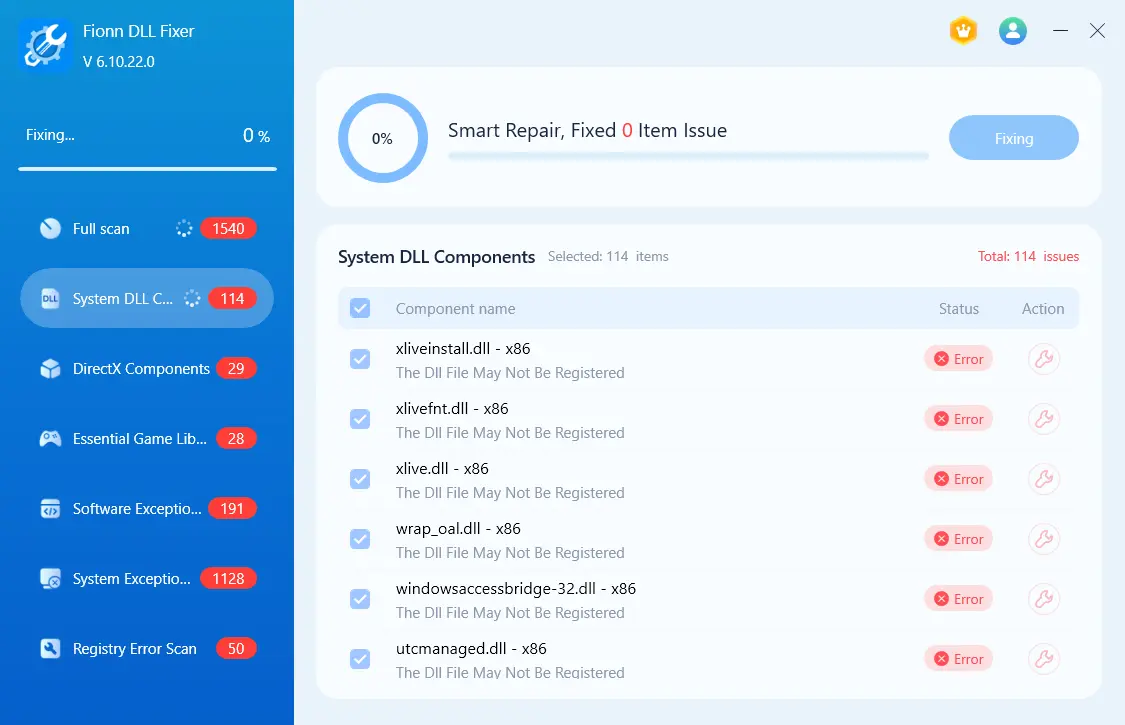
- Launch Fionn DLL Fixer. The software automatically scans your PC for DLL and system issues and displays the detected results when the scan is complete.
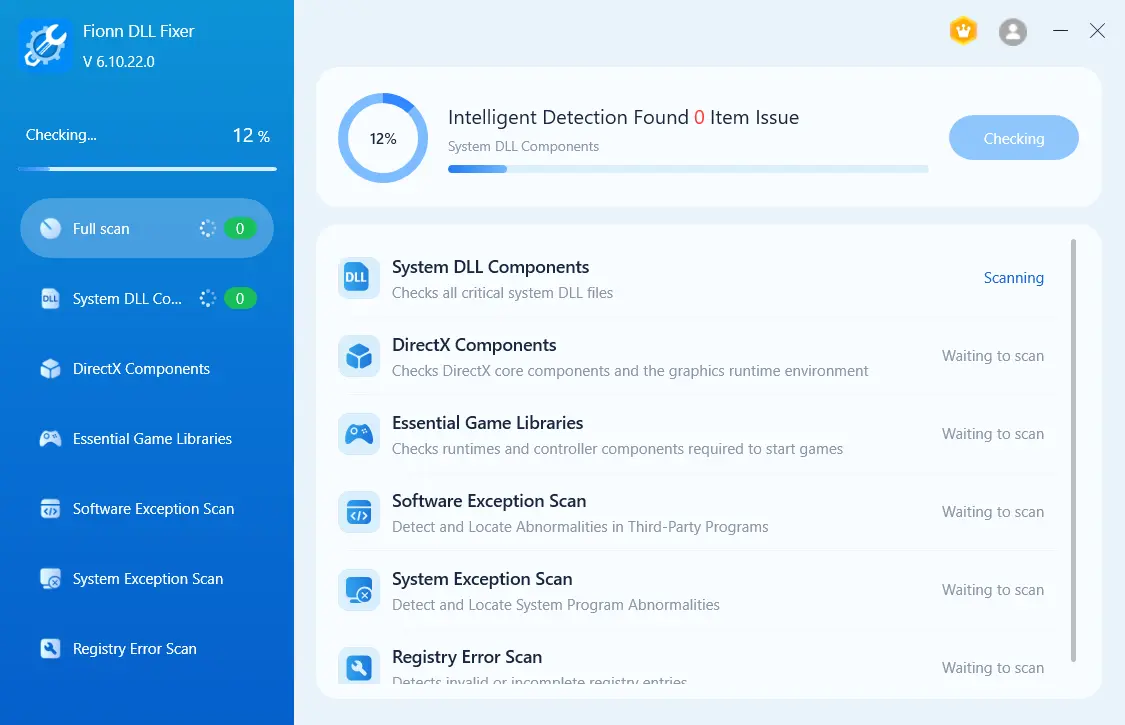
- After the scan finishes, click “Repair” to start fixing all detected DLL and system issues automatically.
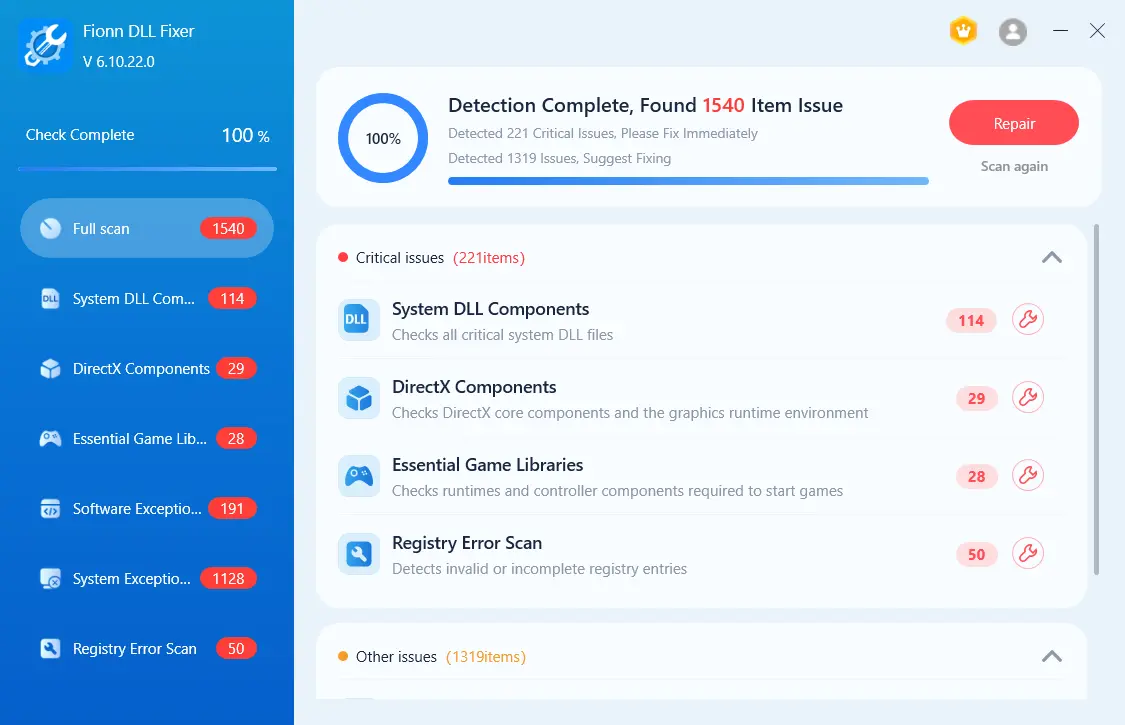
- Wait while the repair is in progress. During this process, the button changes to “Fixing” until all issues have been repaired.
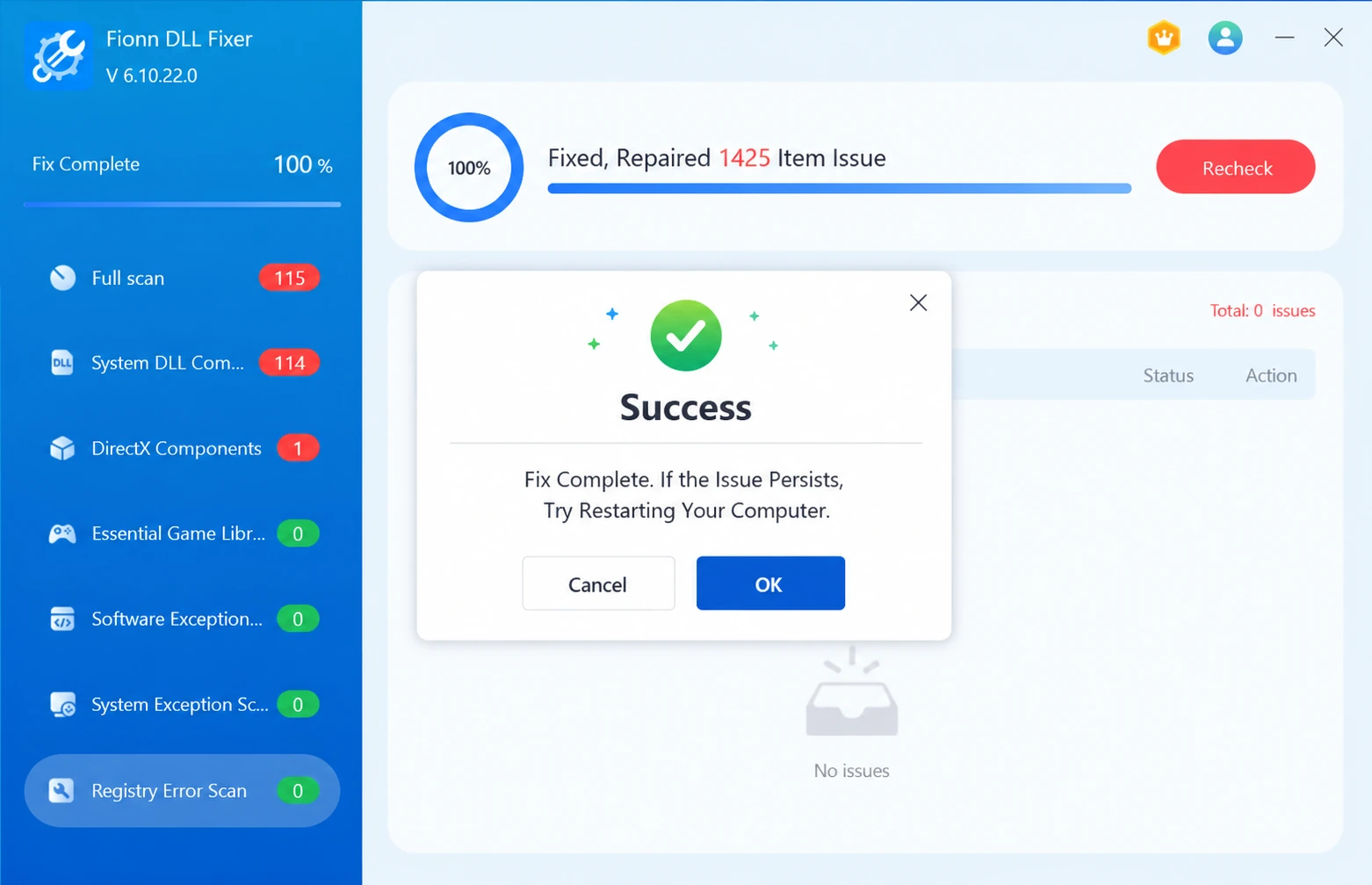
- When the repair is complete, click “Ok” in the confirmation dialog. If prompted, restart your computer before checking whether the problem has been resolved.
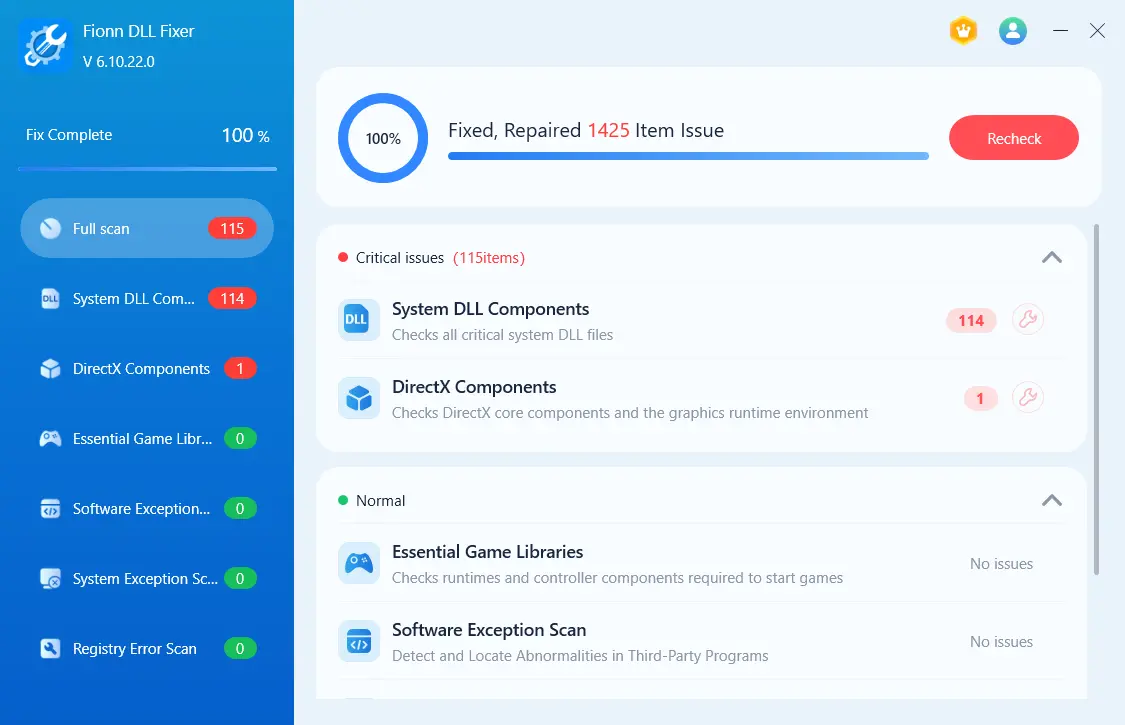
- If the issue still persists after restarting, click “Recheck” to perform another scan. If new issues are found, click “Repair” again to fix them.
How to Verify
Complete the recheck, then launch the application that produced the original message. Verification requires both a clean or improved scan result and a successful application launch. If the error remains, preserve its exact wording and contact the application's publisher or product support rather than repeatedly replacing individual files.
Still getting MSVCP140.dll errors? Follow the result
| Result after repair | What to check next |
|---|---|
| The runtime installer failed | Note its exact error code. Restart if an earlier setup requested it, check Windows updates, and use Microsoft's installation troubleshooting guide. |
| The runtime installed, but only one app fails | Check the app's version, architecture, local installation, and publisher's prerequisites. |
| Several apps still name MSVCP140.dll | Confirm the matching package repairs actually completed. Look for the common change that preceded the failures. |
| The message now names VCRUNTIME140.dll | Record the changed dependency and consult the related VCRUNTIME140 guide. Do not rename one DLL to the other. |
| The failure returns after an application update | Record the new app version and ask its publisher about prerequisite changes or a supported repair. |
When the Visual C++ installer will not complete
Follow
Microsoft's Redistributable installation troubleshooting guide
. Relevant setup logs commonly use names beginning with
dd_vcredist_
; installations launched by another product can use a different log location. Preserve the error code and logs for support rather than repeatedly downloading a standalone DLL.
When to investigate Windows itself
System File Checker is not a substitute for installing an application's Visual C++ prerequisite. If you also see broader Windows failures or protected system-file corruption, follow Microsoft's System File Checker guidance . Keep that system investigation separate from verifying the runtime and application installation.
MSVCP140.dll vs VCRUNTIME140.dll: related, not interchangeable
MSVCP140.dll supplies C++ standard library components; VCRUNTIME140.dll supplies other compiler runtime support. An application may depend on both, and an incomplete runtime installation can lead to more than one named DLL error. Repairing the appropriate complete package is more useful than collecting separate files.
If the dialog specifically names VCRUNTIME140.dll, see our VCRUNTIME140.dll troubleshooting guide . Files such as MSVCP140_1.dll or MSVCP140_2.dll also have distinct names: do not rename MSVCP140.dll to imitate them. Copy the exact filename when requesting help.
FAQ
Where can I download MSVCP140.dll safely?
Use the official Microsoft Visual C++ Redistributable linked above. It supplies runtime components as a package. Avoid a loose DLL from an unknown file library, and check the application's architecture and prerequisite requirements before installation.
Why is MSVCP140.dll missing on a new Windows installation?
The application may need a Visual C++ package that its setup did not install successfully. A newly installed operating system does not establish that every third-party application's runtime prerequisites are present. Run the official app installer and the appropriate runtime setup, then verify startup.
The file exists in System32 or SysWOW64. Why does the error remain?
A filename alone does not prove that the application is loading a compatible, intact copy. It may need another architecture or use a local dependency. Repair the matching runtime and the application instead of moving DLLs between Windows folders.
Can I fix this with regsvr32?
DLL registration is not a general repair for a missing Visual C++ dependency. It does not install the full runtime package or correct the application's architecture. Use the official runtime installer and the affected application's repair procedure.
Does the Russian MSVCP140.dll error require a different installer?
No separate Russian-language runtime is required. The same underlying missing-dependency message can appear in different languages. Choose the package by application requirements and architecture, not by the language of the dialog.
What should I send to support if the error persists?
Send the complete message, app name and version, Windows version, app architecture, installed runtime entries, and the result of each attempted repair. Include installer errors or logs if setup failed. This gives support a concrete starting point without assuming that every missing-file message has the same cause.
Final check
Install or repair the required Microsoft Visual C++ package, repair the application if needed, and test the original failing action after each change. Use the optional assisted scan for unresolved dependency issues. Once startup works, stop replacing files; keep the official runtime installation and the application's supported update path.


